

I cleared the cache on my Windows 11 laptop and within minutes the system felt noticeably lighter — apps launched quicker, window animations were smoother, and the general stutter that had crept into daily use receded. What started as a one‑time tidy-up turned into a short checklist I now run every few months. If your machine has been sluggish despite turning off background apps and adjusting power settings, a focused cache and temporary‑file cleanup is often the fastest, lowest‑risk speed boost you can give it.
Windows accumulates transient data constantly: temporary files generated by installers, update downloads, thumbnail and icon caches, browser caches, and other ephemeral stores. Those caches exist to make repeated tasks faster — but when they grow unchecked they can consume gigabytes of space, contribute to fragmented free space, and occasionally become corrupted. The result is precisely what most users notice: slower app launches, hiccups in the shell, and strange, short‑lived errors that resolve after a reboot or purge. Built‑in tools in Windows 11 make it straightforward to find and remove these files without third‑party utilities. Practical walkthroughs and community testing repeatedly show measurable wins from cleaning temporary stores and update caches.
Remember: a cleanup is rarely a permanent cure for systemic hardware constraints or deep‑rooted software problems. Treat cache clearing as one tool in a broader maintenance toolbox: automate routine cleanup with Storage Sense, keep drivers and Windows updated, and monitor resource usage to catch ambiguous slowdowns before they become frustrating.
If you haven’t cleaned your caches in a while, run the quick checklist above and expect a one‑time slowdown while caches rebuild — then enjoy the smoother, snappier experience that follows.
Source: MakeUseOf I cleared my Windows 11 cache and the difference was immediate
 Background
Windows accumulates transient data constantly: temporary files generated by installers, update downloads, thumbnail and icon caches, browser caches, and other ephemeral stores. Those caches exist to make repeated tasks faster — but when they grow unchecked they can consume gigabytes of space, contribute to fragmented free space, and occasionally become corrupted. The result is precisely what most users notice: slower app launches, hiccups in the shell, and strange, short‑lived errors that resolve after a reboot or purge. Built‑in tools in Windows 11 make it straightforward to find and remove these files without third‑party utilities. Practical walkthroughs and community testing repeatedly show measurable wins from cleaning temporary stores and update caches.What “clearing the cache” actually does
At a high level, clearing the cache removes files that Windows or applications created to speed up future operations but no longer strictly need. Those files fall into several familiar categories:- System temporary files — installer leftovers, setup logs, and short‑lived working files.
- User temporary files — app caches and files in %TEMP% and other per‑user temporary directories.
- Thumbnail and icon caches — stored previews used by File Explorer to avoid re‑rendering thumbnails on every folder open.
- Browser cache and site data — saved images, scripts, and cookies that speed up page loads.
- Windows Update cache — download staging areas used by Windows Update (the SoftwareDistribution folder) which can become corrupt and block future updates.
- Delivery Optimization and Store caches — peer‑to‑peer update chunks and Microsoft Store temporary data.
The performance math: why freeing a few GB sometimes feels dramatic
Performance improvements after cleaning come from two related effects:- Immediate reclaiming of free space reduces pressure on the filesystem. On SSDs that are close to full capacity, performance can degrade as drive controllers struggle with write amplification and garbage collection. Even a few gigabytes freed can noticeably reduce these effects on laptops with small NVMe or eMMC drives.
- Deleting corrupted or oversized caches removes the need for the OS and apps to continually re‑attempt reads from invalid entries or fall back into slower paths. That eliminates repeated short delays that accumulate to an obviously sluggish experience.
Short‑term tradeoffs and what to expect immediately after cleaning
Cleaning cache feels like an instant win, but there are a few temporary side effects to be aware of:- The first launch of some apps or websites may be slower than usual because their cache needs to be rebuilt.
- You may be signed out of certain websites or lose non‑persistent preferences if you clear browser cookies/site data.
- If you delete update caches proactively, Windows Update might need to re‑download updates — that’s normal but can use bandwidth and take time.
A practical, safe step‑by‑step: built‑in cleanup methods (recommended)
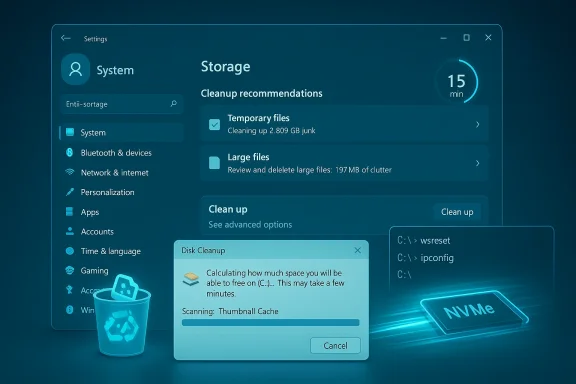
Below are the methods I use in order of safety and convenience. Each step is designed so you can review what will be deleted before you commit.1. Storage > Cleanup recommendations (Windows Settings)
This is the least risky place to start because Windows categorizes and explains each item.- Open Settings -> System -> Storage.
- Select Cleanup recommendations (or Storage Sense > Configure Cleanup Recommendations).
- Let Windows analyze your storage, then review the categories shown: Temporary files, Large or unused files, Files synced to cloud, Unused apps.
- Carefully review items — Windows will often flag Downloads and other folders you may still need.
- Select the safe items and click Clean up.
2. Disk Cleanup (classic tool, for system files)
Disk Cleanup remains useful for deeper removal — for example, removing Windows Update leftovers or previous Windows installations.- Search for and run Disk Cleanup (cleanmgr).
- Choose your system drive (usually C
 .
. - Click Clean up system files to include system categories like "Windows Update Cleanup" and "Previous Windows installations."
- Select items to remove, then click OK.
3. Clear specific caches (targeted commands)
For stubborn caches or specific symptoms, these focused fixes are best:- Clear Microsoft Store cache: Run wsreset.exe from the Run box — this resets the Store without removing installed apps.
- Flush DNS resolver cache: Open an elevated Command Prompt and run ipconfig /flushdns to clear cached DNS lookups.
- Rebuild Windows Update cache: Stop the Windows Update service, rename or remove the SoftwareDistribution\Download folder, then restart the service. This forces Windows Update to re-download updates and can resolve stuck update states.
What to clear (and when you should not)
Not every cache should be blindly removed. Here are recommended lines to draw.- Clear these when disk is low or you experience odd UI lag:
- System temporary files, recycle bin, thumbnail caches.
- Windows Update download cache (if updates are failing).
- Microsoft Store cache when store installs fail.
- Be cautious with:
- Browser cookies and site data if you rely on persistent logins.
- Files in Downloads unless you’ve reviewed them — Disk Cleanup and Storage will sometimes list this and it can contain important downloads.
- Application caches for complex professional apps (e.g., large Adobe project caches) without confirming you won't lose unsaved work.
Advanced caches and deeper cleanup (for power users)
If a basic cleanup isn't enough, the deeper caches below can be rebuilt safely but may require a little care.Thumbnail and icon cache
File Explorer caches thumbnails and icons to speed directory browsing. If Explorer shows wrong previews or icons, rebuild the cache:- Delete thumbnail cache via Disk Cleanup or remove IconCache.db in %userprofile%\AppData\Local, then restart Explorer. A controlled, manual rebuild is safe but take care to close Explorer first.
SoftwareDistribution (Windows Update)
When Windows Update repeatedly fails, rebuilding the SoftwareDistribution cache is a standard troubleshooting step:- Stop Windows Update and Background Intelligent Transfer services.
- Rename or delete the SoftwareDistribution folder (found in C:\Windows\SoftwareDistribution).
- Restart the services and check for updates.
Delivery Optimization and Store caches
When you see unusual bandwidth usage or the Store misbehaves, clearing Delivery Optimization and Store caches can help. Use Settings > Storage or the Store’s wsreset.exe utility for safe resets.When clearing the cache won't fix slowness
Cleaning temporary files is effective for many everyday slowdowns, but not all. Consider other likely causes if problems persist:- Insufficient RAM or heavy background services — CPU and memory bottlenecks will persist after cache cleaning.
- Aging or failing storage — an SSD or HDD near end of life can cause slowdowns that cache cleanup won't help.
- Outdated or buggy drivers — graphics, storage, and chipset drivers can produce system‑wide lag until updated.
- Bloatware or misbehaving security software — some third‑party security suites and OEM utilities can consume resources continuously.
Automating cleanup: Storage Sense and scheduled maintenance
To avoid accumulation, use Storage Sense (built into Windows 11) to automate routine cleanup:- Configure Storage Sense to automatically delete temporary files, empty the recycle bin after X days, and cleanup files in Downloads that haven’t been opened in Y days.
- Use its “run now” option for on‑demand cleanup.
Quick checklist: Safe cache cleanup in under 15 minutes
- Open Settings -> System -> Storage -> Cleanup recommendations. Remove safe items.
- Run Disk Cleanup (cleanmgr) and choose Clean up system files for Windows Update leftovers.
- Run wsreset.exe to reset Microsoft Store cache (if needed).
- Open an elevated Command Prompt and run ipconfig /flushdns.
- Restart the PC and observe responsiveness for a day.
Risks and safeguards — what you must not ignore
- Always review what a cleanup tool proposes to delete. The Windows Settings and Disk Cleanup tools show checkboxes on purpose.
- Back up important data before aggressive system changes like removing Previous Windows installations if you might want to roll back.
- If you don’t understand a specific cache (for example, a large vendor‑specific app cache), research or ask before deleting. Community threads often flag caches tied to particular apps that, if removed, will require time‑consuming reindexes.
- Avoid untrusted third‑party “cleaner” utilities that promise dramatic speed gains; they can delete needed files, change settings, and sometimes include bundled software. Trusted community guidance repeatedly suggests the built‑in Windows tools are often sufficient.
Real user scenarios: when the cache clear made a difference
I’ve seen three typical cases where cleaning caches fixes the entire problem:- A laptop with 10–15% free storage where reclaiming 5–10 GB reduced stuttering and improved browser and app responsiveness.
- Systems with stuck updates where deleting the SoftwareDistribution download cache fixed repeated failure states and allowed updates to complete.
- Visual glitches in Explorer (wrong thumbnails, stale icons) resolved by rebuilding the icon/thumbnail cache.
When to escalate: next steps if cleanup doesn't help
If a careful cache cleanup produces only minor improvement, take these next steps:- Check Task Manager for processes with high CPU, memory, or disk usage.
- Run a disk health check (SMART for SSD/HDD) and consider benchmarking sequential/random IO if you suspect storage issues.
- Update device drivers and run Windows Update again in a clean state.
- Consider a targeted debloat of vendor trialware and unnecessary background apps, but create a restore point first.
- If performance remains poor, test with a clean user account or a fresh Windows installation to determine whether the problem is software‑side or hardware.
Final verdict: quick wins, minimal risk
Clearing caches on Windows 11 is an excellent first step for a sluggish PC. It’s cheap (free), fast, and low risk when you use the built‑in tools and take a moment to review what’s being removed. For many users — especially those on smaller SSDs or with years of accumulated temporary files — the difference can be immediate and noticeable.Remember: a cleanup is rarely a permanent cure for systemic hardware constraints or deep‑rooted software problems. Treat cache clearing as one tool in a broader maintenance toolbox: automate routine cleanup with Storage Sense, keep drivers and Windows updated, and monitor resource usage to catch ambiguous slowdowns before they become frustrating.
If you haven’t cleaned your caches in a while, run the quick checklist above and expect a one‑time slowdown while caches rebuild — then enjoy the smoother, snappier experience that follows.
Source: MakeUseOf I cleared my Windows 11 cache and the difference was immediate
