

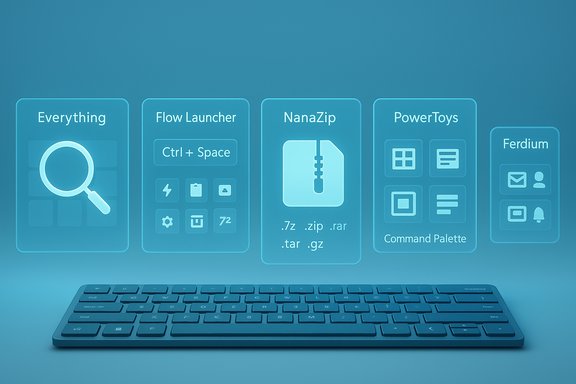
Windows users who want a faster, smarter, and more productive PC in 2025 no longer need to rely solely on the built-in tools that ship with Windows 10 and Windows 11 — a tight handful of third-party applications now deliver meaningful upgrades to search, launching, archiving, and web-app management without sacrificing security or stability. The five apps singled out in a recent roundup — Everything, Flow Launcher, NanaZip, Microsoft PowerToys, and Ferdium — represent pragmatic, low-friction additions any Windows user can install today to streamline daily tasks, reduce friction, and recover time otherwise spent hunting for files or juggling browser tabs.
Background
Windows has matured into a platform with millions of apps, but discovery remains fragmented: the Microsoft Store, GitHub releases, indie developer sites, and community forums all coexist, making it easy to miss small, powerful utilities. The five apps profiled here bridge that gap by addressing common pain points — slow system search, awkward app launching, clunky archive handling, missing productivity utilities, and the mental overhead of web-app tab management — while emphasizing speed, simplicity, and minimal system impact. This feature examines what each app does, why it matters in 2025, and practical guidance on safe installation and alternatives for different user-types.Everything — Instant local file search that actually feels instant
What Everything does
Everything is a lightweight desktop search engine for Windows that indexes file and folder names and returns results in milliseconds as you type. It intentionally indexes names (and optionally other metadata) rather than file contents by default, which keeps indexing fast and memory usage low even on very large drives. The developer documents show estimates such as a fresh Windows setup (≈120,000 files) indexing in roughly one second and a million files taking about a minute to index, with a memory footprint measured in tens of megabytes at that scale.Why it matters in 2025
Search is one of those invisible productivity features: slow or unreliable search wastes focus and time. Everything replaces the native Windows indexer for filename lookups, returning predictable results in real time and supporting advanced query syntax (wildcards, Boolean operators, regex). For users who remember part of a filename — not the folder it lives in — Everything frequently makes “where did I put that” searches vanish. Independent Windows-focused outlets and long-term community testing continue to confirm Everything’s speed and low resource use.Strengths
- Blistering search speed — near-instant results for filename searches.
- Low resource cost — scales to millions of entries while keeping memory use modest.
- Advanced syntax and filters — supports boolean logic, wildcards, and folder-limiting.
- Network and folder indexing — supports mapped drives and manual folder lists when needed.
Caveats and risks
- Content search is slow by design. Everything can search inside files via content: but it doesn’t index file contents by default, and content searches are significantly slower. Users who need full-text search across document contents should combine Everything with other tools or enable folder indexing at the cost of speed.
- Permissions and indexing scope. To index all NTFS volumes automatically, Everything needs the appropriate permissions; configuring network shares or non-NTFS volumes requires extra setup. Misconfigured indexes can leave expected results out of scope.
Installation and practical tips
- Download Everything from the official Voidtools site and prefer the installer that offers a background service if you want real-time updates for system-wide results.
- Start with filename-only indexing (the default) and add metadata indexes only if required.
- Combine Everything with a launcher (see Flow Launcher below) for the fastest keyboard-driven workflows.
Flow Launcher — A configurable, plugin-driven quick launcher
What Flow Launcher does
Flow Launcher is a fast application and file launcher for Windows that aims to be the power-user alternative to the Start menu. Triggered by a hotkey (commonly Alt+Space), it searches apps, files, bookmarks, settings, and the web; runs system and shell commands; performs calculations; and extends functionality via community plugins. It can leverage Everything’s index to deliver instant file results inside a unified launcher.Why it matters
Launchers reduce friction: fewer mouse trips, fewer clicks, and fewer open windows. Flow Launcher is highly extensible, supporting plugins written in .NET, Python, Node.js, and native executables. The plugin ecosystem allows adding capabilities such as Steam search, Obsidian integration, and GitHub notifications; that extensibility turns a small launcher into a modular productivity hub. Flow Launcher remains actively developed and ships package manager compatibility (winget, scoop, chocolatey) for convenient deployment.Strengths
- Extensible plugin architecture — hundreds of community plugins expand the core feature set.
- Everything integration — ties ultra-fast filename lookups into a launcher workflow.
- Cross-platform-style plugin support — enables scripting in multiple languages for advanced workflows.
- Customizable hotkeys and theming — supports user-tailored experiences.
Caveats and risks
- Plugin fragility and compatibility. Because many plugins are community-contributed, occasional breakage or API mismatches can occur. Keep Flow updated and review plugin repositories for active maintenance.
- Integration quirks with Everything. Users occasionally report compatibility issues when Everything uses experimental instance identifiers or alpha builds; the documented fixes are straightforward but may confuse less technical users.
Installation and setup guide
- Install Flow Launcher from its official site or via winget/scoop/chocolatey for automated management.
- If you use Everything, install Everything first and enable the service; then switch Flow’s Explorer plugin to use Everything for file searches.
- Browse the Flow plugin store and install only plugins from active, well-reviewed repos to minimize maintenance work.
NanaZip — A modern, store-friendly 7-Zip fork for archive management
What NanaZip does
NanaZip is an open-source fork of the proven 7-Zip archiver that wraps 7-Zip’s compression engine in a modern Windows-friendly user interface and Microsoft Store distribution model. It supports creating and extracting a wide range of archive formats (ZIP, 7z, TAR, GZ, BZIP2, XZ) and extracting formats such as RAR, ISO, and WIM. NanaZip adds Windows 11-style context menu integration, improved encryption options, UI theming (including dark mode), and performance optimizations relative to the stock Windows Explorer experience.Why it matters
Windows’ built-in archive tools are convenient but limited: they miss multivolume splitting options, advanced compression algorithms, and modern UX expectations in Windows 11. NanaZip modernizes 7-Zip’s capabilities with a contemporary interface and Store delivery — useful for organizations that prefer MSIX/store packaging or users who want seamless context-menu experience without hunting for a classic 7-Zip installer. Third-party coverage and community testing show NanaZip gaining traction as an accessible alternative.Strengths
- Modern UI with context menu integration — fits the Windows 11 visual language.
- Broad format support — both creation and extraction for most mainstream archive types.
- Active development and Store availability — easier updates and distribution for managed environments.
Caveats and risks
- Edge-case archive compatibility. Rare archive formats or malformed archives may behave differently across archivers; keeping WinRAR or another fallback installer for tricky RARs remains pragmatic.
- Store-only packaging constraints. Some users prefer portable ZIPs for admin installs; NanaZip’s MSIX/Store-focused delivery model may require additional steps for offline or tightly locked corporate environments.
Installation and practical tips
- Prefer the official GitHub releases or the Microsoft Store entry depending on whether portability or centralized store management is desired.
- Keep a secondary archiver (7-Zip or WinRAR) for rare corner cases; compare extraction behavior if an archive fails.
- Enable strong encryption for archives that contain sensitive files, but remember to manage passwords and keys securely.
Microsoft PowerToys — A Swiss Army knife of powerful utilities
What PowerToys does
Microsoft PowerToys is a collection of utilities that extend Windows with tools aimed at power users: FancyZones for window layouts, PowerRename for bulk renames, Always on Top, Image Resizer, Color Picker, Text Extractor, and the newer Command Palette launcher which is evolving into a Spotlight-style command center. Microsoft maintains PowerToys as an open-source project with regular releases and an active issue tracker and roadmap.Why it matters
PowerToys encapsulates many bite-sized productivity wins in a single, Microsoft-backed package. Because it’s maintained by Microsoft and distributed via GitHub and the Microsoft Store, it offers an appealing blend of advanced features and organizational trustworthiness. Newer modules like Command Palette are closing gaps between simple launcher experience and more powerful command invocation, effectively turning PowerToys into a consolidated toolkit for power users and casual gamers alike.Strengths
- Official backing and open-source transparency — Microsoft stewardship gives enterprise confidence.
- Diverse usefulness — from window management to developer-friendly tools, there’s something for most users.
- Rapid evolution — active feature additions like hotkey conflict detection and scheduled theme switching demonstrate responsiveness to user needs.
Caveats and risks
- Feature surface can overwhelm. PowerToys includes many utilities; enabling lots of modules without understanding their interactions can create unexpected hotkey conflicts or resource footprints.
- Enterprise policy and updates. Organizations should validate PowerToys modules before deploying widely, as some utilities alter system behavior in ways that might clash with corporate policies.
Installation and practical tips
- Install from the official Microsoft PowerToys GitHub release page or the Microsoft Store to ensure integrity and automatic updates.
- Audit modules and enable only what’s needed; use the hotkey conflict detection feature to avoid overlapping shortcuts.
- Leverage FancyZones for multi-monitor productivity setups and Command Palette for unified quick actions.
Ferdium — Tame web apps and multiple accounts in one container
What Ferdium does
Ferdium is an open-source desktop app that aggregates web services (chat, email, social, productivity) into a single window with support for multiple instances of the same service, workspaces, custom services, a built-in to-do panel, and optional cloud sync. It began as a fork in the “Franz/Ferdi” family of messaging aggregators and emphasizes privacy controls like notification masking and the ability to run entirely local without an account. The project is actively developed on GitHub with a community of contributors.Why it matters
Browser tab sprawl is a real productivity tax: multiple accounts, multiple tabs, and background web app noise degrade focus and system resources. Ferdium lets users centralize those apps in a single, manageable UI, providing per-workspace separation and resource-saving hibernation for inactive services. For teams and multitaskers who juggle accounts (e.g., personal Slack + work Slack), Ferdium lowers cognitive load and reduces the need for multiple browsers or container apps.Strengths
- Multiple instances & workspaces — easily manage different accounts and contexts.
- Resource management — service hibernation reduces CPU and memory impact of idle web apps.
- Open-source and community-driven — transparency around code and contributions.
Caveats and risks
- Third-party web services and authentication. Aggregators that load third-party web apps rely on service providers’ web interfaces; changes in those interfaces can break integrations or require updates.
- Security posture. Using a single app to host multiple logged-in accounts centralizes risk; users should employ strong device-level protections and consider multi-factor authentication for linked services. Consider using separate browser profiles for highly sensitive accounts instead.
Installation and practical tips
- Use Ferdium’s official downloads from the project site or GitHub, and prefer stable releases for daily use.
- For sensitive accounts (banking, enterprise SSO), evaluate whether a dedicated browser profile or separate browser is more secure than a web-aggregator.
- Use workspaces and the password lock feature to isolate contexts and protect access when the device is shared.
How to pick and combine these utilities for the best results
- Start with the fundamentals: install Everything for instant filename search and Flow Launcher to centralize launching and workflows; the two together replace many Start-menu and Explorer trips.
- Add PowerToys for system-level productivity utilities (FancyZones, PowerRename, Command Palette) and tune it to only enable the modules you need.
- Replace the stock archiver with NanaZip if context-menu integration and store-friendly packaging matter; keep a fallback archiver for complex or legacy formats.
- Use Ferdium only for non-critical web apps or where a single-window, workspace-driven approach simplifies day-to-day work; keep highly sensitive accounts in hardened browser profiles with separate MFA.
Alternatives and complementary tools
- For launchers: Alfred-style alternatives include PowerToys Command Palette (if you prefer an official option) and other launchers such as Keypirinha or Wox for different trade-offs.
- For searching file contents: combine Everything with a dedicated desktop search that indexes file content (or use Windows’ enhanced indexing when full-text search is required).
- For archives: classic 7-Zip and WinRAR remain relevant for corner cases; 7-Zip forks (including NanaZip) address UX and format gaps.
- For web app aggregation: Rambox and Ferdi are similar projects; choose the one with the best security model and update cadence for your needs.
Security, privacy, and enterprise considerations
- Prefer official distribution channels: Microsoft Store for store-packaged apps (NanaZip, PowerToys), and official project GitHub releases for others. This reduces the risk of third-party tampering or supply-chain surprises.
- Audit permissions and background services: Everything can run a service for real-time indexing; consider the security posture on shared or managed devices.
- Maintain a layered approach to sensitive accounts: aggregators such as Ferdium centralize multiple logins; combine with operating-system-level protections, device encryption, and strong multi-factor authentication where appropriate.
Final verdict — Why these five apps matter in 2025
The five applications highlighted here are not flashy enterprise suites; they are targeted, well-engineered utilities that fix specific, everyday frictions in Windows workflows. Together they deliver:- dramatically faster file search (Everything), making it trivial to locate files by name;
- a keyboard-first launcher with deep extensibility (Flow Launcher), enabling faster app and action invocation;
- a modern archiving UX that respects Windows’ evolving app model (NanaZip), replacing older installer models with Store/MSIX convenience;
- a collection of power-user utilities backed by Microsoft (PowerToys), delivering dozens of productivity improvements under a single, trusted umbrella;
- a sensible container for web apps and multi-account users (Ferdium), reducing browser tab sprawl and context switching.
Source: bgr.com 5 Essential Windows Apps Everyone Should Be Using In 2025 - BGR
