

Bottles is a practical, GUI-first bridge for running many Windows applications on Linux, and it can be the single tool that finally makes a full switch from Windows to Linux achievable for users who still depend on a handful of Windows-only programs.
Bottles is built on top of the Wine compatibility layer but wraps Wine in a modern, opinionated UI that manages per-application environments (called bottles), runtime selection, and common tweaks so users rarely need to touch the command line. The project is distributed primarily as a Flatpak package and is recommended in that packaging format precisely because it simplifies installs across distributions and improves isolation.
That architectural choice—Wine for API compatibility and Flatpak for delivery—makes Bottles an attractive, low-friction option for running legacy Windows utilities, productivity tools and many lighter games on Linux. It is not a universal solution; apps that require kernel-mode drivers, low-level anti-cheat hooks, or deep Windows-only subsystem features will still fail or be unstable. Bottles is one of several practical choices in the Linux toolbox for Windows software; others include raw Wine, Steam/Proton for games, and full virtual machines for maximum compatibility.
Opportunities:
Cautionary note: the specific release-level fixes and the Bottles 51.25 changelist mentioned in the LXer piece are useful indicators but should be validated against official Bottles release notes before relying on them for critical rollouts or features that change your workflow. Use Bottles as a pragmatic, test-first tool and keep a fallback (VM or Windows image) for the applications that refuse to play nicely.
Source: LXer: Linux News How to Run Windows Apps on Linux Using Bottles - FOSS Force
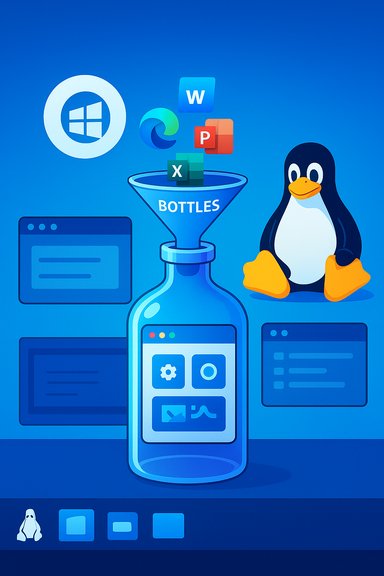 Background / Overview
Bottles is built on top of the Wine compatibility layer but wraps Wine in a modern, opinionated UI that manages per-application environments (called bottles), runtime selection, and common tweaks so users rarely need to touch the command line. The project is distributed primarily as a Flatpak package and is recommended in that packaging format precisely because it simplifies installs across distributions and improves isolation.That architectural choice—Wine for API compatibility and Flatpak for delivery—makes Bottles an attractive, low-friction option for running legacy Windows utilities, productivity tools and many lighter games on Linux. It is not a universal solution; apps that require kernel-mode drivers, low-level anti-cheat hooks, or deep Windows-only subsystem features will still fail or be unstable. Bottles is one of several practical choices in the Linux toolbox for Windows software; others include raw Wine, Steam/Proton for games, and full virtual machines for maximum compatibility.
What’s new (summary and verification)
A recent LXer write-up described a Bottles point release (51.25) that included several small but useful improvements: compatibility with the st terminal, improved Steam integration (BottleConfig loading from bottle.yml), a fix for CMD actions when running in the Xfce4 terminal, and better cleanup of placeholder folders when bottles are deleted.- Verification status: Bottles’ high-level behavior (Wine backend, Flatpak distribution, GUI-driven bottles) is well documented and confirmed by independent commentary and community guides.
- Caution: The specific release number (51.25) and the detailed change list referenced above are taken from the LXer content provided. Those fine-grained release notes were not found in the local discussion archives returned by the file search used for this article, so the release-specific items are treated as reported by the LXer piece. They should be cross-checked against the Bottles project release notes or the project’s Flathub/GitHub page before relying on them for deployment decisions. Treat that version-level detail as user-provided and verify on the official project channels if you must rely on it.
Why Bottles matters (technical context)
Bottles vs. Wine vs. Proton vs. VMs
- Wine implements Windows APIs in user-space so Windows executables can run without a Windows kernel. It’s the foundational compatibility technology that Bottles leverages. Bottles simply makes Wine easy to use by managing per-app environments, dependencies and common tweaks in a GUI-first experience.
- Proton (Valve/Steam) is Wine-based but heavily patched and tailored for games (DXVK, VKD3D-Proton, and many game-specific patches). Use Proton when your primary goal is gaming via Steam. Bottles can run some games but lacks Proton’s deep, game-focused patches and Steam integration unless you intentionally configure Bottle runtimes and libraries for gaming.
- Virtual machines (VirtualBox, QEMU/KVM, Quickemu) run a full Windows guest and provide the highest compatibility at the cost of resource overhead and more complex integration. If a Windows app provides kernel drivers or licensing enforcement at the kernel level, a VM is often the safe choice.
The Bottle concept
A bottle is an isolated environment that contains:- A controlled Wine/runtime version (you can pick Wine, Soda, or other runtime backends Bottles exposes),
- Per-bottle settings (DLL overrides, registry tweaks, Proton or DXVK etc. where applicable),
- A container for installed Windows apps so they do not contaminate the host system or other bottles.
Installation — step-by-step (recommended approach)
Bottles is recommended and commonly installed as a Flatpak from Flathub. The Flatpak delivery makes Bottles portable across distros and reduces packaging fragmentation.- If Flatpak is not already installed, install it for your distribution:
- Debian/Ubuntu-based:
- sudo apt-get install flatpak -y
- Fedora:
- sudo dnf install flatpak -y
- Arch-based:
- sudo pacman -S flatpak
- Add the Flathub repo (only needed once):
- flatpak remote-add --if-not-exists flathub https://dl.flathub.org/repo/flathub.flatpakrepo
- Install Bottles from Flathub:
- flatpak install flathub com.usebottles.bottles -y
- Log out and log back in (so desktop menus and Flatpak paths become available). Launch Bottles from your desktop environment.
First-time setup and installing a Windows app (practical walkthrough)
Once Bottles opens, you’ll typically be guided by an onboarding wizard that downloads runtimes, DXVK, and other optional components.- Onboarding: follow Bottles’ onboarding wizard. It will download needed runtimes and helper packages; this can take several minutes.
- Create a bottle:
- Click the “+” icon or “New Bottle.”
- Choose a name, a category (Application, Gaming, Custom), and a runtime backend (Soda or sys-wine are common choices).
- Accept defaults for directory unless you need to store bottles on a specific partition.
- Install the app:
- Download the Windows installer (.exe or .msi) of the app you want.
- In Bottles, open the bottle and click “Run Executable” (or “Install Programs”), then select the downloaded installer.
- Walk through the Windows-style installer; the program will be installed inside the bottle.
- Launch and manage:
- After install complete, run the app from Bottles’ UI.
- Use the bottle’s Settings to tweak DLL overrides, environment variables, or to enable DXVK/FSR as required.
Key features and strengths
- Per-bottle isolation keeps apps separate and prevents cross-contamination of settings and DLL overrides.
- Graphical UI lowers the barrier to using Wine for non-technical users.
- Flatpak distribution standardizes installation across distros and improves sandboxing.
- Runtime selection lets you switch Wine, Soda or other compatible backends per-bottle.
- App catalog / recipes automate common installs and the required tweaks for many applications.
Troubleshooting: common problems and fixes
Fonts and UI rendering
Font rendering occasionally looks off with some Wine-based apps. Typical mitigations:- Install corefonts or use winetricks-equivalent installs from within the bottle.
- Try a different Wine runtime or toggle font smoothing settings inside the bottle.
Community reports indicate font issues can be app- and environment-specific; try changing runtime or enabling native Windows fonts inside the bottle.
Audio problems
Sound can be hit-or-miss depending on the app and the audio backend. If audio is broken:- Check that the bottle has the correct audio backend (PulseAudio / PipeWire).
- Test other audio in the bottle and on the host to isolate the issue.
CMD actions in specific terminals / desktop environments
Some terminal-specific integrations (for example, Bottles’ CMD actions inside Xfce4 terminal) have historically had edge-case bugs. If a terminal action fails, try:- Running the executable directly from the bottle’s Run menu,
- Or launching a terminal within the bottle and executing the command there.
Gaming with Bottles — what to expect
Bottles can run some games, particularly older or less anti-cheat-sensitive titles, but it lacks Valve’s deep Proton patches and game-specific adaptations by default. For gaming workflows:- Prefer Steam + Proton for titles you’ve purchased on Steam—Proton includes DXVK and VKD3D-Proton and is continuously tuned for gaming.
- Use Bottles for non-Steam Windows games or utilities; but don’t expect parity with Proton’s compatibility for many modern AAA titles.
Security, licensing, and operational considerations
- Bottles uses Wine: no Windows license is required to run most apps under Wine/Bottles. However, if an app explicitly requires an installed and licensed Windows environment or if you plan to run proprietary Windows images (e.g., in a VM), check license terms. When moving away from Windows 10 due to end-of-support, Bottles helps keep many apps working under Linux but it is not a substitute for proper software-license compliance in enterprise environments.
- Sandboxing and Flatpak: Flatpak improves isolation and reduces the chance that Windows apps will unintentionally touch unrelated parts of the system. However, some advanced integrations (hardware passthrough, low-level drivers) are harder under Flatpak’s sandbox, and users may need to allow extra permissions.
Alternatives and when to choose them
- Wine (raw): Use when you want granular control and are comfortable with winetricks, prefix tweaking, and manual DLL overrides.
- Bottles: Use when you want GUI convenience, per-app isolation, and recipe-driven installs.
- Steam + Proton: Use for Steam-purchased games with high compatibility expectations.
- Virtual machine (QEMU/KVM, VirtualBox): Use for apps that require kernel drivers, vendor-signed kernel modules, or highest fidelity with Windows itself.
- Containerized Windows (e.g., WinBoat): An emerging option that runs a full Windows guest in a container and can expose apps via RDP—higher fidelity but experimental and with non-trivial prerequisites. These options are valuable when Wine-based approaches fail.
Advanced tips for power users
- Use per-bottle environment variables to mimic expected Windows behavior (e.g., locale, TEMP paths).
- Drop-in DXVK or VKD3D builds into bottles if a game needs better Direct3D-to-Vulkan translation, but test in a disposable bottle first.
- Export/install fonts and Microsoft corefonts inside a bottle to fix rendering issues for text-heavy apps.
- Keep critical apps in separate bottles and snapshot configuration files or export the bottle directory to back up settings.
Limitations and risks (clear-eyed view)
- Not every Windows app will run. Apps requiring kernel-level drivers, hardware vendor plugins, or deep OS-level integrations will likely fail under Wine/Bottles. Expect to test each target app individually.
- Sound and font glitches are commonly reported and often app-specific; they usually have workarounds but some combinations of compositors, audio servers (PulseAudio vs PipeWire), and DEs can be tricky.
- Flatpak sandboxing trade-offs. Flatpak eases installation but can make hardware-level integration harder. If you depend heavily on USB dongles, proprietary hardware tokens, or vendor-signed kernel modules, test carefully.
- Version-specific claims need verification. If you depend on a particular Bottles release (for example, to pick up a bug fix or an integration update), verify the release notes in Bottles’ official channels before assuming a local write-up or blog post covers every change. The LXer-sourced release details in the starting brief are useful but should be validated against the project’s official releases. Treat single-article release notes as a prompt to confirm.
A migration checklist (practical, actionable)
- Inventory your Windows apps and mark which absolutely require Windows kernel features.
- For each app, check:
- Wine AppDB / Bottles’ recipe library (if available).
- ProtonDB (games).
- Test the most critical apps in Bottles:
- Create a disposable bottle and install the app.
- Validate workflows (printing, file I/O, clipboard, audio).
- If Bottles/Wine fails, test in a VM before resigning to keeping a physical Windows machine.
- Backup your data and configuration (Timeshift or equivalent) before making large changes.
- Keep a plan to return (dual-boot or snapshot) until you are comfortable.
Final analysis — strengths, opportunities, and what to watch
Bottles is powerful because it turns Wine from a technical exercise into a practical tool for real users. Its strengths are the GUI, per-bottle isolation, and the Flatpak distribution model that makes installation across distros reliable. For users deciding whether to migrate off Windows 10 (or avoid Windows 11 hardware requirements), Bottles can remove a major barrier: the fear of losing access to small but critical Windows utilities.Opportunities:
- Continued improvement in runtime options (Soda, Proton-like bundles for games) could increase Bottles’ coverage for newer games.
- Tighter integration with Steam or additional automated recipes would strengthen its position as a universal bridge for the occasional Windows-only app.
- Bottles cannot fix hardware- or kernel-level incompatibilities.
- Reliance on a Flatpak runtime means some hardware integrations will remain outside its immediate reach.
- Version-specific claims and small-change release notes reported in a single article should be confirmed from the Bottles project directly before operational changes.
Conclusion
Bottles is the best GUI-first Wine wrapper available today for many users who need to run Windows apps on Linux. It simplifies the messy parts of Wine, uses per-app bottles to keep systems tidy, and—when installed as the Flatpak from Flathub—gives a consistent cross-distro experience. For most productivity apps and many lightweight games, Bottles will be the fastest, least-frustrating route to continuity when migrating from Windows to Linux. For heavyweight, kernel-dependent or anti-cheat–protected software, treat Bottles as a first try and fall back to Proton (for Steam games) or a VM as needed.Cautionary note: the specific release-level fixes and the Bottles 51.25 changelist mentioned in the LXer piece are useful indicators but should be validated against official Bottles release notes before relying on them for critical rollouts or features that change your workflow. Use Bottles as a pragmatic, test-first tool and keep a fallback (VM or Windows image) for the applications that refuse to play nicely.
Source: LXer: Linux News How to Run Windows Apps on Linux Using Bottles - FOSS Force
