Call of Duty Black Ops 7 PC Roadmap: TPM 2.0 and Secure Boot

  • Thread Author
Call of Duty: Black Ops 7 lands with a clear, tiered PC roadmap, an enforced anti‑cheat posture that now reaches into the firmware layer, and a timed preload window for players who bought digitally — all designed to reduce day‑one friction but also to raise the minimum bar for many older Windows systems.

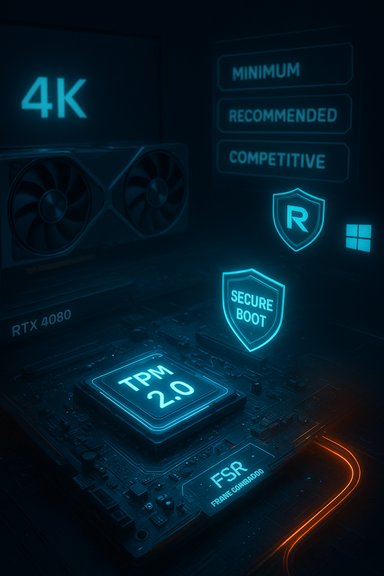
A futuristic hardware display featuring 4K, RTX 4080 GPU, TPM 2.0, Secure Boot, and Windows icons.Background / Overview​

Beenox — working with Treyarch and Activision — delivered the PC build as a platform‑first client engineered to give Windows players control over performance and visuals. The team emphasizes deep customization, modern upscaling and frame‑generation options, and tools to help tune a wide range of hardware, from handhelds and laptops up to high‑end 4K rigs. That engineering intent shows in the shipped feature list: a built‑in benchmark, explicit vendor upscaler support (including AMD FSR 4), ultrawide and handheld UI scaling, and integration with peripherals such as Corsair iCUE RGB. At the same time, Activision and the RICOCHET anti‑cheat team have pushed platform attestation into the boot chain: TPM 2.0 and UEFI Secure Boot are required to play on PC. That move is intended to make kernel‑level and persistent cheats harder to deploy, but it also introduces compatibility trade‑offs that will affect older motherboards, non‑UEFI installs, and many Linux/Proton environments. The official PC support notes make this enforcement explicit and provide the vendor‑recommended driver builds to reduce day‑one regressions.

What you need to run Black Ops 7 on PC​

Below is a consolidated and verifiable breakdown of the three official PC tiers as published by Activision and visible across major storefronts. These are the numbers players should plan against when deciding whether to upgrade, enable firmware features, or clear storage before preload.

Minimum (Playable)​

  • OS: Windows 10 64‑bit (latest update).
  • CPU: AMD Ryzen 5 1400 or Intel Core i5‑6600.
  • RAM: 8 GB.
  • GPU: AMD Radeon RX 470 or NVIDIA GeForce GTX 970 / GTX 1060 or Intel Arc A580.
  • VRAM: 3 GB.
  • Storage: SSD with 116 GB available at launch.
  • Other: DirectX 12, broadband internet, TPM 2.0 + Secure Boot required.

Recommended (Comfortable / 60 FPS)​

  • OS: Windows 11 64‑bit (latest update).
  • CPU: AMD Ryzen 5 1600X or Intel Core i7‑6700K.
  • RAM: 12 GB.
  • GPU: AMD RX 6600 XT / NVIDIA RTX 3060 / Intel Arc B580.
  • VRAM: 8 GB.
  • Storage: SSD with 116 GB available.

Competitive / Ultra 4K (High‑end)​

  • OS: Windows 11 64‑bit (latest update).
  • CPU: AMD Ryzen 5 5600X or Intel Core i7‑10700K.
  • RAM: 16 GB.
  • GPU: AMD RX 9070XT / NVIDIA RTX 4080 / NVIDIA RTX 5070 class.
  • VRAM: 16 GB.
  • Storage: SSD with 116 GB available.
The Steam product page reflects the same Minimum and Recommended blocks and adds platform‑level notes (for example, Steam requires a mobile phone number linked to the account to play), underscoring that store pages and publisher support are aligned at launch.

Preload and launch: dates, times, and regional rollout​

  • Preload window: Digital pre‑purchases can begin preloading on November 10 at 9:00 AM PT (regional times will vary). Preload includes Campaign, Multiplayer, and Zombies assets.
  • Launch: The game becomes playable at midnight local time on November 14 (global simultaneous launch — local clocks determine access). Many storefronts treat unlocks as local midnight events, so your time zone determines when you can first play.
Practical note: Activision and platform storefronts caution that the 116 GB figure is the base launch install and additional space may be required for mandatory post‑launch updates. To avoid installer failures or temporary disk‑space errors during preload, plan for at least 150–200 GB of free space temporarily while downloading and patching.

Why TPM 2.0 and Secure Boot now matter (and what they actually check)​

The anti‑cheat architecture for Black Ops 7 ties RICOCHET deeper into the boot and firmware stack. The two enforced requirements are:
  • TPM 2.0 (Trusted Platform Module): provides a hardware root of trust and allows measured‑boot attestation; encrypted keys and cryptographic proofs can be used to demonstrate that a system booted into an expected firmware state.
  • UEFI Secure Boot: prevents unsigned or tampered boot components from loading early in the chain, making it harder for bootkits and certain kernel cheats to persist.
These checks are used to establish a trusted platform baseline before the player connects to online services; they are not described by the publisher as a file‑level content inspection tool. Nevertheless, requiring firmware attestation changes the compatibility landscape and increases setup friction for many users, especially those on legacy MBR disks, custom OS setups, or non‑standard boot chains. How to confirm readiness (quick):
  • Press Windows + R → type tpm.msc → check TPM Manufacturer Information and ensure TPM Specification Version = 2.0.
  • Press Windows + R → type msinfo32 → confirm BIOS Mode: UEFI and Secure Boot State: On.
  • If your disk is MBR or Secure Boot is Off, you may need to convert to GPT (mbr2gpt.exe) and enable firmware TPM (Intel PTT / AMD fTPM) in UEFI — suspend BitLocker first if enabled.
Caveat: some handheld and embedded Windows devices expose different firmware interfaces; check OEM guidance before toggling Secure Boot or TPM settings. Activision’s support documents and platform pages highlight this explicitly.

PC features, scaling and what Beenox built for Windows​

Black Ops 7’s PC client was intentionally engineered for a wide hardware spectrum. Key highlights and what they mean in practice:
  • Over 800 customization options: deep control of graphics, HUD, input and accessibility to tune gameplay around CPU, GPU and display constraints. This level of granularity helps players tune performance without blind guessing.
  • Upscaling & frame generation: native support for AMD FSR 4 and other vendor upscalers means players can use image reconstruction or AI frame synthesis to convert GPU headroom into higher framerates. Expect these modes to be the fastest route to stable 1440p/144 on mid‑range hardware.
  • Built‑in Benchmark Tool: a PC benchmark is provided so players can test presets and gather a baseline before committing to competitive play or streaming sessions. Use it after driver updates to set realistic targets for resolution and framerate.
  • Peripherals & input fidelity: sub‑frame mouse polling and Corsair iCUE integration are intended to reduce input jitter and produce coordinated lighting effects tied to in‑game events. These are quality‑of‑life additions for higher‑end setups.
Taken together, these features prioritize choice — players can optimise either for visuals or raw FPS — but vendor driver maturity (and the recommended driver revisions at launch) will influence stability. Activision explicitly lists driver build numbers to reduce unpredictable regressions on day one.

Handheld and Windows‑based portable support​

Beenox confirms native optimization for Windows handhelds such as the ROG Ally and ROG Ally X. That includes UI scaling, control mappings, and tuned power/profiles to conserve battery while preserving image quality. This is a deliberate move to support an expanding handheld Windows market, but remember that the firmware‑attestation requirement may still block some Linux‑based handheld experiences and non‑standard OS images.

Preorder bonuses and editions (what you actually receive)​

Players who pre‑purchase on PC receive immediate digital bonuses; specifics vary by edition:
  • Standard preorder bonuses: Reznov Challenge Pack and Guild Override Weapon Camo (usable in Warzone and Black Ops 6).
  • Vault Edition extras (higher tier): Operator Collection, Mastercraft Weapon Collection, Ultra GobbleGum Pack for Zombies, Permanent Unlock Token, and one season pass (season of BlackCell). These contents are typical of premium editions that bundle cosmetics and early content access.
Note: Activision clarified there is no 72‑hour early access for premium editions; the full release remains a timed global launch on November 14 (midnight local). That clarification addresses earlier confusion in the prelaunch narrative.

Practical day‑one checklist — prepare your PC in under 15 minutes​

  • Backup important files and export BitLocker recovery keys to cloud or removable media.
  • Check TPM: Run tpm.msc → confirm TPM Specification Version = 2.0.
  • Check Secure Boot: Run msinfo32 → confirm BIOS Mode = UEFI and Secure Boot State = On. If not, plan a maintenance window to toggle these settings and convert MBR→GPT if needed.
  • Update UEFI/BIOS: Install the latest stable firmware from your motherboard/OEM to address known TPM or Secure Boot oddities.
  • Update GPU drivers to the publisher‑recommended builds (AMD 25.9.2, NVIDIA 581.42, Intel 32.0.101.8132) or the latest WHQL driver if you prefer.
  • Free up disk space: make 150–200 GB available during preload; final install is reported at ~116 GB but headroom reduces hiccups.
  • Start the preload on November 10 at 9:00 AM PT if you pre‑purchased digitally, and verify your platform unlock time (local midnight policies vary).

Risks, trade‑offs and what to watch for after launch​

  • Exclusion of older hardware: requiring TPM 2.0 and Secure Boot will prevent some older systems from participating without firmware upgrades or hardware replacement. This is a real accessibility cost for users on legacy PCs.
  • Linux / Proton / Steam Deck uncertainty: Secure Boot requirements and kernel anti‑cheat stacks make Proton‑based compatibility fragile; expect blocked experiences at launch unless publisher/vendor accommodations arrive.
  • BitLocker and MBR→GPT pitfalls: converting system disks or enabling Secure Boot without suspending BitLocker can trigger recovery prompts and data access issues. Always export recovery keys and suspend encryption before making firmware changes.
  • Driver & telemetry friction: new upscalers/frame‑generation integrations frequently spawn hotfix drivers after launch. Also, hardware attestation can produce telemetry signals that some users may find intrusive; publishers say attestation does not access personal files, but governance questions remain.
  • Day‑one service issues: large live‑service shooters still face matchmaking, entitlement, and server congestion issues at launch — preloading and patching in advance reduces but does not eliminate that risk.

Performance expectations: mapping specs to real play​

These are realistic expectations based on the published tiers and modern GPU behavior:
  • Minimum: Likely 1080p with low to medium settings. Expect ~30–60 FPS depending on scene complexity and whether upscalers are enabled. Heavy features like ray tracing will be off.
  • Recommended: A comfortable 60 FPS at 1080p and competitive 60 FPS at 1440p with upscalers enabled on cards like the RTX 3060 or RX 6600 XT. This tier is the practical sweet spot for most players.
  • Competitive / 4K: Native 4K with maxed settings will require flagship GPUs (RTX 4080 class or equivalent). To hit high refresh (144+ Hz) at 1440p, frame generation and AI upscalers will be the practical route for many players.
If competitive or high‑refresh performance matters, prioritize CPU multi‑core performance, NVMe SSD streaming, and 16 GB RAM to avoid CPU‑side frame pacing limits.

Troubleshooting: common fixes for the most likely day‑one problems​

  • If the game refuses to launch with a TPM error: update UEFI/BIOS, enable Intel PTT or AMD fTPM, and re‑check via tpm.msc. If Windows reports TPM not present, confirm the motherboard actually has a TPM sip or firmware TPM support.
  • If Secure Boot blocks or your disk is MBR: validate with msinfo32, export BitLocker keys if used, then run mbr2gpt.exe /validate followed by /convert in Windows PE or from the running OS with proper precautions. Suspend BitLocker before converting.
  • If anti‑cheat causes crashes after an update: roll back to the publisher‑recommended GPU driver (listed in support) and check for hotfix drivers from AMD/NVIDIA/Intel. Also ensure other kernel drivers (third‑party security, virtualization) are not conflicting.
  • If you see entitlement/matchmaking errors at launch: verify your store entitlement (Battle.net / Steam / Xbox on PC), run the launcher as admin, and confirm your mobile phone link or two‑factor authentication state if the store imposes those checks.

Final assessment — what this launch signals for PC gaming​

Black Ops 7’s PC presentation is a balanced act: it demonstrates substantive investment in scalability, developer tooling, and handheld support while formalizing an industry trend of moving anti‑cheat earlier in the boot chain. That choice strengthens detection against low‑level cheats and persistent kernel threats, but it also increases compatibility friction for older or non‑standard systems.
For the majority of mainstream Windows gamers with a relatively modern system, the path to play is straightforward: enable TPM and Secure Boot, update firmware and drivers, free the necessary SSD space, and preload on November 10 to be ready at local midnight on launch day. For those on legacy hardware, Linux/Proton setups, or heavily customized boot chains, expect extra work or the need to delay participation until publisher/vendor workarounds emerge. Black Ops 7 aims to deliver a polished, configurable PC experience. The technical prerequisites are more demanding than earlier generations, but they are also the practical cost of a stronger anti‑cheat posture and the scalability to run across handhelds through to high‑end 4K rigs. Prepare your system now, follow the checklist above, and expect both initial teething issues and rapid follow‑up patches during the first days and weeks after launch.


Source: TechJuice Call of Duty: Black Ops 7 System Requirements & Preload Details
 

Installing Windows 11 is straightforward when you prepare carefully, follow a tested sequence of steps, and respect Microsoft’s hardware and firmware requirements—this guide breaks down the full process, verifies the technical specifications, compares installation methods, and flags the common pitfalls and unsupported workarounds so you can choose the safest path for your PC.

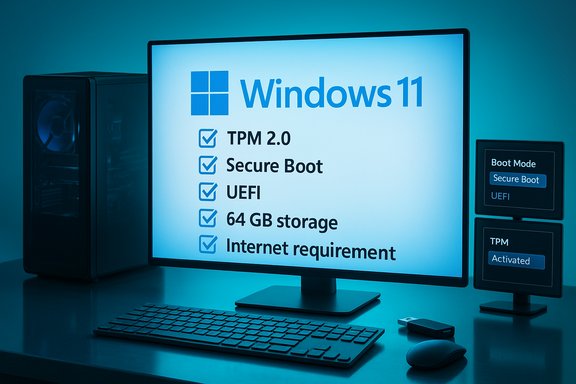
Windows 11 readiness checklist displayed on a desktop monitor with TPM 2.0, Secure Boot, and UEFI.Background / Overview​

Windows 11 delivers a refreshed desktop, tighter security, and platform improvements for gaming and productivity. Before attempting an upgrade or clean install, confirm your PC meets the minimum system requirements and create reliable backups; skipping these steps is the single largest cause of failed upgrades and data loss. The guidance below consolidates a practical step‑by‑step workflow from a popular how‑to piece while cross‑checking Microsoft’s official requirements and community best practices to ensure accuracy and safety.

What you must verify first: Windows 11 minimum system requirements​

Microsoft defines the minimum hardware and firmware floor for Windows 11. The key items are:
  • CPU: 1 GHz or faster, 2 or more cores, 64‑bit processor that appears on Microsoft’s approved CPU list.
  • Memory (RAM): 4 GB minimum.
  • Storage: 64 GB or larger internal storage device (this is the published minimum; practical installs typically require more free space for temporary files and updates).
  • System firmware: UEFI with Secure Boot capability enabled.
  • TPM: Trusted Platform Module (TPM) version 2.0 required (often available as a firmware option called fTPM or PTT).
  • Graphics / Display: DirectX 12–compatible GPU with WDDM 2.x driver and a display of at least 720p and 9” diagonal.
  • Internet & Account: Windows 11 Home requires an internet connection and a Microsoft account during Out‑Of‑Box Experience (OOBE); other editions may also require connectivity for activation or certain features.
These requirements are authoritative and are published on Microsoft’s support and documentation sites; read them carefully because failing one (commonly TPM 2.0, Secure Boot, or unsupported CPU) is the most frequent blocker for upgrades.

Pre‑installation checklist: prepare so the upgrade goes smoothly​

Do not skip these preparatory steps. They typically take 20–60 minutes and save hours of trouble if things go wrong.
  • Back up your data (mandatory). Use a combination of cloud sync (OneDrive is integrated) and a local copy (external SSD/HDD or a full disk image). Test a restore of at least a few critical files.
  • Verify current Windows version and patch level: if you’re on Windows 10, ensure you’re fully updated—this helps the in‑place upgrade path.
  • Run the PC Health Check app (Microsoft) to confirm compatibility and to expose firmware toggles you may need to enable (TPM, Secure Boot).
  • Update UEFI/BIOS and device drivers from your OEM (Dell, HP, Lenovo, ASUS, etc.. Firmware updates sometimes expose TPM or fix compatibility issues.
  • Free up disk space: aim for at least 20–30 GB free before starting; for long‑term comfort, 64 GB or more for the system partition is recommended.
  • Disable or uninstall third‑party antivirus or disk‑level encryption temporarily if vendor guidance suggests doing so—these can interfere with setup.

Choosing your installation method: pros and cons​

There are four supported and commonly used installation methods; each has distinct trade‑offs.
  • Windows Update (in‑place upgrade)
  • Pros: Simplest, preserves apps/settings; Microsoft‑managed.
  • Cons: Rollout is phased—your device may not be offered the update immediately.
  • Windows 11 Installation Assistant (official tool)
  • Pros: Guided in‑place upgrade, preserves apps and settings, useful when Windows Update hasn’t offered the update yet.
  • Cons: Requires on‑device compatibility; may refuse unsupported hardware.
  • Media Creation Tool (create bootable USB or ISO)
  • Pros: Official Microsoft tool; flexible for clean installs, reinstalls, and multi‑PC deployment.
  • Cons: Requires manual media creation; clean installs erase the disk if you choose them.
  • ISO / Rufus / third‑party tools (clean install or custom media)
  • Pros: Maximum control; useful for imaging and offline installs. Rufus is popular for creating bootable USB drives.
  • Cons: Some Rufus/third‑party options include "extended" modes that bypass Microsoft checks—these are unsupported and risky for updates and security. Proceed only with full awareness of the tradeoffs.
When in doubt, prefer Windows Update or the Installation Assistant for the safest, Microsoft‑approved upgrade path.

Step‑by‑step: recommended path for most users (in‑place upgrade via Installation Assistant)​

  • Back up your files to external storage and confirm the backup is readable.
  • Run PC Health Check and record any reported blockers (TPM, Secure Boot, CPU list). If it reports issues, check your UEFI/BIOS or OEM support pages first.
  • Fully update Windows 10 via Settings → Update & Security → Windows Update and install firmware/driver updates from the OEM.
  • Download the Windows 11 Installation Assistant from Microsoft’s download page and run it. Accept the EULA and let the tool verify compatibility and download the upgrade.
  • Choose the option to keep personal files and apps if you want to preserve your environment—otherwise choose a clean install. Follow prompts and allow the PC to restart several times.
  • After the final reboot, confirm activation, run Windows Update to fetch the latest cumulative updates and drivers, and verify all hardware and apps function. Create a fresh system restore point.
This approach keeps your applications and most settings while minimizing manual steps.

Step‑by‑step: clean install using Media Creation Tool + bootable USB​

A clean install is preferred when you want a fresh system image, reduced legacy cruft, or you’re transferring a license to a different machine.
  • Back up everything; export product keys and collect driver installers just in case. Consider a full disk image for a safety net.
  • From Microsoft’s Download Windows 11 page, download the Media Creation Tool and run it on a working PC. Choose “Create installation media” and select USB flash drive (8 GB or larger).
  • Insert the USB into the target PC, boot into UEFI/BIOS, set the USB as the primary boot device, and start the installer. If installing to an existing Windows partition, choose Custom: Install Windows only (advanced) to perform a clean install.
  • When prompted, format the Windows partition (this deletes all data on that partition) and proceed with the installation. After installation, run Windows Update, reinstall drivers, and restore your files.
Note: Clean installs will remove apps and settings—ensure you have installation media and license keys ready for essential software.

Creating bootable media with Rufus (advanced)​

Rufus is a widely used third‑party utility to create bootable Windows installers from an ISO. It has added an “extended” Windows 11 installation mode that can disable hardware checks during setup.
  • Steps to create media using Rufus:
  • Download the official Windows 11 ISO from Microsoft.
  • Run Rufus, select your USB drive, select the ISO, and choose the partition scheme (GPT for UEFI). Click Start and allow Rufus to format the drive.
  • Important security note: Rufus’ “extended” or other bypass options let you install Windows 11 on unsupported hardware by skipping TPM/Secure Boot checks. These are unsupported methods and may lead to blocked updates or security exposure. They are intended for lab use, older test machines, or when you fully accept the update/support risk. Back up thoroughly before attempting such installs.

Troubleshooting the common blockers (practical fixes)​

TPM 2.0 not detected​

  • Many modern motherboards include firmware TPM (fTPM on AMD, PTT on Intel) but are disabled by default. Enter UEFI/BIOS, look under Security or Advanced settings, and enable fTPM/PTT. Confirm presence in Windows with tpm.msc.

Secure Boot disabled or using legacy BIOS​

  • Switch the firmware to UEFI mode and enable Secure Boot. If the disk uses MBR, convert to GPT using Microsoft’s mbr2gpt tool before enabling UEFI—backup first.

Unsupported CPU​

  • Microsoft maintains a CPU compatibility list; if your CPU is not on it, firmware toggles won’t change the support status. You can try contacting OEMs for BIOS updates, but the supported path is new hardware or a clean install on supported hardware. Community workarounds exist but are unsupported and risky.

Insufficient storage or space to stage update​

  • Free up 20–30 GB (or attach an external drive) for the installation staging. Consider Disk Cleanup, uninstalling large apps, or moving media to external storage.
If the official tools report compatibility errors after these steps, stop and evaluate the options below rather than forcing an unsupported install.

Unsupported workarounds: what they do and why they’re risky​

The community has developed several workarounds to install Windows 11 on unsupported hardware—examples include:
  • Using Rufus’ extended mode that creates install media which bypasses TPM/Secure Boot/CPU checks.
  • Adding LabConfig registry keys (BypassTPMCheck, BypassSecureBootCheck) to the installation process to skip checks.
Why these are tempting: They enable Windows 11 on older PCs without hardware replacement. Why they’re risky: Microsoft considers these configurations unsupported. Update behavior, security patches, and feature updates may be limited or blocked on such devices, and Microsoft Support will not troubleshoot unsupported systems. In short: these methods are for experienced users who accept the loss of guaranteed updates and support.
Important caution: When you see forum posts that say “it works and updates will be fine,” understand that vendor behavior and Microsoft policy can change—there’s no guarantee. Treat these claims as community reports, not official guarantees. Flag any claim that “future updates are guaranteed” as unverifiable unless corroborated by Microsoft’s official statements.

Post‑install checklist: secure and stabilize the system​

  • Run Windows Update immediately; install drivers from your OEM’s support site for chipset, GPU, audio, and network.
  • Confirm Windows activation and link the device to a Microsoft account (helpful for license recovery after hardware changes).
  • Re‑enable or reinstall security software after validating it’s compatible with Windows 11.
  • If you converted partition schemes (MBR→GPT) or toggled firmware settings, document the changes for troubleshooting and future recovery.

Enterprise & advanced notes: enablement packages and servicing (for IT pros)​

Microsoft often uses an enablement package to convert one minor feature update into another with minimal downtime. For example, the 25H2 release has been distributed to devices running 24H2 via a KB enablement package (KB5054156) that activates dormant features already present in the 24H2 baseline—this keeps rollout time short and reduces disruption. For managed deployments, pay attention to the prerequisite cumulative updates (for example KB5064081 was required before the 25H2 enablement package). Verify these KBs against Microsoft’s Update Catalog before mass deployment. For organizations: pilot the upgrade on representative hardware, check WSUS and SCCM applicability, and validate driver sets and line‑of‑business apps before broadly deploying an enablement package or feature update.

Special cases and frequently asked questions (clarified)​

  • Can I upgrade directly from Windows 7 or 8 to Windows 11?
    Microsoft’s supported in‑place upgrade path is Windows 10 → Windows 11. For Windows 7/8 devices that meet hardware requirements, the practical options are to perform a clean install of Windows 11 or first stage to Windows 10 and then upgrade. Direct in‑place upgrades from Windows 7/8 to Windows 11 are not a supported path in most enterprise guidance; use a staged migration strategy if you must preserve user state. Treat claims that Windows 7 → Windows 11 in‑place upgrades are fully supported as inaccurate without OEM/Microsoft confirmation.
  • How long does the installation take?
    Typical installs range from 30 minutes to 2 hours depending on storage speed, CPU, driver installs, and whether you choose an in‑place upgrade or a clean install. Expect additional time to reconfigure apps and drivers afterwards.
  • Do I need a Microsoft account?
    For Windows 11 Home OOBE, Microsoft requires an internet connection and a Microsoft account. Pro and Enterprise editions support local accounts during setup under certain circumstances, but a Microsoft account or Entra ID is recommended for full feature access.
  • Is Windows 11 free?
    Upgrading an eligible Windows 10 device is free. New licenses or edition changes may require purchase. If your device was running a licensed Windows 10 installation that is activated, the digital license generally carries forward.

Final verdict: a practical, safe path to Windows 11​

Windows 11 offers meaningful improvements, but the upgrade must be done deliberately. The recommended path for most users is:
  • Verify compatibility with Microsoft’s PC Health Check.
  • Back up data and update firmware/drivers.
  • Use Windows Update or the Installation Assistant for in‑place upgrades where possible.
  • Use Media Creation Tool for clean installs or multi‑PC deployments and Rufus only where you understand the implications.
Avoid unsupported bypasses on production machines—while clever tricks can get Windows 11 running on older hardware, they carry long‑term support and security risks. If a device truly cannot meet the hardware floor, consider replacing the device, enrolling in supported extended security programs if available for a limited time, or migrating workloads to virtual/hosted Windows services.
With careful preparation, the right tool, and an understanding of Microsoft’s hardware policy, the upgrade to Windows 11 will be a smooth and rewarding upgrade—follow the steps here, keep backups, and prefer official Microsoft tools for the safest outcome.

Source: MSPoweruser How To Install Windows 11: A Step-by-Step Guide For Easy Installation
 

Back
Top