

Windows 11 can feel uncluttered at first, but a few months of installs, pinned apps, badges, and notification banners will quickly turn that polished shell into visual noise — and you don't need to reinstall or buy anything to get the calm back. By following four focused, reversible steps — declutter the taskbar, simplify the Start menu, control notifications, and reduce motion/visual effects — a typical Windows 11 desktop becomes lighter, faster to scan, and far less interruptive. The approach is low-friction, respects built-in controls, and delivers immediate productivity gains that outpace most new apps or performance tweaks.
Windows 11 ships with a modern, opinionated shell designed to surface new features (Widgets, Copilot, Recommendations) and to make discovery easy for new users. That default posture can be useful, but it also increases visual churn: icons blink, the Recommended area in Start keeps changing, and notification banners pull attention away from work. Simple, settings-first interventions let you reclaim the interface without hacking the registry or installing third-party shells. Microsoft documents the exact controls you'll use in the Settings app — Taskbar controls live under Personalization, Start controls are in Personalization → Start, notifications and Do not disturb live under System → Notifications, and animation/transparency controls appear under Accessibility → Visual effects. The next sections walk through each of the four steps in practical detail, explain why they work, and highlight trade‑offs and safety notes for power users and IT pros.
This is the practical lesson behind the four-step routine: a more focused environment isn't built by adding features; it's built by subtracting distractions and making the system behave predictably when you press Start or look at your desktop. The community and official documentation both show that these settings are deliberately exposed in Windows 11 because calming the surface is a core usability concern, not an unsupported hack.
Source: MakeUseOf I made Windows 11 feel fresh and focused again — it only took 4 steps
 Background
Windows 11 ships with a modern, opinionated shell designed to surface new features (Widgets, Copilot, Recommendations) and to make discovery easy for new users. That default posture can be useful, but it also increases visual churn: icons blink, the Recommended area in Start keeps changing, and notification banners pull attention away from work. Simple, settings-first interventions let you reclaim the interface without hacking the registry or installing third-party shells. Microsoft documents the exact controls you'll use in the Settings app — Taskbar controls live under Personalization, Start controls are in Personalization → Start, notifications and Do not disturb live under System → Notifications, and animation/transparency controls appear under Accessibility → Visual effects. The next sections walk through each of the four steps in practical detail, explain why they work, and highlight trade‑offs and safety notes for power users and IT pros.1. Declutter the taskbar
Why the taskbar matters
The taskbar is the primary visual anchor on a Windows desktop. When it’s filled with rarely used icons, blinking badges, and live widgets, it becomes a continuous source of distraction. Reducing that ambient motion immediately lowers cognitive load and restores a stronger visual hierarchy: you see the content you want to work on, not a stream of peripheral alerts.What to change (four quick actions)
- Open Settings → Personalization → Taskbar and use the Taskbar items and Taskbar behaviors sections to tidy things. You can:
- Hide the Search control (Search is still available with Win + S or Win + Q).
- Turn off Widgets and Task view if you don't use them.
- Keep the alignment you prefer (center or left) while hiding badges or flashing icons.
- In the System tray or Taskbar corner overflow, hide Pen menu, Touch keyboard, and other seldom-used system tools to reduce clutter near the clock. Hidden icons still run in the background but are out of sight.
- Enable Automatically hide the taskbar (Taskbar behaviors) to keep the screen visually cleaner and make the taskbar appear only when needed.
- Turn off Show badges on taskbar apps and Show flashing on taskbar apps if you find constant badges and flashes unnecessarily attention-grabbing. This keeps status visible only when you actively check the app.
Step-by-step (exact clicks)
- Right-click the taskbar and select Taskbar settings.
- Under Taskbar items, toggle off Search, Widgets, and Task view as desired.
- Expand System tray icons and hide Pen menu / Touch keyboard.
- Expand Taskbar behaviors and:
- Set Taskbar alignment (Center or Left).
- Check Automatically hide the taskbar if you want it hidden until needed.
- Uncheck Show badges on taskbar apps and Show flashing on taskbar apps if you prefer no attention-grabbing cues.
Benefits and caveats
- Benefits: Cleaner visual real estate, fewer micro-interruptions, faster visual scanning.
- Caveats: Hidden system tray icons still keep background apps running; hiding the taskbar can be awkward on touch-only devices unless you use the tablet-optimized taskbar setting. If you rely on app badges (e.g., messaging), turning them off delays the visual cue until you open the app.
2. Simplify the Start menu layout
The problem with a changing Start
Windows 11’s Start menu favors discovery and recommendations (recently added, suggested apps/files). That’s helpful for new installs, but for steady workflows it makes the menu feel unstable. Turning off rotating recommendations turns Start into a predictable launch pad.Settings to change
- Settings → Personalization → Start:
- Turn off Show recently added apps.
- Turn off Show most used apps if you prefer a static pinned list.
- Turn off Show recommended files in Start and Show recently opened items in Start, Jump Lists, and File Explorer if you don't want dynamic content in Start.
- Under Folders, only enable the folders you use near the power button (for example, Settings and Downloads), and hide the rest.
Why this helps
A consistent Start menu means muscle memory returns — the same pinned apps are immediately accessible, and you avoid the mental tug of new, suggested items. It also reduces the chance that software suggestions (sometimes verging on promotional content) show up unexpectedly. Microsoft explicitly surfaces these toggles in Start personalization so users can remove or reinstate recommendations quickly.Practical suggestions
- Pin only the applications you use daily and create groups (drag-and-drop) to keep similar tools together.
- If you prefer keyboard-driven launching, focus on a small pinned set and use Win + S or Win + number shortcuts to open apps fast.
3. Control how and when notifications appear
Notifications: useful but easily abused
Notifications are powerful when timely; they’re wasteful when constant. Windows 11 gives granular controls so notifications appear only for what matters, and the system will buffer the rest for later review.Do not disturb and Focus
- Use Settings → System → Notifications to enable Do not disturb (the modern incarnation of Focus Assist) and to configure priority notifications so calls, reminders, and chosen apps can still break through. Microsoft documents that Do not disturb silences banners but preserves alarms and prioritized items and sends other notifications to the Notification Center. You can also automate Do not disturb during work hours or at night.
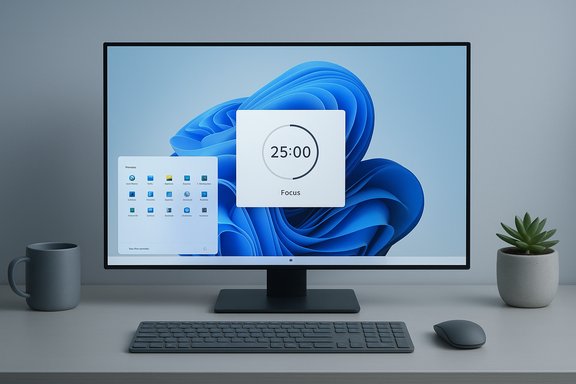
- Focus sessions (Clock app) can automatically enable Do not disturb, hide taskbar badges, and mute flashing icons while a timed session runs — a built-in Pomodoro-style tool that also integrates with Microsoft To Do and Spotify.
Fine-grain app controls
- In the Notifications settings list, turn off banners or sounds for specific apps that are noisy but unimportant. For apps you keep, consider disabling banners while leaving alerts enabled in the notification center so they don’t interrupt.
Extra settings to consider
- Clear the “Show the Windows welcome experience after updates” and “Get tips and suggestions” checkboxes under Additional settings to avoid new-install prompts and tips after updates. That keeps the shell quieter after feature updates.
Benefits and risks
- Benefits: fewer interruptions, scheduled quiet windows, improved concentration for deep work.
- Risks: overly aggressive suppression can hide urgent items (two-factor authentication prompts, remote support requests). For critical flows, whitelist the apps or types of notifications that must still appear. Microsoft allows adding permitted apps under Set priority notifications.
4. Reduce animations and visual effects
Why cut motion
Motion and transparency are attractive, but they also carry attention tax: animated transitions, fade-ins, and frosted-glass translucency create tiny visual events that divert attention. Reducing them produces a snappier experience and benefits users sensitive to motion.What to change (Accessibility settings)
- Open Settings → Accessibility → Visual effects and:
- Turn off Animation effects to remove small transitions when opening and switching windows.
- Turn off Transparency effects to make taskbar and menus solid rather than see-through.
- In System → Notifications, shorten Dismiss notifications after this amount of time so banners disappear faster.
Performance and accessibility gains
- Turning off animations reduces perceived latency and can help battery life on some devices.
- Users with vestibular sensitivity or attention challenges may find a calmer display easier to use. Microsoft lists these options under Accessibility to make the environment less distracting and more accessible.
Visual trade-offs
- You lose some visual polish; dialogs and transitions will be more abrupt. For many people that’s an acceptable trade for reduced motion and sharper focus.
Putting the four steps together: a compact checklist
- Taskbar: Settings → Personalization → Taskbar. Hide Search, Widgets, Task view; hide unused system tray icons; enable auto-hide; disable badges and flashing.
- Start: Settings → Personalization → Start. Turn off Recently added, Most used, and Recommended files; choose only useful Folders.
- Notifications: Settings → System → Notifications. Turn on Do not disturb (set priorities and schedules); fine-tune app banners and sounds; clear tips/welcome checkboxes.
- Visual effects: Settings → Accessibility → Visual effects. Disable Animation effects and Transparency effects; shorten notification duration.
Deeper analysis — strengths, limitations, and risks
Why this approach scales
- Low friction: All changes are reversible through Settings; no elevated privileges or scripts are required.
- Immediate payoff: Visual clutter and interruptions are primary sources of cognitive load — removing them produces measurable improvement in perceived speed and focus within minutes.
- Safe for most users: These tweaks don’t remove app functionality; they primarily alter surface presentation and notification behavior, keeping apps runnable and data intact.
What you lose (and why it matters)
- Discovery: Turning off recommendations and widgets reduces serendipitous discovery of apps or tips. For some users this is a feature, not a bug; for others it makes the environment feel less "helpful."
- Real-time cues: Badges and flashing give instant status for messaging and collaborative apps. If you rely on instant visual cues for workflows like chat-heavy customer support, quieting the taskbar could slow reaction time unless you use explicit whitelisting.
- Aesthetics: Disabling transparency and animations sacrifices some of the modern flair in favor of utility.
Enterprise and power-user considerations
- Reproducibility: For IT-managed fleets, apply these changes via Group Policy, MDM (Intune), or provisioning scripts to avoid configuration drift. Community guides and Microsoft documentation recommend pilot testing before broad rollouts.
- Automation risks: Some settings moved between builds; pin your configuration to specific OS builds or test against release notes to prevent surprises during feature updates. Recent Start redesigns and staged rollouts are examples where behavior and available toggles changed between updates.
- Third-party shells: If you want deeper visual change (tiling window manager behavior or macOS-like docks), community projects can replace the shell, but they increase maintenance and support risk compared with simple Settings toggles.
Additional tips and sensible defaults
- Use Focus sessions (Clock app) for structured work chunks; it automates Do not disturb and integrates with Microsoft To Do and Spotify.
- Keep critical services whitelisted: configure Set priority notifications to allow calls, calendar reminders, and support apps to break through Do not disturb.
- Consider a "clean desktop" policy: move seldom-used shortcuts into folders and rely on the Start menu and Explorer for launching to keep the visual field minimal. Community guides often recommend hiding desktop icons entirely for a calm canvas.
- If you manage many machines, create a short automation checklist (PowerShell or MDM) that toggles the same four areas so users receive a consistent, calm baseline.
Why small changes beat new installs
Many people assume that "refreshing" a PC requires reinstalling the OS or hunting for an app that blocks notifications. In most cases, the perceptual improvements that matter day-to-day are about attention management, not hardware. By removing animated distractions, hiding unused UI chrome, and selecting which alerts can interrupt, Windows 11 becomes less about novelty and more about getting work done. The cumulative effect of small, applied choices often trumps the raw performance benefits of a marginal hardware upgrade.This is the practical lesson behind the four-step routine: a more focused environment isn't built by adding features; it's built by subtracting distractions and making the system behave predictably when you press Start or look at your desktop. The community and official documentation both show that these settings are deliberately exposed in Windows 11 because calming the surface is a core usability concern, not an unsupported hack.
Conclusion
A calmer Windows 11 desktop is a few thoughtful toggles away. Declutter the taskbar, simplify Start to only what you use, quiet notifications with Do not disturb and Focus, and reduce animations and transparency for steady visual focus. These four steps restore predictability and reclaim attention without sacrificing functionality or requiring risky tweaks. For most users the result is immediate: the system feels lighter, interruptions are rarer, and the machine finally behaves like an unobtrusive tool again — exactly as it should.Source: MakeUseOf I made Windows 11 feel fresh and focused again — it only took 4 steps
