

Microsoft’s current Windows guidance says USB flash drives, external HDDs, SSDs, and Thunderbolt storage can usually be unplugged without “Safely Remove Hardware” when the device is using the Quick removal policy, a default Microsoft introduced with Windows 10 version 1809 in 2018. That does not mean the eject ritual was always pointless, or that data loss is now folklore. It means Windows quietly changed the risk model from “always flush first” to “don’t cache by default.” The old advice survived because the edge cases are exactly where people lose the files they care about.
The latest resurfacing of Microsoft’s USB removal guidance is a useful reminder that Windows has never had a single universal answer to the question people actually ask: “Can I just pull this thing out?” The answer is yes, often, but only if the drive is configured for the safer default and nothing is still writing to it.
That distinction matters because “USB drive” is not a single workload. A thumb drive carrying a PDF, a portable SSD ingesting 200GB of video footage, and an external hard disk running File History or third-party backup software all sit under the same little tray icon. Windows has to serve all of them, and Microsoft’s policy split is an attempt to balance convenience against performance.
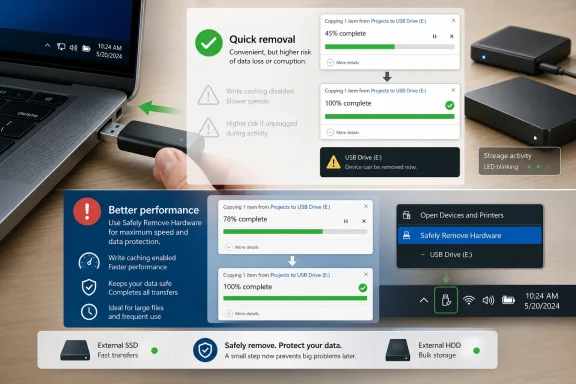
The two Windows policies are called Quick removal and Better performance. Quick removal is the cautious default for removable storage: Windows avoids relying on write caching for that device, making sudden removal less likely to strand unwritten data in memory. Better performance does the opposite trade-off, allowing caching to improve throughput but requiring the user to eject the device before physically disconnecting it.
The important word is less. Quick removal is not a magic shield against interrupting a copy operation, corrupting an application’s open file, or pulling a drive while synchronization software is mid-update. It simply reduces one historic source of danger: the possibility that Windows told an application a write had completed while the operating system still held some of that write in cache.
That ritual existed because write caching is a performance trick with an obvious downside. Instead of forcing every write operation to hit the physical device immediately, Windows can temporarily hold data in memory and write it out at a more efficient time. To the application, the operation may appear finished earlier; to the storage device, the final state may still be in flight.
On internal drives, caching is usually a good bargain. The drive is not expected to disappear without warning, and the system can coordinate writes under normal shutdown, sleep, and power management events. Removable storage is different because the user is the power event. The operating system cannot negotiate with a hand yanking a thumb drive from a port.
Safe removal is therefore not superstition. It is a flush-and-check mechanism wrapped in a friendly UI. It asks Windows to finish pending writes, release handles where possible, and warn the user if something still has the device open. That mechanism remains useful even when Quick removal is enabled, because “not caching writes aggressively” is not the same as “nothing is using the drive.”
This is why the advice around USB drives feels contradictory. Older users learned, correctly, that ejecting mattered. Newer Windows installations are configured, correctly, to make casual removal safer. Both statements can be true because Microsoft changed the default behavior underneath a decades-old user habit.
The shift also explains why many people never noticed anything had changed. Microsoft did not redesign the taskbar around this policy or make a dramatic “you may now pull your USB stick” announcement inside File Explorer. The setting lives in device properties, under disk policies, far from the path ordinary users take when they copy a file and leave.
There is also a compatibility wrinkle. The policy can be device-specific and port-sensitive, depending on how Windows identifies the storage device and stores the configuration. A portable SSD used on one machine may not behave identically on another. A shared drive used across home PCs, office desktops, and lab machines may encounter different defaults, drivers, and administrative settings.
That is why Microsoft’s documentation is more careful than the folk version of the story. The folk version says Windows no longer needs safe removal. The accurate version says Quick removal is the default for removable storage starting with Windows 10 version 1809, and that policy allows removal without using the safe removal process when no operation is in progress.
That is good news for ordinary thumb-drive behavior. If you copy a small document, wait for the progress dialog to disappear, and close the file, the practical risk of unplugging the drive is low on a modern Windows system using Quick removal. This is the scenario Microsoft optimized for: normal people doing normal things, often without ever touching the tray icon.
The cost is performance. Caching exists because storage devices, buses, controllers, and file systems can be more efficient when operations are batched or acknowledged before every last bit reaches the device. Disabling that behavior may reduce transfer performance, especially in workloads with many small writes or slower external media.
For most casual users, that trade-off is sensible. A slightly slower copy to a USB stick is less painful than losing the only copy of a tax document, BIOS update file, school project, or bootable installer. Microsoft’s default is essentially an admission that user behavior wins over theoretical best practice. People pull drives. Windows adjusted.
But Quick removal is not a promise that every layer beneath Windows is instantly consistent at every moment. External drives have controllers, firmware, file-system metadata, application-level locks, antivirus scans, sync clients, and sometimes their own caches. The Windows policy reduces one class of risk; it does not suspend the messy reality of storage.
This is not a moral judgment about careful users versus careless users. It is a design trade-off. Better performance can make sense for external SSDs used as working drives, high-volume media transfers, virtual machine storage, developer builds, or backup targets where throughput matters and the drive is not constantly being unplugged.
The danger is that the performance mode can make the desktop lie in subtle ways. A progress bar may be gone. An application may have moved on. The user may think the copy is complete. Yet Windows may still have data buffered, or a background service may still be committing changes.
Safe removal closes that gap. It tells Windows to flush pending writes and coordinate the device’s removal. If the system says the drive is in use, that message is not an annoyance to dismiss reflexively; it is the operating system telling you that some process still has a stake in the device’s state.
The temptation, especially among power users, is to treat the warning as Windows being Windows. Sometimes it is. File Explorer may hold a directory handle longer than expected, an indexing service may be nosing around, or a media app may not have released a file cleanly. But the warning also catches the moments that matter: an unfinished copy, a backup engine still writing a catalog, or a database-like application updating files in place.
Modern Windows systems are full of invisible storage activity. Antivirus software may scan new files. Cloud clients may index or sync folders on removable media. Photo applications may generate thumbnails or metadata. Backup tools may maintain logs. File Explorer itself may preview, enumerate, or hold a path open.
This is why the tray icon remains useful even under Quick removal. It is not just about write caching; it is also a sanity check. When safe removal succeeds, Windows is telling you the device is not in use in the way that would block removal. When it fails, you have a clue that the drive is still part of some active workflow.
The old advice to “wait until the light stops blinking” is helpful but incomplete. Many flash drives no longer have activity lights. Some lights reflect controller activity imperfectly. External HDDs may spin, park heads, or perform housekeeping in ways the user cannot interpret from a glance.
The safer habit is boring and effective: wait for transfers to finish, close files opened from the drive, close File Explorer windows pointed at it, and eject if the data matters. If Windows refuses, assume it has a reason until you can identify the process or wait it out. That may feel conservative, but storage is one of the few places where impatience can turn a minor workflow annoyance into permanent loss.
That shift changes the stakes. A small FAT32 thumb drive with a few copied documents is one thing. A multi-terabyte NTFS or exFAT external SSD holding a Lightroom catalog, Hyper-V disk, game library, or backup set is another. The more complex and long-running the workload, the more likely there is hidden activity after the user thinks the obvious task has ended.
External HDDs deserve particular respect because their failure modes are physical as well as logical. Pulling a cable during writes can corrupt data, but moving or powering down a spinning drive at the wrong time can also stress hardware. Modern drives are better at handling interruptions than their ancestors, but “better” is not the same as “invulnerable.”
External SSDs remove the spinning-platter concern, yet they introduce their own controller behavior. Flash translation layers, wear leveling, and internal housekeeping are abstracted away from Windows. Users do not need to understand those mechanisms to make good choices; they simply need to know that a high-performance external drive is not automatically safe to treat like a disposable thumb stick.
This is where Better performance may be tempting. If you bought a fast USB 3.2, USB4, or Thunderbolt SSD, you probably want the speed you paid for. Enabling caching can be rational. But once you choose that performance path, safe removal becomes part of the contract.
That workflow is fine for sysadmins and enthusiasts. It is not fine for the person at a library PC trying to print a résumé, or the parent copying school photos, or the office worker moving a spreadsheet between machines. For them, the visible Windows guidance remains ambiguous: the eject icon still exists, but the default policy often makes it less necessary.
Microsoft’s UI problem is that both messages are true. Removing without ejecting can be acceptable. Ejecting is still safer when you are unsure. If Windows were to remove the icon, it would encourage risky behavior in Better performance scenarios and during active writes. If Windows makes the icon too prominent, it preserves a ritual that many users no longer strictly need every time.
The result is a familiar Windows compromise: a powerful setting in an old management surface, a backward-compatible tray action, and documentation that explains the nuance for people who go looking. It is technically defensible and practically muddy.
Windows could do better here. File Explorer could surface the active removal policy on the drive’s properties page in plain language. The eject menu could distinguish between “ready because Quick removal is active” and “flushing cached writes.” Windows Security or Settings could provide a modern removable-storage dashboard. Instead, the user experience still feels like a fossil from the era when every USB device was a potential trap.
The practical IT answer is not to tell everyone the old rule or the new rule. It is to match guidance to risk. On standard office endpoints, Quick removal as the default is sensible. On workstations using external SSDs for large media, engineering datasets, or backup rotations, administrators may prefer explicit procedures and known performance settings.
Training should also separate “safe to unplug” from “safe to use.” Removable media remains a security concern regardless of the removal policy. The same drive that can be unplugged without flushing cached writes can still carry malware, leak regulated data, or bypass sloppy data-handling processes. Microsoft’s storage policy does not make USB operationally harmless.
For help desks, the key is to stop treating “Did you safely remove it?” as a yes-or-no morality test. The better questions are more concrete. Was a copy in progress? Was the file open? Was the drive being used by backup or sync software? Is the device set to Better performance? Did Windows report that the device was in use?
That diagnostic path respects the modern Windows default without pretending user behavior is irrelevant. It also avoids the unhelpful certainty that often surrounds USB advice. A drive can survive years of casual unplugging and still lose data the one time a cached write or background process matters.
This is not because ejecting is always required. It is because ejecting is cheap. The time cost is usually measured in seconds, and the benefit is a final check against pending writes, open handles, and background activity. The more valuable the data, the better that trade looks.
There are exceptions. If Windows repeatedly refuses to eject a drive because a process is stuck, users may need to close applications, shut File Explorer windows, pause sync tools, or inspect open handles with administrative tools. In a pinch, shutting down the PC before disconnecting the drive is still a blunt but effective way to force a clean endpoint for many scenarios.
The worst habit is not unplugging without ejecting. The worst habit is unplugging while assuming the absence of a progress bar means the storage stack is done. Quick removal made Windows more forgiving of human behavior, not omniscient.
 Microsoft Did Not Kill Safe Removal — It Moved the Danger Zone
The latest resurfacing of Microsoft’s USB removal guidance is a useful reminder that Windows has never had a single universal answer to the question people actually ask: “Can I just pull this thing out?” The answer is yes, often, but only if the drive is configured for the safer default and nothing is still writing to it.That distinction matters because “USB drive” is not a single workload. A thumb drive carrying a PDF, a portable SSD ingesting 200GB of video footage, and an external hard disk running File History or third-party backup software all sit under the same little tray icon. Windows has to serve all of them, and Microsoft’s policy split is an attempt to balance convenience against performance.
The two Windows policies are called Quick removal and Better performance. Quick removal is the cautious default for removable storage: Windows avoids relying on write caching for that device, making sudden removal less likely to strand unwritten data in memory. Better performance does the opposite trade-off, allowing caching to improve throughput but requiring the user to eject the device before physically disconnecting it.
The important word is less. Quick removal is not a magic shield against interrupting a copy operation, corrupting an application’s open file, or pulling a drive while synchronization software is mid-update. It simply reduces one historic source of danger: the possibility that Windows told an application a write had completed while the operating system still held some of that write in cache.
The Tray Icon Became a Habit Because It Solved a Real Problem
For years, “Safely Remove Hardware” was one of those tiny Windows rituals that looked silly until it saved you from yourself. Click the icon, wait for the message, then pull the drive. Ignore it, and you might be fine — or you might return to a corrupted file system, a half-written document, or a drive Windows suddenly wants to scan and repair.That ritual existed because write caching is a performance trick with an obvious downside. Instead of forcing every write operation to hit the physical device immediately, Windows can temporarily hold data in memory and write it out at a more efficient time. To the application, the operation may appear finished earlier; to the storage device, the final state may still be in flight.
On internal drives, caching is usually a good bargain. The drive is not expected to disappear without warning, and the system can coordinate writes under normal shutdown, sleep, and power management events. Removable storage is different because the user is the power event. The operating system cannot negotiate with a hand yanking a thumb drive from a port.
Safe removal is therefore not superstition. It is a flush-and-check mechanism wrapped in a friendly UI. It asks Windows to finish pending writes, release handles where possible, and warn the user if something still has the device open. That mechanism remains useful even when Quick removal is enabled, because “not caching writes aggressively” is not the same as “nothing is using the drive.”
Windows 10 Version 1809 Changed the Default, Not the Physics
The real policy shift happened with Windows 10 version 1809, the October 2018 Update. Beginning with that release, Microsoft made Quick removal the default policy for external storage devices. Before then, Better performance was the default, which meant safe removal was the right recommendation for more everyday scenarios.This is why the advice around USB drives feels contradictory. Older users learned, correctly, that ejecting mattered. Newer Windows installations are configured, correctly, to make casual removal safer. Both statements can be true because Microsoft changed the default behavior underneath a decades-old user habit.
The shift also explains why many people never noticed anything had changed. Microsoft did not redesign the taskbar around this policy or make a dramatic “you may now pull your USB stick” announcement inside File Explorer. The setting lives in device properties, under disk policies, far from the path ordinary users take when they copy a file and leave.
There is also a compatibility wrinkle. The policy can be device-specific and port-sensitive, depending on how Windows identifies the storage device and stores the configuration. A portable SSD used on one machine may not behave identically on another. A shared drive used across home PCs, office desktops, and lab machines may encounter different defaults, drivers, and administrative settings.
That is why Microsoft’s documentation is more careful than the folk version of the story. The folk version says Windows no longer needs safe removal. The accurate version says Quick removal is the default for removable storage starting with Windows 10 version 1809, and that policy allows removal without using the safe removal process when no operation is in progress.
Quick Removal Is Convenience by Disabling a Performance Shortcut
Quick removal sounds like Windows doing something extra, but in practice it is more like Windows refusing to take a shortcut. The operating system structures writes so the device is kept in a state closer to ready-to-remove, instead of leaning on disk write caching for performance.That is good news for ordinary thumb-drive behavior. If you copy a small document, wait for the progress dialog to disappear, and close the file, the practical risk of unplugging the drive is low on a modern Windows system using Quick removal. This is the scenario Microsoft optimized for: normal people doing normal things, often without ever touching the tray icon.
The cost is performance. Caching exists because storage devices, buses, controllers, and file systems can be more efficient when operations are batched or acknowledged before every last bit reaches the device. Disabling that behavior may reduce transfer performance, especially in workloads with many small writes or slower external media.
For most casual users, that trade-off is sensible. A slightly slower copy to a USB stick is less painful than losing the only copy of a tax document, BIOS update file, school project, or bootable installer. Microsoft’s default is essentially an admission that user behavior wins over theoretical best practice. People pull drives. Windows adjusted.
But Quick removal is not a promise that every layer beneath Windows is instantly consistent at every moment. External drives have controllers, firmware, file-system metadata, application-level locks, antivirus scans, sync clients, and sometimes their own caches. The Windows policy reduces one class of risk; it does not suspend the messy reality of storage.
Better Performance Keeps the Old Rule Alive
Better performance is where the old guidance still applies in full. If a removable drive is set to Better performance, Windows may cache write operations for that device. In that mode, Microsoft’s advice remains straightforward: use Safely Remove Hardware before disconnecting.This is not a moral judgment about careful users versus careless users. It is a design trade-off. Better performance can make sense for external SSDs used as working drives, high-volume media transfers, virtual machine storage, developer builds, or backup targets where throughput matters and the drive is not constantly being unplugged.
The danger is that the performance mode can make the desktop lie in subtle ways. A progress bar may be gone. An application may have moved on. The user may think the copy is complete. Yet Windows may still have data buffered, or a background service may still be committing changes.
Safe removal closes that gap. It tells Windows to flush pending writes and coordinate the device’s removal. If the system says the drive is in use, that message is not an annoyance to dismiss reflexively; it is the operating system telling you that some process still has a stake in the device’s state.
The temptation, especially among power users, is to treat the warning as Windows being Windows. Sometimes it is. File Explorer may hold a directory handle longer than expected, an indexing service may be nosing around, or a media app may not have released a file cleanly. But the warning also catches the moments that matter: an unfinished copy, a backup engine still writing a catalog, or a database-like application updating files in place.
The Real Enemy Is Activity You Cannot See
The most dangerous USB removal moment is not dramatic. It is not the instant after you drag a file onto a drive and watch the progress bar. It is the quiet moment after that, when Windows, an application, or a background service is still doing something you did not realize was happening.Modern Windows systems are full of invisible storage activity. Antivirus software may scan new files. Cloud clients may index or sync folders on removable media. Photo applications may generate thumbnails or metadata. Backup tools may maintain logs. File Explorer itself may preview, enumerate, or hold a path open.
This is why the tray icon remains useful even under Quick removal. It is not just about write caching; it is also a sanity check. When safe removal succeeds, Windows is telling you the device is not in use in the way that would block removal. When it fails, you have a clue that the drive is still part of some active workflow.
The old advice to “wait until the light stops blinking” is helpful but incomplete. Many flash drives no longer have activity lights. Some lights reflect controller activity imperfectly. External HDDs may spin, park heads, or perform housekeeping in ways the user cannot interpret from a glance.
The safer habit is boring and effective: wait for transfers to finish, close files opened from the drive, close File Explorer windows pointed at it, and eject if the data matters. If Windows refuses, assume it has a reason until you can identify the process or wait it out. That may feel conservative, but storage is one of the few places where impatience can turn a minor workflow annoyance into permanent loss.
External SSDs Made the Question More Important, Not Less
The USB stick used to be a sneaker-net accessory. Today, removable storage is often a primary workspace. Photographers edit from portable SSDs. Video teams shuttle projects between machines. Developers keep toolchains, virtual disks, installers, and ISO collections on external drives. Home users plug in USB HDDs for backups and leave them attached for hours.That shift changes the stakes. A small FAT32 thumb drive with a few copied documents is one thing. A multi-terabyte NTFS or exFAT external SSD holding a Lightroom catalog, Hyper-V disk, game library, or backup set is another. The more complex and long-running the workload, the more likely there is hidden activity after the user thinks the obvious task has ended.
External HDDs deserve particular respect because their failure modes are physical as well as logical. Pulling a cable during writes can corrupt data, but moving or powering down a spinning drive at the wrong time can also stress hardware. Modern drives are better at handling interruptions than their ancestors, but “better” is not the same as “invulnerable.”
External SSDs remove the spinning-platter concern, yet they introduce their own controller behavior. Flash translation layers, wear leveling, and internal housekeeping are abstracted away from Windows. Users do not need to understand those mechanisms to make good choices; they simply need to know that a high-performance external drive is not automatically safe to treat like a disposable thumb stick.
This is where Better performance may be tempting. If you bought a fast USB 3.2, USB4, or Thunderbolt SSD, you probably want the speed you paid for. Enabling caching can be rational. But once you choose that performance path, safe removal becomes part of the contract.
Microsoft’s Setting Is Buried Where Only the Curious Will Find It
The most Windows part of this story is that the decisive setting exists, works, and is hidden several clicks deep in a management interface most users never open. To check a device’s policy, you generally connect the drive, identify it in File Explorer, open Disk Management, find the device, and inspect its properties under the Policies tab.That workflow is fine for sysadmins and enthusiasts. It is not fine for the person at a library PC trying to print a résumé, or the parent copying school photos, or the office worker moving a spreadsheet between machines. For them, the visible Windows guidance remains ambiguous: the eject icon still exists, but the default policy often makes it less necessary.
Microsoft’s UI problem is that both messages are true. Removing without ejecting can be acceptable. Ejecting is still safer when you are unsure. If Windows were to remove the icon, it would encourage risky behavior in Better performance scenarios and during active writes. If Windows makes the icon too prominent, it preserves a ritual that many users no longer strictly need every time.
The result is a familiar Windows compromise: a powerful setting in an old management surface, a backward-compatible tray action, and documentation that explains the nuance for people who go looking. It is technically defensible and practically muddy.
Windows could do better here. File Explorer could surface the active removal policy on the drive’s properties page in plain language. The eject menu could distinguish between “ready because Quick removal is active” and “flushing cached writes.” Windows Security or Settings could provide a modern removable-storage dashboard. Instead, the user experience still feels like a fossil from the era when every USB device was a potential trap.
For IT Pros, This Is a Policy and Training Problem
In managed environments, the USB removal question is not just about user convenience. It touches data integrity, endpoint security, device control, and support costs. A user who corrupts a portable drive may open a ticket. A user who loses data may trigger an incident. A user who assumes all USB behavior is safe may mishandle more sensitive workflows.The practical IT answer is not to tell everyone the old rule or the new rule. It is to match guidance to risk. On standard office endpoints, Quick removal as the default is sensible. On workstations using external SSDs for large media, engineering datasets, or backup rotations, administrators may prefer explicit procedures and known performance settings.
Training should also separate “safe to unplug” from “safe to use.” Removable media remains a security concern regardless of the removal policy. The same drive that can be unplugged without flushing cached writes can still carry malware, leak regulated data, or bypass sloppy data-handling processes. Microsoft’s storage policy does not make USB operationally harmless.
For help desks, the key is to stop treating “Did you safely remove it?” as a yes-or-no morality test. The better questions are more concrete. Was a copy in progress? Was the file open? Was the drive being used by backup or sync software? Is the device set to Better performance? Did Windows report that the device was in use?
That diagnostic path respects the modern Windows default without pretending user behavior is irrelevant. It also avoids the unhelpful certainty that often surrounds USB advice. A drive can survive years of casual unplugging and still lose data the one time a cached write or background process matters.
The Safest Rule Is Still the Least Exciting One
The sensible consumer guidance is almost disappointingly simple. If you are using a recent Windows system and the drive is set to Quick removal, you can usually unplug it after all visible file operations have finished. If you do not know the policy, or the drive contains anything important, eject it first.This is not because ejecting is always required. It is because ejecting is cheap. The time cost is usually measured in seconds, and the benefit is a final check against pending writes, open handles, and background activity. The more valuable the data, the better that trade looks.
There are exceptions. If Windows repeatedly refuses to eject a drive because a process is stuck, users may need to close applications, shut File Explorer windows, pause sync tools, or inspect open handles with administrative tools. In a pinch, shutting down the PC before disconnecting the drive is still a blunt but effective way to force a clean endpoint for many scenarios.
The worst habit is not unplugging without ejecting. The worst habit is unplugging while assuming the absence of a progress bar means the storage stack is done. Quick removal made Windows more forgiving of human behavior, not omniscient.
The USB Rule Windows Users Should Actually Remember
Microsoft’s setting is useful precisely because it turns an old absolute into a conditional. The new rule is not “never eject.” It is “know when ejecting matters.” That is less catchy, but it is much closer to how Windows actually works.- Windows 10 version 1809 and later use Quick removal by default for many external storage devices, which reduces reliance on write caching.
- Quick removal allows unplugging without the safe removal command only when no file operation or background process is still using the drive.
- Better performance can improve throughput by using write caching, but it restores the need to eject before disconnecting.
- External SSDs and hard drives used for backups, editing, virtual machines, or large transfers deserve more caution than casual thumb-drive use.
- If you do not know the active policy or the data matters, using Safely Remove Hardware remains the safest default behavior.
References
- Primary source: CPG Click Petróleo e Gás
Published: 2026-06-29T15:44:18.110124
Microsoft Reveals Windows Setting to Safely Remove USB Drives and Prevent Data Loss - CPG Click Oil and Gas
Understand when safely removing a USB drive in Windows prevents data loss, corrupted files, and errors when disconnecting the USB.en.clickpetroleoegas.com.br - Official source: learn.microsoft.com
Windows default media removal policy | Microsoft Learn
Manage default media removal policy in Windows.learn.microsoft.com - Related coverage: windowslatest.com
When you don't need to “Safely Remove” a USB drive on Windows 10
Do you need to ‘safely remove’ or ‘eject’ a USB flash drive before unplugging it from your computer? It depends. If you use Windows 10 version 1903 or newer, Windows now automatically disables write caching for USB drives and you won’t find the ‘eject’... www.windowslatest.com
- Related coverage: techspot.com
Windows 10 is about to change the 'safely remove USB drive' default option | TechSpot
We've long been warned that failing to use the 'Safely Remove Hardware' process before pulling out a USB device such as a flash drive (pendrive), thumb drive,...www.techspot.com - Related coverage: howtogeek.com
How to Never "Safely Remove" a USB Drive Again on Windows 10
Want to save time by just unplugging USB drives without ejecting them on Windows 10? You can! We'll show you how. www.howtogeek.com
- Related coverage: tekno.kompas.com
Cabut Flashdisk USB Tak Perlu "Safely Remove" di Windows 10
Update terbaru Windows 10 ternyata mengubah cara mengakhiri koneksi perangkat storage berbasis USB. Jadi lebih praktis, tapi kinerja menurun.tekno.kompas.com
- Related coverage: techradar.com
Windows 10 now lets you yank out USB devices at the drop of a hat | TechRadar
Default setting is changed for those on the October 2018 Updatewww.techradar.com - Related coverage: windowscentral.com
How to manage disk write caching for external storage on Windows 10 | Windows Central
In this guide, we show you the steps to enable or disable write caching to improve external storage performance or protect data integrity on Windows 10.www.windowscentral.com - Related coverage: laptopmag.com
Windows 10 Now Lets You Pull USB Drives Out Without Making a Fuss | Laptop Mag
In a recent update to the Windows 10 October 2018 Update, Microsoft defaulted USB drives for quick removal, so you can safely pull your USB drive out.www.laptopmag.com - Related coverage: ghacks.net
Windows 10 1809: Quick Removal new default for external storage devices - gHacks Tech News
Microsoft changed the default removal policy for external storage devices in Windows 10 version 1809 to quick removal.www.ghacks.net
