

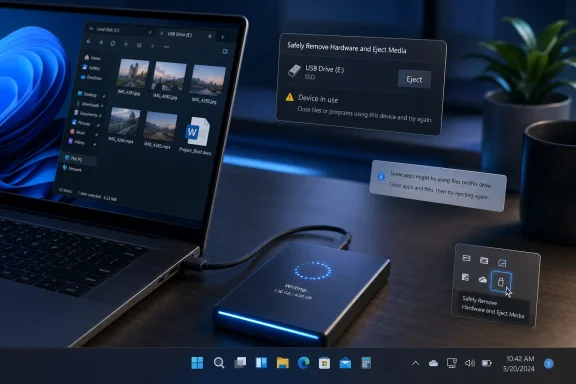
Microsoft’s Windows 11 guidance on June 22, 2026, again surfaced the old “Safely Remove Hardware and Eject Media” flow, a small system-tray ritual for unplugging USB storage and other removable devices without risking data loss. The fact that this still needs explaining in 2026 is the story. Windows has spent years modernizing its surface while leaving some of its most consequential hardware behaviors buried in legacy corners. The eject icon is not glamorous, but it is a perfect emblem of Windows 11’s unfinished bargain with everyday users.
Windows has always had a peculiar relationship with removable hardware. It wants users to treat USB devices as casual, hot-swappable accessories, yet it also has to protect filesystems, cached writes, app handles, indexing services, antivirus scans, and backup jobs from being interrupted midstream. That tension is why “Safely Remove Hardware” exists.
The feature is not a nostalgia act. If Windows is still writing to a removable drive, or if an application has not released a file, yanking the cable can corrupt data. Modern Windows is better than its predecessors at reducing that risk, but “better” is not the same as “impossible.”
The problem is that the user experience never quite caught up with the stakes. A button that can prevent data loss sits in a flyout that many users never open, represented by an icon that appears only under certain conditions, often hidden behind the taskbar overflow chevron. For a platform used by more than a billion people, that is a surprisingly fragile piece of design.
Windows 11’s promise was coherence. The eject flow reminds us that coherence is still unevenly distributed.
That is not inherently bad. Some old affordances survive because they work. The issue is that Windows 11 also removed or obscured several habits power users relied on, while failing to replace them with a clearer story for everyone else.
File Explorer can still eject many removable drives through the right-click menu. The taskbar can still expose the old hardware icon. Settings can remove some devices through Bluetooth & devices. Device Manager and Disk Management remain available for more specialized cases. Each path is defensible on its own; together, they feel like sedimentary layers rather than one designed system.
This is how Windows accumulates complexity. A feature becomes important, then multiple teams add access points over multiple releases, then the interface is modernized around it without fully absorbing it. The result is not broken so much as distributed. Users do not learn one model; they discover several.
That “usually” is doing a lot of work. Users hear that Windows no longer requires safe removal in many cases, then generalize the lesson to every drive, enclosure, SD card reader, camera, dock, and external SSD. The operating system’s internal caution becomes folk wisdom: if nothing exploded last time, it must be safe.
But storage is not a vibes-based discipline. A large external SSD used for video editing, a BitLocker-protected backup drive, a USB disk being indexed, or a drive attached through a flaky hub can create edge cases where the old advice still matters. Safe removal is not about superstition; it is about ensuring the operating system has flushed pending work and released the device.
The modern PC makes this harder to see. Fast storage, silent background services, and aggressive caching hide the activity that once made risk obvious. The light on the enclosure may stop blinking, but Windows may not be done with the drive in the way the filesystem needs it to be done.
The eject icon belongs to the second category, but it behaves like the first. It appears when Windows believes there is removable hardware to manage, may hide behind overflow, and competes visually with a row of icons most users have trained themselves to ignore. That is poor ergonomics for a command whose purpose is preventing data loss.
Microsoft’s own support guidance still sends users to the system tray, with a fallback explaining how to turn the icon on if it is not visible. That is a revealing admission. If the official path includes instructions for finding the path, the path is not as discoverable as it should be.
Windows 11’s tray redesign made some interactions cleaner, but it did not solve this conceptual problem. The tray remains a place where important system state and vendor clutter coexist. Users should not have to distinguish a critical storage action from the icon left behind by a mouse driver utility.
This is where Windows gets closer to the right model. If the user is looking at the drive, the command to stop using the drive should be there. It follows the object-action design principle that graphical interfaces are supposed to make obvious.
But File Explorer is only part of the story. Some devices do not show up as conventional drives. Some removable storage appears through phones, cameras, card readers, docks, or virtualization layers. Some corporate machines restrict Explorer behaviors or wrap storage access in endpoint security tools. And sometimes the drive is not the thing the user thinks it is; the removable “device” may be a controller exposing multiple volumes.
This is why Windows still needs a broader hardware ejection surface. The trouble is that the broader surface looks older and less inviting than the file-management surface. Microsoft has two partial answers instead of one clear answer.
Yet removable device management in Settings still feels like a detour rather than the primary route. Bluetooth & devices can show hardware, and it can remove devices, but that is not the same as a clear, immediate “I am done with this storage drive, make it safe to unplug” experience. The wording alone matters: “Remove device” can sound like unpairing, uninstalling, or deleting a configuration, not merely ejecting a drive.
This is one of Windows 11’s recurring language problems. Microsoft often knows what a command means technically but underestimates how it sounds to someone who is not steeped in Windows history. “Eject” is old, but it is precise. “Remove” is modern, but ambiguous.
A better Settings experience would treat removable storage as a first-class, time-sensitive system state. A connected external drive should appear with obvious actions: open, eject, view storage details, manage BitLocker, and troubleshoot why it cannot be removed. Instead, Windows still asks users to infer too much from general device pages.
The operating system may not clearly identify what is using the drive. It might be a document, an Explorer window, a media player, a shell extension, a sync client, a backup agent, antivirus scanning, Windows Search indexing, or a command prompt with the drive as its current directory. The user receives a safety stop, but not always a diagnosis.
This is the moment where Windows’ pro-user reputation should shine. It has the plumbing to know which processes hold file handles. Sysinternals tools and Resource Monitor can expose parts of the truth. But the mainstream eject experience often withholds the practical answer from the person who needs it most.
That design gap turns a protective feature into a source of resentment. Users learn that safe eject is the thing that refuses to work, not the thing that saved their data. The next time, they may simply pull the cable.
But reliance on expert workarounds is not a product strategy. It is a sign that the everyday interface has not been given enough authority. A modern eject dialog should be able to say, in plain English, that Photos, Excel, Search Indexer, or a backup service is still using the drive, then offer a safe next action.
There are hard cases, especially with kernel drivers and hardware controllers. Windows cannot always terminate every dependency without risk. But even partial transparency would be an improvement over the current pattern of vague refusal.
This matters more as external storage becomes more serious. USB-C and Thunderbolt have turned removable drives into high-performance work disks. Creators edit directly from external SSDs. IT departments image machines from removable media. Developers carry VMs and source archives on encrypted drives. The cost of a bad unplug is no longer just a corrupted vacation photo.
That makes the eject icon feel both too narrow and too broad. It may list devices users do not think of as ejectable. It may fail to represent the full dependency chain behind a dock. It may expose a card reader even when the user is thinking only about the SD card inside it. It may coexist with vendor utilities that claim their own little territories in the tray.
Windows has to mediate all of this while preserving compatibility with decades of hardware assumptions. That is not easy. The PC ecosystem’s strength is also its UX burden: almost anything can connect, so the operating system must handle almost everything.
Still, complexity at the hardware layer is exactly why the software layer should be clearer. If USB-C has made ports more magical, Windows needs to make device state less mysterious. “Safe to remove” should be a confident system verdict, not a scavenger hunt.
A user who cannot safely eject a drive may call the help desk. A user who does not know they should eject an encrypted external disk may corrupt a backup or trigger recovery workflows. A user who removes media during a copy operation may create silent data integrity problems that surface later, when the original files are no longer available.
Endpoint management does not make the UI irrelevant. If anything, managed environments need clearer local feedback because users operate under constraints they did not choose and may not understand. If a removable device is blocked by policy, Windows should say that. If it is encrypted, busy, quarantined, scanning, syncing, or awaiting write completion, Windows should say that too.
The consumer and enterprise cases converge around the same demand: the operating system should explain itself at the moment of action. Windows has too many places where it knows the answer but declines to translate it.
Nobody writes guidance for a behavior that is self-evident. The continued need to show users where to eject hardware means the interface is still not doing enough on its own. That is not a scandal. It is a product truth.
Windows journalism often gravitates toward the grand gestures: Copilot integration, Start menu changes, AI PCs, Arm compatibility, security baselines, Recall, gaming handhelds, and whatever Microsoft is emphasizing this quarter. Those stories matter. But the daily trust relationship between user and operating system is built from humbler moments.
Can I unplug this drive? Will my files be safe? Why is Windows saying no? What is still using it? These are not niche questions. They are the routine frictions that shape whether people perceive Windows as reliable or capricious.
That is exactly what makes it a useful case study. Windows’ most persistent design debt often lives in features that function well enough to avoid emergency attention. They are not catastrophic. They are merely awkward, inconsistent, and underexplained.
This is how product debt survives. A broken feature gets fixed. A beloved feature gets polished. A strategic feature gets redesigned. A merely adequate feature becomes invisible to everyone except the users confused by it.
Microsoft has been trying for years to simplify Windows without severing the compatibility that makes Windows Windows. The eject icon demonstrates the difficulty of that mission. You cannot simply delete the old affordance, because people and workflows depend on it. But you also cannot keep hiding core system behaviors in legacy corners and call the result modern.
Imagine plugging in an external SSD and seeing a compact, consistent device card appear in the notification center or quick settings area. It would show the drive name, capacity, encryption state, transfer activity, and one obvious Eject button. If ejection failed, it would name the blocker and offer to close the relevant window, stop indexing temporarily, or retry after pending writes complete.
File Explorer would still offer Eject, because object-level commands belong where the object appears. Settings would still provide deeper management, because device configuration belongs there. But the primary flow would be elevated from hidden tray ritual to understandable system state.
This would not require Microsoft to abandon the old icon immediately. Windows can preserve compatibility while adding a better front door. That is the responsible way to modernize a platform with decades of user habits and hardware diversity.
A PC that can summarize meetings but cannot clearly explain why a USB drive cannot be unplugged has not solved the user’s most basic trust problem. Intelligence in the operating system should not be limited to chat boxes and generated text. It should show up in mundane places where Windows already has context and users need guidance.
Safe removal is a perfect candidate for that kind of intelligence. Not generative flourish, not marketing spectacle, but practical diagnosis: this process is using this file on this drive; close it and try again. That is the kind of assistive computing Windows users would immediately understand.
If Microsoft wants Windows 11 and its successors to feel modern, it should apply modernity to the old seams. The future of Windows is not only about adding new layers; it is about making the existing ones stop feeling archaeological.
 The Eject Icon Is a Tiny Window Into Windows’ Oldest Contract
Windows has always had a peculiar relationship with removable hardware. It wants users to treat USB devices as casual, hot-swappable accessories, yet it also has to protect filesystems, cached writes, app handles, indexing services, antivirus scans, and backup jobs from being interrupted midstream. That tension is why “Safely Remove Hardware” exists.The feature is not a nostalgia act. If Windows is still writing to a removable drive, or if an application has not released a file, yanking the cable can corrupt data. Modern Windows is better than its predecessors at reducing that risk, but “better” is not the same as “impossible.”
The problem is that the user experience never quite caught up with the stakes. A button that can prevent data loss sits in a flyout that many users never open, represented by an icon that appears only under certain conditions, often hidden behind the taskbar overflow chevron. For a platform used by more than a billion people, that is a surprisingly fragile piece of design.
Windows 11’s promise was coherence. The eject flow reminds us that coherence is still unevenly distributed.
Microsoft Modernized the Shell, Not the Mental Model
Windows 11 redesigned Start, Settings, context menus, notifications, taskbar alignment, window snapping, and large portions of the consumer-facing shell. But the way users learn about hardware safety remains curiously old-fashioned. The system tray icon still carries the emotional residue of Windows XP-era computing: mysterious glyph, terse menu, toast notification, done.That is not inherently bad. Some old affordances survive because they work. The issue is that Windows 11 also removed or obscured several habits power users relied on, while failing to replace them with a clearer story for everyone else.
File Explorer can still eject many removable drives through the right-click menu. The taskbar can still expose the old hardware icon. Settings can remove some devices through Bluetooth & devices. Device Manager and Disk Management remain available for more specialized cases. Each path is defensible on its own; together, they feel like sedimentary layers rather than one designed system.
This is how Windows accumulates complexity. A feature becomes important, then multiple teams add access points over multiple releases, then the interface is modernized around it without fully absorbing it. The result is not broken so much as distributed. Users do not learn one model; they discover several.
“Just Pull It Out” Became True Enough to Be Dangerous
Part of the confusion comes from a real improvement. Windows has long supported removal policies for external storage, including modes that reduce write caching so a drive can be disconnected with less ceremony. For many USB flash drives, especially when no files are open and no transfers are in progress, unplugging without ejecting will usually be fine.That “usually” is doing a lot of work. Users hear that Windows no longer requires safe removal in many cases, then generalize the lesson to every drive, enclosure, SD card reader, camera, dock, and external SSD. The operating system’s internal caution becomes folk wisdom: if nothing exploded last time, it must be safe.
But storage is not a vibes-based discipline. A large external SSD used for video editing, a BitLocker-protected backup drive, a USB disk being indexed, or a drive attached through a flaky hub can create edge cases where the old advice still matters. Safe removal is not about superstition; it is about ensuring the operating system has flushed pending work and released the device.
The modern PC makes this harder to see. Fast storage, silent background services, and aggressive caching hide the activity that once made risk obvious. The light on the enclosure may stop blinking, but Windows may not be done with the drive in the way the filesystem needs it to be done.
The System Tray Still Carries Too Much Responsibility
The system tray is Windows’ junk drawer and cockpit at the same time. It holds status indicators, background app controls, security warnings, cloud sync state, audio controls, network status, battery details, and hardware ejection. Some of those items are ambient information; others are action buttons with consequences.The eject icon belongs to the second category, but it behaves like the first. It appears when Windows believes there is removable hardware to manage, may hide behind overflow, and competes visually with a row of icons most users have trained themselves to ignore. That is poor ergonomics for a command whose purpose is preventing data loss.
Microsoft’s own support guidance still sends users to the system tray, with a fallback explaining how to turn the icon on if it is not visible. That is a revealing admission. If the official path includes instructions for finding the path, the path is not as discoverable as it should be.
Windows 11’s tray redesign made some interactions cleaner, but it did not solve this conceptual problem. The tray remains a place where important system state and vendor clutter coexist. Users should not have to distinguish a critical storage action from the icon left behind by a mouse driver utility.
File Explorer Is the More Natural Home, but It Is Not Enough
For many users, File Explorer is where removable storage becomes real. A USB drive is not an abstract device; it is a drive letter, a label, a capacity bar, and a folder tree. Right-clicking that drive and choosing Eject is a much more intuitive flow than hunting for a system tray glyph.This is where Windows gets closer to the right model. If the user is looking at the drive, the command to stop using the drive should be there. It follows the object-action design principle that graphical interfaces are supposed to make obvious.
But File Explorer is only part of the story. Some devices do not show up as conventional drives. Some removable storage appears through phones, cameras, card readers, docks, or virtualization layers. Some corporate machines restrict Explorer behaviors or wrap storage access in endpoint security tools. And sometimes the drive is not the thing the user thinks it is; the removable “device” may be a controller exposing multiple volumes.
This is why Windows still needs a broader hardware ejection surface. The trouble is that the broader surface looks older and less inviting than the file-management surface. Microsoft has two partial answers instead of one clear answer.
Settings Has the Shape of the Future and the Soul of a Detour
Windows 11’s Settings app is supposed to be the modern control center. It is friendlier than Control Panel, searchable, touch-aware, and aligned with the visual language Microsoft wants users to associate with the current operating system. If any app should reconcile hardware management for normal people, Settings is the candidate.Yet removable device management in Settings still feels like a detour rather than the primary route. Bluetooth & devices can show hardware, and it can remove devices, but that is not the same as a clear, immediate “I am done with this storage drive, make it safe to unplug” experience. The wording alone matters: “Remove device” can sound like unpairing, uninstalling, or deleting a configuration, not merely ejecting a drive.
This is one of Windows 11’s recurring language problems. Microsoft often knows what a command means technically but underestimates how it sounds to someone who is not steeped in Windows history. “Eject” is old, but it is precise. “Remove” is modern, but ambiguous.
A better Settings experience would treat removable storage as a first-class, time-sensitive system state. A connected external drive should appear with obvious actions: open, eject, view storage details, manage BitLocker, and troubleshoot why it cannot be removed. Instead, Windows still asks users to infer too much from general device pages.
The Real Failure Case Is Not the Eject Button, It Is the Error
Anyone who has used Windows long enough has seen the most frustrating version of this flow: you click Eject, and Windows says the device is currently in use. The warning is sensible. The execution is often maddening.The operating system may not clearly identify what is using the drive. It might be a document, an Explorer window, a media player, a shell extension, a sync client, a backup agent, antivirus scanning, Windows Search indexing, or a command prompt with the drive as its current directory. The user receives a safety stop, but not always a diagnosis.
This is the moment where Windows’ pro-user reputation should shine. It has the plumbing to know which processes hold file handles. Sysinternals tools and Resource Monitor can expose parts of the truth. But the mainstream eject experience often withholds the practical answer from the person who needs it most.
That design gap turns a protective feature into a source of resentment. Users learn that safe eject is the thing that refuses to work, not the thing that saved their data. The next time, they may simply pull the cable.
Power Users Know the Workarounds, Which Proves the Product Gap
Administrators and enthusiasts can usually solve stubborn eject problems. They close Explorer windows, pause sync clients, stop services, use Resource Monitor, run Sysinternals Handle, take disks offline, or shut down the machine if the data matters enough. Those techniques work because Windows is, underneath the UI, extraordinarily capable.But reliance on expert workarounds is not a product strategy. It is a sign that the everyday interface has not been given enough authority. A modern eject dialog should be able to say, in plain English, that Photos, Excel, Search Indexer, or a backup service is still using the drive, then offer a safe next action.
There are hard cases, especially with kernel drivers and hardware controllers. Windows cannot always terminate every dependency without risk. But even partial transparency would be an improvement over the current pattern of vague refusal.
This matters more as external storage becomes more serious. USB-C and Thunderbolt have turned removable drives into high-performance work disks. Creators edit directly from external SSDs. IT departments image machines from removable media. Developers carry VMs and source archives on encrypted drives. The cost of a bad unplug is no longer just a corrupted vacation photo.
USB-C Made the Old Distinction Between Peripheral and System Blurrier
The original mental model of USB was simple: plug in a peripheral, use it, unplug it. USB-C shattered that simplicity. The same port can now carry power, display output, high-speed storage, networking, docks, audio, and firmware-dependent accessory behavior.That makes the eject icon feel both too narrow and too broad. It may list devices users do not think of as ejectable. It may fail to represent the full dependency chain behind a dock. It may expose a card reader even when the user is thinking only about the SD card inside it. It may coexist with vendor utilities that claim their own little territories in the tray.
Windows has to mediate all of this while preserving compatibility with decades of hardware assumptions. That is not easy. The PC ecosystem’s strength is also its UX burden: almost anything can connect, so the operating system must handle almost everything.
Still, complexity at the hardware layer is exactly why the software layer should be clearer. If USB-C has made ports more magical, Windows needs to make device state less mysterious. “Safe to remove” should be a confident system verdict, not a scavenger hunt.
Enterprise IT Sees a Data-Loss Problem Wearing a Consumer UI
For home users, safe removal is usually framed as a convenience tip. For enterprise IT, it intersects with policy, security, compliance, and support cost. Removable drives are often restricted, encrypted, audited, or disabled entirely because they are both useful and dangerous.A user who cannot safely eject a drive may call the help desk. A user who does not know they should eject an encrypted external disk may corrupt a backup or trigger recovery workflows. A user who removes media during a copy operation may create silent data integrity problems that surface later, when the original files are no longer available.
Endpoint management does not make the UI irrelevant. If anything, managed environments need clearer local feedback because users operate under constraints they did not choose and may not understand. If a removable device is blocked by policy, Windows should say that. If it is encrypted, busy, quarantined, scanning, syncing, or awaiting write completion, Windows should say that too.
The consumer and enterprise cases converge around the same demand: the operating system should explain itself at the moment of action. Windows has too many places where it knows the answer but declines to translate it.
The Attachment Page Is Boring, and That Is Why It Matters
A stray field-guide image attachment for “fe-eject” is not the kind of thing that usually drives a news cycle. It is documentation residue: a screenshot attached to a how-to page, a small visual artifact in a larger Windows 11 guide. But documentation residue tells us what still requires teaching.Nobody writes guidance for a behavior that is self-evident. The continued need to show users where to eject hardware means the interface is still not doing enough on its own. That is not a scandal. It is a product truth.
Windows journalism often gravitates toward the grand gestures: Copilot integration, Start menu changes, AI PCs, Arm compatibility, security baselines, Recall, gaming handhelds, and whatever Microsoft is emphasizing this quarter. Those stories matter. But the daily trust relationship between user and operating system is built from humbler moments.
Can I unplug this drive? Will my files be safe? Why is Windows saying no? What is still using it? These are not niche questions. They are the routine frictions that shape whether people perceive Windows as reliable or capricious.
Microsoft’s Design Debt Is Most Visible in the Features That Still Work
The eject flow is not broken in the usual sense. It generally does what it is supposed to do. It prevents unsafe removal, offers multiple entry points, and preserves compatibility with a wide range of hardware. Many users will go years without losing data because this old mechanism exists.That is exactly what makes it a useful case study. Windows’ most persistent design debt often lives in features that function well enough to avoid emergency attention. They are not catastrophic. They are merely awkward, inconsistent, and underexplained.
This is how product debt survives. A broken feature gets fixed. A beloved feature gets polished. A strategic feature gets redesigned. A merely adequate feature becomes invisible to everyone except the users confused by it.
Microsoft has been trying for years to simplify Windows without severing the compatibility that makes Windows Windows. The eject icon demonstrates the difficulty of that mission. You cannot simply delete the old affordance, because people and workflows depend on it. But you also cannot keep hiding core system behaviors in legacy corners and call the result modern.
The Better Answer Is a Storage-Aware Windows Shell
The path forward is not another tutorial. Windows does not need more pages explaining the same system tray icon. It needs a shell that treats removable storage as a live, visible relationship between user, device, and data.Imagine plugging in an external SSD and seeing a compact, consistent device card appear in the notification center or quick settings area. It would show the drive name, capacity, encryption state, transfer activity, and one obvious Eject button. If ejection failed, it would name the blocker and offer to close the relevant window, stop indexing temporarily, or retry after pending writes complete.
File Explorer would still offer Eject, because object-level commands belong where the object appears. Settings would still provide deeper management, because device configuration belongs there. But the primary flow would be elevated from hidden tray ritual to understandable system state.
This would not require Microsoft to abandon the old icon immediately. Windows can preserve compatibility while adding a better front door. That is the responsible way to modernize a platform with decades of user habits and hardware diversity.
The AI PC Era Still Needs Boring Reliability
Microsoft’s current Windows story is increasingly shaped by AI, cloud services, and hardware acceleration. Copilot+ PCs, neural processing units, on-device models, and context-aware experiences are the company’s preferred symbols of modern computing. But the operating system is still judged on whether ordinary tasks feel safe.A PC that can summarize meetings but cannot clearly explain why a USB drive cannot be unplugged has not solved the user’s most basic trust problem. Intelligence in the operating system should not be limited to chat boxes and generated text. It should show up in mundane places where Windows already has context and users need guidance.
Safe removal is a perfect candidate for that kind of intelligence. Not generative flourish, not marketing spectacle, but practical diagnosis: this process is using this file on this drive; close it and try again. That is the kind of assistive computing Windows users would immediately understand.
If Microsoft wants Windows 11 and its successors to feel modern, it should apply modernity to the old seams. The future of Windows is not only about adding new layers; it is about making the existing ones stop feeling archaeological.
The Little Icon’s Lesson for Windows 11 Users
The practical advice remains simple, but the larger lesson is more important. Safe ejection is not an obsolete superstition, and Windows’ uneven interface is not a reason to ignore it. The habit matters most when the drive matters most.- Users should still eject external storage when files are open, transfers recently completed, BitLocker is involved, or the drive is used for backups, media projects, virtual machines, or other high-value data.
- File Explorer is often the clearest place to eject a visible removable drive, because the command lives next to the drive the user intends to unplug.
- The system tray icon remains the most universal mainstream route, especially when Windows exposes the device there but File Explorer does not make the right action obvious.
- If Windows says a device is in use, the safest response is to close related apps and windows, wait briefly, and retry rather than pulling the cable in frustration.
- Administrators should treat removable-drive confusion as a support and policy issue, not merely a user education problem.
- Microsoft should make failed eject attempts more diagnostic, because telling users what is blocking removal would prevent more bad behavior than another generic warning.
References
- Primary source: thurrott.com
Published: 2026-06-22T23:10:10.968556
fe-eject - Thurrott.com
 www.thurrott.com
- Official source: support.microsoft.com
Safely remove hardware in Windows - Microsoft Support
Follow these steps to safely remove hardware from your Windows device.support.microsoft.com - Related coverage: guidingtech.com
6 Ways to Safely Eject a USB Drive on Windows 11 - Guiding Tech
It's a good idea to remove your USB drive carefully from your PC. Here are several ways to safely eject a USB drive from your Windows 11 PC.www.guidingtech.com
- Related coverage: windowsdigitals.com
How to Eject USB or External Hard Drive in Windows 11
This guide shows how to safely remove USB or external hard drive in Windows 11, and what if the "Safely Remove Hardware" icon is missing.www.windowsdigitals.com - Related coverage: makeuseof.com
7 Ways to Remove an External USB Drive in Windows 11
There are many ways to eject a USB drive, including setting a policy that means you never have to eject a device ever again. www.makeuseof.com
- Related coverage: howtogeek.com
5 Ways to Safely Remove a USB Drive on Windows 11
With so many different ways to safely remove your USB, there's no need to risk data corruption. www.howtogeek.com
- Related coverage: techyorker.com
6 Ways to Safely Eject a USB Drive on Windows 11 - TechYorker
×Recommended: Maximize Your PC's Performance with Chipps AI Assistant →Recommended: Click Here to Fix Windows Issues and Optimize System Performance... techyorker.com
- Related coverage: tonysexpress.com
How to Eject Drive in Windows 11: A Step-by-Step Guide
Ever plugged in a USB flash drive or external hard disk and wondered, “How do I safely eject this?” You’re not alone. Many Windows 11 users still get confused about how to safely remove external drives — and for good reason. The “Safely Remove Hardware” icon isn’t always visible, and sometimes...tonysexpress.com
