

Changing the Administrator name in Windows 11 without using a Microsoft account is straightforward—if you understand which “name” you’re changing and which tools your edition supports—so this guide walks through every practical method, the exact commands and clicks, the verification steps, and the safe, reversible path for changing the display name, username, or (when necessary) the stubborn C:\Users profile folder.
Windows exposes several different identity labels that are commonly conflated: the display name (what appears on the sign‑in screen and in Settings), the account name or username (the internal account identifier), and the profile folder (C:\Users\YourFolder). Changing one does not automatically change the others, and that distinction is the single most important thing to understand before you begin. Practical how‑tos for consumer editions favor GUI shortcuts like Netplwiz and Control Panel, while Pro/Enterprise editions gain additional management tools such as Local Users and Groups. Command‑line options (PowerShell and legacy WMIC/net user) work across editions and are ideal for automation or scripting.
Why this matters: the display name is cosmetic and low‑risk; the account name is used in various permission checks; and the profile folder name is referenced by paths in the Registry and many applications—renaming that folder is possible but risky unless you follow an exact procedure.
Steps:
Steps:
Steps:
Commands:
Rename-LocalUser -Name "How2shout" -NewName "h2smedia"
Verification:
Step‑by‑step (condensed and safe):
Source: How2shout How to Change Administrator Name in Windows 11 Without Microsoft Account
 Background / Overview
Windows exposes several different identity labels that are commonly conflated: the display name (what appears on the sign‑in screen and in Settings), the account name or username (the internal account identifier), and the profile folder (C:\Users\YourFolder). Changing one does not automatically change the others, and that distinction is the single most important thing to understand before you begin. Practical how‑tos for consumer editions favor GUI shortcuts like Netplwiz and Control Panel, while Pro/Enterprise editions gain additional management tools such as Local Users and Groups. Command‑line options (PowerShell and legacy WMIC/net user) work across editions and are ideal for automation or scripting.Why this matters: the display name is cosmetic and low‑risk; the account name is used in various permission checks; and the profile folder name is referenced by paths in the Registry and many applications—renaming that folder is possible but risky unless you follow an exact procedure.
Pre‑check & prerequisites
Before making any changes, perform these checks. They are quick but they prevent most problems.- Confirm you are signed in with a local administrator account (not a Microsoft account). Settings > Accounts > Your info will show “Local account” or an email address for a Microsoft account. If you’re on a Microsoft account, the name must be changed online or you must switch to a local account first.
- Create a system restore point and backup important files. Registry changes or profile folder operations can break links and shortcuts; a restore point gives immediate rollback.
- If the machine is domain‑joined, MDM‑managed, or enrolled in Intune/Autopilot, check with IT first—local changes may be blocked or reverted by policy.
- If you use EFS or BitLocker, gather recovery keys and export EFS certificates as needed; encrypted files may become inaccessible if accounts are manipulated incorrectly.
What actually changes (and what does not)
- What WILL change:
- Sign‑in screen display name and Settings > Accounts > Your info.
- The name shown to other network users and many UI locations where the display name is used.
- What WILL NOT change by a simple rename:
- The C:\Users\ProfileFolder path remains the original folder name unless you perform advanced edits. Many apps bind to that folder path.
- Deep Registry entries or application‑specific settings that reference the original profile folder will still point to the old path.
Methods to change the Administrator display name (local account)
Below are the practical methods, ranked roughly by ease and availability. Each method includes the exact steps and the expected outcome.Method 1 — Netplwiz (works on Home, Pro, Enterprise)
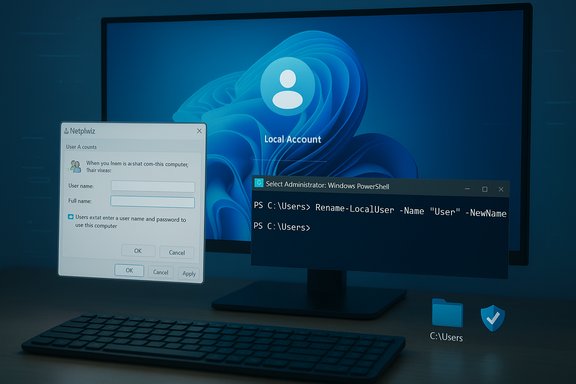
Netplwiz (the classic User Accounts dialog) is available on all consumer Windows editions and is the easiest cross‑edition GUI for changing the display name.Steps:
- Press Win + R, type netplwiz, and press Enter.
- Select the local administrator account you want to rename.
- Click Properties.
- In the Full name field, enter the new display name (you can also edit the username field here if you want to change the account name).
- Click OK twice, then sign out and sign back in to see the new display name.
- Netplwiz changes the display/full name immediately; the C:\Users folder is unaffected.
Method 2 — Local Users and Groups (lusrmgr.msc) — Pro/Enterprise only
If you run Windows 11 Pro or Enterprise, the Local Users and Groups MMC (lusrmgr.msc) offers full user property control.Steps:
- Press Win + R, type lusrmgr.msc, press Enter.
- Click Users, then double‑click the target account.
- Edit the Full name field in the General tab and click OK.
- Optionally right‑click the account and select Rename to change the username. Restart if required.
Method 3 — Control Panel (classic, works on consumer editions)
The old Control Panel path remains available and is familiar to many users.Steps:
- Open Control Panel → User Accounts → User Accounts → Change your account name.
- Enter the new name and click Change Name. The change takes effect immediately.
Method 4 — PowerShell (works on every edition and preferred for admins)
PowerShell is robust and scriptable; use it for one‑off changes or to rename many systems.Commands:
- List accounts: Get-LocalUser.
- Rename an account: Rename-LocalUser -Name "CurrentAdminName" -NewName "NewAdminName".
Rename-LocalUser -Name "How2shout" -NewName "h2smedia"
Verification:
- Run Get-LocalUser | Select-Object Name, FullName to confirm the new Name/FullName.
- Run PowerShell elevated (Windows Terminal (Admin). “Access denied” means you’re not elevated. If execution policy warnings appear, Set-ExecutionPolicy RemoteSigned -Scope CurrentUser may be required for scripts, but simple cmdlets like Rename-LocalUser usually work without policy changes.
Method 5 — Command Prompt: WMIC and net user (legacy)
If you prefer the classic command prompt:- WMIC (legacy):
wmic useraccount get name,sid,status
wmic useraccount where name="CurrentAdminName" rename "NewAdminName" - net user (changes the full name, not the username):
net user "CurrentAdminName" /fullname:"New Display Name"
Method 6 — Renaming the built‑in Administrator account
The hidden, built‑in Administrator account (disabled by default) can be renamed via Computer Management:- Right‑click Start → Computer Management.
- Navigate to System Tools → Local Users and Groups → Users.
- Right‑click Administrator → Rename. Enter the new name and press Enter.
Verifying your changes (quick checks)
After changing names, confirm everything at the UI and command line:- GUI: Sign‑in screen, Settings → Accounts → Your info, and Start menu account tile should show the new display name.
- PowerShell: Get-LocalUser | Select-Object Name, FullName.
- Command Prompt: net user (lists accounts and Full Name values).
Advanced: How to rename the C:\Users profile folder (dangerous — follow only if necessary)
Changing the profile folder is possible but risky. Many applications and Registry keys reference the original path; improper edits can break logins, user settings, OneDrive links, and app configurations. Use this only when you absolutely need a matching folder name (for example, inherited machine with mis‑spelled profile name), and perform a full backup and system restore point first. The community‑documented method below is exacting: create a temporary admin, update the ProfileList registry key for the SID, rename the folder, then recreate links or symbolic links as needed.Step‑by‑step (condensed and safe):
- Create a new temporary local administrator account and sign into it.
- Log out of the original account and log in with the temporary admin.
- Find the original account’s SID: wmic useraccount get name,SID or use PowerShell to get SIDs. Record it.
- Open Regedit and navigate to HKEY_LOCAL_MACHINE\SOFTWARE\Microsoft\Windows NT\CurrentVersion\ProfileList. Find the key for the recorded SID. Modify the ProfileImagePath value from C:\Users\OldName to C:\Users\NewName. Export the key as a backup before changing it.
- Rename the folder in C:\Users from OldName to NewName. If you cannot rename because of locks, try again from the temporary admin or boot to WinRE/Safe Mode.
- Reboot and sign in as the original user. If apps break, you can create a junction to map the old path to the new one: mklink /d "C:\Users\OldName" "C:\Users\NewName". This is a mitigation but not a fix for every application.
- Remove the temporary admin when satisfied.
- EFS: files encrypted under the original account will remain encrypted and may become inaccessible without the original user’s certificate. Export EFS certificates before changing profiles.
- BitLocker: if the disk is BitLocker protected, ensure recovery keys are available.
- This is not supported for casual users—if in doubt, create a new account and migrate files instead.
Step‑by‑step safe checklist (recommended order)
- Create a full system backup and a System Restore point.
- If the machine is managed (domain/MDM), check with IT.
- Create a temporary admin account (AdminBackup) and verify you can sign in with it.
- Rename the display name using Netplwiz or PowerShell (preferred).
- Verify via Get‑LocalUser and net user.
- If you must rename C:\Users, follow the advanced Registry method above, then test thoroughly.
- Remove the temporary admin account once satisfied and reboot.
Troubleshooting: common problems and fixes
- “Option to rename gray/disabled”: check you’re using a local account and that the device is not managed; managed devices may block renaming via Group Policy or MDM. Use an elevated PowerShell session to bypass UI constraints if you have local admin rights.
- “Access Denied” when using command line: ensure you launched Terminal/PowerShell as Administrator. If you still get denied, UAC or software restriction policy may be blocking changes.
- “C:\Users folder didn’t change”: this is expected unless you explicitly changed it with the Registry method; most operations change only the display name. Leave the folder alone unless you have a tested recovery path.
- “Programs can’t find their settings” after a profile folder rename: some apps hard‑code paths; if practical, restore the old folder name or create a symbolic link to map the old path to the new path. Robocopy and icacls are useful for copying and repairing ACLs if you migrate data manually.
- Rufus/OOBE notes: if you’re performing fresh installs and want a preconfigured local account, Rufus can create installer media that avoids the forced Microsoft account path on many ISOs—but behavior is ISO‑ and build‑dependent and not guaranteed across all Windows 11 builds. Treat Rufus as a technician tool and test on a spare machine first.
Critical analysis — benefits and risks
Strengths and practical benefits
- Simplicity: For cosmetic changes (display name), Netplwiz, Control Panel, and PowerShell provide very fast, low‑risk solutions.
- Cross‑edition coverage: PowerShell and net user commands work on Home through Enterprise; lusrmgr.msc provides additional controls for Pro/Enterprise.
- Security hygiene: Renaming or avoiding the default “Administrator” label can marginally reduce the effectiveness of naive scripts that target default names—useful as part of a broader hardening strategy.
Risks and potential problems
- Profile folder fragility: Renaming C:\Users is the main source of breakage. Many preinstalled apps, shortcuts, and Registry keys point at that path; changing it risks application failures and login issues. The Registry method is effective but delicate and should be used only when necessary.
- Managed environments: Local edits may be reverted by MDM/Group Policy or Autopilot/Intune naming templates; in an enterprise setting, local renames can create inventory mismatches and management confusion. Coordinate with IT for fleet devices.
- Encrypted data edge cases: EFS and BitLocker add complexity—without the original certificates or recovery keys, data may be permanently inaccessible following account/password profile manipulation. Export keys and back up critical encrypted data before making changes.
- Installer and OOBE changes: Microsoft’s installer behavior has changed over time; methods that bypass Microsoft account requirements during setup are fragile and can be patched out by Microsoft. Where possible, use supported unattended installation or imaging for repeatable results.
Short FAQ (quick answers)
- Will renaming the account change C:\Users?
- No — the profile folder name remains the same unless you follow the advanced Registry + folder rename steps.
- Which method works on Windows 11 Home?
- Netplwiz, Control Panel, PowerShell, and net user/WMIC work on Home; lusrmgr.msc does not.
- Is it safer to create a new account and migrate files?
- Yes. Creating a new local admin, copying data, and removing the old account is the safest way to end up with a clean folder name and fewer registry edits.
- Can I rename a Microsoft‑account‑linked admin without switching to local?
- No — changes to a Microsoft account’s display name are done through the Microsoft account portal and propagate to the device when it next syncs. Convert to a local account if you want local-only control.
Conclusion
Renaming your Windows 11 local Administrator account is a low‑friction change for the display name—Netplwiz, Control Panel, and PowerShell make that simple across editions—while renaming the underlying username or the C:\Users profile folder requires additional steps and care. Follow the safe checklist: back up, create a temporary admin, perform the rename in an elevated session, verify with Get‑LocalUser or net user, and avoid touching the profile folder unless you accept the risks and have a tested recovery plan. When managed by IT, coordinate changes with your administrator to avoid policy conflicts. The cosmetic benefit and improved organization are real, but do not underestimate the potential fallout from changing paths that other applications and services still reference.Source: How2shout How to Change Administrator Name in Windows 11 Without Microsoft Account
