

Change the Windows display language in Windows 11 or Windows 10 from Settings > Time & language, then sign out and sign back in. This guide also covers adding or changing a keyboard layout, recovering if the wrong layout affects your password entry, and applying the current user’s language settings to the welcome screen and new accounts.
A Windows display language controls text in Settings, File Explorer, Start, and many built-in Windows features. It is separate from:
Also check the Windows edition if language installation is blocked:
Before signing in after the change:
Remember that this switch changes typing behavior only. It does not change the Windows display language.
To choose a different preference without changing the display language:
On Windows 11, Microsoft provides the
Warning: This is a system-wide change. It copies your current display language, input language, regional format, and location settings—not just the interface language. It requires an administrator account and takes effect only after a restart.
This PowerShell cmdlet is available on Windows 11 and later. Do not rely on it for Windows 10.
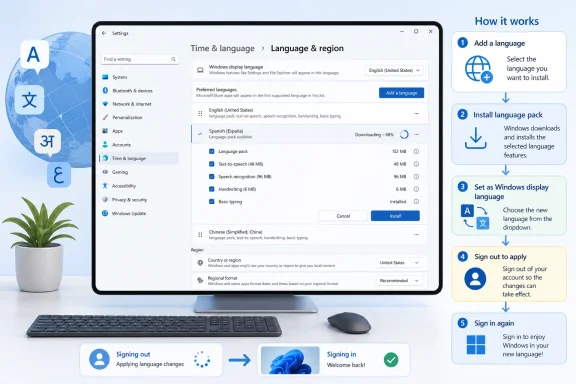 Before you change the display language
A Windows display language controls text in Settings, File Explorer, Start, and many built-in Windows features. It is separate from:- Keyboard layout/input language — determines the characters produced when you type.
- Regional format — determines dates, times, decimal separators, and currency formatting.
- Country or region — affects Microsoft Store availability and purchases; do not change it solely to change Windows language.
Also check the Windows edition if language installation is blocked:
- Open Start > Settings > System > About.
- Under Windows specifications, inspect Edition.
- If it says Windows 11 Home Single Language or Windows 10 Home Single Language, Windows supports only one display language. Microsoft’s supported resolution is to upgrade to a non–Single Language edition; adding a language pack will not bypass that license limitation.
Install and switch the Windows display language
Windows 11
- Open Start > Settings > Time & language > Language & region.
- Under Preferred languages, select Add a language.
- Search for the language you want, select it, then choose Next.
- In Install language features, leave Language pack selected.
- Select optional features only if needed:
- Text-to-speech
- Speech recognition, where offered
- Handwriting, useful for pen or touch input
- To make it the main interface language immediately, select Set as my Windows display language.
- Select Install.
- Wait for the download and installation to finish. The language appears under Preferred languages.
- If you did not select the display-language option during installation, use the Windows display language drop-down at the top of the page and choose the installed language.
- Select Sign out when Windows prompts you. If no button appears, right-click Start and choose Shut down or sign out > Sign out.
- Sign in again.
Windows 10
- Open Start > Settings > Time & Language > Language.
- Under Preferred languages, select Add a preferred language.
- Find and select the desired language, then choose Next.
- Ensure Install language pack is selected.
- Select Set as my Windows display language if you want to change the display language as part of this installation.
- Choose Install.
- After installation, choose the language in the Windows display language list if it was not selected automatically.
- Select Yes, sign out now when prompted, or use Start > Power > Sign out.
- Sign back in.
Prevent a password problem at the sign-in screen
Warning: Changing the display language can also change the active keyboard layout. A password typed with the wrong layout can appear incorrect even when you know the password.Before signing in after the change:
- On the sign-in screen, find the input-language indicator near the lower-right area of the screen.
- Select it and choose the keyboard layout you normally use.
- Enter your password.
- If available, use the password reveal button in the password field to confirm that special characters are being typed as expected.
Add a keyboard layout without changing Windows language
You do not need to switch the entire Windows interface to type in another language. You can add a keyboard layout independently.Windows 11
- Open Start > Settings > Time & language > Language & region.
- Under Preferred languages, find the language that should contain the keyboard layout.
- Select its three-dot menu and choose Language options.
- Under Keyboards, review Installed keyboards.
- Select Add a keyboard.
- Choose the layout.
Windows 10
- Open Start > Settings > Time & Language > Language.
- Under Preferred languages, select the language associated with the keyboard layout.
- Choose Options.
- Under Keyboards, select Add a keyboard.
- Select the layout you need.
Switch between installed keyboards
Use either of these methods:- Select the input-language indicator in the taskbar notification area and choose the keyboard layout.
- Hold down the Windows key and press Spacebar repeatedly until the desired layout is selected.
Remember that this switch changes typing behavior only. It does not change the Windows display language.
Set language preferences for Microsoft Store apps and websites
Windows normally moves the selected display language to the top of Preferred languages. That affects the preferred language used by many Microsoft Store apps and websites.To choose a different preference without changing the display language:
- Open the language settings page:
- Windows 11: Settings > Time & language > Language & region
- Windows 10: Settings > Time & Language > Language
- Under Preferred languages, move the language you want apps and websites to prefer to the top of the list.
Apply your language to the welcome screen and future accounts
Changing your display language applies primarily to the current user account. The welcome screen, system accounts, and accounts created later can retain older language, keyboard, regional format, and location settings.On Windows 11, Microsoft provides the
Copy-UserInternationalSettingsToSystem PowerShell cmdlet for this task.Warning: This is a system-wide change. It copies your current display language, input language, regional format, and location settings—not just the interface language. It requires an administrator account and takes effect only after a restart.
- First, sign in to the account whose settings you want to copy and configure its display language, keyboard, regional format, and location correctly.
- Open Start, search for PowerShell, then select Run as administrator.
- Enter the following command:
Copy-UserInternationalSettingsToSystem -WelcomeScreen $True -NewUser $True - Restart the computer.
- At the sign-in screen, confirm the language and keyboard layout. Create or sign in to a new local test account if you need to confirm the new-user defaults.
Copy-UserInternationalSettingsToSystem -WelcomeScreen $True -NewUser $FalseThis PowerShell cmdlet is available on Windows 11 and later. Do not rely on it for Windows 10.
Remove an unused language or keyboard layout
Removing old languages reduces accidental keyboard switches.Remove a language
- Switch Windows to another display language first if the language you want to remove is currently active.
- Open your language settings page.
- Find the language under Preferred languages.
- Select its menu:
- Windows 11: three dots > Remove
- Windows 10: select the language, then Remove
Remove a keyboard layout
- Open Language options for the language containing the unwanted keyboard.
- Under Keyboards, select the unwanted layout.
- Select Remove.
Troubleshoot an incomplete or failed language change
The language pack will not install
Check these items in order:- Confirm that the PC is connected to the internet.
- Check Settings > Windows Update and install pending updates.
- Verify that the edition is not Home Single Language.
- If the device belongs to an employer or school, contact its IT administrator. Organization policy can restrict language features or Windows Update downloads.
- Retry the language installation from the language settings page.
Some Windows areas still use the old language
- Sign out and sign back in again.
- Restart Windows.
- Check that the intended language is selected under Windows display language.
- If the sign-in screen or newly created accounts still use the old language, apply the Windows 11 system-copy procedure above and restart.
- Understand that a few older applications and administrative dialogs may use their own language resources. Change those applications’ settings separately where available.
The input indicator is missing from the taskbar
First confirm that at least two layouts are installed. Then:- In Windows 11, open Settings > Personalization > Taskbar, then locate the notification-area/system-icon controls and ensure Input Indicator is enabled.
- If the indicator still does not appear, open Settings > Time & language > Typing > Advanced keyboard settings and clear Use the desktop language bar when it’s available. This restores the taskbar input indicator but disables the legacy desktop language bar.
The keyboard keeps switching unexpectedly
Use Windows + Spacebar to identify the active layout, then remove layouts you do not use through Language options > Keyboards. Keep at least one working layout for the current display language before removing another.References
- Primary source: Online Tech Tips
Published: 2026-07-17T05:15:17+00:00
How to Change Your Windows System Language (Windows 10 & 11)
Learn how to change your Windows display language and keyboard layout in just a few clicks. Works for Windows 10 and 11 — no restart required! www.online-tech-tips.com
- Official source: support.microsoft.com
Manage the language and keyboard/input layout settings in Windows | Microsoft Support
Learn how to change Windows display language and keyboard/input layout settings. These settings affect the language displayed in Windows, in apps, and at websites.support.microsoft.com - Official source: learn.microsoft.com
Cant change displayed language on windows 10 - Microsoft Q&A
i downloaded japanese keyboard language pack so i can type in japanese since im practicing. for some reason when i updated my pc and restarted it, the display language became in japanese. i didnt think much of it and i just navigated my way throught the …learn.microsoft.com