

ChatGPT on Windows 11 has moved from being a browser-only habit to a genuinely useful desktop workflow, but the details matter. The official Windows app is now distributed through the Microsoft Store, supports a companion window launched with Alt + Space, and is tied to your IT admin’s Store policies in managed environments. For most people, that makes the app a cleaner, faster way to work; for power users, Winget and PWA installs still offer practical alternatives. OpenAI’s official help also confirms the app currently targets Windows 10 version 17763.0 or higher on x64 and Arm64, which comfortably covers Windows 11.
The rise of ChatGPT as a desktop companion reflects a broader shift in how people actually use AI on Windows. What began as a web-first service has become part of the daily toolchain for writing, coding, customer support, research, and quick lookups. That evolution matters because the friction of opening a browser tab, hunting for the right conversation, and switching contexts is small only in theory; in practice, tab switching is workflow tax.
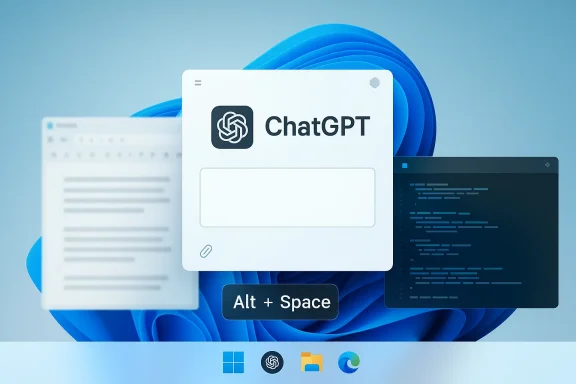
The official ChatGPT Windows app is OpenAI’s answer to that problem. According to OpenAI’s current help documentation, the app is delivered through the Microsoft Store and includes a companion window that can be opened with Alt + Space once the app is running. The companion window can be used to ask questions, upload files, start new conversations, and generate images, which makes it feel closer to a system utility than a normal web shortcut.
That said, it is important to separate what is official from what is merely convenient. Many web articles describe the app as free for everyone, but OpenAI’s own help pages still frame the Windows app as an early version for users on paid plans such as Plus, Team, Edu, and Enterprise. That means readers should treat any broader access claims cautiously and check the current availability in their account or Store listing before assuming universal access.
The good news is that Windows 11 users have multiple viable installation paths. The Microsoft Store route is the simplest and most supportable. Winget is the most reproducible for admins and advanced users. A Progressive Web App is the lightest browser-adjacent option when the Store is blocked or undesirable. Together, those methods cover nearly every practical use case, which is why the ChatGPT desktop story is really a story about choice as much as convenience.
It also reflects a bigger platform trend. Microsoft, OpenAI, and other vendors are all trying to make AI feel like a first-class desktop function rather than a destination website. That competition is pushing the Windows ecosystem toward hotkeys, floating panels, embedded assistants, and context-aware overlays.
The Windows app changes that relationship. OpenAI now documents the app as a Windows client distributed through the Microsoft Store, with support for a companion window, file uploads, new conversations, and image generation. The company also notes that the shortcut may conflict with other applications already using Alt + Space, which is a subtle but important reminder that the app is integrated into the Windows hotkey ecosystem rather than standing apart from it.
Historically, this is not unusual. Most productivity tools eventually migrate from browser-only access to dedicated desktop apps because users want faster launch times, taskbar presence, notification support, and tighter OS integration. ChatGPT is following the same path that many messaging, collaboration, and password-management products took before it. The difference is that the AI assistant market is more contested, which makes desktop placement strategically valuable.
There is also an enterprise angle. OpenAI’s help documentation states that access to the Windows app follows Microsoft Store policy rules set by the IT administrator. That immediately makes the app relevant to managed environments, where software delivery, compliance, and app whitelisting are often more decisive than user preference. In other words, the Windows app is not just a consumer convenience; it is also a deployment question for IT departments.
The current system requirement is modest by modern standards: Windows 10 version 17763.0 or higher on x64 or Arm64. Since Windows 11 is well above that baseline, compatibility is not the limiting factor. Access, policy, and feature availability are more likely to be the real obstacles.
Open the Microsoft Store from Start, search for ChatGPT, and choose the app published by OpenAI. That publisher check matters because the Store can surface lookalike apps with similar branding. Once installed, launch it, sign in, and you can pin it to the taskbar or Start menu for easier access. OpenAI’s help confirms the app is distributed through the Store and that access can depend on organization policy.
The major practical feature is the companion window. OpenAI says that pressing Alt + Space while the app is running opens the companion chat, which can be used to ask questions, upload files, generate images, or start a new chat. The company also warns that this shortcut will fail if another Windows app already owns the same hotkey, so users who rely on launchers or power tools may need to reassign one of them.
This route is also the most familiar to everyday users. It keeps the app within standard Windows conventions and avoids the “where did I put that installer?” problem. For non-technical users, that familiarity often matters more than raw control.
OpenAI’s documentation explicitly includes a Winget example for deploying the Windows app in managed environments. That is a strong signal that the command-line path is not a workaround but a recognized installation method. In practical terms, it is ideal for technicians, sysadmins, developers, and power users who want a consistent setup script.
The command itself uses the Microsoft Store source and the Store package ID, which means Winget is still installing the official Store package under the hood. That is a useful distinction, because it keeps the trust model consistent while giving you automation. The result is cleaner than using an unknown installer from a website.
There is one caveat worth stressing: Winget is only as good as the Store availability and policy environment behind it. If the machine cannot access the Store catalog, or if your IT policy blocks the app, the command will not magically bypass those restrictions. In that sense, Winget is a delivery mechanism, not an entitlement override.
A browser-based setup is the simplest possible answer: go to the ChatGPT site, sign in, and use it like any other web service. OpenAI’s own desktop guidance makes clear that the Windows app is a separate experience, which means the web app remains an independent option even when the native client is available. That matters because the browser version usually gets features sooner and is less dependent on Windows integration.
A Progressive Web App takes that a step further. In Edge or Chrome, you can install the site as an app-like window with its own taskbar icon and app entry. The result is lighter than a full desktop package while still feeling more contained than a normal tab. It is not the same as the official Windows app, but for many users it is close enough.
The trade-off is obvious. PWAs generally lack the system-level shortcuts and deeper Windows integration of the official app. You gain simplicity and portability, but you give up the companion window and some of the native polish.
The most important shortcut is Alt + Space, which opens the companion chat when the app is already running. OpenAI notes that this shortcut can conflict with other Windows apps, so power users should be alert if they already use a launcher or a system utility on the same hotkey. The company also points users to the app settings if they need to change the companion window hotkey.
That shortcut is valuable because it changes the moment of interaction. Instead of opening a big app, locating a chat, and then deciding what to ask, you can ask immediately. That difference matters for quick tasks like drafting a sentence, checking a command, summarizing text, or rephrasing an email. Small friction reductions compound quickly.
There is also a practical OS-design point here. Windows users are already trained to use keyboard shortcuts for power tasks, whether that is snapping windows, switching desktops, or launching pinned apps. ChatGPT’s companion window slots neatly into that behavior, which is one reason the official app feels more native than a plain browser tab.
This is where the Store publisher check becomes more than a technicality. The official app comes from OpenAI, and that identity matters because the app is connected to your conversations, files, and potentially sensitive work output. A lookalike app asking for your API key, account access, or browser credentials should be treated with caution.
OpenAI’s help documentation also reminds us that the Windows app is distributed through the Microsoft Store and therefore subject to enterprise policy. That is good from a governance perspective because it keeps access inside a known software channel. It also means IT teams can apply existing app-control frameworks rather than creating exceptions for random desktop utilities.
The bigger security story is that AI apps are now data-handling tools, not just chat boxes. They can receive files, text, screenshots, and context. That makes trust in the client application a first-order concern, especially on workstations used for legal, financial, medical, or confidential business tasks. Convenience should never outrun control.
One obvious benefit is window management. You can keep ChatGPT snapped beside a document, a browser tab, a spreadsheet, or an IDE, which is usually more useful than making it a full-screen destination. Side-by-side workflows are faster because they reduce memory load and help you compare source material with the answer in real time.
The second benefit is reduced browser clutter. If your browser already has research tabs, media tabs, reference tabs, and work tabs, ChatGPT in a separate window is a relief. It gives AI its own place without adding yet another permanent tab to a crowded session.
The third benefit is quick capture. OpenAI’s help says the companion window can upload files and start new chats, which makes it useful for immediate response workflows. That means you can move from question to action without navigating through a large app shell.
For consumers, the win is obvious: faster access, fewer tabs, and a cleaner AI workspace. For enterprises, the challenge is governance. IT teams will want clarity on data handling, policy enforcement, and whether the Windows app gains the same maturity as OpenAI’s web and enterprise offerings. That is especially important in organizations where Store apps are locked down or where AI usage needs to be auditable.
In the end, the real value of ChatGPT on Windows 11 is not that it exists as an app, but that it reduces the distance between a question and the answer. Once that distance shrinks, AI stops feeling like a separate website and starts behaving like a genuine desktop tool.
Source: H2S Media How to Install ChatGPT on Windows 11: CMD + GUI Methods
 Overview
The rise of ChatGPT as a desktop companion reflects a broader shift in how people actually use AI on Windows. What began as a web-first service has become part of the daily toolchain for writing, coding, customer support, research, and quick lookups. That evolution matters because the friction of opening a browser tab, hunting for the right conversation, and switching contexts is small only in theory; in practice, tab switching is workflow tax.The official ChatGPT Windows app is OpenAI’s answer to that problem. According to OpenAI’s current help documentation, the app is delivered through the Microsoft Store and includes a companion window that can be opened with Alt + Space once the app is running. The companion window can be used to ask questions, upload files, start new conversations, and generate images, which makes it feel closer to a system utility than a normal web shortcut.
That said, it is important to separate what is official from what is merely convenient. Many web articles describe the app as free for everyone, but OpenAI’s own help pages still frame the Windows app as an early version for users on paid plans such as Plus, Team, Edu, and Enterprise. That means readers should treat any broader access claims cautiously and check the current availability in their account or Store listing before assuming universal access.
The good news is that Windows 11 users have multiple viable installation paths. The Microsoft Store route is the simplest and most supportable. Winget is the most reproducible for admins and advanced users. A Progressive Web App is the lightest browser-adjacent option when the Store is blocked or undesirable. Together, those methods cover nearly every practical use case, which is why the ChatGPT desktop story is really a story about choice as much as convenience.
Why the desktop app matters
The desktop app is not just a prettier shell around the same web experience. It changes how quickly you can invoke AI, how easily you can keep it visible beside your work, and how naturally it blends into Windows habits like pinning, startup launch, and taskbar shortcuts. That is the difference between “I sometimes use ChatGPT” and “ChatGPT is part of my workflow.”It also reflects a bigger platform trend. Microsoft, OpenAI, and other vendors are all trying to make AI feel like a first-class desktop function rather than a destination website. That competition is pushing the Windows ecosystem toward hotkeys, floating panels, embedded assistants, and context-aware overlays.
What users should verify first
Before installing anything, it is worth confirming three basics. First, make sure you are getting the app published by OpenAI in the Microsoft Store. Second, check whether your device is restricted by organization policy, because Store-distributed apps follow IT controls. Third, remember that some features available on the web or macOS version may not yet be present in the early Windows release.- Confirm the publisher is OpenAI.
- Check Store policy if you use a work PC.
- Expect the Windows app to evolve over time.
- Treat unofficial clone apps with skepticism.
- Verify your account’s current access before troubleshooting.
Background
ChatGPT started life as a browser experience, and that made sense. Web delivery let OpenAI iterate quickly, avoid Windows-specific packaging issues, and reach users on any platform with a modern browser. For occasional use, that model is still fine. For sustained use, however, the browser model keeps ChatGPT visually and psychologically tied to everything else in the tab strip.The Windows app changes that relationship. OpenAI now documents the app as a Windows client distributed through the Microsoft Store, with support for a companion window, file uploads, new conversations, and image generation. The company also notes that the shortcut may conflict with other applications already using Alt + Space, which is a subtle but important reminder that the app is integrated into the Windows hotkey ecosystem rather than standing apart from it.
Historically, this is not unusual. Most productivity tools eventually migrate from browser-only access to dedicated desktop apps because users want faster launch times, taskbar presence, notification support, and tighter OS integration. ChatGPT is following the same path that many messaging, collaboration, and password-management products took before it. The difference is that the AI assistant market is more contested, which makes desktop placement strategically valuable.
There is also an enterprise angle. OpenAI’s help documentation states that access to the Windows app follows Microsoft Store policy rules set by the IT administrator. That immediately makes the app relevant to managed environments, where software delivery, compliance, and app whitelisting are often more decisive than user preference. In other words, the Windows app is not just a consumer convenience; it is also a deployment question for IT departments.
The current system requirement is modest by modern standards: Windows 10 version 17763.0 or higher on x64 or Arm64. Since Windows 11 is well above that baseline, compatibility is not the limiting factor. Access, policy, and feature availability are more likely to be the real obstacles.
Why the Store matters
Using the Microsoft Store gives OpenAI a centralized update channel and simplifies trust validation for users. It also means the app can benefit from Windows-managed installation and removal workflows. For IT, that matters because Store-based software is easier to account for than random installer bundles or unofficial download mirrors.Why winget matters
Winget is the best fit for repeatable setups, scripted deployments, and users who prefer the command line. OpenAI’s own help center includes a winget install example for ChatGPT in an enterprise context, reinforcing that the terminal method is not some third-party hack but a supported deployment path.- Browser-first delivery made sense early on.
- Desktop delivery improves integration and speed.
- Managed environments need Store-aware deployment.
- Winget supports scripted installs.
- Policy controls can be the real blocker.
Official Microsoft Store Installation
For most Windows 11 users, the Microsoft Store is the best install method. It is the shortest path from curiosity to a working desktop app, and it preserves the normal Windows expectations around updates, taskbar pins, and uninstall behavior. If you want the official app with the least friction, start here.Open the Microsoft Store from Start, search for ChatGPT, and choose the app published by OpenAI. That publisher check matters because the Store can surface lookalike apps with similar branding. Once installed, launch it, sign in, and you can pin it to the taskbar or Start menu for easier access. OpenAI’s help confirms the app is distributed through the Store and that access can depend on organization policy.
The major practical feature is the companion window. OpenAI says that pressing Alt + Space while the app is running opens the companion chat, which can be used to ask questions, upload files, generate images, or start a new chat. The company also warns that this shortcut will fail if another Windows app already owns the same hotkey, so users who rely on launchers or power tools may need to reassign one of them.
This route is also the most familiar to everyday users. It keeps the app within standard Windows conventions and avoids the “where did I put that installer?” problem. For non-technical users, that familiarity often matters more than raw control.
Step-by-step Store install
- Open Microsoft Store from Start.
- Search for ChatGPT.
- Verify the publisher is OpenAI.
- Click Get or Install.
- Sign in and pin the app if you want persistent access.
- Try Alt + Space once the app is open.
What the Store install gives you
The official app provides a standalone window, better separation from browser tabs, and access to the companion mode. It also fits naturally into Windows housekeeping like startup behavior and taskbar pinning. That combination is why the Store version is the closest thing to a “real” ChatGPT app on Windows 11.- Official publisher verification is essential.
- Companion mode is the standout feature.
- Startup and pinning behave like normal Windows apps.
- Store distribution improves update handling.
- Policy restrictions may affect corporate devices.
Winget and Command Line Installation
If you set up many PCs, rebuild machines often, or simply prefer controlling software from the terminal, Winget is the best alternative. It reduces the install process to a single line and keeps you inside the Windows package management ecosystem rather than forcing a manual search through the Store interface.OpenAI’s documentation explicitly includes a Winget example for deploying the Windows app in managed environments. That is a strong signal that the command-line path is not a workaround but a recognized installation method. In practical terms, it is ideal for technicians, sysadmins, developers, and power users who want a consistent setup script.
The command itself uses the Microsoft Store source and the Store package ID, which means Winget is still installing the official Store package under the hood. That is a useful distinction, because it keeps the trust model consistent while giving you automation. The result is cleaner than using an unknown installer from a website.
There is one caveat worth stressing: Winget is only as good as the Store availability and policy environment behind it. If the machine cannot access the Store catalog, or if your IT policy blocks the app, the command will not magically bypass those restrictions. In that sense, Winget is a delivery mechanism, not an entitlement override.
Typical Winget workflow
- Open Windows Terminal, PowerShell, or Command Prompt.
- Run the install command for the ChatGPT Store package.
- Accept package and source agreements if prompted.
- Wait for the Store-backed install to complete.
- Launch from Start, then sign in and pin it.
Why advanced users prefer it
The main reason is repeatability. A command can be copied into a script, an onboarding checklist, or a deployment runbook without ambiguity. The second reason is speed: if you already live in the terminal, the command path keeps you from breaking focus to hunt through menus.- Repeatable installs are easier to document.
- Terminal workflows fit provisioning scripts.
- Winget still uses the official package source.
- Store policy can still limit access.
- It is best for admins and technical users.
Progressive Web App and Browser-Based Use
Not every Windows 11 user wants another native application installed. Some prefer to keep everything inside the browser, while others operate on locked-down PCs where Store installs are blocked. In those situations, ChatGPT as a browser app or PWA is a practical compromise.A browser-based setup is the simplest possible answer: go to the ChatGPT site, sign in, and use it like any other web service. OpenAI’s own desktop guidance makes clear that the Windows app is a separate experience, which means the web app remains an independent option even when the native client is available. That matters because the browser version usually gets features sooner and is less dependent on Windows integration.
A Progressive Web App takes that a step further. In Edge or Chrome, you can install the site as an app-like window with its own taskbar icon and app entry. The result is lighter than a full desktop package while still feeling more contained than a normal tab. It is not the same as the official Windows app, but for many users it is close enough.
The trade-off is obvious. PWAs generally lack the system-level shortcuts and deeper Windows integration of the official app. You gain simplicity and portability, but you give up the companion window and some of the native polish.
Edge PWA setup
Open Edge, go to the ChatGPT site, sign in, and use the menu to install the site as an app. Once installed, it opens in a dedicated window and can be pinned or launched from Start. This is often the cleanest fallback when the Store version is unavailable.Chrome PWA setup
Chrome can do the same thing with its install-page flow. Depending on the version, the wording in the menu may vary, but the core idea is the same: convert the website into an app-like shell. That makes it a decent compromise for users who already live in Chrome.- PWAs are lighter than native apps.
- They are useful when Store installs are blocked.
- They can still be pinned and launched like apps.
- They lack the official companion window.
- Browser updates may surface new features faster.
Companion Window and Keyboard Shortcuts
The companion window is the feature that most clearly separates the official app from the browser experience. OpenAI describes it as a quick-access chat surface that can open on top of whatever else you are doing, which makes ChatGPT feel less like a destination and more like a utility. That is a meaningful workflow shift.The most important shortcut is Alt + Space, which opens the companion chat when the app is already running. OpenAI notes that this shortcut can conflict with other Windows apps, so power users should be alert if they already use a launcher or a system utility on the same hotkey. The company also points users to the app settings if they need to change the companion window hotkey.
That shortcut is valuable because it changes the moment of interaction. Instead of opening a big app, locating a chat, and then deciding what to ask, you can ask immediately. That difference matters for quick tasks like drafting a sentence, checking a command, summarizing text, or rephrasing an email. Small friction reductions compound quickly.
There is also a practical OS-design point here. Windows users are already trained to use keyboard shortcuts for power tasks, whether that is snapping windows, switching desktops, or launching pinned apps. ChatGPT’s companion window slots neatly into that behavior, which is one reason the official app feels more native than a plain browser tab.
Useful shortcut habits
- Alt + Space: open the companion window.
- Win + Number: launch a pinned taskbar app.
- Win + Left/Right: snap ChatGPT beside your work.
- Win + Ctrl + D: create a dedicated AI desktop.
- Pin to taskbar: keep ChatGPT one click away.
Shortcut conflicts to watch
If you already use a launcher such as PowerToys Run or another utility with Alt + Space, you may need to reassign one of them. That is not a bug so much as a collision between competing productivity tools. In practice, the best shortcut is the one you can remember and use consistently.- The companion window is the signature feature.
- Hotkey conflicts are possible.
- Keyboard-driven workflows reduce context switching.
- Pinned apps make access faster.
- Startup launch can make ChatGPT feel always available.
Security, Trust, and Third-Party App Risks
The official app is the one readers should trust first, and OpenAI’s own distribution model makes that straightforward. But the Windows ecosystem is crowded with third-party apps that use the ChatGPT name, iconography, or public API in ways that can confuse users. Some are harmless wrappers; others are risky, opaque, or monetized in ways that do not benefit the user.This is where the Store publisher check becomes more than a technicality. The official app comes from OpenAI, and that identity matters because the app is connected to your conversations, files, and potentially sensitive work output. A lookalike app asking for your API key, account access, or browser credentials should be treated with caution.
OpenAI’s help documentation also reminds us that the Windows app is distributed through the Microsoft Store and therefore subject to enterprise policy. That is good from a governance perspective because it keeps access inside a known software channel. It also means IT teams can apply existing app-control frameworks rather than creating exceptions for random desktop utilities.
The bigger security story is that AI apps are now data-handling tools, not just chat boxes. They can receive files, text, screenshots, and context. That makes trust in the client application a first-order concern, especially on workstations used for legal, financial, medical, or confidential business tasks. Convenience should never outrun control.
Practical safety checklist
- Install only the app published by OpenAI.
- Avoid third-party clones that request your API key.
- Check whether your company permits Store apps.
- Use a standard account flow rather than sharing credentials.
- Be careful with confidential files and prompts.
Enterprise-specific concerns
For business users, the question is not just “does it work?” but “where does the data go?” The official Windows app’s Store distribution and OpenAI’s enterprise policy notes are encouraging, but organizations should still review their internal AI usage rules before letting employees adopt it widely. Policy, logging, and data retention should all be part of the conversation.- Third-party clones can be misleading.
- API-key collection is a red flag.
- Store policy helps enterprises control access.
- Sensitive files deserve extra caution.
- Business governance should precede deployment.
Productivity Benefits in Daily Use
The strongest argument for installing ChatGPT on Windows 11 is not novelty but routine productivity. Once the app is pinned, launched on startup, or summoned with a shortcut, it becomes easier to reach for small tasks that otherwise get delayed. That changes behavior in a good way.One obvious benefit is window management. You can keep ChatGPT snapped beside a document, a browser tab, a spreadsheet, or an IDE, which is usually more useful than making it a full-screen destination. Side-by-side workflows are faster because they reduce memory load and help you compare source material with the answer in real time.
The second benefit is reduced browser clutter. If your browser already has research tabs, media tabs, reference tabs, and work tabs, ChatGPT in a separate window is a relief. It gives AI its own place without adding yet another permanent tab to a crowded session.
The third benefit is quick capture. OpenAI’s help says the companion window can upload files and start new chats, which makes it useful for immediate response workflows. That means you can move from question to action without navigating through a large app shell.
Practical productivity patterns
- Draft emails beside your inbox.
- Summarize PDFs without leaving your document stack.
- Ask follow-up questions while coding.
- Use the companion window for throwaway prompts.
- Keep ChatGPT on a separate virtual desktop.
Where the app is strongest
The app is most valuable for users who ask short, frequent questions. Writers, analysts, support staff, students, and developers all benefit from faster access. The app is less about a dramatic feature set and more about making the same AI capabilities easier to reach.- Side-by-side work is faster than tab switching.
- Dedicated windows reduce browser clutter.
- File handling supports real tasks.
- Frequent users benefit most.
- Quick prompts are the app’s sweet spot.
Strengths and Opportunities
The ChatGPT Windows 11 app is strongest when you think of it as an access layer rather than a new product category. It makes a cloud service feel local enough to fit the desktop, which is exactly what many users wanted once ChatGPT became part of their daily routine. The opportunity now is for OpenAI to continue tightening the integration while preserving the simplicity that made the app appealing in the first place.- Official distribution through the Microsoft Store keeps the app in a recognizable Windows channel.
- Alt + Space access makes the companion window feel immediate and useful.
- Winget support gives admins and power users a reproducible install path.
- PWA fallback options make the service accessible even when the Store is unavailable.
- Taskbar and startup integration help ChatGPT become part of routine workflows.
- File upload and quick chat features support real productivity use cases.
- Arm64 support broadens the app’s reach across modern Windows hardware.
Risks and Concerns
The main risk is overpromising simplicity when the real world is messier. Managed devices may block Store access, the hotkey can conflict with other utilities, and some features may lag behind the web or macOS experience. That means the app is useful, but not universally frictionless.- Store policy restrictions can prevent installation on managed PCs.
- Feature gaps may exist in the early Windows release.
- Hotkey conflicts can interfere with other productivity tools.
- Third-party lookalikes create trust and security risks.
- AI data handling raises governance concerns in business settings.
- Access confusion can occur if users assume all plans or regions are equivalent.
- Browser/PWA limitations mean the lighter options are not fully equivalent to the native client.
Looking Ahead
The future of ChatGPT on Windows will likely be defined less by installation mechanics and more by integration depth. The app already has the key pieces: official distribution, a system-friendly shortcut, and enough desktop presence to matter. The next step is richer feature parity, tighter performance, and deeper context-aware interaction without turning the app into a bloated shell.For consumers, the win is obvious: faster access, fewer tabs, and a cleaner AI workspace. For enterprises, the challenge is governance. IT teams will want clarity on data handling, policy enforcement, and whether the Windows app gains the same maturity as OpenAI’s web and enterprise offerings. That is especially important in organizations where Store apps are locked down or where AI usage needs to be auditable.
What to watch next
- Feature parity between Windows, web, and macOS.
- Any changes to paid-plan versus broader access rules.
- Improvements to the companion window hotkey and behavior.
- Expanded enterprise deployment guidance.
- Better support for managed-device environments.
- Additional Windows-native integration points.
In the end, the real value of ChatGPT on Windows 11 is not that it exists as an app, but that it reduces the distance between a question and the answer. Once that distance shrinks, AI stops feeling like a separate website and starts behaving like a genuine desktop tool.
Source: H2S Media How to Install ChatGPT on Windows 11: CMD + GUI Methods
