

BGR’s July 19 browser-security guide is a useful reminder for Windows users: browser defaults are not a one-time decision. Saved credentials, cross-site tracking, extensions, background processes and new AI features all deserve a periodic check—particularly after a major browser update.
The advice applies to Chrome, Edge, Firefox and other browsers, although the controls and defaults differ. For most Windows PCs, the priority is not to disable every convenience feature, but to make sure browser behavior still matches the user’s security, privacy and performance requirements.
BGR recommends checking saved passwords for breach exposure and enabling an authentication prompt before autofill where available. Google’s Chrome documentation confirms that Password Checkup can identify stored credentials exposed in known breaches, while Chrome and Edge both support stronger local authentication options for password access or filling.
That matters more than the old blanket advice to abandon browser password managers. Modern built-in managers are tied into Windows authentication and breach monitoring, but they still concentrate valuable credentials in a browser profile. Users sharing a household PC should require Windows Hello or a PIN before password filling, and organizations should ensure browser profiles are protected by normal account and device controls.
Extensions are the other high-value audit target. They can read and alter page content, often across every site a user visits. BGR’s recommendation is straightforward: remove anything unused, unfamiliar or no longer maintained. Microsoft’s enterprise guidance makes the same point for managed environments, where admins can inventory, block and allow-list extensions through Edge policy.
The guide suggests enabling the Do Not Track request, but admins and privacy-conscious users should not treat that as an enforcement mechanism. Mozilla removed Do Not Track from Firefox beginning with version 135, saying many sites ignored the signal and that it could sometimes reduce privacy. Browser-level cookie blocking and tracking-prevention controls produce a more tangible result than a voluntary header.
In Edge, Microsoft’s Tracking Prevention remains set to Balanced by default. Strict mode can be useful on systems that prioritize privacy, but IT staff should expect compatibility tickets and use exceptions for affected services rather than weakening protections across the board.
Finally, Chrome’s AI settings now merit the same scrutiny as telemetry and sync options. Google confirms that Chrome may download on-device generative-AI models in the background for features such as writing assistance, scam warnings, page summaries and tab organization. Turning off On-device AI removes those models and disables dependent features, but other AI functions may remain separately enabled.
A short quarterly review of passwords, extensions, tracking settings, background activity and AI controls is enough to catch most unwanted browser drift.
The advice applies to Chrome, Edge, Firefox and other browsers, although the controls and defaults differ. For most Windows PCs, the priority is not to disable every convenience feature, but to make sure browser behavior still matches the user’s security, privacy and performance requirements.
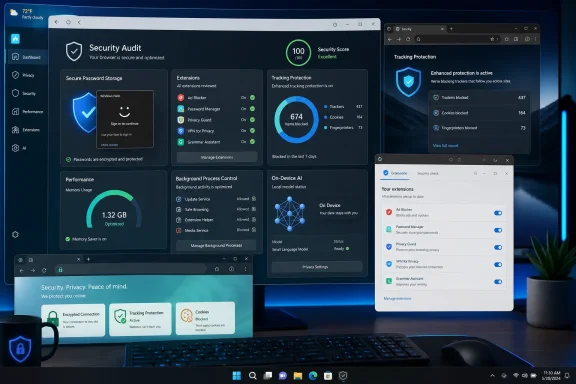 Credentials and extensions come first
BGR recommends checking saved passwords for breach exposure and enabling an authentication prompt before autofill where available. Google’s Chrome documentation confirms that Password Checkup can identify stored credentials exposed in known breaches, while Chrome and Edge both support stronger local authentication options for password access or filling.That matters more than the old blanket advice to abandon browser password managers. Modern built-in managers are tied into Windows authentication and breach monitoring, but they still concentrate valuable credentials in a browser profile. Users sharing a household PC should require Windows Hello or a PIN before password filling, and organizations should ensure browser profiles are protected by normal account and device controls.
Extensions are the other high-value audit target. They can read and alter page content, often across every site a user visits. BGR’s recommendation is straightforward: remove anything unused, unfamiliar or no longer maintained. Microsoft’s enterprise guidance makes the same point for managed environments, where admins can inventory, block and allow-list extensions through Edge policy.
Tracking controls need a realistic expectation
BGR also advises reviewing third-party-cookie settings. Blocking them can reduce cross-site profiling, but it can also break embedded sign-ins, payment widgets and other web components. Chrome allows per-site exceptions, which is usually preferable to switching the protection off globally after one broken site.The guide suggests enabling the Do Not Track request, but admins and privacy-conscious users should not treat that as an enforcement mechanism. Mozilla removed Do Not Track from Firefox beginning with version 135, saying many sites ignored the signal and that it could sometimes reduce privacy. Browser-level cookie blocking and tracking-prevention controls produce a more tangible result than a voluntary header.
In Edge, Microsoft’s Tracking Prevention remains set to Balanced by default. Strict mode can be useful on systems that prioritize privacy, but IT staff should expect compatibility tickets and use exceptions for affected services rather than weakening protections across the board.
Performance and AI settings are now part of the audit
BGR also calls out memory-saving, startup and background-app settings. These are practical Windows concerns: inactive-tab memory controls can reduce browser RAM consumption, while disabling background apps can stop a “closed” browser from retaining processes. Startup tabs and page preloading are worth reviewing on low-memory devices and laptops.Finally, Chrome’s AI settings now merit the same scrutiny as telemetry and sync options. Google confirms that Chrome may download on-device generative-AI models in the background for features such as writing assistance, scam warnings, page summaries and tab organization. Turning off On-device AI removes those models and disables dependent features, but other AI functions may remain separately enabled.
A short quarterly review of passwords, extensions, tracking settings, background activity and AI controls is enough to catch most unwanted browser drift.
References
- Primary source: bgr.com
Published: 2026-07-19T09:47:00+00:00
5 Browser Settings You Should Review More Often
Modern web browsers are convenient, but some settings cause problems and need to be adjusted. Among them are controls for security, plugins, and launch options.www.bgr.com
