

As of June 2026, Claude Code can be installed and used from the terminal on macOS, Linux, Windows through WSL, and native Windows environments that provide Git Bash, giving developers a cross-platform way to delegate coding tasks directly from the command line. The practical story is not just installation; it is the quiet normalization of agentic coding inside the same shell where builds, tests, commits, and deployments already happen. Claude Code is less a chatbot bolted onto development and more a command-line collaborator with file access, project context, and permissioned execution.
Claude Code’s appeal is simple: it meets developers where they already work. Instead of copying an error into a browser, waiting for a response, and manually translating the advice back into a repo, you ask from inside the project directory and let the tool inspect the codebase itself.
That changes the relationship between AI and software work. A browser assistant can explain a stack trace; a terminal agent can read the files that produced it, propose changes, run tests, and prepare a commit. The difference is not cosmetic. It collapses the distance between suggestion and action.
Anthropic’s framing is that Claude Code is an agentic coding tool, and that word matters. It is not merely autocomplete with a prompt box. It can plan a task, inspect files, edit multiple parts of a project, run shell commands, and ask before making consequential changes.
For WindowsForum readers, the cross-platform angle is especially important. AI development tooling has often treated Windows as an afterthought, assuming macOS laptops and Linux servers as the default developer habitat. Claude Code’s current installation paths are not perfectly symmetrical, but Windows users are no longer outside the tent.
The more serious requirement is trust. Claude Code operates in a directory that may contain source code, secrets, build scripts, private configuration files, and Git history. That is exactly what makes it useful, and exactly why it deserves more scrutiny than a conventional editor plugin.
A sensible setup starts with the obvious basics. Use it in a real project, but not first on your most sensitive production repo. Make sure your secrets are not casually scattered through checked-in files. Keep Git clean enough that you can see what changed after a session.
The operating system split looks broadly like this: macOS and Linux can use the shell installer directly; Windows users can install through WSL, PowerShell, Command Prompt, or WinGet depending on their preference and environment. Native Windows support has improved, but Git Bash still matters because Claude Code expects access to a Bash-compatible toolchain for many workflows.
After installation, verify the command is available:
Homebrew users can instead install it as a cask:
The tradeoff is update behavior. The native installer is designed to keep Claude Code current automatically, while Homebrew users should periodically run:
That is typical macOS developer plumbing: one path is vendor-managed, the other fits into an existing package-management routine. Either way, once
Ubuntu and Debian are the cleanest targets, particularly Ubuntu 20.04 or later and Debian 10 or later. Other mainstream distributions may work, but the further you move from glibc-based systems, the more likely you are to meet dependency edge cases.
Alpine Linux is the notable caveat. Because Alpine uses musl rather than glibc, users may need to install supporting packages first:
Then set:
There is also an npm route for users who prefer Node-based global tooling:
That command should not be run with
If you already use WSL, open your Linux distribution terminal and run:
That gives you the Linux-style workflow inside Windows. It is especially attractive for web developers, Python developers, and anyone whose build chain already lives comfortably in WSL.
Native Windows users have another option. Install Git for Windows first, because it provides the Git Bash environment Claude Code expects for shell operations. Then run the PowerShell installer:
Command Prompt users can use:
WinGet users can keep it even simpler:
If Git for Windows lives somewhere unusual, point Claude Code to Bash explicitly:
The important distinction is that native Windows support does not magically turn every Unix-shaped build assumption into a Windows-native one. If your project already depends on Bash scripts, Unix tools, or Linux container workflows, WSL may still be the better home. If your work is primarily PowerShell, .NET, Node, or cross-platform tooling, native Windows can be perfectly workable.
On first launch, Claude Code prompts for authentication. You can sign in with a Claude subscription account where supported, or use an Anthropic Console account with API credits. The login flow opens a browser, completes authentication, and stores credentials locally.
From there, the prompt becomes conversational. You are still in a terminal, but you are no longer issuing only shell commands. You can ask:
Claude Code will inspect the repository and summarize what it finds. That first question is more useful than it sounds. In an unfamiliar codebase, the first obstacle is rarely writing code; it is building a mental map.
Follow-up prompts can be just as plain:
This is where Claude Code separates itself from ordinary search. It can connect imports, recognize framework conventions, inspect package files, and infer how modules relate to each other. It will not be right every time, but it usually gives you a faster first map than grepping through a cold repository by hand.
A typical request might be:
Or:
Claude Code can locate relevant files, propose a patch, and update multiple files in one pass. For example, it might adjust a React component, add a schema validation rule, and update a test. That multi-file competence is precisely why review matters.
There is an “accept all” style of workflow for users who want fewer interruptions, but it should be earned. Use it only after you understand the project, the risk, and the kind of changes Claude Code is making. The default posture should be trust, but diff.
This is especially true in production repositories. Claude Code may introduce a plausible abstraction that does not fit your team’s style, add a dependency you did not want, or fix the visible bug while missing a related edge case. The tool accelerates code review; it does not abolish it.
Then:
Because Claude Code can inspect the actual diff, it can often write better commit messages than the tired
The danger is that Git is not just a convenience layer. It is the audit trail of a project. Letting an AI assistant stage and commit changes should make you more careful, not less.
A good habit is to ask Claude Code to explain the diff before committing it. If the explanation sounds wrong, inspect manually. If the change spans security-sensitive code, authentication, payments, migrations, or deployment scripts, slow down.
The best Claude Code Git workflow is not “let the bot drive.” It is “let the bot narrate, prepare, and reduce typing while the human remains accountable.”
The command most users will reach for first is:
That displays available commands and shortcuts. When a session gets too long or context starts to drift, use:
For long conversations where you want to preserve continuity while reducing context load, use:
To switch accounts or re-authenticate:
To resume a previous session:
To change models:
The model switch is not just a vanity setting. More capable models are useful for architecture, debugging, and hairy refactors; faster models are often enough for routine edits and explanations. The right choice depends on whether you need deeper reasoning or quicker iteration.
Claude Code can also run as a one-off command:
And it can print an answer without entering an interactive session:
Those modes matter because not every task deserves a full conversation. Sometimes you want a quick explanation or a surgical fix, then you want the tool out of the way.
Place a file named
A useful
That file turns repeated prompt boilerplate into versioned policy. Instead of telling Claude Code every day to use two-space indentation, avoid a deprecated helper, or never modify generated files, you write it once.
For teams, this is where agentic coding becomes governable. A shared instruction file is not a substitute for CI, code review, or security policy, but it gives the assistant a fighting chance of behaving like a member of the project rather than a tourist.
The best workflow is often investigative before it is operational. Ask Claude Code to explain the authentication flow before asking it to rewrite the authentication module. Ask it to identify where validation happens before asking it to add another validation layer.
Large tasks should be split. “Build a complete user authentication system” is an invitation to generate too much code too quickly. A better sequence is to create the database schema, add the registration endpoint, build the login form, write tests, and then review the security assumptions.
This is not a limitation unique to Claude Code. It is the nature of software work. Good developers decompose problems because decomposition exposes assumptions. Good AI-assisted developers do the same thing, only faster.
On macOS and Linux, check whether the installer placed the binary in a user-local bin directory that your shell does not currently load. On Windows, verify that the install location is in PATH and that you opened a fresh PowerShell, Command Prompt, or Windows Terminal tab.
If Claude Code cannot find Bash on Windows, confirm that Git for Windows is installed. If Git is installed in a non-standard location, set
If npm installation fails on Linux or macOS, resist the urge to prepend
If Claude Code feels slow, inspect the size and shape of the repository. Giant monorepos, checked-in build artifacts, vendored dependencies, and noisy generated files can all make initial analysis more expensive. A clean
Authentication failures usually call for
If your repo builds in Linux containers, uses Bash-heavy scripts, or mirrors a production Linux environment, WSL is usually the cleanest path. You get fewer translation problems and a terminal experience closer to the deployment target.
If your project is Windows-native, .NET-heavy, or already comfortable in PowerShell and Git Bash, native Windows is attractive. WinGet makes installation simple, and Git for Windows supplies enough Unix-like infrastructure for many coding workflows.
The messy middle is where users get frustrated. A project opened from Windows paths, built through WSL, edited in a Windows IDE, and automated through Bash can work beautifully when configured well and fail strangely when it is not. Claude Code does not remove that complexity; it makes it more visible.
That visibility can be useful. When an AI agent cannot run your build because the repo assumes tools that are not documented, that is not only an AI problem. It is a project onboarding problem wearing a new hat.
The first rule is to install from official channels. That sounds obvious, but AI developer tools are now attractive bait for malware campaigns because developers are unusually willing to paste installation commands into terminals. A fake installer aimed at developers can harvest credentials, source code, tokens, SSH keys, and browser data before the victim realizes anything is wrong.
The second rule is to keep secrets out of project files. If a repository contains plaintext production credentials, Claude Code is not the original sin. It is simply the tool that makes the bad practice harder to ignore.
The third rule is to maintain review. Approval prompts, Git diffs, branch discipline, and CI checks are not bureaucracy. They are the guardrails that let developers use powerful assistants without turning every prompt into a supply-chain event.
Enterprise IT should treat Claude Code like any other developer tool that touches source. That means policy around installation, model access, data handling, logging, network egress, and acceptable repositories. Blocking everything is rarely realistic; pretending nothing changed is worse.
A developer debugging a failing test might need to inspect the test, the fixture, the function under test, the type definitions, and a recent commit. Claude Code can gather that context quickly and explain the likely relationship. The human still judges the answer, but the first pass is faster.
That speed is most valuable in the unglamorous middle of software work: understanding unfamiliar modules, writing missing tests, updating stale APIs, cleaning error handling, and tracing regressions. These are not always heroic programming tasks, but they consume real engineering time.
The risk is that speed can disguise shallow understanding. If Claude Code makes a change that passes the immediate test but violates a broader design rule, the productivity gain becomes technical debt. That is why
The best users will not be those who blindly accept the most patches. They will be the ones who learn how to steer the tool, constrain it, and make it explain itself.
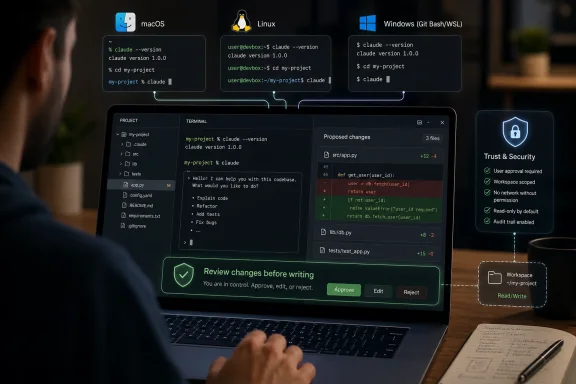 The Terminal Is Becoming the New AI IDE
Claude Code’s appeal is simple: it meets developers where they already work. Instead of copying an error into a browser, waiting for a response, and manually translating the advice back into a repo, you ask from inside the project directory and let the tool inspect the codebase itself.That changes the relationship between AI and software work. A browser assistant can explain a stack trace; a terminal agent can read the files that produced it, propose changes, run tests, and prepare a commit. The difference is not cosmetic. It collapses the distance between suggestion and action.
Anthropic’s framing is that Claude Code is an agentic coding tool, and that word matters. It is not merely autocomplete with a prompt box. It can plan a task, inspect files, edit multiple parts of a project, run shell commands, and ask before making consequential changes.
For WindowsForum readers, the cross-platform angle is especially important. AI development tooling has often treated Windows as an afterthought, assuming macOS laptops and Linux servers as the default developer habitat. Claude Code’s current installation paths are not perfectly symmetrical, but Windows users are no longer outside the tent.
The Requirements Are Modest, but the Trust Boundary Is Not
Claude Code does not require a monster workstation. The baseline is a supported operating system, an internet connection, enough memory to work alongside your development stack, and an Anthropic account with access to Claude Code through a paid plan or API-backed account.The more serious requirement is trust. Claude Code operates in a directory that may contain source code, secrets, build scripts, private configuration files, and Git history. That is exactly what makes it useful, and exactly why it deserves more scrutiny than a conventional editor plugin.
A sensible setup starts with the obvious basics. Use it in a real project, but not first on your most sensitive production repo. Make sure your secrets are not casually scattered through checked-in files. Keep Git clean enough that you can see what changed after a session.
The operating system split looks broadly like this: macOS and Linux can use the shell installer directly; Windows users can install through WSL, PowerShell, Command Prompt, or WinGet depending on their preference and environment. Native Windows support has improved, but Git Bash still matters because Claude Code expects access to a Bash-compatible toolchain for many workflows.
macOS Gets the Smoothest Path
On macOS, the native installer is the fastest route. Open Terminal and run:curl -fsSL [url]https://claude.ai/install.sh[/url] | bashAfter installation, verify the command is available:
claude --versionHomebrew users can instead install it as a cask:
brew install --cask claude-codeThe tradeoff is update behavior. The native installer is designed to keep Claude Code current automatically, while Homebrew users should periodically run:
brew upgrade claude-codeThat is typical macOS developer plumbing: one path is vendor-managed, the other fits into an existing package-management routine. Either way, once
claude resolves in the terminal, the actual experience is the same.Linux Is Straightforward, Unless Your Distribution Is Not
Linux users get essentially the same installer:curl -fsSL [url]https://claude.ai/install.sh[/url] | bashUbuntu and Debian are the cleanest targets, particularly Ubuntu 20.04 or later and Debian 10 or later. Other mainstream distributions may work, but the further you move from glibc-based systems, the more likely you are to meet dependency edge cases.
Alpine Linux is the notable caveat. Because Alpine uses musl rather than glibc, users may need to install supporting packages first:
apk add libgcc libstdc++ ripgrepThen set:
export USE_BUILTIN_RIPGREP=0There is also an npm route for users who prefer Node-based global tooling:
npm install -g @anthropic-ai/claude-codeThat command should not be run with
sudo. If npm global installs fail because of permissions, the right fix is to repair the npm prefix or use a user-local package directory. Forcing the install with elevated privileges is the sort of shortcut that creates strange ownership problems later.Windows Finally Has More Than One Door
Windows is where the story becomes more interesting. For years, many command-line developer tools quietly assumed “Windows support” meant “install WSL and behave like Linux.” Claude Code can still work that way, and for many developers WSL remains the most predictable option.If you already use WSL, open your Linux distribution terminal and run:
curl -fsSL [url]https://claude.ai/install.sh[/url] | bashThat gives you the Linux-style workflow inside Windows. It is especially attractive for web developers, Python developers, and anyone whose build chain already lives comfortably in WSL.
Native Windows users have another option. Install Git for Windows first, because it provides the Git Bash environment Claude Code expects for shell operations. Then run the PowerShell installer:
irm [url]https://claude.ai/install.ps1[/url] | iexCommand Prompt users can use:
curl -fsSL [url]https://claude.ai/install.cmd[/url] -o install.cmd && install.cmd && del install.cmdWinGet users can keep it even simpler:
winget install Anthropic.ClaudeCodeIf Git for Windows lives somewhere unusual, point Claude Code to Bash explicitly:
$env:CLAUDE_CODE_GIT_BASH_PATH="C:\Program Files\Git\bin\bash.exe"The important distinction is that native Windows support does not magically turn every Unix-shaped build assumption into a Windows-native one. If your project already depends on Bash scripts, Unix tools, or Linux container workflows, WSL may still be the better home. If your work is primarily PowerShell, .NET, Node, or cross-platform tooling, native Windows can be perfectly workable.
First Launch Is Where the Tool Becomes a Coworker
Once Claude Code is installed, move into a project directory and start it:
Code:
cd your-project-folder
claudeFrom there, the prompt becomes conversational. You are still in a terminal, but you are no longer issuing only shell commands. You can ask:
what does this project do?Claude Code will inspect the repository and summarize what it finds. That first question is more useful than it sounds. In an unfamiliar codebase, the first obstacle is rarely writing code; it is building a mental map.
Follow-up prompts can be just as plain:
Code:
explain the folder structure
where is the main entry point?
what technologies does this project use?
trace how a login request moves through the appThe Approval Loop Is the Safety Feature Everyone Should Keep
The first real temptation is to ask Claude Code to fix something immediately. That is fine, but the approval loop is the point. When you ask for a change, Claude Code should show what it intends to modify and give you a chance to review the diff before it writes to disk.A typical request might be:
add input validation to the contact formOr:
fix the bug where the login page shows a blank screen after an incorrect passwordClaude Code can locate relevant files, propose a patch, and update multiple files in one pass. For example, it might adjust a React component, add a schema validation rule, and update a test. That multi-file competence is precisely why review matters.
There is an “accept all” style of workflow for users who want fewer interruptions, but it should be earned. Use it only after you understand the project, the risk, and the kind of changes Claude Code is making. The default posture should be trust, but diff.
This is especially true in production repositories. Claude Code may introduce a plausible abstraction that does not fit your team’s style, add a dependency you did not want, or fix the visible bug while missing a related edge case. The tool accelerates code review; it does not abolish it.
Git Becomes Conversational, Which Is Both Convenient and Dangerous
One of Claude Code’s most practical features is conversational Git. You can ask:what files have I changed?Then:
commit my changes with a descriptive messageBecause Claude Code can inspect the actual diff, it can often write better commit messages than the tired
fix stuff entries that creep into late-night work. It can also create branches, summarize recent commits, and help resolve merge conflicts.The danger is that Git is not just a convenience layer. It is the audit trail of a project. Letting an AI assistant stage and commit changes should make you more careful, not less.
A good habit is to ask Claude Code to explain the diff before committing it. If the explanation sounds wrong, inspect manually. If the change spans security-sensitive code, authentication, payments, migrations, or deployment scripts, slow down.
The best Claude Code Git workflow is not “let the bot drive.” It is “let the bot narrate, prepare, and reduce typing while the human remains accountable.”
Slash Commands Are the Control Surface
Claude Code mixes natural language prompts with slash commands. The natural language side is where you ask for work. Slash commands control the session itself.The command most users will reach for first is:
/helpThat displays available commands and shortcuts. When a session gets too long or context starts to drift, use:
/clearFor long conversations where you want to preserve continuity while reducing context load, use:
/compactTo switch accounts or re-authenticate:
/loginTo resume a previous session:
/resumeTo change models:
/modelThe model switch is not just a vanity setting. More capable models are useful for architecture, debugging, and hairy refactors; faster models are often enough for routine edits and explanations. The right choice depends on whether you need deeper reasoning or quicker iteration.
Claude Code can also run as a one-off command:
claude "fix the build error in package.json"And it can print an answer without entering an interactive session:
claude -p "explain what the function in src/utils.py does"Those modes matter because not every task deserves a full conversation. Sometimes you want a quick explanation or a surgical fix, then you want the tool out of the way.
CLAUDE.md Is Where Serious Teams Will Draw the Line
The most underrated part of Claude Code is not the installer, the model menu, or the Git integration. It isCLAUDE.md.Place a file named
CLAUDE.md in the root of your project, and Claude Code reads it as project memory. It is where you tell the tool how your team works before the session starts.A useful
CLAUDE.md might include the stack, the test commands, formatting rules, architectural boundaries, and directories that should not be touched. For example, it can say that a project uses Next.js, TypeScript, Prisma, and PostgreSQL; that tests run with Jest and Playwright; and that legacy migration files are off-limits unless explicitly requested.That file turns repeated prompt boilerplate into versioned policy. Instead of telling Claude Code every day to use two-space indentation, avoid a deprecated helper, or never modify generated files, you write it once.
For teams, this is where agentic coding becomes governable. A shared instruction file is not a substitute for CI, code review, or security policy, but it gives the assistant a fighting chance of behaving like a member of the project rather than a tourist.
Better Prompts Are Just Better Tickets
Claude Code rewards specificity. “Fix the bug” is a weak prompt for the same reason it is a weak Jira ticket. “Fix the login bug where users see a blank screen after entering incorrect credentials on/auth” gives the tool a target, a symptom, and a location.The best workflow is often investigative before it is operational. Ask Claude Code to explain the authentication flow before asking it to rewrite the authentication module. Ask it to identify where validation happens before asking it to add another validation layer.
Large tasks should be split. “Build a complete user authentication system” is an invitation to generate too much code too quickly. A better sequence is to create the database schema, add the registration endpoint, build the login form, write tests, and then review the security assumptions.
This is not a limitation unique to Claude Code. It is the nature of software work. Good developers decompose problems because decomposition exposes assumptions. Good AI-assisted developers do the same thing, only faster.
Troubleshooting Starts With the Path
The most common post-installation failure is anticlimactic: the command is not found. Close and reopen the terminal first. Installers often update PATH for future sessions, not the shell window already open.On macOS and Linux, check whether the installer placed the binary in a user-local bin directory that your shell does not currently load. On Windows, verify that the install location is in PATH and that you opened a fresh PowerShell, Command Prompt, or Windows Terminal tab.
If Claude Code cannot find Bash on Windows, confirm that Git for Windows is installed. If Git is installed in a non-standard location, set
CLAUDE_CODE_GIT_BASH_PATH to the correct bash.exe.If npm installation fails on Linux or macOS, resist the urge to prepend
sudo. Fix npm’s global install configuration instead. A broken npm permission model will keep punishing you long after Claude Code is installed.If Claude Code feels slow, inspect the size and shape of the repository. Giant monorepos, checked-in build artifacts, vendored dependencies, and noisy generated files can all make initial analysis more expensive. A clean
.gitignore, sensible project structure, and focused prompts help more than blaming the model.Authentication failures usually call for
/login. Corporate networks may add another wrinkle: proxies, TLS inspection, or firewall rules can block the tool’s normal login and API traffic. In managed environments, this is where developers should involve IT rather than improvising around policy.The Windows Choice Is Really a Workflow Choice
For Windows users, the central decision is not “Can I install Claude Code?” It is “Where does my development workflow actually live?”If your repo builds in Linux containers, uses Bash-heavy scripts, or mirrors a production Linux environment, WSL is usually the cleanest path. You get fewer translation problems and a terminal experience closer to the deployment target.
If your project is Windows-native, .NET-heavy, or already comfortable in PowerShell and Git Bash, native Windows is attractive. WinGet makes installation simple, and Git for Windows supplies enough Unix-like infrastructure for many coding workflows.
The messy middle is where users get frustrated. A project opened from Windows paths, built through WSL, edited in a Windows IDE, and automated through Bash can work beautifully when configured well and fail strangely when it is not. Claude Code does not remove that complexity; it makes it more visible.
That visibility can be useful. When an AI agent cannot run your build because the repo assumes tools that are not documented, that is not only an AI problem. It is a project onboarding problem wearing a new hat.
Security Is Not Optional When the Assistant Can Act
Terminal AI tools deserve a sharper security posture than browser chatbots. Claude Code can inspect files, propose patches, and run commands. Those abilities are the product.The first rule is to install from official channels. That sounds obvious, but AI developer tools are now attractive bait for malware campaigns because developers are unusually willing to paste installation commands into terminals. A fake installer aimed at developers can harvest credentials, source code, tokens, SSH keys, and browser data before the victim realizes anything is wrong.
The second rule is to keep secrets out of project files. If a repository contains plaintext production credentials, Claude Code is not the original sin. It is simply the tool that makes the bad practice harder to ignore.
The third rule is to maintain review. Approval prompts, Git diffs, branch discipline, and CI checks are not bureaucracy. They are the guardrails that let developers use powerful assistants without turning every prompt into a supply-chain event.
Enterprise IT should treat Claude Code like any other developer tool that touches source. That means policy around installation, model access, data handling, logging, network egress, and acceptable repositories. Blocking everything is rarely realistic; pretending nothing changed is worse.
The Real Productivity Gain Is Context, Not Keystrokes
It is easy to market Claude Code as a way to type less. That undersells it. The bigger gain is that the assistant can hold more local project context than a human wants to manually gather for every small task.A developer debugging a failing test might need to inspect the test, the fixture, the function under test, the type definitions, and a recent commit. Claude Code can gather that context quickly and explain the likely relationship. The human still judges the answer, but the first pass is faster.
That speed is most valuable in the unglamorous middle of software work: understanding unfamiliar modules, writing missing tests, updating stale APIs, cleaning error handling, and tracing regressions. These are not always heroic programming tasks, but they consume real engineering time.
The risk is that speed can disguise shallow understanding. If Claude Code makes a change that passes the immediate test but violates a broader design rule, the productivity gain becomes technical debt. That is why
CLAUDE.md, code review, and clear prompts matter.The best users will not be those who blindly accept the most patches. They will be the ones who learn how to steer the tool, constrain it, and make it explain itself.
The Ten-Minute Setup Only Matters If the Next Ten Days Work
Getting Claude Code installed is the easy part, but a durable workflow needs a few habits that survive beyond the first demo. The goal is to make the assistant useful without letting it become invisible infrastructure.- Install Claude Code through the native installer, Homebrew, npm, WinGet, PowerShell, Command Prompt, or WSL path that best matches where your project actually builds and runs.
- Start each unfamiliar project by asking Claude Code to explain the structure, entry points, dependencies, and test commands before requesting changes.
- Keep approval prompts enabled until you have enough confidence in the repository, the task, and the assistant’s behavior.
- Add a
CLAUDE.mdfile to encode project rules, test commands, formatting expectations, and directories that should not be modified casually. - Use Git branches, diffs, and CI checks as the final authority, not the assistant’s confidence.
- Treat installation commands and terminal permissions as security-sensitive, especially on machines that hold private repositories or production credentials.
References
- Primary source: H2S Media
Published: 2026-06-01T07:10:13.896110
How to Use Claude Code in Terminal — Windows, macOS, and Linux - H2S Media
Install Claude Code on Windows, macOS, and Linux in under 10 minutes. This step-by-step guide covers terminal setup, essential slash commands, CLAUDE.md project memory, Git workflows, and practical tips for AI-powered coding.www.how2shout.com - Official source: docs.anthropic.com
Advanced setup - Claude Code Docs
System requirements, platform-specific installation, version management, and uninstallation for Claude Code.docs.anthropic.com - Official source: code.claude.com
Advanced setup - Claude Code Docs
System requirements, platform-specific installation, version management, and uninstallation for Claude Code.code.claude.com - Official source: support.claude.com
Your first day in Claude Code | Claude Help Center
support.claude.com
- Official source: docs.claude.com
Advanced setup - Claude Code Docs
System requirements, platform-specific installation, version management, and uninstallation for Claude Code.docs.claude.com - Related coverage: techradar.com
Infostealers are being disguised as Claude Code, OpenClaw and other AI developer tools | TechRadar
Be careful with search engine resultswww.techradar.com
- Related coverage: windowscentral.com
Claude Code comes to the web — so you can pay to manage the AI that’s taking your job | Windows Central
Anthropic brings its AI coding assistant to the browser, making Claude Code more accessible than ever.www.windowscentral.com - Related coverage: aitransformers.org
- Related coverage: mavgpt.ai
- Related coverage: site.giz.ai
- Related coverage: pub-161ae4b5ed0644c4a43b5c6412287e03.r2.dev
