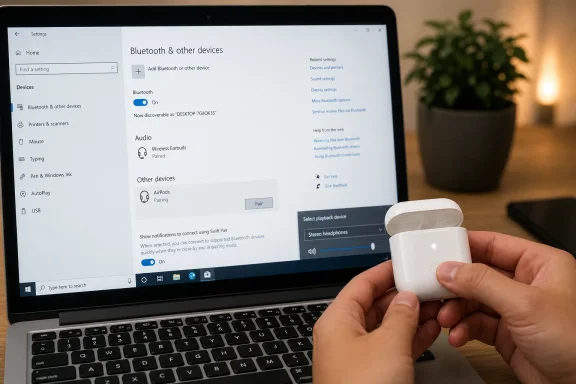
To connect AirPods to a Windows 11 PC, turn on Bluetooth in Settings, put the AirPods case into pairing mode with the lid open, choose the AirPods from Windows’ Bluetooth device list, and then select them as the active sound output. That is the plain answer, and for many users it is enough. But the reason this simple job so often turns into a support-thread rabbit hole is that Windows treats AirPods less like a magical Apple accessory and more like an ordinary Bluetooth headset with ordinary Bluetooth failure modes. The trick is not pairing them once; it is knowing where Windows hides the second and third switches that decide whether you actually hear anything.
AirPods are designed to feel almost theatrical inside Apple’s ecosystem. Open the case near an iPhone, and the pairing animation does the emotional labor for you. On Windows 11, that choreography disappears. The AirPods become what they technically are: a Bluetooth audio device waiting to be discovered.
That sounds like a downgrade, but it is also the reason the process works at all. Windows does not need iCloud, an Apple ID, or special Apple software to send audio to AirPods. It needs a working Bluetooth adapter, a discoverable headset, and the correct output route.
The confusion starts because users expect AirPods to announce themselves. Windows expects the user to initiate pairing. Those two assumptions meet in the Bluetooth settings pane, where the difference between “connected,” “paired,” and “actually playing audio” is not always obvious.
In other words, AirPods on Windows are not difficult because Apple blocked the door. They are difficult because Bluetooth audio remains one of the least elegant parts of the modern PC.
This is mundane advice, but it matters because pairing failures often begin with the PC not scanning at all. If Bluetooth is off, Windows will not see the AirPods, no matter how long the white light blinks on the case. If the Bluetooth button is missing entirely, the problem is bigger than AirPods; Windows may not be seeing the Bluetooth adapter.
Windows 10 users get nearly the same workflow with slightly older furniture. The path is Start, Settings, Devices, Bluetooth & other devices, then the Bluetooth toggle. The action center tile offers the quick route.
The practical lesson is that the operating system must be ready before the accessory is. AirPods can be perfectly healthy and still invisible to a PC whose Bluetooth radio is disabled, missing, or stuck behind a driver problem.
Once the AirPods are discoverable, Windows 11 gives you two common paths. You can open Settings, go to Bluetooth & devices, choose Add device, select Bluetooth, and pick the AirPods when they appear. Or you can use the quick settings Bluetooth menu from the taskbar, expand nearby devices, and connect from there.
The pairing process should complete in a few seconds. If the AirPods have been used with an iPhone, iPad, or Mac before, that history does not prevent pairing with Windows. But if they automatically reconnect to another nearby device while you are trying to pair them, the PC may lose the race.
This is where a very old troubleshooting habit still helps: reduce the number of competing devices. Temporarily turn off Bluetooth on the phone or tablet that normally owns the AirPods. Then put the AirPods back into pairing mode and let Windows be the only suitor in the room.
The catch is in the phrase “when it works.” Swift Pair depends on device support, adapter behavior, Windows settings, and proximity. It is useful, but it should not be treated as the canonical AirPods method.
If no notification appears, nothing has necessarily gone wrong. It may simply mean your PC, adapter, or current configuration is not presenting the Swift Pair path. The manual Bluetooth menu remains the more reliable route because it exposes the actual scan list.
This distinction matters because users often wait for a pop-up that never comes. With AirPods, the white blinking case light is the signal to Windows, not a guarantee that Windows will produce a friendly notification.
That happens because Bluetooth pairing and audio routing are separate decisions. Pairing tells Windows that the AirPods are an available device. The sound output setting tells Windows where to send system audio right now.
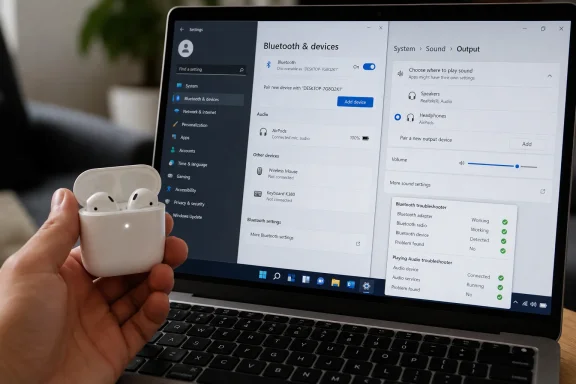
On Windows 11, the place to check is Start, Settings, System, Sound, then Output. Select the AirPods as the output device. The faster route is the speaker icon in the taskbar, where Windows lets you switch playback devices without opening the full Settings app.
Windows 10 follows the same logic under Start, Settings, System, Sound, and Choose your output device. The labels differ slightly, but the idea is unchanged. If Windows is still targeting Realtek speakers, a monitor over HDMI, a USB headset, or a docking station, your AirPods can be connected and unused at the same time.
This is the first place to look when the user says “they connected but I hear nothing.” Not Device Manager. Not drivers. Not a factory reset. First, ask the unglamorous question: did Windows actually choose the AirPods for output?
Windows 11 has been improving this story through Bluetooth LE Audio support on compatible hardware, but compatibility is the governing word. The PC, Bluetooth adapter, driver, headset, and Windows build all have to line up. AirPods themselves also do not expose every Apple-specific behavior to Windows.
That means users may notice different audio quality depending on whether they are listening to music, joining a Teams meeting, opening Discord, or launching a game with voice chat. This is not always a broken connection. Sometimes it is Windows negotiating a different Bluetooth role because an app requested microphone access.
The practical workaround is to separate playback and input when quality matters. Use AirPods for output and the laptop’s built-in microphone for input, or pick a dedicated USB microphone if you need calls and decent headphone playback at the same time. It is not elegant, but it avoids asking Bluetooth Classic to be something it was never especially good at.
This is not because troubleshooters are magical. They are useful because they check the boring prerequisites quickly: adapter state, service status, configuration problems, and known Windows repair paths. A human can do the same work manually, but usually more slowly and with more opportunities to change the wrong thing.
There is a separate audio troubleshooter for the other half of the problem. If the AirPods connect but remain silent, run the audio troubleshooter rather than repeatedly deleting and re-pairing the device. On Windows 11, it lives under Settings, System, Troubleshoot, Other troubleshooters. On Windows 10, it appears as Playing Audio under the Troubleshoot settings.
The distinction is important. Bluetooth gets the AirPods connected. The audio stack gets sound routed and rendered. Treating every silence problem as a Bluetooth problem wastes time.
On Windows 10, the equivalent path is Settings, Devices, Bluetooth & other devices, select the AirPods, remove the device, and add it again. This clears the stale relationship Windows has stored. It does not reset the AirPods globally, and it does not erase your PC.
Re-pairing is especially useful after Windows updates, Bluetooth driver changes, or a long period of using the AirPods mainly with Apple hardware. Bluetooth pairings are supposed to be durable, but they are not sacred. If the saved device record is bad, preserving it only preserves the problem.
There is also a human-factor advantage. Re-pairing forces the user through the correct sequence again: Bluetooth on, AirPods discoverable, Windows scanning, device selected, output confirmed. That sequence catches mistakes that a more abstract troubleshooting flow might miss.
For audio problems, restart Windows Audio, Windows Audio Endpoint Builder, and Remote Procedure Call. These services sit underneath the device picker and the volume slider. If they are wedged, the Settings app can look normal while playback fails.
For connection problems, restart Bluetooth Support Service. This is the service most directly tied to discovery and association of Bluetooth devices. If AirPods connect intermittently or vanish from the available devices list, restarting it is a reasonable move before reinstalling drivers.
There is a temptation to skip services because they feel like an old Control Panel-era relic. That is precisely why they are useful. Windows 11 may have modernized the surface, but much of the operating system’s practical reliability still depends on background services doing unglamorous work.
When the symptoms point to audio, open Device Manager and expand Sound, video and game controllers. Right-click the relevant audio device, choose Update driver, and let Windows search automatically. If that fails, uninstall the device and restart the PC so Windows can reinstall it.
When the symptoms point to wireless discovery or unstable connections, expand Bluetooth in Device Manager and work with the Bluetooth adapter instead. Update the driver, roll back the driver if a recent update caused the failure, or uninstall the device and restart to let Windows reload it.
The reboot is not optional theater. It is how Windows tears down and rebuilds the driver state cleanly. Save your work first, because the difference between a controlled reboot and an annoyed forced restart is usually one unsaved document.
For Windows 10 users, the pairing workflow remains valid. Bluetooth settings still exist, the sound output selector still matters, and Device Manager still handles drivers. But the long-term answer to recurring Bluetooth trouble on aging hardware may be migration rather than ritual repair.
This is particularly true on laptops with older Bluetooth adapters. AirPods may pair, but newer Bluetooth audio improvements are more likely to land cleanly on newer Windows 11 systems with current drivers and better radio hardware. The operating system is only one part of the chain.
For IT administrators, this is the quiet operational point. A help desk ticket that says “AirPods do not work” may actually describe an old Bluetooth stack, an unsupported OS lifecycle, a driver package frozen by OEM neglect, or a user expectation shaped by Apple’s tightly integrated pairing model. The fix may be a menu path. The pattern may be a hardware refresh.
That is why Windows’ approach feels more manual. It is also why the same troubleshooting logic works for AirPods, Sony headphones, Bose headsets, earbuds from a bargain brand, and a Bluetooth speaker bought at an airport kiosk. Windows is solving for breadth, not ceremony.
AirPods owners can still get a good experience on Windows 11. Playback works. Meetings work, within the limits of Bluetooth audio profiles and hardware support. Switching output devices works. But the user has to think like a Windows user, not like an iPhone user.
That means checking the radio, checking discoverability, checking output, then checking services and drivers. The sequence is less glamorous than opening a lid and watching an animation bloom. It is also more transparent once you know where the switches live.
 AirPods Lose Their Apple Halo the Moment They Meet Windows
AirPods are designed to feel almost theatrical inside Apple’s ecosystem. Open the case near an iPhone, and the pairing animation does the emotional labor for you. On Windows 11, that choreography disappears. The AirPods become what they technically are: a Bluetooth audio device waiting to be discovered.That sounds like a downgrade, but it is also the reason the process works at all. Windows does not need iCloud, an Apple ID, or special Apple software to send audio to AirPods. It needs a working Bluetooth adapter, a discoverable headset, and the correct output route.
The confusion starts because users expect AirPods to announce themselves. Windows expects the user to initiate pairing. Those two assumptions meet in the Bluetooth settings pane, where the difference between “connected,” “paired,” and “actually playing audio” is not always obvious.
In other words, AirPods on Windows are not difficult because Apple blocked the door. They are difficult because Bluetooth audio remains one of the least elegant parts of the modern PC.
The First Switch Is Still the One People Miss
Before touching the AirPods case, Windows 11 needs Bluetooth enabled. The direct route is Start, Settings, Bluetooth & devices, and then the Bluetooth toggle. The faster route is through the taskbar quick settings area, where the network, sound, or battery cluster opens the panel that includes Bluetooth.This is mundane advice, but it matters because pairing failures often begin with the PC not scanning at all. If Bluetooth is off, Windows will not see the AirPods, no matter how long the white light blinks on the case. If the Bluetooth button is missing entirely, the problem is bigger than AirPods; Windows may not be seeing the Bluetooth adapter.
Windows 10 users get nearly the same workflow with slightly older furniture. The path is Start, Settings, Devices, Bluetooth & other devices, then the Bluetooth toggle. The action center tile offers the quick route.
The practical lesson is that the operating system must be ready before the accessory is. AirPods can be perfectly healthy and still invisible to a PC whose Bluetooth radio is disabled, missing, or stuck behind a driver problem.
Pairing Mode Is a Small Button With Outsized Power
AirPods do not appear in Windows just because the lid is open. To make them discoverable, put the earbuds in the case, open the lid, and hold the setup button on the back of the case until the status light flashes white. That flashing light is the part Windows is waiting for.Once the AirPods are discoverable, Windows 11 gives you two common paths. You can open Settings, go to Bluetooth & devices, choose Add device, select Bluetooth, and pick the AirPods when they appear. Or you can use the quick settings Bluetooth menu from the taskbar, expand nearby devices, and connect from there.
The pairing process should complete in a few seconds. If the AirPods have been used with an iPhone, iPad, or Mac before, that history does not prevent pairing with Windows. But if they automatically reconnect to another nearby device while you are trying to pair them, the PC may lose the race.
This is where a very old troubleshooting habit still helps: reduce the number of competing devices. Temporarily turn off Bluetooth on the phone or tablet that normally owns the AirPods. Then put the AirPods back into pairing mode and let Windows be the only suitor in the room.
Swift Pair Is the Shortcut, Not the Standard
Some Windows PCs and Bluetooth devices support Swift Pair, Microsoft’s attempt to make pairing feel less like spelunking through Settings. When it works, a notification appears as soon as a supported device enters pairing mode nearby. Click Connect, approve the prompt, and Windows handles the rest.The catch is in the phrase “when it works.” Swift Pair depends on device support, adapter behavior, Windows settings, and proximity. It is useful, but it should not be treated as the canonical AirPods method.
If no notification appears, nothing has necessarily gone wrong. It may simply mean your PC, adapter, or current configuration is not presenting the Swift Pair path. The manual Bluetooth menu remains the more reliable route because it exposes the actual scan list.
This distinction matters because users often wait for a pop-up that never comes. With AirPods, the white blinking case light is the signal to Windows, not a guarantee that Windows will produce a friendly notification.
Connected Is Not the Same as Chosen
The most common AirPods-on-Windows complaint is not that pairing fails. It is that pairing succeeds and silence follows. Windows shows the device as connected, the AirPods may make a connection chime, and yet audio keeps pouring out of the laptop speakers.That happens because Bluetooth pairing and audio routing are separate decisions. Pairing tells Windows that the AirPods are an available device. The sound output setting tells Windows where to send system audio right now.
On Windows 11, the place to check is Start, Settings, System, Sound, then Output. Select the AirPods as the output device. The faster route is the speaker icon in the taskbar, where Windows lets you switch playback devices without opening the full Settings app.
Windows 10 follows the same logic under Start, Settings, System, Sound, and Choose your output device. The labels differ slightly, but the idea is unchanged. If Windows is still targeting Realtek speakers, a monitor over HDMI, a USB headset, or a docking station, your AirPods can be connected and unused at the same time.
This is the first place to look when the user says “they connected but I hear nothing.” Not Device Manager. Not drivers. Not a factory reset. First, ask the unglamorous question: did Windows actually choose the AirPods for output?
The Microphone Can Still Drag Audio Backward
Bluetooth headsets have long carried a compromise that surprises people coming from phones. High-quality stereo playback and headset microphone use have historically relied on different Bluetooth profiles. On many classic Bluetooth setups, using the microphone can push audio into a lower-fidelity hands-free mode.Windows 11 has been improving this story through Bluetooth LE Audio support on compatible hardware, but compatibility is the governing word. The PC, Bluetooth adapter, driver, headset, and Windows build all have to line up. AirPods themselves also do not expose every Apple-specific behavior to Windows.
That means users may notice different audio quality depending on whether they are listening to music, joining a Teams meeting, opening Discord, or launching a game with voice chat. This is not always a broken connection. Sometimes it is Windows negotiating a different Bluetooth role because an app requested microphone access.
The practical workaround is to separate playback and input when quality matters. Use AirPods for output and the laptop’s built-in microphone for input, or pick a dedicated USB microphone if you need calls and decent headphone playback at the same time. It is not elegant, but it avoids asking Bluetooth Classic to be something it was never especially good at.
The Troubleshooters Are Boring Because They Are the Right First Escalation
When AirPods refuse to connect or keep dropping, Windows’ built-in Bluetooth troubleshooter is the first escalation worth trying. On Windows 11, Microsoft has moved much of this flow into the Get Help app, which runs diagnostics and attempts repairs. On Windows 10, the Bluetooth troubleshooter lives in Settings under Update & Security, Troubleshoot.This is not because troubleshooters are magical. They are useful because they check the boring prerequisites quickly: adapter state, service status, configuration problems, and known Windows repair paths. A human can do the same work manually, but usually more slowly and with more opportunities to change the wrong thing.
There is a separate audio troubleshooter for the other half of the problem. If the AirPods connect but remain silent, run the audio troubleshooter rather than repeatedly deleting and re-pairing the device. On Windows 11, it lives under Settings, System, Troubleshoot, Other troubleshooters. On Windows 10, it appears as Playing Audio under the Troubleshoot settings.
The distinction is important. Bluetooth gets the AirPods connected. The audio stack gets sound routed and rendered. Treating every silence problem as a Bluetooth problem wastes time.
A Clean Pairing Often Beats a Clever Theory
If the AirPods once worked and now behave strangely, remove them from Windows and pair them again. On Windows 11, open Settings, Bluetooth & devices, Devices, choose the three-dot menu beside the AirPods, and remove the device. Then return to Add device and pair from scratch.On Windows 10, the equivalent path is Settings, Devices, Bluetooth & other devices, select the AirPods, remove the device, and add it again. This clears the stale relationship Windows has stored. It does not reset the AirPods globally, and it does not erase your PC.
Re-pairing is especially useful after Windows updates, Bluetooth driver changes, or a long period of using the AirPods mainly with Apple hardware. Bluetooth pairings are supposed to be durable, but they are not sacred. If the saved device record is bad, preserving it only preserves the problem.
There is also a human-factor advantage. Re-pairing forces the user through the correct sequence again: Bluetooth on, AirPods discoverable, Windows scanning, device selected, output confirmed. That sequence catches mistakes that a more abstract troubleshooting flow might miss.
Services Are Where Windows Hides the Plumbing
When pairing and output selection both look right but audio still misbehaves, the next layer is Windows services. The Services console is not pretty, but it exposes the background components that keep audio and Bluetooth running. Open it by pressing Windows key + R, typingservices.msc, and pressing Enter.For audio problems, restart Windows Audio, Windows Audio Endpoint Builder, and Remote Procedure Call. These services sit underneath the device picker and the volume slider. If they are wedged, the Settings app can look normal while playback fails.
For connection problems, restart Bluetooth Support Service. This is the service most directly tied to discovery and association of Bluetooth devices. If AirPods connect intermittently or vanish from the available devices list, restarting it is a reasonable move before reinstalling drivers.
There is a temptation to skip services because they feel like an old Control Panel-era relic. That is precisely why they are useful. Windows 11 may have modernized the surface, but much of the operating system’s practical reliability still depends on background services doing unglamorous work.
Drivers Are the Last Mile, Not the First Hammer
Driver updates and reinstalls can fix AirPods problems, but they should not be the first tool pulled from the drawer. If Bluetooth is off, the AirPods are not in pairing mode, or Windows is using the wrong output device, a driver reinstall merely adds risk and delay. Start with the visible settings before touching the plumbing.When the symptoms point to audio, open Device Manager and expand Sound, video and game controllers. Right-click the relevant audio device, choose Update driver, and let Windows search automatically. If that fails, uninstall the device and restart the PC so Windows can reinstall it.
When the symptoms point to wireless discovery or unstable connections, expand Bluetooth in Device Manager and work with the Bluetooth adapter instead. Update the driver, roll back the driver if a recent update caused the failure, or uninstall the device and restart to let Windows reload it.
The reboot is not optional theater. It is how Windows tears down and rebuilds the driver state cleanly. Save your work first, because the difference between a controlled reboot and an annoyed forced restart is usually one unsaved document.
The Windows 10 Footnote Is Now a Deadline
Any guide that includes Windows 10 in 2026 carries a subtext: the operating system is past its mainstream comfort zone. Microsoft ended free security updates and general support for Windows 10 on October 14, 2025, though some users and organizations may still be covered through extended arrangements. That does not make AirPods stop working, but it changes how much energy users should spend preserving old configurations.For Windows 10 users, the pairing workflow remains valid. Bluetooth settings still exist, the sound output selector still matters, and Device Manager still handles drivers. But the long-term answer to recurring Bluetooth trouble on aging hardware may be migration rather than ritual repair.
This is particularly true on laptops with older Bluetooth adapters. AirPods may pair, but newer Bluetooth audio improvements are more likely to land cleanly on newer Windows 11 systems with current drivers and better radio hardware. The operating system is only one part of the chain.
For IT administrators, this is the quiet operational point. A help desk ticket that says “AirPods do not work” may actually describe an old Bluetooth stack, an unsupported OS lifecycle, a driver package frozen by OEM neglect, or a user expectation shaped by Apple’s tightly integrated pairing model. The fix may be a menu path. The pattern may be a hardware refresh.
Apple Polish Meets PC Reality
The gap between AirPods on an iPhone and AirPods on Windows is not merely aesthetic. Apple controls the hardware, software, account layer, pairing prompts, firmware integration, and device switching experience. Microsoft has to support a vast Bluetooth ecosystem of adapters, drivers, headsets, codecs, OEM utilities, and user histories.That is why Windows’ approach feels more manual. It is also why the same troubleshooting logic works for AirPods, Sony headphones, Bose headsets, earbuds from a bargain brand, and a Bluetooth speaker bought at an airport kiosk. Windows is solving for breadth, not ceremony.
AirPods owners can still get a good experience on Windows 11. Playback works. Meetings work, within the limits of Bluetooth audio profiles and hardware support. Switching output devices works. But the user has to think like a Windows user, not like an iPhone user.
That means checking the radio, checking discoverability, checking output, then checking services and drivers. The sequence is less glamorous than opening a lid and watching an animation bloom. It is also more transparent once you know where the switches live.
The Five Places Windows Usually Breaks the AirPods Handshake
The fastest way to solve AirPods trouble on a Windows 11 PC is to stop treating it as one problem. Pairing, connection stability, and sound output are related, but they fail in different places. A disciplined path saves time because each step answers a specific question.- Confirm that Bluetooth is enabled in Windows before putting the AirPods into pairing mode.
- Hold the setup button on the AirPods case with the lid open until the status light flashes white.
- Select the AirPods as the active sound output after pairing, because Windows may keep using speakers or another audio device.
- Run the Bluetooth troubleshooter for connection failures and the audio troubleshooter for silent playback.
- Remove and re-pair the AirPods before reinstalling drivers, because stale pairing records are easier to fix than driver stacks.
- Restart Bluetooth and audio services, then update or reinstall drivers only after the simpler settings have been checked.
References
- Primary source: Technobezz
Published: 2026-06-02T14:28:16.177099
How to Connect AirPods to a Windows 11 PC | Technobezz
You unboxed a fresh pair of AirPods, popped them next to your laptop, and now you want them piping audio straight from your Windows 11 desktop.www.technobezz.com - Official source: support.microsoft.com
Fix Bluetooth problems in Windows | Microsoft Support
Learn how to troubleshoot Bluetooth problems in Windows. Resolve issues connecting a Bluetooth device or accessory.support.microsoft.com - Official source: cus.prod.support.services.microsoft.com
- Official source: learn.microsoft.com
Troubleshooting audio problems in Windows 11 - ARTICLE - Microsoft Q&A
Technical Level: Intermediate. Applies to: All Windows 11 editions. Revision: 1.0. In this community guide, I will show you various methods to troubleshoot, in case if audio is not working properly on your system. The common audio problems you might see…learn.microsoft.com - Related coverage: windowscentral.com
Windows 11 adds super wideband stereo Bluetooth audio | Windows Central
Windows 11 now supports super wideband stereo audio over Bluetooth LE Audio. The latest update eliminates audio drops during gaming and chats, revolutionizing how users experience sound across multiple platforms.www.windowscentral.com - Related coverage: techradar.com
Windows 11 is finally fixing poor sound quality with Bluetooth headphones - and PC gamers will be particularly happy | TechRadar
Having in-game chat with a mic won't severely downgrade your audio quality, as it does currentlywww.techradar.com
- Related coverage: cceboston.org