

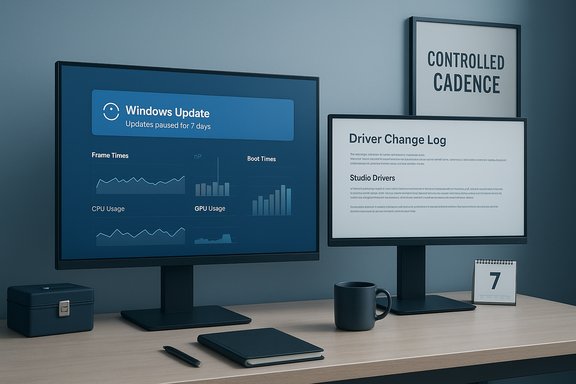
I stopped treating Windows updates as a roulette wheel and took control of the system-level settings, driver cadence, and update policy — the result was a consistently snappier, less jittery PC without buying new hardware. What began as small, reversible changes (delaying non‑critical updates a few days, switching NVIDIA to Studio drivers, and blocking automatic driver installations) turned into a practical, repeatable process that balances security with real‑world stability and playable performance. The payoff was fewer surprise regressions, smoother frame pacing in games, and a desktop that felt reliably responsive day-to-day.
Background / Overview
Windows updates are more than a checklist of bug fixes and feature additions; they change scheduling, power management, and low-level drivers that influence latency, I/O behavior, and thermal/power headroom. That makes every cumulative update a potential performance inflection point — one that can help the majority while degrading the experience for a subset of configurations. Real-world incidents have shown how broad update rollouts can produce measurable regressions in specific workloads and titles, forcing vendors to ship hotfixes or users to roll back updates to restore prior behavior.At the same time, GPU and chipset drivers — written by hardware vendors — sit between Windows and the silicon. New driver releases often add support for the latest titles or APIs, but they can also introduce microstutter, frame‑pacing regressions, and other perceptual problems even when average frame rates improve. The complex interaction of Windows updates, GPU drivers, firmware, and game engines is why a single update can help some users and harm others.
This article explains the practical changes that turned a rollercoaster into a predictable machine, verifies key claims against published incidents and community testing, and offers step‑by‑step instructions and safety checks so readers can apply the approach safely.
Why Windows updates can reduce — not improve — performance
The invisible plumbing: power management, scheduler, and background services
Windows updates frequently adjust internal policies: CPU core scheduling heuristics, thermal/power budget defaults, background task priorities, and I/O prefetching. Even small tweaks in those areas can change how smoothly a system responds to interactive input or sustains a game’s frame timing. That’s why an update can be a double‑edged sword: it may fix a vulnerability or bug while altering timing behavior elsewhere.Drivers amplify the problem
GPU and chipset drivers are the interface layer between Windows and hardware. Vendors release drivers for new GPUs or to optimize specific games; those drivers occasionally introduce regressions for older titles or alternate hardware. Industry reporting and hands‑on benches have documented cases where a Windows cumulative update combined with a vendor driver caused major performance hits until a hotfix arrived. Those incidents demonstrate the heterogeneity of PC configurations and why regression windows are inevitable.The testing gap
Microsoft and vendors use staged rollouts and telemetry, but they cannot test every hardware and software permutation. The result: the first wave of users catches many of the real‑world edge cases. For most systems changes are positive, but for the unlucky subset the result looks like a sudden slowdown or new stutter pattern.The practical approach: control and measurement, not avoidance
The right strategy is not to stop updates entirely — that’s unsafe — but to control when and how they arrive, measure impact, and be ready to roll back or patch selectively. The core principles:- Delay non‑critical updates for a short window to let early regressions surface publicly.
- Keep security updates current, but stage feature and optional driver updates.
- Prefer stable, enterprise‑focused drivers (e.g., NVIDIA Studio) when consistent behavior matters more than bleeding‑edge title optimizations.
- Prevent Windows from silently replacing vendor drivers in the background.
- Measure before and after to verify changes and keep rollback points.
What I changed — step by step
1. Delay non‑critical Windows updates (safely)
Delaying updates by a few days gives you a safety window to see user reports and vendor mitigations without exposing your machine to the initial wave of regressions. Windows’ default delay windows are short; a single registry or Group Policy change can extend that delay further — but that’s an advanced move and should be applied carefully.- Why: Early adopters often discover regressions; a short delay (3–14 days) avoids being first in line while still keeping reasonably current.
- How to do it (safe): Use Settings → Windows Update to pause updates for a few days, or configure Windows Update for Business / Group Policy for more control. Advanced users who use a registry tweak to lengthen delays should document changes and keep manual checks for critical patches.
2. Switch GPU driver cadence: prioritize stability
For NVIDIA users who prioritize consistency over the latest game optimizations, switching from Game Ready Drivers to Studio Drivers can reduce regressions and improve stability in creative workloads and general desktop responsiveness.- Why: Studio Drivers are tested against content creation apps and stability scenarios, trading some game‑specific micro‑optimizations for broader stability.
- How to switch: Download and install NVIDIA Studio drivers from the vendor’s official driver download page and select the Studio branch. Test the games/apps you use most and keep a driver download archive in case you need to roll back.
3. Prevent Windows from auto‑updating device drivers
Windows Update can automatically install or update drivers — which is convenient but can overwrite a carefully chosen driver with a newer one that regresses behavior.- Why: Preventing automatic driver installs protects a validated driver set from being replaced unexpectedly.
- How to do it (recommended approach):
- Open the System Properties (Win + Pause/Break → Advanced system settings) and go to the Hardware tab, then Device Installation Settings. Choose “No (your device might not work as expected).”
- For more control, use Group Policy or the Local Computer Policy Editor: Computer Configuration → Administrative Templates → System → Device Installation → Device Installation Restrictions. Enable policies to prevent Windows Update from installing device drivers automatically.
- Maintain a manual driver update routine: check vendor release notes and install tested drivers yourself after validation.
- Notes: Enterprise policies differ; if you’re in a corporate domain, coordinate with IT.
4. Delay or selectively install vendor hotfixes
When a regression does happen, vendors sometimes release hotfix drivers (e.g., an NVIDIA hotfix to address a specific KB‑related regression). Install these only if they directly address your symptoms.- Example: A mid‑cycle Windows cumulative update produced large performance losses in certain titles; an OEM hotfix driver fixed many cases — but the hotfix was targeted and not always needed for unaffected systems. If your system is stable, waiting for the next WHQL/Game Ready release is reasonable.
5. Create clear rollback and measurement workflows
Every change you make should be reversible and auditable.- Create a System Restore point or a full disk image before making driver swaps or registry edits.
- Keep a changelog: date, change, reason, and test results.
- Measure with tools: Task Manager, Resource Monitor, Game Bar overlays, PresentMon/RTSS for frame timing, and Event Viewer Diagnostics‑Performance logs for boot timing. Quantify the problem before and after each change.
How I measure success
Perceived snappiness matters, but measurement is essential to avoid chasing placebo effects.- Quick checks: Task Manager (CPU, Memory, Disk, GPU) and the Game Bar overlay (FPS, CPU/GPU/RAM).
- Boot timing: Event Viewer → Applications and Services Logs → Microsoft → Windows → Diagnostics‑Performance → Operational → Event ID 100 (gives BootDuration).
- Gaming/frame pacing: PresentMon or RTSS to capture frame times; average FPS alone is insufficient — look at frame time variance and stutter indicators.
Critical analysis — strengths, limitations, and risks
Strengths of the controlled‑update approach
- Reduced surprise regressions: A short delay filters out the earliest problematic deployments and gives time for vendor mitigations.
- Greater driver stability: Choosing Studio or certified driver channels reduces probability of sudden game and compositor regressions.
- Repeatable, testable workflow: Measurement and rollback ensure that decisions are evidence‑driven and reversible.
Limitations and trade‑offs
- Security exposure: Delaying feature updates is fine; delaying security patches longer than a few days is risky. Maintain a policy: short delay for feature/optional updates, immediate for security updates.
- Maintenance overhead: Manual driver management and staged updates require attention and time. If you prefer “set and forget,” this approach may feel burdensome.
- Not a hardware cure: Many bottlenecks (e.g., an HDD vs NVMe choice or insufficient RAM) will not be fixed by tweaks and require hardware upgrades for meaningful gains.
Risks to watch
- Registry and Group Policy edits: Mistakes can lead to system instability or security misconfigurations. Always back up the registry and create restore points.
- Blocking driver updates: If a driver contains a security fix, blocking updates could expose the system — evaluate vendor advisories before long‑term blocks.
- Hotfix application: Vendor hotfix drivers sometimes change behavior in unexpected areas; treat hotfixes as targeted, and prefer full certified releases for broad deployment.
Tactical recipes you can use today
Quick (10–20 minute) checklist to reduce rollercoaster effects
- Create a System Restore point.
- Pause Windows Update for 7 days via Settings → Windows Update → Pause updates.
- Open Task Manager → Startup and disable non‑essential high‑impact items.
- Switch Power Mode to Best performance (on AC power) when you need consistent performance.
- For NVIDIA users: switch to Studio drivers if you value stability; alternatively, archive current driver and test new driver releases one at a time.
- Disable automatic device driver installs: System Properties → Hardware → Device Installation Settings → choose “No.”
- Measure baseline (boot time, app launch, representative gameplay) and log results.
Advanced (for power users and admins)
- Use Group Policy (or Windows Update for Business) to defer feature updates while keeping security updates current.
- Maintain a driver vault: keep copies of working driver installers and vendor release notes for rollback.
- Use Autoruns (Sysinternals) to audit auto‑start locations beyond Task Manager.
- If you must apply a hotfix driver, test it on a non‑critical machine first and capture frame‑time logs to validate improvements.
Real incident: what the numbers taught me
A notable cumulative update produced game performance regressions in a small but visible subset of installs; community benches reproduced dramatic drops in some titles, prompting vendors to issue hotfix drivers that restored previous throughput in many cases. The takeaway: measurable regressions do happen, but they are often localized, and vendor hotfixes or driver rollbacks can address them quicker than full OS rollbacks in many cases. That real‑world pattern validates a controlled update and driver strategy for users who need stability.Closing verdict and recommended policy
- Keep security updates current but stage optional and feature updates for a short period (3–14 days) to let early regressions surface.
- Prefer stable driver channels (Studio/WHQL) if you value consistent day‑to‑day performance.
- Prevent Windows from silently swapping your validated drivers by disabling automatic device driver installations, and adopt a manual driver validation routine.
- Measure everything: before/after comparisons are the only reliable way to know if a tweak helped.
- Maintain rollback points: System Restore, disk images, and driver backups are non‑negotiable safety nets.
Practical next steps to implement this today:
- Create a System Restore point and export your current driver installers.
- Pause Windows Update for one week and review Windows Update settings for driver installs.
- Switch to a stable GPU driver branch (Studio or equivalent) and log your baseline performance runs.
- After a week, check for reports on the latest cumulative updates; if none appear, approve the update and re‑measure.
Source: How-To Geek I was sick of the Windows performance rollercoaster until I made these changes
