

Microsoft has added personalization and workbook-level rules to Copilot in Excel in June 2026, letting users define persistent natural-language instructions for formatting, formulas, naming, chart styles, and report conventions across Excel on Windows, Mac, and the web. The change sounds modest, but it attacks one of the most irritating realities of AI inside productivity software: the assistant that forgets how you work five minutes after you taught it. For Excel users, especially in teams, this is less about novelty than about reducing the repetitive prompt tax that made Copilot feel like a clever intern with no institutional memory.
The first generation of Copilot in Excel asked users to believe that natural language was the new interface for spreadsheets. That was true in a limited sense: you could ask for a formula, a summary, a table, a chart, or a formatting pass without spelunking through ribbons and dialogs. But the promise broke down whenever the work had to conform to a house style.
Anyone who has worked in finance, operations, sales reporting, education, or IT asset tracking knows the problem. “Format this as USD with no decimals” is not a one-time request. Neither is “use our standard report layout,” “keep negative numbers in parentheses,” “name calculated fields clearly,” or “prefer structured references.” These are not creative prompts. They are the grammar of a workbook.
By making those instructions persistent, Microsoft is moving Copilot from a chat surface toward an operating layer inside Excel. The important shift is not that Copilot can format a column. It is that Copilot can be told, once, what good looks like for a particular user or workbook.
That distinction matters because Excel is not Word with rows. It is a living system of conventions, dependencies, hidden assumptions, and team habits. The biggest risk with an AI assistant in Excel is not that it fails dramatically; it is that it succeeds inconsistently.
That is exactly where personalization belongs. These are not commands that should be retyped into every prompt. They are durable preferences that shape the output before the user has to intervene.
The feature is account-based, which means the preferences follow the user across workbooks and sessions. If you always want short summaries before detailed tables, or you consistently prefer named ranges over sprawling cell references, Copilot can now treat that as part of your working style rather than a fresh request every time.
This is also where the comparison to ChatGPT-style memory is useful but incomplete. ChatGPT memory is broad and conversational; Excel personalization is narrower and more operational. It is not trying to remember your favorite vacation destination. It is trying to remember that your reports should not display currency with two decimal places unless you ask.
That narrower scope may make it more useful. Productivity AI has suffered from overbroad promises, but spreadsheet users tend to reward tools that shave repeated seconds off repeated actions. A preference that silently prevents ten small corrections per workbook is more valuable than a flashy demo that works once.
Microsoft’s workbook rules live in a dedicated
This design has a very Excel-like practicality. Rather than inventing a separate policy console, Microsoft is putting the instructions inside the artifact Excel users already pass around. A workbook can now carry not only its data, formulas, charts, and macros, but also a plain-language description of how Copilot should behave when editing it.
That has obvious benefits for collaboration. A team can tell Copilot that every chart should use the company palette, every revenue table should include certain fields, every forecast should compare against actuals when actuals are present, or every executive view should suppress drill-down detail unless requested. The assistant is no longer just responding to the person at the keyboard. It is responding to the logic of the workbook.
Microsoft is also allowing these rules to be created in several ways. Users can generate a
The
The
That visibility requirement is not just a technical footnote. It makes the instructions inspectable. If Copilot starts producing strangely formatted output, a user can look at the rules sheet and see what it was told. In the world of AI assistants, that kind of plain-text accountability is rare enough to be notable.
It also makes governance less mysterious. A workbook author can explain standards in ordinary language, and another user can edit those instructions without learning a new admin surface. The rules become part of the workbook’s documentation, sitting alongside the model rather than buried in a profile setting or cloud-only configuration.
The trade-off is that this is not a locked-down enterprise policy mechanism. A visible worksheet can be changed, deleted, or misunderstood. But that may be the right first step for Excel, where flexibility often beats rigidity and where overly formal controls tend to get bypassed with “Final_v7_REAL.xlsx” anyway.
That is a subtle but powerful idea. A dropdown could switch Copilot between “Executive” and “Detailed” modes. A formula could tell Copilot to compare forecast to actuals only after actuals have been entered. A workbook could adapt the assistant’s behavior without requiring the user to restate the context each time.
This is where Copilot begins to feel less like a chatbot bolted onto Excel and more like a spreadsheet-aware agent. Excel users already think in conditions, references, and outputs. Letting rules participate in that logic is a natural fit.
It also raises the ceiling for template builders. A department could create a forecasting workbook that guides Copilot differently during planning, review, and close. A consulting team could maintain a client deliverable template whose rules adapt depending on region, currency, or reporting audience. The value is not that Copilot becomes autonomous. The value is that it becomes easier to constrain.
Repeated prompting is more than an annoyance. It changes how users evaluate AI. If a person has to keep restating obvious preferences, the assistant starts to feel less like automation and more like another layer of clerical work. The user may still save time on the first task, but the accumulated friction undermines trust.
Excel amplifies that problem because consistency is central to the product’s value. A workbook is often judged not only by whether the numbers are correct, but by whether the layout is familiar, the formulas are auditable, the formatting is readable, and the output matches organizational expectations. When Copilot misses those conventions, users have to inspect and repair its work.
Persistent rules reduce that repair loop. They do not eliminate verification, and they do not make AI-generated spreadsheet work automatically safe. But they do make Copilot less likely to stumble over the same preference again and again.
That is the kind of improvement that rarely dazzles in a keynote but matters in daily use. Microsoft is not adding a new magic trick. It is sanding down a rough edge that made the existing tricks harder to tolerate.
That is why Excel Copilot has drawn both interest and skepticism. The assistant can help users generate formulas, summarize data, create tables, build charts, and explain patterns. But spreadsheets are also full of edge cases, implicit definitions, and business logic that may not be obvious from the visible grid.
Personalization and rules do not solve accuracy. They solve context. That is still a major advance, because many AI failures inside productivity tools are context failures masquerading as intelligence failures. The model may be capable of producing the right structure, but it does not know which structure your team expects.
The danger is that users may confuse better conformity with better correctness. A beautifully formatted, rule-compliant report can still contain an incorrect formula or a misleading summary. Microsoft’s challenge is to make Copilot more useful without encouraging the fatal spreadsheet sin: trusting output because it looks professional.
That is not inherently bad. Excel has always been a place where business logic accumulates in formulas, named ranges, hidden sheets, macros, Power Query steps, and undocumented manual processes. A
But organizations will need to decide how these rules fit into existing controls. If a workbook drives financial reporting, operational planning, compliance tracking, or customer-facing output, Copilot rules should be reviewed like any other part of the workbook design. They are instructions to an AI system that can modify the file. That makes them operationally meaningful.
There is also a training issue. Users need to understand the difference between account personalization and workbook rules. Personalization follows the user and is not shared in the file. Workbook rules follow the workbook and affect collaborators who use Copilot with that file. That distinction is simple, but it will matter when teams try to diagnose why Copilot behaved differently in two contexts.
The best-run organizations will treat
Excel users have long relied on workbook templates, custom styles, named ranges, conditional formatting, macros, add-ins, and Power Query recipes to avoid repeating work. Copilot personalization and workbook rules are a natural-language extension of that tradition. They are templates for AI behavior rather than templates for cells alone.
That framing is healthier than the usual “AI will replace manual work” pitch. In practice, productivity improvements often come from encoding preferences, standards, and recurring decisions so users can focus on exceptions. A good Excel template does not eliminate judgment. It prevents the same setup work from happening every Monday morning.
Copilot rules could serve the same purpose. They let a team encode the boring parts of spreadsheet taste and procedure. That is exactly the kind of work machines should absorb.
The irony is that Microsoft’s most useful AI features may be the ones that make AI less conversational. A blank prompt box is powerful, but it is also inefficient. A well-constrained assistant that already knows the house rules is far more likely to earn a permanent place in professional workflows.
Licensing remains part of the story. These features depend on eligible Microsoft 365 consumer, premium, business, enterprise, or Copilot-related subscriptions. In other words, this is not a universal Excel feature in the traditional sense. It is part of Microsoft’s ongoing effort to make Copilot a paid layer across Microsoft 365.
That matters because Excel has an unusually broad user base. Some people live in enterprise tenants with Copilot licenses and Insider builds. Others use perpetual Office versions, consumer subscriptions, locked-down corporate builds, or web-only access. A feature can be “available” in Microsoft’s ecosystem and still be invisible to a large share of Excel users.
There is also the preview problem. Workbook rules may evolve as Microsoft changes Copilot’s models and Excel integration. Microsoft itself warns that behavior may shift over time as available models and Copilot features develop. For cautious organizations, that is a reason to pilot the feature on non-critical templates before trusting it in production reporting.
The person who knows the reporting conventions, naming patterns, formula preferences, and chart standards can now encode some of that knowledge directly into the workbook. That makes Copilot more helpful for less experienced collaborators and less annoying for experienced ones. It also reduces the burden on the office spreadsheet guru who gets pulled into every cleanup pass.
But the feature still depends on users knowing what rules to write. “Make this look professional” is weaker than “use banded rows, freeze headers, show totals at the top, format revenue as USD with no decimals, and label PivotTable fields with friendly names.” Copilot may understand natural language, but precision still wins.
That is the recurring lesson of enterprise AI. The tool lowers the cost of execution, not the need for judgment. People who understand the work will get more value from Copilot than people who treat it as a substitute for understanding.
In that sense, workbook rules may become a new kind of spreadsheet craft. Good Excel users will not only build good formulas; they will build good instructions around the workbook so humans and AI assistants can work inside it safely.
 Microsoft Finally Admits the Prompt Box Was the Bottleneck
The first generation of Copilot in Excel asked users to believe that natural language was the new interface for spreadsheets. That was true in a limited sense: you could ask for a formula, a summary, a table, a chart, or a formatting pass without spelunking through ribbons and dialogs. But the promise broke down whenever the work had to conform to a house style.Anyone who has worked in finance, operations, sales reporting, education, or IT asset tracking knows the problem. “Format this as USD with no decimals” is not a one-time request. Neither is “use our standard report layout,” “keep negative numbers in parentheses,” “name calculated fields clearly,” or “prefer structured references.” These are not creative prompts. They are the grammar of a workbook.
By making those instructions persistent, Microsoft is moving Copilot from a chat surface toward an operating layer inside Excel. The important shift is not that Copilot can format a column. It is that Copilot can be told, once, what good looks like for a particular user or workbook.
That distinction matters because Excel is not Word with rows. It is a living system of conventions, dependencies, hidden assumptions, and team habits. The biggest risk with an AI assistant in Excel is not that it fails dramatically; it is that it succeeds inconsistently.
Personalization Turns Copilot From a Session Tool Into an Account Preference
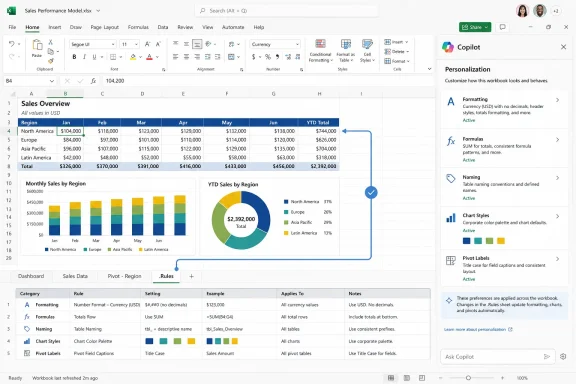
The new personalization feature lets users open the Copilot pane, go into Settings, choose Personalization, and enter preferences in natural language. Microsoft’s examples include currency formatting, date conventions, table styles, formula preferences, chart palettes, PivotTable labeling, conditional formatting choices, and the preferred level of detail in explanations.That is exactly where personalization belongs. These are not commands that should be retyped into every prompt. They are durable preferences that shape the output before the user has to intervene.
The feature is account-based, which means the preferences follow the user across workbooks and sessions. If you always want short summaries before detailed tables, or you consistently prefer named ranges over sprawling cell references, Copilot can now treat that as part of your working style rather than a fresh request every time.
This is also where the comparison to ChatGPT-style memory is useful but incomplete. ChatGPT memory is broad and conversational; Excel personalization is narrower and more operational. It is not trying to remember your favorite vacation destination. It is trying to remember that your reports should not display currency with two decimal places unless you ask.
That narrower scope may make it more useful. Productivity AI has suffered from overbroad promises, but spreadsheet users tend to reward tools that shave repeated seconds off repeated actions. A preference that silently prevents ten small corrections per workbook is more valuable than a flashy demo that works once.
Workbook Rules Are the Real Enterprise Feature
Personalization is about the individual. Workbook rules are about the file.Microsoft’s workbook rules live in a dedicated
.Rules worksheet inside the workbook. That sheet travels with the file, so when the workbook is shared, the rules are shared too. For organizations that rely on standardized models, recurring reports, client templates, or departmental trackers, that is the more consequential half of the update.This design has a very Excel-like practicality. Rather than inventing a separate policy console, Microsoft is putting the instructions inside the artifact Excel users already pass around. A workbook can now carry not only its data, formulas, charts, and macros, but also a plain-language description of how Copilot should behave when editing it.
That has obvious benefits for collaboration. A team can tell Copilot that every chart should use the company palette, every revenue table should include certain fields, every forecast should compare against actuals when actuals are present, or every executive view should suppress drill-down detail unless requested. The assistant is no longer just responding to the person at the keyboard. It is responding to the logic of the workbook.
Microsoft is also allowing these rules to be created in several ways. Users can generate a
.Rules sheet from the Copilot interface, manually create one, copy rules between workbooks, or ask Copilot to infer rules from examples already present in the file. That last option is particularly important, because many real-world Excel standards are never formally documented. They are just visible in the workbook.The .Rules Sheet Is Clever Because It Is Boring
The .Rules sheet is the kind of implementation detail that will sound underwhelming to casual users and reassuring to Excel veterans. Rules must be listed in column A, and the sheet must be visible for Copilot to use it. Hidden rules sheets are ignored.That visibility requirement is not just a technical footnote. It makes the instructions inspectable. If Copilot starts producing strangely formatted output, a user can look at the rules sheet and see what it was told. In the world of AI assistants, that kind of plain-text accountability is rare enough to be notable.
It also makes governance less mysterious. A workbook author can explain standards in ordinary language, and another user can edit those instructions without learning a new admin surface. The rules become part of the workbook’s documentation, sitting alongside the model rather than buried in a profile setting or cloud-only configuration.
The trade-off is that this is not a locked-down enterprise policy mechanism. A visible worksheet can be changed, deleted, or misunderstood. But that may be the right first step for Excel, where flexibility often beats rigidity and where overly formal controls tend to get bypassed with “Final_v7_REAL.xlsx” anyway.
Dynamic Rules Push Copilot Closer to Spreadsheet Logic
The most intriguing part of workbook rules is that Microsoft is not limiting them to static text. Rules can be driven by formulas, meaning Copilot can read the output of a cell and change its behavior based on workbook state.That is a subtle but powerful idea. A dropdown could switch Copilot between “Executive” and “Detailed” modes. A formula could tell Copilot to compare forecast to actuals only after actuals have been entered. A workbook could adapt the assistant’s behavior without requiring the user to restate the context each time.
This is where Copilot begins to feel less like a chatbot bolted onto Excel and more like a spreadsheet-aware agent. Excel users already think in conditions, references, and outputs. Letting rules participate in that logic is a natural fit.
It also raises the ceiling for template builders. A department could create a forecasting workbook that guides Copilot differently during planning, review, and close. A consulting team could maintain a client deliverable template whose rules adapt depending on region, currency, or reporting audience. The value is not that Copilot becomes autonomous. The value is that it becomes easier to constrain.
The Fix Is Small Because the Problem Was Repetitive
The frustrating limitation Microsoft is addressing here was not that Copilot could not be instructed. It was that Copilot had to be instructed too often.Repeated prompting is more than an annoyance. It changes how users evaluate AI. If a person has to keep restating obvious preferences, the assistant starts to feel less like automation and more like another layer of clerical work. The user may still save time on the first task, but the accumulated friction undermines trust.
Excel amplifies that problem because consistency is central to the product’s value. A workbook is often judged not only by whether the numbers are correct, but by whether the layout is familiar, the formulas are auditable, the formatting is readable, and the output matches organizational expectations. When Copilot misses those conventions, users have to inspect and repair its work.
Persistent rules reduce that repair loop. They do not eliminate verification, and they do not make AI-generated spreadsheet work automatically safe. But they do make Copilot less likely to stumble over the same preference again and again.
That is the kind of improvement that rarely dazzles in a keynote but matters in daily use. Microsoft is not adding a new magic trick. It is sanding down a rough edge that made the existing tricks harder to tolerate.
Excel Is Where AI Has the Least Room to Bluff
Microsoft’s broader Copilot strategy has always faced a tougher test in Excel than in Word or PowerPoint. A clumsy paragraph can be edited. A bland slide can be redesigned. A wrong formula, misapplied transformation, or inconsistent assumption in a workbook can quietly produce bad decisions.That is why Excel Copilot has drawn both interest and skepticism. The assistant can help users generate formulas, summarize data, create tables, build charts, and explain patterns. But spreadsheets are also full of edge cases, implicit definitions, and business logic that may not be obvious from the visible grid.
Personalization and rules do not solve accuracy. They solve context. That is still a major advance, because many AI failures inside productivity tools are context failures masquerading as intelligence failures. The model may be capable of producing the right structure, but it does not know which structure your team expects.
The danger is that users may confuse better conformity with better correctness. A beautifully formatted, rule-compliant report can still contain an incorrect formula or a misleading summary. Microsoft’s challenge is to make Copilot more useful without encouraging the fatal spreadsheet sin: trusting output because it looks professional.
Admins Will See Both Governance and Shadow Policy
For IT administrators and Microsoft 365 managers, workbook rules introduce an interesting governance wrinkle. On one hand, they make AI behavior more transparent and portable. On the other, they create a new place where business logic can live outside formal controls.That is not inherently bad. Excel has always been a place where business logic accumulates in formulas, named ranges, hidden sheets, macros, Power Query steps, and undocumented manual processes. A
.Rules sheet is arguably more visible than many of those mechanisms.But organizations will need to decide how these rules fit into existing controls. If a workbook drives financial reporting, operational planning, compliance tracking, or customer-facing output, Copilot rules should be reviewed like any other part of the workbook design. They are instructions to an AI system that can modify the file. That makes them operationally meaningful.
There is also a training issue. Users need to understand the difference between account personalization and workbook rules. Personalization follows the user and is not shared in the file. Workbook rules follow the workbook and affect collaborators who use Copilot with that file. That distinction is simple, but it will matter when teams try to diagnose why Copilot behaved differently in two contexts.
The best-run organizations will treat
.Rules sheets as lightweight documentation. The worst-run ones will discover them only after someone asks why last month’s report suddenly adopted a new convention.Microsoft Is Teaching Copilot the Old Lesson of Templates
For all the AI branding, this update echoes one of the oldest productivity ideas in computing: templates matter.Excel users have long relied on workbook templates, custom styles, named ranges, conditional formatting, macros, add-ins, and Power Query recipes to avoid repeating work. Copilot personalization and workbook rules are a natural-language extension of that tradition. They are templates for AI behavior rather than templates for cells alone.
That framing is healthier than the usual “AI will replace manual work” pitch. In practice, productivity improvements often come from encoding preferences, standards, and recurring decisions so users can focus on exceptions. A good Excel template does not eliminate judgment. It prevents the same setup work from happening every Monday morning.
Copilot rules could serve the same purpose. They let a team encode the boring parts of spreadsheet taste and procedure. That is exactly the kind of work machines should absorb.
The irony is that Microsoft’s most useful AI features may be the ones that make AI less conversational. A blank prompt box is powerful, but it is also inefficient. A well-constrained assistant that already knows the house rules is far more likely to earn a permanent place in professional workflows.
The Rollout Still Has the Usual Microsoft Caveats
Personalization is available to Copilot in Excel users across the web, Mac, and Windows, while workbook rules are currently in preview for Windows and Mac users on the Insiders channel. Microsoft says broader availability is expected after a few weeks, though no exact general availability date has been locked down.Licensing remains part of the story. These features depend on eligible Microsoft 365 consumer, premium, business, enterprise, or Copilot-related subscriptions. In other words, this is not a universal Excel feature in the traditional sense. It is part of Microsoft’s ongoing effort to make Copilot a paid layer across Microsoft 365.
That matters because Excel has an unusually broad user base. Some people live in enterprise tenants with Copilot licenses and Insider builds. Others use perpetual Office versions, consumer subscriptions, locked-down corporate builds, or web-only access. A feature can be “available” in Microsoft’s ecosystem and still be invisible to a large share of Excel users.
There is also the preview problem. Workbook rules may evolve as Microsoft changes Copilot’s models and Excel integration. Microsoft itself warns that behavior may shift over time as available models and Copilot features develop. For cautious organizations, that is a reason to pilot the feature on non-critical templates before trusting it in production reporting.
This Is a Win for Power Users, Not a Replacement for Them
Excel power users should welcome this feature, but not because it makes their expertise obsolete. It actually makes expertise more reusable.The person who knows the reporting conventions, naming patterns, formula preferences, and chart standards can now encode some of that knowledge directly into the workbook. That makes Copilot more helpful for less experienced collaborators and less annoying for experienced ones. It also reduces the burden on the office spreadsheet guru who gets pulled into every cleanup pass.
But the feature still depends on users knowing what rules to write. “Make this look professional” is weaker than “use banded rows, freeze headers, show totals at the top, format revenue as USD with no decimals, and label PivotTable fields with friendly names.” Copilot may understand natural language, but precision still wins.
That is the recurring lesson of enterprise AI. The tool lowers the cost of execution, not the need for judgment. People who understand the work will get more value from Copilot than people who treat it as a substitute for understanding.
In that sense, workbook rules may become a new kind of spreadsheet craft. Good Excel users will not only build good formulas; they will build good instructions around the workbook so humans and AI assistants can work inside it safely.
The Spreadsheet Finally Gets a Memory Worth Using
The concrete value of this update is not that Copilot can remember everything. It is that Copilot can remember the right small things in the right place.- Personalization lets individual users save recurring Copilot preferences for formatting, formulas, charts, tables, summaries, and tone across their own Excel sessions.
- Workbook rules let shared files carry their own Copilot instructions through a visible
.Rulesworksheet that stays with the workbook. - Rules can be written manually, generated through Copilot, copied between workbooks, or inferred from examples already present in a file.
- Formula-driven rules allow Copilot behavior to change based on workbook state, such as whether actuals have been entered or which reporting audience is selected.
- The feature reduces repeated prompting, but users still need to verify formulas, transformations, summaries, and any output used for business decisions.
- Organizations should treat workbook rules as part of template governance, especially when files support financial, operational, or compliance workflows.
References
- Primary source: Neowin
Published: 2026-06-17T17:04:24.650547
Microsoft fixes one of Excel Copilot's most frustrating limitations - Neowin
A new Excel Copilot enhancement is rolling out that could make the AI assistant far more useful for frequent spreadsheet users. www.neowin.net
- Official source: support.microsoft.com
Copilot in Excel workbook rules | Microsoft Support
Use rules with Copilot in Excel to create guidelines for a workbook.support.microsoft.com - Official source: microsoft.com
Cornet: Learning Spreadsheet Formatting Rules by Example
Proc. VLDB Endow. 2023.16:4058-4061www.microsoft.com
- Related coverage: store.ccilearning.com
- Official source: learn.microsoft.com
What is Microsoft 365 Copilot? | Microsoft Learn
Learn about what Microsoft 365 Copilot is and common Copilot features in Microsoft 365 apps, like Word, Excel, PowerPoint, and Teams. This article answers common questions about Copilot, including what is Copilot, how Copilot works, and the benefits of using Copilot.learn.microsoft.com - Related coverage: pcgamer.com
Microsoft launches Copilot AI function in Excel, but warns not to use it in 'any task requiring accuracy or reproducibility' | PC Gamer
You can have Copilot generate your formulas in Excel now, but it doesn't sound ready for prime time.www.pcgamer.com
- Official source: excel.cloud.microsoft
Copilot в Excel | ИИ-инструмент для создания электронных таблиц | Microsoft Excel
Создавайте формулы, анализируйте данные и выстраивайте рабочие процессы в электронных таблицах с помощью Copilot в Excel. Находите полезные инсайты в простых и сложных таблицах, используя возможности ИИ.excel.cloud.microsoft - Official source: news.microsoft.com
Lleven la IA a sus fórmulas con la función COPILOT en Excel - Source LATAM
 news.microsoft.com
- Official source: techcommunity.microsoft.com
Introducing formula completion - A new way to write formulas in Excel using Copilot | Microsoft Community Hub
Formula completion with Copilot in Excel, helps you write accurate formulas faster by offering intelligent, real-time suggestions based on your worksheet’s... techcommunity.microsoft.com
- Related coverage: stackoverflow.com
How do you set custom formatting in excel? - Stack Overflow
I wish to have a different display depending on the specified format.
The number I am using as example value is 1234567.89.
Format 1: European with space as thousand-separtor and Dollar-symbol at t...stackoverflow.com
- Related coverage: goskills.com
Copilot in Excel — How to Get Started | GoSkills
Learn how to enable Copilot in Microsoft Excel to automate tasks, enhance data analysis, and boost productivity using AI and natural language prompts. www.goskills.com
- Official source: cdn-dynmedia-1.microsoft.com
- Related coverage: professor-excel.com
- Related coverage: aldridge.com
MICROSOFT COPILOT IN EXCEL
</rdf:Alt> </dc:description> <dc:creator> <rdf:Seq> <rdf:li>Mason Conealdridge.com
