

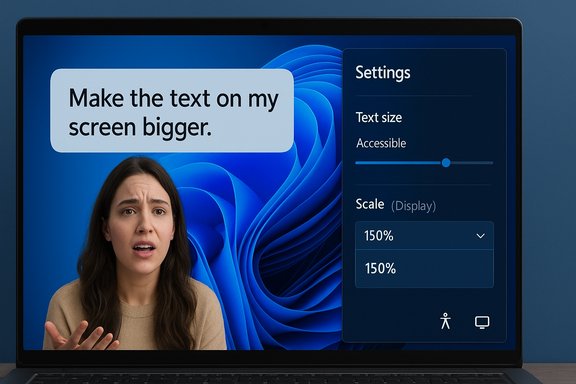
Microsoft’s latest Copilot-for-Windows ad — a short influencer clip designed to sell the promise of a conversational, screen‑aware assistant — inadvertently became a case study in why AI still struggles with context, accessibility, and simple system-state awareness, raising fresh questions about whether Copilot is ready to be the default guide for PC settings. The clip shows Copilot guiding a user to “make the text on my screen bigger,” but instead of taking them to the dedicated Text size accessibility control, it highlights the broader Scale control and then tells the user to select “150%” even though 150% is already selected on-screen. Viewers called out the mismatch immediately, and the backlash quickly morphed from mild embarrassment into a wider debate about trust, reliability, and Microsoft’s AI-first vision for Windows.
Microsoft has loudly pushed Copilot as a central pillar of the Windows 11 experience — a conversational assistant that can see, listen, and act across the OS. That ambition is tied to a broader roadmap where Windows becomes more agentic: an operating system that not only responds but also automates and anticipates user needs. The concept promises faster workflows and simpler troubleshooting, but it also raises expectations that the assistant must be precise, privacy-aware, and accessibility-conscious. The recent ad clip collided with those expectations in a visible way.
At the same time, the public conversation around Copilot has not been uniformly positive. Some users feel inundated by AI prompts, in-system marketing, and feature creep; others worry about privacy and the deeper implications of giving an assistant agentic control over core system behaviors. Against that backdrop, a short ad that appears to show Copilot making a basic error is more damaging than a single bug — it feeds a narrative that Copilot is more marketing than maturity.
The negative reaction in replies and tech forums indicates this is more than a single misstep: it’s a reputational dent that sits atop longstanding worries about privacy, mandatory Microsoft Accounts, OneDrive prompts, and increasing bloat. In other words, the ad’s mistake reinforced existing narratives rather than creating a new controversy.
Three systemic risks to watch:
For users, the takeaway is simple: AI helpers can accelerate routine tasks when they’re dependable. Right now, Copilot still has work to do before it can claim that role across all Windows 11 workflows. The best path forward is practical: ship fixes that make Copilot boringly, reliably correct — then resume selling the magic.
Source: Windows Central https://www.windowscentral.com/arti...g-then-pretending-it-was-working-as-intended/
 Background
Microsoft has loudly pushed Copilot as a central pillar of the Windows 11 experience — a conversational assistant that can see, listen, and act across the OS. That ambition is tied to a broader roadmap where Windows becomes more agentic: an operating system that not only responds but also automates and anticipates user needs. The concept promises faster workflows and simpler troubleshooting, but it also raises expectations that the assistant must be precise, privacy-aware, and accessibility-conscious. The recent ad clip collided with those expectations in a visible way.At the same time, the public conversation around Copilot has not been uniformly positive. Some users feel inundated by AI prompts, in-system marketing, and feature creep; others worry about privacy and the deeper implications of giving an assistant agentic control over core system behaviors. Against that backdrop, a short ad that appears to show Copilot making a basic error is more damaging than a single bug — it feeds a narrative that Copilot is more marketing than maturity.
What the ad actually shows
The clip proceeds in a few clear beats that are easy to reconstruct from the circulating video and subsequent reporting:- The user says: “Hey Copilot, I want to make the text on my screen bigger.”
- Copilot opens Settings and highlights a starting area, but it does not initially present the Text size accessibility control that directly answers the request.
- When the user asks, “Can you show me where to click next?” Copilot highlights Scale (System > Display > Scale) and explains that changing it affects text, apps, and other UI elements.
- The user asks, “What percentage should I click?” and Copilot replies “150%,” even though the UI in the clip visibly shows 150% already chosen; the user ignores this and picks 200% to get the desired result.
Windows 11: Text size vs Scale — why the difference matters
To understand why the ad’s behavior matters beyond aesthetics, it helps to be clear about the two distinct controls in Windows 11:- Text size (Accessibility > Text size) — this slider adjusts only the size of text (menus, labels, title bars). It’s the accessibility-first control for users who need larger type without changing app or layout proportions.
- Scale (System > Display > Scale & layout) — this dropdown scales everything on the display: text, apps, icons, and UI chrome. It’s the right control when you want larger touch targets or a general UI enlargement for high‑DPI displays.
Technical diagnosis: what likely went wrong
There are three plausible technical explanations for the ad’s misdirection, each pointing to different parts of the Copilot stack:- Intent detection and disambiguation failure
LLM-based assistants often map natural language to the most common or highest-confidence action. “Make text bigger” is ambiguous at scale: many web and help pages associate it with display scaling. If Copilot’s intent resolver favored the statistically common mapping over a clarifying question, it would take the wrong path. An assistant should ask a short clarifier — “Do you want only text larger, or everything on the screen?” — when ambiguity exists. - UI parsing and state‑awareness mismatch
Copilot’s “screen-aware” features depend on extracting UI structure and reading visible values. If it recommended “150%” while 150% was already selected, that implies a mismatch: either Copilot parsed the UI incorrectly, used cached state, or failed to surface the live state to the language model generating the instruction. This is a solvable engineering issue but a serious one for trust. - Demo editing or staging artifacts
Marketing clips are often edited for length and emphasis. It’s possible the visual state or sequence was compressed or reworked after the live interaction, producing a misleading impression. That caveat matters: without the original unedited recording or a Microsoft statement, the clip itself is the primary evidence — and that evidence may include editing artifacts. Treat that possibility as a caveat, not an excuse.
Accessibility, trust, and the real risk for users
This short ad crystallizes three dangers when an AI assistant is embedded in the OS:- Erosion of trust. AI helpers live and die by reliable guidance. When a high-profile demo shows an assistant giving incorrect, redundant, or state‑contradictory instructions, user confidence drops rapidly. The perception shifts from “helpful tool” to “unreliable guess machine.”
- Accessibility harm. People who rely on accessibility settings are not edge users — they represent core usage scenarios. Steering a visually impaired user toward the wrong control could change layout, reduce contrast, or create interaction problems. Assistants must prioritize accessibility-first mappings and confirm when in doubt.
- Marketing backlash. Influencer campaigns are designed to build goodwill and show off reliability. When an influencer-led clip instead highlights a failure mode, the negative PR spreads faster than the intended positive message, amplifying existing grievances about feature creep and intrusive marketing inside Windows.
Community reaction and the "agentic OS" debate
The clip landed in a larger debate: Microsoft’s messaging about an “agentic OS” — where the system can take actions on users’ behalf — has provoked resistance. Many users want Windows to get out of the way, not push proactive automation or subscription-driven features into their workflows. The influencer clip fed that sentiment: an assistant that can’t disambiguate “text” vs “UI” seems more likely to cause friction than reduce it. Even Microsoft staff and leadership have seen pushback online when they discuss agentic features, showing this conversation isn’t limited to social comments but runs up to public-facing corporate messaging.The negative reaction in replies and tech forums indicates this is more than a single misstep: it’s a reputational dent that sits atop longstanding worries about privacy, mandatory Microsoft Accounts, OneDrive prompts, and increasing bloat. In other words, the ad’s mistake reinforced existing narratives rather than creating a new controversy.
What Microsoft should do — product, engineering and communications fixes
This ad gives Microsoft a concrete list of low‑cost, high‑impact corrections that would materially improve Copilot’s credibility:- Improve intent disambiguation with mandatory quick clarifiers for ambiguous requests (e.g., text-only vs UI scaling). A single, well‑timed question avoids a large class of errors.
- Harden UI instrumentation and state-syncing so Copilot never recommends a choice that the UI already shows as active; introduce a pre-action verification step.
- Prioritize accessibility flows in training and mapping rules; accessibility controls should be preferred when user phrasing includes words like “text,” “font,” or “read.”
- Improve pre-release QA for marketing demos. If an ad shows an assistant doing a live demo, the demo should be validated both for accuracy and for unedited state consistency. If editing is required, preserve state fidelity to avoid misleading viewers.
- Communicate transparently about the failure. A short acknowledgement outlining a fix plan would reduce speculation and show responsiveness; silence fuels distrust.
Practical guidance for Windows users today
For readers who want actionable steps, here are precise instructions to change text-only size and global scaling — the controls Copilot should have picked for the user in the ad:- To change only text size (recommended for accessibility):
- Open Settings (Win + I) → Accessibility → Text size.
- Drag the Text size slider to the desired percentage and click Apply. This adjusts menus, labels, and title bars without changing app layout.
- To change global display scaling (text + apps + UI):
- Open Settings (Win + I) → System → Display → Scale & layout.
- Choose a percent from the Scale dropdown (125%, 150%, 200% etc.. Some apps may require signing out and back in for the change to take full effect.
- If Copilot’s guidance looks wrong, ask it to confirm the current setting before making a change, or navigate manually using the steps above. If you want to limit Copilot’s intrusions, explore Copilot’s settings to reduce prompts (voice mode, vision sharing, experimental features) — note that the assistant has multiple front ends and levels of integration, so behavior can vary across devices.
Broader implications: AI assistants need to be boringly correct
The ad is an object lesson in a broader principle: for AI assistants embedded in fundamental system layers, predictability and correctness matter far more than novelty. Users will tolerate cleverness when the assistant gets the basics right; they will not tolerate a flashy assistant that introduces regressions, ambiguity, or accessibility risks.Three systemic risks to watch:
- Feature fragmentation across hardware tiers (Copilot+ PCs vs non‑NPU devices) can create inconsistent experiences that undermine trust.
- Agentic features that perform actions without clear, testable guardrails risk causing unintended changes at scale. Governance and auditing matter.
- Marketing that demonstrably contradicts product reality creates brand damage; once trust is broken, users are much likelier to disable or avoid a feature.
Conclusion
A short influencer ad intended to showcase Copilot’s convenience instead highlighted the assistant’s current friction points: ambiguous intent mapping, unreliable UI-state awareness, and poor handling of accessibility‑sensitive requests. The incident is not merely a marketing embarrassment — it’s a usability and trust problem that sits at the intersection of product design, AI model behavior, and system instrumentation. Microsoft can and should fix these gaps quickly: ask clarifying questions, prioritize accessibility-first mappings, harden state verification, and align marketing demos with real, validated behavior.For users, the takeaway is simple: AI helpers can accelerate routine tasks when they’re dependable. Right now, Copilot still has work to do before it can claim that role across all Windows 11 workflows. The best path forward is practical: ship fixes that make Copilot boringly, reliably correct — then resume selling the magic.
Source: Windows Central https://www.windowscentral.com/arti...g-then-pretending-it-was-working-as-intended/
