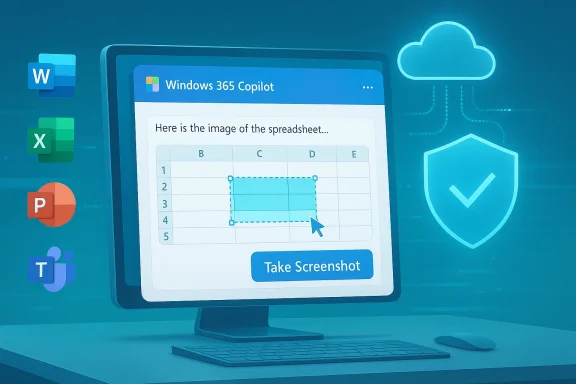
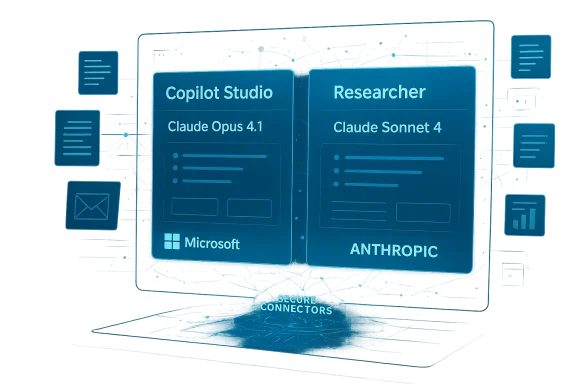
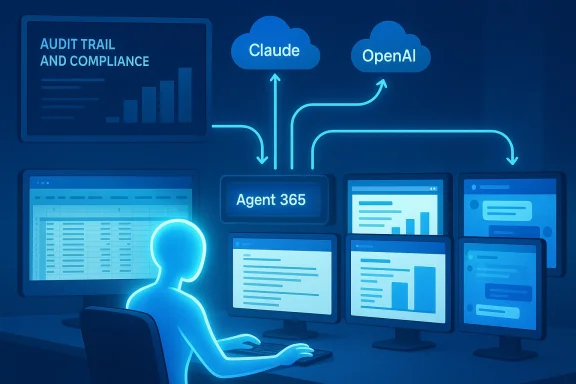
Microsoft’s Copilot has moved from an experimental sidebar to a baked‑in productivity partner — but the reality of using it day‑to‑day is more complicated than the glossy demos suggest. The promise is simple: draft faster, analyze smarter, and get routine work off your plate. In practice, Copilot delivers powerful first drafts and analytical shortcuts while introducing new governance, verification, and workflow responsibilities for every team that adopts it. The outcome depends less on the technology itself and more on how organizations design who uses it, what it can see, and how outputs are checked. ]
Microsoft’s strategy has been to embed generative AI directly into the Office surface: Word, Excel, PowerPoint, Outlook and Teams now surface Copilot features as in‑pane assistants and agentic workflows that can research, draft, and convert chat outputs into editable Office files. Recent product updates added permissioned connectors and a document creation/export workflow in the Copilot app on Windows, expanding Copilot’s reach beyond just suggestion to action. These changes are moving Copilot from a helpful add‑on to a workflow engine — and that shifvity upside and operational risk.
Copilot is increasingly multi‑model and multi‑variant: organizations can route straightforward conversational traffic to low‑latency variants and send complex reasoning tasks to deeper thinking models. Microsoft and OpenAI’s recent rollouts (including GPT‑5.3 Instant) are intended to reduce latency and improve the conversational experience, but faster responses do not eliminate the need for grounding, provenance, and human verification.
Practical inbox rules:
Key governance controls organizations must enforce:
Flag unverifiable content: if Copilot produces statements without citations or provenance, mark those sentences for manual verification before sharing externally. This practice should be codified in any organizational Copilot policy.
What to watch next:
Source: Techgenyz Microsoft Copilot in Office: Essential Tips to Improve Workflows
 Background / Overview
Microsoft’s strategy has been to embed generative AI directly into the Office surface: Word, Excel, PowerPoint, Outlook and Teams now surface Copilot features as in‑pane assistants and agentic workflows that can research, draft, and convert chat outputs into editable Office files. Recent product updates added permissioned connectors and a document creation/export workflow in the Copilot app on Windows, expanding Copilot’s reach beyond just suggestion to action. These changes are moving Copilot from a helpful add‑on to a workflow engine — and that shifvity upside and operational risk.Copilot is increasingly multi‑model and multi‑variant: organizations can route straightforward conversational traffic to low‑latency variants and send complex reasoning tasks to deeper thinking models. Microsoft and OpenAI’s recent rollouts (including GPT‑5.3 Instant) are intended to reduce latency and improve the conversational experience, but faster responses do not eliminate the need for grounding, provenance, and human verification.
Copilot in Word: Drafting and summarizing — powerful, but not authoritative
What it does well
Copilot’s Word integration accelerates the first draft stage of writing. It can:- Generate outlines from short briefs or meeting notes.
- Expand bullet lists into paragraphs and create alternate phrasings.
- Produce concise summaries of long documents or meetinrmat and rewrite text to match requested tone and reading level.
Where it fails (and how to spot problems)
Generative models are probabilistic by design. In Word this shows up in three frequent error modes:- Inaccuracies — incorrect facts, misdated claims, or mismatched figures.
- **ausible sounding but ambiguous phrasing that obscures risk.
- Fabricated citations or references — the model may invent a source or link that doesn’t exist.
Practical tips for Word users
- Start with a short, structured brief: a 2–4 line prompt with audience and purpose.
- Ask Copilot to list the claims it used to build the is absent, request it explicitly.
- Keep a verification pass: check dates, numbers, and names against original documents before distribution.
- Preserve a clear human sign‑off step in workflows for external or client‑facing documents.
Excel + Copilot: Analysis speed — but verify every formula
Where Copilot helps most
Excelnalytical affordances are most visible: it can detect patterns, recommend functions, produce charts from data ranges, and surface anomalies that non‑experts might miss. For fast exploratory analysis — quick pivots, suggested visualizations, or natural‑language queries (“show top three regions by growth rate”) — Copilot is a force multiplier.Where it introduces risk
Spreadsheets are high‑stakes: small formula errors cascade into big decisions. Copilot can:- Misinterpret table boundaries or merged cells ant formula.
- Assume implicit relationships between columns that don’t exist.
- Generate summaries that compress or drop caveats found in the raw data.
Excel best practices (technical checklist)
- Manually inspect any formulas Copilot generates before use in models or reports.
- Verify data ranges — confirm Copilot selected the intended cells, especially where blank rows or hidden columns exist.
- Recompindependently or with a second analyst before external reporting.
- Lock down sensitive or regulated sheets with stricter access controls and limit Copilot’s reach to read‑only where appropriate.
PowerPoint: From notes to slides — the time saver that still needs a designer
Copilot can convert documents, notes, or chat research into a complete slide deck with speaker notes and suggested visuals. The typical flow is:- Research agent gathers facts and citations.
- Copilot creates an outline and auto‑generates slides using tenant branding and Slide Master cues.
- A human iterates on design, tone, and storytelling.
Quick rules for presentation quality
- Use Copilot decks as a first draft; always run a slide‑level editorial pass.
- Check any numerical charts against source datasets; visual appeal can hide misaggregations.
- Verify legal disclaimers and regulatory text manually; Copilot can omit required fine print.
- Enforce corporate Slide Master templates and approved copy libraries at the tenant level to reduce brand drift.
Outlook: Faster mail, higher sensitivity
Copilot in Outlook speeds routine email tasks: drafting replies, summarizing long threads, and suggesting follow‑up actions. For inbox triage and routine administrative comms, this can dramatically reduce atic drafting risks tone errors, inadvertent oversharing, or misreading nuanced threads — especially when messages involve clients, legal issues, or executive communications. Always include a human review step for sensitive recipients.Practical inbox rules:
- Use Copilot for internal, low‑risk threads; avoid it for contract or legally binding communications unless reviewed.
- For long threads, ask Copilot for a list of decisions and open actions, then verify against source emails.
- Teach users to scan for tone and specificity before sending Copilot‑generated replies.
Data access: the governance heart of Copilot deployments
At the core of Copilot’s usefulness is its ability to read organizational data — documents, email, calendar entries, and connected cloud storage — and synthesize contextual outputs. That same access is the governance challenge: broader access improves capability but raises exposure. Every enterprise rollout must balance these forces with explicit controls.Key governance controls organizations must enforce:
- File access controls — ensure Copilot connectors respect existing RBAC and least‑privilege policies.
- Role‑based permissions — restrict who can invoke Copilot on high‑risk data sets.
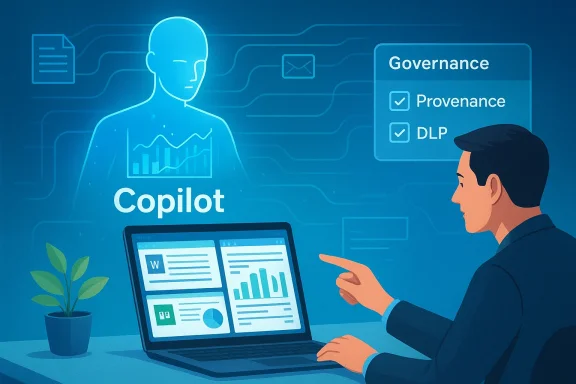
- Data classification & labeling — make sensitive data discoverable to DLP and Copilot policies so it is excluded from unsafe operations.
- Tenant‑level DLP and conditional access — block or redact sensitive fields before they are surfaced to models.
Privacy, compliance, and auditing: what to demand from your deployment
Organizations operating in regulated sectors must treat Copilot like any other critical service that processes personal data. The core questions to answer before wide adoption are:- What exactly can Copilot access with default settings?
- Where and how are prompts and responses stored and retained?
- How are connectors authenticated, and are tokens confined to the tenant?
- What auditing and e‑discovery hooks exist to trace a Copilot session?
- Run a Data Protection Impact Assessment (DPIA) for Copilot use cases that touch regulated data.
- Disable external web research for sensitive workloads or limit model routing to tenant‑only retrieval.
- Require human approval for outputs used in regulated filings or public statements.
- Ensure logs capture request/response content, model variant used, and the source documents Copilot referenced.
Accuracy limits: why probabilistic models demand human verification
Generative models produce plausible text by sampling likely continuations, not by indexing a canonical truth table. That probabilistic nature leads to three persistent risks:- Hallucinations — invented facts or citations presented confidently.
- Data distortion — numbers misaggregated or caveats dropped during summarization.
- Overconfidence — outputs that sound authoritative but lack provenance.
Flag unverifiable content: if Copilot produces statements without citations or provenance, mark those sentences for manual verification before sharing externally. This practice should be codified in any organizational Copilot policy.
Who benefits most — and who should be cautious
Copilot will be most valuable for:- Knowledge workers overloaded with documents and meetings.
- Managers who need quick summaries and meeting notes.
- Analysts doing exploratory data work where sters.
- Teams producing many internal presentations or routine reports.
Building responsible Copilot work processes
To move from pilot to production, build documented, measurable processes that embed verification and escalate high‑risk outcomes. A practical rollout checklist:- Pilot phase
- Select 1–3 low‑risk teams.
- Define KPIs: time‑to‑first‑draft, post‑generation edit rate, factual accuracy percentage.
- Enable logging and telemetry in a staging tenant.
- Governance and controls
- Apply DLP and conditional access on Copilot connectors.
- Enforce data classification rules and template libraries.
- Configure model routing: Instant for conversational flows; Thinking/Pro models for complex reasoning.
- Training and culture
- Short workshops on prompt design and reading AI citations.
- Clear rules for when human sign‑off is mandatory.
- Educate users on deletion/retention of Copilot conversations and saved context.
- Operationalization
- Integrate verification into document approval workflows.
- Maintain an audit trail for all Copilot‑generated artifacts used externally.
- Periodically review error rates and refine policies.
The global picture: productivity gains and widening gaps
Generative AI has the potential to compress labor on routine knowledge tasks and deliver productivity boosts at scale, but access and readiness will be uneven. Organizations and regions with robust governance, training, and cloud ine disproportionate gains, while resource‑constrained environments risk falling further behind. Responsible implementation — including targeted training and fair access programs — is necessary to avoid widening economic disparities. These macro dynamics are important for policy makers and enterprise leaders planning long‑term workforce strategies.Practical, copy‑and‑paste playbook: immediate steps for IT and team leads
- Start small: pilot Copilot with high‑value, low‑risk teams and measure outcomes.
- Lock governance first: enforce DLP and role‑based access before enabling connectors broadly.
- Require provenance: configure Copilot and agents to surface source citations and require them for external content.
- Train users: teach prompt engineering basics and create a mandatory «verify before share» rule.
- Audit continuously: collect telemetry on edit rates, hallucination incidents, and policy exceptions.
Strengths, trade‑offs, and final assessment
Microsoft Copilot in Office is a major step forward: it reduces mechanical work, accelerates ideation, and integrates model‑level assistance into tools employees already use. The integration of model variants (including GPT‑5.3 Instant) and connectors increases both utility and complexity: you get faster, more conversational assistance, but you must also manage routing, provenance, and tenant governance. The real value will be realized where human reviewers, IT controls, and clear policies combine to keep Copilot’s probabilistic outputs from becoming organizational liabilities.What to watch next:
- Microsoft’s continuing evolution of Copilot Studio controls and observability features.
- Model routing defaults and how Microsoft surfaces which backend model produced an output.
- Documentation on retention and where saved conversation context and snapshots are stored.
- Regulatory developments (including AI legislation) that will define high‑risk classification and compliance obligations.
Conclusion: an assistant, never an authority
Copilot is already changing knowledge work by automating the repetitive parts of writing, analysis, and slide building. The most successful deployments will treat it as an assistant — a speed and ideation engine whose outputs are always subject to human judgment, verification, and governance. Organizations that invest in clear controls, training, and verification playbooks will see genuine productivity gains. Those that treat Copilot as an autopilot risk errors, leakage, and regulatory exposure. The future of productivity in Office is human plus AI; the balance between them will determine whether Copilot is a trusted teammate or an expensive experiment.Source: Techgenyz Microsoft Copilot in Office: Essential Tips to Improve Workflows
Last edited: