Copilot in Office: Boosting Productivity with Governance and Verification

  • Thread Author
Microsoft’s Copilot has moved from an experimental sidebar to a baked‑in productivity partner — but the reality of using it day‑to‑day is more complicated than the glossy demos suggest. The promise is simple: draft faster, analyze smarter, and get routine work off your plate. In practice, Copilot delivers powerful first drafts and analytical shortcuts while introducing new governance, verification, and workflow responsibilities for every team that adopts it. The outcome depends less on the technology itself and more on how organizations design who uses it, what it can see, and how outputs are checked. ]

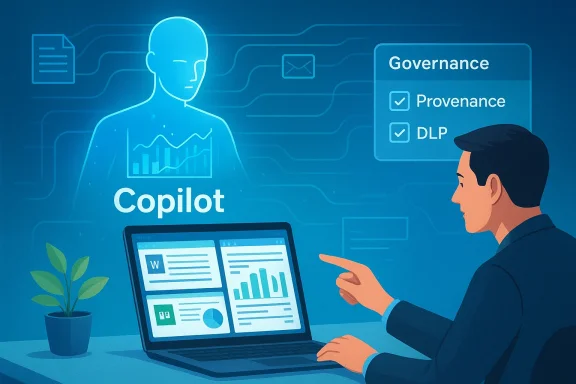
A person uses a laptop while a holographic Copilot guides governance and provenance checks.Background / Overview​

Microsoft’s strategy has been to embed generative AI directly into the Office surface: Word, Excel, PowerPoint, Outlook and Teams now surface Copilot features as in‑pane assistants and agentic workflows that can research, draft, and convert chat outputs into editable Office files. Recent product updates added permissioned connectors and a document creation/export workflow in the Copilot app on Windows, expanding Copilot’s reach beyond just suggestion to action. These changes are moving Copilot from a helpful add‑on to a workflow engine — and that shifvity upside and operational risk.
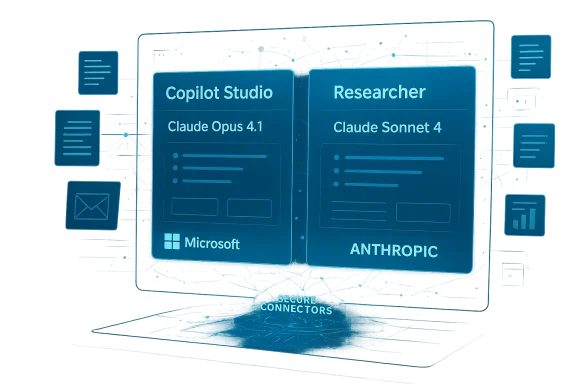
Copilot is increasingly multi‑model and multi‑variant: organizations can route straightforward conversational traffic to low‑latency variants and send complex reasoning tasks to deeper thinking models. Microsoft and OpenAI’s recent rollouts (including GPT‑5.3 Instant) are intended to reduce latency and improve the conversational experience, but faster responses do not eliminate the need for grounding, provenance, and human verification.

Copilot in Word: Drafting and summarizing — powerful, but not authoritative​

What it does well​

Copilot’s Word integration accelerates the first draft stage of writing. It can:
  • Generate outlines from short briefs or meeting notes.
  • Expand bullet lists into paragraphs and create alternate phrasings.
  • Produce concise summaries of long documents or meetinrmat and rewrite text to match requested tone and reading level.
The workflow Microsoft and early testers describe is consistent: generate → review → refine. Use Copilot to break writer’s block and produce many iterations quickly; the human then edits for accuracy, style, and legal or regulatory nuance.

Where it fails (and how to spot problems)​

Generative models are probabilistic by design. In Word this shows up in three frequent error modes:
  • Inaccuracies — incorrect facts, misdated claims, or mismatched figures.
  • **ausible sounding but ambiguous phrasing that obscures risk.
  • Fabricated citations or references — the model may invent a source or link that doesn’t exist.
These errors are not edge cases; they are predictable failure modes when Copilot synthesizes content from patterns rather than verifying a canonical source. Treat all AI‑generated passages as first drafts, not final copy.

Practical tips for Word users​

  • Start with a short, structured brief: a 2–4 line prompt with audience and purpose.
  • Ask Copilot to list the claims it used to build the is absent, request it explicitly.
  • Keep a verification pass: check dates, numbers, and names against original documents before distribution.
  • Preserve a clear human sign‑off step in workflows for external or client‑facing documents.
These steps reduce rework and prevent the paradox where an attempted time‑saver creates more editing overhead than it saves.

Excel + Copilot: Analysis speed — but verify every formula​

Where Copilot helps most​

Excelnalytical affordances are most visible: it can detect patterns, recommend functions, produce charts from data ranges, and surface anomalies that non‑experts might miss. For fast exploratory analysis — quick pivots, suggested visualizations, or natural‑language queries (“show top three regions by growth rate”) — Copilot is a force multiplier.

Where it introduces risk​

Spreadsheets are high‑stakes: small formula errors cascade into big decisions. Copilot can:
  • Misinterpret table boundaries or merged cells ant formula.
  • Assume implicit relationships between columns that don’t exist.
  • Generate summaries that compress or drop caveats found in the raw data.
Because of these failure modes, every AI‑assisted analysis requires a human verification loop. Treat Copilot’s outputs as suggestions to inspect, not validated results.

Excel best practices (technical checklist)​

  • Manually inspect any formulas Copilot generates before use in models or reports.
  • Verify data ranges — confirm Copilot selected the intended cells, especially where blank rows or hidden columns exist.
  • Recompindependently or with a second analyst before external reporting.
  • Lock down sensitive or regulated sheets with stricter access controls and limit Copilot’s reach to read‑only where appropriate.
These controls preserve the speed gains without exposing the organization to avoidable numerical errors.

PowerPoint: From notes to slides — the time saver that still needs a designer​

Copilot can convert documents, notes, or chat research into a complete slide deck with speaker notes and suggested visuals. The typical flow is:
  • Research agent gathers facts and citations.
  • Copilot creates an outline and auto‑generates slides using tenant branding and Slide Master cues.
  • A human iterates on design, tone, and storytelling.
This workflow is valuable for tight deadlines and internal briefings. It reduces the “mechanical” workload of formatting and slide layout, letting humans focus on narrative and persuasion. But it is not a replacement for design thinking — Copilot does not understand audience nuance or the subtleties of executive storytelling without human input.

Quick rules for presentation quality​

  • Use Copilot decks as a first draft; always run a slide‑level editorial pass.
  • Check any numerical charts against source datasets; visual appeal can hide misaggregations.
  • Verify legal disclaimers and regulatory text manually; Copilot can omit required fine print.
  • Enforce corporate Slide Master templates and approved copy libraries at the tenant level to reduce brand drift.

Outlook: Faster mail, higher sensitivity​

Copilot in Outlook speeds routine email tasks: drafting replies, summarizing long threads, and suggesting follow‑up actions. For inbox triage and routine administrative comms, this can dramatically reduce atic drafting risks tone errors, inadvertent oversharing, or misreading nuanced threads — especially when messages involve clients, legal issues, or executive communications. Always include a human review step for sensitive recipients.
Practical inbox rules:
  • Use Copilot for internal, low‑risk threads; avoid it for contract or legally binding communications unless reviewed.
  • For long threads, ask Copilot for a list of decisions and open actions, then verify against source emails.
  • Teach users to scan for tone and specificity before sending Copilot‑generated replies.

Data access: the governance heart of Copilot deployments​

At the core of Copilot’s usefulness is its ability to read organizational data — documents, email, calendar entries, and connected cloud storage — and synthesize contextual outputs. That same access is the governance challenge: broader access improves capability but raises exposure. Every enterprise rollout must balance these forces with explicit controls.
Key governance controls organizations must enforce:
  • File access controls — ensure Copilot connectors respect existing RBAC and least‑privilege policies.
  • Role‑based permissions — restrict who can invoke Copilot on high‑risk data sets.
  • Data classification & labeling — make sensitive data discoverable to DLP and Copilot policies so it is excluded from unsafe operations.
  • Tenant‑level DLP and conditional access — block or redact sensitive fields before they are surfaced to models.
Microsoft exposes admin controls via Copilot Studio, Power Platform data policies, and tenant DLP. Administrators should test those controls in staging tenants before broad rollouts.

Privacy, compliance, and auditing: what to demand from your deployment​

Organizations operating in regulated sectors must treat Copilot like any other critical service that processes personal data. The core questions to answer before wide adoption are:
  • What exactly can Copilot access with default settings?
  • Where and how are prompts and responses stored and retained?
  • How are connectors authenticated, and are tokens confined to the tenant?
  • What auditing and e‑discovery hooks exist to trace a Copilot session?
Practical governance steps:
  • Run a Data Protection Impact Assessment (DPIA) for Copilot use cases that touch regulated data.
  • Disable external web research for sensitive workloads or limit model routing to tenant‑only retrieval.
  • Require human approval for outputs used in regulated filings or public statements.
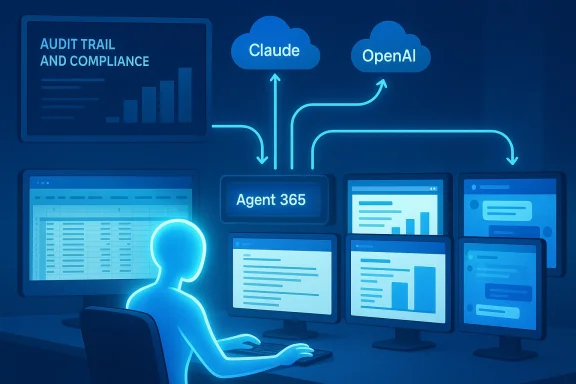
  • Ensure logs capture request/response content, model variant used, and the source documents Copilot referenced.
These measures are not optional for healthcare, finance, or legal departments. Microsoft’s enterprise guidance and tools provide DLP integration, tenant controls, and audit logging — but they require configuration and verification.

Accuracy limits: why probabilistic models demand human verification​

Generative models produce plausible text by sampling likely continuations, not by indexing a canonical truth table. That probabilistic nature leads to three persistent risks:
  • Hallucinations — invented facts or citations presented confidently.
  • Data distortion — numbers misaggregated or caveats dropped during summarization.
  • Overconfidence — outputs that sound authoritative but lack provenance.
Newer model variants (e.g., GPT‑5.3 Instant) reduce latency and improve conversational flow, and Microsoft now exposes model routing in Copilot Studio to help administrators choose tradeoffs. However, improved fluency is not a substitute for provenance and fact‑checking. When outputs matter, humans must verify claims with primary sources.
Flag unverifiable content: if Copilot produces statements without citations or provenance, mark those sentences for manual verification before sharing externally. This practice should be codified in any organizational Copilot policy.

Who benefits most — and who should be cautious​

Copilot will be most valuable for:
  • Knowledge workers overloaded with documents and meetings.
  • Managers who need quick summaries and meeting notes.
  • Analysts doing exploratory data work where sters.
  • Teams producing many internal presentations or routine reports.
It provides less value where domain accuracy is mandatory or where regulatory/regulatory consequences are high — for example, legal contract drafting, audited financial statements, and clinical decision support — unless governance and specialist fine‑tuning are in place. Treat Copilot as a collaborator, not an authority.

Building responsible Copilot work processes​

To move from pilot to production, build documented, measurable processes that embed verification and escalate high‑risk outcomes. A practical rollout checklist:
  • Pilot phase
  • Select 1–3 low‑risk teams.
  • Define KPIs: time‑to‑first‑draft, post‑generation edit rate, factual accuracy percentage.
  • Enable logging and telemetry in a staging tenant.
  • Governance and controls
  • Apply DLP and conditional access on Copilot connectors.
  • Enforce data classification rules and template libraries.
  • Configure model routing: Instant for conversational flows; Thinking/Pro models for complex reasoning.
  • Training and culture
  • Short workshops on prompt design and reading AI citations.
  • Clear rules for when human sign‑off is mandatory.
  • Educate users on deletion/retention of Copilot conversations and saved context.
  • Operationalization
  • Integrate verification into document approval workflows.
  • Maintain an audit trail for all Copilot‑generated artifacts used externally.
  • Periodically review error rates and refine policies.
Following these steps converts Copilot from a novelty into an operational assistant that reduces risk while preserving speed.

The global picture: productivity gains and widening gaps​

Generative AI has the potential to compress labor on routine knowledge tasks and deliver productivity boosts at scale, but access and readiness will be uneven. Organizations and regions with robust governance, training, and cloud ine disproportionate gains, while resource‑constrained environments risk falling further behind. Responsible implementation — including targeted training and fair access programs — is necessary to avoid widening economic disparities. These macro dynamics are important for policy makers and enterprise leaders planning long‑term workforce strategies.

Practical, copy‑and‑paste playbook: immediate steps for IT and team leads​

  • Start small: pilot Copilot with high‑value, low‑risk teams and measure outcomes.
  • Lock governance first: enforce DLP and role‑based access before enabling connectors broadly.
  • Require provenance: configure Copilot and agents to surface source citations and require them for external content.
  • Train users: teach prompt engineering basics and create a mandatory «verify before share» rule.
  • Audit continuously: collect telemetry on edit rates, hallucination incidents, and policy exceptions.
If you must act this week: run a DPIA on any Copilot use that touches regulated data, and ensure the tenant admin has enabled logging for Copilot sessions. The Windows Insider rollout and official Microsoft guidance make testing safe options for staged learning before broad enterprise rollout.

Strengths, trade‑offs, and final assessment​

Microsoft Copilot in Office is a major step forward: it reduces mechanical work, accelerates ideation, and integrates model‑level assistance into tools employees already use. The integration of model variants (including GPT‑5.3 Instant) and connectors increases both utility and complexity: you get faster, more conversational assistance, but you must also manage routing, provenance, and tenant governance. The real value will be realized where human reviewers, IT controls, and clear policies combine to keep Copilot’s probabilistic outputs from becoming organizational liabilities.
What to watch next:
  • Microsoft’s continuing evolution of Copilot Studio controls and observability features.
  • Model routing defaults and how Microsoft surfaces which backend model produced an output.
  • Documentation on retention and where saved conversation context and snapshots are stored.
  • Regulatory developments (including AI legislation) that will define high‑risk classification and compliance obligations.

Conclusion: an assistant, never an authority​

Copilot is already changing knowledge work by automating the repetitive parts of writing, analysis, and slide building. The most successful deployments will treat it as an assistant — a speed and ideation engine whose outputs are always subject to human judgment, verification, and governance. Organizations that invest in clear controls, training, and verification playbooks will see genuine productivity gains. Those that treat Copilot as an autopilot risk errors, leakage, and regulatory exposure. The future of productivity in Office is human plus AI; the balance between them will determine whether Copilot is a trusted teammate or an expensive experiment.

Source: Techgenyz Microsoft Copilot in Office: Essential Tips to Improve Workflows
 

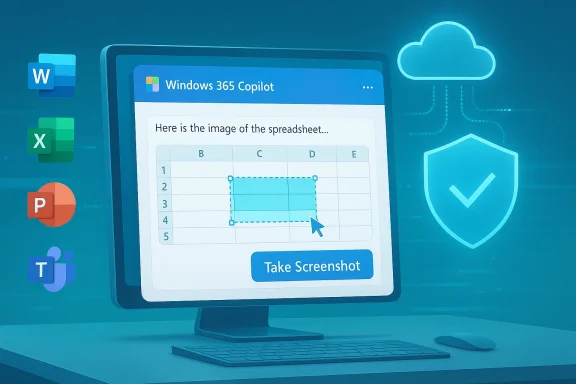
Microsoft appears to be building a native screenshot capture feature inside the Copilot experience for Microsoft 365, a change that could make sharing visual context with the assistant dramatically easier — and that also reopens long‑running questions about how Microsoft will handle image data, retention, and enterprise controls.

A computer screen shows Windows 365 Copilot with a spreadsheet and a Take Screenshot button.Background​

Over the last two years Microsoft has moved aggressively to fold Copilot into the flow of work across Windows, Microsoft 365 apps, and browser surfaces. That expansion has been both functional — enabling natural‑language editing, data extraction, and automations inside Word, Excel, Teams and PowerPoint — and contentious, because features that let an assistant “see” the screen can touch directly on user privacy and organizational data protection.
The latest development is a Microsoft 365 roadmap entry describing a feature called, in effect, Take Screenshot in Copilot: a built‑in way for users to capture images and attach them to Copilot prompts without leaving the app. The roadmap entry (published in early March 2026) is short on implementation detail but clear about intent: shorten the path from “I see something on screen” to “Copilot can analyze it,” and do so as an integrated part of the Copilot conversation.
This is a modest‑sounding change on its face, but in practice it shifts a frequent, sometimes awkward multi‑step workflow (Alt+PrintScreen → save → attach → explain) into a single interaction inside the assistant. For users who regularly ask Copilot to interpret tables, debug UI flows, extract text via OCR, or summarize screenshots, the convenience is obvious. For security and compliance teams, the questions are immediate: where do those screenshots go, how long are they retained, who can access them, and what controls will administrators have?

What the roadmap entry says (and what it doesn’t)​

The explicit promises​

  • The roadmap entry describes a built‑in screenshot capture that lets users take screenshots and include them directly in Copilot prompts. The aim is to reduce friction when providing visual context to the assistant and to improve the quality of Copilot’s responses by giving it direct image inputs.
  • The feature is listed under the Copilot product entry for Microsoft 365 and is described as in development with a desktop‑first scope. Roadmap text indicates integration across the Microsoft 365 app family — notably Excel, Teams, Word, and PowerPoint — consistent with how Copilot is currently surfaced.
  • The stated user benefit is straightforward: faster, more accurate assistance when the assistant can analyze on‑screen content without the user needing to leave the current app.

Key gaps and omissions​

  • The public roadmap item does not publish technical details: how screenshots will be stored, whether they are uploaded to Microsoft cloud services for analysis or processed on‑device, what retention policies will apply, nor how these actions will be logged and audited.
  • There’s no firm timetable or rollout window in the published roadmap summary. “In development” is not a public release date.
  • The entry does not explicitly state whether the screenshot capability will be available in Copilot Chat, the standalone Copilot app, Edge’s sidebar composer, or only in the Copilot integrations within Office desktop apps.
Because the entry is intentionally terse, both users and administrators must be prepared to make policy decisions once Microsoft publishes operational details or ships a preview. Until then, many of the high‑impact privacy and governance questions remain unanswered.

How the feature is likely to work (informed forecast)​

Microsoft’s roadmap summary describes the user experience; from that, and from how Copilot currently accepts documents and file uploads, we can reasonably infer several likely design choices. These are projections, not confirmations — treat them as implementation hypotheses that will need validation against Microsoft’s documentation.
  • On‑demand capture: Expect an explicit “Take screenshot” button or keyboard shortcut inside the Copilot UI. This would let users choose when to share visual context, rather than automatically capturing screens.
  • Selection modes: The UI will probably offer multiple capture modes: full screen, active window, or region selection. These modes are common across screenshots utilities and map cleanly to use cases like grabbing a chart in Excel versus the contents of a conversation in Teams.
  • Basic annotation: To improve usefulness, Microsoft may include annotation tools (crop, highlight, redact) so users can draw attention to relevant areas or redact sensitive text before sending the capture to Copilot.
  • OCR and visual understanding: Copilot will likely run OCR on captured images to extract actionable text and metadata (table structures, UI labels, error messages), enabling the assistant to answer queries about the screenshot content.
  • Contextual linking: If the screenshot originates from a document stored in OneDrive or a Teams file, Microsoft may allow Copilot to reference or open the original source, if permissions permit.
  • Desktop‑first rollout with mobile parity later: The roadmap suggests desktop first; mobile or web may follow depending on adoption and engineering constraints.
Again: these are informed expectations. Microsoft’s actual implementation could differ — particularly in areas that affect security and data residency.

Why this matters: practical benefits​

Integrating screenshots into Copilot removes friction from common productivity tasks and unlocks workflows that are currently clumsy or manual.
  • Faster troubleshooting: Users can capture an error dialog or UI state and ask Copilot to diagnose causes or propose fixes without typing a long explanation.
  • Data extraction from visuals: Copilot can parse tables or charts embedded in screenshots, then generate formulas, summaries, or exportable data — a boon for analysts who frequently receive static images of data.
  • Accessibility: Being able to snap a screen and have Copilot read, summarize, or transform it into selectable content helps screen‑reading workflows and users with visual or motor impairments.
  • Training and documentation: Support staff can capture steps and ask Copilot to turn them into step‑by‑step guides or troubleshooting scripts.
  • Collaboration: Screenshots shared inside a Copilot conversation can be annotated, explained, and turned into follow‑up actions inside Teams or Outlook.
These practical gains explain why a built‑in capture flow is attractive to Microsoft: it increases Copilot’s utility and shortens task cycles, making the assistant feel more integrated into work.

The privacy and security challenge: what history tells us​

Microsoft’s past experience with visual features is instructive. A few notable lessons from recent company initiatives that used continuous or automatic screen capture:
  • Continuous screenshot features create a high bar for secure local storage and access controls because they generate a comprehensive, potentially sensitive visual log of user activity.
  • Preview builds of screen‑recall features in the OS provoked scrutiny when artifacts or databases were found accessible without strong encryption and tamper protections. That backlash pushed vendors to make such features opt‑in and to rework storage architectures to tie encryption to secure hardware, biometrics, or user keys.
  • Third‑party apps and enterprise endpoints reacted by adding protections (for example, app-implemented “screen security” flags) that block OS-level captures of specific windows or content.
What this background tells us is simple: image capture features can provide enormous value, but they also amplify single points of failure. A leaked screenshot, improperly retained image, or poorly audited upload could disclose credentials, personal data, intellectual property, or regulated information.

Risk surface: a deep dive​

Below are the most consequential risk vectors organizations and end users should consider.
  • Data exfiltration via image capture: A screenshot can contain credentials, financial data, or PII. If captures are transmitted to cloud services for analysis, any compromise or misconfiguration could expose that data.
  • Local storage vulnerability: If screenshots are cached locally (for performance or indexing), they must be stored with strong encryption, access control, and anti‑tampering measures. Unencrypted SQLite or file‑system storage is a known attack vector.
  • Inadvertent sharing: Users may accidentally include a screenshot containing sensitive content in a Copilot prompt or share a conversation that includes images to a channel with broader access.
  • DLP and compliance blind spots: Existing data loss prevention (DLP) controls are primarily content‑driven for text and files. If screenshots are treated differently — for example, processed server‑side without DLP inspection — organizations could lose visibility and control.
  • Auditability and forensics: Without granular logging that records when screenshots were captured, who viewed them, and their downstream uses, incident response is hamstrung.
  • Cross‑tenant leakage and developer errors: Mistakes in multi‑tenant services or bot integrations could cause a screenshot to be associated with the wrong tenant or user session.
  • Accessibility of extracted metadata: OCRed text and derived metadata could be stored in searchable indexes, potentially increasing exposure if index controls are weaker than raw image storage protections.
Each risk is addressable with engineering and policy work, but the mitigation must be explicit — not assumed.

What enterprises should ask Microsoft before enabling the feature​

When a feature like this arrives in preview, CISOs and IT teams should demand clarity in the following areas:
  • Where are screenshots processed — on‑device or in the cloud? If cloud processing is used, in which datacenter regions will data be processed and stored?
  • What encryption is applied to screenshots at rest and in transit? Are keys tied to hardware (TPM), user credentials, or tenant protections?
  • What retention policies are configurable by tenant administrators? Can screenshots be auto‑deleted after X days, or quarantined based on DLP triggers?
  • How do DLP policies interact with screenshots and their extracted text? Will Purview / DLP engines inspect OCRed text and block or warn on policy matches?
  • What audit logs are produced? Administrators should require detailed logs for capture events, viewing, and export, suitable for e‑discovery and incident investigations.
  • What controls exist for disabling screenshot capture for managed devices, specific apps, or user groups?
  • How will Microsoft ensure third‑party Copilot extensions or agents don’t repackage or exfiltrate screenshots?
  • What consent and user disclosure UX will be shown so individuals understand when they are sharing screen content with Copilot?
Organizations should treat the roadmap item as the start of a vendor conversation, not as an opt‑in prompt. Procurement and security teams should coordinate with legal, compliance and end‑user computing to define a gating criteria before broad deployment.

Recommended administrative and end‑user controls (practical steps)​

Until the exact architecture is published, here are defensible policies that IT teams can prepare and apply quickly when the feature appears:
  • Default‑off, permit‑by‑policy: Configure tenant defaults so Take Screenshot in Copilot is disabled for all users. Only enable it for specific pilot groups after review.
  • DLP‑first: Extend Purview and DLP policies to explicitly cover images and OCRed content. Treat screenshots as high‑sensitivity artifacts by default and block transmission when policy matches occur.
  • App allowlist/denylist: Block capture from designated high‑risk apps (finance, HR systems, password managers, electronic medical records) at the endpoint level.
  • Endpoint hardening: Ensure device encryption (BitLocker or equivalent) is enforced, that TPM is available, and that Windows Hello is required for features that unlock sensitive image stores.
  • Audit and retention policy: Require detailed logging and adopt short retention windows for captured images unless flagged for retention via e‑discovery or case workflows.
  • User training and UI cues: Retrain users on what constitutes sensitive content and require clear UI affordances (prominent warning banners, redaction tools) when a capture includes data that could be sensitive.
  • Conditional access gating: Apply conditional access and CA rules (MFA, device compliance) to the Copilot capture and analysis flows.
  • Test automation and red teaming: Before rollouts, run automated red‑team tests to validate that screenshots cannot be exfiltrated, that DLP policies trigger correctly, and that storage is encrypted and isolated.
These controls represent a risk‑first posture: keep the feature closed at scale until protections and workflows are validated.

Design recommendations Microsoft should adopt​

If Microsoft wants this capability to be safe and broadly adopted, the following are practical engineering and policy choices that reduce friction while protecting users:
  • Make capture explicit and visible: every screenshot action should show clear, persistent UI affordances that a capture was taken and whether it has been shared.
  • Offer local, on‑device processing for OCR and basic analysis as a default, with cloud processing as an opt‑in or opt‑out per tenant.
  • Implement zero‑access server design for cloud processing when possible: process images transiently in secure enclaves, do not store raw images beyond what’s necessary, and persist only derived, policy‑filtered outputs if retention is needed.
  • Enforce DLP prechecks before upload: run local pattern matching and block uploads that contain regulated tokens or redaction candidates.
  • Provide tenant admin controls for region, retention, and exportability; tie encryption keys to tenant‑managed KMS for enterprise customers.
  • Expose a Copilot capture audit API so SIEM and EDR tools can ingest and correlate capture events.
  • Ship redaction and blur primitives in the capture UI so users can sanitize captures before they leave an endpoint.
  • Be transparent: publish a dedicated whitepaper with the data flow, storage model, cryptographic protections, and reproduction steps for security researchers.
Adopting these design decisions would make the feature far easier for organizations to accept.

Where this fits into Microsoft’s broader Copilot roadmap​

The screenshot capability is a clear next step in making Copilot multimodal: combining text prompts, files, and visual inputs into a single conversational context. Microsoft has rolled Copilot into Office apps, the Edge sidebar, and as a standalone app — and the addition of a built‑in capture flow fits that strategy.
However, the feature also sits squarely in a sensitive category: it raises questions already encountered with Microsoft’s earlier visual features and the industry’s growing appetite for on‑device processing and privacy‑first designs. The balance Microsoft strikes — between convenience, performance, and governance — will shape adoption in regulated industries and enterprise settings, where data governance is non‑negotiable.

Final assessment and practical takeaways​

  • The feature is useful: a native capture path in Copilot will speed workflows, make troubleshooting easier, and enable more effective use of multimodal AI in regular productivity tasks.
  • The risks are real but manageable: image capture amplifies exposure to sensitive information. Proper engineering (encryption, DLP, logging) and policy (default‑off, admin gating) can mitigate the most severe threats.
  • Organizations should prepare now: define policy, pilot groups, and testing criteria before the feature arrives in preview. Treat roadmap entries as signals to plan, not to enable blindly.
  • Microsoft must publish operational details: until Microsoft discloses processing locations, storage architecture, retention policies, and export controls, security teams cannot make an informed acceptance decision.
  • User education remains critical: build training, redaction practices, and visual cues into rollout plans so end users understand what they’re sharing and why.

Practical checklist for Windows and Microsoft 365 administrators​

  • Prepare a pilot plan that keeps the feature off for the general population.
  • Identify pilot users from support, documentation, and accessibility teams.
  • Define policy triggers that automatically block uploads containing PII, financial data, or patient information.
  • Validate endpoint encryption and TPM/Windows Hello requirements across pilot devices.
  • Build tests that confirm that screenshots cannot be recovered from local caches by non‑authorized users.
  • Coordinate with legal and compliance to ensure any retention of visual artifacts fits regulatory obligations.
  • Run red‑team exercises to model attacker scenarios that abuse screenshot content.

Conclusion​

A built‑in Copilot screenshot tool for Microsoft 365 is an obvious and logical user experience improvement: it converts visual context into actionable prompts with a click. But the feature also brings to the surface a set of governance and security questions Microsoft and its customers must answer before it becomes a mainstream productivity tool.
For enterprises, the responsible path is to plan now: require transparent engineering guarantees from the vendor, test strongly in pilot environments, and adopt a conservative default posture that protects sensitive data. For Microsoft, the opportunity is to ship a feature that is both delightful and defensible: give administrators the controls they need, give users the visibility and redaction tools they deserve, and architect the backend so that the convenience of “take a screenshot” never becomes the source of a preventable breach.
If Microsoft follows that template, Copilot’s new screenshot capability can increase productivity without increasing risk — a balance that will determine whether the feature is embraced or blocked in business environments.

Source: Windows Report https://windowsreport.com/microsoft...in-copilot-screenshot-tool-for-microsoft-365/
 

Back
Top