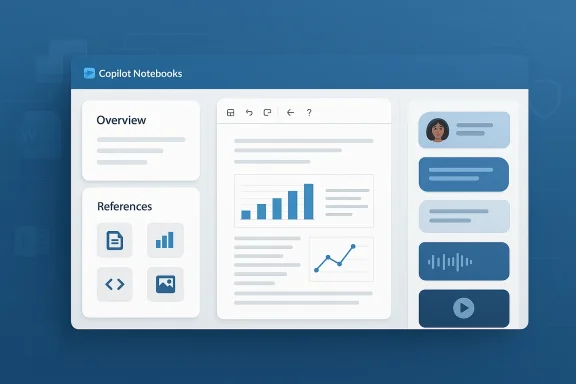
Copilot Notebooks Redesign Adds Project Canvas and AI Overviews

  • Thread Author
Microsoft's Copilot Notebooks has received a sweeping visual and interaction redesign in the latest staged update, a change that reshapes how research, project context, and source material are gathered and surfaced inside Microsoft 365 Copilot—and it arrives with both clear productivity upside and practical hazards for administrators and knowledge workers alike. erview
Copilot Notebooks launched as Microsoft’s attempt to give users a persistent, AI-aware workspace: a place to collect Copilot chats, files, meeting notes, and external references into a single notebook that Copilot can read, summarize, and reason over. The official guidance and documentation for Copilot Notebooks were most recently updated in late February 2026, underscoring that the feature is intentionally tied to Microsoft 365 licensing and to a SharePoint or OneDrive storage backend for notebook content. This matters for both availability and governance in enterprise tenants.
Over the past year Microsoft has iterated Notebooks frequently—adding summaries, better referencing, and mobile parity—and the newest redesign is the most visible of those changes. Microsoft’s product notes and internal community commentary describe the goal as turning scattered research into a concise “overview” that helps teams get up to speed in seconds. That objective is reflected in what’s shipping: a redesigned navigation model, a and an AI-generated overview landing card that synthesizes notebook content automatically.
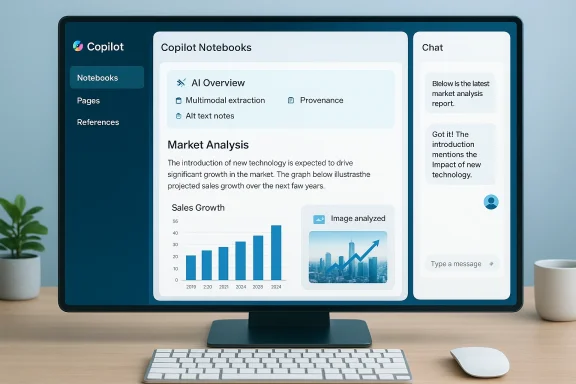
Monitor displays Copilot Notebooks UI with AI overview, market analysis, and a chat panel.What changed — the visible redesign​

The update introduces several interlocking UI and interaction changes intended to speed discovery and reduce context switching.
  • Left-hand persistent notebook navigation. Notebooks, Pages, and References now appear inft rail so users can switch context quickly without losing place in an open chat or page. This reorientation prioritizes project structure over chat session lists.
  • Right-side persistent chat pane. Instead of chat displacing content, the chat pane now “rides” to the right of the notebook canvasersation visible while you read or edit pages. Microsoft and early testers describe this as a move toward a two-column, research-first layout.
  • Overview landing card (AI summaries). When you open a notebook the top-level landing experience surfaces an automatically generated overview: a compressed synthesis of references, key points, action ixt steps. This card uses Copilot’s summarization engine to create an instant project brief. Microsoft started rolling summary features to Notebooks in March and has been iterating the model and presentation since.
  • Tighter integration of references and pages. Attachments, linked files from OneDrive/SharePoint, Copilot Pages, and inline references are surfaced more prominently and can be added to the overview dynamically. That reduces the manual effort to gather source material.
  • Multimodal extraction and quick insights. Add an image, chart, or diagram to a prompt and Copilot extracts text, explains trends, and surfaces alt text or accessibility notes automatically—accelerating analysis workflows for visual content. This capability is referenced in recent Microsoft release notes as part of Copilot’s expanded document handling.
These changes amount to more than a skin-deep cosmetic refresh: Microsoft has rebalanced the interface so that notebooks behave like project canvases rather than ephemeral chat transcripts.

Why the redesign matters: productivity and cognitive load​

At a high level the redesign aims to solve two chroniise knowledge work: context loss and scattered sources.
  • Faster context switching. By keeping the notebook structure and the chat visible simultaneously, Copilot Notebooks reduces the cognitive cost of switching between reading and asking clarifying questions. That can be a real time-saver in meeting prep, research triage, and cross-team handoffs.
  • Fewer friction points for research synthesis. The AI-generated overview reduces the time needed to assemble a topline brief from multiple documents, which is valuable to product managers, analysts, and client-facing professionals. Microsoft’s release notes highlight improved summarization and richer document referencing as explicit design goals.
  • Better handling of multimodal inputs. Research is rarely pure text; charts, screenshots, and diagrams are the norm. Automating the extraction of text and alt descriptions from images helps accessibility and speeds review cycles.
From a user experience point of view, this is a pragmatic nudge toward a “computational notebook” model that researchers and data teams favor—an integrated canvas for artifacts and commentary rather than a linear chat log.

Technical and governance specifics you should verify now​

If you’re an admin, architect, or an IT leader planning a rollout, these are the claims and specs to verify and document before broad deployment:
  • Licensing prerequisites. Copilot Notebooks requires a Microsoft 365 Copilot license plus a OneDrive or SharePoint storage plan for creating notebooks. Confirm who in your organization has the required SKU and whether you need to purchase or reassign licenses.
  • Storage and retention policies. Notebooks are stored in the tenant’s OneDrive/SharePoint. That means your existing retention, DLP, and eDiscovery policies will apply—but you should verify exact repository paths and whether summary content is cached elsewhere. Microsoft’s onboarding documentation explicitly ties Notebooks to tenant storage.
  • Modeling and inference details. Microsoft’s Copilot release notes indicate the service routes queries to(and in recent updates Copilot Chat began using GPT-5 as the default in some channels). Confirm which model is used for Notebooks in your tenant and whether that influences throughput, cost, or data residency. These model-level changes have been documented in Microsoft’s release notes.
  • Auditability and action logging. Ask whether the summary generation, reference additions, and Copilot actions are logged to your tenant’s audit logs and to whatce what data the AI used to produce outputs.
  • Rollout cadence and feature flags. Microsoft is rolling this update in stages—some tenants and insiders see it before others. Plan a pilot cohort and monitor feedback channels. Community threads indicate the update is being flighted gradually and that reactions vary by tenant.
Verifying these points will reduce surprises and keep your compliance, security, and cost teams aligned during deployment.

Community and early-adopter reactions: wins and pain points​

The redesign has been visible in tenant previews and Insider channels, and the community reaction has been mixed.
  • Positive responses praise the faster navigation and the usefulness of the automatic overviews when starting on a new project. Several internal community posts and Microsoft channels describe a win for knowledge work.
  • At the same time, early user reports have flagged regressions and discoverability issues. Reddit threads and tenant reports describe confusion around where Pages now live inside the notebook, trouble finding older chat history, and layout changes that break established workflows for power users who relied on the previous linear chat model. Those complaints show up in multiple community forums.
  • Inside Microsoft-insider and tenant threads, some testers reported a temporary drop in perceived usability—buttons moving, unexpected navigation behaviors, and missing shortcuts—which Microsoft often addresses in follow-up flights. Community-sourced posts show the product team is iterating rapidly, but that impatience and friction are real for teams that depend on predictable interfaces.
The pattern is familiar: large UI shifts generate polarized reaction. Early adopters like the new flow; long-time users resent workflow interruptions. That’s why staged rollouts and opt-in pilots are critical.

Security, privacy, and compliance: concrete concerns​

A more AI-centric notebook raises a predictable set of governance questions.
  • Data surface expansion. By encouraging users to pull in files and images, Notebooks increases the number of content items that can be used in model inferences. While those files remain in tenant nce layer can reference them to generate summaries. Admins should confirm whether the inference layer transmits data outside tenant boundaries and what safeguards ensure data residency and encryption in transit and at rest. Microsoft documentation ties Notebooks to tenant storage and notes licensing and storage requirements; however, admins should ask Microsoft support or their account team for explicit data flow diagrams for their region and tenant.
  • Unintended sharing via summaries. Automatic overviews can include extracted content or paraphrases that, if misconfigured, might surface confidential details to broader groups. Ensure sharing defaissions are controlled and that users understand how to mark sensitive content. This is a practical governance failure mode — automatic summarization working well can still accidentally broaden exposure of restricted content.
  • Model hallucination and provenance. Summaries are powerful, but generative systems sometimes hallucinate facts or misattribute content. For compliance-heavy work (e.g., legal, regulated research), require that Copilot users include provenance checks—explicit links to referenced documents—before acting on a notebook’s synthesized recommendations. Microsoft’s product notes emphasize reference linking, but product teams and admins must enforce provenance workflows.
  • Logging and audit trails. Ensure Copilot and Notebooks actions are included in tenant audit logs and that DLP rules can trigger on sensitive content added to notebooks. Ask Microsoft support for clarity about what is logged and for how long. The absence of clear auditability is one of the most serious potential governance gaps.
A practical short checklist for security teams follows in the next section.

Action checklist for IT and security teams (recommended)​

  • Pilot in a controlled group (3–6 teams) and gather workflow telemetry over 2–4 weeks.
  • Map notebook storage: confirm OneDrive/SharePoint repositories and update retention/DLP rules to explicitly include notebook artefacts.
  • Validate data flows: request a data flow diagram from your Microsoft account team showing whether and where notebook content is processed outside your tenant region.
  • Train users: publish short guidance explaining how the Overview is generated, how to check provenance, and how to mark sensitive sources.
  • Configure sharing defaults: set new Notebooks to private by default and require explicit sharing for cross-team collaboration.
  • Monitor community feedback channels: keep a short list of known issues and check Microsoft’s release notes for fixes.
Implementing these steps reduces both risk and user frustration during rollout.

UX trade-offs and long-term implications​

There are a few strategic trade-offs to consider beyond immediate rollout concerns.
  • From chat-first to canvas-first. The new layout signals Microsoft’s intent to position Notebooks as a project canvas rather than a conversational playground. That’s better for knowledge assembly, but it may reduce the immediacy of casual chat-style discovery that some users prefer. Teams that rely on linear conversation logs for auditability or collaboration may need to adapt processes.
  • Consolidation of knowledge tools. Microsoft is clearly pushing toward integrating Copilot capabilities across O apps, and the OS itself. Notebooks’ richer canvas fits that strategy, but it also centralizes risk and control in a single, high-value surface. Administrators who already struggle with governaps now have another critical surface to manage.
  • Competition with specialized notebook products. Computational-resear such as NotebookLM-style experiments have pushed more expressive canvases for research. Microsoft’s redesign closes gaps in the productivity space—if Notebooks continue maturing, they could replace multiple point tools for many teams. That could reduce tool sprawl but also increase lock-in.
These trade-offs are neither unprecedented nor trivial; they are strategic choices that should be discussed with product owners and compliance teams.

Known issues and what to watch for​

Early reports and community threads have highlighted concrete, actionable problems you should monitor in your pilot:
  • Discoverability regressions. Some testers report difficulty locating Pages and historical chats after the redesign; train users on the new left-hand navigation and collect precise feedback about missing flows.
  • Performance and rendering bugs. Any major UI rewrite can reveal rendering or interaction regressions across browsers and clients. Test on the set of browsers and devices your teams use.
  • Inconsistent rollout behavior. Because the redesign is staged, not all users in a tenant may see the same UI at the same time, which can complicate training and support. Plan for dual-state support during the transition window.
  • User frustration and helpdesk load. Expect a sight spike in helpdesk tickets during the first two weeks of a tenant-wide rollout. Prepare bite-sized training and a short FAQ to reduce the support burden. Community threads show immediate negative reactions from power users who depended on prior shortcuts.
Tracking these issues systematically during a pilot will help shape your rollout policy and escalation paths.

Conclusions and editorial assessment​

Microsoft’s Copilot Notebooks redesign is a meaningful step toward turning generative AI from a reactive assistant into a proactive knowledge management surface. The new layout—persistent navigation, a right-side chat pane, and an AI-generated overview—addresses real productivity problems for teams that regularly synthesize multi-source research and brief stakeholders.
That said, the redesign brings predictable governance, discoverability, and operganizations must manage. The most important work for IT and security teams is not preventing the redesign—that will arrive whether you like it or not—but preparing tenants so the feature becomes an accelerant, not a liability.
  • For knowledge workers, the redesign can shave minutes to hours off research ramps and meeting prep.
  • For admins, it requires careful licensing checks, storage policy validation, and clarity about data flows and logging.
  • For compliance teams, the key priorities are controlling sharing defaults, validating model data residency, and enforcing provenance checks for AI-generated summaries.
If you run Copilot in your organization, prioritize a staged pilot, make the governance changes before broad exposure, and prepare users with focused training material: those three actions convert an elegant UI upgrade into a durable productivity win.
The update marks another clear step in Microsoft’s strategy to bake Copilot into everything users touch—mail, files, meetings, and now notebooks. For teams that get the governance right, Notebooks’ redesign will be a net positive; for those that don’t, it’s a fast route to noisy summaries and accidental exposure. Either way, this release is worth attention from product owners, security teams, and anyone who relies on shared knowledge to get work done.

Source: Neowin Copilot Notebooks get big redesign in latest update
 

Microsoft has quietly rolled out a significant redesign of Copilot Notebooks, reshaping the AI-powered workspace inside Microsoft 365 and OneNote into a more persistent, pane-driven experience that places references, pages, and chat side-by-side — a layout many outlets and customers describe as a three‑column interface. The change is more than cosmetic: it reframes Copilot Notebooks from a series of ad‑hoc chat interactions into a continuous project workspace with an AI‑generated Overview landing page, broader reference types, and richer audio/video summaries — all rolling out to licensed Microsoft 365 Copilot users as part of Microsoft’s phased deployment that began in late 2025 and moved to general availability in early 2026.

Copilot Notebooks dashboard showing Overview, References, charts, and a user profile panel.Background / Overview​

Microsoft launched Copilot as an integrated AI assistant across Microsoft 365, and over the past year has progressively added deeper integrations: Copilot Pages, OneNote integration, Notebook references, and voice/audio features. Copilot Notebooks emerged as a place to consolidate documents, chats, meeting transcripts, and other materials into a single “project” workspace where Copilot can reason over the collected references. The latest wave of updates shifts the product from a chat-first tool to a persistent workspace where content and conversation coexist visually and functionally.
Important rollout and entitlement facts to keep in mind:
  • The new Overview landing page and refreshed Notebook experience were announced to organizations via Microsoft’s message channels and began public preview in late 2025.
  • General availability and broad tenant rollouts were scheduled for early 2026, with Microsoft enabling the Overview landing page by default for users who hold a Microsoft 365 Copilot license.
  • Copilot Notebooks require both a Copilot license and a OneDrive/SharePoint service plan to create and manage notebooks.
This article unpacks the redesign, explains how the new layout and features work, analyzes the productivity gains and real risks exposed by the change, and offers pragmatic guidance for administrators and power users.

What changed: the interface and feature set​

A multi-pane workspace (the “three‑column” experience)​

At the most visible level, Microsoft rearranged the Copilot Notebooks UI so that three core areas — References, Copilot Pages, and Copilot Chat — can appear side‑by‑side in a single view. That arrangement reduces context switching: you can scan a reference, ask Copilot a question about it, and then capture a Copilot Page or note without hopping between separate windows.
  • Left column: navigation and the Overview landing page.
  • Center column: the currently selected reference or Copilot Page (editable canvas).
  • Right column: persistent chat and query entry bound to the open page or notebook.
This approach mirrors modern “workbench” UIs: content on the left, primary canvas in the middle, tools and conversation on the right. Microsoft positions the change as a way to keep long‑running projects cohesive and to let the AI operate over an actively curated set of materials.

Overview landing page — automatic summaries and insights​

A new Overview landing page is generated automatically whenever a notebook opens. Copilot analyzes the notebook’s references and synthesizes a high‑level summary: key themes, suggested next steps, and notable insights drawn from the combined sources. The overview refreshes when you add or remove references, and it’s intended as the default place users land to quickly understand the notebook’s contents.
Notable behaviors:
  • Overviews are generated by Copilot’s fine‑tuned instruction prompts and reasoning pipeline.
  • The Overview is dynamically refreshed; users can manually refresh to pull in updated reference content.
  • The feature is enabled by default for eligible Copilot license holders.

Wider reference support and unified reasoning​

Copilot Notebooks now accepts a broader range of references: Word, Excel, PowerPoint, PDFs, OneNote pages, Copilot Pages, and (in some configurations) public web links. That means Copilot can cross‑reference spreadsheets, presentation decks, meeting notes, and pages to produce more contextual and grounded outputs.
This broadening of reference types matters for two reasons:
  • It improves the scope of Copilot’s reasoning — more source types mean richer inputs for summaries and drafts.
  • It increases the compliance surface because more file types (and more locations) are now eligible to be read and synthesized by the AI.

Audio and video overviews​

Beyond text summaries, Microsoft has made audio overviews a feature for Notebooks and indicated the introduction of video overviews as a next‑step capability. Audio overviews let users listen to a synthesized summary of the notebook; video overviews are intended to create short narrated recap clips that highlight the notebook’s main points. These media formats are marketed as ways to get caught up faster and to provide alternative, accessible ways to consume Notebook content.

Copilot Pages and side‑by‑side editing​

Copilot Pages — the interactive canvas that can be created from chat responses — now work tightly when placed side‑by‑side with chat. You can ask Copilot to edit the page, generate drafts or visualizations, and then use chat to refine the content without leaving the page. Pages also carry a new file extension in Microsoft 365 workflows and remain subject to the same governance controls as other Microsoft files.

How Copilot Notebooks organizes and reasons (technical summary)​

At a high level, Copilot Notebooks uses retrieval‑augmented techniques: documents and pages added as references are indexed or fetched as context, then Copilot’s reasoning model synthesizes answers, summaries, and drafts grounded in those sources. Microsoft layers product features on top of that pipeline:
  • Fine‑tuned prompts: Copilot uses curated prompt templates for the Overview generation to extract themes, action items, and topical headings.
  • Refresh semantics: A refresh triggers re‑ingestion/analysis of the Notebook’s current references and regenerates the overview.
  • Source scoping: Users and admins can scope which references Copilot is allowed to use for responses; this scoping is a primary control for governance.
  • Media generation: Audio and video overviews are generated by combining the overview text with text‑to‑speech and automated visual summary tools.
The platform’s functionality depends on both the front‑end UI (the three‑pane layout) and backend controls (indexing, sensitivity label checks, and DLP policies).

Licensing, admin controls, and governance​

Microsoft has positioned the Overview landing page and many Notebook features behind the Microsoft 365 Copilot license. Administrators should be aware of several operational realities:
  • The Overview is enabled by default for eligible Copilot license holders; no tenant toggle is required to see the feature once rolled out.
  • Organizations should confirm license assignments if they want to control who gets the new experience.
  • Existing Copilot Notebooks admin controls and sensitivity/DLP integrations continue to apply — when they work as intended.
  • Microsoft publishes Message Center guidance and roadmap IDs for these rollouts; admins should monitor those messages for timeline updates and remediation guidance.
For enterprises with strict compliance requirements, Microsoft provides Purview/DLP policy controls to block Copilot from using labeled or otherwise restricted content as part of its reasoning. Those are essential tools but require active configuration and auditing.

The productivity upside: what teams stand to gain​

The redesign is not purely aesthetic. Here are the practical productivity gains organizations and power users can expect:
  • Fewer context switches: Having references, the live page, and chat visible simultaneously reduces the cognitive overhead of copying content between windows.
  • Faster synthesis: The Overview landing page surfaces top themes and action items without manual reading.
  • Richer artifacts: Copilot Pages let teams convert AI output into durable, editable content that can be shared or exported as a starting point for documents or presentations.
  • Multimodal catch‑up: Audio and video overviews accelerate onboarding and make Notebooks more accessible for busy stakeholders and remote teams.
  • Better collaboration: Notebook sharing and co‑authoring workflows create a central, AI‑assisted place for teams to iterate.
For use cases like research projects, incident post‑mortems, cross‑functional planning, and policy drafting, the combined workspace-model can materially speed an iteration cycle.

The real risks: security, compliance, and reliability​

The power of Copilot’s reasoning is also its risk vector. Two major categories of concern are especially noteworthy.

1) Data governance and DLP exposure​

The biggest cautionary tale of early 2026 involved an internal Copilot issue that allowed the assistant to summarize emails in folders (notably Sent Items and Drafts) despite sensitivity labels and DLP policies that should have prevented such processing. Microsoft tracked the incident internally and deployed fixes in February 2026 after detection in late January.
Why this matters:
  • Sensitivity labels and DLP are the primary shields organizations use to exclude protected content from automated processing. If those checks fail, summaries or derivative outputs can surface restricted content in an unprotected form.
  • A generated summary may not carry metadata or sensitivity markers, making it easier to copy, export, or paste restricted content into other channels.
  • Regulated sectors (healthcare, finance, legal, government) face heightened risk because inadvertent exposures can create legal, contractual, and regulatory liabilities.
The practical governance lesson: do not assume the presence of an AI assistant equals automatic compliance. Admins must actively monitor Microsoft’s advisories, validate tenant patch status, and audit Copilot activity.

2) Usability regressions and feature breakage​

As with any major UI rework, early adopters report regressions and broken flows: conversations that won’t open in Notebooks, missing page lists, or elements that fail to refresh correctly. User reports from forums and community channels show that:
  • Some tenants experienced temporary loss of certain Notebook behaviors after the redesign landed.
  • Custom instructions or previously reliable integrations may not always behave identically during staged rollouts.
Microsoft typically addresses these with hotfixes and staged rollouts, but organizations should prepare for short windows of instability after major updates.

User reception and community feedback​

Early reaction to the redesign is mixed. Many users welcome the unified workspace and the Overview page — particularly teams that manage multi‑document research or long‑running projects. The side‑by‑side editing and chat flows get repeated praise for reducing context switching.
However, community posts and tenant feedback point to a few persistent concerns:
  • Regression or temporary breakage in Notebook functionality during rollout.
  • Worries about whether the Overview generation is accurate and whether it can inadvertently misrepresent nuance from complex documents.
  • Sensitivity and DLP concerns after the email‑summary incident heightened scrutiny.
Overall, the reception is pragmatic: users appreciate the potential gains but expect Microsoft to harden governance and stability quickly.

Recommendations for administrators and power users​

If your organization uses or plans to use Copilot Notebooks, treat the redesign as a mandate to revisit governance and operational checks. Suggested steps:
  • Confirm entitlement and rollout status
  • Verify which users in your tenant have Microsoft 365 Copilot licenses and whether the Overview landing page has been enabled.
  • Audit sensitivity labels and DLP policies
  • Ensure that DLP rules explicitly cover Copilot surfaces and test labeling behavior in the types of mail folders and storage locations your teams use.
  • Monitor Microsoft Message Center and security advisories
  • Microsoft posts Message Center updates and remediation guidance for incidents and staged rollouts. Track the relevant message IDs and roadmap entries for Copilot Notebooks.
  • Test in a controlled environment
  • Pilot the new Notebook experience with a representative group to uncover workflow regressions, permission mismatches, or privacy surprises before wide deployment.
  • Educate users
  • Update internal documentation and training to explain the Overview landing page, how and when to refresh it, and the limits of AI-generated summaries.
  • Implement audit and eDiscovery checks
  • Use available logging and audit exports to trace Copilot‑generated outputs and any downstream exports or copies of those outputs.
  • Consider temporary restrictions for high‑risk teams
  • For legal, privacy, or regulated business units, consider restricting Copilot or its Notebook access until governance checks are validated.

Balancing innovation with caution: an assessment​

The Copilot Notebooks redesign is a natural evolution: AI works best when it has curated context and fewer artificial handoffs between tools. The three‑pane, persistent workspace model is a thoughtful design — it reflects how professionals actually work on long tasks, assembling many artifacts and iterating toward deliverables.
Strengths
  • Workflow continuity: The layout keeps the pieces of a complex task within sight and in context.
  • Faster situational awareness: The Overview page reduces the time to understand project scope.
  • Multimodal catch‑up: Audio and (soon) video summaries lower the barrier for stakeholders to stay aligned.
  • Richer references: Support for more file types means more grounded AI output.
Weaknesses and risks
  • Governance exposure: The DLP/sensitivity label incident demonstrates that product changes can create surprising compliance gaps.
  • Rollout fragility: Early user reports of broken Notebook behaviors show the practical cost of large UI shifts.
  • Overreliance on AI: Summaries are heuristics — they can omit nuance, and users should treat them as starting points, not final authoritative documents.
  • Surface area growth: More reference types increase attack surface and governance complexity.

Practical scenarios: who should care, and why​

  • Enterprise IT and Security teams should treat the redesign as a governance event. Validate DLP coverage, audit logs, and tenant patching.
  • Knowledge workers and researchers should welcome the Overview page and side‑by‑side pages — they’ll get faster synthesis and a better collaborative canvas.
  • Compliance officers should insist on tenant‑level validation that sensitivity labels and DLP policies are enforced across Copilot surfaces.
  • Educators and small teams can benefit from audio overviews for accessibility, but should explicitly teach students and participants how to verify AI‑generated summaries.

Conclusion​

Microsoft’s redesign of Copilot Notebooks — often presented as a three‑column workspace — represents a meaningful shift in the company’s approach to embedded AI. By moving from ephemeral chat to a persistent, project‑oriented environment with an AI‑generated Overview and richer media summaries, Microsoft aims to reduce friction and make AI assistance more actionable for long tasks.
The potential productivity gains are real: fewer context switches, faster synthesis, and easier artifact generation. But those gains come with increased responsibility. The DLP/sensitivity label incident in early 2026 was a stark reminder that governance must keep pace with functionality. Administrators should validate protections now; users should treat AI summaries as assistive rather than authoritative; and organizations should plan to manage both the upside and the new risk surface that a more powerful, more integrated Copilot delivers.
For teams that are ready to experiment, the new Copilot Notebooks offer a compelling way to organize projects and accelerate work — provided IT leaders pair the rollout with rigorous policy checks, monitoring, and user education. The redesign is a milestone in Microsoft’s effort to make Copilot a persistent, collaborative assistant — but its success will depend as much on governance and trust as it does on elegant UI design.

Source: Windows Report https://windowsreport.com/microsoft-redesigns-copilot-notebooks-with-new-three-column-layout-more/
 

Back
Top