

Microsoft’s pitch is simple and familiar: Copilot is no longer a separate app you must open — it’s a built‑in, context‑aware assistant in Windows 11 and a resident collaborator inside Microsoft Edge, meant to reduce tab overload, speed routine tasks, and keep you in the flow. That framing comes straight from Microsoft’s consumer-facing messaging, which emphasizes summaries, in‑context help, multi‑tab reasoning, and agentic actions that can act on your behalf in the browser and across your PC.
This feature‑by‑feature shift — Copilot on the taskbar or via a dedicated Copilot key, voice activation (“Hey, Copilot”), Copilot Vision for on‑screen analysis, and Copilot Mode in Edge with Journeys and Actions — is one of the most consequential UI changes Microsoft has shipped in years. It’s also a heavy lift for privacy, security, and IT governance. In this feature piece I’ll explain what Copilot actually does today, how Microsoft says it works, where independent hands‑on reporting confirms or contradicts those claims, and practical steps users and administrators should take before they let an assistant “act” on their behalf. I’ve cross‑checked Microsoft’s documentation and PR with independent reporting, hands‑on reviews, and community testing to separate promise from reality.
Microsoft first signaled Copilot as a cross‑product companion in 2023 and has iterated continuously since, folding generative AI into Windows, Microsoft 365, and Edge. The company formally launched Copilot experiences in Windows as part of major updates and continued rolling out new capabilities — notably adding a persistent Copilot presence in the taskbar, voice activation, and deeper browser integrations. Microsoft’s official product pages and blogs present Copilot as an integrated assistant for both PC and browsing contexts.
Independent reviewers and industry coverage trace the product’s evolution from an experimental sidebar to a broader “Copilot Mode” inside Edge — a mode that replaces the standard new‑tab experience with a unified chat/search command field and a persistent assistant pane. Journalists and technical hands‑on reports have emphasized the three most visible additions in recent updates: Journeys (session memory), Copilot Actions (agentic browser automations), and the visual/voice persona sometimes called Mico for more expressive voice interactions. Early rollouts have been staged and regionally gated for preview features.
That said, the assistant is not yet a frictionless replacement for human oversight. Agentic Actions are promising but brittle; privacy and retention questions remain incompletely answered in consumer messaging; and enterprise administrators must treat Copilot as a configurable platform — not a default always‑on trust layer. Users should enable and adopt features deliberately, verify any automated changes, and prefer enterprise Copilot offerings where regulatory or contractual protections matter.
Copilot is worth trying for the many everyday productivity improvements it already offers — just bring your skepticism for automated actions, and insist on clear consent and audit trails before delegating important tasks to an assistant.
In short: Copilot is useful today and transformative in promise, but it’s not yet a “set it and forget it” agent for critical workflows. Treat it as a productivity partner that still needs human checks — and plan governance accordingly.
Source: Microsoft Your AI Assistant Across Windows & Edge | Microsoft Copilot
This feature‑by‑feature shift — Copilot on the taskbar or via a dedicated Copilot key, voice activation (“Hey, Copilot”), Copilot Vision for on‑screen analysis, and Copilot Mode in Edge with Journeys and Actions — is one of the most consequential UI changes Microsoft has shipped in years. It’s also a heavy lift for privacy, security, and IT governance. In this feature piece I’ll explain what Copilot actually does today, how Microsoft says it works, where independent hands‑on reporting confirms or contradicts those claims, and practical steps users and administrators should take before they let an assistant “act” on their behalf. I’ve cross‑checked Microsoft’s documentation and PR with independent reporting, hands‑on reviews, and community testing to separate promise from reality.
 Background / Overview
Microsoft first signaled Copilot as a cross‑product companion in 2023 and has iterated continuously since, folding generative AI into Windows, Microsoft 365, and Edge. The company formally launched Copilot experiences in Windows as part of major updates and continued rolling out new capabilities — notably adding a persistent Copilot presence in the taskbar, voice activation, and deeper browser integrations. Microsoft’s official product pages and blogs present Copilot as an integrated assistant for both PC and browsing contexts. Independent reviewers and industry coverage trace the product’s evolution from an experimental sidebar to a broader “Copilot Mode” inside Edge — a mode that replaces the standard new‑tab experience with a unified chat/search command field and a persistent assistant pane. Journalists and technical hands‑on reports have emphasized the three most visible additions in recent updates: Journeys (session memory), Copilot Actions (agentic browser automations), and the visual/voice persona sometimes called Mico for more expressive voice interactions. Early rollouts have been staged and regionally gated for preview features.
What Copilot claims to do — feature snapshot
Microsoft’s consumer messaging breaks Copilot down into two main surfaces and shared capabilities:- Copilot on Windows 11 (PC): launched as a built‑in assistant, accessible from the taskbar or a dedicated Copilot key on supported keyboards. It can surface suggestions, summarize files, adjust settings, and analyze visible screen content when explicitly permitted. Voice activation (“Hey, Copilot”) and Copilot Vision for region selection are highlighted as accessibility and productivity features.
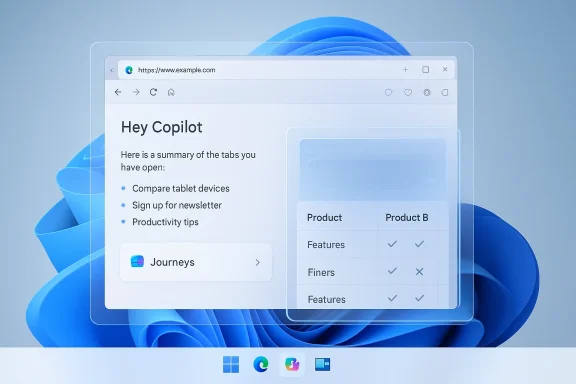
- Copilot in Edge (Copilot Mode): a persistent assistant pane and unified chat/search field that can summarize web pages, rewrite or translate selected text, explain content inline, and assist in shopping or research by reasoning across open tabs. Newer additions include Journeys (AI–generated, resumable session cards) and Copilot Actions, which — with your permission — can automate multi‑step tasks like filling forms, unsubscribing, or building a price comparison across tabs.
- Shared capabilities: connectors (opt‑in links to OneDrive, Outlook, and consumer Google services), model routing (routing simple queries to smaller, faster models while escalating deeper reasoning to larger models), and a memory/personalization layer that stores user‑approved facts and recurring preferences. Microsoft presents these as permissioned and manageable via settings and deletion controls.
How it works (in plain terms)
Microsoft’s deployed architecture mixes several design choices to balance speed, cost, and capability:- Local UI + cloud models: Copilot’s UI lives in Windows and Edge, but heavy lifting — multi‑modal reasoning, long‑form synthesis, and agentic steps — is typically routed to cloud models. Microsoft routes requests across a family of models (in‑house MAI models, OpenAI GPT models where integrated), choosing smaller models for quick answers and larger ones for complex reasoning.
- Connectors and tenant awareness: When you grant permission, Copilot can query linked services (OneDrive, Outlook, Gmail, Google Drive) and use that data to ground answers or perform tasks. For enterprise customers, Microsoft advertises tenant‑aware controls — Bing Chat Enterprise and Microsoft 365 Copilot offer stronger data protection and different retention/training policies than consumer Copilot.
- Permission model for agentic actions: Agentic features like Copilot Actions are gated behind explicit opt‑in prompts. When Actions need to interact with pages (fill forms, click buttons), the browser shows a plan and asks for consent, and it’s supposed to display visible progress indicators for transparency. Still, the promise of “permissioned” automation relies heavily on those UI affordances and users’ understanding of what they’re consenting to.
Copilot on Windows 11 — closer look
What it integrates with
On the PC, Copilot is positioned as a system‑level assistant that can:- Respond to settings and troubleshooting queries (e.g., change display settings or find a missing app).
- Summarize documents, PDFs, and files stored on the PC or in connected drives.
- Use Copilot Vision to analyze a selected screen region — extracting text, tables, or UI elements when you explicitly allow it.
- Surface recent files, suggestions, and context in a Copilot Home experience on the taskbar.
Voice and accessibility
The “Hey, Copilot” wake word is offered as an opt‑in experience for hands‑free queries, and Microsoft has documented voice‑first flows that include transcripts and spoken replies. This is a genuine accessibility gain for users who prefer or require voice control. Practical caveat: voice features are device and region dependent during staged rollouts.Real‑world caveats (Windows)
- Copilot’s ability to act across installed apps depends on connectors and the specific integration Microsoft has built for an app. Not everything a user expects will be fully automated yet.
- Some Windows updates have produced regressions: earlier in its lifecycle a Patch‑Tuesday update unpinned or removed Copilot for some users, highlighting the fragility of integrated system features during rapid iteration.
Copilot in Edge — the “AI browser” experiment
Edge’s Copilot Mode is the most radical change. It reshapes the browser’s new‑tab into a command center and adds three high‑impact features:- Multi‑tab reasoning: Copilot can summarize and compare content across open tabs, sparing you from manual copy‑paste and tab switching when researching or shopping.
- Journeys: Automatically groups prior browsing into resumable topic cards with AI‑generated summaries, designed to replace tab hoarding and long‑hand bookmarking. Journeys is opt‑in and relies on Page Context and short‑term metadata.
- Copilot Actions: The agentic layer that can perform multi‑step tasks after explicit permission — unsubscribing from lists, filling reservation forms, or building comparison tables from multiple product pages. Microsoft shows progress indicators and confirmation screens to mitigate silent automation.
What reviewers found
Hands‑on reporting confirms the promise but also highlights limits:- Actions work well on simple, predictable workflows but are brittle on dynamic sites or complex checkout flows. Reporters have documented instances where Copilot claimed to complete an action (delete an email, send a message) but the action did not manifest in the target app. That gap underlines the need to treat agentic outputs as assistive rather than authoritative until confirmations are verified.
- Journeys and multi‑tab reasoning accelerate research tasks for many users, but the features raise immediate governance questions for enterprise deployments (how long is history retained, where is it stored, is it used for model training?). Microsoft has published controls but independent reviewers and IT leaders ask for more explicit retention and audit details.
Strengths — what Copilot does well today
- Deep ecosystem tie‑ins. Copilot’s most tangible advantage is Microsoft’s ability to connect the assistant to the Microsoft Graph: mail, calendar, files, Teams conversations. That makes Copilot genuinely useful for work artifacts — generating slide decks from meeting notes or extracting spreadsheet insights via natural language.
- Reduced friction for research. Multi‑tab reasoning and automated summaries save time on comparative tasks like shopping or travel planning, and Journeys reduce the cognitive overhead of reconstructing long research sessions.
- Multimodal input. Text, voice, and vision inputs let Copilot adapt to different workflows — drafting via voice, extracting data from screenshots, or refining a document without switching apps.
- Opt‑in permission model (as designed). Microsoft emphasizes visible consent dialogs and session‑scoped permissions for risky actions, which is a better default than a silent, always‑on assistant. But the efficacy of that model depends on UI clarity and user behavior.
Risks, limitations, and governance questions
No major product shift is risk‑free; Copilot introduces new attack surfaces and governance challenges:- Automation brittleness. Agentic automation can fail silently on complex pages or be misled by dynamic content. Users should always verify outcomes and not rely on Copilot for critical transactions without confirmation. Reviewers have repeatedly shown examples of Actions reporting success when the target change did not occur.
- Privacy and retention ambiguity. Journeys, Page Context, and connectors require access to browsing history and account data. Microsoft positions this as opt‑in with controls, but independent coverage and IT experts note that details about where data is stored, how long it’s retained, and whether it’s used to train models are not always explicit in consumer messaging. Enterprises must evaluate policies before enabling features broadly.
- New social‑engineering vectors. Granting an agent permission to interact with pages creates potential for deceptive sites to manipulate automated workflows. Microsoft has added visible plans and confirmation steps, but the broader attack surface remains a concern until auditing and stronger provenance controls are standardized.
- Deployment friction and forced installs. Recent reporting shows Microsoft is taking a more aggressive installation posture for Copilot in some contexts — for instance, reports about automatic Copilot app installs for devices with Microsoft 365 desktopk and raised debate over opt‑out options for consumers. Administrators should track Microsoft’s distribution policy closely.
- Confusion across “Copilot” brands. Microsoft uses the Copilot name across consumer Copilot, Microsoft 365 Copilot (enterprise), and Edge Copilot Mode. That branding can blur security and retention boundaries — important distinctions for admins and privacy‑conscious users.
Cross‑checking Microsoft’s claims (what’s verified, what needs caution)
- Microsoft claims Copilot can summarize documents, work across apps, and analyze screen regions. Independent hands‑on reviews confirm these capabilities work in many scenarios; summarization and file ingestion are broadly reliable for everyday tasks.
- Microsoft advertises agentic browser Actions that can automate tasks. Reviews and tests show Actions can succeed for straightforward flows but remain brittle on complex sites and can misreport status in edge cases; treat these as time‑savers, not replacements for manual verification.
- Microsoft describes privacy and opt‑in consent. The company’s documentation does provide controls and a permission model, but public reporting notes gaps in clarity about retention, storage location, and training usage in the consumer context. For enterprise customers, Bing Chat Enterprise and M365 Copilot offer stronger contractual protections. Administrators should not assume parity between consumer and enterprise protections.
Practical recommendations — users and administrators
For everyday Windows users
- Start with view‑only features: enable Copilot for summaries, drafting help, and on‑screen vision for non‑sensitive content.
- Keep agentic Actions off until you’re comfortable with the permissions model; when you try Actions, test them on low‑risk tasks first and verify outcomes manually.
- Review connectors: only link accounts you trust, and periodically audit which services Copilot can access. Memory controls are opt‑in — use them judiciously.
For IT and security teams
- Inventory where Copilot will be available in your environment and whether Microsoft will push the Copilot app automatically for devices using Microsoft 365. Set policy for managed installs and updates.
- Evaluate the difference between consumer Copilot and Microsoft 365 Copilot / Bing Chat Enterprise. Use enterprise products if you need contractual assurances about data handling and model training.
- Configure default settings conservatively: disable Page Context, Journeys, and Actions by default and offer them as opt‑in features for pilot groups. Ensure visibility into logs for any agentic actions executed on managed devices.
- Communicate to end users: provide simple guidance and checklists for verifying agentic outcomes (e.g., confirm reservation email after Copilot‑initiated messages).
Tips and workflows that work today
- Use Copilot to generate first drafts, then refine manually — the assistant excels at reducing writer’s block and producing structured starting points.
- For researct tabs and ask Copilot to “summarize these tabs” or build a comparison table — the assistant’s multi‑tab reasoning can eliminate hours of manual collation. Verify facts and note source links for citation‑grade work.
- When shopping, use Copilot to compare features and specs, but complete purchases manually until you accept that agentic checkout flows are reliable for the specific site.
- For accessibility, enable Copilot Voice to dictate drafts, extract text from images, or ask follow‑up clarifying questions without leaving the current app.
The product trajectory — what to watch next
Microsoft will expand Copilot’s reach and polish its automations, but the real story will be governance and trust:- Will Microsoft publish clearer retention and model‑training policies for consumer Copilot, and will it standardize auditable logs for agentic Actions?
- How will Microsoft reconcile consumer convenience with enterprise compliance, and will tenant‑level controls become stricter or more granular?
- Will automation brittleness be addressed by improved heuristics, explicit site integrations, or a shift toward more auditable automation frameworks?
Final verdict — balanced, practical take
Copilot’s integration into Windows and Edge is a meaningful evolution in personal computing: it delivers real productivity benefits for drafting, summarizing, and multi‑tab research, and the concept of a permissioned assistant that can act with consent is compelling. Microsoft’s ecosystem advantage — deep ties to Outlook, OneDrive, and Microsoft 365 — gives Copilot valuable, practical leverage for workflows ordinary users and knowledge workers care about.That said, the assistant is not yet a frictionless replacement for human oversight. Agentic Actions are promising but brittle; privacy and retention questions remain incompletely answered in consumer messaging; and enterprise administrators must treat Copilot as a configurable platform — not a default always‑on trust layer. Users should enable and adopt features deliberately, verify any automated changes, and prefer enterprise Copilot offerings where regulatory or contractual protections matter.
Copilot is worth trying for the many everyday productivity improvements it already offers — just bring your skepticism for automated actions, and insist on clear consent and audit trails before delegating important tasks to an assistant.
In short: Copilot is useful today and transformative in promise, but it’s not yet a “set it and forget it” agent for critical workflows. Treat it as a productivity partner that still needs human checks — and plan governance accordingly.
Source: Microsoft Your AI Assistant Across Windows & Edge | Microsoft Copilot
