

Microsoft’s Copilot Vision is now being treated as part of the normal Windows 11 AI experience in current builds, letting users intentionally share an app, browser tab, or desktop view with Copilot so the assistant can interpret what is visible on screen. That makes it the clearest test yet of Microsoft’s new bargain with Windows users: more useful help in exchange for more situational access. The feature is not Recall, and that distinction matters, but it also does not make the privacy conversation disappear. Copilot Vision is Microsoft’s attempt to turn screen sharing from a support-session ritual into a daily interface.
The original sin of Microsoft’s AI push on Windows was not ambition. It was presumption. Recall landed in the public imagination as a feature that took screenshots of nearly everything you did, indexed them, and asked users to trust that Windows would keep the archive safe. Even after Microsoft reworked Recall with opt-in setup, Windows Hello requirements, encryption, and more visible controls, the reputational damage stuck.
Copilot Vision is the more careful sibling. It does not promise to remember your digital life. It promises to look at what you are looking at, only when you ask, and to stop when the session ends. That sounds like a small distinction until you imagine the difference between a security camera in your office and a colleague you invite over to look at a broken spreadsheet.
That is why the Tom’s Guide framing is broadly right even if the hype should be handled with gloves. Copilot Vision’s real innovation is not that an AI model can parse pixels. The real shift is that Microsoft is building the act of sharing your screen with an assistant into the operating system’s everyday grammar.
For WindowsForum readers, that is the interesting part. This is not simply another Copilot button wedged into another corner of the shell. It is Microsoft trying to make Windows less dependent on the user translating a visual problem into words.
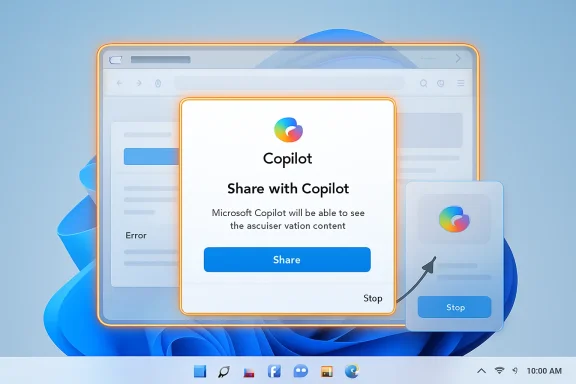
That orange border is doing more political work than technical work. It is a privacy indicator, a consent reminder, and a trust repair mechanism rolled into one. Microsoft learned from Recall that invisible background intelligence makes users assume the worst, even when the technical architecture is more constrained than the headlines suggest.
The company therefore wants Copilot Vision to feel less like surveillance and more like a Zoom screen share. You are not supposed to wonder whether Copilot is watching; you are supposed to see the border and know that it is. In interface design terms, this is Microsoft borrowing from video conferencing because video conferencing already trained users to understand the social contract of screen sharing.
But the boundary is only as good as the user’s understanding of it. If “Share with Copilot” becomes a default taskbar affordance, the company must keep the language plain and the session state obvious. The moment users feel tricked into sharing, Vision inherits Recall’s baggage.
Recall’s pitch is retrospective. You ask Windows to help you find something you previously saw or did. That requires a timeline, snapshots, indexing, and storage. Even with local processing and stricter controls, the feature asks users to accept a persistent record of activity as a convenience layer.
Vision’s pitch is immediate. You ask Copilot to look at what is currently on screen and help you understand or manipulate it. The value is in the moment: decipher this error, explain this interface, summarize this visible chart, find the button I cannot find.
That makes Vision less frightening, but not automatically harmless. A live screen share can still expose a password manager window, a medical bill, a confidential email, a customer list, or a source-code repository. The privacy risk is narrower than Recall’s but more concentrated, because the content being shared may be exactly the content the user is struggling with.
This is the paradox of contextual AI. The more useful it becomes, the closer it must get to the thing you are doing. An assistant that cannot see your broken Excel macro is less helpful. An assistant that can see your broken Excel macro may also see the payroll workbook sitting beside it.
Most computer problems are visual before they are verbal. A dialog box appears. A toolbar changes. A setting is hidden under a collapsed menu. A spreadsheet formula returns nonsense. A PDF contains a table that resists copying cleanly. Before an AI assistant can help, the user normally has to describe the situation accurately.
That is where conventional chatbots still stumble. If you type “Excel is broken,” the assistant has to drag context out of you. If you paste an error message, it can do better. If it can see the workbook, the ribbon, the selected cell, the formula bar, and the error, it has a fighting chance of behaving like the patient IT person leaning over your shoulder.
This is not a trivial improvement. Anyone who has done help desk work knows that the hardest part of remote support is often not the fix. It is getting the user to name the window they are in, read the exact error, or notice the button the technician is describing.
Copilot Vision collapses some of that distance. It turns “tell me what you see” into “let me look.” For consumer Windows, that may feel like convenience. For IT departments, it looks like a new support pattern trying to be born.
This is where Copilot Vision starts to look like a real Windows feature rather than a chatbot embedded in a window. The PC interface has spent decades assuming that help is documentation. Vision suggests that help can become annotation.
A good operating-system assistant should not merely explain Windows. It should reduce the number of steps required to act inside Windows. If Copilot can highlight a menu, identify the right dialog box, and warn that a setting is unavailable because another toggle is enabled, then it begins to occupy territory once reserved for tutorials, forum posts, and remote support sessions.
That does not mean it will always be right. AI guidance inside live interfaces has an obvious failure mode: confident misdirection. A hallucinated answer in a chat window is annoying; a hallucinated instruction overlaid on a production admin console could be expensive.
Microsoft therefore has to treat visual guidance as a reliability problem, not a novelty. The more Copilot points, the more users will click.
A user may be comfortable sharing an Outlook window with Copilot. The company may not be comfortable with that window containing customer data, deal terms, privileged legal material, or regulated health information. In an enterprise, the screen is rarely just the user’s screen. It is a surface where corporate data, third-party data, and personal data collide.
That is why Microsoft’s enterprise controls matter more than the consumer demo. Recent reporting indicates that Microsoft has been making it easier for administrators to remove or disable Copilot entry points in managed environments, including policies aimed at the Copilot app. That reflects a belated but necessary admission: AI features cannot be governed only by enthusiasm.
The Windows desktop is not a SaaS dashboard where Microsoft can assume every user is an eager adopter. It is the substrate of hospitals, banks, schools, factories, law firms, and local governments. A feature that is delightful in a YouTube tutorial can be a compliance headache when it appears on thousands of managed PCs.
The right enterprise posture is not panic. It is inventory, policy, and training. Admins need to know where Copilot Vision appears, what users can share, whether logs exist, how data is processed, and how to disable the experience where policy requires it.
Vision is a natural candidate because analyzing screen content can be computationally expensive and latency-sensitive. If the assistant is supposed to respond in real time while you work, it cannot feel like a slow cloud round trip for every observation. Local acceleration, where available, gives Microsoft a reason to say newer PCs are not just faster but more aware.
The catch is that Microsoft must avoid splitting Windows into first-class and second-class AI experiences too aggressively. Copilot Vision may run across modern hardware in some form, but the best version is likely to be sold through the Copilot+ story. That creates another familiar Windows problem: feature availability that depends on hardware, region, account type, app version, and controlled rollout status.
Windows users have lived with staggered rollouts for years, but AI makes the confusion worse because the marketing tends to speak in broad declarations while the product arrives in fragments. One user sees “Share with Copilot” on the taskbar. Another does not. One build supports desktop sharing. Another supports selected apps. One region gets a feature months before another.
For enthusiasts, that is an annoyance. For IT, it is a deployment variable. For Microsoft, it is the cost of building an AI platform inside an operating system that still has to serve hundreds of millions of heterogeneous machines.
Consider the ordinary user who wants to summarize a restricted PDF, understand a bank statement, or troubleshoot a corporate portal. The most useful scenarios are often the very scenarios where the assistant should be careful. A model that eagerly digests every visible account number will alarm privacy-minded users. A model that refuses too often will be dismissed as decorative.
This is not a problem Microsoft can solve with one toggle. It needs a layered approach: visible session indicators, strong defaults, enterprise policy, clear refusal behavior, and honest explanations of what is processed where. “Trust us” is not enough in 2026, especially after Recall.
The user should never have to guess whether Copilot Vision is active. The user should never have to guess what is being shared. And the user should never have to guess whether ending the session actually ends the assistant’s access.
That sounds obvious, but Windows has often struggled with obviousness when Microsoft is chasing platform strategy. Vision’s success will depend less on the model’s cleverness than on the discipline of the surrounding product.
That matters because a feature like Vision cannot be trusted if it feels inescapable. Opt-in is not just a setup screen. It is the ability to say no later, repeatedly, without spelunking through Group Policy, registry edits, or third-party debloat scripts.
For individual users, the practical advice is straightforward. Do not use Copilot Vision with banking portals, medical records, password managers, confidential work documents, unreleased code, or anything you would not share in a live support call. If the “Share with Copilot” affordance bothers you, remove it from the taskbar where possible and disable Copilot entry points available in your Windows settings.
For admins, the answer is not to wait for users to self-police. Managed devices need a deliberate Copilot policy. If the organization permits Vision, employees need rules for what may be shared. If the organization prohibits it, the controls should be enforced centrally rather than left to user preference.
This is the mundane side of AI adoption, but it is the side that determines whether the technology survives contact with real workplaces.
A screen-aware assistant can turn that sprawl into something more navigable. It can tell you what an error message means without requiring a perfect copy-and-paste. It can read a chart you are staring at. It can explain a software interface whose documentation assumes you already know the vocabulary.
But that same intimacy creates the risk. The assistant is useful because it is close to the work. The assistant is risky because it is close to the work. Microsoft cannot market one side and minimize the other.
This is why the comparison to Gemini screen sharing, browser-based AI sidebars, and remote support tools is useful but incomplete. Copilot Vision is not merely an app feature. It is tied to the Windows shell, the taskbar, and the company’s broader campaign to make Copilot feel like a native companion.
Native companions get more chances to help. They also get more chances to overreach.
The right metric is friction. There should be enough friction to prevent accidental sharing, but not so much that the feature becomes useless. There should be enough policy control for organizations, but not so much consumer clutter that ordinary users cannot understand what is happening.
The orange border is good friction. A clear “Stop” button is good friction. A taskbar entry that can be removed is good friction. A policy that lets IT disable the app is good friction. Vague branding, surprise reappearance after updates, and scattered settings are bad friction.
Microsoft has a tendency to confuse adoption with exposure. Putting a button everywhere may raise usage, but it can also teach users to resent the thing being promoted. If Copilot Vision is genuinely useful, Microsoft should not need to smuggle it into every workflow.
Copilot Vision is a good example of that transition. It is not as grand as Recall and not as easy to explain in a keynote. But it may be more practical, because it attacks a real user problem: computers often require users to describe visual context that the computer itself could inspect.
The feature also reveals how much Microsoft has learned from backlash. Opt-in sharing, visible session indicators, and clearer disable paths are not luxuries. They are table stakes for any AI feature that touches the desktop.
Still, Microsoft has not earned a blank check. Windows users have seen too many “recommended” experiences become nags, too many settings migrate, and too many consumer features appear on professional machines before administrators have finished reading the release notes. Copilot Vision deserves a fair test, not blind trust.
The most concrete points are these:
Source: Tom's Guide https://www.tomsguide.com/ai/micros...w-to-find-copilot-vision-and-fully-delete-it/
 Microsoft Has Found the Less Explosive Version of “AI That Watches Your PC”
The original sin of Microsoft’s AI push on Windows was not ambition. It was presumption. Recall landed in the public imagination as a feature that took screenshots of nearly everything you did, indexed them, and asked users to trust that Windows would keep the archive safe. Even after Microsoft reworked Recall with opt-in setup, Windows Hello requirements, encryption, and more visible controls, the reputational damage stuck.Copilot Vision is the more careful sibling. It does not promise to remember your digital life. It promises to look at what you are looking at, only when you ask, and to stop when the session ends. That sounds like a small distinction until you imagine the difference between a security camera in your office and a colleague you invite over to look at a broken spreadsheet.
That is why the Tom’s Guide framing is broadly right even if the hype should be handled with gloves. Copilot Vision’s real innovation is not that an AI model can parse pixels. The real shift is that Microsoft is building the act of sharing your screen with an assistant into the operating system’s everyday grammar.
For WindowsForum readers, that is the interesting part. This is not simply another Copilot button wedged into another corner of the shell. It is Microsoft trying to make Windows less dependent on the user translating a visual problem into words.
The Button Is the Privacy Boundary
Copilot Vision’s core interaction is simple: you choose to share something with Copilot, and Copilot can then reason over what is visible. Microsoft’s own support material describes the feature as a way to share selected browser windows or apps with Copilot during an active session. When Vision is active, Windows shows a glowing orange outline around the shared screen or app.That orange border is doing more political work than technical work. It is a privacy indicator, a consent reminder, and a trust repair mechanism rolled into one. Microsoft learned from Recall that invisible background intelligence makes users assume the worst, even when the technical architecture is more constrained than the headlines suggest.
The company therefore wants Copilot Vision to feel less like surveillance and more like a Zoom screen share. You are not supposed to wonder whether Copilot is watching; you are supposed to see the border and know that it is. In interface design terms, this is Microsoft borrowing from video conferencing because video conferencing already trained users to understand the social contract of screen sharing.
But the boundary is only as good as the user’s understanding of it. If “Share with Copilot” becomes a default taskbar affordance, the company must keep the language plain and the session state obvious. The moment users feel tricked into sharing, Vision inherits Recall’s baggage.
Recall Built the Fear, Vision Inherits the Cleanup
The comparison with Recall is unavoidable because both features live in the same emotional category: Windows looking at your work. Technically, however, they are designed for different jobs. Recall is a memory feature. Copilot Vision is a live-assistance feature.Recall’s pitch is retrospective. You ask Windows to help you find something you previously saw or did. That requires a timeline, snapshots, indexing, and storage. Even with local processing and stricter controls, the feature asks users to accept a persistent record of activity as a convenience layer.
Vision’s pitch is immediate. You ask Copilot to look at what is currently on screen and help you understand or manipulate it. The value is in the moment: decipher this error, explain this interface, summarize this visible chart, find the button I cannot find.
That makes Vision less frightening, but not automatically harmless. A live screen share can still expose a password manager window, a medical bill, a confidential email, a customer list, or a source-code repository. The privacy risk is narrower than Recall’s but more concentrated, because the content being shared may be exactly the content the user is struggling with.
This is the paradox of contextual AI. The more useful it becomes, the closer it must get to the thing you are doing. An assistant that cannot see your broken Excel macro is less helpful. An assistant that can see your broken Excel macro may also see the payroll workbook sitting beside it.
The Real Use Case Is Not Magic, It Is Translation
The strongest case for Copilot Vision is not that it turns Windows into science fiction. It is that it removes a translation tax users pay every day.Most computer problems are visual before they are verbal. A dialog box appears. A toolbar changes. A setting is hidden under a collapsed menu. A spreadsheet formula returns nonsense. A PDF contains a table that resists copying cleanly. Before an AI assistant can help, the user normally has to describe the situation accurately.
That is where conventional chatbots still stumble. If you type “Excel is broken,” the assistant has to drag context out of you. If you paste an error message, it can do better. If it can see the workbook, the ribbon, the selected cell, the formula bar, and the error, it has a fighting chance of behaving like the patient IT person leaning over your shoulder.
This is not a trivial improvement. Anyone who has done help desk work knows that the hardest part of remote support is often not the fix. It is getting the user to name the window they are in, read the exact error, or notice the button the technician is describing.
Copilot Vision collapses some of that distance. It turns “tell me what you see” into “let me look.” For consumer Windows, that may feel like convenience. For IT departments, it looks like a new support pattern trying to be born.
The On-Screen Pointer Is the Feature, Not the Chatbot
The Tom’s Guide piece emphasizes one of Vision’s more important capabilities: it can guide users visually, not merely answer them textually. That matters because a paragraph of instructions is still a burden when the user is staring at a complex interface. “Open Preferences, choose Advanced, expand Effects, then disable Background Blur” is less useful than an assistant that can point to the control.This is where Copilot Vision starts to look like a real Windows feature rather than a chatbot embedded in a window. The PC interface has spent decades assuming that help is documentation. Vision suggests that help can become annotation.
A good operating-system assistant should not merely explain Windows. It should reduce the number of steps required to act inside Windows. If Copilot can highlight a menu, identify the right dialog box, and warn that a setting is unavailable because another toggle is enabled, then it begins to occupy territory once reserved for tutorials, forum posts, and remote support sessions.
That does not mean it will always be right. AI guidance inside live interfaces has an obvious failure mode: confident misdirection. A hallucinated answer in a chat window is annoying; a hallucinated instruction overlaid on a production admin console could be expensive.
Microsoft therefore has to treat visual guidance as a reliability problem, not a novelty. The more Copilot points, the more users will click.
The Enterprise Problem Is Consent at Scale
For home users, Copilot Vision is mostly a personal trade-off. You either like the idea of inviting Copilot to inspect a screen, or you do not. For businesses, the problem is harder because consent is not just individual. It is organizational.A user may be comfortable sharing an Outlook window with Copilot. The company may not be comfortable with that window containing customer data, deal terms, privileged legal material, or regulated health information. In an enterprise, the screen is rarely just the user’s screen. It is a surface where corporate data, third-party data, and personal data collide.
That is why Microsoft’s enterprise controls matter more than the consumer demo. Recent reporting indicates that Microsoft has been making it easier for administrators to remove or disable Copilot entry points in managed environments, including policies aimed at the Copilot app. That reflects a belated but necessary admission: AI features cannot be governed only by enthusiasm.
The Windows desktop is not a SaaS dashboard where Microsoft can assume every user is an eager adopter. It is the substrate of hospitals, banks, schools, factories, law firms, and local governments. A feature that is delightful in a YouTube tutorial can be a compliance headache when it appears on thousands of managed PCs.
The right enterprise posture is not panic. It is inventory, policy, and training. Admins need to know where Copilot Vision appears, what users can share, whether logs exist, how data is processed, and how to disable the experience where policy requires it.
Microsoft Is Trying to Make the NPU Feel Necessary
Copilot Vision also serves a hardware story. Microsoft has spent the last two years trying to make Copilot+ PCs feel like more than a badge on a spec sheet. Neural processing units were marketed as the engine for local AI experiences, but users still need applications that make the silicon feel consequential.Vision is a natural candidate because analyzing screen content can be computationally expensive and latency-sensitive. If the assistant is supposed to respond in real time while you work, it cannot feel like a slow cloud round trip for every observation. Local acceleration, where available, gives Microsoft a reason to say newer PCs are not just faster but more aware.
The catch is that Microsoft must avoid splitting Windows into first-class and second-class AI experiences too aggressively. Copilot Vision may run across modern hardware in some form, but the best version is likely to be sold through the Copilot+ story. That creates another familiar Windows problem: feature availability that depends on hardware, region, account type, app version, and controlled rollout status.
Windows users have lived with staggered rollouts for years, but AI makes the confusion worse because the marketing tends to speak in broad declarations while the product arrives in fragments. One user sees “Share with Copilot” on the taskbar. Another does not. One build supports desktop sharing. Another supports selected apps. One region gets a feature months before another.
For enthusiasts, that is an annoyance. For IT, it is a deployment variable. For Microsoft, it is the cost of building an AI platform inside an operating system that still has to serve hundreds of millions of heterogeneous machines.
The Restricted-Content Problem Will Decide Whether Users Trust It
A screen-aware assistant needs limits. Microsoft says Copilot Vision may refuse to discuss unsupported or sensitive content in certain contexts, and that kind of restriction will become increasingly important as the feature matures. The question is whether those limits feel protective or arbitrary.Consider the ordinary user who wants to summarize a restricted PDF, understand a bank statement, or troubleshoot a corporate portal. The most useful scenarios are often the very scenarios where the assistant should be careful. A model that eagerly digests every visible account number will alarm privacy-minded users. A model that refuses too often will be dismissed as decorative.
This is not a problem Microsoft can solve with one toggle. It needs a layered approach: visible session indicators, strong defaults, enterprise policy, clear refusal behavior, and honest explanations of what is processed where. “Trust us” is not enough in 2026, especially after Recall.
The user should never have to guess whether Copilot Vision is active. The user should never have to guess what is being shared. And the user should never have to guess whether ending the session actually ends the assistant’s access.
That sounds obvious, but Windows has often struggled with obviousness when Microsoft is chasing platform strategy. Vision’s success will depend less on the model’s cleverness than on the discipline of the surrounding product.
Turning It Off Is Part of the Product
One of the more encouraging parts of the current Copilot Vision story is that Microsoft appears to understand the importance of escape hatches. If the orange border is visible, users should be able to stop the session from the floating controls. Newer Windows builds and Copilot integrations have also emphasized clearer ways to remove or suppress Copilot surfaces, including taskbar controls and administrative policy.That matters because a feature like Vision cannot be trusted if it feels inescapable. Opt-in is not just a setup screen. It is the ability to say no later, repeatedly, without spelunking through Group Policy, registry edits, or third-party debloat scripts.
For individual users, the practical advice is straightforward. Do not use Copilot Vision with banking portals, medical records, password managers, confidential work documents, unreleased code, or anything you would not share in a live support call. If the “Share with Copilot” affordance bothers you, remove it from the taskbar where possible and disable Copilot entry points available in your Windows settings.
For admins, the answer is not to wait for users to self-police. Managed devices need a deliberate Copilot policy. If the organization permits Vision, employees need rules for what may be shared. If the organization prohibits it, the controls should be enforced centrally rather than left to user preference.
This is the mundane side of AI adoption, but it is the side that determines whether the technology survives contact with real workplaces.
The Feature’s Best Argument Is Also Its Biggest Risk
The argument for Copilot Vision is strongest when the PC is confusing. Windows has accumulated decades of interface layers, legacy dialogs, modern settings panes, web-backed apps, tray icons, ribbon bars, and inconsistent search behavior. Even experienced users sometimes find themselves hunting for a control they know exists.A screen-aware assistant can turn that sprawl into something more navigable. It can tell you what an error message means without requiring a perfect copy-and-paste. It can read a chart you are staring at. It can explain a software interface whose documentation assumes you already know the vocabulary.
But that same intimacy creates the risk. The assistant is useful because it is close to the work. The assistant is risky because it is close to the work. Microsoft cannot market one side and minimize the other.
This is why the comparison to Gemini screen sharing, browser-based AI sidebars, and remote support tools is useful but incomplete. Copilot Vision is not merely an app feature. It is tied to the Windows shell, the taskbar, and the company’s broader campaign to make Copilot feel like a native companion.
Native companions get more chances to help. They also get more chances to overreach.
The Windows Community Should Judge Vision by Its Friction
Windows enthusiasts tend to evaluate features by capability: what can it do, how fast is it, what hardware does it require, and how do we enable it early? Sysadmins tend to evaluate features by blast radius: what data can it touch, how is it governed, what breaks, and how do we turn it off? Copilot Vision sits directly between those instincts.The right metric is friction. There should be enough friction to prevent accidental sharing, but not so much that the feature becomes useless. There should be enough policy control for organizations, but not so much consumer clutter that ordinary users cannot understand what is happening.
The orange border is good friction. A clear “Stop” button is good friction. A taskbar entry that can be removed is good friction. A policy that lets IT disable the app is good friction. Vague branding, surprise reappearance after updates, and scattered settings are bad friction.
Microsoft has a tendency to confuse adoption with exposure. Putting a button everywhere may raise usage, but it can also teach users to resent the thing being promoted. If Copilot Vision is genuinely useful, Microsoft should not need to smuggle it into every workflow.
The Copilot Era Needs Fewer Stunts and Better Defaults
The broader lesson is that Microsoft’s AI strategy is slowly moving from spectacle to integration. The first wave was full of demos: generate text, summarize meetings, create images, remember everything, search your timeline. The next wave has to be quieter and more accountable.Copilot Vision is a good example of that transition. It is not as grand as Recall and not as easy to explain in a keynote. But it may be more practical, because it attacks a real user problem: computers often require users to describe visual context that the computer itself could inspect.
The feature also reveals how much Microsoft has learned from backlash. Opt-in sharing, visible session indicators, and clearer disable paths are not luxuries. They are table stakes for any AI feature that touches the desktop.
Still, Microsoft has not earned a blank check. Windows users have seen too many “recommended” experiences become nags, too many settings migrate, and too many consumer features appear on professional machines before administrators have finished reading the release notes. Copilot Vision deserves a fair test, not blind trust.
The Orange Border Is Where Microsoft’s AI Promise Meets Reality
Copilot Vision is worth trying if you understand what you are sharing and why. It is also worth disabling if your threat model, job, or temperament says that no AI assistant needs to see your screen. Both positions are rational.The most concrete points are these:
- Copilot Vision is a live, opt-in screen-sharing assistant, not a background timeline feature like Recall.
- The glowing orange outline is the key visual signal that Copilot is currently viewing a shared app, browser window, or desktop surface.
- The feature is most useful when the problem is visual, such as an error dialog, unfamiliar software interface, chart, spreadsheet, or dense document.
- Users should stop the session before opening sensitive material such as banking pages, health records, password managers, confidential files, or proprietary business data.
- Organizations should manage Copilot Vision through policy rather than relying on employees to make case-by-case privacy decisions.
- Microsoft’s challenge is not proving that Copilot can see the screen; it is proving that Windows users remain in control when it does.
Source: Tom's Guide https://www.tomsguide.com/ai/micros...w-to-find-copilot-vision-and-fully-delete-it/
