

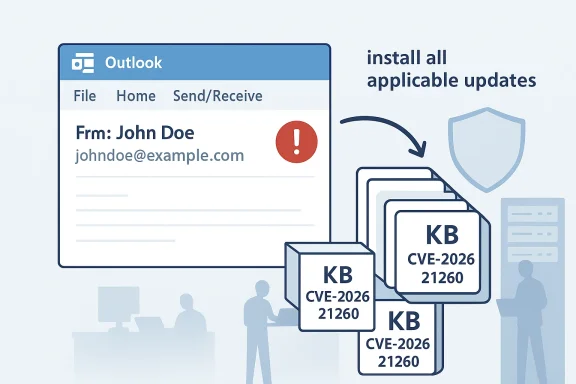
Microsoft has published guidance on CVE-2026-21260 — a Microsoft Outlook spoofing vulnerability — and the message for administrators is unambiguous: apply every security update that applies to the Outlook and Office components on your systems. In short, if the Security Updates table for CVE-2026-21260 lists multiple packages for the software you run, you should install them all; Microsoft explicitly states that customers should apply all updates offered for the software installed on their systems, and that where multiple updates apply they may be installed in any order. This advisory is more than a checkbox: it reflects the realities of modern Office packaging, the multiplicity of update channels and architectures, and the operational hazards of partial patching in heterogeneous enterprise estates.
Background
Microsoft assigns CVE identifiers to publicly disclosed vulnerabilities and publishes an Update Guide entry with remediation mappings to specific KBs and packages. CVE-2026-21260 is described by Microsoft as an Outlook spoofing vulnerability — a class of flaw that can allow attackers to manipulate what Outlook displays to end users, typically by abusing how the client parses or renders message headers and related metadata. Spoofing bugs are socially engineered weapons: they don’t necessarily execute arbitrary code, but they subvert user trust. That makes them ideal enablers for phishing, business-email-compromise (BEC), credential theft, and follow-on intrusions.This advisory and Microsoft’s accompanying FAQ answer a question that routinely confuses administrators: when the Update Guide shows multiple KBs, packages, and platform-specific installers for the same CVE, do you need to install them all? Microsoft’s answer — yes — is short and operationally important. It echoes long-standing guidance found in previous Microsoft security bulletins and the Security Update Guide: when vulnerable code appears across multiple packaged components or across multiple installation models (Click-to-Run, MSI, LTSC, ARM/x86/x64), the vendor provides distinct updates for each packaging channel and platform. Applying only one of those updates does not necessarily remediate the vulnerability in the other components that share the same vulnerable code.
Technical overview: what “Outlook spoofing” means here
How spoofing vulnerabilities work, at a glance
- Spoofing vulnerabilities manipulate the presentation layer — what a user sees — rather than directly executing privileged code. They exploit how Outlook parses email fields such as the "From", "Sender", and multipart MIME headers, or how it renders display names and sender domains in the UI.
- An attacker who crafts a message with specially controlled headers, display names, or metadata can make Outlook present the message as though it came from a trusted identity (for example, a senior executive, an internal IT address, or a vendor).
- Because Outlook is heavily used in enterprise environments, a convincing forged sender identity dramatically increases the chance that recipients will trust instructions, open attachments, or click links.
Why a spoofing CVE matters operationally
- Social engineering combined with an authentic-looking sender drastically increases success rates for phishing and BEC.
- Spoofed messages can bypass some user-level heuristics; if Outlook displays a familiar name and corporate logo and the user ignores the underlying address details, fraud can occur without malware exploitation.
- Even when the vulnerability requires the recipient to view the message (preview pane or open), the risk in large organizations is non-trivial: users are conditioned to rely on the Outlook UI for sender authenticity.
Who and what is affected
Microsoft’s Update Guide maps CVE-2026-21260 to specific Outlook builds, Office channels, and package types. In practice, the likely affected set includes multiple Outlook for Windows builds across:- Per‑device and per‑user deployment models (Click‑to‑Run vs MSI).
- Multiple architectures (x86, x64, ARM64).
- Different servicing channels (Monthly/Current Channel, Semi‑Annual Enterprise Channel, LTSC versions, and specific volume‑licensed builds).
- Potentially shared Office components that appear across product lines (desktop Outlook client, certain Office libraries used by server‑side processes, and some components embedded in other Office applications).
What Microsoft’s guidance means in practice
Microsoft’s guidance — that customers should apply all updates offered for installed software and that multiple applicable updates may be installed in any order — reduces ambiguity for administrators. The practical takeaways:- You must match update packages to the specific install model on each endpoint. Applying an MSI-targeted KB to a Click‑to‑Run install is not effective; instead, deploy the Click‑to‑Run update to Click‑to‑Run clients and the MSI update to MSI clients.
- When the Update Guide lists multiple KBs for the same Outlook SKU (for example, separate KBs for x86/x64/ARM64, or separate KBs for Monthly Channel vs LTSC), install every applicable KB for each endpoint type.
- The “any order” wording applies to the CVE-specific packages; it does not absolve you from installing required prerequisites such as servicing stack updates (SSUs) or platform-level prerequisites. If a package explicitly lists a prerequisite, satisfy that prerequisite first on systems that lack it.
- When multiple updates target the same component across product families, redundant identical files included in multiple KBs will not need to be installed more than once — but you still must ensure the correct package for each installation model is applied.
Deployment and patch-management playbook (recommended steps)
- Inventory: Enumerate installed Outlook/Office instances and record their install model (Click‑to‑Run, MSI, LTSC), architecture, and servicing channel.
- Map updates: Use Microsoft’s Update Guide to map CVE-2026-21260 to the KBs/packages that match your installed models.
- Check prerequisites: For each targeted package, confirm whether servicing stack updates or other prerequisites are required and stage those first where necessary.
- Test: Validate updates in a representative test pool that mirrors production (including Exchange clients, mobile app co-existence scenarios, and any in‑house plugins or add‑ins).
- Deploy: Roll out patches to production with your normal change-control process, applying every applicable package across the estate. Microsoft’s advisory clarifies that if multiple KBs apply to a system, they can be installed in any order — but the right KB for the right install model must be used.
- Verify and monitor: Confirm update installation across endpoint management tools, monitor EDR/AV telemetry for regressions, and watch mail flow metrics for anomalies or user reports of altered rendering.
Detection, mitigation, and compensating controls
While patching is the definitive fix, organizations should adopt layered mitigations to reduce risk immediately and to limit blast radius until remediations are fully deployed.- Enforce and validate email authentication:
- SPF, DKIM, and DMARC must be properly configured and monitored. These controls do not stop all spoofing that manipulates display names, but they increase detection and allow domain owners to instruct receiving mail systems to quarantine or reject unauthenticated mail.
- Tighten mail flow rules:
- Configure Exchange/SMTP gateways to flag or quarantine incoming mail with external senders claiming internal domains.
- Add rules that insert external sender banners for messages coming from outside the tenant.
- Harden client behavior:
- Disable automatic external content loading where feasible.
- Restrict auto‑preview in high‑risk groups, or configure Outlook policies that increase transparency around sender addresses.
- User training and simulated phishing:
- Re‑emphasize to users the habit of checking the real email address (not just the display name) and provide examples of spoofing tricks.
- EDR and logging:
- Tune EDR rules to detect suspicious process behavior following email openings (e.g., unexpected child processes, network connections to uncommon hosts, or anomalous credential access).
- Monitor mail gateway telemetry:
- Watch for sudden spikes in lookalike domains, impersonation attempts, and messages that fail DMARC but show trusted display names.
Operational nuances and pitfalls
- Servicing stack and prerequisite updates: Even though Microsoft says packages can be installed in any order, some packages will require a recent servicing stack or other prerequisite to succeed. Confirm prerequisites before mass deployment.
- Packaging model mismatch: Click‑to‑Run updates are not interchangeable with MSI updates. Management tools should target the correct package type for each client.
- Identical updates across channels: When an update appears in multiple bulletins or multiple KBs, identical files may be present in different packages; deployment systems will typically report an update as “already installed” if the same binary has been applied. Still, validate that the intended fix is present on each endpoint.
- Legacy or unsupported software: Systems that are out of support may not receive patches. For such systems, isolation and compensating controls must be used until an upgrade path is executed.
- Third‑party integrations and add‑ins: Outlook add‑ins and MAPI plug‑ins that interact with message parsing should be tested thoroughly after updates; any change to message parsing or rendering behavior can affect in‑house tooling.
Risk assessment: what’s at stake if you delay or partially patch
- Business Email Compromise: A successful spoofing attack against privileged users (finance, HR, executives) can lead to unauthorized wire transfers, vendor fraud, or data exfiltration.
- Credential theft and lateral movement: Spoofed “IT” messages that prompt users to log on to a malicious site can harvest credentials, enabling wider compromise.
- Reputation damage and fraud: If attackers successfully impersonate corporate domains, customers and partners may be defrauded or lose trust in official communications.
- Regulatory and compliance exposure: Financial and personal data losses caused by successful spoofing attacks may trigger breach reporting obligations and penalties in regulated industries.
Incident response guidance if you suspect exploitation
- Preserve evidence: Collect the original message MIME (with headers), message IDs, SMTP logs, and any related EDR traces. Preserve forwarding/relay logs from mail gateways and Exchange.
- Isolate impacted accounts: Temporarily block or force reset credentials for compromised accounts and suspend any high‑risk privileges.
- Rapid containment: Use mail gateway rules to block lookalike sender domains and add external sender banners for affected mail flows.
- Hunt for lateral activity: Search for abnormal authentications, new mailbox rules, forwarding rules, or suspicious API tokens that indicate account compromise.
- Notify stakeholders: Legal, compliance, and executive teams should be briefed. If customer data or regulated personal data is at risk, follow legal notification plans.
- Post‑incident follow up: Run phishing simulations, tighten mail authentication, and accelerate patch deployment across the estate.
Why Microsoft’s “install all applicable updates” policy is important — and what admins should not assume
Microsoft’s instruction to apply all updates for installed software is deliberately conservative and operationally pragmatic. It recognizes:- The componentized nature of modern Office deployments: Vulnerable code may be distributed across multiple files and packages, which in turn are packaged differently depending on the product channel.
- The variety of install models across enterprises: A single org can have Click‑to‑Run laptops, MSI‑installed VDI images, and server‑side processing nodes — all of which may need distinct packages.
- The risk of incomplete remediation: Installing one applicable package but skipping another that addresses the same code on a different component or platform can leave a measurable attack surface.
Final recommendations — an administrator’s quick checklist
- Inventory: Confirm which Outlook/Office installs exist and which update packages apply to each.
- Apply every applicable KB: Install all updates Microsoft lists for the products you run; do not selectively apply a single package and assume coverage.
- Validate prerequisites: Stage servicing stack updates or other prerequisites where required.
- Test before mass deployment: Use a change-controlled rollout with validation steps and rollback plans.
- Reinforce email authentication: Ensure SPF/DKIM/DMARC are deployed and monitored.
- Harden email handling: Update mail flow rules and configure external sender banners.
- Monitor for signs of compromise: Watch EDR, mail gateway telemetry, and user reports.
- Educate users: Share clear guidance on how to verify senders and report suspicious messages.
CVE-2026-21260 is a reminder that presentation-layer bugs can be as dangerous as code‑execution flaws when attackers trade on human trust. Microsoft’s blunt instruction — install all updates that apply — is sound operational guidance for patch managers wrestling with channel complexity and mixed‑platform estates. Follow the checklist above, coordinate with your change control and security teams, and treat this as both a patching task and an opportunity to harden mail authentication and detection controls across the enterprise.
Source: MSRC Security Update Guide - Microsoft Security Response Center
