

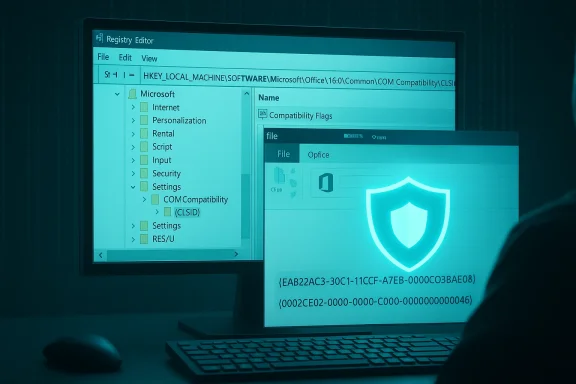
Microsoft has published guidance and an immediate mitigation for CVE-2026-21509 — a security-feature-bypass vulnerability that affects Microsoft Office — and administrators should apply the recommended protections now while patches are rolled out. (msrc.microsoft.com)
Background and high-level impact
- What this class of issue means: a “security feature bypass” in Office typically allows an attacker to cause Office to load or activate a COM/ActiveX component (or behave in a way) that the product’s security controls were intended to prevent. That can let specially crafted documents trigger unwanted code paths or allow exploitation chains that would otherwise be blocked by Office protections. (msrc.microsoft.com)
- Who is affected: Microsoft’s advisory differentiates between Office versions. Customers running Office 2021 and later (including relevant Click-to-Run/Microsoft 365 App builds that Microsoft designates as “2021 and later”) will receive a service-side mitigation; Office 2016 and Office 2019 customers must install the upcoming security update — or apply the registry mitigation below to be immediately protected. (msrc.microsoft.com)
- Urgency: apply the registry mitigation immediately for 2016/2019 systems that cannot receive the security update right away; for 2021+ customers, restart Office apps after Microsoft’s service change to pick up the protection. (msrc.microsoft.com)
Microsoft’s mitigation uses the Office “COM Compatibility” (Office COM kill bit) registry location to block activation of specific COM objects inside Office by setting a Compatibility Flags REG_DWORD to 0x00000400 (hex), commonly written simply as 0x400 or decimal 1024. The same mechanism has been documented and used by Microsoft for previous Office/ActiveX mitigations.
Exact registry locations (pick the path that matches your Office / OS architecture)
- 64-bit Office on 64-bit Windows (or 32-bit Office on 32-bit Windows):
HKEY_LOCAL_MACHINE\SOFTWARE\Microsoft\Office\16.0\Common\COM Compatibility\ - 32-bit Office on 64-bit Windows:
HKEY_LOCAL_MACHINE\SOFTWARE\WOW6432Node\Microsoft\Office\16.0\Common\COM Compatibility\ - Click-to-Run installations (Office Click-to-Run registry hive):
HKEY_LOCAL_MACHINE\SOFTWARE\Microsoft\Office\ClickToRun\REGISTRY\MACHINE\Software\Microsoft\Office\16.0\Common\COM Compatibility\
(or the Wow6432Node equivalent for 32-bit Click-to-Run on 64-bit Windows).
- Manual Registry Editor (careful — back up the registry first):
- Exit all Office apps.
- Open regedit (Start → regedit).
- Navigate to the proper COM Compatibility key for your environment (see paths above). If the COM Compatibility node does not exist, create it under the Common key.
- Create a new subkey using the CLSID GUID of the component you want to block (for example, {EAB22AC3-30C1-11CF-A7EB-0000C05BAE0B} or the CLSID of the legacy Equation Editor shown in Microsoft and community docs — see examples below).
- Inside that CLSID key add a new REG_DWORD value named Compatibility Flags and set it to 0x00000400 (hex).
- Close regedit and restart the Office application(s) for the setting to take effect. (msrc.microsoft.com)
- Single-machine .reg example (64-bit Office or 32-bit Office on 32-bit Windows):
For 32-bit Office on 64-bit Windows, place the same under the Wow6432Node path. Microsoft documentation and prior advisories provide the exact examples and note the 0x00000400 value is the Office COM kill bit setting.Code:Windows Registry Editor Version 5.00 [HKEY_LOCAL_MACHINE\SOFTWARE\Microsoft\Office\16.0\Common\COM Compatibility\{EAB22AC3-30C1-11CF-A7EB-0000C05BAE0B}] "Compatibility Flags"=dword:00000400 - Command-line / PowerShell (examples you can script)
- reg.exe (32-bit Office on 64-bit Windows example):
reg add "HKLM\SOFTWARE\Wow6432Node\Microsoft\Office\16.0\Common\COM Compatibility{0002CE02-0000-0000-C000-000000000046}" /v "Compatibility Flags" /t REG_DWORD /d 0x400 /f - PowerShell (works on remote/automation scenarios):
PowerShell example to set the value (adapt the path for your architecture):
(If you’re targeting Wow6432Node paths on 64-bit Windows for 32-bit Office, substitute HKLM:\SOFTWARE\Wow6432Node... accordingly.)Code:New-Item -Path 'HKLM:\SOFTWARE\Microsoft\Office\16.0\Common\COM Compatibility\{0002CE02-0000-0000-C000-000000000046}' -Force New-ItemProperty -Path 'HKLM:\SOFTWARE\Microsoft\Office\16.0\Common\COM Compatibility\{0002CE02-0000-0000-C000-000000000046}' -Name 'Compatibility Flags' -PropertyType DWord -Value 0x400 -Force
- Legacy Equation Editor (EQNEDT32) — historically exploited by multiple Office vulnerabilities — is a common target for this exact mitigation. Security reporting and Microsoft guidance for earlier Office vulnerabilities show administrators using the Compatibility Flags kill bit against the Equation Editor CLSID {0002CE02-0000-0000-C000-000000000046} to block activation inside Office documents until a patch arrives. Use this CLSID only when you want to block that component specifically; Microsoft’s advisory for CVE-2026-21509 includes exactly which CLSID(s) to target in the current advisory.
- The Compatibility Flags value in the Office COM Compatibility registry location is designed to let administrators block activation of a particular COM object inside Office (the “Office kill bit”). When the Compatibility Flags REG_DWORD includes the kill-bit value (0x00000400), Office refuses to instantiate that COM object. This approach has been used by Microsoft in past mitigations and advisories and is documented in Microsoft Support/KB content.
- Rolling out at scale:
- Group Policy: package the .reg file or use a Group Policy Preference Registry item to create the required subkey(s) and set Compatibility Flags=0x400 across the domain. Microsoft’s own instructions for prior Office kill-bit mitigations note that Group Policy is a supported way to deploy this setting.
- Configuration management: use SCCM/ConfigMgr, Intune/Endpoint Manager, or your existing endpoint orchestration tooling to run the PowerShell commands or apply the .reg file.
- Test in a pilot ring first: pick a representative set of machines and Office builds (Click-to-Run vs MSI, 32-bit vs 64-bit) and validate Office behavior for legitimate documents that rely on the targeted COM objects before broad rollout.
- Verification after deployment:
- Registry query:
reg query "HKLM\SOFTWARE\Microsoft\Office\16.0\Common\COM Compatibility{<CLSID>}" /v "Compatibility Flags" - PowerShell:
Get-ItemProperty -Path 'HKLM:\SOFTWARE\Microsoft\Office\16.0\Common\COM Compatibility{<CLSID>}' -Name 'Compatibility Flags' - Confirm the value equals 0x400 (or decimal 1024) and then reopen Office apps for the change to take effect.
- If you rely on the specific COM object for legitimate business workflows (e.g., some add-ins or embedded objects), setting the kill bit will prevent that object from loading in Office — test and get exceptions if necessary. Microsoft’s guidance for previous kill-bit deployments emphasizes this trade-off.
- For Click-to-Run installations, the registry hive path can differ; confirm the proper registry path for Click-to-Run by checking the machine you intend to modify (some environments require using the ClickToRun/REGISTRY/MACHINE path).
- A restart of Office applications (or a reboot for some management approaches) is required for the new setting to take effect. Microsoft specifically calls out that Office 2021 and later customers will be automatically protected by a service-side change but must restart their Office applications to pick it up; Office 2016/2019 need the security update or the registry workaround until the update is installed. (msrc.microsoft.com)
- Detection: there’s no simple single Windows event that universally shows an attempted Office COM activation was blocked by this registry key. Instead, monitor:
- Registry state across endpoints (use a periodic script to ensure the Compatibility Flags values are present where expected).
- Endpoint alerts for process creation or blocked behavior tied to Office processes (Office crashing or unusual module load attempts).
- EDR/AV telemetry: ensure your endpoint protection can show attempts to load the blocked COM objects or attempts to exploit Office; many EDR solutions will provide IOC-style detections for known exploit patterns.
- Post-deployment sanity checks:
- Confirm the registry key exists and has Compatibility Flags=0x400 on a sample of machines.
- Open several Office documents (including those that previously contained the relevant COM object) to confirm Office no longer loads the component (you should see placeholders or disabled/blocked object behavior rather than the object executing).
- Verify with IT/line-of-business owners that critical workflows weren’t disrupted.
- To remove the mitigation later after you’ve installed the security update and validated fixes, either delete the CLSID subkey you created under COM Compatibility or set Compatibility Flags back to 0. Example using reg.exe:
reg delete "HKLM\SOFTWARE\Microsoft\Office\16.0\Common\COM Compatibility{<CLSID>}" /f
Or use PowerShell Remove-ItemProperty / Remove-Item as appropriate. Always test rollback on a small group before wide removal.
- Microsoft Security Update Guide: CVE-2026-21509 — official advisory with affected product list and Microsoft’s mitigation summary. (msrc.microsoft.com)
- Microsoft Support: Security Settings for COM objects in Office — detailed documentation of the Office COM Compatibility registry locations and the Compatibility Flags (0x00000400) setting used to block COM objects in Office.
- BleepingComputer and other industry reporting have previously documented use of these registry mitigations for legacy Equation Editor and similar Office component vulnerabilities; those historical examples show the same registry pattern and are useful for operational examples and scripts.
- Identify affected Office versions in your estate (Office 2016, 2019, 2021, Click-to-Run, M365 apps). (msrc.microsoft.com)
- For Office 2021 and later: ensure Microsoft’s service-side mitigation is applied by Microsoft and restart all Office apps on those machines. (msrc.microsoft.com)
- For Office 2016 and 2019: apply Microsoft’s forthcoming security updates as soon as they are available. If you cannot immediately patch, apply the registry mitigation (Compatibility Flags = 0x400) to the identified CLSID(s) to block activation. (msrc.microsoft.com)
- Deploy the registry change via Group Policy / Intune / SCCM / PowerShell for rapid, enterprise-wide coverage. Test in a pilot first.
- Monitor EDR and application telemetry for signs of attempted exploitation and verify the mitigation is present across endpoints.
- produce a ready-to-deploy .reg file and corresponding PowerShell script tailored to your environment (32-bit Office on 64-bit Windows vs 64-bit Office), and a Group Policy Preferences step-by-step for pushing the key domain-wide; or
- scan an inventory list of your Office versions to generate a prioritized rollout plan (tell me how you manage endpoints: AD/GPO, Intune, SCCM, etc.).
Source: MSRC Security Update Guide - Microsoft Security Response Center
