

Windows 11 can feel noticeably faster and cleaner with just a few targeted removals and configuration changes; debloating doesn’t require exotic tools or deep registry hacking — it’s a matter of picking the right approach for your skill level, backing up first, and applying three reliable techniques that range from safe-and-simple to powerful-but-riskier.
Windows ships to satisfy many audiences, which means manufacturers and Microsoft include apps, telemetry, helper services, trialware, and optional components that many users never use. That preinstalled software — commonly called bloatware — consumes storage, increases background CPU and I/O, and can lengthen startup and app-launch times. Removing or preventing unnecessary pieces at install time or shortly after can produce a snappier, more predictable Windows 11 experience, particularly on lower-end hardware.
This feature walks through three practical debloating techniques that different users can apply in minutes: (1) debloating during a fresh Windows 11 setup, (2) using Group Policy / provisioning approaches to reduce default apps for new accounts, and (3) using community-driven tools for a post-install cleanup. Each section includes step-by-step actions, realistic benefits, and clear cautions so you can choose a path that fits your tolerance for risk.
Before you start: always create a full backup or at least a system restore point. Debloating can remove components that later prove needed by certain apps or games; recovery is easier with backups.
Source: FilmoGaz Enhance Windows 11 Speed: 3 Simple Debloating Techniques
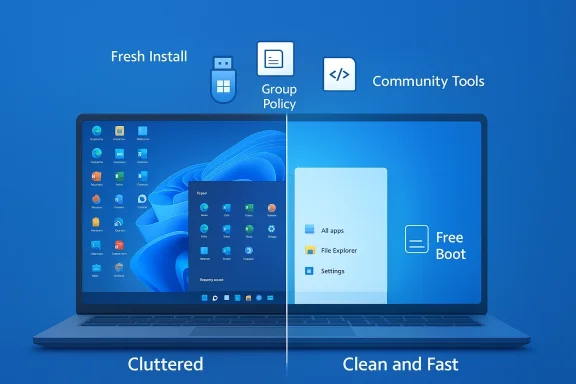 Overview
Windows ships to satisfy many audiences, which means manufacturers and Microsoft include apps, telemetry, helper services, trialware, and optional components that many users never use. That preinstalled software — commonly called bloatware — consumes storage, increases background CPU and I/O, and can lengthen startup and app-launch times. Removing or preventing unnecessary pieces at install time or shortly after can produce a snappier, more predictable Windows 11 experience, particularly on lower-end hardware.This feature walks through three practical debloating techniques that different users can apply in minutes: (1) debloating during a fresh Windows 11 setup, (2) using Group Policy / provisioning approaches to reduce default apps for new accounts, and (3) using community-driven tools for a post-install cleanup. Each section includes step-by-step actions, realistic benefits, and clear cautions so you can choose a path that fits your tolerance for risk.
Background: Why debloat, and what you’ll get
Debloating addresses two common problems:- Wasted resources — unused apps and services consume CPU, RAM, and disk space.
- Slower responsiveness — background tasks and auto-start apps increase boot time and reduce interactivity, especially on systems with modest RAM or older storage.
Before you start: always create a full backup or at least a system restore point. Debloating can remove components that later prove needed by certain apps or games; recovery is easier with backups.
1. Debloating during Windows 11 setup (clean install method)
Installing Windows with the goal of a minimal baseline is the safest long-term route: you start with fewer extras and avoid a lot of post‑install cleanup. This is the recommended path if you’re already planning a fresh OS install or are setting up a new machine.Why this method
- You avoid installing factory- or OEM-supplied trialware and extra apps.
- A clean image reduces preinstalled drivers and software that may start background processes.
- Once done, you manage what gets installed, giving you a lean baseline.
What you’ll achieve
- A Windows install with fewer preconfigured apps and services.
- Cleaner first-boot experience and fewer startup tasks.
Step-by-step: quick, careful clean install
- Back up personal data to an external drive or cloud service. Image the existing system if you might want to restore it later.
- Create or prepare a Windows 11 bootable USB using your preferred method (Media Creation Tool or Rufus-style tool). Confirm you have a copy of your Windows license or sign-in credentials for digital entitlement where appropriate.
- Boot from the USB and follow the installer prompts. Choose “Custom: Install Windows only (advanced)” when prompted to avoid in-place upgrades and to remove OEM partitions if you want a truly clean slate.
- During setup, skip account personalization steps you don’t need (you can opt for a local account during initial setup where allowed or create a managed Microsoft account later).
- When presented with optional features during setup (some OEM installers include them), decline the extras and choose minimal options.
- After installation, install drivers from OEM/vendor sites only if needed; avoid installing bundled utilities you don’t recognize.
Post-install housekeeping
- Disable or uninstall unnecessary startup apps via Settings → Apps → Startup.
- Run Storage Sense or Disk Cleanup and DISM component cleanup to reclaim update-related space (for example: dism.exe /online /cleanup-image /StartComponentCleanup). These are safe, built-in maintenance steps that reduce the Windows component store without manual deletions.
Pros and cons
- Pros: clean baseline, lowest long-term maintenance, fewer surprises in the future.
- Cons: requires reinstalling apps and restoring settings; not practical if you need a quick fix.
2. Debloating via Group Policy and provisioning (reduce bloat for new accounts)
If you manage multiple machines or want to ensure new user accounts start with a cleaner app set, Group Policy and provisioning approaches can help. This is a good middle-ground for power users and IT admins who prefer configuration over manual removal.What this method does
- Prevents or removes default Microsoft Store packages and provisioned apps for new users.
- Keeps the existing administrator account intact while ensuring newly created accounts are lean.
How to apply (conceptual steps)
- Use Local Group Policy Editor (gpedit.msc) on Pro/Education/Enterprise editions to tune policies that control app provisioning and other defaults.
- Look for Administrative Templates covering App Package Deployment and the Microsoft Store; on some deployments there are settings to block the installation or provisioning of default Store packages.
- For enterprise or imaging scenarios, use DISM / Add-ProvisionedAppxPackage and Remove-ProvisionedAppxPackage on an offline image to remove packages before first boot.
- For Home edition or where gpedit is not available, deploy PowerShell scripts at first logon that run Get-AppxPackage and Remove-AppxPackage for specific package names, or use provisioning packages (PPKG) to enforce initial configuration.
Practical tips and caveats
- Local Group Policy is not available on Windows 11 Home by default; Home users will need PowerShell or third-party tools.
- Removing provisioned packages is different from removing installed apps; provisioned packages are reinstalled for each new user unless removed from the image or disabled by policy.
- When in doubt about a package’s function, don’t remove it blindly. Some store apps are dependencies for other features (e.g., Store updates, certain Xbox/Game Pass integrations).
Why this approach can be safer than one-off deletions
- It controls future state rather than forcibly deleting components that may be used later.
- Useful in multi-user setups and for administrators who want uniform, repeatable results.
3. Using community tools (FlyOOBE, Win11Debloat, and curated scripts)
For users who prefer a faster, single-session cleanup without reinstalling Windows, curated community tools can automate removal of common bloatware. Popular approaches include well-known PowerShell scripts, small GUI debloaters, and OOBE (Out-Of-Box Experience) modifiers such as FlyOOBE.What to expect
- Tools range from one-click scripts that remove a set of commonly agreed-upon store apps to advanced utilities that modify the OOBE process or strip provisioned packages.
- Many tools present presets (Balanced, Minimal, Full) so you can choose how aggressive the cleanup is.
Example workflow with an OOBE-focused tool (generalized)
- Download the tool package from its official repository or a trusted community build (verify the release and checksums where provided).
- Run the executable or script in an elevated context if required.
- Choose a debloating profile: balanced (safer), minimal (avoid manufacturer add-ons), or full (most aggressive, might remove some Windows-integrated features).
- Review the app list the tool proposes to remove; uncheck anything you think you’ll need.
- Execute the removal and reboot.
FlyOOBE and similar OOBE editors — caution
- Tools that alter OOBE (Out-Of-Box Experience) can prevent certain packages from being provisioned at first boot, which is powerful for fresh installs.
- However, OOBE modifications and removing provisioned packages can cause unexpected interactions with future updates or specific Microsoft services.
- Always download such tools from their official repository, verify the integrity of downloads, and read release notes. If a claim about a specific tool or version can’t be independently verified, treat it with caution and test in a VM first.
Practical, safe debloat checklist (apply in any method)
Follow these steps whether you’re installing fresh, using Group Policy, or running a cleanup tool:- Backup: Create a full system image and export any important files.
- Restore point: Create a restore point or enable a recovery drive.
- Audit: Review installed apps (Settings → Apps → Installed apps) and note what you want to keep. Don’t remove the Store or Windows Update if you rely on those services — you can still remove bundles like Spotify trial, OEM utilities, or app shortcuts.
- Disable, don’t remove (first): For startup or background apps, disable auto-start first (Settings → Apps → Startup). If everything works fine for a week, then consider uninstalling.
- One change at a time: Make a single change and observe system behavior for several days, especially if you depend on gaming, VPNs, or enterprise connectivity.
- Keep a rollback plan: Maintain a list of removed items and the commands used to restore (e.g., how to re-add the Microsoft Store or reinstall an app).
How to measure debloating success
Anecdotal claims are common online; measure before and after so you know what changed:- Boot time: Use Task Manager’s Startup tab or a stopwatch from power-on to desktop.
- App launch time: Time how long your most-used apps take to become responsive.
- Resource baseline: Record Task Manager metrics (RAM usage, CPU idle, disk queue) before and after.
- Free disk space: Note C: free space before and after; some DISM cleanups can free several GBs.
- Real-world feel: Run your daily workload and note perceived improvements.
Risks, tradeoffs, and things to avoid
Debloating isn’t risk-free. Understand the tradeoffs:- Feature loss: Some “bloat” components are actually dependencies for functionality you might later need — removing them can break games, device syncing, or Windows services.
- Update compatibility: Aggressively removing provisioned packages or system components can cause problems with updates or future feature installs.
- Security exposure: Removing security-related components or sandboxing features (e.g., Memory Integrity) can increase exposure. Conversely, leaving them enabled may impact performance; balance is required.
- Warranty/Support: OEMs might refuse support if you remove manufacturer-supplied components or significantly modify the OS.
Recovery and repair — make it simple
When something goes wrong, here are fast recovery options:- System Restore: Revert to the pre-change state via a restore point.
- Reset this PC: Use Settings → System → Recovery → Reset this PC to reinstall Windows while keeping or removing files.
- Reinstall Store or components: If you removed the Microsoft Store or core UWP bits, you can re-register Store packages via PowerShell or reinstall from a fresh image — but this is more advanced and benefits from prior documentation of what you removed.
- Full image restore: Boot from your backup image if you made one before changes.
Recommended quick recipes (safe, effective)
- Safe quick win (no tools): Open Settings → Apps → Installed apps and uninstall obvious trialware. Then disable unnecessary startup items under Settings → Apps → Startup. Run Disk Cleanup and DISM StartComponentCleanup. This will often yield immediate responsiveness gains with near-zero risk.
- Intermediate (provisioning/policy): For Pro users, disable provisioned app packages via Group Policy or remove provisioned packages from an image before deployment. This ensures new user accounts remain lean. Test on a VM first.
- Advanced (scripted): Use a vetted script/tool in custom mode, unchecking anything you may need. Make a full image backup first. Prefer reputable community-maintained projects and read issues/PRs to spot reported problems.
Final analysis — strengths, tradeoffs, and recommendation
Debloating Windows 11 can meaningfully improve perceived performance, especially on low-memory devices and older storage. The three approaches above give you options:- Fresh install: Best long-term control but requires time and backups.
- Policy/provisioning: Great for admins and those deploying many machines.
- Community tools: Fastest, but highest risk if used without care.
- Frees disk space, reduces background CPU and I/O, and shortens boot time.
- Gives users control over what runs on their machines.
- Enables tailored setups (gaming rigs, kiosks, developer machines) with fewer distractions.
- Risk: breaking needed functionality. Mitigation: backup and test.
- Risk: update issues. Mitigation: prefer balanced, reversible changes and avoid removing core system components.
- Risk: security tradeoffs. Mitigation: keep security features enabled unless you understand the consequences.
Conclusion
You don’t need to be a system guru to speed up Windows 11. Choose one of three pragmatic paths — a clean install for a durable baseline, Group Policy/provisioning for predictable new accounts, or curated community tools for fast cleanup — and follow safety-first practices: back up, disable before delete, measure before/after, and prefer conservative settings on production machines. These steps will often reveal a noticeably quicker, less cluttered Windows 11 experience without deep technical overhead. Community testing and how‑to guides underline this approach as the practical route to better performance while minimizing risk.Source: FilmoGaz Enhance Windows 11 Speed: 3 Simple Debloating Techniques
