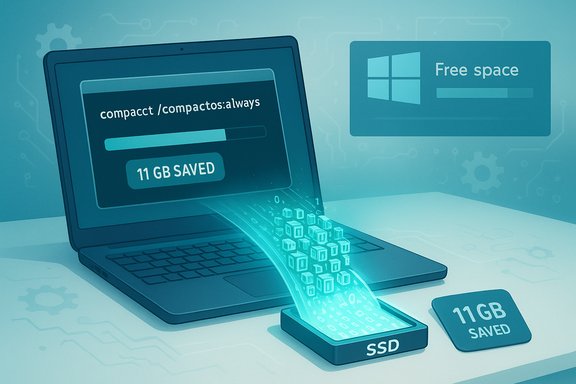
Windows ships with more apps than you probably think — and MakeUseOf’s blunt argument that you should “remove Windows bloatware right now” is right on the money: uninstalling preinstalled apps and OEM trialware is one of the simplest, cost‑free ways to reclaim storage, cut background CPU/battery drain, and stop annoying upsell pop‑ups while reducing telemetry surface area.
Windows PCs arrive from the factory with a mix of Microsoft apps, manufacturer utilities, and third‑party trial software. Some are genuinely useful (File Explorer, Photos, Media Player), but many are optional at best — and actively harmful at worst. These packages can:
Source: MakeUseOf 3 reasons you must remove Windows bloatware right now
 Background / Overview
Windows PCs arrive from the factory with a mix of Microsoft apps, manufacturer utilities, and third‑party trial software. Some are genuinely useful (File Explorer, Photos, Media Player), but many are optional at best — and actively harmful at worst. These packages can:- run background services or scheduled tasks at boot;
- take disk space that’s precious on small NVMe SSDs;
- show promotional notifications and subscription nags; and
- expand the “attack surface” by adding extra binaries that must be updated.
1) Better performance and more usable storage
The mechanics: how bloatware steals performance
Many preinstalled apps register background services, scheduled tasks, or startup entries so they “keep working” even if you never open them. Background activity consumes CPU, RAM, disk I/O and networking — which can slow down everything else, increase boot time, and shorten battery life on laptops. Practical guides and hands‑on tests show that trimming background apps produces measurable, immediate gains in idle RAM and CPU, faster application launches, and longer battery run times on resource‑constrained machines. Windows exposes many of these background behaviors in Settings → Power & battery and Task Manager, and you can see which apps are draining battery or syncing data in the last 7 days. Turning off background permissions or uninstalling unused apps reduces system contention and preserves resources for the tasks you care about.Storage wins are real (but variable)
Preinstalled apps, OEM utilities, trial antivirus installers, and bundled media/promo apps may only be a few hundred megabytes each, but they add up — particularly on laptops with 128–256 GB SSDs. Removing unnecessary apps can free gigabytes instantly, improving room for updates, pagefile growth, games, and user data. Claims about “15 GB of fluff” are rough estimates that vary by OEM and model; treat any single number as directional rather than universal.Evidence and tooling
Community and tech sites commonly demonstrate speed and boot‑time improvements after debloating, and projects that automate removal (PowerShell debloat scripts, GUI tools) exist because the problem is widespread. Well‑maintained, open‑source scripts such as Win11Debloat are widely used to automate safe removals, while GUI tools like O&O AppBuster let less technical users inspect and remove built‑in UWP apps without wrestling with PowerShell.2) Fewer pop‑ups and a calmer Windows experience
Why preinstalled apps generate noise
OEMs and trial software vendors have commercial incentives to display reminders, upsell dialogs, subscription prompts, and registration notices. A short McAfee trial that ships with many machines often begins sending alarming “Your PC is at risk” messages once the trial expires — language that scares nontechnical users into paying for a product they don’t need because Windows includes robust built‑in protection. Uninstalling such trialware eliminates the recurring notifications and the cognitive noise that interrupts workflows.Clean Start menus and less cognitive overhead
Removing unneeded tiles and apps makes the Start menu and Settings easier to scan. That matters: a cleaner interface reduces accidental clicks on trial apps and avoids the recurring “recommended” app placements that try to promote paid services. Practical UX improvements are immediate: fewer notification badges, less system tray clutter, and a more predictable environment for daily tasks.3) Better privacy and fewer unexpected issues
Telemetry, diagnostic data, and OEM data collection
Windows collects diagnostic data to keep the system secure and up to date, but Microsoft distinguishes between required diagnostic data and optional telemetry; the latter can include more detailed app and usage information. Microsoft documents the events and fields that required diagnostics collect; optional diagnostic data can include richer telemetry. Disabling optional diagnostic data and auditing optional permissions reduces data surface area, but some telemetry is fundamental to the OS and cannot be fully turned off. Beyond Microsoft’s own telemetry, third‑party OEM apps and bundled services may collect usage or registration data. Vendors’ privacy policies (for example McAfee’s) make it clear that data collection is tied to functionality and subscriptions — and that uninstalling the software halts that collection in many cases. If you’re privacy‑minded, removing third‑party preinstalled apps limits the number of external services your device is talking to by default.Unexpected system problems caused by bundled utilities
Some vendor utilities are not just annoying — they break things. The “Killer” network management suite (Killer Control Center / Killer Performance Suite) is a recurring community headache: users have reported slowdowns, VPN incompatibility, and other network stability issues traced to the prioritization engine or buggy driver integration. Intel/Community threads and user reports show this is a real, recurring class of problem: a third‑party OEM or driver tool intended to optimize can introduce instability instead. Removing or replacing the problematic control software with driver‑only packages often fixes the issue.How to remove Windows bloatware safely (practical playbook)
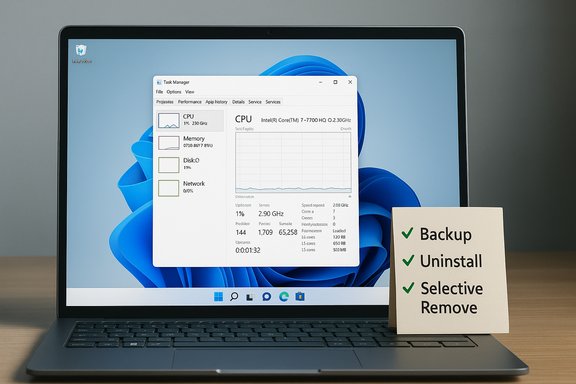
Before making mass changes, follow this safety‑first checklist:- Create a System Restore point — or better, a full disk image if the device is critical.
- Make a list or screenshot of apps you plan to remove so you can reinstall later if needed.
- Remove apps one class at a time and reboot to validate stability for 24–48 hours.
- Retain vendor tools that control hardware features you need (battery/power utilities, keyboard backlight, camera firmware updaters) unless you explicitly replace them.
Quick, safe manual removals (recommended first pass)
- Settings → Apps → Installed apps — uninstall any obvious trial software and apps you never use.
- Task Manager → Startup — disable nonessential startup entries to get the boot performance wins without uninstalling.
- Settings → System → Power & battery → Battery usage — see which apps run in the background and set Background app permissions to Never for unneeded Microsoft Store apps.
For power users: PowerShell and advanced removal
- Use Get-AppxPackage -AllUsers | Select Name, PackageFullName to enumerate Appx packages and Remove-AppxPackage to remove specific UWP apps (understand scope and dependency implications before removing system packages). PowerShell removal is precise but irreversible without reinstalling the app — so use carefully.
Vetted GUI tools and scripts
- Win11Debloat (open‑source PowerShell script) — widely used, configurable, and actively maintained; it can remove appx packages, disable telemetry, and apply recommended privacy tweaks. Review its README and run with defaults or custom selections.
- Sparkle (open‑source GUI debloater) — presents reversible tweaks, explanations for each change, and built‑in cleanup tasks. Sparkle is a good middle ground: approachable UI, explainability, and the ability to select per‑tweak behavior.
- O&O AppBuster — free tool with a simple interface to show built‑in and hidden apps and remove them safely (and reinstall if you change your mind). Good for users who want a lightweight GUI without scripting.
Step‑by‑step: a conservative debloat plan you can run in 30–60 minutes
- Update Windows and OEM drivers first (Settings → Windows Update; visit vendor support pages for chipset/Wi‑Fi/GPU drivers). New systems can ship with months‑old images; patching first reduces odd interactions.
- Create a System Restore point (Control Panel → Recovery → Create a restore point).
- Open Settings → Apps → Installed apps. Uninstall trial antivirus, promo apps, obvious games, and media apps you won’t use. Reboot.
- Open Task Manager → Startup and disable nonessential items (Spotify, game launchers, vendor updaters you don’t use). Reboot again.
- If you want a one‑click or curated approach, review Sparkle or Win11Debloat choices, inspect the default removal list, and run their selective mode — not “force everything” mode. Create a restore point inside the app if offered.
- After 24–48 hours of normal use, confirm no regressions (Wi‑Fi, sound, camera). If something breaks, use the tool’s restore function, reinstall from Microsoft Store, or roll back via System Restore.
Critical analysis: strengths, risks, and what MakeUseOf glosses over
Strengths (what the MakeUseOf piece gets right)
- Debloating is high ROI: low effort, immediate payoff on low‑end hardware, and a real reduction in notification noise. Community tests and vendor docs support performance, storage and privacy gains from a conservative removal.
- Open‑source, auditable tools exist that reduce the complexity and risk of manual PowerShell scripting (Win11Debloat, Sparkle). Using audited tools that produce backups and restore points substantially reduces the downside risk.
Risks and caveats (what to watch for)
- Over‑aggressive removals can break features. Some UWP packages and Xbox/Xbox Game Services components are interdependent; removing them without understanding dependencies can break Microsoft Store functionality or game installs. The community warns that a “scorched‑earth” debloat can lead to reinstalling Windows being the only repair path.
- Windows updates and OEM provisioning can reintroduce apps after feature updates. If you manage multiple machines, adopt a reproducible debloat process (scripted with winget, Group Policy, or Intune) rather than a one‑off manual cleanup.
- Third‑party debloaters are powerful and run with elevated privileges — treat unsigned binaries or unknown sources with suspicion. Prefer GitHub releases from reputable maintainers and inspect changes before running. If AV flags a tool, don’t bypass warnings without verifying the binary.
- Some preinstalled OEM utilities genuinely provide hardware control and firmware update channels (battery longevity, fan curves, keyboard functions). Removing these can disable features you actually need. Confirm the purpose of each app before removing it.
Unverifiable or overstated claims to be skeptical of
- Absolute numeric claims like “your PC will gain 15 GB” or “boot time will drop by 50%” are situational. Device model, SSD size, installed apps, and usage patterns determine the impact. Treat headline numbers as illustrative, not guaranteed.
A realistic, conservative recommendation
- Start manual: uninstall obvious trialware and disable startup entries. Measure the impact.
- If you want automation, choose an open‑source, auditable tool (Sparkle for UI‑driven, Win11Debloat for scriptable), run it in selective mode, and always create a restore point or image first.
- Keep Windows Security (Microsoft Defender) enabled unless you have a specific enterprise requirement for a third‑party product; for most consumers it provides solid baseline protection, and removing competing trial AV packages eliminates upsell noise and potential driver conflicts. Note: Defender’s role and coverage evolve; check vendor guidance if your workflow needs extra features beyond what Defender offers.
Concise checklist (copy/paste for quick action)
- Backup or image the system (recommended).
- Install Windows updates and vendor drivers.
- Uninstall trial antivirus and vendor promo apps via Settings → Apps.
- Disable nonessential startup tasks in Task Manager.
- Use O&O AppBuster or Sparkle to inspect remaining system apps and remove selectively.
- Reboot, test, and monitor for 48 hours. If problems appear, restore the System Restore point.
Conclusion
Removing Windows bloatware is not an ideological crusade — it’s practical housekeeping. A light, conservative cleanup frees storage, reduces background resource usage, and stops upsell pop‑ups while narrowing your device’s telemetry and external dependencies. The risks are manageable if you follow basic precautions: update first, back up, remove apps selectively, and prefer auditable tools that explain and reverse their changes. The tools exist, the community has refined workflows, and the wins are immediate — which makes debloating one of the smartest things you can do after unboxing a new Windows PC.Source: MakeUseOf 3 reasons you must remove Windows bloatware right now