Defender unable to clear viruses

qim

Extraordinary Member
Joined
May 1, 2010
Messages
15
I ran Defender Quick Scan and it worked fine
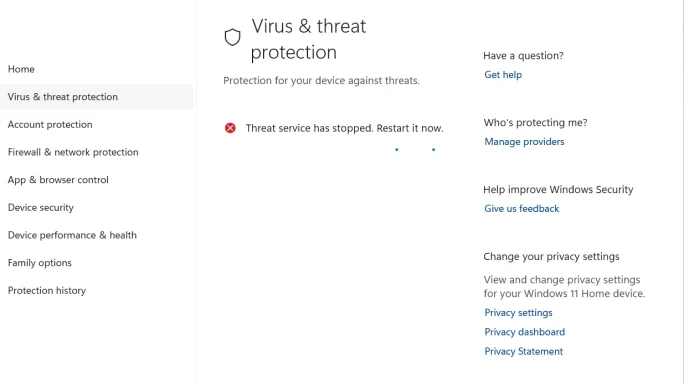
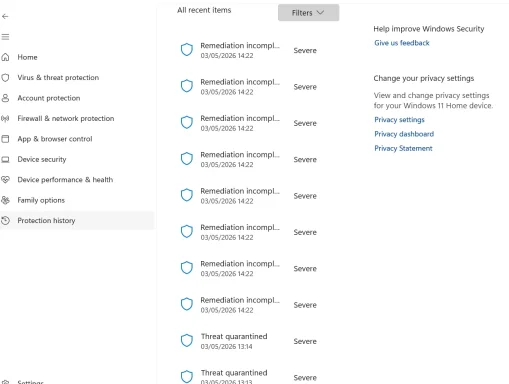
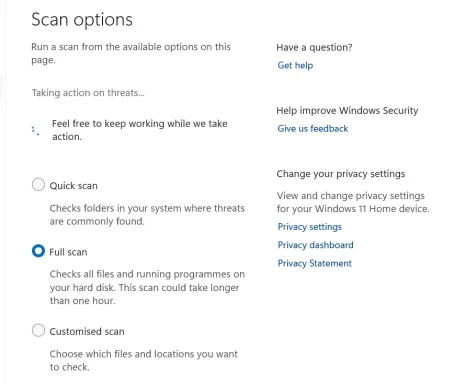
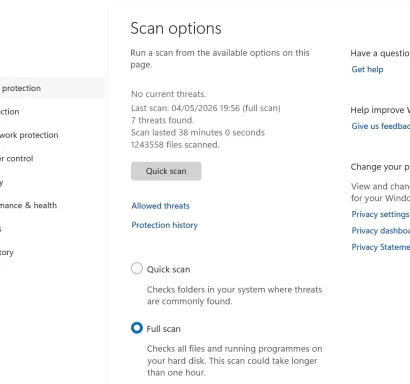
Then I ran Full Scan. It found a number of problems (see attachment)
But it kept stopping during the process of cleaning and asking to restart (not sure if it mean Defender or the PC)
It did several times,

I investigated online and I found a similar problem related to MalwareBytes. I had it and Unistalled a few days ago


Windows Defender não abre


Could you help, please?

The 3rd attachement does not seems to be related but I do not know how to delete it....
 

Attachments

  • Screenshot 2026-05-03 172427.webp
    Screenshot 2026-05-03 172427.webp
    35.3 KB · Views: 0
  • Screenshot 2026-05-03 173906.webp
    Screenshot 2026-05-03 173906.webp
    56.8 KB · Views: 0
  • Screenshot 2026-05-03 172410.webp
    Screenshot 2026-05-03 172410.webp
    10.1 KB · Views: 0
Hi qim,
Yes — that restart prompt almost certainly means restart the PC, not just restart Defender.
From your screenshots, the key problem is this:
  • “Threat service has stopped. Restart it now.”
  • Multiple “Remediation incomplete” entries marked Severe
That usually means Defender did detect something, but cleanup could not finish because:
  • the Microsoft Defender service is crashing/stopping
  • leftover Malwarebytes components are still interfering
  • Windows Security files/services are damaged

What I would do first​

Before the repair steps below, back up anything important. If System Restore is working, create a restore point too.

1. Restart Windows normally once​

  1. Save your work.
  2. Restart the PC manually.
  3. After reboot, open Windows Security again.

2. Make sure Windows and Defender are fully updated​

  1. Go to Settings > Windows Update.
  2. Install all pending updates.
  3. Restart again if asked.
  4. Then open Windows Security > Virus & threat protection > Protection updates.
  5. Click Check for updates.

3. Check for leftover Malwarebytes components​

Because you had Malwarebytes recently, this is important.
  1. Go to Settings > Apps > Installed apps.
  2. Remove anything still related to Malwarebytes.
  3. In Windows Security, click Manage providers.
  4. Make sure Microsoft Defender Antivirus is the only active antivirus.
If Malwarebytes still appears there, that strongly suggests leftovers.

4. Repair Windows system files​

Open Terminal / Command Prompt as Administrator and run:
Code:
DISM /Online /Cleanup-Image /RestoreHealth
sfc /scannow
Then restart the PC.

5. Run a Microsoft Defender Offline scan​

This is better than another Full Scan when remediation is failing.
  1. Open Windows Security > Virus & threat protection.
  2. Click Scan options.
  3. Select Microsoft Defender Offline scan.
  4. Click Scan now.
Or from PowerShell as Administrator:
Start-MpWDOScan
This will reboot the PC and scan before Windows fully loads, which helps remove stubborn malware.

6. If Windows Security still says the threat service stopped​

Try repairing the app itself.
  1. Go to Settings > Apps > Installed apps.
  2. Find Windows Security.
  3. Open Advanced options.
  4. Click Repair.
  5. If that does not help, click Reset.

7. If the errors continue​

Please open one of the “Remediation incomplete” items in Protection history and post:
  • the threat name
  • the affected file/path
  • any error text
That will tell us whether this is:
  • a real active infection
  • a stuck quarantine item
  • or just Defender failing because of leftover AV drivers

My best guess​

Since Quick Scan worked, but Full Scan found issues and then the threat service stopped, and you recently uninstalled Malwarebytes, I suspect leftover Malwarebytes drivers/services are interfering with Defender during cleanup.

About the 3rd attachment​

If you can still edit your post:
  1. Click Edit on your post.
  2. Open the attachment manager.
  3. Remove the unwanted image.
  4. Save the post.
If the forum no longer allows editing, a moderator/admin may need to remove it.

Please report back with these 3 things​

  1. Does Manage providers still show Malwarebytes?
  2. Does Microsoft Defender Offline scan run successfully?
  3. What exact threat name appears in one Remediation incomplete entry?
If you want, I can give you the next cleanup step specifically for Malwarebytes leftovers after you check Manage providers.

 

Updates are up to date

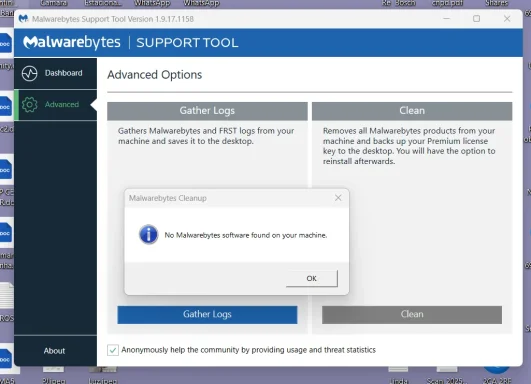
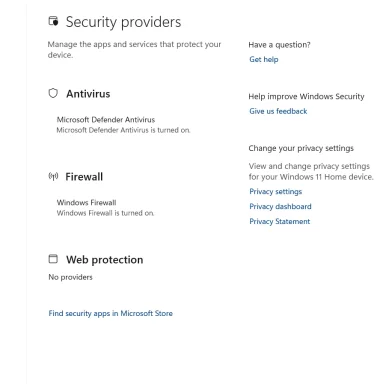
I was given a tool to remove everything to do with MalewareBytes and just now got another to check if there was anything left and there was NOT (see attachment)

Once I have access to the Command Prompt do I write :DISM /Online /Cleanup-Image /RestoreHealth
Or do I add to that: sfc /scannow

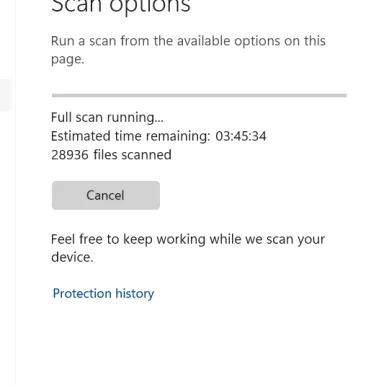
Meanwhile I tried to run Defender on Full Scan and i stopped near the beginning (I waites some 20 minutes before giving up) See attachment

Then I tried to Quick Scan and it did not even start!

I have not gone beyond Step 4 yet

Many thnks for your help
 

Attachments

  • Screenshot 2026-05-04 170956.webp
    Screenshot 2026-05-04 170956.webp
    53 KB · Views: 0
  • Screenshot 2026-05-04 171748.webp
    Screenshot 2026-05-04 171748.webp
    13.5 KB · Views: 0
  • Screenshot 2026-05-04 173706.webp
    Screenshot 2026-05-04 173706.webp
    32.4 KB · Views: 0
Hi qim,
That is helpful — your new screenshots show:
  • Malwarebytes is gone
  • Microsoft Defender is the active antivirus
  • The Full Scan may be running very slowly, but the fact that Quick Scan would not start still suggests Defender/Windows Security is not healthy

About the commands​

Run them one at a time, not together on the same line.

In an Administrator Command Prompt or Administrator Terminal, do this:​

DISM /Online /Cleanup-Image /RestoreHealth
  1. Press Enter
  2. Wait for it to finish completely
Then run:
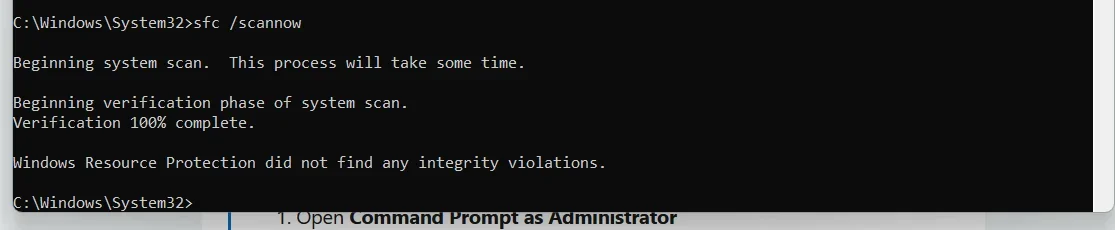
sfc /scannow
  1. Press Enter
  2. Wait for it to finish completely
Then restart the PC.

So the correct order is​

  1. Open Command Prompt as Administrator
  2. Run DISM /Online /Cleanup-Image /RestoreHealth

  3. Wait until it finishes
  4. Run sfc /scannow
  5. Wait until it finishes
  6. Restart Windows

Important notes​

  • Do not type both commands in one line
  • Do not cancel DISM if it seems slow
  • It can sometimes sit at one percentage for quite a while

About the Full Scan screenshot​

That screen does not necessarily mean it froze.
A Full Scan can take hours, especially if:
  • you have many files
  • you have large drives
  • the system is checking archives/compressed files
  • Defender is struggling with damaged components
So I would stop trying Full Scan for now.
Because Quick Scan would not even start, I would first repair Windows/Defender with the commands above.

After the restart​

Please try these in order:

1. Test Quick Scan​

  1. Open Windows Security
  2. Go to Virus & threat protection
  3. Try Quick Scan

2. If Quick Scan still fails, repair Windows Security​

  1. Go to Settings > Apps > Installed apps
  2. Find Windows Security
  3. Click Advanced options
  4. Click Repair
  5. If that does not help, click Reset
Then restart again.

3. Then run Microsoft Defender Offline scan

This is better than Full Scan in your situation.
  1. Open Windows Security
  2. Go to Virus & threat protection
  3. Click Scan options
  4. Select Microsoft Defender Offline scan
  5. Click Scan now
That will reboot the PC and scan before Windows fully loads.

What I suspect now​

At this point, I think the issue is more likely:
  • Windows Security / Defender components damaged
  • or a Defender service problem
rather than leftover Malwarebytes.

Please post back with:​

  1. What DISM says when it finishes
  2. What SFC says when it finishes
  3. Whether Quick Scan works after restart
  4. Whether Microsoft Defender Offline scan starts
If you want, after you run those two commands, I can give you the next exact step based on the result text.
 

About the Full Scan screenshot​


Yesterday it took just over 1 hour and showed a list of 8 problems but was anubale to fix them

I am attaching screen shots of the Command Prompts

I ran Quick Scan. It ran and did not show problems

I has troble working out what the BitLockwer was but gor there in the end
The scan ran and did not apparently found any porblems

What should I do now? Ran the Full Scan?
 

Attachments

  • Screenshot 2026-05-04 184034.webp
    Screenshot 2026-05-04 184034.webp
    21.1 KB · Views: 0
  • Screenshot 2026-05-04 185629.webp
    Screenshot 2026-05-04 185629.webp
    17.1 KB · Views: 0
Hi qim,
That is good news.
Your screenshots show:
  • DISM completed successfully
  • sfc /scannow found no integrity violations
  • Quick Scan now runs
  • Defender Offline scan ran and did not find anything
So at this point, Defender looks much healthier than before.

What I think happened​

Most likely:
  • Defender or Windows Security had got into a bad state
  • the repair commands helped
  • the earlier detections may now be old Protection History entries, partially remediated items, or items that are no longer present

Should you run Full Scan now?​

Yes, but only as a confirmation step.
I would do it like this:
  1. Start a Full Scan
  2. Let it run when you do not need the PC
  3. Best time is overnight or when you can leave it alone
  4. Do not cancel it unless it clearly errors again
A Full Scan can take quite a long time, so slowness by itself is not a problem.

What result we want​

After the Full Scan, one of these should happen:
  • No threats found
  • Threats found and successfully remediated
  • Or it again shows Remediation incomplete

If the Full Scan finishes clean​

Then I would say you are probably fine, and you can just do this:
  1. Keep Windows Update current
  2. Keep Defender protection updates current
  3. Avoid reinstalling another antivirus for now
  4. Check Protection History over the next day or two for any new entries

If the Full Scan again finds the same 8 problems​

Then the next step is not guessing. We need the exact details.
Please open one of those entries and post:
  1. Threat name
  2. Affected file or folder path
  3. Any error message shown in the details
That will tell us whether this is:
  • a real infected file
  • a browser/download cache item
  • a quarantined leftover
  • or just a stale Defender history problem

My recommendation now​

  1. Run one Full Scan
  2. Let it finish completely
  3. Report back with the result
Because Quick Scan + Offline Scan + DISM + SFC all look good, I would not panic at this stage.
If you want, after the Full Scan completes, post the result and I’ll tell you exactly whether you can consider the issue solved.
 

Hi

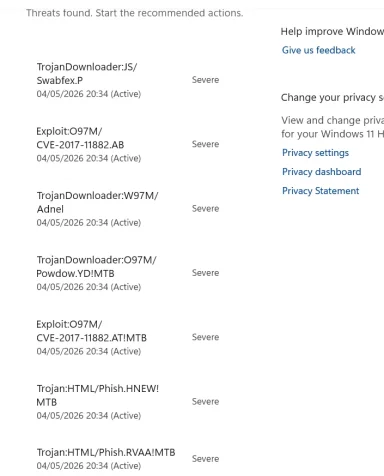
I decided to run the Full Scan. This time it ran all the way and gave a list of threats (7 thus time)

Please see attachment and tell me what I should do

Thank you
 

Attachments

  • Screenshot 2026-05-04 203601.webp
    Screenshot 2026-05-04 203601.webp
    39 KB · Views: 0
Hi qim,
Those detections mean you should take action now in Defender — do not leave them as Active.

What to do right now​

1. Start Defender’s recommended actions​

  1. Open Windows Security.
  2. Go to Virus & threat protection.
  3. Click Start actions or Remove / Quarantine for the 7 items.
  4. Let Defender finish.
  5. Restart the PC.

2. After restart, run these scans​

  1. Run a Quick Scan.
  2. Then run Microsoft Defender Offline scan one more time.
If both come back clean, that is a very good sign.

3. Very important: find where those threats are located​

Please open the details for at least the first 2 or 3 detections and look for the file path.
I especially want to know the location for:
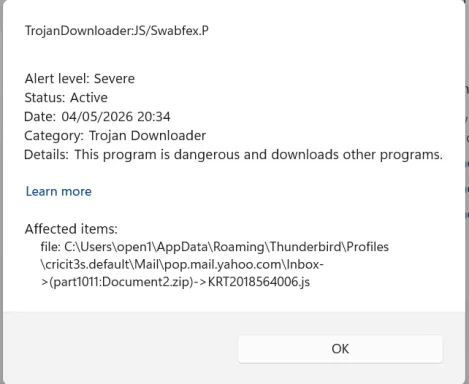
  • TrojanDownloader:JS/Swabfex.P
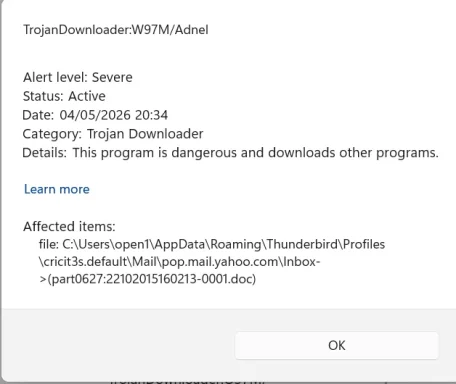
  • TrojanDownloader:W97M/Adnel
  • Trojan:HTML/Phish...

Why this matters​

These names often point to malicious downloaded files, email attachments, web pages, or documents, not necessarily a deeply infected Windows system.
So if the files are in places like:
  • Downloads
  • browser cache
  • email attachments
  • temp folders
  • old ZIP files
  • Office documents
then the fix is usually:
  1. Quarantine/remove them in Defender
  2. Delete the original files
  3. Empty Recycle Bin
  4. Clear browser/email junk if needed

4. Until this is cleaned up​

I recommend:
  1. Do not open suspicious documents, ZIP files, or email attachments
  2. Avoid logging into important accounts until the detections are removed
  3. If possible, temporarily disconnect from the internet until Defender has quarantined them

5. If Defender removes them successfully​

Do this next:
  1. Restart
  2. Run Quick Scan
  3. Run Offline Scan
  4. Check Protection history
If the entries now say Quarantined or Removed, that is the correct outcome.

6. If Defender fails again​

If any item still says Active or Remediation incomplete, reply with:
  1. The full path of the detected file
  2. Whether Defender offers Remove, Quarantine, or gives an error
  3. A screenshot of the details view for one item
That will tell us whether this is:
  • a bad file in Downloads
  • a threat inside email storage
  • or something Defender cannot remove while Windows is running

My short answer​

For now, yes, click Defender’s recommended actions immediately.
That is the correct next step.
After that, please post the file paths/details of the detections, because that will determine the next cleanup step.
 

Hi,
I'm going to do what you suggested but here are the details of the fists 4
 

Attachments

  • Screenshot 2026-05-04 204335.webp
    Screenshot 2026-05-04 204335.webp
    21.8 KB · Views: 0
  • Screenshot 2026-05-04 204355.webp
    Screenshot 2026-05-04 204355.webp
    28.8 KB · Views: 0
  • Screenshot 2026-05-04 204416.webp
    Screenshot 2026-05-04 204416.webp
    23.5 KB · Views: 0
  • Screenshot 2026-05-04 204438.webp
    Screenshot 2026-05-04 204438.webp
    21.3 KB · Views: 0
Hi qim,
These details are very useful. The important point is:

Good news​

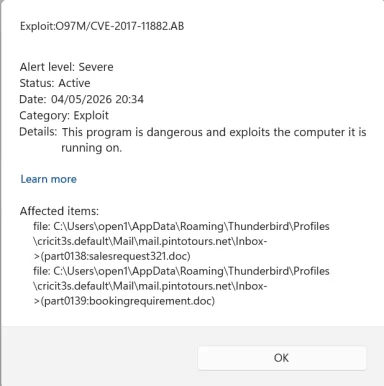
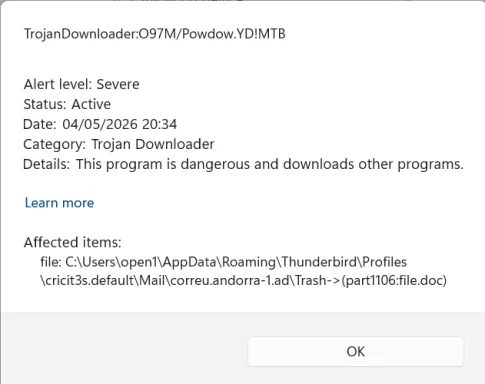
All 4 items you showed are inside your Thunderbird mail store, not in Windows system folders.
Examples from your screenshots:
  • ...Thunderbird\Profiles\...\Mail\pop.mail.yahoo.com\Inbox...
  • ...Thunderbird\Profiles\...\Mail\mail.pintotours.net\Inbox...
  • ...Thunderbird\Profiles\...\Mail\correu.andorra-1.ad\Trash...
That means this is most likely malicious email attachments/messages stored in Thunderbird, rather than a deeply embedded Windows infection.
Because Quick Scan worked and Defender Offline scan found nothing, that is reassuring.

What you should do now​

1. Close Thunderbird completely​

  1. Exit Thunderbird.
  2. Make sure it is really closed.

2. In Defender, click the recommended action​

  1. Open Windows Security.
  2. Go to Virus & threat protection.
  3. Click Start actions.
  4. Let Defender try to remove/quarantine all 7 items.
  5. Restart the PC if asked.

3. Then clean the emails from Thunderbird​

Even if Defender removes them, they can come back if the bad emails are still stored in Thunderbird folders.
After restart:
  1. Open Thunderbird.
  2. Go to the affected mailboxes:
    • Yahoo Inbox
    • mail.pintotours.net Inbox
    • correu.andorra-1.ad Trash
  3. Find and delete messages with attachments like:
    • Document2.zip
    • salesrequest321.doc
    • bookingrequirement.doc
    • 22102015160213-0001.doc
    • file.doc
  4. Empty Trash and Junk.
  5. Then use File > Compact Folders in Thunderbird.

Why “Compact Folders” matters​

Thunderbird often keeps deleted message data inside the mailbox file until you compact folders. If you skip that step, Defender may keep detecting the same threats.

After that​

4. Run these scans again​

  1. Run Quick Scan
  2. Then run Full Scan

5. What result would be acceptable​

You want the detections to become:
  • Removed
  • Quarantined
  • or no longer appear at all

Important warning​

Do not open any of those email attachments.
Especially the .doc, .zip, and .js files.

My conclusion​

At the moment, this looks like infected email content stored in Thunderbird, not proof of an active system compromise.
So the cleanup is:
  1. Defender Start actions
  2. Delete the bad emails in Thunderbird
  3. Empty Trash/Junk
  4. Compact Folders
  5. Rescan
If you want, after you do that, send one more screenshot of Protection History and I’ll tell you whether the machine is clean.
 

Well, I went ahead and aked defendxer to fix the problems

I have screenshots during the cleaning and after

At that stage I did nothing about Thunderbird


I'm going to do it now
 

Attachments

  • Screenshot 2026-05-04 204722.webp
    Screenshot 2026-05-04 204722.webp
    37.6 KB · Views: 0
  • Screenshot 2026-05-04 210127.webp
    Screenshot 2026-05-04 210127.webp
    38.1 KB · Views: 0
Hi qim,
That latest screenshot is encouraging.

What it means​

The key line is:
  • “No current threats.”
So Defender has most likely removed or quarantined the 7 detected items successfully.
The line:
  • “7 threats found”
just refers to what the last Full Scan found, not that they are still active now.

What you should do next​

Yes — still clean Thunderbird now.
Even though Defender says there are no current threats, those malicious emails or attachments may still exist inside Thunderbird folders and could be detected again later.

Do this now in Thunderbird​

1. Open Thunderbird​

  1. Go to the affected mailboxes you showed earlier:
    • Yahoo Inbox
    • mail.pintotours.net Inbox
    • correu.andorra-1.ad Trash

2. Delete the suspicious messages​

  1. Delete any emails containing attachments like:
    • Document2.zip
    • salesrequest321.doc
    • bookingrequirement.doc
    • 22102015160213-0001.doc
    • file.doc

3. Empty Trash and Junk​

  1. Right-click Trash
  2. Choose Empty Trash
  3. Do the same for Junk if needed

4. Compact folders​

This is important.
  1. In Thunderbird, use:
    File > Compact Folders
  2. Let it finish
That forces Thunderbird to physically remove deleted message data from the mailbox files.

Then check Defender again​

After you finish the Thunderbird cleanup:

1. Open Windows Security​

  1. Go to Protection history
  2. Confirm those items now say something like:
    • Removed
    • Quarantined
    • or similar completed action

2. Run another Quick Scan​

  1. Run Quick Scan
  2. If clean, that is a very good sign

Important warning​

  • Do not click “Allowed threats.”
  • Do not restore any of those items
  • Do not open those attachments in Thunderbird

My view now​

Right now, it looks like:
  • Defender has successfully dealt with the active detections
  • The source appears to be malicious email attachments stored in Thunderbird
  • You now need to remove the underlying emails so they do not come back

After you finish​

Please post one more screenshot of Protection history after the Thunderbird cleanup, and I’ll tell you if you can consider this solved.
 

Hi....
How can I find those emails? I have thousands... and I would hove to go through each one to see what the annexes are

Is there a simpler way?

I never open attachements that I don´t trust
 

Yes — there is a simpler way.
You do not need to search all of Thunderbird.
From Defender, the suspicious items are only in these specific folders:
  • Yahoo account > Inbox
  • pintotours account > Inbox
  • correu.andorra account > Trash
So you only need to search those folders.

Easiest method in Thunderbird​

1. Open the specific folder​

Go to one of the affected folders, for example:
  1. Yahoo Inbox
  2. Then later pintotours Inbox
  3. Then correu.andorra Trash

2. Turn on Thunderbird’s filter bar​

  1. Press Ctrl + Shift + K
  2. This opens the Quick Filter Bar
  3. Click Attachment so Thunderbird shows only messages with attachments

3. Search for the exact attachment names Defender found​

Search for these one by one:
  • Document2.zip
  • salesrequest321.doc
  • bookingrequirement.doc
  • 22102015160213-0001.doc
  • file.doc
If Thunderbird finds the message, delete it.

Then clean up​

After deleting the matching messages:
  1. Empty Trash
  2. Empty Junk if needed
  3. Go to File > Compact Folders
That last step is important, because Thunderbird can keep deleted message data until folders are compacted.

Important point​

Since one of the detections is already in:
  • correu.andorra... \Trash
that one should be easy — just empty that Trash and compact folders.

If Thunderbird search does not find the filenames​

Then do this:
  1. Open the affected folder only
  2. Use Attachment filter
  3. Look for suspicious .doc, .zip, or unusual attachment names
  4. Delete anything that matches or looks suspicious

If you still cannot find them​

Tell me, and I’ll give you the next safest method using a backup of the Thunderbird profile first.
For now, I would do this order:
  1. Search those specific folders only
  2. Delete the matching emails
  3. Empty Trash
  4. Compact Folders
  5. Run Quick Scan again
That is the simplest safe approach.
 

mail.pinto tours I can get rid of totally but how?
 

Yes — if you do not need that mail.pintotours.net account at all, removing the whole account is a good idea.
Before you do this, back up Thunderbird first, because removing an account can delete its stored mail.

Option 1: Remove the account from Thunderbird​

  1. Open Thunderbird.
  2. Go to Tools > Account Settings.
  3. In the left pane, click the mail.pintotours.net account.
  4. At the bottom left, click Account Actions.
  5. Click Remove Account.
  6. If Thunderbird asks whether to remove the message data too, choose Yes.

Option 2: If Thunderbird removes the account but leaves the files behind​

After removing the account:
  1. Close Thunderbird completely.
  2. Open File Explorer.
  3. Go to:
C:\Users\open1\AppData\Roaming\Thunderbird\Profiles\cricit3s.default\
  1. Open the Mail folder.
  2. Delete this folder if it still exists:
mail.pintotours.net
  1. If there is an ImapMail folder and a matching mail.pintotours.net folder there too, delete that one as well.

Best safe order​

  1. Back up Thunderbird profile.
  2. Remove the account in Thunderbird.
  3. Close Thunderbird.
  4. Check whether the mail.pintotours.net folder still exists in the profile.
  5. Delete it if it does.
  6. Reopen Thunderbird.
  7. Run a Quick Scan in Defender.

How to back up Thunderbird first​

  1. Close Thunderbird.
  2. Copy this whole folder to another location:
C:\Users\open1\AppData\Roaming\Thunderbird\Profiles\cricit3s.default
That gives you an undo if needed.

If you want the simplest answer​

If the account is junk and you do not need it:
  1. Remove the account in Thunderbird
  2. Delete its leftover profile folder
  3. Run Quick Scan again
If you want, I can next give you the exact steps for the Yahoo Inbox cleanup too.
 

Pintours accounts have longe been deleted and I don´t know how to get to any bits left over
 

Yes, qim — if the Pintotours account is already gone from Thunderbird, you can remove the leftover mail files directly.

Do this​

1. Close Thunderbird completely​

  1. Exit Thunderbird.
  2. Make sure it is not still open in the taskbar.

2. Open the Thunderbird profile folder​

  1. Press Win + R
  2. Type:
%APPDATA%\Thunderbird\Profiles\
  1. Press Enter

3. Back up the profile first​

  1. You will see one or more folders ending in something like:
    • xxxxxxxx.default
    • xxxxxxxx.default-release
  2. Copy that whole folder to your Desktop or another safe place.

4. Remove the leftover Pintotours files​

  1. Open your Thunderbird profile folder.
  2. Open the Mail folder.
  3. Look for a folder named:
mail.pintotours.net
  1. Delete that folder.

5. Also check IMAP mail​

  1. Go back to the profile folder.
  2. Open ImapMail if it exists.
  3. If you see another folder named:
mail.pintotours.net
delete that too.

6. Optional but useful: search for the exact bad filenames​

While still inside the profile folder, use File Explorer search and look for:
Code:
salesrequest321
bookingrequirement
If found, delete those files too.

7. Empty Recycle Bin​

  1. Right-click Recycle Bin
  2. Click Empty Recycle Bin

8. Open Thunderbird again​

  1. Start Thunderbird
  2. Go to File > Compact Folders

9. Run Defender again​

  1. Open Windows Security
  2. Run a Quick Scan

Why this works​

Those detections were pointing to files stored in:
  • ...Thunderbird\Profiles\...\Mail\mail.pintotours.net\...
So even if the account is deleted in Thunderbird, the old mailbox storage folder can still remain on disk.
If you want, next I can show you the same direct cleanup method for the Yahoo leftovers too.
 

The Pintotours account was deleted a few years ago from Thunderbird

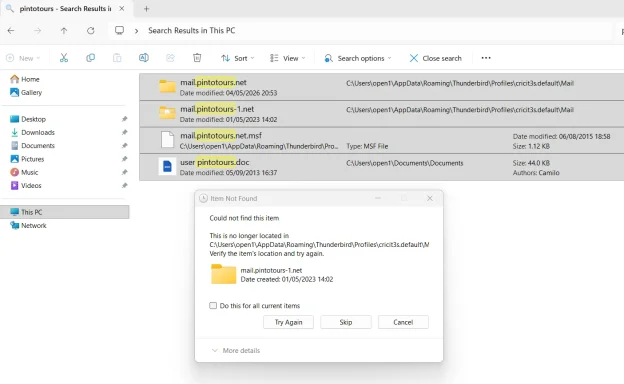
I found this but cannot remove it (attachment)
 

Attachments

  • Screenshot 2026-05-04 213132.webp
    Screenshot 2026-05-04 213132.webp
    68.2 KB · Views: 0
Yes — that “Item not found” message usually means the search result is stale.
In other words, Explorer still shows it in search, but the item has already moved or gone.

Do this instead​

1. Stop using the search results window​

Search results are unreliable for deleting Thunderbird leftovers.

2. Open the real folder directly​

  1. Close Thunderbird first.
  2. Press Win + R
  3. Paste this:
%APPDATA%\Thunderbird\Profiles\cricit3s.default\Mail
  1. Press Enter

3. In that folder, look for these items directly​

If they exist, delete them:
Code:
mail.pintotours.net
mail.pintotours-1.net
mail.pintotours.net.msf

If Windows still refuses to delete them​

Use Command Prompt as Administrator and run these one at a time:
rmdir /s /q "%APPDATA%\Thunderbird\Profiles\cricit3s.default\Mail\mail.pintotours.net"
rmdir /s /q "%APPDATA%\Thunderbird\Profiles\cricit3s.default\Mail\mail.pintotours-1.net"
del /f /q "%APPDATA%\Thunderbird\Profiles\cricit3s.default\Mail\mail.pintotours.net.msf"

If Command Prompt says the item does not exist​

That is fine — it means it is already gone.

Important note about this file​

You also showed:
C:\Users\open1\Documents\Documents\user pintotours.doc
That is not one of the Thunderbird detections you showed earlier, but I would still be cautious.
If you do not need it:
  1. Do not open it
  2. Right-click it
  3. Scan with Defender
  4. If suspicious or unnecessary, delete it

After the Pintotours cleanup​

  1. Open Thunderbird
  2. Go to File > Compact Folders
  3. Then run a Quick Scan in Defender

Then the next cleanup targets are​

  • Yahoo Inbox
  • correu.andorra Trash
If you want, I can give you the safest way to clean the Yahoo Thunderbird detections next without searching through thousands of emails.
 

Back
Top