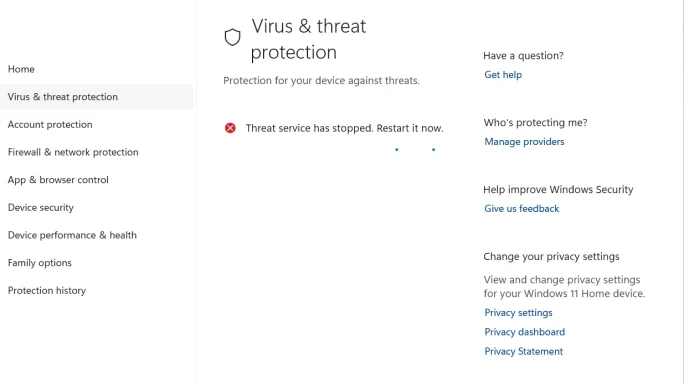
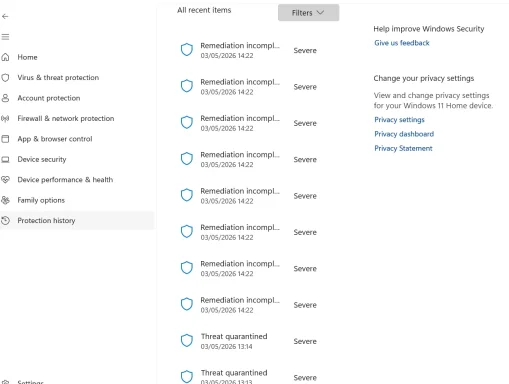
Defender unable to clear viruses

1. I may need to find individual emails from time to time
2. do you mean it is possible to search the whole Inbox folder ? I did not understand how, other than one at a time

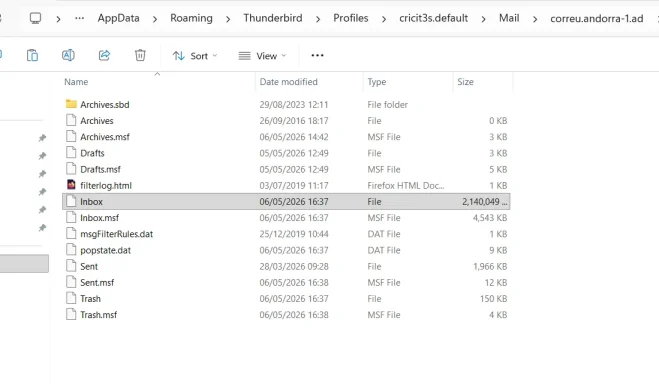
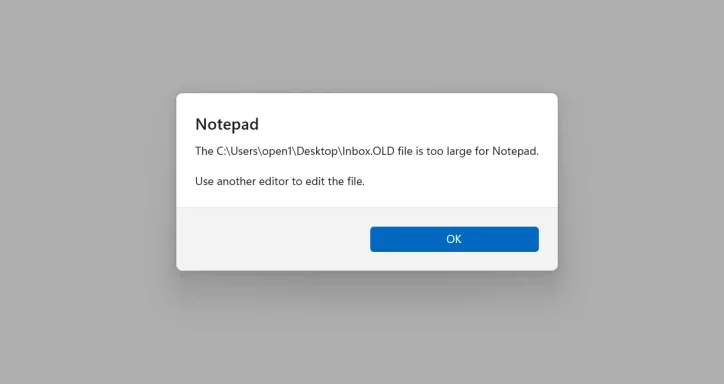
If I press on Inbox, I get a choice of programs to open it. Notepad returns sayimg file is too large
 

Attachments

  • Screenshot 2026-05-06 182217.webp
    Screenshot 2026-05-06 182217.webp
    41.9 KB · Views: 0
Hi Qim,
Yes — I mean it is possible to search the whole mailbox, and the important point is:

It is not an Inbox folder​

In your screenshot, Inbox is a single mailbox file.
Thunderbird stores many emails inside one file called:
Inbox
So you are not searching emails one by one in File Explorer.
You are searching inside that one mailbox file.

What that means in practice​

For the correu.andorra-1.ad account, this file:
C:\Users\open1\AppData\Roaming\Thunderbird\Profiles\cricit3s.default\Mail\correu.andorra-1.ad\Inbox
contains all the emails in that Inbox.
The same applies to:
...\pop.gmail-1.com\AndorralN

Safest way to search it​

1. Make a copy first​

  1. Close Thunderbird.
  2. Copy the file Inbox to your Desktop.
  3. Rename the copy to:
Inbox_copy.txt

2. Open the copy​

  1. Open Inbox_copy.txt with Notepad.
  2. Press Ctrl + F.

3. Search the whole mailbox file for likely PDF markers​

Search for these one at a time:
Content-Type: application/pdf
filename=
.pdf
If you find a hit, that means you are inside the raw text of one email.

4. Identify the message​

From that point, scroll upwards a bit and look for lines like:
Subject:
From:
Date:
That tells you which email in Thunderbird contains the suspicious PDF.

Then remove only that email​

  1. Open Thunderbird.
  2. Go to that same mailbox.
  3. Find the email by subject / sender / date.
  4. Delete it.
  5. Empty Trash.
  6. Run File > Compact Folders.

Important​

You only need to do this for the 2 mailbox files ESET mentioned:
  1. correu.andorra-1.ad\Inbox
  2. pop.gmail-1.com\AndorralN

My honest suggestion​

Because you may need individual emails later, this is the safest method:
  1. Search the copied mailbox file
  2. Identify the exact suspicious email
  3. Delete only that one in Thunderbird
If you want, I can help you do the first search step on the correu.andorra-1.ad\Inbox file and tell you exactly what to look for after the first match.
 

I decided to rename the files, I can always rename them back to original if I need to do a search

but I was suprised to be unable to rename the .msf folder, getting a warning that the it was open on Thunderbird
I only managed to do it after I closed Thunderbird

So far, I only renamed the andorra-1

I will run Eset gaian to see if one of the problems disappears
 

Hi Qim,
That makes sense, and yes — what you saw is normal.

Why the .msf file would not rename​

The .msf file is Thunderbird’s mail index for that mailbox.
If Thunderbird is open, it usually keeps that file in use, so Windows will not let you rename it.
So this part is expected:
  1. Thunderbird open.msf rename fails
  2. Thunderbird closed → rename works

Your current approach is reasonable​

Renaming the mailbox files is a good test because:
  1. It is reversible
  2. Thunderbird cannot read the old mailbox under the original name
  3. If ESET stops detecting the threat, that confirms the detection was inside that mailbox file

What to do next​

1. Test the Andorra mailbox first​

Since you already renamed the correu.andorra-1.ad mailbox files:
  1. Keep Thunderbird closed
  2. Run ESET again
  3. Check whether the Andorra detection disappears

2. Interpret the result​

If ESET now shows only one detection left​

That means:
  1. The Andorra mailbox was indeed the source of one detection
  2. The remaining detection is likely in the other mailbox:
    • pop.gmail-1.com\AndorralN
Then you should do the same rename test for that Gmail mailbox.

If ESET still shows both

Then either:
  1. the renamed file is still being scanned from the new name
  2. or ESET is detecting a different mailbox copy or cache
If that happens, post the new ESET result and we can compare paths.

3. If one detection remains, do the same for Gmail​

With Thunderbird closed:
  1. Go to the Gmail mailbox folder
  2. Rename:
    • AndorralN
    • AndorralN.msf
  3. Run ESET again

4. If both detections disappear after renaming​

Then you have confirmed the threats are only in those old Thunderbird mailbox files.
At that point, you can choose between:
  1. Keep the renamed files archived for later manual searching
  2. Or restore them temporarily only when needed, with Thunderbird closed
  3. Or work from copies instead of restoring them live

Important caution​

If you rename them back later, ESET or Defender may detect them again.
That would not necessarily mean a new infection — only that the old mailbox content became visible again.

Short answer​

Yes, closing Thunderbird before renaming .msf is normal, and running ESET again now is exactly the right next step.
When you have the new ESET result, send it and I’ll tell you what it means.
 

Eseto found them again, even indesguise (see attach)
 

Attachments

Hi Qim,
That result makes sense. ESET is scanning the contents of the mailbox file, not just the filename, so renaming it does not remove the malicious email from inside it.

What this means​

  • The detections are still in those old Thunderbird mailbox files.
  • This still looks like stored malicious email content, not an active Windows infection.
  • If the files stay on the PC, ESET can keep finding them even under a different name.

Best practical solution​

If you want the alerts to stop and keep the old mail for possible future searching, do this:

1. Close Thunderbird​

  1. Exit Thunderbird fully.

2. Back up the suspect mailbox files​

  1. Copy the detected mailbox files to a folder on an external drive or USB stick.
  2. Keep note of the original paths.

3. Remove the originals from the Thunderbird profile​

  1. Delete the detected mailbox files from:
    • C:\Users\open1\AppData\Roaming\Thunderbird\Profiles\cricit3s.default\Mail\correu.andorra-1.ad\
    • C:\Users\open1\AppData\Roaming\Thunderbird\Profiles\cricit3s.default\Mail\pop.gmail-1.com\
  2. Delete the matching .msf index files too.

4. Reopen Thunderbird​

  1. Start Thunderbird.
  2. Use File > Compact Folders.

5. Scan again​

  1. Run ESET again.
  2. Run a Defender Quick Scan.

Important warning​

If you keep the backup copy on the same PC, ESET may still detect it there.
So if you want the detections to stop, the backup should be moved off this PC, ideally to an external drive.

If you need to search those old emails later​

  1. Work from the backup copy, not the live Thunderbird profile.
  2. Search the copied mailbox file with a text editor after renaming it to .txt.
  3. Do not open any suspicious attachment from those old messages.

Short answer​

So: do not ignore them, but you also do not need to panic.
To stop repeated detections, you need to remove those mailbox files from the Thunderbird profile, because renaming alone is not enough.
If you want, I can give you the exact filenames to delete once you post the latest ESET paths.
 

Hi

I did not see your reply until I tried to copy the Inbox to the Desktop and open it with Notepad

Result: a blank page....

What am I doing wrong?
 

Hi Qim,
You are probably doing nothing wrong — Thunderbird mailbox files can be awkward to inspect.

Most likely reasons Notepad showed a blank page​

  1. The file you copied may now be empty or near-empty
  2. You may have copied the wrong mailbox file
  3. Notepad is not the best tool for this kind of mailbox file

First check this​

  1. Right-click the copied Inbox file on the Desktop
  2. Click Properties
  3. Check the Size

If it is 0 KB

Then there is nothing in that file to inspect.

If it is not 0 KB

Then the content is there, and we should search it another way.

Better method than Notepad​

Use PowerShell to search inside the mailbox file directly.

Step 1​

Close Thunderbird first.

Step 2​

Open PowerShell.

Step 3​

Run this command, changing the path if needed:
Select-String -Path "$env:USERPROFILE\Desktop\Inbox" -Pattern ".pdf","filename=","Subject:","From:","Content-Type: application/pdf" | Select-Object -First 30

What this does​

It searches the whole mailbox file for:
  • .pdf
  • filename=
  • Subject:
  • From:
  • Content-Type: application/pdf
and shows the first matches.

If your copied file has a different name​

For example, if you renamed it to Inbox_copy.txt, use:
Select-String -Path "$env:USERPROFILE\Desktop\Inbox_copy.txt" -Pattern ".pdf","filename=","Subject:","From:","Content-Type: application/pdf" | Select-Object -First 30

Even more important​

Because ESET is still finding the items, the key thing now is the exact current path from the new ESET scan.
Please post the new ESET result showing the full path again, because if ESET is now scanning a renamed file, we need to make sure you are opening the same file it is detecting.

Short answer​

  • No, you are probably not doing anything wrong
  • Notepad is just unreliable here
  • Use PowerShell Select-String instead
If you want, after you run that command, paste the output here and I’ll help you identify the exact bad email.
 

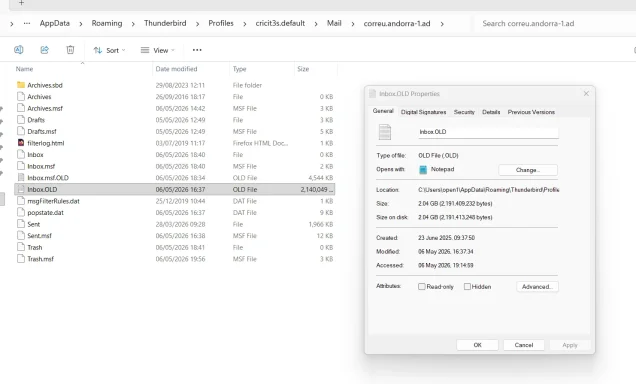
You were right. The file I was trying to open has 0 bytes. It seems that when I renamed the Inbox, a new one was created
Now, I tried to open the InboxOLD but Notepad tells me that it is too large

How/where can I get Powershell?
 

Attachments

  • Screenshot 2026-05-06 205402.webp
    Screenshot 2026-05-06 205402.webp
    71.8 KB · Views: 0
  • Screenshot 2026-05-06 205055.webp
    Screenshot 2026-05-06 205055.webp
    9.5 KB · Views: 0
Hi Qim,
Yes — what happened is exactly what I expected:
  1. You renamed the old mailbox file to Inbox.OLD
  2. Thunderbird created a new empty Inbox
  3. Your old mail is still in Inbox.OLD
  4. Notepad cannot open it because it is too large at about 2 GB

Where to get PowerShell​

PowerShell is already built into Windows.

Open it like this​

  1. Press Start
  2. Type PowerShell
  3. Open Windows PowerShell
Or:
  1. Press Win + X
  2. Choose Terminal or Windows PowerShell

Best way to search the old mailbox​

You do not need to open the whole file.
Use PowerShell to search inside Inbox.OLD.

Copy and paste this command exactly​

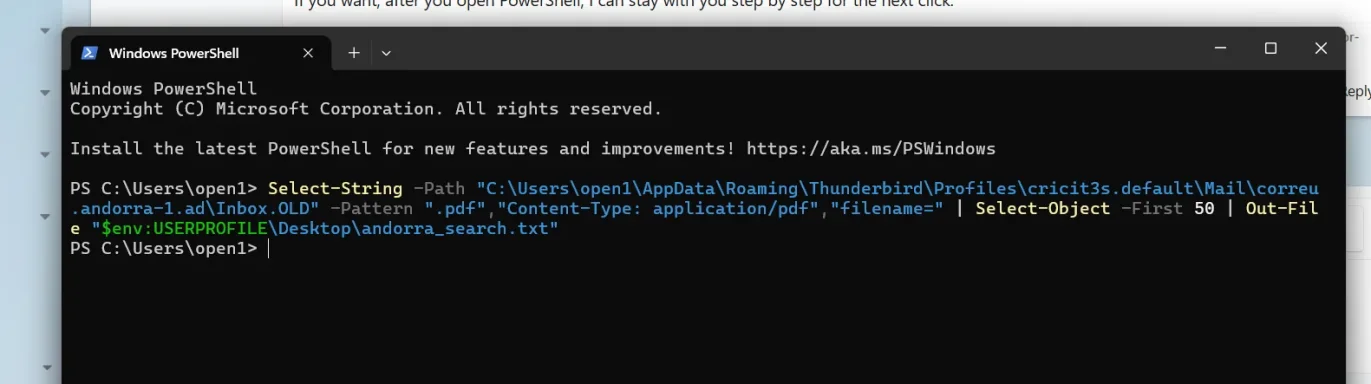
Select-String -Path "C:\Users\open1\AppData\Roaming\Thunderbird\Profiles\cricit3s.default\Mail\correu.andorra-1.ad\Inbox.OLD" -Pattern ".pdf","Content-Type: application/pdf","filename=" | Select-Object -First 50 | Out-File "$env:USERPROFILE\Desktop\andorra_search.txt"

What this does​

  1. Searches the whole old mailbox file for likely PDF attachment markers
  2. Saves the first matches to a text file on your Desktop called:
andorra_search.txt

Then do this​

  1. Open andorra_search.txt on the Desktop
  2. Look for lines containing:
    • .pdf
    • filename=
    • Content-Type: application/pdf
That should help identify the suspicious message.

If you want a slightly better search​

You can also search for likely email headers around the PDF matches with this second command:
Select-String -Path "C:\Users\open1\AppData\Roaming\Thunderbird\Profiles\cricit3s.default\Mail\correu.andorra-1.ad\Inbox.OLD" -Pattern "Subject:","From:","Date:","Content-Type: application/pdf",".pdf","filename=" | Select-Object -First 200 | Out-File "$env:USERPROFILE\Desktop\andorra_headers.txt"
That gives a broader result file you can inspect.

Important note​

Because the file is 2 GB, the search may take a while.
That is normal. Let it finish.

If PowerShell says nothing or creates an empty file​

Then tell me, and I’ll give you a different built-in command.

My recommendation​

Start with the first command only and see if it creates andorra_search.txt.
If you want, after that, paste the contents of andorra_search.txt here and I’ll help you interpret it.
 

Do I have to type letter by letter or can I copy and paste the whole thing in the samll box where I can for instance type regedit to open it?
 

You can copy and paste, but not into the small Run box for that whole command.

Do this instead​

1. Open PowerShell​

Use the small box only to open PowerShell:
  1. Press Win + R
  2. Type:
powershell
  1. Press Enter

2. Then paste the whole command into the PowerShell window​

Once the blue/black PowerShell window opens:
  1. Copy the whole command
  2. Click inside the PowerShell window
  3. Paste it there
  4. Press Enter

The command again​

Select-String -Path "C:\Users\open1\AppData\Roaming\Thunderbird\Profiles\cricit3s.default\Mail\correu.andorra-1.ad\Inbox.OLD" -Pattern ".pdf","Content-Type: application/pdf","filename=" | Select-Object -First 50 | Out-File "$env:USERPROFILE\Desktop\andorra_search.txt"

In short​

  • Run box: only type powershell
  • PowerShell window: paste the full command
If you want, after you open PowerShell, I can stay with you step by step for the next click.
 

I didn't realize that you could copy/paste in the Command Prompt....

Ok, this is what I got
 

Attachments

  • Screenshot 2026-05-06 210801.webp
    Screenshot 2026-05-06 210801.webp
    45.5 KB · Views: 0
Perfect, Qim — that is exactly what should happen.

What your PowerShell result means​

Because PowerShell returned to:
PS C:\Users\open1>
with no error, the command most likely worked.
It does not display the matches on screen because we told it to save them into a file.

What to do next​

1. Go to your Desktop​

Look for this file:
andorra_search.txt

2. Open it​

Open it with Notepad.

What you may find​

If the file has content​

You should see lines containing things like:
  • .pdf
  • filename=
  • Content-Type: application/pdf
That means the old mailbox file contains PDF attachment references.

If the file is empty​

That means the search did not find those PDF markers in Inbox.OLD.
That would suggest one of these:
  1. the ESET detection may be in a different mailbox file
  2. the PDF is encoded in a way this simple search did not catch
  3. ESET is detecting a broader embedded object, not a plain visible .pdf string

Please do this now​

Open andorra_search.txt and tell me which of these is true:
  1. It has text in it
  2. It is empty
  3. The file does not exist

If it has text​

You can either:
  • paste the first few lines here, or
  • send a screenshot of the text file
and I’ll help interpret it.

One small note​

Yes — PowerShell and Command Prompt both support copy/paste, which makes life much easier.
You’re doing this very well.
 

Yes, it has text, a lot of it
 

Good — then do not read all of it manually.

Easiest next step​

Create a smaller file with context around the suspicious PDF references.
Open PowerShell again and paste this:
Select-String -Path "C:\Users\open1\AppData\Roaming\Thunderbird\Profiles\cricit3s.default\Mail\correu.andorra-1.ad\Inbox.OLD" -Pattern "Content-Type: application/pdf",".pdf","filename=","Subject:","From:","Date:" -Context 8,20 | Out-File "$env:USERPROFILE\Desktop\andorra_context.txt"

Then do this​

  1. Open the new file on your Desktop:
andorra_context.txt
  1. Search inside it for:
    • .pdf
    • Content-Type: application/pdf
    • filename=
  2. When you find one of those, look a little above it for:
    • Subject:
    • From:
    • Date:
That should identify the exact email.

If you want the shortest route​

Paste here just one block from andorra_context.txt that includes:
  • Subject:
  • From:
  • Date:
  • and the .pdf or filename= line
and I’ll help you work out which email to delete in Thunderbird.

Important​

You are very close now.
The goal is not to read the whole 2 GB mailbox — only to isolate the exact message.
 

There are about 15 references to .pdf
I can create a file with those 15
but I will not be able to do it now and then it will be late
may I leave it until tomorrow afternoon (Lisbon/London time) ?
 

Yes — absolutely. You can leave it until tomorrow afternoon, May 7, 2026.
Based on what you’ve shown so far, this does not look like an urgent active-system infection. It looks like old malicious content stored inside Thunderbird mailbox files.

For tonight​

  1. Do not open suspicious emails or attachments.
  2. Leave the renamed mailbox files as they are.
  3. Keep using Windows Security / Defender as normal.
  4. If you want to be extra cautious, avoid opening Thunderbird until tomorrow.

Tomorrow​

When you’re ready, we can do one of these:
  1. make a small filtered file with only the .pdf references
  2. identify the exact email(s)
  3. decide whether to delete just those messages or archive the mailbox safely
So yes — no problem waiting until tomorrow afternoon London/Lisbon time.
When you come back, just pick up from:
  • the andorra_context.txt / .pdf references
  • and we’ll continue from there.
 

You’re very welcome, Qim.
We’ve already done the important stabilizing work, so pausing here is perfectly fine.
When you come back tomorrow, we can continue calmly from the .pdf references and narrow it down without rushing.
Sleep well.
 

Back
Top