- Thread Author
- #1
I ran Defender Quick Scan and it worked fine
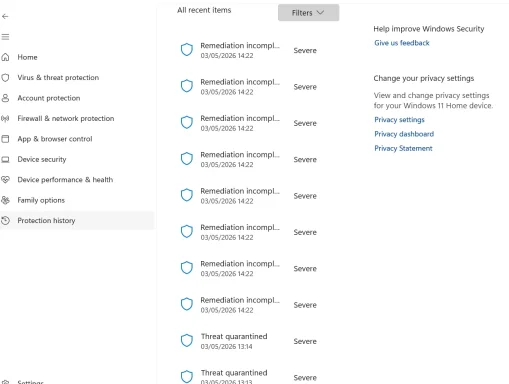
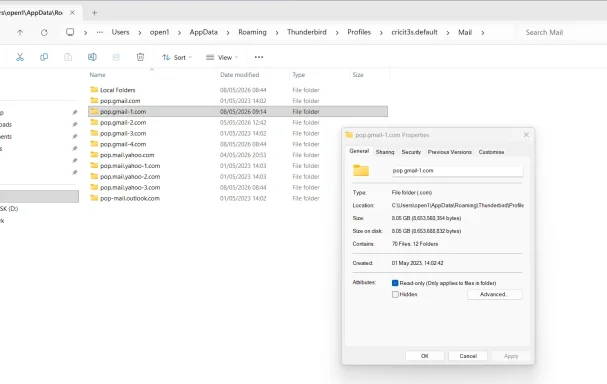
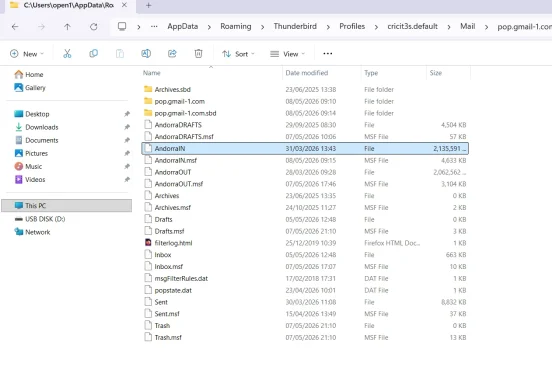
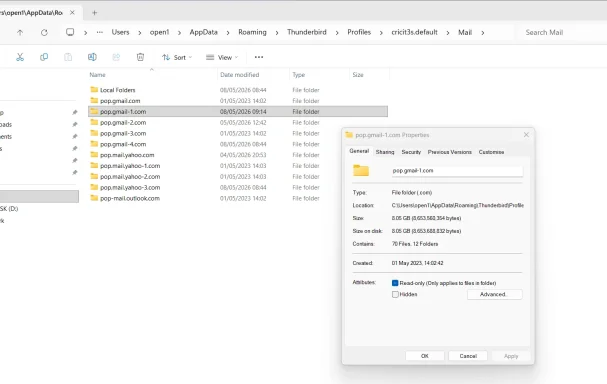
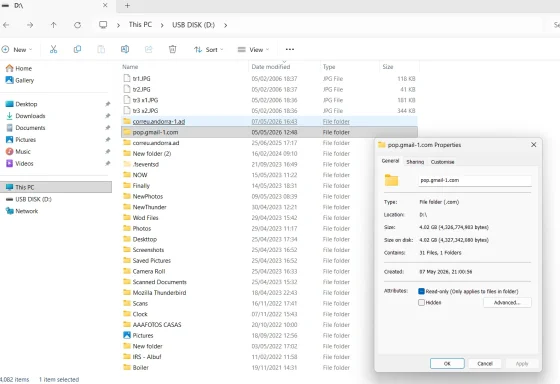
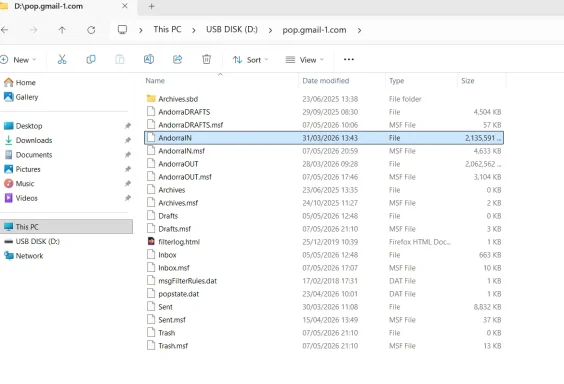
Then I ran Full Scan. It found a number of problems (see attachment)
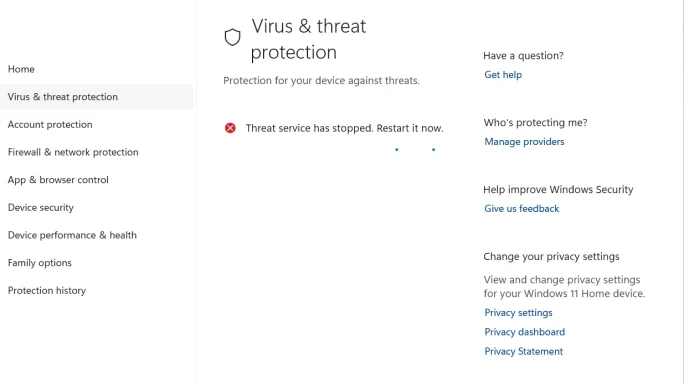
But it kept stopping during the process of cleaning and asking to restart (not sure if it mean Defender or the PC)
It did several times,
I investigated online and I found a similar problem related to MalwareBytes. I had it and Unistalled a few days ago
Windows Defender não abre
Could you help, please?
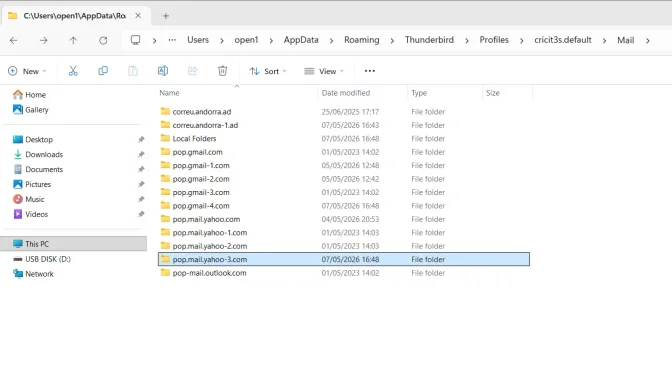
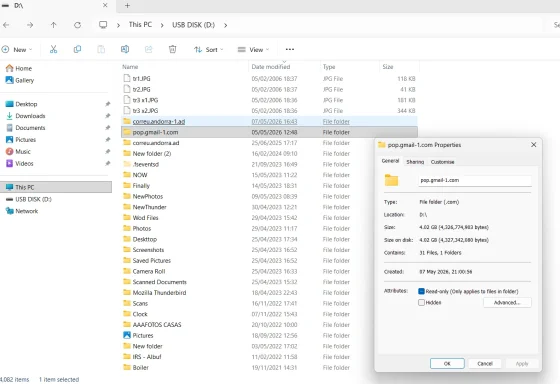
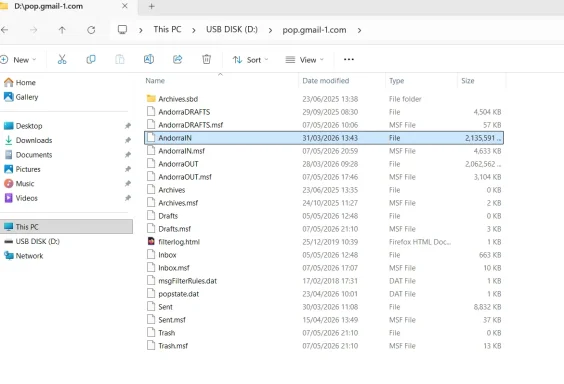
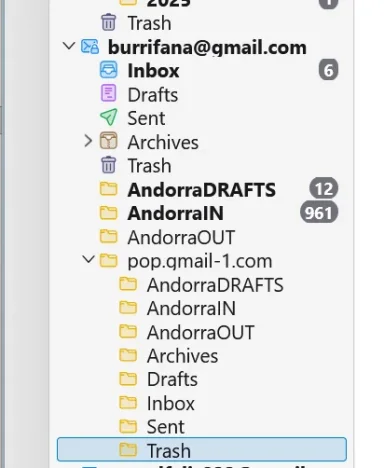
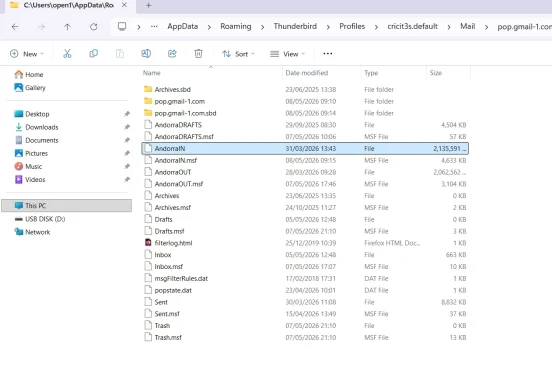
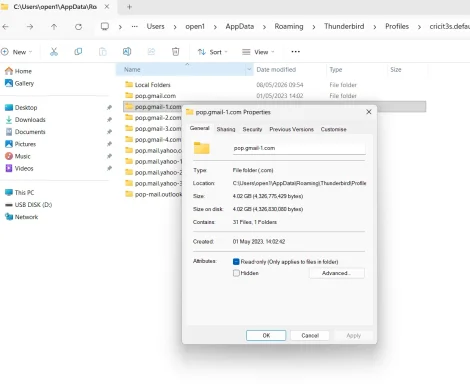
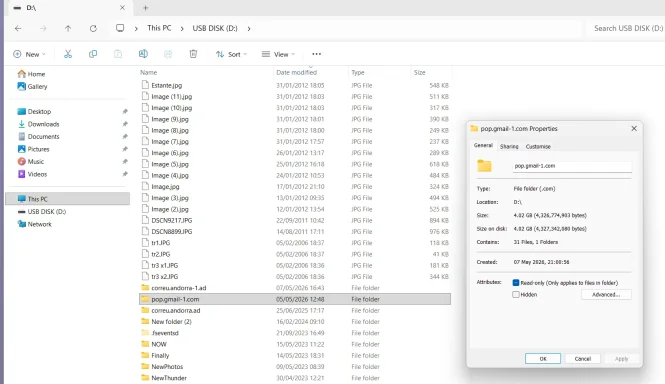
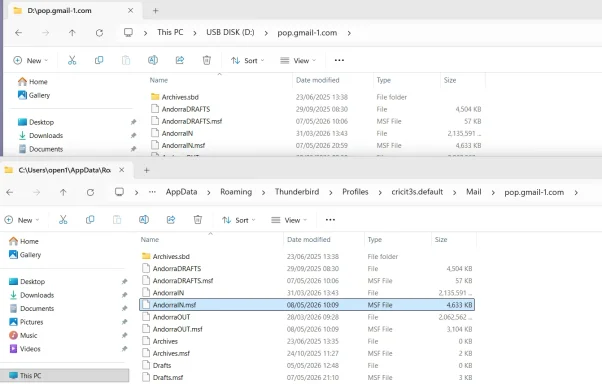
The 3rd attachement does not seems to be related but I do not know how to delete it....
Then I ran Full Scan. It found a number of problems (see attachment)
But it kept stopping during the process of cleaning and asking to restart (not sure if it mean Defender or the PC)
It did several times,
I investigated online and I found a similar problem related to MalwareBytes. I had it and Unistalled a few days ago
Windows Defender não abre
Could you help, please?
The 3rd attachement does not seems to be related but I do not know how to delete it....