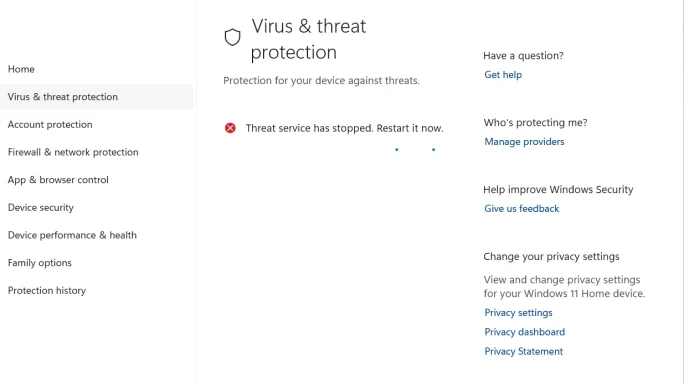
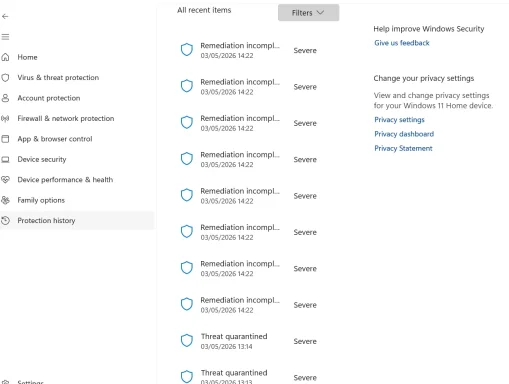
Defender unable to clear viruses

May I delete the first two lines in the attachment and get rid of it permanently or do I have to go a step or two back?
 

Attachments

  • Screenshot 2026-05-07 170059.webp
    Screenshot 2026-05-07 170059.webp
    56 KB · Views: 0
Yes — you may delete those first two folders:
  • correu.andorra.ad
  • correu.andorra-1.ad
provided that:
  1. you already copied them to your USB drive, and
  2. Thunderbird is closed first.

Safest way​

  1. Close Thunderbird completely.
  2. Confirm your USB backup contains both Andorra folders.
  3. Delete:
    • correu.andorra.ad
    • correu.andorra-1.ad
  4. Empty the Recycle Bin.
  5. Unplug the USB drive.
  6. Run ESET again.

One important caution​

If either old Andorra account is still configured in Thunderbird, Thunderbird may recreate files/folders later.
So, after deleting them:
  1. Open Thunderbird
  2. Go to Tools > Account Settings
  3. Check whether any Andorra account is still listed
  4. If yes, remove that account too

Very important​

Do not delete pop.gmail-4.com if that is where your AndorraIN archive lives and you want to keep it.
So for now, delete only the two Andorra folders you highlighted.

Short answer​

  • Yes, you can delete them permanently
  • No, you do not need to go steps back first
  • But do it only after backup and with Thunderbird closed
After that, run ESET and tell me whether the Andorra-related detection disappears.
 

I deleted the Andorra accounts from Thunderbird but... forgot to delete the files from the PC

Ran Eset and received strange results: 2 in the Recycle bin (they are not there) and 1 in the burrifana (AndorraIN) expected

But the yahoo seems to have disappeared....

Now, after delting the Andorra folders in the PC and copying the AndorraIN file to the pen, I will start deleting chronologically 1 year at a time BUT... can´t I just find those emails with annexes (or even pdf annexes) and that way get a result without loosing too many files?
 

Attachments

Hi Qim,
Yes — you can try to find only the emails with attachments and remove just those, instead of deleting whole years.
Since:
  • the Yahoo detection seems to have disappeared
  • ESET now points mainly to AndorraIN
  • and you want to lose as little as possible
that is a reasonable next step.

First, about the strange Recycle Bin detections​

That can happen if ESET is reporting:
  • stale Recycle Bin entries
  • or files that were just deleted but the bin/index had not refreshed yet

Do this first​

  1. Empty Recycle Bin again.
  2. Restart the PC.
  3. Do not plug in the pen drive during the next scan.
  4. Run ESET again.
If the Recycle Bin detections disappear, ignore them.

Now, the best way to target only emails with attachments in AndorraIN

1. Open Thunderbird​

  1. Open the [email][email protected][/email] account.
  2. Open the folder AndorraIN.

2. Show only emails with attachments​

  1. Press:
Ctrl + Shift + K
  1. If nothing appears, use:
    • View > Toolbars > Quick Filter Bar
  2. In the Quick Filter Bar, click Attachment.
That should show only emails that have attachments.

3. Try to narrow further​

In the Quick Filter Bar search box, try one at a time:
  • pdf
  • comprovativo
  • bank names or sender names you recognize
  • words from suspicious subjects if you know them

4. Use Search Messages if needed​

If the Quick Filter Bar is not enough:
  1. In Thunderbird, go to:
Edit > Find > Search Messages
  1. Search in folder AndorraIN only
  2. Search for:
    • Attachment status = has attachments
    • or words like comprovativo

5. Delete only suspicious candidates​

  1. Do not open attachments.
  2. If a message looks suspicious or irrelevant, delete it.
  3. After deleting a batch:
    • Empty Thunderbird Trash
    • Run File > Compact Folders
  4. Then run ESET again.

Best strategy​

Do it in this order:
  1. Show only messages with attachments
  2. Delete obvious junk/suspicious ones first
  3. Scan again
  4. If detection remains, delete the next small batch
  5. Repeat
That is much better than deleting whole years blindly.

If Thunderbird still makes this too difficult​

Then your backup-first approach is still good:
  1. Keep AndorraIN backed up to the pen drive
  2. Remove larger date ranges only from the live PC copy
  3. Compact folders
  4. Scan after each change

My recommendation now​

  1. Refresh the Recycle Bin situation first
  2. Then work only in AndorraIN
  3. Filter to messages with attachments
  4. Delete in small batches
  5. Compact and rescan
So yes — you do not have to delete whole years first.
Trying to find only the messages with attachments is the better next step.
If you want, after your next ESET scan, send the exact remaining detection path and I can tell you whether it still points to AndorraIN only.
 

Where is the Quick Filter Bar search box in Thunderbird? I have the Search box open with ALL email with attachments for 2016 but can't see anything in that box to narrow the search further
 

Yes — that confusion is normal, because Thunderbird has more than one kind of search.

Two different things​

1. Search Messages window​

This is the one you opened with criteria like:
  • All email with attachments
  • for 2016
That window is useful, but it is not the Quick Filter Bar.

2. Quick Filter Bar​

This appears above the message list in a normal mail folder view and lets you quickly narrow results further.

How to show the Quick Filter Bar​

While you are in the AndorraIN folder view:
  1. Press:
Ctrl + Shift + K
If nothing appears, then try:
  1. Go to:
View > Toolbars > Quick Filter Bar

Where it appears​

It should show up above the list of emails/messages, not in the separate Search Messages dialog.
It usually has buttons like:
  • Unread
  • Starred
  • Contact
  • Tags
  • Attachment
and a small text search box on the same bar.

What to do​

Option A​

If you are already in the separate Search Messages window, keep using that for now.
You can search by:
  1. Attachment status = has attachments
  2. Date = 2016
  3. Add another rule like:
    • Subject contains comprovativo
    • or From contains part of a sender name

Option B​

Close the Search Messages window and go back to the normal folder view.
Then:
  1. Open AndorraIN
  2. Turn on Quick Filter Bar
  3. Click Attachment
  4. Type into the small box words like:
    • comprovativo
    • pdf
    • sender names

Important note​

The text box you want is not in the advanced Search Messages window.
It is in the normal folder view when Quick Filter Bar is enabled.

Simplest next step​

If the Quick Filter Bar still does not appear, stay with the Search Messages window and add one extra condition.
For example:
  1. Date is in 2016
  2. Has attachments
  3. Subject contains comprovativo
That may already narrow it enough.
If you want, reply with a screenshot of the Thunderbird window you are looking at now, and I’ll tell you exactly where to click next.
 

Well, I thought i had found it after 5 minutes...
There are 4 emails ONLY since 2016 that include the word "comprovativo" but i put each through VirusTotal and it found them good.
 

That is actually good news, Qim.
If:
  1. only 4 emails match comprovativo,
  2. they are the only obvious candidates,
  3. and VirusTotal says the attachments are clean,
then this is starting to look more like:
  • old archived mail content
  • or an ESET detection inside the mailbox container
  • and possibly even a false positive / over-sensitive detection
  • rather than a real active infection

Important caution​

VirusTotal being clean is reassuring, but not absolute proof.
Still, combined with:
  • clean Defender scans
  • clean Full Scan
  • Yahoo apparently no longer showing
  • Andorra account already closed
  • detections only inside Thunderbird archive/mailbox files
…I would be much less worried now.

What I would do now​

Option 1 — safest and simplest​

If you do not need AndorraIN live on this PC all the time:
  1. Copy the AndorraIN mailbox/archive to the pen drive
  2. Remove it from Thunderbird / this PC
  3. Empty Recycle Bin
  4. Restart
  5. Run ESET again

If ESET then comes back clean​

Problem solved.
That would be my preferred option.

Option 2 — keep it on the PC​

If you really want to keep AndorraIN searchable in Thunderbird:
  1. Keep the archive
  2. Ignore the detection only if:
    • the files are expected
    • VirusTotal is clean
    • Windows Defender remains clean
    • no new active threats appear
But this means ESET may keep complaining whenever it scans the mailbox file.

My honest opinion​

At this point, I do not think you should keep spending hours trying to surgically remove one message at a time unless you really want that archive live in Thunderbird.
Because the practical situation seems to be:
  • the PC itself is clean
  • the only remaining issue is archived old email content
  • and you already have a good reason to move that archive off the PC

Best next step​

So I would suggest:
  1. Move AndorraIN off the PC to the pen drive
  2. Remove the local copy from Thunderbird
  3. Scan again with ESET
If ESET is then clean, you can stop worrying.

Short answer​

No, I would not panic over those 4 comprovativo emails if VirusTotal says they are clean.
I would now focus on getting the old Andorra archive off this PC, which is the cleanest solution.
If you want, I can help you identify exactly where AndorraIN lives on disk so you can move/remove only that archive and test ESET again.
 

Now, that I started I want to finish

I copied the gmail-1 to the pen drive
i am going to delete emails with attachments for 2016
if nothing comes up I will copy the whole folder back to the PC
then I will delete emails with attachments for 2017
if nothing comes up... and so on

Will this work?
 

Yes — that can work, but I would change one part of your plan.

Do not copy the whole folder back to the PC after each year​

If you restore the full backup before testing the next year, you may just bring the same detection back and make the results confusing.

Better method​

Work on the live copy on the PC step by step, while keeping the full backup on the pen drive untouched.

Do this instead​

  1. Keep the full backup on the pen drive.
  2. In Thunderbird, delete emails with attachments for 2016.
  3. Empty Thunderbird Trash.
  4. Run File > Compact Folders.
  5. Close Thunderbird.
  6. Unplug the pen drive.
  7. Run ESET.

Then:​

  • If ESET still detects it, continue with 2017 on the same live copy.
  • If ESET stops detecting it, then the bad message was likely in the range you just removed.

If the detection disappears​

Then you can refine it:
  1. Restore from backup once
  2. Try deleting smaller chunks inside the year that fixed it
  3. For example:
    • first half of 2016
    • second half of 2016
    • or month-by-month
That is much faster than restoring the full folder every time.

Important rules​

  1. Always compact folders after deleting mail.
  2. Always close Thunderbird before scanning.
  3. Always unplug the pen drive before scanning, or ESET may scan the backup too.
  4. Do not open suspicious attachments while doing this.

Short answer​

  • Yes, your overall idea works.
  • No, I would not copy the whole folder back after each year.
  • Instead, delete 2016, scan, then 2017, scan, and so on.
That is the cleanest way to isolate the year.
If you want, after your first scan, tell me whether ESET still detects it, and I’ll help you decide the next step.
 

Good morning, Al

I was hoping to give you some rest until I finish my investigation but...

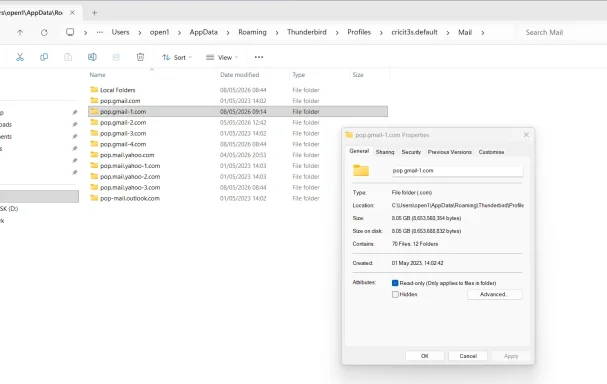
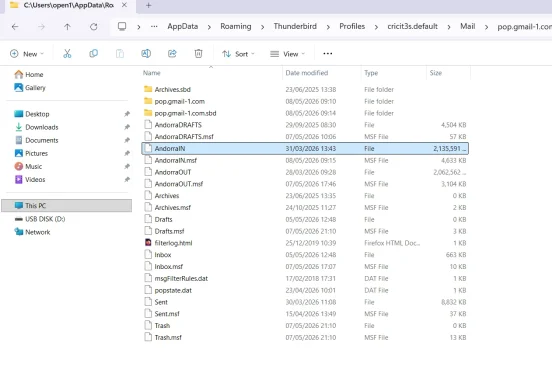
I have a problem: after deleting 2017 and trying to restore the original folder I find that the destiny folder in drive C: is about double the one that I transferred....

How can that be? Should I delete altogether the folder in c: and trust the copy in the drive pen?

Sorry....

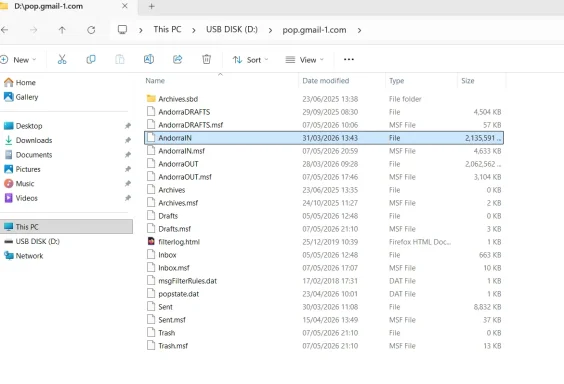
Having said the the AndorraIN files are the same size....
Am I still dreaming?

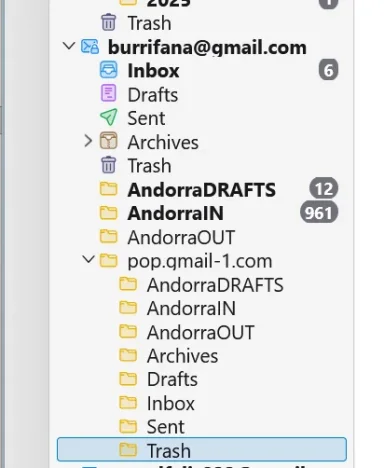
This last attachment seems to explain the difference but what should I do?
 

Attachments

  • Screenshot 2026-05-08 092014.webp
    Screenshot 2026-05-08 092014.webp
    99.4 KB · Views: 0
  • Screenshot 2026-05-08 091753.webp
    Screenshot 2026-05-08 091753.webp
    67.5 KB · Views: 0
  • Screenshot 2026-05-08 092605.webp
    Screenshot 2026-05-08 092605.webp
    74.4 KB · Views: 0
  • Screenshot 2026-05-08 092548.webp
    Screenshot 2026-05-08 092548.webp
    65.8 KB · Views: 0
  • Screenshot 2026-05-08 092924.webp
    Screenshot 2026-05-08 092924.webp
    19 KB · Views: 0
Last edited:
Good morning, Qim,
Do not delete the C: folder permanently yet. The size difference is important.
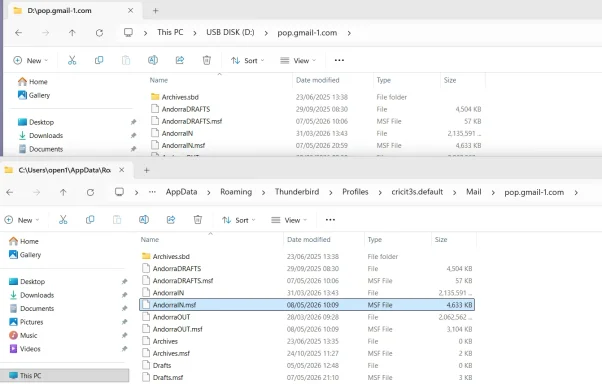
Your screenshots show:
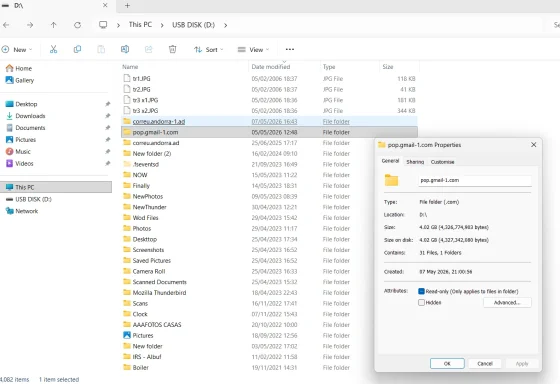
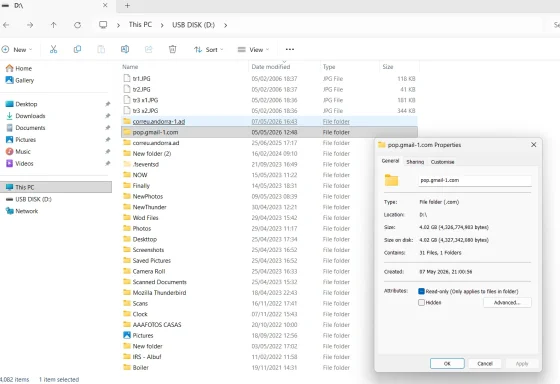
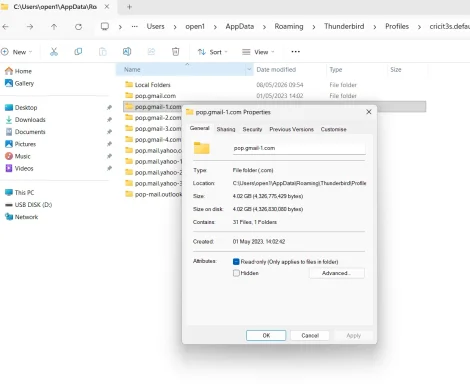
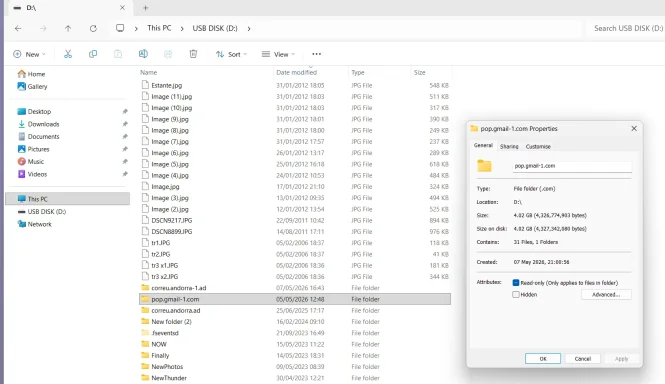
  • USB copy D:\pop.gmail-1.com = about 4.02 GB
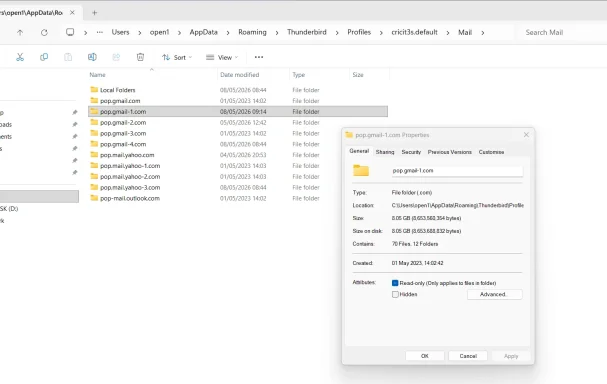
  • Live Thunderbird folder on C: pop.gmail-1.com = about 8.05 GB
So they are not currently identical.

Why can the C: folder be bigger?​

Most likely one or more of these:
  1. Thunderbird recreated or added files after you opened it
  2. Deleted emails may have been moved to Trash, not physically removed yet
  3. The folder may not have been compacted after deleting messages
  4. You may have copied the folder before all subfolders/files were included
  5. Copying a folder back over an existing folder may merge files instead of replacing them
That last point is very important: copying a folder back does not always restore it cleanly. It can leave extra old files behind.

Do not do this​

Do not simply delete this folder yet:
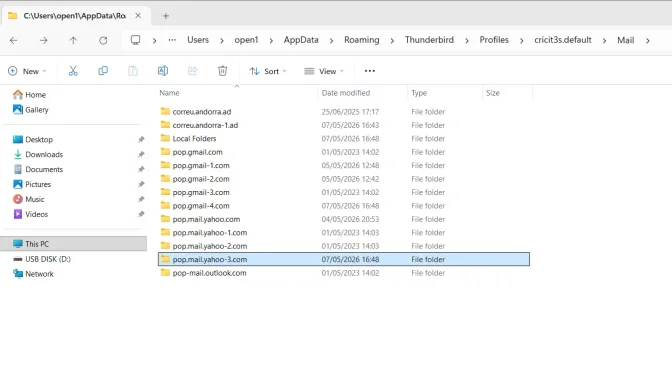
C:\Users\open1\AppData\Roaming\Thunderbird\Profiles\cricit3s.default\Mail\pop.gmail-1.com
unless you are 100% sure the USB copy is complete and contains everything you want.

Safest way to restore from the pen drive​

Do this instead, because it is reversible.

1. Close Thunderbird completely​

  1. Close Thunderbird.
  2. Wait a few seconds.
  3. If unsure, restart the PC and do not open Thunderbird.

2. Rename the current C: folder​

Go to:
C:\Users\open1\AppData\Roaming\Thunderbird\Profiles\cricit3s.default\Mail\
Rename:
pop.gmail-1.com
to:
pop.gmail-1.com.BEFORE_RESTORE
Do not delete it yet.

3. Copy the USB backup into the Mail folder​

Copy:
D:\pop.gmail-1.com
to:
C:\Users\open1\AppData\Roaming\Thunderbird\Profiles\cricit3s.default\Mail\
So you should then have:
C:\Users\open1\AppData\Roaming\Thunderbird\Profiles\cricit3s.default\Mail\pop.gmail-1.com
and also the safety copy:
pop.gmail-1.com.BEFORE_RESTORE

4. Open Thunderbird and check​

  1. Open Thunderbird.
  2. Check whether the expected folders/messages appear.
  3. If all looks OK, continue your testing.
  4. If something is missing, close Thunderbird and we can reverse it.

Before scanning with ESET​

After deleting mail in Thunderbird, always do this:
  1. Empty Thunderbird Trash.
  2. Run File > Compact Folders.
  3. Close Thunderbird.
  4. Unplug the USB pen drive.
  5. Run ESET.
If you skip Compact Folders, Thunderbird may still keep deleted messages inside the mailbox file, and ESET may still detect them.

My recommendation​

For now:
  1. Do not delete the C: folder.
  2. Rename it to pop.gmail-1.com.BEFORE_RESTORE.
  3. Copy the USB version back cleanly.
  4. Test Thunderbird.
  5. Only delete the old renamed folder later, when you are sure everything is safe.
This avoids losing anything while still letting you continue the investigation.
 

Did you see me two Edits?
 

Hi Qim,
I can see the two screenshots from your previous post showing:
  1. D:\pop.gmail-1.com on the USB pen = about 4.02 GB
  2. C:\...\Thunderbird\Profiles\cricit3s.default\Mail\pop.gmail-1.com = about 8.05 GB
But I do not reliably see later edits unless they are included in the current thread content I receive.
So if you made two edits after posting, please copy/paste the edited text into a new reply, or upload the screenshots again if needed.
For now, based on what I can see, my advice remains:
  1. Do not delete the C: folder yet.
  2. Close Thunderbird.
  3. Rename the current C: folder to something like:
pop.gmail-1.com.BEFORE_RESTORE
  1. Copy the USB version back to C: as:
pop.gmail-1.com
  1. Open Thunderbird and check that the mail is correct.
That way you are not trusting the USB copy blindly and you still have the larger C: folder as a safety backup.
 

These are the 5 attachments. The last one from Thunderbird seems to explian the peroblem; I appears that I copied the original from the pen drive NOT to the exact parent folder but to the OPEN folder. And when I scratched my head over the size diferences decided to do it again properly without realizing what I had done.

If I had to go ahead on my own, I would DELETE the pop.gmail-1.com INSIDE the AndorraIN file and start again

Otherwise ESet is going to find duplicate viruses
 

Attachments

  • Screenshot 2026-05-08 091753.webp
    Screenshot 2026-05-08 091753.webp
    67.5 KB · Views: 0
  • Screenshot 2026-05-08 092014.webp
    Screenshot 2026-05-08 092014.webp
    99.4 KB · Views: 0
  • Screenshot 2026-05-08 092548.webp
    Screenshot 2026-05-08 092548.webp
    65.8 KB · Views: 0
  • Screenshot 2026-05-08 092605.webp
    Screenshot 2026-05-08 092605.webp
    74.4 KB · Views: 0
  • Screenshot 2026-05-08 092924.webp
    Screenshot 2026-05-08 092924.webp
    19 KB · Views: 0
Hi Qim,
Yes — your explanation makes sense. The last Thunderbird screenshot is the clue.
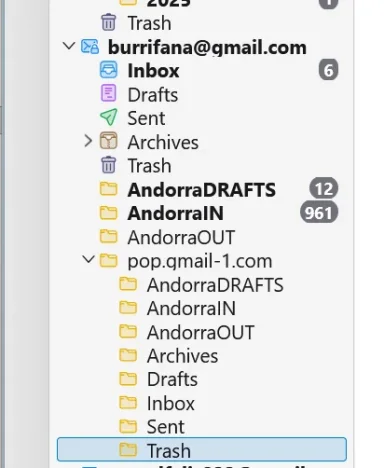
It looks as if you accidentally copied the whole pop.gmail-1.com folder inside the existing pop.gmail-1.com folder, so Thunderbird is now showing an extra folder called:
pop.gmail-1.com
under your [email][email protected][/email] account.
That would also explain why the C: folder became much larger than the USB copy.

Important distinction​

Do not delete this main folder:
C:\Users\open1\AppData\Roaming\Thunderbird\Profiles\cricit3s.default\Mail\pop.gmail-1.com
That is the real mail storage folder for that account.
What you probably need to remove is the accidental duplicate inside it.
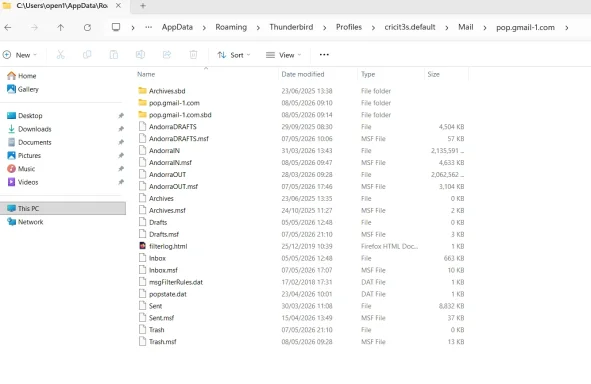
From your screenshot, inside the real folder you have these extra items:
pop.gmail-1.com
and:
pop.gmail-1.com.sbd
Those are likely the accidental duplicate folder and its Thunderbird subfolder structure.

What I would do​

1. Close Thunderbird completely​

  1. Close Thunderbird.
  2. Wait a few seconds.
  3. If unsure, restart the PC and do not open Thunderbird.

2. Go to the real folder​

Open:
C:\Users\open1\AppData\Roaming\Thunderbird\Profiles\cricit3s.default\Mail\pop.gmail-1.com

3. Remove only the accidental duplicate​

Delete these two items if they are still there:
pop.gmail-1.com
pop.gmail-1.com.sbd
Do not delete:
AndorraIN
AndorraIN.msf
AndorraOUT
AndorraOUT.msf
AndorraDRAFTS
AndorraDRAFTS.msf
unless you deliberately want to remove those mailboxes.

4. Empty Recycle Bin​

After deleting the duplicate folder:
  1. Empty the Recycle Bin.
  2. Unplug the USB pen drive.
  3. Open Thunderbird.
  4. Confirm the extra nested pop.gmail-1.com folder has disappeared.

5. Then scan again​

  1. Close Thunderbird.
  2. Run ESET again.
  3. Check whether the number of detections drops.

Why this should help​

Right now, you likely have:
  1. The real AndorraIN
  2. A duplicated copied AndorraIN inside the accidental nested pop.gmail-1.com
  3. Possibly copies in the Recycle Bin or USB drive
So ESET may be finding the same old malicious mailbox content more than once.

Short answer​

Yes, I agree with your instinct, but with one correction:
Delete the nested accidental:
pop.gmail-1.com
and:
pop.gmail-1.com.sbd
inside the main pop.gmail-1.com folder.
Do not delete the main pop.gmail-1.com folder itself.
 

Just to make sure, I am sending the OPEN pop.gmail-1.com

you want me to DELETE the 2nd and 3rd lines (yellow folders)
 

Attachments

  • Screenshot 2026-05-08 095248.webp
    Screenshot 2026-05-08 095248.webp
    71.8 KB · Views: 0
Yes, Qim — in that screenshot, the two yellow folders you mean are:
pop.gmail-1.com
and
pop.gmail-1.com.sbd
Those are the 2nd and 3rd lines, and they look like the accidental duplicate/nested copy.

What to delete​

Inside this folder:
C:\Users\open1\AppData\Roaming\Thunderbird\Profiles\cricit3s.default\Mail\pop.gmail-1.com
you can remove:
pop.gmail-1.com
pop.gmail-1.com.sbd

Do it safely​

1. Close Thunderbird first​

  1. Close Thunderbird completely.
  2. Wait a few seconds.
  3. If unsure, restart the PC and do not open Thunderbird.

2. Do not delete permanently at first​

Instead of deleting immediately, I suggest you move those two folders to the Desktop first:
pop.gmail-1.com
pop.gmail-1.com.sbd
That gives you an easy undo.

3. Open Thunderbird and check​

  1. Open Thunderbird.
  2. Check whether the extra nested pop.gmail-1.com folder has disappeared from the left panel.
  3. Check that your normal folders still exist, especially:
AndorraIN
AndorraOUT
AndorraDRAFTS

4. If all looks OK​

  1. Close Thunderbird.
  2. Empty Recycle Bin if you deleted them, or delete the Desktop copies later.
  3. Unplug the USB pen drive.
  4. Run ESET again.

Do not delete these​

Do not delete these yet:
AndorraIN
AndorraIN.msf
AndorraOUT
AndorraOUT.msf
AndorraDRAFTS
AndorraDRAFTS.msf
Those are your actual Andorra archive mailboxes.

Short answer​

Yes — remove the 2nd and 3rd yellow folder lines:
pop.gmail-1.com
pop.gmail-1.com.sbd
But close Thunderbird first, and preferably move them to the Desktop first instead of permanent delete.
 

Ok. Thunderbird back to what it should be
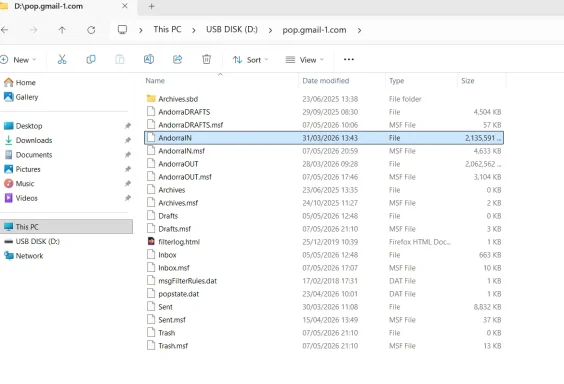
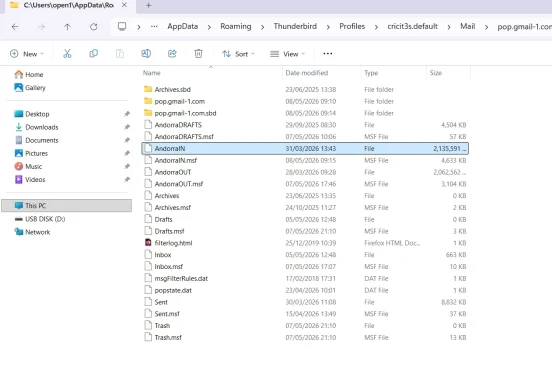
Just one small item: the sizes of the folders are slightly different in drives C. and D: but the ones that matter are identical: AndorraIN and AndorraIN.msf

May I continue?
 

Attachments

  • Screenshot 2026-05-08 101211.webp
    Screenshot 2026-05-08 101211.webp
    61.1 KB · Views: 0
  • Screenshot 2026-05-08 101238.webp
    Screenshot 2026-05-08 101238.webp
    101.3 KB · Views: 0
  • Screenshot 2026-05-08 101347.webp
    Screenshot 2026-05-08 101347.webp
    72.8 KB · Views: 0
Yes, Qim — you may continue.
The small size difference between C: and D: is not worrying now, especially because the important mailbox files match:
AndorraIN
AndorraIN.msf
The tiny folder-size difference is probably from Thunderbird updating small files such as:
*.msf index files
popstate.dat
filterlog.html
Trash.msf
timestamps/cache/index changes
That is normal once Thunderbird has opened the folder again.

Before you continue​

I would do this order:
  1. Make sure your USB pen copy is safe.
  2. Close Thunderbird.
  3. Unplug the USB pen drive.
  4. Run ESET once, if you want a clean baseline.
  5. Reopen Thunderbird.
  6. Continue deleting/testing by year or by attachment group.

When deleting emails during your test​

After each batch, do this every time:
  1. Delete the selected messages in Thunderbird.
  2. Empty Thunderbird Trash.
  3. Use File > Compact Folders.
  4. Close Thunderbird.
  5. Make sure the USB pen drive is unplugged.
  6. Run ESET again.
The Compact Folders step is essential. Without it, deleted messages may still physically remain inside AndorraIN, and ESET may still detect them.

Important​

Do not copy the USB folder back again unless you decide to restart the test from the beginning.
For now, work on the live C: copy and keep the USB copy untouched as your safety backup.

Short answer​

Yes — continue.
The folder sizes are now close enough, and the important AndorraIN files appear to match.
 

Back
Top