

Microsoft Defender Offline Scan in Windows 11 and Windows 10 is launched from Windows Security under Virus & threat protection > Scan options, where choosing Microsoft Defender Antivirus offline scan restarts the PC and scans before normal Windows loads. That simple path matters because the feature is not a second antivirus product or a nostalgic rescue disk; it is Microsoft’s built-in answer to malware that behaves differently once Windows is awake. In 2026, the most useful thing about Defender Offline is not that it is dramatic, but that it is boringly integrated. The catch is that integration only helps if users understand what the tool can and cannot do.
A normal antivirus scan runs in the operating system it is trying to judge. That is usually fine, because most unwanted software behaves like ordinary software: it lands on disk, starts a process, writes settings, phones home, and leaves evidence. Microsoft Defender Antivirus is built to catch that work in real time, with cloud protection, signatures, behavioral detection, and the rest of the modern security stack.
The uncomfortable edge case is malware that does not want to play by Windows’ normal rules. Rootkits, boot-level tampering, malicious drivers, and persistence mechanisms that load early can make the live operating system a bad courtroom. The judge, the witness, and the suspect are all standing in the same room.
Microsoft Defender Offline exists for that case. It restarts the machine and runs from outside the usual Windows environment, using the Windows Recovery Environment rather than the fully loaded OS. That gives Defender a cleaner angle on threats that may be trying to hide behind the very system services and drivers a normal scan depends on.
That does not make it magic. It does make it a useful escalation step when the same detection returns after every reboot, when Defender keeps quarantining the same family of malware, or when a machine behaves as if something is starting before the desktop appears.
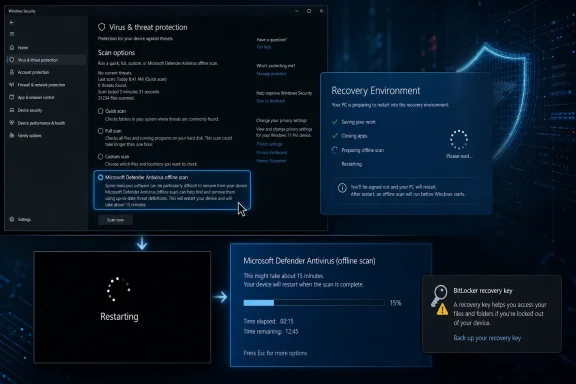
The reliable way in is still the Start menu. Search for Windows Security, open the app, and select Virus & threat protection. From there, the relevant path is Scan options, then Microsoft Defender Antivirus offline scan, then Scan now. Windows will warn that it needs to restart.
The Settings path differs slightly between Windows versions. On Windows 11, Microsoft places Windows Security under Settings > Privacy & security > Windows Security. On Windows 10, it lives under Settings > Update & Security > Windows Security. Either route ultimately opens the same Windows Security front end.
There is also a direct route for users who like command-style shortcuts. The URI
The older mental model of downloading a rescue scanner, burning media, and booting from it is not the default path anymore. That model still exists in the broader security world, and in some enterprise or incident-response scenarios it remains useful. But for most Windows 10 and Windows 11 users, Microsoft has deliberately moved the first escalation path into the product they already have.
There are legitimate reasons Defender’s real-time protection may not be active. The most common is that a third-party antivirus product is installed and registered with Windows Security, causing Microsoft Defender Antivirus to move out of the primary role. On managed work or school devices, administrators can also enforce policies that hide, disable, or lock certain settings.
Then there is the more suspicious scenario: malware tries to turn protection off. That is why Microsoft added Tamper Protection, which is designed to prevent unauthorized changes to key Defender settings. A user with administrator rights can still make changes through approved Windows interfaces, but random software is not supposed to quietly switch off the alarms.
This is where the security UI can feel contradictory. A grayed-out setting is not always a sign of infection; sometimes it is a sign that a policy or protection layer is doing its job. For home users, that distinction is annoying. For administrators, it is the difference between a compromised endpoint and a controlled endpoint.
Microsoft also has a user-friendly safety net: if real-time protection is manually turned off, Windows generally turns it back on after a short period. That is not a substitute for proper configuration, but it reflects Microsoft’s view that users should not be able to accidentally leave the front door open forever.
The feature guards settings such as Real-time protection and Cloud-delivered protection. Those are precisely the controls attackers would like to change before dropping payloads, adding exclusions, or staging persistence. If every process with sufficient local cleverness could flip those switches, Defender’s other detection layers would be working under protest.
For a home user, the practical advice is simple: leave Tamper Protection on unless you are troubleshooting a specific Defender setting and understand why you are changing it. For IT pros, the answer is more layered, because enterprise policy, Microsoft Intune, Group Policy, Defender for Endpoint, and local UI state can all influence what a user sees.
The key point is that Tamper Protection is not a malware scanner. It is a guardrail around the scanner’s settings. It will not remove a rootkit, but it can make it harder for malware to prepare the ground before Defender gets a chance to act.
That distinction matters because users often treat every security toggle as if it performs the same kind of protection. It does not. Real-time protection watches activity. Cloud-delivered protection improves verdicts. Tamper Protection defends the configuration. Defender Offline changes the battlefield.
The path is straightforward: open Windows Security, select Virus & threat protection, choose Scan options, pick Full scan, and select Scan now. A quick scan focuses on common locations where threats are found. A full scan is broader and more patient.
That patience can be useful. Many infections are not stealthy boot-level specimens; they are unwanted apps, browser hijackers, cracked-software passengers, malicious scripts, or commodity trojans sitting in ordinary places. A full scan gives Defender a chance to deal with those without invoking the recovery environment.
There is also a custom scan option for cases where the user already knows the suspicious folder, removable drive, or downloaded archive. It is faster, but narrower. Custom scans are good for suspicion; full scans are better for uncertainty.
The offline scan earns its place when the problem survives ordinary cleanup. If Defender reports removal and the same detection returns after reboot, or if the machine appears to be defending the malware from inside Windows, then the disruption of an offline scan becomes worth it.
The machine leaves the normal Windows session and boots into a recovery-based environment where Microsoft Defender Offline can run without the full operating system loaded. That is why users should save open files before starting. Unsaved work can be lost, and there is no virtue in beginning malware cleanup by creating a data-loss problem.
The scan interface may look different from a normal Windows Security scan. That is expected. Users accustomed to the polished Windows 11 settings aesthetic may be surprised by the more utilitarian recovery environment, but appearance is not the test. The important thing is that the scan starts, runs, and returns the machine to Windows afterward.
Microsoft has described the process as taking roughly 15 minutes, though real-world timing depends on hardware, storage size, and the state of the machine. A fast NVMe-equipped desktop may move quickly. An older Windows 10 laptop with a large hard drive and years of accumulated files may not.
The rule during the scan is simple: do not force a shutdown unless there is a genuine emergency. Interrupting recovery operations is rarely a good idea, and malware cleanup is exactly the wrong moment to add filesystem uncertainty to the mix.
That is not a bug in the ordinary sense. BitLocker is doing what disk encryption is supposed to do: protecting the drive when the boot context changes. But from the user’s perspective, it can turn a malware scan into a sudden panic if the recovery key is not available.
For home users, this means checking the Microsoft account where recovery keys are often backed up, or whatever location was used when BitLocker or device encryption was enabled. For businesses, it means confirming that keys are escrowed in the expected management system before asking a user to run the scan remotely.
This is one of those places where consumer simplicity and enterprise security collide. Microsoft has made the offline scan easy to launch, but encryption still has rules. A reboot outside the expected path can trigger those rules.
The practical lesson is not to avoid Defender Offline on encrypted systems. It is to prepare. Save work, verify recovery-key access, suspend BitLocker if appropriate, run the scan, and then restore the normal encryption posture.
For many users, WinRE is invisible until something goes wrong. It is the environment behind startup repair, reset options, recovery tools, and this offline scan. If it has been disabled by an administrator, damaged by partition changes, or misconfigured during cloning and imaging, Defender Offline may fail before it meaningfully begins.
This matters especially on enthusiast systems. Dual-boot experiments, partition resizing, aggressive cleanup tools, and customized deployment images can all disturb recovery partitions. The machine may appear healthy until a feature that depends on WinRE suddenly does nothing.
Administrators can check WinRE status with the
The broader lesson is that Defender Offline is not a standalone miracle worker. It is a Windows feature built on Windows plumbing. When the plumbing is broken, the security feature can fail silently or confusingly.
Protection history shows detections and actions Defender has taken, such as quarantine, removal, or allowed items. It is not just a comfort screen; it is the record that separates a scan that found nothing from a scan that found and remediated a threat. For support work, that distinction matters.
If Protection history shows that Defender removed a threat, the next step is observation. Does the same detection return? Does the suspicious behavior stop? Are browser settings, startup entries, scheduled tasks, or account sign-ins still abnormal? Malware cleanup is not finished merely because one scan completes.
If Protection history shows nothing, that does not automatically mean the machine is clean. It means this scan did not detect something it could act on. The symptoms may have another cause, the malware may be outside Defender’s current detection, or the user may be dealing with a compromised account, browser extension, network device, or cloud sync problem rather than a local Windows infection.
This is where Windows users need a more mature mental model of security. Antivirus results are evidence, not prophecy. A clean scan reduces suspicion; it does not repeal every other sign.
That matters for ransomware, credential theft, and business compromise scenarios. If an attacker has stolen passwords, added OAuth grants, moved laterally, or accessed cloud data, an offline scan of one PC is only one small piece of cleanup. The endpoint may be disinfected while the account remains compromised.
For home users, the practical escalation after repeated detections is account hygiene: change passwords from a clean device, enable multifactor authentication, review browser extensions, check startup apps, and remove unknown remote-access tools. For administrators, the escalation is broader: isolate the endpoint, review Defender for Endpoint or EDR telemetry, inspect persistence, check identity logs, and consider reimaging if trust cannot be restored.
There is a hard truth here that security vendors often soften: sometimes the cleanest remediation is reinstalling Windows from trusted media and restoring known-good data. Defender Offline is a powerful intermediate step, not a moral obligation to keep repairing a system forever.
That does not diminish the tool. It clarifies when to use it. A built-in offline scanner is exactly what you want before you reach for destructive recovery options, but it should not become an excuse to ignore signs of deeper compromise.
The offline scan remains available on supported Windows 10 versions, and the UI path is similar enough that most guidance applies to both Windows 10 and Windows 11. The difference is not the scan itself so much as the future around it. Windows 11 is where Microsoft’s consumer security posture is increasingly centered.
That does not mean every Windows 10 malware problem should trigger a new PC purchase. It does mean users should stop treating Windows 10 as timeless. If a machine is frequently infected, running old software, missing firmware updates, and unable to move forward, the offline scan may clean today’s mess without solving tomorrow’s exposure.
Windows 10 in S mode adds another wrinkle because some Virus & threat protection options are reduced compared with standard editions. That is part of the bargain of S mode: a more restricted environment with fewer knobs. The core scanning story remains, but the user’s room to maneuver is narrower.
For WindowsForum readers, the practical divide is clear. Keep using Defender Offline when the symptoms justify it, but do not confuse a successful scan with a long-term platform strategy. Security is not only about removing malware; it is also about running an OS with a future.
 Microsoft’s Best Malware Tool Is the One That Reboots You Out of Windows
A normal antivirus scan runs in the operating system it is trying to judge. That is usually fine, because most unwanted software behaves like ordinary software: it lands on disk, starts a process, writes settings, phones home, and leaves evidence. Microsoft Defender Antivirus is built to catch that work in real time, with cloud protection, signatures, behavioral detection, and the rest of the modern security stack.The uncomfortable edge case is malware that does not want to play by Windows’ normal rules. Rootkits, boot-level tampering, malicious drivers, and persistence mechanisms that load early can make the live operating system a bad courtroom. The judge, the witness, and the suspect are all standing in the same room.
Microsoft Defender Offline exists for that case. It restarts the machine and runs from outside the usual Windows environment, using the Windows Recovery Environment rather than the fully loaded OS. That gives Defender a cleaner angle on threats that may be trying to hide behind the very system services and drivers a normal scan depends on.
That does not make it magic. It does make it a useful escalation step when the same detection returns after every reboot, when Defender keeps quarantining the same family of malware, or when a machine behaves as if something is starting before the desktop appears.
The Offline Scan Is Built In, Not Downloaded
One of the more important 2026 updates for ordinary users is also the least glamorous: you generally should not be hunting the web for a separate “Defender Offline” download. On modern Windows 10 and Windows 11 systems, the offline scan is already inside Windows Security. The feature is part of the operating system’s security experience.The reliable way in is still the Start menu. Search for Windows Security, open the app, and select Virus & threat protection. From there, the relevant path is Scan options, then Microsoft Defender Antivirus offline scan, then Scan now. Windows will warn that it needs to restart.
The Settings path differs slightly between Windows versions. On Windows 11, Microsoft places Windows Security under Settings > Privacy & security > Windows Security. On Windows 10, it lives under Settings > Update & Security > Windows Security. Either route ultimately opens the same Windows Security front end.
There is also a direct route for users who like command-style shortcuts. The URI
windowsdefender://threatsettings/ can be pasted into Start or Run to jump directly toward Defender’s threat settings. It is the sort of small convenience that matters when you are walking a nervous family member through cleanup over the phone.The older mental model of downloading a rescue scanner, burning media, and booting from it is not the default path anymore. That model still exists in the broader security world, and in some enterprise or incident-response scenarios it remains useful. But for most Windows 10 and Windows 11 users, Microsoft has deliberately moved the first escalation path into the product they already have.
Real-Time Protection Is Still the Front Door
Before running an offline scan, users should check whether Defender is actually active. In Windows Security, go to Virus & threat protection, choose Manage settings under Virus & threat protection settings, and confirm that Real-time protection is on. If it is off, the offline scan may still be available, but the machine’s baseline defensive posture is already compromised.There are legitimate reasons Defender’s real-time protection may not be active. The most common is that a third-party antivirus product is installed and registered with Windows Security, causing Microsoft Defender Antivirus to move out of the primary role. On managed work or school devices, administrators can also enforce policies that hide, disable, or lock certain settings.
Then there is the more suspicious scenario: malware tries to turn protection off. That is why Microsoft added Tamper Protection, which is designed to prevent unauthorized changes to key Defender settings. A user with administrator rights can still make changes through approved Windows interfaces, but random software is not supposed to quietly switch off the alarms.
This is where the security UI can feel contradictory. A grayed-out setting is not always a sign of infection; sometimes it is a sign that a policy or protection layer is doing its job. For home users, that distinction is annoying. For administrators, it is the difference between a compromised endpoint and a controlled endpoint.
Microsoft also has a user-friendly safety net: if real-time protection is manually turned off, Windows generally turns it back on after a short period. That is not a substitute for proper configuration, but it reflects Microsoft’s view that users should not be able to accidentally leave the front door open forever.
Tamper Protection Makes Cleanup Less Convenient on Purpose
Tamper Protection is one of those features that users notice mainly when it gets in the way. That is by design. Malware authors have long understood that the easiest way to beat a security product is not always to evade detection; sometimes it is simply to disable the detector.The feature guards settings such as Real-time protection and Cloud-delivered protection. Those are precisely the controls attackers would like to change before dropping payloads, adding exclusions, or staging persistence. If every process with sufficient local cleverness could flip those switches, Defender’s other detection layers would be working under protest.
For a home user, the practical advice is simple: leave Tamper Protection on unless you are troubleshooting a specific Defender setting and understand why you are changing it. For IT pros, the answer is more layered, because enterprise policy, Microsoft Intune, Group Policy, Defender for Endpoint, and local UI state can all influence what a user sees.
The key point is that Tamper Protection is not a malware scanner. It is a guardrail around the scanner’s settings. It will not remove a rootkit, but it can make it harder for malware to prepare the ground before Defender gets a chance to act.
That distinction matters because users often treat every security toggle as if it performs the same kind of protection. It does not. Real-time protection watches activity. Cloud-delivered protection improves verdicts. Tamper Protection defends the configuration. Defender Offline changes the battlefield.
A Full Scan Is the Sensible First Escalation
Running Microsoft Defender Offline should not be the first move for every strange pop-up or sluggish laptop. A full scan is usually the better initial escalation because it checks files and programs while Windows is running, and it does so without interrupting the session. It is slower than a quick scan but less disruptive than forcing a reboot into recovery.The path is straightforward: open Windows Security, select Virus & threat protection, choose Scan options, pick Full scan, and select Scan now. A quick scan focuses on common locations where threats are found. A full scan is broader and more patient.
That patience can be useful. Many infections are not stealthy boot-level specimens; they are unwanted apps, browser hijackers, cracked-software passengers, malicious scripts, or commodity trojans sitting in ordinary places. A full scan gives Defender a chance to deal with those without invoking the recovery environment.
There is also a custom scan option for cases where the user already knows the suspicious folder, removable drive, or downloaded archive. It is faster, but narrower. Custom scans are good for suspicion; full scans are better for uncertainty.
The offline scan earns its place when the problem survives ordinary cleanup. If Defender reports removal and the same detection returns after reboot, or if the machine appears to be defending the malware from inside Windows, then the disruption of an offline scan becomes worth it.
The Reboot Is the Point, Not a Side Effect
When a user clicks Scan now for Microsoft Defender Antivirus offline scan, Windows warns that the device will restart. That restart is not a nuisance bolted onto the feature. It is the feature.The machine leaves the normal Windows session and boots into a recovery-based environment where Microsoft Defender Offline can run without the full operating system loaded. That is why users should save open files before starting. Unsaved work can be lost, and there is no virtue in beginning malware cleanup by creating a data-loss problem.
The scan interface may look different from a normal Windows Security scan. That is expected. Users accustomed to the polished Windows 11 settings aesthetic may be surprised by the more utilitarian recovery environment, but appearance is not the test. The important thing is that the scan starts, runs, and returns the machine to Windows afterward.
Microsoft has described the process as taking roughly 15 minutes, though real-world timing depends on hardware, storage size, and the state of the machine. A fast NVMe-equipped desktop may move quickly. An older Windows 10 laptop with a large hard drive and years of accumulated files may not.
The rule during the scan is simple: do not force a shutdown unless there is a genuine emergency. Interrupting recovery operations is rarely a good idea, and malware cleanup is exactly the wrong moment to add filesystem uncertainty to the mix.
BitLocker Turns a Security Scan Into a Recovery-Key Test
There is one caveat that Windows power users and administrators should treat as more than a footnote. If BitLocker protects the system drive, Microsoft recommends suspending BitLocker before running Microsoft Defender Offline. Otherwise, the reboot into the offline environment may prompt for the BitLocker recovery key.That is not a bug in the ordinary sense. BitLocker is doing what disk encryption is supposed to do: protecting the drive when the boot context changes. But from the user’s perspective, it can turn a malware scan into a sudden panic if the recovery key is not available.
For home users, this means checking the Microsoft account where recovery keys are often backed up, or whatever location was used when BitLocker or device encryption was enabled. For businesses, it means confirming that keys are escrowed in the expected management system before asking a user to run the scan remotely.
This is one of those places where consumer simplicity and enterprise security collide. Microsoft has made the offline scan easy to launch, but encryption still has rules. A reboot outside the expected path can trigger those rules.
The practical lesson is not to avoid Defender Offline on encrypted systems. It is to prepare. Save work, verify recovery-key access, suspend BitLocker if appropriate, run the scan, and then restore the normal encryption posture.
WinRE Is the Hidden Dependency Users Discover Only When It Fails
Microsoft Defender Offline relies on the Windows Recovery Environment. If WinRE is disabled or broken, the offline scan may not run properly. That dependency is easy to miss because Windows Security presents the scan as a simple option in the UI, not as a chain of boot and recovery components.For many users, WinRE is invisible until something goes wrong. It is the environment behind startup repair, reset options, recovery tools, and this offline scan. If it has been disabled by an administrator, damaged by partition changes, or misconfigured during cloning and imaging, Defender Offline may fail before it meaningfully begins.
This matters especially on enthusiast systems. Dual-boot experiments, partition resizing, aggressive cleanup tools, and customized deployment images can all disturb recovery partitions. The machine may appear healthy until a feature that depends on WinRE suddenly does nothing.
Administrators can check WinRE status with the
reagentc /info command and enable it with reagentc /enable when appropriate. That is not a step most casual users should need, but it is the first place an IT pro should look when a machine accepts the offline scan request and then simply returns to Windows.The broader lesson is that Defender Offline is not a standalone miracle worker. It is a Windows feature built on Windows plumbing. When the plumbing is broken, the security feature can fail silently or confusingly.
Protection History Is Where the Scan Becomes Evidence
After the offline scan finishes, Windows restarts normally. At that point, the user’s instinct is often to ask whether it “worked.” The place to answer that question is Protection history in Windows Security.Protection history shows detections and actions Defender has taken, such as quarantine, removal, or allowed items. It is not just a comfort screen; it is the record that separates a scan that found nothing from a scan that found and remediated a threat. For support work, that distinction matters.
If Protection history shows that Defender removed a threat, the next step is observation. Does the same detection return? Does the suspicious behavior stop? Are browser settings, startup entries, scheduled tasks, or account sign-ins still abnormal? Malware cleanup is not finished merely because one scan completes.
If Protection history shows nothing, that does not automatically mean the machine is clean. It means this scan did not detect something it could act on. The symptoms may have another cause, the malware may be outside Defender’s current detection, or the user may be dealing with a compromised account, browser extension, network device, or cloud sync problem rather than a local Windows infection.
This is where Windows users need a more mature mental model of security. Antivirus results are evidence, not prophecy. A clean scan reduces suspicion; it does not repeal every other sign.
Offline Scanning Is Not Incident Response in a Box
Microsoft Defender Offline is useful, but it occupies a narrow lane. It is designed for stubborn malware that benefits from Windows being live. It is not a complete incident-response platform, a forensic tool, or a guarantee that a compromised system can be trusted again.That matters for ransomware, credential theft, and business compromise scenarios. If an attacker has stolen passwords, added OAuth grants, moved laterally, or accessed cloud data, an offline scan of one PC is only one small piece of cleanup. The endpoint may be disinfected while the account remains compromised.
For home users, the practical escalation after repeated detections is account hygiene: change passwords from a clean device, enable multifactor authentication, review browser extensions, check startup apps, and remove unknown remote-access tools. For administrators, the escalation is broader: isolate the endpoint, review Defender for Endpoint or EDR telemetry, inspect persistence, check identity logs, and consider reimaging if trust cannot be restored.
There is a hard truth here that security vendors often soften: sometimes the cleanest remediation is reinstalling Windows from trusted media and restoring known-good data. Defender Offline is a powerful intermediate step, not a moral obligation to keep repairing a system forever.
That does not diminish the tool. It clarifies when to use it. A built-in offline scanner is exactly what you want before you reach for destructive recovery options, but it should not become an excuse to ignore signs of deeper compromise.
Windows 10 Users Are Running the Same Tool on a Shorter Clock
For Windows 10 users in 2026, Defender Offline has an additional context: the operating system is now in its long goodbye. Many PCs still run Windows 10 because the hardware is reliable, the workflow is familiar, or Windows 11’s requirements blocked an easy upgrade. Security tools still matter on those machines, but the platform’s lifecycle pressure is real.The offline scan remains available on supported Windows 10 versions, and the UI path is similar enough that most guidance applies to both Windows 10 and Windows 11. The difference is not the scan itself so much as the future around it. Windows 11 is where Microsoft’s consumer security posture is increasingly centered.
That does not mean every Windows 10 malware problem should trigger a new PC purchase. It does mean users should stop treating Windows 10 as timeless. If a machine is frequently infected, running old software, missing firmware updates, and unable to move forward, the offline scan may clean today’s mess without solving tomorrow’s exposure.
Windows 10 in S mode adds another wrinkle because some Virus & threat protection options are reduced compared with standard editions. That is part of the bargain of S mode: a more restricted environment with fewer knobs. The core scanning story remains, but the user’s room to maneuver is narrower.
For WindowsForum readers, the practical divide is clear. Keep using Defender Offline when the symptoms justify it, but do not confuse a successful scan with a long-term platform strategy. Security is not only about removing malware; it is also about running an OS with a future.
The 2026 Defender Offline Playbook Is Shorter Than the Panic
The most useful version of this advice is not a 30-step ritual. It is a disciplined sequence that keeps users from either underreacting to persistence or overreacting to every false alarm. Defender Offline belongs in the middle of that sequence, after basic checks and before destructive recovery.- Open Windows Security from the Start menu, then go to Virus & threat protection and confirm that Microsoft Defender’s real-time protection is active unless a trusted third-party antivirus is intentionally installed.
- Run a full scan first when the machine is usable, because many threats can be found and removed without rebooting into the recovery environment.
- Save all open work before launching Microsoft Defender Antivirus offline scan from Scan options, because the PC will restart and the scan runs outside the normal Windows session.
- Check BitLocker recovery-key access before scanning encrypted systems, because booting into the offline environment can require recovery-key entry if protection is not suspended.
- Review Protection history after Windows restarts, because that is where Defender records what it detected and what action it took.
- Treat repeated detections after an offline scan as a sign to escalate, whether that means account cleanup, professional incident response, or a clean reinstall from trusted media.
References
- Primary source: Technobezz
Published: 2026-06-02T15:20:06.465608
How to Run a Microsoft Defender Offline Scan in Windows 11 and 10 (2026) | Technobezz
When your antivirus keeps flagging the same infection, or a piece of malware reappears every time you reboot, a normal scan is not enough.www.technobezz.com - Official source: learn.microsoft.com
Microsoft Defender Offline scan in Windows - Microsoft Defender for Endpoint | Microsoft Learn
You can use Microsoft Defender Offline Scan straight from the Microsoft Defender Antivirus app. You can also manage how it's deployed in your network.learn.microsoft.com - Official source: support.microsoft.com
Scan an item with Windows Security - Microsoft Support
Find out how to scan files and folders in Windows with Windows Security.support.microsoft.com - Related coverage: makeuseof.com
How to Remove Malware Using Microsoft Defender's Offline Scan
Tricky malware? Use a Microsoft Defender Offline scan to remove it for good. www.makeuseof.com
- Official source: download.microsoft.com
Next gen ransomware protection with Windows 10 Creators Update EN US
PDF documentdownload.microsoft.com
- Related coverage: scscc.club
</rdf:Alt> </dc:title> <dc:description> <rdf:Alt> <rdf:li xml:lang="x-default"/> </rdf:Alt> </dc:description> <dc:creator> <rdf:Seq> <rdf:li>Microso
</rdf:Alt> </dc:description> <dc:creator> <rdf:Seq> <rdf:li>Microsoft Accountwww.scscc.club
- Related coverage: elhacker.info
- Official source: cdn-dynmedia-1.microsoft.com
