

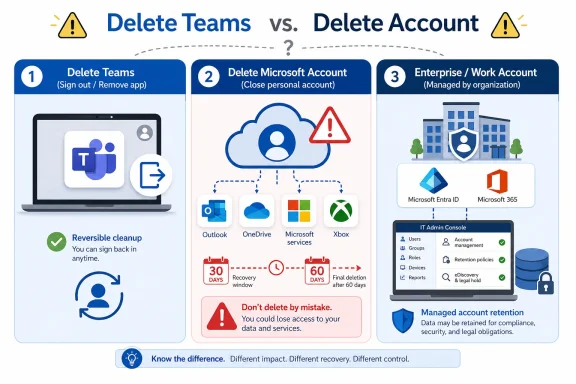
Deleting a Microsoft Teams Free account is not a Teams-only action: for personal users, Microsoft’s process closes the entire Microsoft account, marks it for closure, and permanently deletes its account data and content after the selected 30- or 60-day recovery window if it is not reopened. That is the uncomfortable truth behind a deceptively simple support question. “How do I delete my Teams account?” sounds like an app-cleanup task, but in Microsoft’s ecosystem it can become an identity, storage, subscription, email, and purchase-history decision. The safest answer is not to click faster; it is to know whether you are trying to leave Teams, remove a sign-in, or destroy the Microsoft account underneath it.
The distinction matters because Teams is not a standalone island. For personal users, Teams Free rides on a Microsoft account that may also hold Outlook, OneDrive, Skype, Xbox, Microsoft Store purchases, subscriptions, and cloud files. For work and school users, Teams is usually tied to an organization-managed Microsoft Entra account, where the user does not own the deletion switch and may not control retention, eDiscovery, export, or licensing policy. The practical risk is that users often reach for the most destructive tool to solve a local annoyance: an old account showing in Teams, an app that keeps launching, or a work identity still connected to Windows.
The most important fact in the whole process is also the one most likely to be missed: deleting a personal Teams Free account means closing the entire Microsoft account it is tied to. Microsoft’s own support language makes the architecture plain. To remove the Teams account for a personal user, the user must delete the associated Microsoft account; closing that account begins a 30- or 60-day reopen window, after which Microsoft deletes the account data and content.
That means this is not comparable to deleting a Slack workspace profile, removing a Zoom login from a laptop, or uninstalling a chat app from a phone. In the consumer Teams model, the “Teams account” is an expression of the Microsoft account. If that Microsoft account is also your Outlook.com address, your OneDrive storage identity, your Xbox identity, or the account used for Microsoft Store purchases, the Teams deletion process becomes a much larger act of account retirement.
ExpressVPN’s consumer guide correctly centers the distinction between three actions users often conflate: closing a Microsoft account, removing an account from Teams, and uninstalling Teams. Microsoft Support makes the same boundary visible from the platform side: signing out or removing an account from Teams clears local Teams app information, but it does not erase the Microsoft account itself. Uninstalling Teams removes software from a device; it does not delete chats, files, the cloud identity, or the Microsoft account.
That table is the operational heart of the story. Most people who say they want to “delete Teams” are actually describing one of the second or third rows. They want the app gone, the old job account gone, the startup behavior gone, or a stale sign-in gone. None of those require closing a Microsoft account.
The danger is not theoretical. A personal Microsoft account can be attached to paid services such as a Microsoft 365 subscription, Xbox Game Pass, Copilot Pro, or extra OneDrive storage. It can also be attached to an Outlook mailbox, OneDrive files, Skype access, Xbox identity, and Microsoft Store purchases. If a user treats account closure as an app-removal shortcut, the blast radius can extend well beyond Teams.
Microsoft’s closure process gives users a deliberate cooling-off period. The user chooses either a 30-day or 60-day recovery period before permanent deletion. During that window, signing back in can reopen the account. Once the recovery window passes, Microsoft says the account can no longer be recovered and the associated data and content are deleted.
That sounds merciful, and in one sense it is. The recovery period can save users who act too quickly. But it also creates a false sense of reversibility. The account is not gone immediately, but it is on a track toward irreversible deletion unless the user signs in again within the selected window. Anyone closing a Teams Free account should treat the decision as permanent from the moment they click the final closure control.
The actual closure workflow is intentionally frictional. Microsoft asks users to go to its account-closure page, choose the close-account option, sign in, verify the account if prompted, review the warnings, choose the 30-day or 60-day recovery period, click Next, tick boxes acknowledging the loss of access to account-related data, provide a reason, and then mark the account for closure. That is more than bureaucratic overhead. It is Microsoft forcing a user to confront that this is an identity deletion, not a Teams setting.
Those boxes matter because Teams is only one consumer surface. The same Microsoft account may hold email, calendar data, files, purchases, subscriptions, and service entitlements. If the account is an Outlook.com address, closing it can mean losing the mailbox attached to the identity. If it stores Teams files in OneDrive, deleting the account without downloading or deleting those files first can leave users discovering too late that the data they wanted was not in the Teams app at all.
The source guide’s framing is useful here: before deleting anything, users should identify the account type, export data where possible, check cloud storage, and review subscriptions. That is not just cautious language. It is the difference between removing clutter and burning down a digital identity.
For personal Teams Free users, the export flow is fairly direct. The user signs in to the Microsoft account privacy dashboard, scrolls to the Teams section, requests Chat history and Media as needed, and submits the request. Microsoft sends an email when the export file is ready. Depending on what exists in the account, the export experience may also include Contacts, Shared calendar events, Community join request messages, and privacy settings. Contacts download as a CSV file, while shared calendar events are exported as a JSON file.
That is the cleanest version of the story. It applies to personal Teams Free users who control their own Microsoft account. Even then, the export is not a full mental model of Teams storage. Chat and media exports are separate from shared files, and those files may sit in OneDrive. A user closing a Microsoft account should therefore check the Microsoft Teams Chat Files folder in OneDrive and download anything they want to keep before marking the account for closure.
Work and school accounts are more complicated because the organization, not the individual user, controls the identity and the data-governance layer. A work or school Teams account is typically an organization-managed Microsoft Entra account using the company’s or school’s domain. Microsoft Learn’s administrative documentation describes Teams access as something managed through licensing and service plans, while Microsoft’s broader compliance model gives organizations retention, eDiscovery, and export controls. The user’s intuition that “my chats are mine” collides with the enterprise reality that the account and much of the data lifecycle are governed by the tenant.
That means work or school users usually do not have the same personal self-service export path for Teams messages that Teams Free users have. If they need copies of chats, files, recordings, or other Teams material, the practical advice is to contact IT as early as possible before access is revoked. Waiting until after an account is disabled, a license is removed, or employment ends can turn a straightforward request into a compliance, retention, or permissions problem.
The storage map is also different in organizations. Channel files should be downloaded from the associated SharePoint site if the user still has permission. Chat files should be downloaded from OneDrive for work or school. Non-channel meeting recordings are in the organizer’s OneDrive. Channel meeting recordings are in the channel’s SharePoint site. Those locations are not merely technical trivia; they determine who can access, preserve, delete, or recover the content.
This is why “delete my Teams account” is a poor phrase for enterprise users. The organization may delete the user account entirely, remove only the Teams license, or disable Teams while keeping other Microsoft 365 services active. In all of those cases, chat history, channel messages, and files remain subject to the organization’s retention and compliance policies. The visible account may disappear from the user’s device, but the organizational record may remain exactly where policy says it should.
The process is straightforward but easy to skip. Sign in with the Microsoft account used to buy the subscription, review active services, select a subscription, choose Manage, and then choose Cancel. If the page shows “Turn on recurring billing” instead of Manage or Cancel, the subscription is already set to expire on the date shown and should not renew automatically. If the purchase was made through Apple, Google Play, Amazon, or another retailer, cancellation must happen through that provider rather than through Microsoft’s subscription controls.
This is a boring step until it becomes expensive. A user may think they are closing a dormant Teams account while leaving a Microsoft 365 family subscription, storage add-on, or gaming subscription in an uncertain state. The safer sequence is to cancel or turn off recurring billing first, wait until the cancellation is processed, and only then attempt account closure.
There is also a data dependency hiding inside subscription cleanup. Extra OneDrive storage may be the reason large Teams-related files, Outlook data, or other documents fit in the account at all. If the user cancels storage, downloads nothing, and later closes the account, there may be no clean rollback after the recovery window expires. Subscription review should therefore happen alongside data export, not after it.
Microsoft’s closure prompts warn about subscriptions, balances, and associated services because account closure is intentionally broad. The company is not offering a “delete Teams Free only” button for personal accounts. It is offering a Microsoft account retirement process with Teams as one of the attached services. Users should approach it the way they would approach closing a primary email address: with a checklist, not a shrug.
That does not mean users are powerless. They can sign out of Teams, remove a work or school account from Windows, leave certain external organizations through Microsoft’s account portal if that option is available, and uninstall the app. But they generally cannot delete their home organization account from Teams. If the account is still active in the tenant, it can continue to appear in Microsoft sign-in surfaces, especially if Windows still has the work or school identity connected at the system level.
This is the source of a familiar support loop: a user leaves a job or school, signs out of Teams, uninstalls Teams, reinstalls it, and still sees the old account. The problem is not the app alone. Windows can keep work or school accounts connected under system account settings, and Microsoft apps can reuse that connection. Removing the app does not necessarily remove the operating-system-level identity record.
For organizations, Microsoft Learn documents the administrative path more clearly than consumer help pages do. Admins can manage Teams access by assigning or removing a Teams product license. They can also turn off Teams access for an account. Disabling a Teams SKU can take about 24 hours to take effect, which matters when help desks are trying to distinguish a failed change from a pending one.
The subtlety is that removing Teams access is not the same as deleting the user. A company may want to disable Teams while preserving Exchange, OneDrive, records, or other Microsoft 365 services. A school may want to remove a Teams license while retaining the account for email or portal access. A regulated organization may need to preserve Teams data for legal or compliance reasons even after the user leaves.
That is why a work or school user asking IT to “delete my Teams” should be more precise. Do they want Teams access disabled? Do they want an account removed from a device? Do they need files exported? Do they need a mailbox, OneDrive, or SharePoint content transferred? Do they need a guest organization removed? Those are different administrative actions with different consequences.
Signing out of Teams removes account information from the Teams app until the user signs in again. On a computer or browser, the user opens Teams, selects the profile picture, and signs out. On mobile, the user opens the Teams app, goes through the profile or More menu into Settings, and signs out. But Microsoft’s support caveat is important: signing out on one device does not sign the user out of every device.
For personal Microsoft accounts, Microsoft also offers a broader “sign out everywhere” security function that ends active sessions across browsers, apps, and other devices using the same Microsoft account, with Xbox consoles treated differently. The process can take up to 24 hours. This is useful if Teams was used on multiple devices, a device was lost, or the user wants to make sure old sessions are no longer active. It is still not account deletion.
Old work or school accounts require a different cleanup path. Teams may keep showing old accounts because they are still connected through the Teams app, the browser, or Windows. If a user needs to leave a guest or other organization, Microsoft’s account portal may allow that for external organizations, though users cannot leave their home organization themselves. If the old account is the home organization account, IT owns the final cleanup.
Windows itself can keep a work or school account connected at the system level. To remove that connection, the user opens Settings, goes to Accounts, selects Access work or school, chooses the account, and disconnects it. This removes sign-in information from the device, but it does not delete the account in the organization. The organization may still retain the identity and related data according to its policies.
Uninstalling Teams is the simplest local cleanup. On Windows, the user quits Teams, opens Settings, goes to Apps and Installed apps, finds Microsoft Teams, opens the three-dot menu, and uninstalls. On Mac, the user quits Teams, opens Finder, goes to Applications, moves Microsoft Teams to Trash, and empties Trash. On iPhone, iPad, and Android, the standard app deletion or uninstall flow removes the app from the device.
The crucial point is that uninstalling Teams removes software, not cloud data. It does not delete the Microsoft account, Teams profile, chats, or cloud-stored files. That is a feature, not a bug, for anyone who merely wants to stop using Teams on one machine. It is a problem only if the user expected uninstalling to erase a record from Microsoft’s cloud.
For organizations, “deactivation” exists in practice but not as a consumer-style button. Admins can remove a Teams license or disable the Teams service plan while keeping other Microsoft 365 services assigned. That is a tenant administration decision, not a user preference. The organization decides whether the person still needs email, storage, office apps, SharePoint access, or other services.
This split is awkward because Teams straddles consumer and enterprise expectations. Consumers expect app-level deletion. Enterprises expect identity-governed access. Teams Free gives consumers an account model that behaves more like identity deletion, while Teams for work and school gives users an app experience governed by admin policy they may never see.
The practical result is support confusion. A personal user may search for “delete Teams account” and end up at a Microsoft account closure process that also affects Outlook and OneDrive. A work user may search the same phrase and discover they cannot delete the account at all. A former employee may uninstall Teams three times and still see the old tenant because the identity is connected through Windows or retained by the organization.
This is where Microsoft could make the product clearer. Teams should distinguish more aggressively between “remove this account from this app,” “disconnect this work or school identity from this device,” “leave this organization,” “disable Teams access,” and “close the Microsoft account.” The underlying architecture may be defensible; the language users encounter is still too easy to misread.
The wrong-account problem is common because users often have multiple Microsoft identities. A user may be signed into Teams with one email address and into the Microsoft account website with another. The fix is to check the email address shown in the top-right corner of the Microsoft account page and compare it with the account used in Teams. If the addresses do not match, sign out and sign back in with the correct Microsoft account before attempting closure.
Subscription blocking is another predictable failure point. Users must cancel subscriptions or turn off recurring billing before closing the account, then wait until the cancellation is processed. If Microsoft still sees an active paid service attached to the identity, account closure may not proceed cleanly. This is annoying, but it is also a safeguard against accidental service loss.
Verification is the hard stop. Microsoft may require the user to verify the account before closure, often through a code sent to email, phone, or an authenticator app. Account deletion cannot proceed until verification succeeds. If the user no longer controls the recovery email, phone number, or authenticator path, the deletion problem becomes an account-recovery problem.
There is also a specific waiting-period trap: if the user recently reset all sign-in verification details, Microsoft may require a 60-day wait before the account can be closed. That rule is inconvenient for legitimate users, but it is designed to slow down account takeover damage. A hijacker who changes security information should not be able to immediately close the victim’s account.
In many cases, the better troubleshooting move is to restate the goal. If the user wants Teams off the device, uninstall the app. If the user wants an old account gone from the sign-in list, sign out, remove the account from Teams, disconnect the work or school account from Windows, or contact the organization. If the user wants the Microsoft account itself gone, then and only then should the closure process be used.
After that window passes, the calculus changes. Microsoft’s account-closure policy says that once the reopen window expires, the account is permanently closed and the associated data and content are deleted. That is the point at which a Teams mistake becomes an identity-loss event. The user should not assume Microsoft can resurrect a personal account after the recovery window simply because the first step was framed as deleting Teams.
Work and school recovery is less predictable for the user because it depends on the organization’s admin settings, licenses, retention policies, legal holds, and permissions. A deleted user account may be restorable for a period under Microsoft 365 administrative controls, and OneDrive data has its own retention process, but the user typically cannot self-restore organization data. IT or compliance administrators decide what can be recovered and under what conditions.
The practical advice for employees and students is to act before access changes. If you know you are leaving an organization and need personal copies of permitted files, ask early. If you need meeting recordings, identify whether they are in the organizer’s OneDrive or a channel SharePoint site. If you need chat history, ask whether the organization can export it and whether policy allows release to you. Once the account is disabled or deleted, every step becomes slower and more dependent on policy.
For administrators, recovery planning should be part of offboarding rather than a panic afterthought. If Teams is central to project history, meeting records, or shared files, offboarding should specify where content lives, who owns it after the user leaves, which licenses can be removed, and which retention policies apply. The new Teams client may be the visible surface, but the durable record is spread across Microsoft 365.
If you are a personal Teams Free user, start with exports and storage. Use Microsoft’s Teams export experience for chat history, media, call logs, and supported calendar data. Check OneDrive’s Microsoft Teams Chat Files folder for shared files. Review Outlook data if the same Microsoft account is also your email identity. Then review subscriptions and recurring billing before deciding whether account closure is really necessary.
If you are a work or school user, start with ownership. The organization controls the Microsoft Entra account, Teams licensing, access, retention, and export permissions. Contact IT before access is revoked, especially if you need chats, files, meeting recordings, or other Teams data. If your only problem is a stale sign-in on a device, remove the work or school account from Windows or sign out of Teams rather than asking for account deletion.
If you are an admin, translate user language into technical action. “Delete Teams” may mean remove an app, remove a license, disable a service plan, revoke sessions, preserve data, delete a user, transfer OneDrive content, or remove a device connection. Treating all of those as the same request is how organizations lose evidence, break access, or leave old identities dangling in sign-in prompts.
The distinction matters because Teams is not a standalone island. For personal users, Teams Free rides on a Microsoft account that may also hold Outlook, OneDrive, Skype, Xbox, Microsoft Store purchases, subscriptions, and cloud files. For work and school users, Teams is usually tied to an organization-managed Microsoft Entra account, where the user does not own the deletion switch and may not control retention, eDiscovery, export, or licensing policy. The practical risk is that users often reach for the most destructive tool to solve a local annoyance: an old account showing in Teams, an app that keeps launching, or a work identity still connected to Windows.
 The Delete Button Is Really an Identity Button
The most important fact in the whole process is also the one most likely to be missed: deleting a personal Teams Free account means closing the entire Microsoft account it is tied to. Microsoft’s own support language makes the architecture plain. To remove the Teams account for a personal user, the user must delete the associated Microsoft account; closing that account begins a 30- or 60-day reopen window, after which Microsoft deletes the account data and content.That means this is not comparable to deleting a Slack workspace profile, removing a Zoom login from a laptop, or uninstalling a chat app from a phone. In the consumer Teams model, the “Teams account” is an expression of the Microsoft account. If that Microsoft account is also your Outlook.com address, your OneDrive storage identity, your Xbox identity, or the account used for Microsoft Store purchases, the Teams deletion process becomes a much larger act of account retirement.
ExpressVPN’s consumer guide correctly centers the distinction between three actions users often conflate: closing a Microsoft account, removing an account from Teams, and uninstalling Teams. Microsoft Support makes the same boundary visible from the platform side: signing out or removing an account from Teams clears local Teams app information, but it does not erase the Microsoft account itself. Uninstalling Teams removes software from a device; it does not delete chats, files, the cloud identity, or the Microsoft account.
| Action | What it does | What it does not do | Best used when |
|---|---|---|---|
| Delete or close Microsoft account | Marks a personal Microsoft account for closure and starts a 30- or 60-day recovery window | Does not merely remove Teams; it targets the whole Microsoft account | You truly want to retire the personal Microsoft account behind Teams Free |
| Remove account from Teams | Signs the account out or removes Teams information from that app or device | Does not delete the Microsoft account, and one-device sign-out does not sign out every device | Teams shows an old, secondary, or unwanted sign-in |
| Uninstall Teams | Removes the Teams app from the device | Does not delete the account, Teams profile, chats, or cloud-stored files | You want Teams off a PC, Mac, phone, or tablet |
The danger is not theoretical. A personal Microsoft account can be attached to paid services such as a Microsoft 365 subscription, Xbox Game Pass, Copilot Pro, or extra OneDrive storage. It can also be attached to an Outlook mailbox, OneDrive files, Skype access, Xbox identity, and Microsoft Store purchases. If a user treats account closure as an app-removal shortcut, the blast radius can extend well beyond Teams.
Teams Free Turns a Chat Cleanup Into a Microsoft Account Retirement
A personal Teams Free account is a Microsoft account the user created themselves. It may use an Outlook.com, Hotmail.com, Live.com, Gmail, or other email address. That flexibility is part of why account ownership becomes confusing: users may assume a Gmail-based Teams login is less deeply tied to Microsoft services than an Outlook.com login, but in Teams Free it is still a Microsoft account identity.Microsoft’s closure process gives users a deliberate cooling-off period. The user chooses either a 30-day or 60-day recovery period before permanent deletion. During that window, signing back in can reopen the account. Once the recovery window passes, Microsoft says the account can no longer be recovered and the associated data and content are deleted.
That sounds merciful, and in one sense it is. The recovery period can save users who act too quickly. But it also creates a false sense of reversibility. The account is not gone immediately, but it is on a track toward irreversible deletion unless the user signs in again within the selected window. Anyone closing a Teams Free account should treat the decision as permanent from the moment they click the final closure control.
The actual closure workflow is intentionally frictional. Microsoft asks users to go to its account-closure page, choose the close-account option, sign in, verify the account if prompted, review the warnings, choose the 30-day or 60-day recovery period, click Next, tick boxes acknowledging the loss of access to account-related data, provide a reason, and then mark the account for closure. That is more than bureaucratic overhead. It is Microsoft forcing a user to confront that this is an identity deletion, not a Teams setting.
Those boxes matter because Teams is only one consumer surface. The same Microsoft account may hold email, calendar data, files, purchases, subscriptions, and service entitlements. If the account is an Outlook.com address, closing it can mean losing the mailbox attached to the identity. If it stores Teams files in OneDrive, deleting the account without downloading or deleting those files first can leave users discovering too late that the data they wanted was not in the Teams app at all.
The source guide’s framing is useful here: before deleting anything, users should identify the account type, export data where possible, check cloud storage, and review subscriptions. That is not just cautious language. It is the difference between removing clutter and burning down a digital identity.
The Data Is Split Across Teams, OneDrive, SharePoint, and Policy
One of the most misleading assumptions about Teams is that “Teams data” lives in one place. It does not. In Teams Free, Microsoft allows users to export chat history, media, call logs, and certain calendar data through the Teams export experience on the Microsoft account privacy dashboard. But files shared in Teams Free are stored separately in the Microsoft Teams Chat Files folder in OneDrive. That means a Teams export and a OneDrive file backup are not substitutes for one another.For personal Teams Free users, the export flow is fairly direct. The user signs in to the Microsoft account privacy dashboard, scrolls to the Teams section, requests Chat history and Media as needed, and submits the request. Microsoft sends an email when the export file is ready. Depending on what exists in the account, the export experience may also include Contacts, Shared calendar events, Community join request messages, and privacy settings. Contacts download as a CSV file, while shared calendar events are exported as a JSON file.
That is the cleanest version of the story. It applies to personal Teams Free users who control their own Microsoft account. Even then, the export is not a full mental model of Teams storage. Chat and media exports are separate from shared files, and those files may sit in OneDrive. A user closing a Microsoft account should therefore check the Microsoft Teams Chat Files folder in OneDrive and download anything they want to keep before marking the account for closure.
Work and school accounts are more complicated because the organization, not the individual user, controls the identity and the data-governance layer. A work or school Teams account is typically an organization-managed Microsoft Entra account using the company’s or school’s domain. Microsoft Learn’s administrative documentation describes Teams access as something managed through licensing and service plans, while Microsoft’s broader compliance model gives organizations retention, eDiscovery, and export controls. The user’s intuition that “my chats are mine” collides with the enterprise reality that the account and much of the data lifecycle are governed by the tenant.
That means work or school users usually do not have the same personal self-service export path for Teams messages that Teams Free users have. If they need copies of chats, files, recordings, or other Teams material, the practical advice is to contact IT as early as possible before access is revoked. Waiting until after an account is disabled, a license is removed, or employment ends can turn a straightforward request into a compliance, retention, or permissions problem.
The storage map is also different in organizations. Channel files should be downloaded from the associated SharePoint site if the user still has permission. Chat files should be downloaded from OneDrive for work or school. Non-channel meeting recordings are in the organizer’s OneDrive. Channel meeting recordings are in the channel’s SharePoint site. Those locations are not merely technical trivia; they determine who can access, preserve, delete, or recover the content.
This is why “delete my Teams account” is a poor phrase for enterprise users. The organization may delete the user account entirely, remove only the Teams license, or disable Teams while keeping other Microsoft 365 services active. In all of those cases, chat history, channel messages, and files remain subject to the organization’s retention and compliance policies. The visible account may disappear from the user’s device, but the organizational record may remain exactly where policy says it should.
Subscriptions Are the Trap Door Under Personal Deletion
Before closing a personal Microsoft account, users need to review active subscriptions tied to that account. The obvious examples are Microsoft 365, Xbox Game Pass, Copilot Pro, and extra OneDrive storage, but the broader rule is simpler: any paid Microsoft service associated with the identity should be checked before the account is marked for closure. Microsoft’s services page is the place to review those subscriptions.The process is straightforward but easy to skip. Sign in with the Microsoft account used to buy the subscription, review active services, select a subscription, choose Manage, and then choose Cancel. If the page shows “Turn on recurring billing” instead of Manage or Cancel, the subscription is already set to expire on the date shown and should not renew automatically. If the purchase was made through Apple, Google Play, Amazon, or another retailer, cancellation must happen through that provider rather than through Microsoft’s subscription controls.
This is a boring step until it becomes expensive. A user may think they are closing a dormant Teams account while leaving a Microsoft 365 family subscription, storage add-on, or gaming subscription in an uncertain state. The safer sequence is to cancel or turn off recurring billing first, wait until the cancellation is processed, and only then attempt account closure.
There is also a data dependency hiding inside subscription cleanup. Extra OneDrive storage may be the reason large Teams-related files, Outlook data, or other documents fit in the account at all. If the user cancels storage, downloads nothing, and later closes the account, there may be no clean rollback after the recovery window expires. Subscription review should therefore happen alongside data export, not after it.
Microsoft’s closure prompts warn about subscriptions, balances, and associated services because account closure is intentionally broad. The company is not offering a “delete Teams Free only” button for personal accounts. It is offering a Microsoft account retirement process with Teams as one of the attached services. Users should approach it the way they would approach closing a primary email address: with a checklist, not a shrug.
Enterprise Users Do Not Own the Final Switch
For work and school users, the account belongs to the organization. That is the defining difference. The email address usually uses a company or school domain, the identity is managed through Microsoft Entra, and the Microsoft 365 admin controls whether the account exists, whether Teams is licensed, and whether Teams access is enabled.That does not mean users are powerless. They can sign out of Teams, remove a work or school account from Windows, leave certain external organizations through Microsoft’s account portal if that option is available, and uninstall the app. But they generally cannot delete their home organization account from Teams. If the account is still active in the tenant, it can continue to appear in Microsoft sign-in surfaces, especially if Windows still has the work or school identity connected at the system level.
This is the source of a familiar support loop: a user leaves a job or school, signs out of Teams, uninstalls Teams, reinstalls it, and still sees the old account. The problem is not the app alone. Windows can keep work or school accounts connected under system account settings, and Microsoft apps can reuse that connection. Removing the app does not necessarily remove the operating-system-level identity record.
For organizations, Microsoft Learn documents the administrative path more clearly than consumer help pages do. Admins can manage Teams access by assigning or removing a Teams product license. They can also turn off Teams access for an account. Disabling a Teams SKU can take about 24 hours to take effect, which matters when help desks are trying to distinguish a failed change from a pending one.
The subtlety is that removing Teams access is not the same as deleting the user. A company may want to disable Teams while preserving Exchange, OneDrive, records, or other Microsoft 365 services. A school may want to remove a Teams license while retaining the account for email or portal access. A regulated organization may need to preserve Teams data for legal or compliance reasons even after the user leaves.
That is why a work or school user asking IT to “delete my Teams” should be more precise. Do they want Teams access disabled? Do they want an account removed from a device? Do they need files exported? Do they need a mailbox, OneDrive, or SharePoint content transferred? Do they need a guest organization removed? Those are different administrative actions with different consequences.
Action checklist for admins
- Confirm whether the request is for full user deletion, Teams license removal, Teams service-plan disablement, or device/account cleanup.
- Preserve or transfer required chats, files, mailboxes, OneDrive content, SharePoint content, and meeting recordings before access is revoked.
- If disabling Teams, account for the roughly 24-hour delay that can apply when a Teams SKU is disabled.
- Tell the user which data is governed by retention, eDiscovery, or legal-hold policy and which data they can still download directly.
- For departing users, check whether non-channel meeting recordings are in the organizer’s OneDrive and whether channel recordings are in SharePoint.
- Make clear that signing out of Teams or uninstalling the app does not delete the organization-managed Microsoft Entra account.
Removing Teams From a Device Is the Least Dangerous Fix
If the real goal is to stop Teams from appearing, launching, or showing an old account, closing the Microsoft account is usually the wrong tool. The lower-risk fixes are signing out, disconnecting the account from Windows, turning off startup behavior, or uninstalling the app. These actions are reversible and do not destroy the Microsoft account.Signing out of Teams removes account information from the Teams app until the user signs in again. On a computer or browser, the user opens Teams, selects the profile picture, and signs out. On mobile, the user opens the Teams app, goes through the profile or More menu into Settings, and signs out. But Microsoft’s support caveat is important: signing out on one device does not sign the user out of every device.
For personal Microsoft accounts, Microsoft also offers a broader “sign out everywhere” security function that ends active sessions across browsers, apps, and other devices using the same Microsoft account, with Xbox consoles treated differently. The process can take up to 24 hours. This is useful if Teams was used on multiple devices, a device was lost, or the user wants to make sure old sessions are no longer active. It is still not account deletion.
Old work or school accounts require a different cleanup path. Teams may keep showing old accounts because they are still connected through the Teams app, the browser, or Windows. If a user needs to leave a guest or other organization, Microsoft’s account portal may allow that for external organizations, though users cannot leave their home organization themselves. If the old account is the home organization account, IT owns the final cleanup.
Windows itself can keep a work or school account connected at the system level. To remove that connection, the user opens Settings, goes to Accounts, selects Access work or school, chooses the account, and disconnects it. This removes sign-in information from the device, but it does not delete the account in the organization. The organization may still retain the identity and related data according to its policies.
Uninstalling Teams is the simplest local cleanup. On Windows, the user quits Teams, opens Settings, goes to Apps and Installed apps, finds Microsoft Teams, opens the three-dot menu, and uninstalls. On Mac, the user quits Teams, opens Finder, goes to Applications, moves Microsoft Teams to Trash, and empties Trash. On iPhone, iPad, and Android, the standard app deletion or uninstall flow removes the app from the device.
The crucial point is that uninstalling Teams removes software, not cloud data. It does not delete the Microsoft account, Teams profile, chats, or cloud-stored files. That is a feature, not a bug, for anyone who merely wants to stop using Teams on one machine. It is a problem only if the user expected uninstalling to erase a record from Microsoft’s cloud.
There Is No Personal “Deactivate Teams” Button
Microsoft does not offer a simple “deactivate Teams” switch for personal Teams Free users. The available options are less symmetrical: sign out, uninstall Teams, cancel unwanted Microsoft subscriptions, export data, or close the entire Microsoft account. That design reflects Microsoft’s account model, but it is not especially friendly to users who want to retire only Teams while keeping Outlook, OneDrive, Xbox, or Store purchases.For organizations, “deactivation” exists in practice but not as a consumer-style button. Admins can remove a Teams license or disable the Teams service plan while keeping other Microsoft 365 services assigned. That is a tenant administration decision, not a user preference. The organization decides whether the person still needs email, storage, office apps, SharePoint access, or other services.
This split is awkward because Teams straddles consumer and enterprise expectations. Consumers expect app-level deletion. Enterprises expect identity-governed access. Teams Free gives consumers an account model that behaves more like identity deletion, while Teams for work and school gives users an app experience governed by admin policy they may never see.
The practical result is support confusion. A personal user may search for “delete Teams account” and end up at a Microsoft account closure process that also affects Outlook and OneDrive. A work user may search the same phrase and discover they cannot delete the account at all. A former employee may uninstall Teams three times and still see the old tenant because the identity is connected through Windows or retained by the organization.
This is where Microsoft could make the product clearer. Teams should distinguish more aggressively between “remove this account from this app,” “disconnect this work or school identity from this device,” “leave this organization,” “disable Teams access,” and “close the Microsoft account.” The underlying architecture may be defensible; the language users encounter is still too easy to misread.
Troubleshooting Usually Means You Are Solving the Wrong Problem
When account deletion fails, the cause is often not a mysterious Teams bug. It is usually one of a handful of account-state problems: the user is signed into the wrong Microsoft account, active subscriptions or recurring billing are still present, the user is trying to delete an app rather than close an account, or Microsoft’s verification step has not been completed.The wrong-account problem is common because users often have multiple Microsoft identities. A user may be signed into Teams with one email address and into the Microsoft account website with another. The fix is to check the email address shown in the top-right corner of the Microsoft account page and compare it with the account used in Teams. If the addresses do not match, sign out and sign back in with the correct Microsoft account before attempting closure.
Subscription blocking is another predictable failure point. Users must cancel subscriptions or turn off recurring billing before closing the account, then wait until the cancellation is processed. If Microsoft still sees an active paid service attached to the identity, account closure may not proceed cleanly. This is annoying, but it is also a safeguard against accidental service loss.
Verification is the hard stop. Microsoft may require the user to verify the account before closure, often through a code sent to email, phone, or an authenticator app. Account deletion cannot proceed until verification succeeds. If the user no longer controls the recovery email, phone number, or authenticator path, the deletion problem becomes an account-recovery problem.
There is also a specific waiting-period trap: if the user recently reset all sign-in verification details, Microsoft may require a 60-day wait before the account can be closed. That rule is inconvenient for legitimate users, but it is designed to slow down account takeover damage. A hijacker who changes security information should not be able to immediately close the victim’s account.
In many cases, the better troubleshooting move is to restate the goal. If the user wants Teams off the device, uninstall the app. If the user wants an old account gone from the sign-in list, sign out, remove the account from Teams, disconnect the work or school account from Windows, or contact the organization. If the user wants the Microsoft account itself gone, then and only then should the closure process be used.
Recovery Depends on Which World You Are In
Recovering from a Teams deletion mistake depends entirely on the account type and the action taken. If a personal Teams Free user merely uninstalled Teams or signed out, recovery is simple: reinstall Teams or sign back in. If the user marked the Microsoft account for closure but is still inside the chosen 30- or 60-day recovery window, signing in again can reopen the account.After that window passes, the calculus changes. Microsoft’s account-closure policy says that once the reopen window expires, the account is permanently closed and the associated data and content are deleted. That is the point at which a Teams mistake becomes an identity-loss event. The user should not assume Microsoft can resurrect a personal account after the recovery window simply because the first step was framed as deleting Teams.
Work and school recovery is less predictable for the user because it depends on the organization’s admin settings, licenses, retention policies, legal holds, and permissions. A deleted user account may be restorable for a period under Microsoft 365 administrative controls, and OneDrive data has its own retention process, but the user typically cannot self-restore organization data. IT or compliance administrators decide what can be recovered and under what conditions.
The practical advice for employees and students is to act before access changes. If you know you are leaving an organization and need personal copies of permitted files, ask early. If you need meeting recordings, identify whether they are in the organizer’s OneDrive or a channel SharePoint site. If you need chat history, ask whether the organization can export it and whether policy allows release to you. Once the account is disabled or deleted, every step becomes slower and more dependent on policy.
For administrators, recovery planning should be part of offboarding rather than a panic afterthought. If Teams is central to project history, meeting records, or shared files, offboarding should specify where content lives, who owns it after the user leaves, which licenses can be removed, and which retention policies apply. The new Teams client may be the visible surface, but the durable record is spread across Microsoft 365.
The Safer Way to Walk Away From Teams
The cleanest way to leave Teams is to choose the least destructive action that actually solves the problem. That sounds obvious, but it runs against years of app-centric muscle memory. Users uninstall apps to get rid of services; they delete accounts to stop notifications; they sign out and expect everything everywhere to sign out with them. Microsoft Teams does not reward that kind of approximation.If you are a personal Teams Free user, start with exports and storage. Use Microsoft’s Teams export experience for chat history, media, call logs, and supported calendar data. Check OneDrive’s Microsoft Teams Chat Files folder for shared files. Review Outlook data if the same Microsoft account is also your email identity. Then review subscriptions and recurring billing before deciding whether account closure is really necessary.
If you are a work or school user, start with ownership. The organization controls the Microsoft Entra account, Teams licensing, access, retention, and export permissions. Contact IT before access is revoked, especially if you need chats, files, meeting recordings, or other Teams data. If your only problem is a stale sign-in on a device, remove the work or school account from Windows or sign out of Teams rather than asking for account deletion.
If you are an admin, translate user language into technical action. “Delete Teams” may mean remove an app, remove a license, disable a service plan, revoke sessions, preserve data, delete a user, transfer OneDrive content, or remove a device connection. Treating all of those as the same request is how organizations lose evidence, break access, or leave old identities dangling in sign-in prompts.
The Decisions That Prevent Regret
The useful version of this story is not that deleting a Teams account is hard. It is that Teams sits on top of different account systems, and each system has a different deletion meaning.- Personal Teams Free deletion means closing the entire Microsoft account tied to Teams.
- Microsoft’s personal account closure process uses a user-selected 30- or 60-day recovery window.
- Removing an account from Teams signs it out or clears Teams app information; it does not delete the Microsoft account.
- Uninstalling Teams removes the app from the device but leaves the account and cloud data intact.
- Work and school Teams accounts are controlled by the organization through Microsoft Entra, licensing, retention, eDiscovery, and export policy.
- Files may live outside the Teams chat surface, including OneDrive for Teams Free, OneDrive for work or school, and SharePoint for channel content.
References
- Primary source: ExpressVPN
Published: 2026-07-09T15:42:08.058370
How to delete your Teams account in minutes
Learn how Microsoft account deletion works, what happens to your data, and how to avoid losing Outlook or OneDrive access today. www.expressvpn.com
- Official source: support.microsoft.com
How to close your Microsoft account | Microsoft Support
Learn about what effect closing a Microsoft account might have on your other apps and services.support.microsoft.com - Official source: account.microsoft.com
Microsoft account | Microsoft Account Privacy Settings
Microsoft allows you to control your account your way with customizable privacy settings. Manage your Xbox, Windows, and other privacy settings on this page.account.microsoft.com - Official source: learn.microsoft.com
Export content with the Microsoft Teams Export APIs - Microsoft Teams | Microsoft Learn
In this article, you learn about how to export Teams content using the Microsoft Teams Export APIs.learn.microsoft.com - Official source: techcommunity.microsoft.com
- Related coverage: guidingtech.com
6 Ways to Export Microsoft Teams Chat History - Guiding Tech
It is essential to keep a record of your MS Teams chat history. Here are the 6 best ways to export Microsoft Teams chat history effectively.www.guidingtech.com
- Related coverage: windowscentral.com
Microsoft outlines free Windows 10 ESU requirements in Europe | Windows Central
Windows 10's extended support updates (ESU) program is now totally free in the European Economic Area, and Microsoft has revised the requirements for access to continued security updates throughout 2026.www.windowscentral.com