

Windows 11’s recent push to become an “AI PC” has provoked a sharp rebuke from a subset of users — and for those who want a quieter, more private desktop, there are reliable, repeatable options to strip most AI surfaces out of the OS without rebuilding your machine from scratch.
Microsoft has layered Copilot, Recall, AI Actions and dozens of smaller inference-driven hooks into Windows 11 over the last two years, positioning the platform as a vehicle for both cloud and on-device AI experiences. That strategy has produced an equally clear response: many consumers, privacy-minded users and IT pros resent the increased surface area for background services, telemetry and tightly coupled inbox features. Third‑party projects such as RemoveWindowsAI (a community PowerShell toolkit) and Winslop (a GUI debloat utility) now package the community’s opt‑out playbook into single-run tools. These options work — but they come with practical trade-offs: update fragility, support implications, and the chance of breaking OEM‑specific behavior.
How to uninstall:
Verification and sources: Microsoft’s admin guidance and mainstream how‑to outlets document both the Settings uninstall and the registry/group policy alternatives described below. Uninstallation is fully reversible via the Microsoft Store if you change your mind.
Group Policy (Windows 11 Pro / Enterprise / Education):
At the same time, the most tempting convenience — surgically editing the servicing store or forcing persistent blockers — carries real, long‑term costs. The safest approach for the majority is a graduated one: start with Settings toggles and supported group policy keys, progress to controlled uninstalls, and reserve servicing edits for isolated test machines where you can validate update behavior.
Use backups, validate in virtual machines, prefer official GitHub releases, and consider whether enterprise policy management is the better route for managed fleets. The community has produced strong tools to reclaim control over a platform that’s moving fast; the smartest path is to use those tools with the same caution you would bring to any low‑level system maintenance: deliberate, reversible and well‑documented.
Windows 11 can be nudged back toward the quiet, predictable desktop many of us still prefer — but only when users exercise the same care and discipline they would for any system‑level change.
Source: Pocket-lint Your Windows 11 PC deserves an AI detox - here's how to make it happen
 Overview
Microsoft has layered Copilot, Recall, AI Actions and dozens of smaller inference-driven hooks into Windows 11 over the last two years, positioning the platform as a vehicle for both cloud and on-device AI experiences. That strategy has produced an equally clear response: many consumers, privacy-minded users and IT pros resent the increased surface area for background services, telemetry and tightly coupled inbox features. Third‑party projects such as RemoveWindowsAI (a community PowerShell toolkit) and Winslop (a GUI debloat utility) now package the community’s opt‑out playbook into single-run tools. These options work — but they come with practical trade-offs: update fragility, support implications, and the chance of breaking OEM‑specific behavior. Background: how we got here
Microsoft’s AI-first narrative and the backlash
Senior Windows leadership publicly framed an AI-forward roadmap for the OS in late 2024 and 2025, even using the evocative phrase that Windows is “evolving into an agentic OS.” The announcement triggered intense public debate about control, privacy and product quality. That backlash has not only taken the form of critique and memes — sometimes called “Microslop” in reaction to corporate language around AI — but also produced concrete pushback from partners and customers. Dell executives recently admitted that consumers aren’t generally buying PCs for headline AI features, reinforcing the idea that marketing AI without clear daily benefits can backfire.Recall, Copilot and a story of delayed deployments
Not every AI feature has reached general availability smoothly. Windows Recall — a controversial, local snapshot and timeline indexing feature — was privacy and security concerns after public scrutiny, illustrating the practical and reputational cost of shipping complex AI features without broad testing and clearer controls. Copilot (the assistant surfaced in the taskbar and in several inbox apps) has also been the focus of continuous changes to UI placement, settings and policy controls. These feature‑by‑feature rollouts have left users without any single global “kill switch,” prompting community tooling to fill that gap.Why perform an “AI detox” on Windows 11?
- Privacy control — disabling Recall, typing insights and other agents reduces implicit indexing of on‑device activity and limits cloud‑facing calls for certain features.
- Battery and performance — fewer background services and inbox agents equals less CPU/NPU/IO pressure on low‑spec machines.
- Less UI noise — removing Copilot buttons, “AI Actions” and promoted experiences declutters taskbar and shell surfaces.
- Predictability for power users — restoring a traditional desktop model improves reproducibility for custom workflows and scripted setups.
- Regulatory and compliance peace of mind — organizations with strict order to neutralize features that increase data processing complexity.
Five pragmatic ways to remove AI features from Windows 11 (verified and prioritized)
Below are five progressively invasive options to detox a Windows 11 machine. Each entry includes precise steps or commands where appropriate, verification notes, and caveats.1) Uninstall the Copilot app (easy, reversible)
Why start here: Copilot is the most visible AI surface for many users — a standalone app, a taskbar button and a search integration. Removing it yields immediate decluttering without touching servicing internals.How to uninstall:
- Settings > Apps > Installed apps.
- Find Copilot, click the ellipsis (three‑dot) menu and choose Uninstall.
- Reboot or sign out and back in to clear lingering UI pins.
Verification and sources: Microsoft’s admin guidance and mainstream how‑to outlets document both the Settings uninstall and the registry/group policy alternatives described below. Uninstallation is fully reversible via the Microsoft Store if you change your mind.
2) Switch off per-feature AI toggles in Settings (low risk)
Windows exposes many AI-related toggles across Settings. Turning these off is supported and straightforward:- Hide Copilot: Settings > Personalization > Taskbar > turn off Copilot.
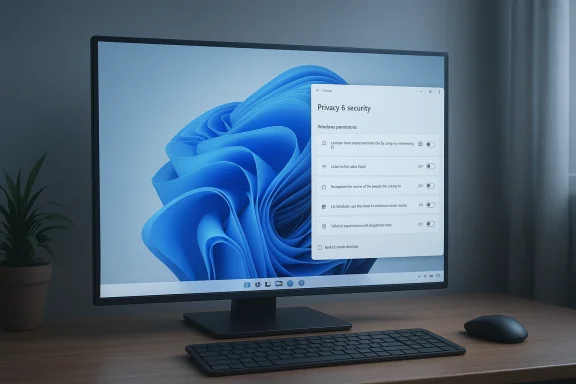
- Disable Recall: Settings > Privacy & security > set Save snapshots off and delete existing snapshots.
- Turn off Windows Studio Effects: Settings > Bluetooth & devices > Cameras > [your camera] > Windows Studio Effects: toggle off Automatic framing, Portrait light, Eye contact, background effects.
- Remove AI Actions: Settings > Apps > Actions — toggle application associations off.
- Notepad/Office Copilot toggles: Notepad Settings > AI Features; Office apps: uncheck Enable Copilot per app.
3) Use Group Policy or Registry to disable Copilot at the system level (moderate risk)
When you need a single, deterministic switch, Group Policy or registry keys achieve it without uninstalling packages.Group Policy (Windows 11 Pro / Enterprise / Education):
- Open gpedit.msc.
- Navigate to User Configuration > Administrative Templates > Windows Components > Windows Copilot.
- Enable “Turn off Windows Copilot”. Restart or run gpupdate /force.
- HKEY_CURRENT_USER\Software\Policies\Microsoft\Windows\WindowsCopilot
Create DWORD TurnOffWindowsCopilot and set Value = 1. - To disable system‑wide for all users, set the same key under HKEY_LOCAL_MACHINE\SOFTWARE\Policies\Microsoft\Windows\WindowsCopilot.
4) Run a curated PowerShell removal script (RemoveWindowsAI) — use with care
What it is: RemoveWindowsAI is an open‑source PowerShell project that bundles registry edits, Appx/MSIX removal commands (Remove‑AppxPackage, Remove‑AppxProvisionedPackage), scheduled task deletion for Recall, and optional servicing store edits and a “blocker” package to prevent re‑provisioning by Windows Update. It offers GUI and non‑interactive modes and includes a backup/revert option when run with backups enabled. How to run (example):- Launch an elevated Windows PowerShell (PowerShell 5.1, not PowerShell 7).
- To preview GUI: & ([scriptblock]::Create((irm "https://raw.githubusercontent.com/zoicware/RemoveWindowsAI/main/RemoveWindowsAi.ps1")
- Backup first: create a full system restore point or better, an image backup.
- Test in a VM or non‑production machine first.
- AV false positives: some anti‑malware products flag debloat scripts; suspend AV only if you fully trust the repo and match published hashes.
- Servicing edits are the riskiest parts: removal from CBS and blocker packages can produce update errors or impede feature upgrades.
5) One‑click GUI debloat: Winslop (graphical, auditable)
What Winslop is: an open‑source GUI utility by the same community that produced FlyOOBE and CrapFixer. Winslop exposes a checkbox list of AI, telemetry and promoted UX features, letting you preview and selectively apply changes. Recent releases (public drops) show active development and a focus on local, auditable actions and reversible steps. Why pick Winslop:- It’s user-friendly and aimed at non‑script users.
- It previews exact changes before applying them.
- It keeps a focus on auditable, local actions and typically avoids the most dangerous servicing edits by default (but always check what’s selected).
- Only download official GitHub releases; third‑party mirrors or domains redirecting to releases have appeared and can be malicious.
- Even GUI tools can make servicing edits if you tick the wrong boxes — read the change summary before applying.
- Keep backups and use Winslop’s revert/export feature.
A safer, recommended workflow (step‑by‑step)
- Back up: create a full system image and at minimum a Windows restore point.
- Try Settings toggles first: hide Copilot, disable Recall, turn off Studio Effects. Verify behavior for a day.
- Apply Group Policy / Registry keys to make changes persistent across accounts if needed.
- If deeper removal is required, test RemoveWindowsAI or Winslop in a VM with the same Windows build and OEM image. Examine logs, validate reboots.
- On production systems, avoid servicing store edits unless absolutely necessary — instead rely on policy, uninstall and per‑feature toggles.
- Maintain a change log so you can reverse actions and diagnose update issues later.
Technical analysis: strengths, risks and long‑term considerations
Strengths of the community approach
- Rapid response: community tools give immediate, consolidated control when vendor options are scattered.
- Transparency: open‑source projects let technical users inspect scripts and changes.
- Granularity: scripts and GUIs allow selective removal, leaving beneficial features intact.
Key risks and why they matter
- Servicing and CBS edits: modifying the Component‑Based Servicing store or installing blocker packages is the single biggest long‑term risk. These edits can cause failed cumulative updates and more complex upgrade paths. Multiple community writeups call this out as the main operational hazard.
- Support and warranty: aggressive debloating may void OEM support or complicate troubleshooting with vendor support desks. If you require formal support, choose policy toggles and registry changes over unprovisioning CBS packages.
- Update re‑provisioning: Windows Update behavior varies by build and OEM provisioning. Packages you remove today may return after a feature update unless the removal method neutralizes provisioning (which again, increases servicing risk).
- False positives and supply chain risk: third‑party debloat tools and scripts sometimes trigger anti‑malware warnings or are redistributed through shady domains. Always download from the project’s official GitHub release page and validate checksums where provided.
Enterprise implications
- Organizations should treat AI opt‑outs as policy decisions and implement them via centralized management: AD Group Policies, Intune configuration profiles, or managed images, rather than ad‑hoc local debloat scripts. Centralized controls are auditable and reversible at scale. Group Policy support for “Turn off Windows Copilot” exists and maps to registry keys, making it the supported mechanism for enterprise deployments.
What the tools actually change (technical checklist)
- Registry keys and Group Policy flips to hide or disable Copilot and Recall.
- Appx/MSIX user‑level package removals (Remove‑AppxPackage) and provisioned package removals (Remove‑AppxProvisionedPackage).
- Scheduled task deletions and local index/persistence cleanup for Recall.
- Optional CBS store edits and blocker package installation to make removals persist across updates.
- Settings UI hiding to reduce re‑exposure.
Practical FAQs (short answers)
- Will removing Copilot increase my security? Possibly, in the sense of reducing data flows and attack surface; but it won’t substitute for good patching, AV and account hygiene.
- Will uninstalling AI features make Windows faster? On low‑spec hardware, removing background AI services and inbox packages reduces memory and agent CPU usage, so yes, you may see measurable improvements.
- Can I re‑enable everything later? In many cases yes — group policy and registry changes are reversible, and uninstallations from Appx can be reinstalled from the Microsoft Store. If you’ve altered CBS or installed blocker packages, reversion is more complex and may require the tool’s backup/revert paths or an OS repair.
Final verdict: balance control against stability
Windows 11’s AI features can be legitimately useful for many users, but they are not universally welcome. If your priority is privacy, stability and a classical desktop experience, the toolkit that has emerged — careful registry/policy changes, selective uninstalls, and (for advanced users) scripted removals — gives you real control. The community tools (RemoveWindowsAI, Winslop and similar projects) automate a complex checklist and can restore a quieter Windows 11 in hours rather than days.At the same time, the most tempting convenience — surgically editing the servicing store or forcing persistent blockers — carries real, long‑term costs. The safest approach for the majority is a graduated one: start with Settings toggles and supported group policy keys, progress to controlled uninstalls, and reserve servicing edits for isolated test machines where you can validate update behavior.
Use backups, validate in virtual machines, prefer official GitHub releases, and consider whether enterprise policy management is the better route for managed fleets. The community has produced strong tools to reclaim control over a platform that’s moving fast; the smartest path is to use those tools with the same caution you would bring to any low‑level system maintenance: deliberate, reversible and well‑documented.
Windows 11 can be nudged back toward the quiet, predictable desktop many of us still prefer — but only when users exercise the same care and discipline they would for any system‑level change.
Source: Pocket-lint Your Windows 11 PC deserves an AI detox - here's how to make it happen
