

A gaming bottleneck is not a fixed property of a PC but a moment-by-moment limit created by a specific game, resolution, graphics preset, frame-rate target, driver stack, and workload, which means the same machine can be GPU-bound in one scene and CPU-bound in the next. That is the useful thesis behind the latest Wccftech guide on diagnosing gaming performance limits, and it is worth taking seriously because “CPU bottleneck” has become one of the most abused phrases in PC hardware. The real question is not whether your processor is worthy of your graphics card. It is whether the next frame is being delayed by rendering work, game-engine work, memory behavior, storage stalls, or software overhead.
PC gamers like clean labels because hardware buying is expensive and emotionally loaded. Nobody wants to discover that the new GPU they just installed is waiting on a five-year-old CPU, and nobody wants to hear that the processor upgrade they just bought made no visible difference at 4K with ray tracing enabled. But the tidy phrase “CPU bottleneck” hides a messier truth: performance limits move.
A modern game is not a single workload. It is simulation, input, animation, physics, AI, draw-call submission, shader work, asset streaming, decompression, driver overhead, VRAM management, and final image presentation, all unfolding under Windows while Discord, browser tabs, launchers, capture tools, RGB utilities, anti-cheat services, and driver overlays compete for time. Calling that entire chain “the CPU” or “the GPU” is useful only if we remember that it is shorthand.
That is why a system can appear perfectly balanced in one title and wildly mismatched in another. A cinematic single-player game at 4K with heavy ray tracing may keep the GPU saturated almost continuously. A dense city, battle royale, racing festival, MMO hub, or simulation-heavy strategy game may instead expose the CPU, memory subsystem, or storage pipeline long before the graphics card runs out of shading muscle.
Even within one game, the bottleneck can migrate. A quiet hallway may be GPU-bound because the scene is visually expensive but mechanically simple. Step into a crowded city block with traffic, NPCs, physics objects, streaming assets, and aggressive traversal, and the same graphics card may suddenly sit underused while the platform struggles to prepare frames fast enough.
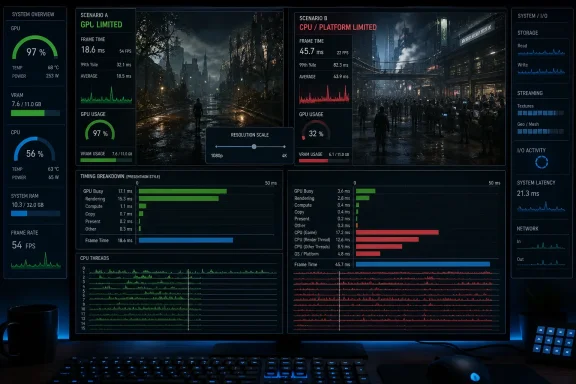
The classic GPU-limited case is straightforward. GPU usage is high, often in the mid-to-high 90 percent range. Power draw is healthy, clocks are stable, temperatures are within expected limits, and lowering resolution or enabling temporal upscaling produces a meaningful frame-rate increase. In most modern single-player games, that is not a disaster. It is usually the desired state: the most expensive gaming component is doing the most important gaming work.
A CPU or platform limit looks different. GPU usage is well below full load, GPU power is modest, clocks may bounce around, and lowering resolution or graphics presets does little. The graphics card is not being asked to work harder because something upstream is failing to deliver work quickly enough.
The trap is treating the overlay as a verdict machine. Utilization percentages are averages over time, smoothed by polling intervals, and shaped by the tool doing the reporting. They tell you where to investigate, not what guilty component should be sentenced.
The reason is simple: games do not distribute work evenly across every core and thread. A title may lean heavily on a main game thread, render thread, simulation thread, or streaming path that cannot scale cleanly across the entire processor. If one critical thread is holding up the frame pipeline, a 16-thread or 24-thread CPU may show only moderate total utilization while the GPU waits.
Even per-core monitoring can mislead. Windows schedules threads dynamically, moving work around cores to balance responsiveness, thermals, and background tasks. A hot software thread may not sit neatly on “Core 3” long enough for a user staring at an overlay to catch it. What looks like 50 percent CPU usage can still be a hard CPU-side limit if the frame cannot advance until a single overloaded portion of the engine finishes.
Then there is the memory subsystem, the part of the platform discussion that gamers still underestimate. CPU-side game performance often depends not only on raw core speed but on cache behavior, memory bandwidth, and latency. A processor waiting on data from system RAM is not usefully “free”; it is stalled. That is why XMP and EXPO profiles, dual-channel configuration, memory speed, timings, and adequate RAM capacity can matter far more than a top-line CPU usage number suggests.
This works because lowering resolution reduces pixel workload dramatically. A game that runs much faster at 1080p low than at 4K ultra is telling you the graphics card was busy. A game that barely changes between those settings is telling you the graphics card was already waiting.
The test is not perfect, because some settings affect both CPU and GPU work. Ray tracing, draw distance, crowd density, object density, simulation detail, and asset streaming can all blur the line. But the broad pattern is still powerful, especially when combined with GPU power draw and frame-time behavior.
For reviewers, this is a standard way to isolate component limits. For home users, it is a way to avoid buying the wrong part. If dropping from 1440p high to 1080p low produces almost no gain, a faster GPU is unlikely to fix the problem you are actually feeling.
This is where tools like CapFrameX become more useful than a live overlay. By logging a repeatable run, you can examine the full frame-time graph, 1 percent lows, 0.1 percent lows, and sensor behavior at the exact moments where the game hitches. That lets you distinguish a demanding scene from a broken delivery pipeline.
If a frame-time spike appears while GPU usage and GPU power remain pinned, the graphics card may simply have encountered a heavy rendering moment. If the spike appears while GPU usage drops sharply, the GPU probably was not the component struggling. It was waiting.
That waiting can have many causes. The CPU may have failed to prepare work in time. The engine may have compiled or loaded something. The game may have streamed assets from storage or shuffled data through memory. The driver may have encountered overhead. The point is that the GPU utilization drop during the hitch is evidence against the simplistic “the graphics card is too weak” interpretation.
When frame time and GPU Busy time track closely, the system is effectively GPU-limited. The GPU is occupied for nearly the whole frame interval. If the frame took 12 milliseconds and the GPU was busy for about 12 milliseconds, the graphics card was the pacing component.
When frame time is much higher than GPU Busy time, the story changes. If a frame took 18 milliseconds but the GPU was busy for only 10, the remaining time was not spent rendering. The GPU finished its portion and waited for the rest of the system, engine, or presentation path.
That does not magically identify the precise subcomponent. PresentMon will not look inside your game engine and tell you that one thread, one shader, one asset package, or one driver path was to blame. But it narrows the problem in a way that old-fashioned utilization overlays rarely can. It reframes bottleneck diagnosis as a timing mismatch rather than a vibes-based argument about whether a CPU and GPU “match.”
When the GPU is the limiter, the fixes are also familiar. Lower render resolution. Use DLSS, FSR, or XeSS where image quality is acceptable. Reduce ray tracing, path tracing, volumetrics, shadows, global illumination, reflections, or other expensive effects. Watch VRAM usage and reduce texture quality if the card is spilling beyond its memory capacity. Make sure the GPU is not thermal throttling or power-limited by a bad case airflow setup, inadequate power configuration, or overly aggressive noise profile.
These are direct fixes because they attack the work the GPU is doing. If the graphics card is rendering too slowly, reduce the rendering burden or buy a faster graphics card. That does not make the upgrade cheap, but it makes the diagnosis logically clean.
The danger comes when users misread a CPU/platform bottleneck as a GPU problem. Buying a faster graphics card for a game that is already leaving the current GPU underused is one of the fastest ways to turn a performance problem into an expensive performance problem.
The useful settings are the ones that reduce CPU-side work. Crowd density, traffic density, view distance, object density, physics quality, NPC count, simulation complexity, and sometimes ray tracing can all increase the amount of work needed before the GPU receives a frame. Ray tracing is especially misunderstood here: while it is rightly treated as GPU-heavy, it can also increase CPU-side scene management and acceleration-structure overhead.
System hygiene matters too. A CPU that is not boosting properly, a laptop stuck in a quiet power profile, a desktop suffocated by heat, or a Windows installation crowded by background updaters and capture tools can all mimic hardware inadequacy. The boring checks matter because the boring failures are common.
Memory is another recurring villain. XMP or EXPO disabled in firmware can leave expensive RAM running at conservative default speeds. Sticks installed in the wrong slots can break optimal dual-channel operation. A system with too little RAM can page, stall, and hitch even when CPU and GPU utilization look normal. For modern gaming, 32GB has become the more comfortable enthusiast baseline, particularly for open-world games, heavy multitasking, and systems that keep launchers, browsers, voice chat, and capture software alive in the background.
Storage belongs in the same conversation. Open-world and traversal-heavy games increasingly assume fast SSD access, and an unhealthy, nearly full, or slow drive can turn asset streaming into frame-time spikes. Not every stutter is a CPU bottleneck in the strict sense. Some are platform bottlenecks wearing a CPU mask.
A frame cap is not inherently bad. In fact, a sensible cap below a monitor’s refresh ceiling can improve consistency, reduce power, lower heat, and keep variable refresh rate behavior tidy. But a cap must be accounted for during diagnosis. A GPU sitting at 70 percent while the game is locked to 120 FPS is not evidence of a CPU bottleneck. It is evidence that the game is locked to 120 FPS.
Shader compilation and traversal stutter create another false trail. If a game hitches the first time an effect appears or the first time you enter a new area, then runs smoothly later, the problem may be compilation, caching, or asset streaming rather than a permanent component limit. This has been one of the defining frustrations of modern PC gaming: powerful hardware can still feel bad when the software pipeline delivers frames unevenly.
Drivers and game patches complicate the picture further. A GPU driver update can improve one game and regress another. A Windows update can change scheduling, security behavior, or device handling. A game patch can introduce new CPU overhead or alter shader behavior. Bottleneck diagnosis is therefore chronological as well as technical: what changed, when did it change, and does the performance profile match a hardware ceiling or a software regression?
If the GPU is consistently maxed out in the games and settings you care about, a GPU upgrade is the obvious performance lever. If the GPU is consistently underused and resolution scaling does little, a CPU, memory, motherboard platform, or storage change may be more meaningful. If frame-time spikes line up with VRAM exhaustion, texture settings or a GPU with more memory may matter more than raw shader performance. If stutter appears only during traversal, an SSD, game patch, shader cache behavior, or engine-level issue may be the real problem.
The target frame rate matters as much as the target resolution. A CPU that is perfectly adequate for 60 FPS may become the limiter at 144 FPS. A GPU that handles 1080p esports easily may buckle under 4K ray tracing. “Will this CPU bottleneck this GPU?” is therefore incomplete without the rest of the sentence: in which game, at what resolution, with what settings, and at what frame-rate target?
That is the part many bottleneck calculators and forum arguments flatten away. They turn a dynamic software workload into a percentage. The percentage feels authoritative because it is numeric. It is often less useful than a five-minute resolution scaling test and a properly captured frame-time graph.
For Windows users, the uncomfortable truth is that the operating system environment is part of the gaming platform. Scheduler behavior, drivers, power modes, background services, overlays, memory configuration, storage health, and game updates all participate in the result. The PC is not a console with a fixed performance envelope; it is a stack, and every layer can delay the next frame.
 The Bottleneck Is a Scene, Not a System Spec
PC gamers like clean labels because hardware buying is expensive and emotionally loaded. Nobody wants to discover that the new GPU they just installed is waiting on a five-year-old CPU, and nobody wants to hear that the processor upgrade they just bought made no visible difference at 4K with ray tracing enabled. But the tidy phrase “CPU bottleneck” hides a messier truth: performance limits move.A modern game is not a single workload. It is simulation, input, animation, physics, AI, draw-call submission, shader work, asset streaming, decompression, driver overhead, VRAM management, and final image presentation, all unfolding under Windows while Discord, browser tabs, launchers, capture tools, RGB utilities, anti-cheat services, and driver overlays compete for time. Calling that entire chain “the CPU” or “the GPU” is useful only if we remember that it is shorthand.
That is why a system can appear perfectly balanced in one title and wildly mismatched in another. A cinematic single-player game at 4K with heavy ray tracing may keep the GPU saturated almost continuously. A dense city, battle royale, racing festival, MMO hub, or simulation-heavy strategy game may instead expose the CPU, memory subsystem, or storage pipeline long before the graphics card runs out of shading muscle.
Even within one game, the bottleneck can migrate. A quiet hallway may be GPU-bound because the scene is visually expensive but mechanically simple. Step into a crowded city block with traffic, NPCs, physics objects, streaming assets, and aggressive traversal, and the same graphics card may suddenly sit underused while the platform struggles to prepare frames fast enough.
The Overlay Gets You Warm, Not Finished
The fastest way to start is still a real-time overlay. MSI Afterburner with RivaTuner Statistics Server, CapFrameX, the NVIDIA App, AMD Adrenalin, and Intel PresentMon can all show the basic clues: GPU utilization, GPU power, clocks, temperature, VRAM use, CPU activity, RAM consumption, frame rate, and frame times. For a first pass, that is enough to separate obvious cases from confusing ones.The classic GPU-limited case is straightforward. GPU usage is high, often in the mid-to-high 90 percent range. Power draw is healthy, clocks are stable, temperatures are within expected limits, and lowering resolution or enabling temporal upscaling produces a meaningful frame-rate increase. In most modern single-player games, that is not a disaster. It is usually the desired state: the most expensive gaming component is doing the most important gaming work.
A CPU or platform limit looks different. GPU usage is well below full load, GPU power is modest, clocks may bounce around, and lowering resolution or graphics presets does little. The graphics card is not being asked to work harder because something upstream is failing to deliver work quickly enough.
The trap is treating the overlay as a verdict machine. Utilization percentages are averages over time, smoothed by polling intervals, and shaped by the tool doing the reporting. They tell you where to investigate, not what guilty component should be sentenced.
Total CPU Usage Is the Metric That Keeps Lying to People
The most persistent myth in bottleneck diagnosis is that a CPU bottleneck requires 100 percent CPU usage. It does not. In fact, many of the most obvious CPU-limited gaming scenarios happen while total CPU usage looks almost boring.The reason is simple: games do not distribute work evenly across every core and thread. A title may lean heavily on a main game thread, render thread, simulation thread, or streaming path that cannot scale cleanly across the entire processor. If one critical thread is holding up the frame pipeline, a 16-thread or 24-thread CPU may show only moderate total utilization while the GPU waits.
Even per-core monitoring can mislead. Windows schedules threads dynamically, moving work around cores to balance responsiveness, thermals, and background tasks. A hot software thread may not sit neatly on “Core 3” long enough for a user staring at an overlay to catch it. What looks like 50 percent CPU usage can still be a hard CPU-side limit if the frame cannot advance until a single overloaded portion of the engine finishes.
Then there is the memory subsystem, the part of the platform discussion that gamers still underestimate. CPU-side game performance often depends not only on raw core speed but on cache behavior, memory bandwidth, and latency. A processor waiting on data from system RAM is not usefully “free”; it is stalled. That is why XMP and EXPO profiles, dual-channel configuration, memory speed, timings, and adequate RAM capacity can matter far more than a top-line CPU usage number suggests.
Resolution Scaling Remains the Cleanest Kitchen-Table Test
The most practical diagnostic method is still the resolution scaling test. Run a game at the settings you actually use, then drop resolution and GPU-heavy settings sharply. If performance jumps, the GPU was likely the main limiter. If performance barely moves, the limit is probably elsewhere.This works because lowering resolution reduces pixel workload dramatically. A game that runs much faster at 1080p low than at 4K ultra is telling you the graphics card was busy. A game that barely changes between those settings is telling you the graphics card was already waiting.
The test is not perfect, because some settings affect both CPU and GPU work. Ray tracing, draw distance, crowd density, object density, simulation detail, and asset streaming can all blur the line. But the broad pattern is still powerful, especially when combined with GPU power draw and frame-time behavior.
For reviewers, this is a standard way to isolate component limits. For home users, it is a way to avoid buying the wrong part. If dropping from 1440p high to 1080p low produces almost no gain, a faster GPU is unlikely to fix the problem you are actually feeling.
Frame Time Is Where the Stutter Confesses
Average FPS is the number that sells hardware, but frame time is the number that explains feel. A game averaging 120 FPS can still feel bad if one frame arrives in 8 milliseconds, the next in 9, the next in 45, and the next in 10. The average looks fine; the experience does not.This is where tools like CapFrameX become more useful than a live overlay. By logging a repeatable run, you can examine the full frame-time graph, 1 percent lows, 0.1 percent lows, and sensor behavior at the exact moments where the game hitches. That lets you distinguish a demanding scene from a broken delivery pipeline.
If a frame-time spike appears while GPU usage and GPU power remain pinned, the graphics card may simply have encountered a heavy rendering moment. If the spike appears while GPU usage drops sharply, the GPU probably was not the component struggling. It was waiting.
That waiting can have many causes. The CPU may have failed to prepare work in time. The engine may have compiled or loaded something. The game may have streamed assets from storage or shuffled data through memory. The driver may have encountered overhead. The point is that the GPU utilization drop during the hitch is evidence against the simplistic “the graphics card is too weak” interpretation.
PresentMon Turns the Guesswork Into a Timing Problem
Intel’s PresentMon has become especially interesting because of its GPU Busy metric. Instead of relying only on utilization percentages, GPU Busy estimates how long the graphics processor spent actively rendering a frame. Compare that with the full frame time, and the diagnosis becomes more concrete.When frame time and GPU Busy time track closely, the system is effectively GPU-limited. The GPU is occupied for nearly the whole frame interval. If the frame took 12 milliseconds and the GPU was busy for about 12 milliseconds, the graphics card was the pacing component.
When frame time is much higher than GPU Busy time, the story changes. If a frame took 18 milliseconds but the GPU was busy for only 10, the remaining time was not spent rendering. The GPU finished its portion and waited for the rest of the system, engine, or presentation path.
That does not magically identify the precise subcomponent. PresentMon will not look inside your game engine and tell you that one thread, one shader, one asset package, or one driver path was to blame. But it narrows the problem in a way that old-fashioned utilization overlays rarely can. It reframes bottleneck diagnosis as a timing mismatch rather than a vibes-based argument about whether a CPU and GPU “match.”
The Best GPU Bottleneck Is Often the One You Paid For
A GPU bottleneck sounds bad because the word “bottleneck” sounds bad. In gaming, it is often the healthy outcome. If you spent most of your gaming budget on a graphics card, you generally want the graphics card to be the component determining performance in visually demanding games.When the GPU is the limiter, the fixes are also familiar. Lower render resolution. Use DLSS, FSR, or XeSS where image quality is acceptable. Reduce ray tracing, path tracing, volumetrics, shadows, global illumination, reflections, or other expensive effects. Watch VRAM usage and reduce texture quality if the card is spilling beyond its memory capacity. Make sure the GPU is not thermal throttling or power-limited by a bad case airflow setup, inadequate power configuration, or overly aggressive noise profile.
These are direct fixes because they attack the work the GPU is doing. If the graphics card is rendering too slowly, reduce the rendering burden or buy a faster graphics card. That does not make the upgrade cheap, but it makes the diagnosis logically clean.
The danger comes when users misread a CPU/platform bottleneck as a GPU problem. Buying a faster graphics card for a game that is already leaving the current GPU underused is one of the fastest ways to turn a performance problem into an expensive performance problem.
The CPU Fix Is Usually Less Glamorous and More Annoying
CPU and platform limits are harder because they are less often solved by one slider. Lowering resolution will not help much if the GPU is already waiting. Upscaling will not help much either. Frame generation may make motion look smoother in some cases, but it does not eliminate poor input latency, simulation limits, or underlying frame pacing problems when the base frame rate is unstable.The useful settings are the ones that reduce CPU-side work. Crowd density, traffic density, view distance, object density, physics quality, NPC count, simulation complexity, and sometimes ray tracing can all increase the amount of work needed before the GPU receives a frame. Ray tracing is especially misunderstood here: while it is rightly treated as GPU-heavy, it can also increase CPU-side scene management and acceleration-structure overhead.
System hygiene matters too. A CPU that is not boosting properly, a laptop stuck in a quiet power profile, a desktop suffocated by heat, or a Windows installation crowded by background updaters and capture tools can all mimic hardware inadequacy. The boring checks matter because the boring failures are common.
Memory is another recurring villain. XMP or EXPO disabled in firmware can leave expensive RAM running at conservative default speeds. Sticks installed in the wrong slots can break optimal dual-channel operation. A system with too little RAM can page, stall, and hitch even when CPU and GPU utilization look normal. For modern gaming, 32GB has become the more comfortable enthusiast baseline, particularly for open-world games, heavy multitasking, and systems that keep launchers, browsers, voice chat, and capture software alive in the background.
Storage belongs in the same conversation. Open-world and traversal-heavy games increasingly assume fast SSD access, and an unhealthy, nearly full, or slow drive can turn asset streaming into frame-time spikes. Not every stutter is a CPU bottleneck in the strict sense. Some are platform bottlenecks wearing a CPU mask.
Software Caps Are the False Crime Scenes of Bottleneck Hunting
Before blaming silicon, remove artificial caps. V-Sync, in-game frame limiters, driver-level frame caps, power-saving modes, laptop hybrid graphics behavior, and overlay software can all produce low GPU utilization that looks suspicious until you realize performance is being intentionally limited.A frame cap is not inherently bad. In fact, a sensible cap below a monitor’s refresh ceiling can improve consistency, reduce power, lower heat, and keep variable refresh rate behavior tidy. But a cap must be accounted for during diagnosis. A GPU sitting at 70 percent while the game is locked to 120 FPS is not evidence of a CPU bottleneck. It is evidence that the game is locked to 120 FPS.
Shader compilation and traversal stutter create another false trail. If a game hitches the first time an effect appears or the first time you enter a new area, then runs smoothly later, the problem may be compilation, caching, or asset streaming rather than a permanent component limit. This has been one of the defining frustrations of modern PC gaming: powerful hardware can still feel bad when the software pipeline delivers frames unevenly.
Drivers and game patches complicate the picture further. A GPU driver update can improve one game and regress another. A Windows update can change scheduling, security behavior, or device handling. A game patch can introduce new CPU overhead or alter shader behavior. Bottleneck diagnosis is therefore chronological as well as technical: what changed, when did it change, and does the performance profile match a hardware ceiling or a software regression?
The Upgrade Question Comes Last, Not First
The worst way to diagnose a bottleneck is to start with a shopping cart. PC hardware culture encourages that because every performance discussion eventually becomes a component recommendation thread. But the correct order is test, interpret, adjust, then upgrade.If the GPU is consistently maxed out in the games and settings you care about, a GPU upgrade is the obvious performance lever. If the GPU is consistently underused and resolution scaling does little, a CPU, memory, motherboard platform, or storage change may be more meaningful. If frame-time spikes line up with VRAM exhaustion, texture settings or a GPU with more memory may matter more than raw shader performance. If stutter appears only during traversal, an SSD, game patch, shader cache behavior, or engine-level issue may be the real problem.
The target frame rate matters as much as the target resolution. A CPU that is perfectly adequate for 60 FPS may become the limiter at 144 FPS. A GPU that handles 1080p esports easily may buckle under 4K ray tracing. “Will this CPU bottleneck this GPU?” is therefore incomplete without the rest of the sentence: in which game, at what resolution, with what settings, and at what frame-rate target?
That is the part many bottleneck calculators and forum arguments flatten away. They turn a dynamic software workload into a percentage. The percentage feels authoritative because it is numeric. It is often less useful than a five-minute resolution scaling test and a properly captured frame-time graph.
The Windows Gamer’s Real Checklist Is Shorter Than the Argument
The practical lesson is not that every player needs to become a benchmarking analyst. It is that a small number of measurements can prevent bad conclusions. A live overlay shows the first clues, a resolution scaling test separates many GPU limits from platform limits, and a frame-time capture explains why a high average FPS can still feel rough.For Windows users, the uncomfortable truth is that the operating system environment is part of the gaming platform. Scheduler behavior, drivers, power modes, background services, overlays, memory configuration, storage health, and game updates all participate in the result. The PC is not a console with a fixed performance envelope; it is a stack, and every layer can delay the next frame.
The Frame That Arrives Late Leaves a Trail
The useful takeaways are concrete, and they point away from superstition:- A high GPU usage figure with high power draw and better performance at lower resolution usually means the graphics card is the main limit.
- A low GPU usage figure with little improvement at lower resolution usually points toward the CPU, memory subsystem, storage path, engine behavior, or an artificial frame cap.
- Total CPU usage does not need to reach 100 percent for a game to be CPU-limited, because one critical thread can hold up the frame pipeline.
- Average FPS should never be the only performance metric, because frame-time spikes and poor 1 percent lows often explain stutter better than the average.
- PresentMon’s GPU Busy metric is valuable because it compares how long the GPU worked on a frame with how long the full frame actually took.
- The smartest upgrade is the one chosen after testing, not the one chosen because a bottleneck calculator produced a scary percentage.
References
- Primary source: Wccftech
Published: 2026-06-20T18:50:20.545801
CPU or GPU Bottleneck? How to Diagnose What’s Really Limiting Your Gaming Performance
Learn to diagnose CPU and GPU bottlenecks in gaming performance with tools like CapFrameX and PresentMon for optimized PC setups.wccftech.com
- Related coverage: windowscentral.com
Explaining Super Resolution: DLSS, FSR, XeSS and DirectSR | Windows Central
AMD, NVIDIA, Intel, and, most recently, Microsoft have video super resolution technologies that can enhance performance and visuals. Here's how they compare and what you need to know about the future with Microsoft DirectSR.www.windowscentral.com - Related coverage: gaming-st.com
平均fpsは高いのにカクつく原因は「1% Low」——測定方法・5つの原因・改善手順まとめ - ゲーミングスタイル
平均144fpsなのに1% Lowが32fps——それがカクつきの正体です。オーバーレイの数字だけ見ていても原因はわかりません。CapFrameXでの測り方、CPUボトルネック・VRAM不足など5つの原因の切り分け方、改善の優先順位をまとめました。gaming-st.com
