

Windows 11’s File Explorer is still carrying a surprising amount of baggage from the Windows XP era, and one legacy behavior can absolutely make the app feel stuttery on fast hardware. The culprit is Automatic Folder Type Discovery, a feature that tries to infer what kind of folder you opened and then adjusts the view accordingly. Microsoft has kept the underlying folder-type machinery around for years, but on modern SSD-based systems it can add just enough overhead to feel like a regression rather than a convenience. The good news is that you can disable it in seconds with a small registry tweak, and the payoff is often a more consistently responsive Explorer.
File Explorer has always tried to be clever. Long before Windows 11, Windows used folder templates to decide whether a directory should look like Documents, Pictures, Music, Videos, or a generic file bucket. That behavior was built around a world where drives were slower, folders were smaller, and the operating system could trade a bit of delay for a more tailored layout. Microsoft’s own shell documentation still reflects that model, showing that folder type affects the default columns and details Explorer displays.
The problem is that what felt helpful in the early 2000s now collides with how many people actually use Windows 11. Today’s users open folders filled with mixed media, thousands of assets, mod files, screenshots, installers, and project directories that are far more chaotic than the neat categories Explorer wants to impose. When the shell keeps re-evaluating a folder’s contents, the result can be a brief but noticeable pause. On a system with a modern NVMe SSD, even a small pause stands out because everything else is otherwise instant.
That’s why this annoyance feels so disproportionate. File Explorer is not “slow” all the time, which makes the issue harder to pin down and easier to blame on Windows 11 generally. In reality, the delay often appears only in specific folders, especially ones with a wide mix of file types or a large file count. That pattern matches Explorer doing extra work behind the scenes rather than simply struggling with disk speed.
The lingering design question is whether the feature still earns its keep. For some users, it does: the right template can surface useful columns and make a folder immediately more legible. But for power users, game modders, creators, and anyone who values consistency over automatic guessing, the behavior can feel like an unnecessary decision engine bolted onto a modern workflow. In that sense, the feature is less a bug than a very old assumption that no longer fits many real-world desktops.
The issue is not that the idea is absurd. It is that the classification is dynamic, and dynamic classification costs time. If Explorer re-checks a folder every time you open it, then even a small amount of sampling and metadata inspection becomes visible when multiplied across repeated actions. That is especially true in folders that contain a messy mix of file types, where no single template is an obvious fit.
A feature like this made more sense when desktop storage was slower and folder views were less central to performance-sensitive workflows. The modern complaint is not just that Explorer takes longer, but that it takes longer for a reason that feels outdated. Users are no longer asking Windows to analyze their folders so much as to simply open them immediately. That subtle shift in expectation is the heart of the annoyance.
In many cases, Explorer is doing more than just reading the folder name. It is checking the contents and trying to decide whether the folder should behave like one of several predefined categories. On a folder with mixed files, that can mean read-after-read comparisons before the view is settled. It is not catastrophic, but it is just enough friction to be noticed on otherwise fast hardware.
For many users, that is what makes the experience feel so out of step with Windows 11’s broader performance story. The OS can animate smoothly, launch apps quickly, and feel responsive in ordinary tasks, then stumble on something as basic as a folder opening. That contrast makes the legacy behavior seem even more archaic than it is. It is a small delay, but small delays are the ones that break trust.
That illusion matters because users often assume their computer should be “instant” in every way. When Explorer hesitates on a folder open, the gut reaction is that something is wrong with the PC. In reality, the machine may be healthy; it is the folder heuristic that is wasting the user’s time. That distinction is important because it changes the fix from hardware diagnosis to configuration cleanup.
It also explains why the issue can be more obvious on high-end desktops than on older laptops. Better machines make Explorer’s delay feel less acceptable, not more. If a low-end machine is generally slow, a tiny delay gets lost in the noise; if a powerful machine feels delayed, the delay is amplified psychologically. That is why this is an ergonomic problem as much as a technical one.
A folder full of screenshots may get a sensible Pictures-style treatment. A folder full of installers may not. A mixed folder containing documents, images, ZIPs, and videos may force Explorer into repeated reclassification or at least repeated checks. The more chaotic the folder, the less useful the feature becomes and the more likely it is to feel like a drag.
That is why disabling the behavior tends to produce the most noticeable improvement in exactly the kinds of folders power users care about. It is not about making Explorer magically faster in every scenario. It is about removing a tax that gets paid every time Windows tries to be clever where being predictable would be better.
That is the point where many users worry they are “breaking” Windows. In reality, they are changing a default classification behavior, not deleting core Explorer components. Still, the registry is not a casual playground. If you are going to edit it, backing it up first is the sensible move because mistakes in the registry are harder to reverse than ordinary settings changes.
A small but important nuance is that the goal is consistency, not speed in the abstract. If you keep relying on Windows to detect folder type, the operating system keeps spending time on the decision. If you stop it from deciding, folders open with less hesitation and fewer surprises. That is why the tweak can feel disproportionately effective relative to how simple it looks.
There is also a second reason to be careful: Explorer has many layered view behaviors, and not every folder annoyance has the same cause. Some issues are caused by view caching, others by folder-specific templates, and others by the automatic discovery process itself. If you change the wrong piece, you may solve one annoyance while leaving the actual stutter untouched.
That is why the registry route is best approached as a targeted fix rather than a universal cure. It addresses a specific legacy mechanism. It does not replace other troubleshooting steps, and it will not turn Explorer into a different application. But when the symptom matches, it is often the cleanest solution available.
A predictable Explorer experience also matters in remote-work scenarios. When users are working through remote sessions or on systems where every interaction feels slightly more latent than local use, small Explorer hesitations become more visible. Removing automatic folder-type guessing helps standardize the shell experience and reduces one more variable.
The enterprise angle is not just about speed. It is about reducing friction in file-navigation workflows that are already burdened by security layers, synced folders, redirected profiles, and modern management policy. If Explorer can be made less whimsical about folder templates, administrators have one fewer behavior to explain. That is worth something in large environments.
These users also care more about control than hand-holding. A folder view that changes because Windows thinks it knows better is exactly the kind of behavior enthusiasts dislike. They usually prefer a predictable shell that gets out of the way, even if that means giving up a little automatic convenience.
The broader lesson is that Explorer still carries two audiences at once. One audience wants a friendly, self-adjusting interface. The other wants a deterministic, low-friction file browser. Automatic Folder Type Discovery leans toward the first group, but Windows 11 increasingly ships into a world dominated by the second. That tension explains why this old feature keeps resurfacing in modern complaints.
This also explains why users keep encountering “one weird trick” fixes for Explorer behavior. Many of those tweaks are not really tricks; they are ways of disabling old shell heuristics that still survive because they are low-risk from Microsoft’s perspective. What is low-risk for Microsoft can still be high-annoyance for the user.
The irony is that a feature designed to reduce decision-making can become a source of it. You open a folder expecting to work, and Windows quietly decides it needs to classify the content first. That decision-making step is invisible until it becomes slow enough to notice, and then it feels like the app is second-guessing you.
That is why the fix resonates beyond this single tweak. It reflects a larger truth about Windows: the platform still carries settings that assume an older relationship between people and their PCs. When those assumptions age out, the feature survives but the goodwill around it does not. That is what creates the feeling that Windows is full of annoying little papercuts.
In other words, this is not just a folder-view issue. It is an example of how legacy shell behavior can distort the perception of an otherwise capable operating system. A tiny performance tax, paid often enough, turns into a major annoyance. That is exactly the kind of thing users remember when they say Windows feels messy.
That subtlety matters because it keeps expectations realistic. The fix is about removing friction, not creating new raw speed. If your Explorer feels flaky in certain folders and stable in others, this tweak is valuable precisely because it makes the experience more uniform.
The next evolution of Explorer should probably be more explicit. Rather than infer folder type silently and repeatedly, Windows could offer clearer control over default folder behavior and separate “helpful suggestions” from performance-sensitive operations. Users would likely accept less automation if it meant more consistency and fewer unexplained stalls. That is especially true in an era where people expect their desktops to feel as immediate as their phones and tablets.
For now, the practical takeaway is simple: if File Explorer feels like it occasionally pauses for no good reason, this is one of the first legacy behaviors worth disabling. It is a reminder that Windows performance problems are not always about hardware, drivers, or updates. Sometimes they are about a twenty-year-old feature still trying to be helpful in a world that has moved on.
That is why this fix matters. It is small, specific, and a little bit old-fashioned—exactly the kind of change that can make a modern Windows 11 desktop feel calmer, more predictable, and finally less like it is thinking before it acts.
Source: XDA Your Windows 11 File Explorer stutters because of an XP-era feature you can turn off in seconds
 Background
File Explorer has always tried to be clever. Long before Windows 11, Windows used folder templates to decide whether a directory should look like Documents, Pictures, Music, Videos, or a generic file bucket. That behavior was built around a world where drives were slower, folders were smaller, and the operating system could trade a bit of delay for a more tailored layout. Microsoft’s own shell documentation still reflects that model, showing that folder type affects the default columns and details Explorer displays.The problem is that what felt helpful in the early 2000s now collides with how many people actually use Windows 11. Today’s users open folders filled with mixed media, thousands of assets, mod files, screenshots, installers, and project directories that are far more chaotic than the neat categories Explorer wants to impose. When the shell keeps re-evaluating a folder’s contents, the result can be a brief but noticeable pause. On a system with a modern NVMe SSD, even a small pause stands out because everything else is otherwise instant.
That’s why this annoyance feels so disproportionate. File Explorer is not “slow” all the time, which makes the issue harder to pin down and easier to blame on Windows 11 generally. In reality, the delay often appears only in specific folders, especially ones with a wide mix of file types or a large file count. That pattern matches Explorer doing extra work behind the scenes rather than simply struggling with disk speed.
The lingering design question is whether the feature still earns its keep. For some users, it does: the right template can surface useful columns and make a folder immediately more legible. But for power users, game modders, creators, and anyone who values consistency over automatic guessing, the behavior can feel like an unnecessary decision engine bolted onto a modern workflow. In that sense, the feature is less a bug than a very old assumption that no longer fits many real-world desktops.
What Automatic Folder Type Discovery Actually Does
Automatic Folder Type Discovery is Explorer’s attempt to classify a folder based on its contents. It samples file types, extensions, and metadata, then picks a template that seems to best match the folder’s majority. Microsoft’s shell model supports this idea through folder types and folder-type IDs, which determine how a folder is displayed and what details it emphasizes by default.How the heuristic works
In practical terms, a folder with mostly images may get treated like a Pictures folder. A folder full of movie files may get a media-oriented view with duration-related details. A generic folder can stay more neutral, but only if Explorer doesn’t decide there is enough evidence to do something “smarter.” That decision process is why users sometimes see a folder’s view seemingly change by itself.The issue is not that the idea is absurd. It is that the classification is dynamic, and dynamic classification costs time. If Explorer re-checks a folder every time you open it, then even a small amount of sampling and metadata inspection becomes visible when multiplied across repeated actions. That is especially true in folders that contain a messy mix of file types, where no single template is an obvious fit.
A feature like this made more sense when desktop storage was slower and folder views were less central to performance-sensitive workflows. The modern complaint is not just that Explorer takes longer, but that it takes longer for a reason that feels outdated. Users are no longer asking Windows to analyze their folders so much as to simply open them immediately. That subtle shift in expectation is the heart of the annoyance.
Why the stutter feels random
The stutter is often intermittent, which makes it especially irritating. A folder may open instantly nine times out of ten, then hesitate on the tenth open for no obvious reason. That inconsistency is exactly what you’d expect from a background classification step that is triggered by folder contents rather than a universal Explorer slowdown.In many cases, Explorer is doing more than just reading the folder name. It is checking the contents and trying to decide whether the folder should behave like one of several predefined categories. On a folder with mixed files, that can mean read-after-read comparisons before the view is settled. It is not catastrophic, but it is just enough friction to be noticed on otherwise fast hardware.
For many users, that is what makes the experience feel so out of step with Windows 11’s broader performance story. The OS can animate smoothly, launch apps quickly, and feel responsive in ordinary tasks, then stumble on something as basic as a folder opening. That contrast makes the legacy behavior seem even more archaic than it is. It is a small delay, but small delays are the ones that break trust.
Why Modern SSDs Expose the Problem
Older hard drives masked a lot of Explorer’s indecision. If a folder already took a perceptible moment to open because the disk itself was slow, the extra classification work was easy to hide inside the general wait. Modern SSDs remove that camouflage. Now the disk disappears from the equation, and the software overhead becomes visible all by itself.The performance illusion
This is one of those classic cases where hardware progress makes software debt more obvious. A faster CPU and storage system do not just make Windows faster; they also make inefficient or redundant UI behavior stand out more sharply. Once the obvious bottlenecks are gone, the remaining friction feels even more annoying because it is easier to attribute it to the OS rather than the machine.That illusion matters because users often assume their computer should be “instant” in every way. When Explorer hesitates on a folder open, the gut reaction is that something is wrong with the PC. In reality, the machine may be healthy; it is the folder heuristic that is wasting the user’s time. That distinction is important because it changes the fix from hardware diagnosis to configuration cleanup.
It also explains why the issue can be more obvious on high-end desktops than on older laptops. Better machines make Explorer’s delay feel less acceptable, not more. If a low-end machine is generally slow, a tiny delay gets lost in the noise; if a powerful machine feels delayed, the delay is amplified psychologically. That is why this is an ergonomic problem as much as a technical one.
Mixed-content folders are the worst case
The feature struggles most when a folder contains many different file types. That is common in real life: download folders, game mod directories, project archives, screen-capture dumps, asset libraries, and media collections often contain a blend of content that defeats simple categorization. Explorer then has to guess, and guesswork takes time.A folder full of screenshots may get a sensible Pictures-style treatment. A folder full of installers may not. A mixed folder containing documents, images, ZIPs, and videos may force Explorer into repeated reclassification or at least repeated checks. The more chaotic the folder, the less useful the feature becomes and the more likely it is to feel like a drag.
That is why disabling the behavior tends to produce the most noticeable improvement in exactly the kinds of folders power users care about. It is not about making Explorer magically faster in every scenario. It is about removing a tax that gets paid every time Windows tries to be clever where being predictable would be better.
The Registry Fix, Explained
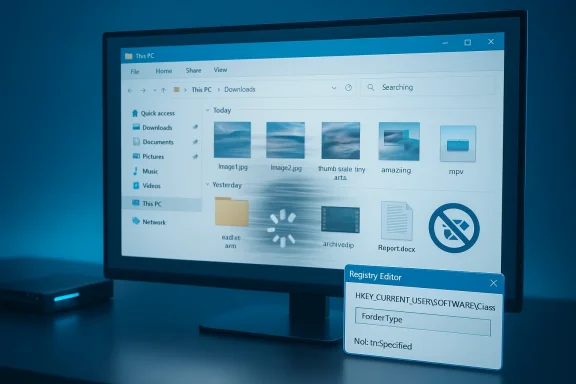
The commonly recommended fix is straightforward: set the folder type behavior so Explorer treats the relevant default as NotSpecified and stops trying to infer specialized templates. Microsoft’s shell identifiers include FOLDERTYPEID_NotSpecified, which reinforces that this is not a hack invented out of thin air; it is part of the platform’s own folder-type system.What the tweak changes
The key registry path usually referenced is under the current user hive, specifically theBags\AllFolders\Shell branch. Adding a string value named FolderType and setting it to NotSpecified effectively tells Explorer not to perform the automatic template discovery for all folders. Microsoft support community answers describe the same approach, and multiple forum-style explanations have repeated the same registry pattern over the years.That is the point where many users worry they are “breaking” Windows. In reality, they are changing a default classification behavior, not deleting core Explorer components. Still, the registry is not a casual playground. If you are going to edit it, backing it up first is the sensible move because mistakes in the registry are harder to reverse than ordinary settings changes.
A small but important nuance is that the goal is consistency, not speed in the abstract. If you keep relying on Windows to detect folder type, the operating system keeps spending time on the decision. If you stop it from deciding, folders open with less hesitation and fewer surprises. That is why the tweak can feel disproportionately effective relative to how simple it looks.
Why the backup warning matters
Registry tweaks are often presented as quick fixes, but the caution is legitimate. File Explorer behavior is tightly linked to user-specific shell settings, and a mistaken change can lead to odd view behavior or other personalization problems. Backing up the hive before editing gives you a clean rollback path if something does not behave as expected.There is also a second reason to be careful: Explorer has many layered view behaviors, and not every folder annoyance has the same cause. Some issues are caused by view caching, others by folder-specific templates, and others by the automatic discovery process itself. If you change the wrong piece, you may solve one annoyance while leaving the actual stutter untouched.
That is why the registry route is best approached as a targeted fix rather than a universal cure. It addresses a specific legacy mechanism. It does not replace other troubleshooting steps, and it will not turn Explorer into a different application. But when the symptom matches, it is often the cleanest solution available.
Enterprise and Power-User Impact
For home users, this is mostly a quality-of-life fix. For enterprise environments, the implications are broader because Explorer is still the default file manager across thousands of desktops, and even tiny inefficiencies scale badly when multiplied by hundreds of open-folder actions per day. If a legacy feature adds friction without meaningful benefit, IT departments have a strong incentive to suppress it.Why IT admins should care
Power users tend to notice stutter first, but admins should care about consistency and supportability. A folder-view heuristic that behaves differently across machines can make workflows feel unreliable, especially in environments where users work inside deeply nested project trees or network-mapped shares. Even if the delay is minor, it can generate helpdesk complaints that are hard to reproduce.A predictable Explorer experience also matters in remote-work scenarios. When users are working through remote sessions or on systems where every interaction feels slightly more latent than local use, small Explorer hesitations become more visible. Removing automatic folder-type guessing helps standardize the shell experience and reduces one more variable.
The enterprise angle is not just about speed. It is about reducing friction in file-navigation workflows that are already burdened by security layers, synced folders, redirected profiles, and modern management policy. If Explorer can be made less whimsical about folder templates, administrators have one fewer behavior to explain. That is worth something in large environments.
Why enthusiasts notice it first
Windows enthusiasts and tinkerers are often the first to bump into this because they use the file system more aggressively than casual users. They open large folders, maintain mod libraries, curate media collections, and move assets around constantly. In those scenarios, Explorer’s small stalls are not theoretical—they interrupt the rhythm of work.These users also care more about control than hand-holding. A folder view that changes because Windows thinks it knows better is exactly the kind of behavior enthusiasts dislike. They usually prefer a predictable shell that gets out of the way, even if that means giving up a little automatic convenience.
The broader lesson is that Explorer still carries two audiences at once. One audience wants a friendly, self-adjusting interface. The other wants a deterministic, low-friction file browser. Automatic Folder Type Discovery leans toward the first group, but Windows 11 increasingly ships into a world dominated by the second. That tension explains why this old feature keeps resurfacing in modern complaints.
How This Fits Microsoft’s Broader Explorer Problem
Explorer has become a frequent focal point for Windows criticism because it sits at the intersection of performance, usability, and legacy design. Users forgive a lot in a web browser or a media app, but they are much less forgiving when the file manager stalls. File navigation is foundational, so even small flaws feel systemic.Legacy behavior versus modern expectations
Microsoft has spent years modernizing Explorer in Windows 11, but the shell still has to coexist with decades of assumptions. The folder-template system is a perfect example: it is technically functional, deeply embedded, and often harmless, yet it can undermine perceived performance. That kind of legacy compromise is hard to remove because it has so many side effects.This also explains why users keep encountering “one weird trick” fixes for Explorer behavior. Many of those tweaks are not really tricks; they are ways of disabling old shell heuristics that still survive because they are low-risk from Microsoft’s perspective. What is low-risk for Microsoft can still be high-annoyance for the user.
The irony is that a feature designed to reduce decision-making can become a source of it. You open a folder expecting to work, and Windows quietly decides it needs to classify the content first. That decision-making step is invisible until it becomes slow enough to notice, and then it feels like the app is second-guessing you.
The cost of “helpful” defaults
A helpful default is only helpful if the majority of users benefit from it without noticing. Automatic folder detection probably met that standard much better in the XP era than it does now. Modern users have more heterogeneous folders and greater expectations of instantaneous response, so the tolerance for “smart” behavior has dropped sharply.That is why the fix resonates beyond this single tweak. It reflects a larger truth about Windows: the platform still carries settings that assume an older relationship between people and their PCs. When those assumptions age out, the feature survives but the goodwill around it does not. That is what creates the feeling that Windows is full of annoying little papercuts.
In other words, this is not just a folder-view issue. It is an example of how legacy shell behavior can distort the perception of an otherwise capable operating system. A tiny performance tax, paid often enough, turns into a major annoyance. That is exactly the kind of thing users remember when they say Windows feels messy.
Practical Guidance for Users
If you are going to disable Automatic Folder Type Discovery, treat it like a small but deliberate maintenance task. Start by backing up the registry, because the fix lives in a user-shell area where view behavior is stored. Then make the specificFolderType change under the AllFolders\Shell key and restart Explorer so the change takes effect.Step-by-step approach
- Open the Registry Editor from the Run dialog.
- Export the registry or at least the relevant branch so you can roll back.
- Navigate to the
HKCUshell path used forAllFolders. - Create or edit the
FolderTypestring value. - Set it to
NotSpecified. - Restart Windows Explorer or reboot.
What to expect after the change
Do not expect a dramatic benchmark-worthy transformation. You are not upgrading your SSD, tuning the kernel, or removing a heavyweight service. What you should expect is fewer random delays when opening folders and less of the view-switching behavior that makes Explorer feel inconsistent.That subtlety matters because it keeps expectations realistic. The fix is about removing friction, not creating new raw speed. If your Explorer feels flaky in certain folders and stable in others, this tweak is valuable precisely because it makes the experience more uniform.
Strengths and Opportunities
The upside here is not only that the tweak is simple, but that it targets an old behavior with a well-understood effect. It is a rare Windows 11 fix that is both low-effort and logically tied to the symptom users actually notice. For anyone bothered by Explorer hesitation, that combination is hard to ignore.- Fast remediation: the change is quick to apply once the registry path is known.
- Predictable behavior: folders stop reclassifying themselves based on content.
- Less stutter: Explorer avoids some of the on-open analysis that causes hesitation.
- Better consistency: mixed folders behave more uniformly from one open to the next.
- Power-user friendly: the fix suits users who prefer manual control over automatic guesses.
- Low operational cost: it does not require third-party software or heavy system changes.
- Enterprise-friendly: admins can reduce one more source of shell variability.
Risks and Concerns
There are legitimate caveats. This is a registry-based workaround, and while it is commonly recommended, it is still a system change that should be made carefully. It may also alter folder-view behavior in ways some users do not want, especially if they like Explorer to adapt automatically.- Registry risk: a typo or wrong key can create new problems.
- Loss of automation: users who like automatic folder templates may miss them.
- Not a universal fix: some Explorer delays have other causes entirely.
- Minor gains only: on some systems the improvement may be subtle rather than dramatic.
- User preference tradeoff: consistency comes at the cost of some convenience features.
- Troubleshooting complexity: Explorer issues can have multiple overlapping causes.
- Perception gap: users may expect a huge speed-up and be disappointed by a modest one.
Looking Ahead
What makes this story compelling is that it is less about one registry value than about the aging assumptions embedded in Windows itself. Microsoft continues to modernize File Explorer, but legacy shell logic still leaks into daily use. As long as those older heuristics remain in place, users will keep finding small configuration changes that make the system feel more coherent.The next evolution of Explorer should probably be more explicit. Rather than infer folder type silently and repeatedly, Windows could offer clearer control over default folder behavior and separate “helpful suggestions” from performance-sensitive operations. Users would likely accept less automation if it meant more consistency and fewer unexplained stalls. That is especially true in an era where people expect their desktops to feel as immediate as their phones and tablets.
For now, the practical takeaway is simple: if File Explorer feels like it occasionally pauses for no good reason, this is one of the first legacy behaviors worth disabling. It is a reminder that Windows performance problems are not always about hardware, drivers, or updates. Sometimes they are about a twenty-year-old feature still trying to be helpful in a world that has moved on.
That is why this fix matters. It is small, specific, and a little bit old-fashioned—exactly the kind of change that can make a modern Windows 11 desktop feel calmer, more predictable, and finally less like it is thinking before it acts.
Source: XDA Your Windows 11 File Explorer stutters because of an XP-era feature you can turn off in seconds
