

Notepad’s long, spartan run as Windows’ smallest text tool is over — Windows 11’s Notepad now includes generative AI features — and if you prefer plain text, this guide shows how to turn that AI off, restore the classic notepad.exe behavior, and control Notepad for single PCs or entire fleets without breaking updates or support paths.
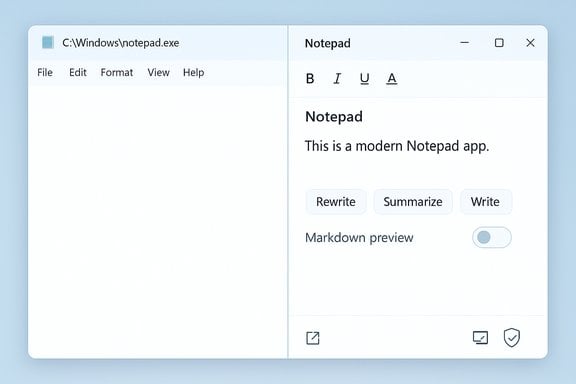
Microsoft has modernized Notepad in recent Windows 11 updates, adding a lightweight formatting toolbar, Markdown preview, tabs, session restore, spellcheck and generative AI actions such as Rewrite, Summarize and Write (Copilot-powered helpers). These AI tools can rephrase text, produce summaries, or generate new content from prompts; they originally rolled out through Windows Insider channels and have been moving into broader builds. Independent reporting confirms these AI features, and Microsoft documents the administrative controls that let organizations manage or disable them. For users who value the original Notepad’s speed and predictability, the presence of AI and added UI elements raises two practical questions: how to stop AI features inside Notepad, and how to make Windows call the classic on‑disk notepad.exe (the tiny executable in C:\Windows or C:\Windows\System32) instead of the modern packaged Notepad app. Both are achievable through supported, reversible controls — app-level toggles, the App execution aliases setting, or, for organizations, Group Policy/ADMX and Intune. Community and technical guides show the same methods and the same cautionary trade-offs.
Key feature changes introduced recently:
Steps:
Steps:
Options:
Source: baonghean.vn https://baonghean.vn/en/notepad-tren-windows-11-co-ai-cach-tat-neu-ban-khong-can-10309127.html
 Background / Overview
Microsoft has modernized Notepad in recent Windows 11 updates, adding a lightweight formatting toolbar, Markdown preview, tabs, session restore, spellcheck and generative AI actions such as Rewrite, Summarize and Write (Copilot-powered helpers). These AI tools can rephrase text, produce summaries, or generate new content from prompts; they originally rolled out through Windows Insider channels and have been moving into broader builds. Independent reporting confirms these AI features, and Microsoft documents the administrative controls that let organizations manage or disable them. For users who value the original Notepad’s speed and predictability, the presence of AI and added UI elements raises two practical questions: how to stop AI features inside Notepad, and how to make Windows call the classic on‑disk notepad.exe (the tiny executable in C:\Windows or C:\Windows\System32) instead of the modern packaged Notepad app. Both are achievable through supported, reversible controls — app-level toggles, the App execution aliases setting, or, for organizations, Group Policy/ADMX and Intune. Community and technical guides show the same methods and the same cautionary trade-offs. What changed in Notepad (the essentials)
Windows’ Notepad evolved from a one-function plain-text editor to a modern inbox app with a set of convenience features aimed at common writing tasks.Key feature changes introduced recently:
- Generative AI actions — Rewrite, Summarize, Write (cloud-backed; may require Microsoft sign-in or credits).
- Formatting & Markdown support — bold, italics, lists and a Markdown preview toggle. These can be turned off per-app.
- Tabs and session restore — keeps open files and unsaved buffers between launches (configurable).
- Spellcheck and autocorrect — lightweight spelling assistance for quick notes.
Quick summary: three safe ways to remove or disable Notepad AI
- In‑app: Open Notepad settings and disable AI features or sign out to stop Copilot actions. This is the fastest and most reversible method.
- Classic fallback: Turn off the Notepad App execution alias in Settings → Apps → Advanced app settings → App execution aliases. After that Windows will prefer the on‑disk notepad.exe when you run notepad.exe. This restores the classic behavior without uninstalling anything.
- Enterprise / admin: Use the Notepad ADMX Group Policy setting DisableAIFeaturesInNotepad (or Intune) to block AI features across devices. Microsoft documents this ADMX and its supported versions.
How to turn off Notepad AI — detailed methods
1) Turn off AI inside Notepad (per-user, in-app)
This is the least intrusive option. Use it when you want to stop AI suggestions within Notepad but don’t need to remove the modern app.Steps:
- Open Notepad.
- Click the gear (Settings) icon in the top-right corner.
- Find the AI or Copilot section and toggle off the AI features (or choose “Sign out” to prevent cloud-backed actions).
- Optionally change When Notepad starts to “Start new session and discard unsaved changes” to restore a blank start behavior.
- This disables UI-level generative actions for the signed-in user but leaves the app installed and updated. It is reversible and recommended for most users.
- If your machine supports on‑device models (Copilot+ hardware), some AI operations may be available locally; toggling sign-in and the AI toggle is still the right first step.
2) Restore classic notepad.exe by disabling the App execution alias
If you want the old Notepad back when you press Win+R → notepad.exe or double‑click .txt files, disable the modern Notepad’s execution alias. This is the community-recommended, non-destructive method to ensure notepad.exe launches the on‑disk binary.Steps:
- Press Win + I to open Settings.
- Go to Apps → Advanced app settings → App execution aliases (or type ms-settings:advanced-apps in Run).
- Find the entry named Notepad (or Notepad.exe) and toggle it Off.
- Open File Explorer and confirm the classic binary exists at C:\Windows\notepad.exe or C:\Windows\System32\notepad.exe. Double-click it to verify.
- Optionally create a desktop shortcut that points to C:\Windows\notepad.exe and pin it to Start or the Taskbar.
- Packaged Store/UWP apps can register an execution alias (a system-level name like notepad.exe) that hijacks standard name resolution. Turning the alias off removes the packaged app’s reservation of that command and allows Windows to fall back to the installed system binary. This behavior is documented in community troubleshooting and Microsoft support channels.
- If notepad.exe is missing from C:\Windows or System32, reinstall the classic Notepad via Settings → System → Optional features → View features → search for “Notepad (system)” and install it, or use DISM to add the capability. Community docs and Q&A threads show these options when the classic binary is absent.
- If toggling the alias has no immediate effect, sign out or restart your session — some alias changes require a session restart.
- This doesn’t uninstall the modern Notepad; it simply stops it from being the default target for the notepad.exe command. That keeps updates intact while restoring your favored workflow. Community guides advise against deleting app packages or copying system binaries between machines.
3) Uninstall the modern Notepad app (not recommended for most users)
If you want to remove the modern, Store-packaged Notepad entirely:- Go to Start → right-click Notepad → Uninstall, or Settings → Apps → Installed apps → Uninstall.
- Be aware: uninstalling the packaged Notepad can remove the supported update path and future fixes for that package; it may also reappear after a feature update or automatic provisioning. Community guides recommend disabling the alias instead of uninstalling unless you have a recovery plan.
4) Block AI features centrally (enterprise / IT administrators)
Enterprises and managed environments should use Microsoft’s supported ADMX or Intune methods rather than per‑device hacks.Options:
- Import the Notepad administrative template (ADMX) and apply the DisableAIFeaturesInNotepad policy (machine-wide). When enabled, users cannot use Notepad’s AI features. Microsoft documents the policy and version requirements.
- Use Intune (upload the ADMX or a custom configuration profile) to deploy the setting across an estate. Community writeups and Microsoft Learn provide Intune guidance for ADMX-backed policies.
- For broader controls, use the platform policy that blocks generative features for Windows apps or use AppLocker / WDAC to restrict app execution for extreme-lockdown scenarios.
- Microsoft documents the ADMX policy and lists supported Windows / Notepad versions (for example, Windows 11 22H2 or later and Notepad version 11.2503.16.0 or newer for certain policy behaviors). Validate the supported versions in your environment before deployment.
5) Registry and Group Policy alternatives (Home or scripted deploys)
For Windows Pro/Enterprise/Education:- Use Group Policy Editor (gpedit.msc) → User Configuration → Administrative Templates → Windows Components → Windows Copilot → Turn off Windows Copilot and set to Enabled to prevent Copilot from being launched. This is widely used for Copilot removal at the OS level (affects Taskbar and other entry points).
- Create registry keys equivalent to the Group Policy. Example (machine-wide):
- Path: HKLM\SOFTWARE\Policies\Microsoft\Windows\WindowsCopilot
- Value: TurnOffWindowsCopilot (DWORD) = 1
- Or per-user:
- Path: HKCU\Software\Policies\Microsoft\Windows\WindowsCopilot
- Value: TurnOffWindowsCopilot (DWORD) = 1
- Restart or gpupdate /force as appropriate. Community guides and Microsoft Q&A echo these registry mappings. Use registry edits only with backups and test.
- Some users and admins report that policy changes hide the taskbar button but don’t always block all launch paths in every build; test on your exact Windows build. For highest assurance, combine policy with AppLocker/WDAC or remove the app package in managed images.
Privacy, billing and "AI credits" — what to watch for
- Generative features have historically relied on Microsoft cloud services and required a Microsoft account for full functionality. Independent reporting shows that Microsoft has been expanding on‑device options (Copilot+ PCs) for local inference, but cloud processing and subscription gating (AI credits, Microsoft 365/Copilot entitlements) have been part of the ecosystem for many builds. If you plan heavy use of Notepad’s AI features, confirm entitlements with Microsoft 365 or Copilot Pro docs.
- Local on‑device models reduce cloud traffic and can be better for privacy in theory, but “local” does not automatically equal private — telemetry, logs and model updates may still interact with cloud services unless explicitly restricted. Do not assume absolute privacy without verifying telemetry and data flow controls in your tenant or device policies.
Troubleshooting: common gotchas and fixes
- Not seeing an App execution alias for Notepad? Some systems don’t register the packaged Notepad alias until the Store package is present. Reinstalling the modern Notepad (or using Optional features) can make the alias appear so you can toggle it. Community troubleshooting steps recommend reinstalling the package or installing the classic Notepad via Optional features.
- Win+R still launching modern Notepad after toggling alias: sign out, reboot, or run gpupdate /force. Alias and session changes sometimes need a restart to propagate.
- Missing classic notepad.exe: re-add it via Settings → System → Optional features → View features → search for Notepad (system), or use DISM to add the capability (
dism /Online /add-capability /CapabilityName:Microsoft.Windows.Notepad.System~~~~0.0.1.0). Community Q&A documents both methods. - Registry mistakes: always back up the registry and create a system restore point before making changes. Many community posts show accidental issues after registry edits. Use Group Policy or Intune for managed rollouts where possible.
Enterprise checklist: how to roll this out safely at scale
- Inventory: identify Windows builds and Notepad versions in your estate; ADMX policy requires specific minimums.
- Test: pilot the ADMX DisableAIFeaturesInNotepad policy on representative devices and confirm behavior (local vs cloud AI, sign-in prompts, UI removal).
- Deploy: import the Notepad ADMX into Group Policy or Intune (ensure Windows.admx is present), apply the policy to targeted OUs or device groups.
- Verify: confirm Notepad UI no longer exposes AI options and that users cannot enable them locally. Check telemetry and event logs for attempted calls to Copilot endpoints.
- Document: add the alias toggle and optional feature restore steps to your helpdesk runbook for users who continue to request classic Notepad access.
Strengths, risks, and long-term considerations
Strengths of Microsoft’s approach:- Choice: Windows provides in‑app toggles, alias toggles, and ADMX/Intune controls so both consumers and IT admins can choose the experience they want.
- Non-destructive fallback: disabling the execution alias returns you to the classic notepad.exe without removing apps or breaking update channels.
- Update drift: Microsoft’s packaging and delivery for inbox apps can change across feature updates, so a trick that works today (e.g., a registry path or alias name) might behave differently after a major Windows update. Label any ad‑hoc registry hacks or third‑party mods as brittle and test after updates.
- Policy coverage differences: some Group Policy/registry controls may only hide UI elements in certain builds; thorough testing on your specific Windows build is necessary to confirm enforcement.
- Privacy assumptions: on‑device inference is promising, but treat “local processing” as an improvement rather than a guarantee — verify telemetry and logging controls before assuming data never leaves the device.
- Claims about precise billing models, per-feature credit consumption, and Microsoft’s future packaging decisions are subject to change. Where precise credit usage or entitlement mapping is critical, verify current Microsoft commercial documentation for Copilot and Microsoft 365 entitlements before deploying. The landscape has been evolving rapidly, so treat subscription and credit details as time‑sensitive.
Practical recommendations (for everyday users and admins)
- If you just want the old Notepad back for speed and simplicity: disable the Notepad App execution alias and run C:\Windows\notepad.exe; create a desktop or taskbar shortcut for convenience. This is the safest, reversible path for most home users.
- If your concern is privacy or preventing cloud generation across many devices: import the Notepad ADMX and set DisableAIFeaturesInNotepad, and consider pairing that with tenant-level Copilot controls for Microsoft 365 where relevant. Test and pilot first.
- Avoid copying notepad.exe from other machines or applying unsupported binaries — use Optional features or DISM to restore the classic binary if it’s missing, and avoid removing Store packages unless you understand update and provisioning implications.
- Back up the registry before any edits, and prefer Group Policy / Intune for organization-wide changes to reduce human error.
Conclusion
Notepad’s transformation into a feature-rich, AI-aware editor makes it more capable — but not everyone wants AI in their text editor. Windows gives you multiple, supported ways to keep the classic notepad.exe experience intact: toggle the Notepad in‑app AI off, disable the modern Notepad’s App execution alias so notepad.exe calls the on‑disk binary, or use the Notepad ADMX (DisableAIFeaturesInNotepad) and Group Policy/Intune to enforce a no‑AI policy across devices. Each method balances convenience, reversibility and enterprise control differently; for most users the alias toggle is the safest quick fix, while admins should use the ADMX for reliable, centralized management. Always test changes on your build and maintain rollback paths — the Windows app ecosystem and AI integrations continue to evolve, so a responsible roll‑out and clear runbook will keep your workflows stable while you choose the Notepad experience that fits your needs.Source: baonghean.vn https://baonghean.vn/en/notepad-tren-windows-11-co-ai-cach-tat-neu-ban-khong-can-10309127.html
