

If the modern, Copilot-enabled Notepad landed on your PC and you want the old, minimalist notepad.exe back, the good news is that Windows gives you safe, reversible ways to do exactly that — without uninstalling anything or resorting to hacks that break updates.
Microsoft has been incrementally modernizing Notepad in Windows 11, adding lightweight formatting, Markdown preview, tabs, session restore and generative AI actions such as Rewrite, Summarize, and Write. These features are branded around Copilot and — depending on the feature and your hardware — may require a Microsoft account or paid AI credits to use the cloud-backed functionality. Independent reporting and Microsoft’s own management documentation confirm both the features and the administrative controls provided to manage or disable them. Those changes sparked confusion when users who opened Notepad saw a Copilot logo or a sign‑in prompt. For many long-time Windows users Notepad’s identity is its simplicity: instant-open, local, and offline. Microsoft has preserved the classic behaviors — and Windows exposes safe controls so you can keep working with the tiny on-disk binary (C:\Windows\notepad.exe) if you prefer that experience.
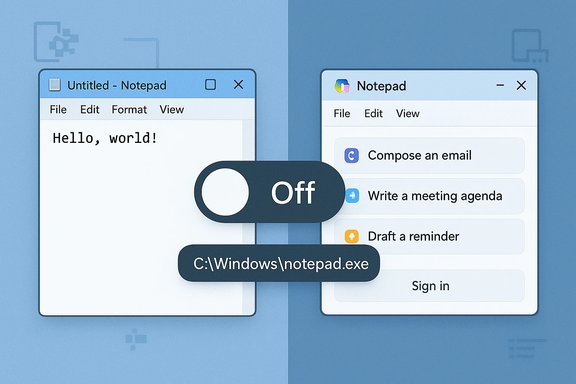
By turning that alias off in Settings → Apps → Advanced app settings → App execution aliases, you remove the packaged app’s reservation of the notepad.exe name so Windows falls back to the built-in on-disk binary (C:\Windows\notepad.exe or C:\Windows\System32\notepad.exe). This is a supported, reversible behavior documented by Microsoft and covered in community guides.
Source: Guiding Tech How to Get Back the Old Notepad Without AI Features
 Background / Overview
Microsoft has been incrementally modernizing Notepad in Windows 11, adding lightweight formatting, Markdown preview, tabs, session restore and generative AI actions such as Rewrite, Summarize, and Write. These features are branded around Copilot and — depending on the feature and your hardware — may require a Microsoft account or paid AI credits to use the cloud-backed functionality. Independent reporting and Microsoft’s own management documentation confirm both the features and the administrative controls provided to manage or disable them. Those changes sparked confusion when users who opened Notepad saw a Copilot logo or a sign‑in prompt. For many long-time Windows users Notepad’s identity is its simplicity: instant-open, local, and offline. Microsoft has preserved the classic behaviors — and Windows exposes safe controls so you can keep working with the tiny on-disk binary (C:\Windows\notepad.exe) if you prefer that experience. Quick tips before you start
- Look for the colorful Copilot logo in the top-right of Notepad to confirm you have the AI-augmented app.
- If you want AI features but not cloud-signed prompts, check whether your device is a Copilot+ (on‑device model) capable PC: on‑device generation changes the privacy and sign‑in surface.
- The safest and most reversible way to restore classic Notepad behavior is to toggle the modern app’s App execution alias off; this simply causes Windows to prefer the legacy notepad.exe when you launch Notepad via Run, shortcuts, or command line. No uninstall required.
How the alias trick works (short technical primer)
Modern, Microsoft Store–packaged apps can register an App execution alias — a system-level name (for example, notepad.exe) that Windows will resolve to the packaged app when you call the alias from Run, PowerShell, or the command prompt. When the packaged Notepad registers this alias, Windows may launch that store app instead of the classic system binary.By turning that alias off in Settings → Apps → Advanced app settings → App execution aliases, you remove the packaged app’s reservation of the notepad.exe name so Windows falls back to the built-in on-disk binary (C:\Windows\notepad.exe or C:\Windows\System32\notepad.exe). This is a supported, reversible behavior documented by Microsoft and covered in community guides.
Step-by-step: Restore the classic Notepad (fast path)
Follow these numbered steps to get the old Notepad back in less than five minutes:- Open Notepad and confirm which variant you have. Look for the Copilot icon or a sign‑in popup to identify the AI-augmented version.
- Close Notepad.
- Open Settings (press Win + I).
- Go to Apps → Advanced app settings → App execution aliases.
- Scroll the list, find the entry for Notepad (or Notepad.exe), and toggle the switch to Off. This prevents the packaged Notepad from responding to the notepad.exe alias.
- Press Win + R, type notepad.exe and press Enter. The classic, local Notepad binary should open. If it doesn’t, sign out / restart your session and try again.
Step-by-step: Alternative in-app opt-out (if you only want to disable AI)
If you’re okay with the modern app but dislike the AI features, turn them off inside Notepad itself:- Open the modern Notepad app.
- Click the gear/settings icon in the top-right.
- Find the AI or Copilot section and toggle off Rewrite / Summarize / Write (or sign out of your Microsoft account in the app). This prevents Copilot actions from appearing for the signed-in user.
Enterprise-grade controls (ADMX / Group Policy / Intune)
Organizations and IT admins have stronger, centrally-enforceable options:- Microsoft provides a Notepad administrative template (ADMX) with a policy named DisableAIFeaturesInNotepad. Enabling this policy disables AI features in Notepad across managed devices. Supported Windows and Notepad minimum versions are documented in the ADMX guidance.
- You can deploy the ADMX via Group Policy, Intune, or by configuring equivalent registry keys for bulk enforcement. This is the recommended, auditable approach for enterprises that must control data flow and prevent cloud-backed generative features.
Troubleshooting
- If notepad.exe doesn’t launch the classic binary after toggling the alias off: confirm the legacy binary exists at C:\Windows\notepad.exe or C:\Windows\System32\notepad.exe. If missing, restore it via Settings → System → Optional features → Add a feature (search for Notepad (system)) or use DISM.
- Some alias changes can require a user sign-ou t or a restart to take full effect. Log off and back on if you don’t see the expected behavior.
- Avoid deleting or replacing in-box binaries or store-package files; these actions can break update paths and are brittle across feature updates. Use the alias toggle or ADMX instead.
What you gain and what you give up
- Gains when restoring classic Notepad:
- Determinism and speed: classic notepad.exe starts faster and is fully local.
- Privacy: no cloud round trips unless you copy/paste into another app.
- Simplicity: plain-text editing without formatting or AI prompts.
- Trade-offs:
- You lose integrated formatting helpers and the new Markdown/preview conveniences added to the modern app.
- If your workflow valued the AI writing helpers (Rewrite/Summarize/Write), those conveniences go away unless you re-enable the modern app or use a different AI tool.
Privacy, sign-in and paywall concerns — what’s verified and what’s evolving
- Microsoft has stated that basic Notepad functionality does not require a Microsoft account. The app remains usable as a local editor without sign-in. The Copilot/AI actions, however, may prompt for sign-in and may use Microsoft 365 credits or subscription entitlements for certain operations. Multiple independent outlets tested and reported the sign-in requirement for AI features and the existence of subscription gating for some capabilities.
- Microsoft’s management documentation and the Windows Insider blog confirm that AI features may run locally on Copilot+ hardware when available (on‑device models) and that on‑device generation reduces or eliminates cloud exposure — but availability is hardware-dependent. Treat the local-on-device option as an important privacy improvement, but verify your specific PC’s Copilot+ status and Notepad build.
- Claims about precise credit costs, the exact ways Microsoft may tie credits to specific Notepad actions, or the future monetization of Copilot features are time-sensitive and have changed during early rollouts. These details should be rechecked against Microsoft’s product pages and subscription terms at the moment you make decisions about enterprise policy or cost exposure. Flag these as evolving rather than immutable.
Security and compliance considerations
- If your organization handles regulated data, don’t assume AI features are safe by default. Cloud-backed generation can route snippets of text to remote services; use the ADMX policy or Intune to disable AI features where necessary.
- For high-security environments, prefer enforced policies over per-user toggles. Centralized controls produce auditable, uniform behavior and avoid helpdesk churn.
Alternatives to the stock Notepad
If you want a richer, AI-free editing environment or better file handling without cloud ties, consider these options:- Notepad++ — mature, extensible, lightweight, and fully local. Ideal for developers and sysadmins who need regex search/replace, plugins, and multi-file editing.
- Visual Studio Code — if you need features like project workspaces, extensions, and integrated terminals (note: it can be configured to be local-only).
- Portable editors (Notepad2, Notepad2-mod) — bring-your-own-editor approach for locked-down or portable workflows.
- Keep classic notepad.exe as a fallback — the alias toggle and desktop shortcuts allow a hybrid workflow where you use the modern app when helpful and the classic exe when you want absolute minimalism.
Best practice checklist (for home users and IT teams)
- For most home users who want the old Notepad: toggle off the Notepad alias and create a shortcut to C:\Windows\notepad.exe. It’s quick, reversible, and preserves update paths.
- For privacy-minded users: disable AI features inside Notepad and avoid signing into Copilot features for casual text. Consider Copilot+ on-device options where hardware supports local models.
- For enterprises: import the Notepad ADMX and evaluate DisableAIFeaturesInNotepad in a pilot group before wide rollout; update documentation and helpdesk runbooks accordingly.
- Always test after major Windows feature updates — packaging and alias behavior can change across builds, so verify your rollback method still works after an OS update.
Long-term perspective: why Microsoft made this change
Notepad’s evolution is part of a broader trend: vendors are integrating generative AI into everyday productivity tools to reduce context switching and add convenience. For many users, a simple Rewrite or Summarize button inside a tiny editor will save time. For others, it threatens the core value of a tiny, fast, offline text editor. Microsoft’s approach — add features, keep toggles and admin controls, and offer on‑device processing where feasible — signals an attempt to balance innovation and choice. Expect continued iteration: features, packaging, and admin controls will likely change as Microsoft refines the product.Final assessment
Restoring the classic Notepad is straightforward, supported, and reversible. The App execution aliases toggle is the cleanest method for individuals who simply want the old notepad.exe back, while admins should prefer the ADMX policy for consistent enforcement at scale. The trade-offs are clear: you regain speed, determinism, and local-only text editing at the cost of losing built-in AI writing helpers and certain formatting conveniences. Privacy, subscription entitlements, and on-device vs cloud processing are the important trade-offs to weigh; these details have been confirmed by Microsoft documentation and independent coverage, but the exact monetization and credit mechanics remain time-sensitive and should be checked if they matter for your environment. If you want a quick recap: toggle App execution aliases off → run notepad.exe from Run → (optionally) pin or shortcut the C:\Windows\notepad.exe binary. That sequence returns you to the classic Notepad experience without breaking updates or your system’s supportability.Source: Guiding Tech How to Get Back the Old Notepad Without AI Features
