

Windows 10 and Windows 11 users can turn off a laptop touch screen by opening Device Manager, expanding Human Interface Devices, right-clicking HID-compliant touch screen, choosing Disable device, and confirming the warning prompt; the same menu can re-enable it later. That is the quick answer, and it is still the right answer in 2026. The more interesting point is that Windows treats touch not as a lifestyle feature, but as another hardware interface that can be managed, suspended, or isolated when it gets in the way. For users and administrators, that makes the touch screen less like a permanent personality trait of the device and more like a switchable input layer.
The odd thing about disabling touch on a modern Windows laptop is not that it is difficult. It is that the control lives in Device Manager, one of the oldest-feeling corners of the operating system, rather than in the polished Settings app where most users now expect to find device behavior.
Microsoft’s official route remains straightforward: open Device Manager, expand Human Interface Devices, find HID-compliant touch screen, and disable the device. This works on both Windows 10 and Windows 11 because the touch screen is exposed to Windows as a Human Interface Device, or HID, rather than as a special display setting.
That distinction matters. The display panel and the touch digitizer are related physically, but Windows manages them separately. Turning off the touch screen does not turn off the monitor, dim the backlight, change resolution, or disable the laptop’s touchpad. It simply tells Windows to stop accepting input from that touch interface.
For a lot of users, that is exactly what they need. A cracked digitizer that produces phantom taps, a child who keeps reaching for the screen, or a cramped airplane tray table can make touch input a liability. Device Manager may not be elegant, but it gives users a clean way to remove that liability without uninstalling drivers or changing hardware.
The fact that the setting has not moved into the main Settings app also says something about Windows’ priorities. Microsoft has spent years modernizing common controls, but the toggles that truly alter hardware behavior often remain in legacy management tools. That may frustrate casual users, yet it is also why the same method continues to work across Windows 10 and Windows 11 with little drama.
The search route works just as well. Click Start, type Device Manager, open it, and follow the same Human Interface Devices path. On some systems, especially those with many sensors and input devices, the list may be longer than expected, so the exact entry can take a moment to find.
Once disabled, the test is simple: tap the display. If nothing happens, Windows is no longer accepting touch input from that panel. The mouse, keyboard, trackpad, external monitor, and pen behavior may vary depending on the device design, but ordinary pointer and keyboard input should continue.
Re-enabling the touch screen is the same operation in reverse. Return to Device Manager, expand Human Interface Devices, right-click the disabled HID-compliant touch screen entry, and select Enable device. The entry may show a small downward-arrow icon while disabled, which is Windows’ visual clue that the hardware is present but inactive.
The important practical point is reversibility. This is not a registry hack, a firmware change, or a driver removal. It is a software-level disable operation, and for most users it is safe to toggle when circumstances change.
The touch screen is the display surface itself. It responds to finger input and, on supported hardware, may also work with a stylus. It is common on convertibles, 2-in-1 laptops, some premium notebooks, and some external monitors.
The touchpad is the rectangular pointing surface below the keyboard. It moves the cursor, supports gestures, and generally replaces a mouse when the laptop is used on the go. Disabling the touch screen should not disable the touchpad, and disabling the touchpad should not disable the touch screen.
Windows 11 places touchpad settings under Settings, then Bluetooth & devices, then Touchpad. Windows 10 uses its own Settings layout, but the idea is the same: touchpad behavior belongs in user-facing Settings, while the touch screen disable switch still lives in Device Manager.
That split is not always intuitive, but it is useful once understood. If your palm is brushing the pad while typing, you want touchpad settings. If the display itself is reacting to taps, swipes, ghost touches, or cleaning cloths, you want the HID-compliant touch screen entry.
The first possibility is mundane: the laptop may not have a touch screen. Many product families ship in both touch and non-touch configurations, and marketing names are not always precise enough to settle the question. If the entry does not exist, checking the exact model number and manufacturer specifications is the right next step.
The second possibility is that the device appears under a slightly different name. Some systems expose touch hardware through a controller entry, a vendor-specific HID label, or a related component under System devices. External touch monitors can make this even messier because the touch interface may appear as a USB input device associated with the monitor vendor rather than as a plainly labeled laptop screen.
The third possibility is a driver or hardware detection issue. If the touch screen used to work and no longer appears, Windows may not be seeing the device correctly. In that case, updating drivers from Device Manager, checking the manufacturer’s support tool, running Windows Update, and restarting the machine are more sensible than randomly disabling nearby HID entries.
There is also an account-control issue. Disabling devices in Device Manager typically requires administrative privileges. On a managed work or school device, the option may be blocked by policy, and that is not a bug so much as the organization asserting control over hardware state.
Disabling the touch screen is a clean isolation test. If the phantom behavior stops immediately after the HID-compliant touch screen is disabled, the touch layer is the likely suspect. If the behavior continues, the problem may lie elsewhere, such as a touchpad fault, mouse issue, accessibility setting, malware, remote-control software, or another input device.
This is especially useful because touch hardware failures can mimic software problems. A cracked panel, pressure damage, liquid exposure, loose internal cable, or aging digitizer can present as erratic Windows behavior. Users may waste hours chasing settings when the input layer itself is the culprit.
For IT pros, the Device Manager toggle is a practical workaround while waiting for repair. A laptop with a bad touch layer can remain productive if keyboard, mouse, and display output still work. That matters in classrooms, field offices, help desks, and small businesses where immediate hardware replacement is not always realistic.
It is also a safer troubleshooting move than uninstalling devices at random. Disabling preserves the device entry and makes reversal obvious. Uninstalling can invite driver reinstall behavior, device rediscovery, or confusion about what changed.
The display’s backlight or OLED panel is the power-hungry part of the screen assembly. The touch digitizer consumes some power, but turning off touch input is not the same as turning off the display. If battery life is the goal, reducing brightness, using battery saver, closing heavy apps, managing background activity, and improving sleep behavior will matter far more.
That does not mean there is no efficiency argument at all. If accidental touches keep waking the system, launching apps, interrupting sleep, or forcing the user to correct mistakes, disabling touch can indirectly save time and annoyance. But users should not expect a dramatic runtime gain simply because finger input is disabled.
This distinction matters because bad advice changes user expectations. If someone disables touch and sees no measurable battery improvement, they may assume the setting did not work. In reality, the setting may have worked perfectly; it just was never a major battery lever in the first place.
The better argument is control. Disable touch because it prevents unwanted input, helps diagnose hardware trouble, or makes a particular usage scenario more reliable. Treat any battery impact as incidental.
Stylus users need to be especially careful. Depending on hardware design, disabling the touch screen may or may not affect pen input in the way the user expects. Some devices separate finger touch and pen digitizer behavior cleanly; others present a more intertwined input stack. The only safe assumption is that creative and note-taking workflows should be tested after the change.
That is why the toggle should be treated as situational rather than permanent. If you are boarding a flight, cleaning a display, handing the machine to a child, or working around ghost input, disabling touch can be the right call. If you bought the device because it folds, draws, signs PDFs, or acts like a tablet, leaving touch off forever defeats much of the purchase.
There is a broader Windows design tension here. Microsoft has supported touch for years, but Windows remains a hybrid environment: part desktop workstation, part tablet shell, part legacy management console. Disabling touch reveals that hybridity because the user is not turning off a friendly Settings feature; they are managing a hardware device.
For enthusiasts, that is part of Windows’ appeal. For mainstream users, it can feel like spelunking. Either way, the operating system still gives the user more control than many sealed-down platforms would.
That means disabling the wrong thing can produce confusing results. Turning off a display adapter, monitor entry, USB hub, or unrelated HID device is not the same as disabling the touch sensor. Users should look for the touch-related HID device, and if there are multiple candidates, change one thing at a time and test carefully.
This is one area where manufacturer utilities can help. Some touch monitors ship with calibration tools, drivers, or naming conventions that make the correct device easier to identify. Others rely entirely on Windows’ generic HID handling, which is convenient until something needs to be disabled.
In multi-monitor setups, touch mapping adds another layer. Windows can associate touch input with a particular display, and problems may appear as taps landing on the wrong screen rather than touch needing to be disabled altogether. In that case, calibration or tablet PC settings may be more appropriate than disabling the device.
Still, for a malfunctioning external touch monitor, the Device Manager disable path remains a useful escape hatch. It lets the monitor continue serving as a display while removing the touch layer from the input equation.
Major updates, driver refreshes, firmware updates, or vendor support tools can complicate that picture. If Windows redetects the device, replaces the driver, or changes the hardware stack, touch may return. That does not mean the user did anything wrong; it means Windows has re-enumerated or refreshed the device.
For home users, the fix is simply to repeat the disable process. For administrators, the better answer depends on the environment. If touch must remain disabled for policy, accessibility, kiosk, classroom, or reliability reasons, device installation policies and management tooling may be more appropriate than relying on a manual Device Manager state.
There is a security-adjacent lesson here, too. Input devices are part of the trusted path between human and machine. Organizations that care deeply about kiosk integrity, shared devices, or hardened endpoints should think of touch as another input channel to govern, not merely a convenience feature.
That does not make the touch screen dangerous by default. It means the device’s input surface should match its role. A personal convertible, a point-of-sale terminal, a school laptop, and a repair-bench workstation do not have the same risk profile.
The practical rule is to avoid guessing. If the goal is touch, look for HID-compliant touch screen or a clearly touch-related device. Do not disable entries just because they sit nearby in the Human Interface Devices tree. Many HID devices are keyboards, sensors, buttons, touchpads, pens, radios, or vendor control interfaces.
If something goes wrong, Device Manager can usually reverse the change, but that assumes the user still has a working way to navigate. On a laptop, keeping the keyboard and touchpad active is usually enough. On a tablet-style Windows device with no keyboard attached, disabling touch without another input method available can be inconvenient.
This is where convertible owners should pause before acting. If touch is the primary way you unlock, navigate, or reconnect accessories, attach a keyboard or mouse first. A reversible setting is only easy to reverse if you can still control the machine.
The sober advice is simple: disable the specific touch screen device, test, and stop. The more changes made in one session, the harder it becomes to know which change fixed or broke something.
Disabling it permanently may make sense for a user who never touches the screen and is constantly annoyed by accidental input. It may also make sense for a device with a defective digitizer that is not worth repairing. But for most people, the strongest case is temporary control.
Travel is a good example. A laptop used on a train, plane, or conference table may be jostled, grabbed, or brushed more often than it is intentionally tapped. Disabling touch during that session can prevent mistakes without changing the device’s normal role.
Cleaning is another. A microfiber cloth across an active touch screen can open apps, move windows, scrub through media, or send accidental clicks. Disabling touch first is a small act of sanity, particularly on devices without a convenient hardware lock.
Shared spaces create the same logic. If a child, customer, student, or coworker can reach the screen, the touch layer can become an unplanned input device. Turning it off temporarily gives the owner a little more control over what happens next.
That is not entirely a criticism. Windows’ backward-compatible management architecture is one reason a 2026 guide can give nearly the same instruction for Windows 10 and Windows 11. The operating system’s old bones are sometimes what keep it predictable.
But it also shows why Windows can feel inconsistent. Touchpad controls live in Settings. Touch screen disablement lives in Device Manager. Pen behavior may live elsewhere. Vendor utilities may add their own layer. The user experiences one physical laptop, while Windows exposes a collection of devices, drivers, and interfaces.
For sysadmins, that model is familiar and often welcome. For mainstream users, it can be alien. The job of a good guide is not merely to say “click here,” but to explain why the thing is where it is and what the user is actually changing.
In this case, the explanation is reassuring. You are not damaging the laptop. You are not turning off the display. You are not disabling the touchpad. You are telling Windows to ignore one input device until you decide otherwise.
Disabling the touch screen on Windows 10 or Windows 11 remains a quick Device Manager job, but its usefulness is bigger than the few clicks involved. It gives users a practical escape from accidental input, a diagnostic tool for failing hardware, and a reminder that even on sleek modern laptops, Windows still exposes the machinery underneath. As PCs keep blending tablet, workstation, and appliance roles, that kind of granular control will matter more, not less.
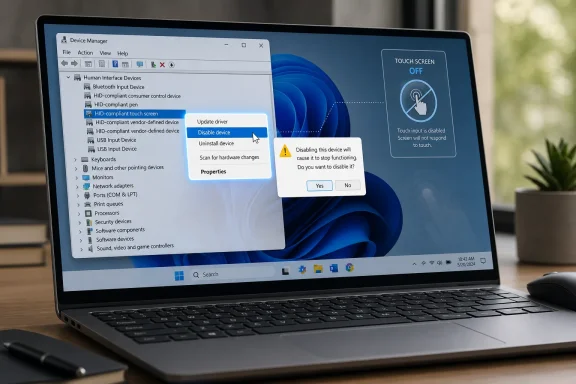 Windows Still Hides the Touch Switch in the Old Control Room
The odd thing about disabling touch on a modern Windows laptop is not that it is difficult. It is that the control lives in Device Manager, one of the oldest-feeling corners of the operating system, rather than in the polished Settings app where most users now expect to find device behavior.Microsoft’s official route remains straightforward: open Device Manager, expand Human Interface Devices, find HID-compliant touch screen, and disable the device. This works on both Windows 10 and Windows 11 because the touch screen is exposed to Windows as a Human Interface Device, or HID, rather than as a special display setting.
That distinction matters. The display panel and the touch digitizer are related physically, but Windows manages them separately. Turning off the touch screen does not turn off the monitor, dim the backlight, change resolution, or disable the laptop’s touchpad. It simply tells Windows to stop accepting input from that touch interface.
For a lot of users, that is exactly what they need. A cracked digitizer that produces phantom taps, a child who keeps reaching for the screen, or a cramped airplane tray table can make touch input a liability. Device Manager may not be elegant, but it gives users a clean way to remove that liability without uninstalling drivers or changing hardware.
The fact that the setting has not moved into the main Settings app also says something about Windows’ priorities. Microsoft has spent years modernizing common controls, but the toggles that truly alter hardware behavior often remain in legacy management tools. That may frustrate casual users, yet it is also why the same method continues to work across Windows 10 and Windows 11 with little drama.
The Fast Path Is Still Windows + X
The quickest way to get there is to right-click the Start button or press Windows + X, then select Device Manager. From there, expand Human Interface Devices, right-click HID-compliant touch screen, choose Disable device, and approve the confirmation prompt.The search route works just as well. Click Start, type Device Manager, open it, and follow the same Human Interface Devices path. On some systems, especially those with many sensors and input devices, the list may be longer than expected, so the exact entry can take a moment to find.
Once disabled, the test is simple: tap the display. If nothing happens, Windows is no longer accepting touch input from that panel. The mouse, keyboard, trackpad, external monitor, and pen behavior may vary depending on the device design, but ordinary pointer and keyboard input should continue.
Re-enabling the touch screen is the same operation in reverse. Return to Device Manager, expand Human Interface Devices, right-click the disabled HID-compliant touch screen entry, and select Enable device. The entry may show a small downward-arrow icon while disabled, which is Windows’ visual clue that the hardware is present but inactive.
The important practical point is reversibility. This is not a registry hack, a firmware change, or a driver removal. It is a software-level disable operation, and for most users it is safe to toggle when circumstances change.
Touch Screen and Touchpad Are Not the Same Fight
A surprisingly large share of confusion around this topic comes from the word “touch.” Windows laptops commonly include both a touch screen and a touchpad, but they are separate input systems with separate controls.The touch screen is the display surface itself. It responds to finger input and, on supported hardware, may also work with a stylus. It is common on convertibles, 2-in-1 laptops, some premium notebooks, and some external monitors.
The touchpad is the rectangular pointing surface below the keyboard. It moves the cursor, supports gestures, and generally replaces a mouse when the laptop is used on the go. Disabling the touch screen should not disable the touchpad, and disabling the touchpad should not disable the touch screen.
Windows 11 places touchpad settings under Settings, then Bluetooth & devices, then Touchpad. Windows 10 uses its own Settings layout, but the idea is the same: touchpad behavior belongs in user-facing Settings, while the touch screen disable switch still lives in Device Manager.
That split is not always intuitive, but it is useful once understood. If your palm is brushing the pad while typing, you want touchpad settings. If the display itself is reacting to taps, swipes, ghost touches, or cleaning cloths, you want the HID-compliant touch screen entry.
The Missing Entry Is Usually a Clue, Not a Mystery
The neat guide version says to find HID-compliant touch screen, right-click it, and disable it. Real Windows machines sometimes complicate that picture. The entry may be missing, renamed, hidden, duplicated, or buried among several HID devices that give the user very little descriptive help.The first possibility is mundane: the laptop may not have a touch screen. Many product families ship in both touch and non-touch configurations, and marketing names are not always precise enough to settle the question. If the entry does not exist, checking the exact model number and manufacturer specifications is the right next step.
The second possibility is that the device appears under a slightly different name. Some systems expose touch hardware through a controller entry, a vendor-specific HID label, or a related component under System devices. External touch monitors can make this even messier because the touch interface may appear as a USB input device associated with the monitor vendor rather than as a plainly labeled laptop screen.
The third possibility is a driver or hardware detection issue. If the touch screen used to work and no longer appears, Windows may not be seeing the device correctly. In that case, updating drivers from Device Manager, checking the manufacturer’s support tool, running Windows Update, and restarting the machine are more sensible than randomly disabling nearby HID entries.
There is also an account-control issue. Disabling devices in Device Manager typically requires administrative privileges. On a managed work or school device, the option may be blocked by policy, and that is not a bug so much as the organization asserting control over hardware state.
Ghost Touches Turn a Convenience Into a Failure Mode
The strongest reason to disable a touch screen is not personal preference. It is troubleshooting. When a digitizer begins registering false input, the laptop can become nearly unusable: windows open, cursors jump, buttons activate, and typing is interrupted by taps the user never made.Disabling the touch screen is a clean isolation test. If the phantom behavior stops immediately after the HID-compliant touch screen is disabled, the touch layer is the likely suspect. If the behavior continues, the problem may lie elsewhere, such as a touchpad fault, mouse issue, accessibility setting, malware, remote-control software, or another input device.
This is especially useful because touch hardware failures can mimic software problems. A cracked panel, pressure damage, liquid exposure, loose internal cable, or aging digitizer can present as erratic Windows behavior. Users may waste hours chasing settings when the input layer itself is the culprit.
For IT pros, the Device Manager toggle is a practical workaround while waiting for repair. A laptop with a bad touch layer can remain productive if keyboard, mouse, and display output still work. That matters in classrooms, field offices, help desks, and small businesses where immediate hardware replacement is not always realistic.
It is also a safer troubleshooting move than uninstalling devices at random. Disabling preserves the device entry and makes reversal obvious. Uninstalling can invite driver reinstall behavior, device rediscovery, or confusion about what changed.
The Battery-Life Argument Is Mostly Wishful Thinking
One claim that refuses to die is that disabling the touch screen meaningfully extends battery life. In ordinary use, that benefit is likely to be small enough that users should not treat it as the main reason to do this.The display’s backlight or OLED panel is the power-hungry part of the screen assembly. The touch digitizer consumes some power, but turning off touch input is not the same as turning off the display. If battery life is the goal, reducing brightness, using battery saver, closing heavy apps, managing background activity, and improving sleep behavior will matter far more.
That does not mean there is no efficiency argument at all. If accidental touches keep waking the system, launching apps, interrupting sleep, or forcing the user to correct mistakes, disabling touch can indirectly save time and annoyance. But users should not expect a dramatic runtime gain simply because finger input is disabled.
This distinction matters because bad advice changes user expectations. If someone disables touch and sees no measurable battery improvement, they may assume the setting did not work. In reality, the setting may have worked perfectly; it just was never a major battery lever in the first place.
The better argument is control. Disable touch because it prevents unwanted input, helps diagnose hardware trouble, or makes a particular usage scenario more reliable. Treat any battery impact as incidental.
Convertible PCs Lose More Than a Novelty Feature
On a traditional clamshell laptop, disabling touch may feel like removing an optional convenience. On a 2-in-1, it can change the identity of the machine. Tablet mode, tent mode, presentation use, sketching, annotation, and couch browsing all assume the screen can act as an input surface.Stylus users need to be especially careful. Depending on hardware design, disabling the touch screen may or may not affect pen input in the way the user expects. Some devices separate finger touch and pen digitizer behavior cleanly; others present a more intertwined input stack. The only safe assumption is that creative and note-taking workflows should be tested after the change.
That is why the toggle should be treated as situational rather than permanent. If you are boarding a flight, cleaning a display, handing the machine to a child, or working around ghost input, disabling touch can be the right call. If you bought the device because it folds, draws, signs PDFs, or acts like a tablet, leaving touch off forever defeats much of the purchase.
There is a broader Windows design tension here. Microsoft has supported touch for years, but Windows remains a hybrid environment: part desktop workstation, part tablet shell, part legacy management console. Disabling touch reveals that hybridity because the user is not turning off a friendly Settings feature; they are managing a hardware device.
For enthusiasts, that is part of Windows’ appeal. For mainstream users, it can feel like spelunking. Either way, the operating system still gives the user more control than many sealed-down platforms would.
External Touch Monitors Make the Map Messier
The same Device Manager principle applies to external touch displays, but the naming can be less obvious. A touch monitor usually sends video over HDMI, DisplayPort, or USB-C while sending touch input over USB or a USB-C data path. Windows may therefore see the display and the touch interface as related in practice but separate in hardware management.That means disabling the wrong thing can produce confusing results. Turning off a display adapter, monitor entry, USB hub, or unrelated HID device is not the same as disabling the touch sensor. Users should look for the touch-related HID device, and if there are multiple candidates, change one thing at a time and test carefully.
This is one area where manufacturer utilities can help. Some touch monitors ship with calibration tools, drivers, or naming conventions that make the correct device easier to identify. Others rely entirely on Windows’ generic HID handling, which is convenient until something needs to be disabled.
In multi-monitor setups, touch mapping adds another layer. Windows can associate touch input with a particular display, and problems may appear as taps landing on the wrong screen rather than touch needing to be disabled altogether. In that case, calibration or tablet PC settings may be more appropriate than disabling the device.
Still, for a malfunctioning external touch monitor, the Device Manager disable path remains a useful escape hatch. It lets the monitor continue serving as a display while removing the touch layer from the input equation.
The Setting Usually Survives, but Windows Updates Can Still Meddle
In most cases, a disabled touch screen stays disabled across ordinary restarts. Windows records the device state, and the user does not need to repeat the process every morning. That reliability is one reason this method is preferable to improvised scripts or third-party toggles.Major updates, driver refreshes, firmware updates, or vendor support tools can complicate that picture. If Windows redetects the device, replaces the driver, or changes the hardware stack, touch may return. That does not mean the user did anything wrong; it means Windows has re-enumerated or refreshed the device.
For home users, the fix is simply to repeat the disable process. For administrators, the better answer depends on the environment. If touch must remain disabled for policy, accessibility, kiosk, classroom, or reliability reasons, device installation policies and management tooling may be more appropriate than relying on a manual Device Manager state.
There is a security-adjacent lesson here, too. Input devices are part of the trusted path between human and machine. Organizations that care deeply about kiosk integrity, shared devices, or hardened endpoints should think of touch as another input channel to govern, not merely a convenience feature.
That does not make the touch screen dangerous by default. It means the device’s input surface should match its role. A personal convertible, a point-of-sale terminal, a school laptop, and a repair-bench workstation do not have the same risk profile.
Device Manager Is Powerful Enough to Deserve Respect
The touch screen toggle is safe when used carefully, but Device Manager is not a toy. It exposes core hardware categories, and disabling the wrong item can remove networking, audio, Bluetooth, cameras, USB controllers, graphics components, or other essential functions.The practical rule is to avoid guessing. If the goal is touch, look for HID-compliant touch screen or a clearly touch-related device. Do not disable entries just because they sit nearby in the Human Interface Devices tree. Many HID devices are keyboards, sensors, buttons, touchpads, pens, radios, or vendor control interfaces.
If something goes wrong, Device Manager can usually reverse the change, but that assumes the user still has a working way to navigate. On a laptop, keeping the keyboard and touchpad active is usually enough. On a tablet-style Windows device with no keyboard attached, disabling touch without another input method available can be inconvenient.
This is where convertible owners should pause before acting. If touch is the primary way you unlock, navigate, or reconnect accessories, attach a keyboard or mouse first. A reversible setting is only easy to reverse if you can still control the machine.
The sober advice is simple: disable the specific touch screen device, test, and stop. The more changes made in one session, the harder it becomes to know which change fixed or broke something.
The Best Use Case Is Temporary Control, Not Permanent Minimalism
There is a certain kind of Windows enthusiast who likes turning off anything they do not use. That instinct is understandable, especially on machines loaded with sensors, services, startup apps, and vendor utilities. But the touch screen is not bloatware. It is hardware the user paid for, and in many devices it is part of the design.Disabling it permanently may make sense for a user who never touches the screen and is constantly annoyed by accidental input. It may also make sense for a device with a defective digitizer that is not worth repairing. But for most people, the strongest case is temporary control.
Travel is a good example. A laptop used on a train, plane, or conference table may be jostled, grabbed, or brushed more often than it is intentionally tapped. Disabling touch during that session can prevent mistakes without changing the device’s normal role.
Cleaning is another. A microfiber cloth across an active touch screen can open apps, move windows, scrub through media, or send accidental clicks. Disabling touch first is a small act of sanity, particularly on devices without a convenient hardware lock.
Shared spaces create the same logic. If a child, customer, student, or coworker can reach the screen, the touch layer can become an unplanned input device. Turning it off temporarily gives the owner a little more control over what happens next.
A Small Toggle Says a Lot About Windows in 2026
The humble touch screen disable process captures the modern Windows experience in miniature. The feature is useful, the setting exists, the path is not hard, and yet the control is tucked inside an older administrative interface that many ordinary users rarely open.That is not entirely a criticism. Windows’ backward-compatible management architecture is one reason a 2026 guide can give nearly the same instruction for Windows 10 and Windows 11. The operating system’s old bones are sometimes what keep it predictable.
But it also shows why Windows can feel inconsistent. Touchpad controls live in Settings. Touch screen disablement lives in Device Manager. Pen behavior may live elsewhere. Vendor utilities may add their own layer. The user experiences one physical laptop, while Windows exposes a collection of devices, drivers, and interfaces.
For sysadmins, that model is familiar and often welcome. For mainstream users, it can be alien. The job of a good guide is not merely to say “click here,” but to explain why the thing is where it is and what the user is actually changing.
In this case, the explanation is reassuring. You are not damaging the laptop. You are not turning off the display. You are not disabling the touchpad. You are telling Windows to ignore one input device until you decide otherwise.
The Touch Layer Is Optional Only Until You Need It
Here is the operational view for anyone deciding whether to disable touch on a Windows 10 or Windows 11 machine:- The built-in Windows method is to disable HID-compliant touch screen under Human Interface Devices in Device Manager.
- The same path turns touch back on by choosing Enable device from the disabled device’s context menu.
- The touch screen and touchpad are separate devices, so disabling one should not disable the other.
- A missing touch screen entry usually points to a non-touch configuration, a differently named device, a driver issue, or hardware that Windows is not detecting.
- Disabling touch is most useful for ghost input, cleaning, travel, shared spaces, damaged digitizers, and temporary control.
- Battery-life gains should not be the main reason to do it, because the display panel itself remains the major power consumer.
Disabling the touch screen on Windows 10 or Windows 11 remains a quick Device Manager job, but its usefulness is bigger than the few clicks involved. It gives users a practical escape from accidental input, a diagnostic tool for failing hardware, and a reminder that even on sleek modern laptops, Windows still exposes the machinery underneath. As PCs keep blending tablet, workstation, and appliance roles, that kind of granular control will matter more, not less.
References
- Primary source: HP
Published: 2026-06-27T17:10:07.981308
How to Turn Off Touch Screen on Windows 10 and 11 (Quick Guide, 2026) < Tech Takes - HP.com Singapore
Need to disable your laptop's touch screen? Learn how to turn it off and back on in Windows 10 or 11, and what to do if the option doesn't appear.www.hp.com - Official source: support.microsoft.com
Enable and disable a touchscreen in Windows | Microsoft Support
Enable and disable a touchscreen in Windowssupport.microsoft.com - Official source: learn.microsoft.com
Using Device Manager to Uninstall Devices and Driver Packages - Windows drivers | Microsoft Learn
Learn how to use Device Manager to uninstall devices and driver packages on Windows 10 and Windows 11.learn.microsoft.com - Official source: microsoft.com
Touchpad Gestures for Your Windows 11 Laptop | Microsoft Windows
Take control of your laptop touchpad by customizing your touchpad gestures. Learn how to get more out of your Windows 11 touchpad with these tips.www.microsoft.com
- Related coverage: howtogeek.com
How to Disable the Touchscreen in Windows 11
Tired of your children touching your PC screen with their sticky fingers? www.howtogeek.com
- Related coverage: tomshardware.com
How to Disable Your Laptop’s Touch Screen in Windows 10 and 11 | Tom's Hardware
Disabling your laptop’s touch screen is just a few clicks away.www.tomshardware.com
- Related coverage: windowscentral.com
Windows 11's new "Haptic Signals" feature is a quality of life upgrade I didn't realize the OS needed until I tried it | Windows Central
Microsoft has added a subtle new feature to Windows 11 that makes its UI respond with haptic feedback on compatible devices, and it's honestly great.www.windowscentral.com - Related coverage: content-static.olybet.dev
- Related coverage: sos.wa.gov
