

I used to disable nearly every program that tries to launch with Windows, but two third‑party tools quietly earned permanent spots in my startup list because they solve real pain points the moment the desktop appears: DisplayFusion for multi‑monitor reliability and PowerToys for a grab‑bag of small, immediately available workflow improvements. These two save time, reduce repetitive setup work after reboots, and—when managed carefully—deliver benefits that outweigh the tiny resource cost of running them in the background.
Windows startup bloat is a slow, cumulative performance tax: every app that autostarts consumes CPU cycles, RAM, and I/O at the most latency‑sensitive moment—when you just want to use the PC. Trimming those autostarts is one of the highest‑impact, lowest‑risk tweaks for faster boot and snappier early‑session responsiveness. Community audits and troubleshooting guides consistently recommend disabling nonessential launchers and background agents as a first step.
That said, not every program deserves a boot‑time exile. Two categories of software legitimately belong in the background:
Key considerations when deciding what to keep:
That said, their value depends on who you are and what hardware you run. Measure before and after, favor delayed startup where appropriate, and keep a rollback plan if a profile or update misbehaves. With careful configuration, these two tools deliver daily returns that far outweigh their modest background cost—exactly the kind of apps worth sparing from the autostart cull.
Source: How-To Geek I disable almost every Windows startup app. These two are worth keeping
 Background / Overview
Windows startup bloat is a slow, cumulative performance tax: every app that autostarts consumes CPU cycles, RAM, and I/O at the most latency‑sensitive moment—when you just want to use the PC. Trimming those autostarts is one of the highest‑impact, lowest‑risk tweaks for faster boot and snappier early‑session responsiveness. Community audits and troubleshooting guides consistently recommend disabling nonessential launchers and background agents as a first step.That said, not every program deserves a boot‑time exile. Two categories of software legitimately belong in the background:
- Utilities that must be active before first interaction (window managers, clipboard hooks, hotkey daemons).
- Agents that provide continuous security, sync, or backup guarantees you rely on.
Why most startup apps are "bloat" — and how to think about exceptions
Startup entries often fall into predictable patterns: cloud sync clients, chat/game launchers, update helpers, and vendor OEM helpers. These are useful sometimes, but rarely critical at the instant of sign‑in. Reasonable choices for permanent auto‑start are limited:- Security/AV that must protect from the moment you connect to networks.
- Backup/restore agents you depend on for immediate file protection.
- Window‑management or input utilities that provide hooks (hotkeys, clipboard history) you use as soon as the desktop is available.
Key considerations when deciding what to keep:
- Will my workflow be noticeably degraded if this app isn’t present right away?
- Does the app have to run at elevated privilege or before network readiness (use Task Scheduler for controlled elevation/delays)?
- Can the app be launched on demand or through a hotkey instead of autostarting?
DisplayFusion: why it often earns a startup slot
What DisplayFusion does (quick summary)
DisplayFusion is a purpose‑built multi‑monitor management utility from Binary Fortress that provides:- Per‑monitor taskbars, letting each screen behave like a distinct workspace.
- Monitor profiles and precise monitor configuration (resolution, rotation, scaling, bezel compensation).
- Window snapping, position rules, and saved window‑position profiles that restore app layout exactly where you want.
- Triggers (event hooks) to automatically run actions on monitor connect/disconnect, desktop unlock, or window creation.
The startup case for DisplayFusion
When DisplayFusion is set to run at sign‑in, it can:- Immediately apply the correct monitor profile after the GPU/driver publishes displays.
- Create and manage additional taskbars and window‑placement rules before you start moving windows.
- Run triggers that reassign windows or apply layouts when the docking station connects or a monitor rotates.
Risks and caveats with DisplayFusion
- The app is powerful and can change the system’s expected display state; some users report bugs or problematic monitor toggles when profiles are misconfigured. There are community reports of profiles that disable monitors in unexpected ways or leave displays unrecognized after a failed operation—so always test profiles cautiously and keep monitor physical connections available for recovery.
- DisplayFusion integrates deeply with the UI (taskbars, window events). That means it can be implicated when taskbar/Explorer oddities appear. The vendor provides advanced settings and registry options for troubleshooting, but users should be cautious when toggling advanced options.
How to add DisplayFusion to startup safely
- Install DisplayFusion and create a monitor profile that matches your normal working state.
- Test the profile manually: disconnect/reconnect the monitor (or reboot) and confirm the profile restores correctly.
- Enable “Run on startup” in DisplayFusion settings (or add a per‑user scheduled task if you need precise timing after network/device readiness).
- If DisplayFusion must run elevated for certain features, create a Task Scheduler entry set to “Run with highest privileges” rather than forcing an always‑elevated autostart shortcut.
- Keep a known‑working fallback: save a Windows display settings snapshot or a Windows restore point before experimenting.
PowerToys: the Swiss Army knife that benefits from starting with Windows
What PowerToys provides at a glance
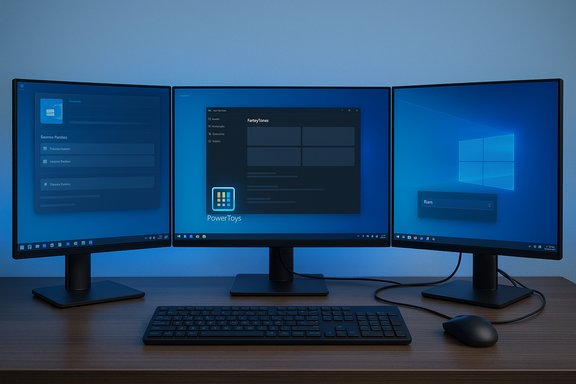
Microsoft PowerToys is an official, open‑source utilities suite that bundles many small productivity tools, including:- FancyZones — advanced window snapping/layout zones.
- PowerRename — a mass‑rename utility with regex support.
- Clipboard History — system‑wide clipboard manager.
- Find My Mouse / Mouse utilities — locate cursor quickly and related helpers.
- PowerToys Run — a launcher to quickly open apps and files.
Why PowerToys makes sense at startup
Many PowerToys features rely on background hooks and hotkeys that must be active when you begin working:- FancyZones must be running to intercept window drag events and snap windows to predefined zones.
- Clipboard History needs to be listening to clipboard change notifications from the moment the desktop is active.
- Keyboard Manager and global hotkeys require a resident process to respond immediately.
Resource footprint and real‑world impact
PowerToys is designed to be lightweight: most modules are idle unless invoked, and the process footprint is small on modern hardware. Release notes and community tests show steady improvements and occasional regressions—typical of an active open‑source utility set—so keep PowerToys updated. That said, the “lightness” claim is workload‑ and system‑dependent: on low‑end machines with constrained RAM or many background services, any additional resident program can contribute to measurable memory pressure. Always measure if you’re on the margins.Measuring impact: how to evaluate whether these two are “worth it” for your PC
A pragmatic, low‑risk approach:- Create a baseline:
- Reboot with DisplayFusion and PowerToys disabled.
- Record cold‑boot time, time until Taskbar and Shell are responsive, and behavior of windows when monitors reconnect.
- Enable one app at a time:
- Reboot with only PowerToys running; note whether FancyZones, clipboard history, or hotkeys are immediately available and measure boot metrics.
- Repeat with only DisplayFusion enabled; test monitor profile application and taskbar behavior.
- Compare:
- If either app materially increases the time to usable desktop on your hardware (common on very old systems), consider delaying startup until a small time window after login using Task Scheduler.
- Use Task Manager and Resource Monitor:
- On the Startup tab, check measured Startup impact.
- Use Resource Monitor or Process Explorer to observe transient disk/CPU spikes during sign‑in and see if the presence of these apps materially affects early resource contention.
Practical startup management recipes
Keep them but delay them (if you need to shave seconds off cold boots)
- Use Task Scheduler to create a task that triggers “At log on” with a short delay (e.g., 10–30 seconds) so the OS and critical drivers initialize first.
- For elevated needs, schedule tasks with “Run with highest privileges” to avoid UAC prompts while preserving security boundaries.
Use a single‑click control for troubleshooting
- If you suspect interactions between multiple shell‑extending tools (DisplayFusion, StartAllBack, other taskbar modifiers), keep an easy startup toggle:
- Create a desktop shortcut to launch both apps manually.
- When troubleshooting, boot without them and start them only after you confirm Explorer is stable.
Deploy across multiple machines (IT / enterprise)
- DisplayFusion supports silent installs and ADMX templates for Group Policy; use those for consistent configuration in managed environments. PowerToys can also be deployed centrally, but both tools should be tested for compatibility with managed policies and security agents before fleet deployment.
Strengths, trade‑offs, and potential risks — critical analysis
Notable strengths
- Immediate productivity wins: Once running at startup, both programs remove daily micro‑friction—arranging windows, snapping to zones, quick clipboard access, and mouse‑finding utilities.
- Targeted feature sets: DisplayFusion focuses on multi‑monitor edge cases Windows still struggles with; PowerToys fills many small but impactful gaps in Windows’ default experience.
- Configurability: Both apps offer granular settings—monitor profiles, triggers, fancy zone layouts, and hotkey remapping—so you can tune behavior to your needs.
Potential risks and downsides
- Interactions with Explorer and other shell mods: Deep UI integration means they can be implicated in taskbar issues or odd window behaviors when combined with other shell modifiers. If something breaks, booting without them or selectively disabling features helps isolate the fault.
- Edge cases and bugs: Powerful features come with complexity. DisplayFusion profile misconfiguration or a PowerToys regression can cause unexpected behavior. Keep backups of profile settings and a restore point before major changes.
- Resource pressure on low‑end systems: On machines with limited RAM/CPU, the marginal cost of a resident background process can be noticeable. Measure before deciding.
What claims can’t be universally verified
- “They don’t slow boot time at all”: this is subjective and hardware dependent. Community feedback and official documentation indicate both are designed to be light, but exact numbers vary by system configuration, number of other autostarts, and storage performance. Measure on your machine to be certain.
Quick decision checklist: Keep, delay, or disable?
- Keep at startup if:
- You use three or more monitors regularly and rely on saved monitor/taskbar profiles.
- FancyZones, clipboard history, or PowerToys hotkeys are core parts of your daily workflow.
- Delay at startup if:
- Your boot time is sensitive and you want the OS to finish device initialization first.
- You need DisplayFusion to run only after a docking station and network are ready (use Task Scheduler conditions).
- Disable if:
- You rarely use the features and prefer to launch manually.
- You’re diagnosing boot performance or UI instability and need a known‑clean boot for testing.
Recommended setup steps (concise how‑to)
- Audit your startup list (Task Manager → Startup). Disable everything nonessential.
- Install DisplayFusion and PowerToys. Create and save monitor and FancyZones profiles.
- Test profiles manually (disconnect/reconnect or change resolution) to confirm behavior.
- Enable “Run at startup” for the utility you most rely on first (or schedule with a small delay).
- Monitor boot metrics and desktop responsiveness; revert to delayed startup if necessary.
- Keep both apps updated—PowerToys is actively developed on GitHub; DisplayFusion releases frequent updates and betas.
Conclusion
Pruning startup apps is one of the most effective, low‑risk ways to keep Windows feeling snappy. The rule of thumb—disable everything and only keep what demonstrably improves your experience—still stands. For many users, DisplayFusion and PowerToys are rare, defensible exceptions that earn their right to run at boot. DisplayFusion removes the daily pain of multi‑monitor misconfiguration; PowerToys brings immediate, quality‑of‑life utilities that only make sense when resident.That said, their value depends on who you are and what hardware you run. Measure before and after, favor delayed startup where appropriate, and keep a rollback plan if a profile or update misbehaves. With careful configuration, these two tools deliver daily returns that far outweigh their modest background cost—exactly the kind of apps worth sparing from the autostart cull.
Source: How-To Geek I disable almost every Windows startup app. These two are worth keeping
