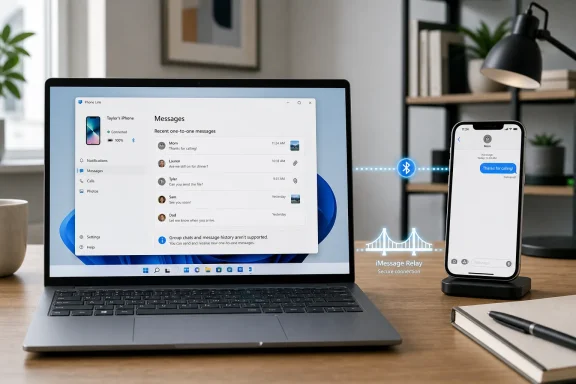
Apple still does not provide an official iMessage app, installer, Microsoft Store listing, or web client for Windows 10 or Windows 11 in 2026, leaving PC users to rely on Phone Link, Mac-based remote access, or third-party relay tools. That single fact should frame every “download iMessage for Windows” guide on the internet. The practical story is not that iMessage has finally come to Windows, but that Windows users now have a handful of imperfect bridges into Apple’s messaging world. Some are safe and simple; others are powerful but fragile; none are the native Windows iMessage app people keep searching for.
The most important line in any Windows iMessage guide is also the least exciting: there is nothing to download from Apple. No Windows package, no Apple-hosted web inbox, no Store app, no hidden iCloud Messages button waiting to be enabled. If a site claims otherwise, it is selling a fantasy at best and malware bait at worst.
That matters because “iMessage for Windows” is one of those search phrases that sounds like a product category but is actually a trapdoor. Users reasonably assume that, because Apple offers iCloud for Windows and Microsoft offers Phone Link, there must be some sanctioned middle ground where Messages works like Mail, Photos, or Contacts. There is not.
Apple’s Messages platform remains deeply tied to Apple hardware, Apple ID identity, and Apple’s device security model. The Mac, iPhone, and iPad are first-class citizens in that model; Windows is not. Every working method for Windows is therefore either a notification-and-Bluetooth workaround or a remote-control path back to a Mac.
That distinction is not pedantry. It determines whether you get full conversation history, group chats, attachments, reactions, and continuity—or just enough message access to reply from your desk without picking up your phone.
But Phone Link should not be mistaken for Apple Messages running on Windows. It is a bridge, and a constrained one. It depends on the iPhone being nearby, powered on, connected, and willing to expose just enough data through iOS permissions and Bluetooth behavior for Windows to act as a companion device.
That explains why the experience can feel inconsistent. Some users see missing history, incomplete sync, or conversations that behave differently from the Messages app on an iPhone or Mac. This is not simply a Microsoft design failure; it is a consequence of trying to route a closed Apple messaging service through interfaces that were never meant to become a full desktop iMessage client.
Phone Link is still the right first stop for many people. It is relatively safe, officially distributed, and does not require leaving another computer running in a closet. But the bargain is obvious: easy setup in exchange for limited fidelity.
Chrome Remote Desktop is the most literal version of that idea. You are not installing iMessage on Windows; you are looking at and controlling a Mac from a Windows PC. The upside is authenticity. Since the Mac is running Apple’s own Messages app, you get the real interface, the real conversations, and the real feature set that Apple intended for macOS.
The downside is equally obvious. The Mac must exist, remain powered on, stay connected to the internet, and be configured for remote access. If the machine sleeps, loses connectivity, or signs out, your “Windows iMessage” setup disappears with it.
This is not elegant, but it is honest. Remote desktop solutions do not pretend to break Apple’s wall. They simply put a window in it.
AirMessage tends to appeal to users who want a dedicated iMessage-like experience without building too much infrastructure around it. Install the server on the Mac, sign in, configure access, and use a browser or client from Windows. It still depends on the Mac, but the day-to-day interaction feels less like piloting a second computer and more like using a cross-platform messaging app.
BlueBubbles attracts a more technical audience. It offers more customization and a more enthusiast-driven setup, but the cost is complexity. Remote access, security configuration, client setup, and ongoing maintenance are all part of the bargain.
These tools are popular because they solve a real problem Apple has chosen not to solve. They are also the kind of software that demands trust. A service sitting between your Apple Messages database and the open internet should be configured carefully, protected with strong authentication, and downloaded only from legitimate developer sources.
That omission is not accidental. Messages is not just another synced data bucket in Apple’s consumer stack. It is a communications service bound to device identity, encryption behavior, phone numbers, Apple IDs, and Apple’s broader ecosystem strategy.
For users, the practical consequence is simple. iCloud can help keep your Apple life partially accessible from Windows, but it will not turn your PC into a Messages endpoint. If messaging is the thing you need, iCloud is adjacent infrastructure, not the answer.
That is why guides that imply “use iCloud” as an iMessage workaround deserve skepticism. You can sync contacts and manage adjacent services, but you cannot open a full iMessage inbox from iCloud.com on a Windows PC.
But Unison’s discontinuation is a reminder that these bridges are product decisions, not permanent infrastructure. When support ends, the user is left with stale installers, outdated guides, and a security question: do you really want to keep routing phone data through abandoned software?
That is why any 2026 guide still recommending Intel Unison as a primary path to iMessage on Windows is outdated. Even if a copy still exists somewhere on the internet, that is not the same as a supported solution. Messaging software handles sensitive data; unsupported sync utilities are exactly the wrong place to be casual.
The broader lesson is that Windows-iPhone integration is not a solved platform layer. It is a moving target shaped by Microsoft’s priorities, Apple’s restrictions, third-party enthusiasm, and the willingness of users to tolerate workarounds.
Phone Link is convenient precisely because it brings phone activity onto the desktop. That same convenience means a compromised Windows session can become more valuable. If your PC is infected, unlocked, remotely accessed, or shared with someone else, your messages may be more exposed than they were when they lived only on the phone.
Remote access tools add another layer. Chrome Remote Desktop, AirMessage, and BlueBubbles all require careful account hygiene because they create routes into a Mac or into message data served by that Mac. A weak password or sloppy port-forwarding decision can turn a convenience setup into a liability.
The safe approach is boring but effective. Use two-factor authentication, keep Windows, iOS, and macOS updated, avoid unofficial installers, and treat any message-relay setup as sensitive infrastructure rather than a weekend tweak.
Microsoft has spent years trying to make Windows a better companion to phones it does not control. Android integration has gone further because Android allows deeper access and because some device makers actively cooperate. The iPhone is different. Apple can allow just enough interoperability to blunt regulatory or customer frustration while preserving the superior experience for its own hardware.
That is why Phone Link for iPhone feels like a carefully negotiated compromise. It gives Windows users something useful, but not enough to make a Mac feel unnecessary. It lets Microsoft advertise iPhone connectivity, while Apple’s native Messages experience remains clearly better inside Apple’s own ecosystem.
For WindowsForum readers, this is the familiar platform war in a quieter form. The battleground is not the operating system desktop anymore. It is continuity: which devices can pick up your calls, show your messages, sync your photos, unlock your passwords, and preserve your context from one screen to the next.
For someone who already owns a Mac, the decision becomes more interesting. Chrome Remote Desktop gives you the purest Messages experience because it simply exposes the Mac you already have. It is clunky compared with a native app, but it avoids the abstraction layer of a message relay.
AirMessage and BlueBubbles make more sense for users who want a persistent messaging workflow from Windows rather than occasional remote access. They are especially appealing if the Mac is always on, perhaps as a desktop machine or home server. But they require more setup discipline and a higher comfort level with third-party software.
Windows 10 users have fewer clean options. Phone Link’s iPhone support is primarily positioned around Windows 11, and the best full-featured paths still require a Mac. Anyone on Windows 10 hunting for a native iMessage client is effectively hunting for something that does not exist.
That decision tree leads to a more honest set of recommendations.
Apple could change this tomorrow by shipping Messages for Windows or a secure iMessage web client, but years of platform behavior suggest that users should not plan around that outcome. Microsoft will keep improving Phone Link where it can, third-party developers will keep building Mac-based relays, and Windows users will keep discovering that the most valuable features in modern computing are often the ones locked just beyond the edge of the platform they prefer.
 The iMessage Download Still Does Not Exist
The most important line in any Windows iMessage guide is also the least exciting: there is nothing to download from Apple. No Windows package, no Apple-hosted web inbox, no Store app, no hidden iCloud Messages button waiting to be enabled. If a site claims otherwise, it is selling a fantasy at best and malware bait at worst.That matters because “iMessage for Windows” is one of those search phrases that sounds like a product category but is actually a trapdoor. Users reasonably assume that, because Apple offers iCloud for Windows and Microsoft offers Phone Link, there must be some sanctioned middle ground where Messages works like Mail, Photos, or Contacts. There is not.
Apple’s Messages platform remains deeply tied to Apple hardware, Apple ID identity, and Apple’s device security model. The Mac, iPhone, and iPad are first-class citizens in that model; Windows is not. Every working method for Windows is therefore either a notification-and-Bluetooth workaround or a remote-control path back to a Mac.
That distinction is not pedantry. It determines whether you get full conversation history, group chats, attachments, reactions, and continuity—or just enough message access to reply from your desk without picking up your phone.
Phone Link Is the Official Compromise, Not the Real Thing
Microsoft Phone Link is the cleanest option for most Windows 11 users because it is built into the Windows ecosystem and does not require a Mac. Pair an iPhone over Bluetooth, grant the requested permissions, and Windows can show notifications, place or receive calls, access contacts, and handle basic messaging through the PC interface. For someone who just wants to answer a text while working, that is a meaningful improvement.But Phone Link should not be mistaken for Apple Messages running on Windows. It is a bridge, and a constrained one. It depends on the iPhone being nearby, powered on, connected, and willing to expose just enough data through iOS permissions and Bluetooth behavior for Windows to act as a companion device.
That explains why the experience can feel inconsistent. Some users see missing history, incomplete sync, or conversations that behave differently from the Messages app on an iPhone or Mac. This is not simply a Microsoft design failure; it is a consequence of trying to route a closed Apple messaging service through interfaces that were never meant to become a full desktop iMessage client.
Phone Link is still the right first stop for many people. It is relatively safe, officially distributed, and does not require leaving another computer running in a closet. But the bargain is obvious: easy setup in exchange for limited fidelity.
The Mac Remains the Tollbooth
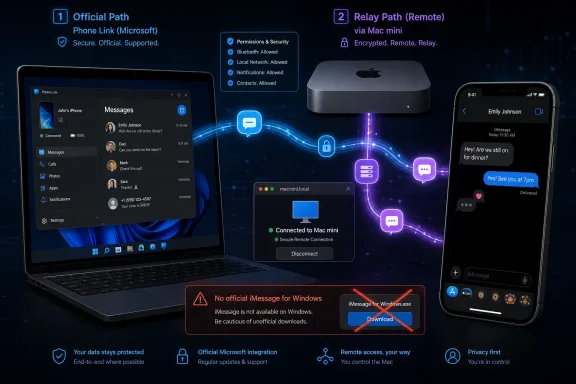
If you want something close to the full iMessage experience on Windows, the path almost always runs through a Mac. Chrome Remote Desktop, AirMessage, and BlueBubbles all exploit the same basic reality: Apple does let a Mac use Messages properly, and Windows can interact with that Mac either by controlling it remotely or by receiving relayed message data from it.Chrome Remote Desktop is the most literal version of that idea. You are not installing iMessage on Windows; you are looking at and controlling a Mac from a Windows PC. The upside is authenticity. Since the Mac is running Apple’s own Messages app, you get the real interface, the real conversations, and the real feature set that Apple intended for macOS.
The downside is equally obvious. The Mac must exist, remain powered on, stay connected to the internet, and be configured for remote access. If the machine sleeps, loses connectivity, or signs out, your “Windows iMessage” setup disappears with it.
This is not elegant, but it is honest. Remote desktop solutions do not pretend to break Apple’s wall. They simply put a window in it.
AirMessage and BlueBubbles Turn the Mac Into Plumbing
AirMessage and BlueBubbles are more ambitious because they try to make the Mac fade into the background. Instead of remote-controlling the entire desktop, the Mac acts as a server that forwards Messages activity to a web interface or client on another device. For Windows users who live primarily on a PC but keep a Mac mini, MacBook, or old iMac running somewhere, that can be a surprisingly workable arrangement.AirMessage tends to appeal to users who want a dedicated iMessage-like experience without building too much infrastructure around it. Install the server on the Mac, sign in, configure access, and use a browser or client from Windows. It still depends on the Mac, but the day-to-day interaction feels less like piloting a second computer and more like using a cross-platform messaging app.
BlueBubbles attracts a more technical audience. It offers more customization and a more enthusiast-driven setup, but the cost is complexity. Remote access, security configuration, client setup, and ongoing maintenance are all part of the bargain.
These tools are popular because they solve a real problem Apple has chosen not to solve. They are also the kind of software that demands trust. A service sitting between your Apple Messages database and the open internet should be configured carefully, protected with strong authentication, and downloaded only from legitimate developer sources.
iCloud Is Not the Escape Hatch People Expect
iCloud for Windows creates another source of confusion. Apple does offer Windows users access to some iCloud data, including photos, files, contacts, calendars, passwords, and other account-connected services. It does not offer iMessage in the browser or inside iCloud for Windows.That omission is not accidental. Messages is not just another synced data bucket in Apple’s consumer stack. It is a communications service bound to device identity, encryption behavior, phone numbers, Apple IDs, and Apple’s broader ecosystem strategy.
For users, the practical consequence is simple. iCloud can help keep your Apple life partially accessible from Windows, but it will not turn your PC into a Messages endpoint. If messaging is the thing you need, iCloud is adjacent infrastructure, not the answer.
That is why guides that imply “use iCloud” as an iMessage workaround deserve skepticism. You can sync contacts and manage adjacent services, but you cannot open a full iMessage inbox from iCloud.com on a Windows PC.
Intel Unison’s Exit Shows How Fragile These Bridges Are
Intel Unison briefly looked like one of the more promising cross-device answers. It offered phone-to-PC integration at a time when Microsoft, Intel, and PC makers were all trying to make Windows feel less isolated from the smartphone world. For iPhone users, any tool that moved calls, messages, photos, and notifications closer to Windows felt valuable.But Unison’s discontinuation is a reminder that these bridges are product decisions, not permanent infrastructure. When support ends, the user is left with stale installers, outdated guides, and a security question: do you really want to keep routing phone data through abandoned software?
That is why any 2026 guide still recommending Intel Unison as a primary path to iMessage on Windows is outdated. Even if a copy still exists somewhere on the internet, that is not the same as a supported solution. Messaging software handles sensitive data; unsupported sync utilities are exactly the wrong place to be casual.
The broader lesson is that Windows-iPhone integration is not a solved platform layer. It is a moving target shaped by Microsoft’s priorities, Apple’s restrictions, third-party enthusiasm, and the willingness of users to tolerate workarounds.
The Security Story Is Bigger Than Scam Installers
The obvious security warning is to avoid fake iMessage downloads, but that is only the beginning. Any tool that surfaces phone messages on a PC changes the risk model. Text messages often carry one-time passcodes, account recovery links, financial alerts, and private conversations; putting them on Windows expands the number of places an attacker might look.Phone Link is convenient precisely because it brings phone activity onto the desktop. That same convenience means a compromised Windows session can become more valuable. If your PC is infected, unlocked, remotely accessed, or shared with someone else, your messages may be more exposed than they were when they lived only on the phone.
Remote access tools add another layer. Chrome Remote Desktop, AirMessage, and BlueBubbles all require careful account hygiene because they create routes into a Mac or into message data served by that Mac. A weak password or sloppy port-forwarding decision can turn a convenience setup into a liability.
The safe approach is boring but effective. Use two-factor authentication, keep Windows, iOS, and macOS updated, avoid unofficial installers, and treat any message-relay setup as sensitive infrastructure rather than a weekend tweak.
Apple’s Silence Is a Product Strategy
It is tempting to frame the absence of iMessage for Windows as a missing feature. From Apple’s perspective, it is more likely a feature of the business model. iMessage helps make the iPhone and Mac feel like parts of one private communications fabric, and that fabric is more valuable when it does not extend equally to every rival platform.Microsoft has spent years trying to make Windows a better companion to phones it does not control. Android integration has gone further because Android allows deeper access and because some device makers actively cooperate. The iPhone is different. Apple can allow just enough interoperability to blunt regulatory or customer frustration while preserving the superior experience for its own hardware.
That is why Phone Link for iPhone feels like a carefully negotiated compromise. It gives Windows users something useful, but not enough to make a Mac feel unnecessary. It lets Microsoft advertise iPhone connectivity, while Apple’s native Messages experience remains clearly better inside Apple’s own ecosystem.
For WindowsForum readers, this is the familiar platform war in a quieter form. The battleground is not the operating system desktop anymore. It is continuity: which devices can pick up your calls, show your messages, sync your photos, unlock your passwords, and preserve your context from one screen to the next.
The Best Method Depends on How Much Apple Hardware You Already Own
For someone with only a Windows 11 PC and an iPhone, Phone Link is the sane starting point. It is not perfect, but it is official enough, simple enough, and low-risk enough to recommend before anything else. If it meets your needs, stop there.For someone who already owns a Mac, the decision becomes more interesting. Chrome Remote Desktop gives you the purest Messages experience because it simply exposes the Mac you already have. It is clunky compared with a native app, but it avoids the abstraction layer of a message relay.
AirMessage and BlueBubbles make more sense for users who want a persistent messaging workflow from Windows rather than occasional remote access. They are especially appealing if the Mac is always on, perhaps as a desktop machine or home server. But they require more setup discipline and a higher comfort level with third-party software.
Windows 10 users have fewer clean options. Phone Link’s iPhone support is primarily positioned around Windows 11, and the best full-featured paths still require a Mac. Anyone on Windows 10 hunting for a native iMessage client is effectively hunting for something that does not exist.
The Practical Answer Is Less Magical Than the Search Result
The appeal of “download iMessage on Windows 11” is that it promises a single act: click, install, sign in, done. The reality is a decision tree. Do you have a Mac? Do you need full iMessage functionality? Are you comfortable running relay software? Is basic texting enough? How much do you trust the PC where those messages will appear?That decision tree leads to a more honest set of recommendations.
- Windows 11 users without a Mac should try Phone Link first because it is the simplest supported way to access iPhone messaging from a PC.
- Users who need full iMessage behavior should expect to involve a Mac, either through remote desktop access or a relay tool.
- Chrome Remote Desktop is the cleanest Mac-based method when you want Apple’s actual Messages app rather than a recreated messaging interface.
- AirMessage and BlueBubbles are better suited to enthusiasts who want a dedicated Windows-facing experience and are willing to maintain a Mac server.
- iCloud for Windows is useful for Apple account data, but it does not provide iMessage access.
- Intel Unison should no longer be treated as a current recommendation because discontinued sync software is a poor foundation for private communications.
Apple could change this tomorrow by shipping Messages for Windows or a secure iMessage web client, but years of platform behavior suggest that users should not plan around that outcome. Microsoft will keep improving Phone Link where it can, third-party developers will keep building Mac-based relays, and Windows users will keep discovering that the most valuable features in modern computing are often the ones locked just beyond the edge of the platform they prefer.
References
- Primary source: The Mac Observer
Published: Wed, 03 Jun 2026 03:47:24 GMT
How to Download iMessage on Windows 11 | Step-by-Step Guide
Learn how to get iMessage on Windows using Phone Link, AirMessage, BlueBubbles, and other working methods in 2026.www.macobserver.com - Official source: microsoft.com
Use Phone Link to Sync Your Android or iPhone to Your Windows Computer | Microsoft
Sync your smartphone and Windows computer wirelessly using Microsoft Phone Link. Text, call, back up photos, and more no matter if you have an Android or an iPhone.www.microsoft.com - Official source: learn.microsoft.com
Not receiving messages in Phone Link App with iOS - Microsoft Q&A
Hi, I connected my iPhone in the Phone Link app. I can send messages but the messages i receive do not appear in the app. How can i solve this?learn.microsoft.com - Related coverage: macrumors.com
Microsoft Now Rolling Out iMessage Support on Windows With Several Limitations
Microsoft today announced it is beginning to roll out iPhone support to the Phone Link app on Windows 11. In a blog post, the company said this functionality will be available to all Windows 11 users around the world by mid-May. With the Phone Link app for Windows 11 and the Link to Windows app...www.macrumors.com - Related coverage: techspot.com
Microsoft's Phone Link app brings iOS connectivity to Windows 11 but with plenty of caveats | TechSpot
On Wednesday, Microsoft launched its Phone Link app on iOS, rebranding it to "Link to Windows." The Redmond tech giant said it has the app on a...www.techspot.com - Related coverage: appleheadlines.com
iMessage for Windows: 4 Working Methods That Work in 2026
Want iMessage on your Windows PC? Here are 4 working methods in 2026 — no Mac required for the easiest one. Get started in minutes.www.appleheadlines.com
- Related coverage: techyorker.com
How to get iMessage on Windows 11/10 PC - TechYorker
×AIChipps - Easy Way to Repair your PC Issues + AI AssistantFix My PC with AI →⚙️PC Running Slow or Unstable?Fix Windows… techyorker.com
- Related coverage: windowscentral.com
Microsoft is removing yet another handy Windows 11 feature — the ability to view photos in the Phone Link app | Windows Central
The Phone Link app is losing support for viewing photos from your phone. Microsoft says to use the File Explorer app instead.www.windowscentral.com - Related coverage: techradar.com
Microsoft stops breaking Windows 11 – instead it just made Phone Link even better with Android apps | TechRadar
Fed up of Android apps running in tiny windows? A solution is now inboundwww.techradar.com - Related coverage: scscc.club
- Related coverage: download.intel.com
Fact Sheet:
</rdf:Alt> </dc:description> <dc:creator> <rdf:Seq> <rdf:li>Intel Corporationdownload.intel.com