

Steam Deck owners who want the best of both worlds — Valve’s console‑like SteamOS and the full compatibility of Windows — now have a well‑trodden path to a safe, reversible dual‑boot setup. The core approach used by many guides is straightforward: create official SteamOS recovery media, shrink the SteamOS partition, install a boot manager (rEFInd), prepare a Windows 11 installer on USB, install Windows to the freshly made NTFS partition (or to an external SSD), then install Valve’s Windows drivers and a small “dual‑boot fix” so Windows doesn’t quietly take over the boot order on every restart. The Windows Central walk‑through that underpins this workflow lays out a clear, conservative sequence intended to avoid the most common pitfalls — especially accidental partition wipes — and includes the same essential checklist of tools and steps that communities and independent guides recommend. dual boot a Steam Deck (or similar SteamOS handheld)
SteamOS already delivers a polished, controller‑first experience — but it deliberately trades native Windows compatibility for a tighter, Linux‑based stack. That tradeoff matters for:
The high‑level plan that’s both safe and repeatable:
For most users who want occasionme Pass, specific launchers, or anti‑cheat‑bound titles) while preserving a handheld‑optimized SteamOS environment, the recommended path is:
Source: Windows Central https://www.windowscentral.com/hard...-dual-boot-windows-and-steamos-on-steam-deck/
SteamOS already delivers a polished, controller‑first experience — but it deliberately trades native Windows compatibility for a tighter, Linux‑based stack. That tradeoff matters for:
- Titles and launchers that rely on Windows‑only DRM or anti‑cheat.
- Xbox Game Pass (PC app) and other Windows‑exclusive storefronts.
- Some peripheral drivers and vendor utilities that are Windows‑centric.
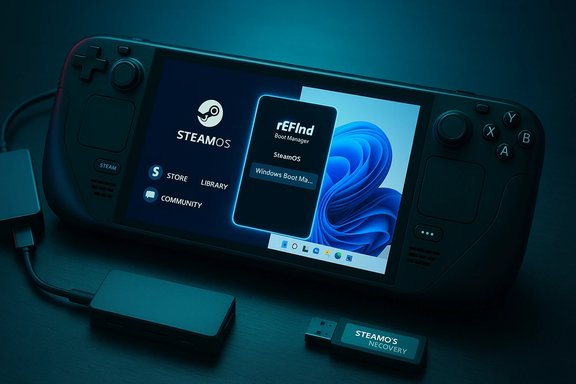 Overview offlow
The high‑level plan that’s both safe and repeatable:- Back up any important data (images, saves, keys).
- Create SteamOS recovery media and a Windows 11 installer USB.
- Set a SteamOS desktop password so you can run admin tasks in Desktop Mode.
- Install rEFInd (SteamDeck_rEFInd) on SteamOS to provide a stable dual‑boot menu.
- Boot the SteamOS recovery image and shrink the SteamOS partition — create an NTFS partition for Windows.
- Install Windows 11 to that new NTFS partition (or to an external SSD).
- Install Valve’s Windows drivers and run the rEFInd “Dual Boot Fix” to keep the rEFInd menu as the primary boot option.
- Finalize configuration: msconfig changes, rEFInd config installation, and a test boot.
What you’ll need before you starouse (Bluetooth or wired) — essential for Desktop Mode and installer dialogs.
- A USB hub with USB‑C passthrough and Ethernet (recommended) — the Steam Deck has a single USB‑C port and you’ll want simultaneous keyboard, installer USB, recovery USB, and Ethernet for driver downloads.
- Two USB sticks (or one USB and one microSD): one for SteamOS recovery media and one for the Windows installer.
- At least 64 GB free storage for Windows 11 itself (Microsoft’s minimum). Plan for additional space for games and updates.
- The SteamOS recovery image (Valve’s official image) and the Windows 11 ISO. A Windows PC can speed up creating the installer drives but you can do everything on ode if needed.
Creating reliable boot media: tools and verification
Two imaging tools are industry‑standard for this work: Rufus and BalenaEtcher.- Rufus (Windows) is lightweight, widely used for Windows installer creation, and provides options useful for advanced workflows. The Rufus project and downloads are maintained on the official site.
- BalenaEtcher is cross‑platform, simple, and robust for writing Valve’s SteamOS recovery image from macOS, Linux, or Windows. Its official project and download pages are the recommended source.
The critical safety steps (and the one button you must never press)
- Create SteamOS recovery media first. This lets you boot a safe environment to resize partitions;rted way to reconfigure internal partitions without risk of running into mounted‑filesystem conflicts. The Windows Central guide makes this a precondition precisely to avoid wiping SteamOS.
- When resizing from the recovery environment, reduce the ext4 (SteamOS) pn NTFS partition in the freed space. Apply the changes while in the recovery image — do not attempt to resize the internal SteamOS partition while SteamOS is running.
- During Windows setup, pay attention at the partition selection screen. Choose the NTFS partition you created and do **nte everything” or “format entire disk” option that might remove SteamOS. The Windows Central guide flags this as the single most common user error.
- After installing Windows, install Valve’s Windows drivers before assuming Wi‑Fi or audio will work. Valve publishes driver packages for the Deck; community how‑tos and installers assume you’ll fetch these from Valve’s resources.
rEFInd and the “Dual Boot Fix”: how the pre‑boot menu is preserved
rEFInd is a mature UEFI boot manager; SteamDeck_rEFInd is a community script that wraps rEFInd and supplies a GUI and Deck‑friendly defaults. The GitHub project provides the install command and documents the configuration steps used in the Windows Central method (clone the repo, run the GUI installer in Desktop Mode). Crucially, the project and community guides describe a two‑part approach to ensure reliable dual boot behavior:- Install rEFInd and make SteamOS the default entry via rEFInd’s config.
- Run a small Windows‑side helper (the “Dual Boot Fix”) that creates a scheduled task in Windows to push rEFInd to the top of the UEFI boot order whenever Windows makes changes — this prevents Windows from silently making itself the default after updates or restarts. The SteamDeck_rEFInd repository documents both the installer and the Dual Boot Fix workflow.
Drivers and post‑install setup
After the Windows installer finishes, many Deck features will be missing or behave poorly until the proper drivers are installed. Valve provides Windows driver packages for the Steam Deck and specifically separates packages for LCD vs OLED models where necessary. Independent guides repeatedly emphasize installing the APU/graphics package first, then networking, audio, Bluetooth, and other device drivers. Community writeups also recommend:- Download Valve’s driver bundles onto an external USB drive before starting the Windows install phase so you can install them offline if needed.
- Run the “Dual Boot Fix” Windows script (run as Administrator) toask that prevents Windows from taking over boot priority. The SteamDeck_rEFInd project documents that script and how it’s used.
- Change Windows’ boot options (msconfig → No GUI boot) to reduce display glitches on startup in some setups, as suggested in community walkthroughs and the Windows Central guide.
Strengths of the Windows Central approach (what it gets right)
- Safety‑first sequencing — recovery image first, then resize in a non‑live environment, then install Windows — reduces accidental data loss dramatically.
- Use of rEFInd acreates a stable, visible choice at boot rather than letting Windows stealthily win the boot order.
- Practical hardware checklist: keyboard/mouse, USB hub with Ethernet, and multiple USB drives mirrors what working community guides recommend and avoids the frustration of trying to manage everything on a single USB‑C port.
- Cross‑platform imaging options (Rufus oer on Linux/macOS) let users choose the tooling they’re comfortable with.
Risks, caveats, and what can still go wrong
- Windows installer mistakes: selecting an option that deletes partitions or formats the whole drive can irreversibly remove SteamOS. The Windows Central guide repeatedly warns about this — treat that step as sacrosanct.
- Boot order regressions: if the rEFInd install or the Dual Boot Fix step is skipped, Windows updates can place Windows Boot Manager first and make the dual‑boot menu harder to access. The rEFInd GitHub README explains this explicitly and provides commands to restore the boot entries.
- Driver gaps and hardware quirks: while Valve supplies Windows drivers for core functionality, peripheral compatibility, haptics, or community utilities can vary. Exs on community forums if you use niche accessories.
- Anti‑cheat and multiplayer caveats: some multiplayer titles or anti‑cheat systems remain fragile across Proton/SteamOS; the inverse is also true — some titles behave differently on Windows on handheld hardware. If competitive or multiplayer gaming is your main use case, verify title compatibility before investing hours into setup. Community testing and ProtonDB reports are valuable here.
- Warranty and support considerations: installing another OS generally doesn’t void hardware warranty, but manufacturer support can be complicated when troubleshooting software issues. Keep recovery media and a clean SteamOS image available to restore fac Community guidance recommends preserving recovery images and backups for support scenarios.
A few advanced notes for power users
- Windows on a microSD card is technically possible but not recommended: read/write speeds and longevity make microSD a poor choice for system drives. External NVMe enclosures with passthrough charging are the sweet spot for balanced performance and reversibility. Community guides and tests repeatedly advise external SSDs for Windows installs.
- If you plan to reinstall Windows in the future, be ready to re‑enable the Windows EFI entry in recovery or via e the installer scripts document how EF during installation and removal.
- For those who prefer minimal Windows footprints, Windows To Go and external installations (created via Rufus’ “Windows To Go” option) are alternatives — but they come with their own compatibility and update tradeoffs. Used test before relying on them for portability.
Step‑by‑step condensed checklist (for quick reference)
- Update SteamOS to the latest (opt into Beta if you need newer kernel/drivers).
- Set a SteamOS desktop oad and write the SteamOS recovery image to USB (BalenaEtcher recommended).
- Install SteamDeck_rEFInd in Desktop Mode (Git clone + run installer).
- Boot the SteamOS recovery image, open KDE Partition Manager, shrink ext4, create NTFS partition, and apply changes.
- Create Windows 11 boot USB (Rufus on Windows or Etcher cross‑platform). Confirm the Windows 11 minimum storage requirement (64 GB).
- Boot the Windows installer, choose Custom install, select the NTFS partition you created — do not delete other partitions.
- After Windows first boondows drivers and run the Dual Boot Fix (run as admin).
- Finalize rEFInd config from SteamOS Desktop Mode (Create config → Install config), reboot and verify the menu.
Final assessment and recommendation
Dual‑booting Windows and SteamOS on the Steam Deck and SteamOS handhelds is now a mainstream, well‑documented practice. The combined community tooling — Valve’s recovery image, BalenaEtcher/Rufus, the SteamDeck_rEFInd project, and Valve’s driver bundles — make it practical and relatively low‑risk when you follow the safety sequence. The Windows Central guide is a good, up‑to‑date blueprint that emphasizes the right safety steps and practical hardware requirements for a smooth experience.For most users who want occasionme Pass, specific launchers, or anti‑cheat‑bound titles) while preserving a handheld‑optimized SteamOS environment, the recommended path is:
- Use the internal dual‑boot method described here if you’re comfortable with partitioning and recovery tools; or
- Install Windows to an external NVMe SSD for a fully reversible, non‑destructive option that preserves SteamOS and reduces the risk of accidental data loss.
Source: Windows Central https://www.windowscentral.com/hard...-dual-boot-windows-and-steamos-on-steam-deck/
