

Electronic Arts’ EA app is now the required desktop client for EA PC games on supported Windows and Mac systems, after Origin’s April 17, 2025 shutdown forced remaining users onto the newer launcher and its 64-bit-only requirements. The practical setup story in 2026 is not just “download another launcher,” but learning where EA has hidden authentication, subscriptions, cloud saves, and storefront linking. For Windows users especially, the EA app is lighter than Origin, but it is also less optional than most gaming software. If you play EA games through Steam, Epic, Game Pass, or EA’s own store, this client is the tollbooth.
The EA app is often described as Origin’s replacement, but that undersells what changed. Origin was a storefront, library manager, chat layer, updater, and DRM wrapper that many players treated as an annoyance attached to their games. The EA app keeps all of those functions, but it moves them into a cleaner, faster, more modern shell that EA can make mandatory across storefronts.
That distinction matters because users do not encounter the EA app only when they choose to shop in EA’s store. Launch an EA game from Steam or Epic, and the app can still wake in the background to authenticate the license. Subscribe to EA Play through Game Pass for PC, and the app becomes the place where entitlement and installation meet.
The upside is obvious enough. Compared with Origin, the EA app is slimmer, faster to launch, and built for modern 64-bit operating systems. The downside is just as real: EA has converted a historically unpopular launcher into basic PC gaming plumbing.
That makes the EA app migration unusually consequential for a game launcher. Players did not merely lose an old interface in 2025; some lost the ability to access purchased libraries on aging hardware unless they upgraded the operating system or replaced the machine. EA framed the move around the end of 32-bit-era support, but the customer impact is blunter than the platform language suggests.
For most modern gaming PCs, the requirements are not demanding. The app itself is small, and the launcher’s memory footprint is modest by today’s standards. The real storage problem is not the client; it is the 60GB, 100GB, or larger games that sit behind it.
New users should create the account before installing the client, then enable login verification immediately. EA’s account system is a high-value target because one compromised login can expose years of purchases, DLC, and progression. Two-factor authentication is not a nice extra here; it is the cheapest insurance you can apply to a digital game library.
Returning Origin users should resist the temptation to create a fresh account. Signing in with a new email address is one of the easiest ways to make an existing library appear “missing.” The app can only show the purchases tied to the account in front of it.
This is not paranoia. Launchers sit in a privileged place on gaming PCs: they update themselves, start background services, handle credentials, and download large executable packages. A fake installer does not need to be sophisticated to do damage.
On stricter Windows 11 systems, the downloaded installer may also carry the “blocked” mark that Windows applies to files from the internet. Opening the file properties and unblocking it before installation can prevent a confusing half-successful install where setup appears to finish but the app never starts cleanly.
The default installation path under Program Files is fine for the client. It does not mean your games must also live on the system drive. That distinction is important on smaller SSDs, where a launcher taking less than 100MB is irrelevant next to a sports title that can consume close to 100GB.
After the first install, let the app update itself before signing in or launching a game. Interrupting the first update is a classic way to create the “stuck at 0 percent” loop that users then try to solve by reinstalling repeatedly.
The bigger Mac issue is not installation mechanics, but software support. Catalina is the floor, and older Macs that cannot move beyond pre-Catalina releases are effectively stranded from the official EA path. That is a harsher outcome for casual Sims players than for enthusiast PC builders, because many Mac game libraries live on machines kept for years beyond their mainstream software window.
Apple Silicon adds another wrinkle. The launcher itself is not normally the performance bottleneck, but individual games vary widely in native support and translation behavior. For Mac users, “the EA app runs” and “my EA game runs well” are two different claims.
The repair or library scan function is the next stop when games are already installed on another drive. The EA app can detect existing installations, but it is not magic. Old Origin-era paths, external drives, and renamed folders can confuse it.
Do not immediately delete installed games because the app fails to show them on first launch. In many cases, the data is still intact and only needs to be rediscovered or pointed to manually. That can save hours of downloading on a capped or slow connection.
A good setup uses fast SSD storage for current games and cheaper bulk storage for the backlog. The EA app can track multiple install locations, so there is no need to treat the library as a single monolithic folder forever. Install the game you are actively playing on the NVMe drive; keep less-played titles elsewhere.
This is also where laptop users should be realistic. A thin gaming notebook with a 512GB SSD can run the EA app easily, but it cannot comfortably host a modern Windows install, several launchers, and a half-dozen large sports or racing games without constant housekeeping.
The standard EA Play tier makes sense for players who use the vault, trial new releases, or regularly buy enough EA content to benefit from the discount. EA Play Pro is a narrower proposition: it is for players who would otherwise buy premium editions of new EA releases at launch. If you wait for sales and play one EA game a year, the subscription pitch is weaker.
Game Pass complicates the picture in a useful way. PC Game Pass and Game Pass Ultimate include standard EA Play access, but that benefit still has to be connected correctly through the relevant accounts. The EA app is where many users discover that subscription ecosystems may advertise simplicity while depending on a chain of linked identities behind the curtain.
But cloud saves are not a substitute for backups. Some games have partial support, some store data in unusual places, and sync conflicts can still happen. Before wiping Windows, replacing a drive, or doing a clean reinstall, copy the relevant Electronic Arts folders from Documents and AppData.
This is especially important for Sims players and mod-heavy setups. The launcher may preserve entitlement and base installation data, but user-created files, mods, saves, and local configuration deserve separate protection.
The missing feature is a native time-window scheduler. That omission still feels strange in 2026, when many users are juggling remote work, data caps, and multi-device households. Manual speed caps work, but they are a crude substitute for telling the app to update only overnight.
Admins and power users can script around this with scheduled tasks, but ordinary players should not have to. If EA wants the app to be invisible infrastructure, it needs better manners when it is consuming the network.
Steam users in particular should understand that launching from Steam does not remove EA from the equation. Steam starts the game, the EA app validates the entitlement, and the game proceeds if the chain works. When it does not work, users often blame the wrong storefront first.
Subscription benefits also vary by where the subscription was purchased. EA Play through Steam, EA Play through EA, and EA Play through Game Pass are related but not always interchangeable experiences. The safest rule is to subscribe where you expect to play and buy most of your EA content.
The key is to set up offline mode before you need it. A laptop already on an airplane with no prior validation is not in a position to negotiate with EA’s servers. The same is true before a long trip, storm season, or a known broadband outage.
EA Play adds another dependency because subscription access must be revalidated periodically. That is reasonable from EA’s business perspective, but users should understand the tradeoff: rented access is never as independent as owned local software.
Desktop shortcuts help for frequently played games, though the EA app still starts in the background for authentication. Uninstalling a game through the app removes the game files while generally leaving local saves in user folders. That is the behavior most players want, but it reinforces why manual save backups remain wise.
For games installed outside the default path, manual add or repair functions are the difference between redownloading and simply re-registering what is already there. Anyone migrating from an older Origin setup should try discovery tools before deleting data.
That is frustrating, but it also means the fixes are usually practical. Install the current Microsoft Visual C++ redistributables, reboot, run the installer as administrator, disable the VPN for first sign-in, and check security software quarantine if the app opens and immediately closes. Clear cache only after confirming the account itself works in a browser.
The most misleading errors are server-side failures. When EA’s authentication or download infrastructure is having a bad day, local troubleshooting becomes theater. Before rebuilding half the PC, check whether the problem is broader than your machine.
But performance is not the only metric that matters. The EA app is also the mandatory gatekeeper for EA’s PC business. It sits between users and games they may have bought elsewhere, on storefronts they may prefer, under subscriptions they may manage through Microsoft or Valve.
That makes the app both better and more coercive than Origin. It is a cleaner front door attached to a house with fewer side entrances.
For enthusiasts and IT-minded users, the EA app is also another reminder that the PC gaming stack now resembles enterprise identity management. You are not merely installing a game; you are coordinating accounts, entitlements, launchers, storage locations, background services, and update policies.
That is not necessarily a disaster. It is just the reality behind the “Play” button.
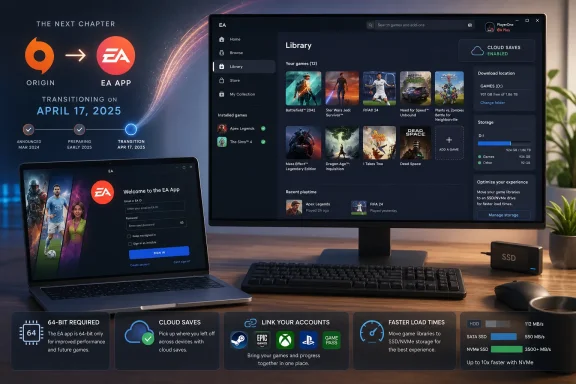 EA Finally Turned the Launcher Into Infrastructure
The EA app is often described as Origin’s replacement, but that undersells what changed. Origin was a storefront, library manager, chat layer, updater, and DRM wrapper that many players treated as an annoyance attached to their games. The EA app keeps all of those functions, but it moves them into a cleaner, faster, more modern shell that EA can make mandatory across storefronts.That distinction matters because users do not encounter the EA app only when they choose to shop in EA’s store. Launch an EA game from Steam or Epic, and the app can still wake in the background to authenticate the license. Subscribe to EA Play through Game Pass for PC, and the app becomes the place where entitlement and installation meet.
The upside is obvious enough. Compared with Origin, the EA app is slimmer, faster to launch, and built for modern 64-bit operating systems. The downside is just as real: EA has converted a historically unpopular launcher into basic PC gaming plumbing.
The First Setup Decision Is Whether Your Machine Still Belongs in EA’s World
Before installation, the hard compatibility line is simple. On Windows, the EA app requires a 64-bit version of Windows 10 or Windows 11. On Mac, it requires macOS Catalina or newer. Older 32-bit Windows systems and legacy Macs that were limping along with Origin are no longer part of the supported path.That makes the EA app migration unusually consequential for a game launcher. Players did not merely lose an old interface in 2025; some lost the ability to access purchased libraries on aging hardware unless they upgraded the operating system or replaced the machine. EA framed the move around the end of 32-bit-era support, but the customer impact is blunter than the platform language suggests.
For most modern gaming PCs, the requirements are not demanding. The app itself is small, and the launcher’s memory footprint is modest by today’s standards. The real storage problem is not the client; it is the 60GB, 100GB, or larger games that sit behind it.
Step 1: Start With the EA Account, Not the Installer
The EA account is the center of the whole system. Purchases, cloud saves, EA Play subscriptions, friends, linked storefronts, and cross-progression features all depend on that identity. If you previously used Origin, the same credentials are your EA account credentials, and the library should migrate automatically.New users should create the account before installing the client, then enable login verification immediately. EA’s account system is a high-value target because one compromised login can expose years of purchases, DLC, and progression. Two-factor authentication is not a nice extra here; it is the cheapest insurance you can apply to a digital game library.
Returning Origin users should resist the temptation to create a fresh account. Signing in with a new email address is one of the easiest ways to make an existing library appear “missing.” The app can only show the purchases tied to the account in front of it.
Step 2: Download Only From EA and Check the Signature
The safest installation path is still the boring one: download the EA app directly from EA, not from a mirror, driver bundle site, or “launcher collection” page. On Windows, the installer should be digitally signed by Electronic Arts. If Windows reports an unknown publisher, stop.This is not paranoia. Launchers sit in a privileged place on gaming PCs: they update themselves, start background services, handle credentials, and download large executable packages. A fake installer does not need to be sophisticated to do damage.
On stricter Windows 11 systems, the downloaded installer may also carry the “blocked” mark that Windows applies to files from the internet. Opening the file properties and unblocking it before installation can prevent a confusing half-successful install where setup appears to finish but the app never starts cleanly.
Step 3: Install on Windows With Admin Rights and Patience
The Windows installation is short, but it needs administrator permission. Declining the User Account Control prompt can leave behind a partial installation that causes more confusion than an outright failure. If the app is being deployed on a managed PC, the installer can be run silently, but administrators should still check logs afterward rather than assuming success.The default installation path under Program Files is fine for the client. It does not mean your games must also live on the system drive. That distinction is important on smaller SSDs, where a launcher taking less than 100MB is irrelevant next to a sports title that can consume close to 100GB.
After the first install, let the app update itself before signing in or launching a game. Interrupting the first update is a classic way to create the “stuck at 0 percent” loop that users then try to solve by reinstalling repeatedly.
Step 4: Install on Mac the Normal Way, Then Deal With Gatekeeper
On macOS, the EA app uses the familiar disk image workflow: open the DMG, drag the app into Applications, eject the image, and launch from Applications or Launchpad. If Gatekeeper complains because the app was downloaded outside the Mac App Store, the override lives in Privacy & Security.The bigger Mac issue is not installation mechanics, but software support. Catalina is the floor, and older Macs that cannot move beyond pre-Catalina releases are effectively stranded from the official EA path. That is a harsher outcome for casual Sims players than for enthusiast PC builders, because many Mac game libraries live on machines kept for years beyond their mainstream software window.
Apple Silicon adds another wrinkle. The launcher itself is not normally the performance bottleneck, but individual games vary widely in native support and translation behavior. For Mac users, “the EA app runs” and “my EA game runs well” are two different claims.
Step 5: Sign In, Then Verify the Library Before Downloading Anything
After the app updates, sign in and give it a minute to populate the library. Former Origin users should see their purchases, entitlements, friends, and subscriptions appear without needing to re-buy or manually import everything. If the library looks empty, the first suspect is the account, not the installer.The repair or library scan function is the next stop when games are already installed on another drive. The EA app can detect existing installations, but it is not magic. Old Origin-era paths, external drives, and renamed folders can confuse it.
Do not immediately delete installed games because the app fails to show them on first launch. In many cases, the data is still intact and only needs to be rediscovered or pointed to manually. That can save hours of downloading on a capped or slow connection.
Step 6: Move the Game Library Before the First 100GB Mistake
The most important configuration step is choosing where games install. On Windows, the default path may place games on the system drive, which is exactly where many users have the least spare capacity. Change the library location before downloading the first major title.A good setup uses fast SSD storage for current games and cheaper bulk storage for the backlog. The EA app can track multiple install locations, so there is no need to treat the library as a single monolithic folder forever. Install the game you are actively playing on the NVMe drive; keep less-played titles elsewhere.
This is also where laptop users should be realistic. A thin gaming notebook with a 512GB SSD can run the EA app easily, but it cannot comfortably host a modern Windows install, several launchers, and a half-dozen large sports or racing games without constant housekeeping.
Step 7: Treat EA Play as Math, Not Marketing
EA Play is optional. The EA app is not. That distinction gets blurry because the subscription is heavily promoted inside the launcher, but users who already bought their games do not need EA Play to play them.The standard EA Play tier makes sense for players who use the vault, trial new releases, or regularly buy enough EA content to benefit from the discount. EA Play Pro is a narrower proposition: it is for players who would otherwise buy premium editions of new EA releases at launch. If you wait for sales and play one EA game a year, the subscription pitch is weaker.
Game Pass complicates the picture in a useful way. PC Game Pass and Game Pass Ultimate include standard EA Play access, but that benefit still has to be connected correctly through the relevant accounts. The EA app is where many users discover that subscription ecosystems may advertise simplicity while depending on a chain of linked identities behind the curtain.
Step 8: Turn On Cloud Saves, Then Back Up Anyway
Cloud saves are one of the strongest arguments for using a modern launcher, and EA’s system covers many major titles. Enable cloud storage early so progress follows you across machines and survives a reinstall. For players migrating from Origin, cloud saves should have moved with the account.But cloud saves are not a substitute for backups. Some games have partial support, some store data in unusual places, and sync conflicts can still happen. Before wiping Windows, replacing a drive, or doing a clean reinstall, copy the relevant Electronic Arts folders from Documents and AppData.
This is especially important for Sims players and mod-heavy setups. The launcher may preserve entitlement and base installation data, but user-created files, mods, saves, and local configuration deserve separate protection.
Step 9: Configure Downloads Before Patch Day Does It for You
Modern game launchers are bandwidth schedulers whether they admit it or not. A large EA title can push enormous updates, and the default behavior may not be polite to a shared household connection. The EA app includes download limits and background download controls, and users should set them before the first major patch arrives.The missing feature is a native time-window scheduler. That omission still feels strange in 2026, when many users are juggling remote work, data caps, and multi-device households. Manual speed caps work, but they are a crude substitute for telling the app to update only overnight.
Admins and power users can script around this with scheduled tasks, but ordinary players should not have to. If EA wants the app to be invisible infrastructure, it needs better manners when it is consuming the network.
Step 10: Link Steam, Epic, Xbox, and PlayStation With Eyes Open
The EA app’s connected-account system is where the modern PC storefront mess becomes visible. EA games purchased through Steam or Epic may appear to live in those libraries, but EA still wants its own authentication layer in the launch path. Linking accounts ahead of time reduces friction later.Steam users in particular should understand that launching from Steam does not remove EA from the equation. Steam starts the game, the EA app validates the entitlement, and the game proceeds if the chain works. When it does not work, users often blame the wrong storefront first.
Subscription benefits also vary by where the subscription was purchased. EA Play through Steam, EA Play through EA, and EA Play through Game Pass are related but not always interchangeable experiences. The safest rule is to subscribe where you expect to play and buy most of your EA content.
Step 11: Offline Mode Is a Permission Slip, Not Freedom
Offline mode is useful, but it is limited. It can let supported single-player games run without an active connection after license validation, but it does not turn EA games into DRM-free software. Online-only games, multiplayer features, store access, friend systems, and cloud sync all depend on connectivity.The key is to set up offline mode before you need it. A laptop already on an airplane with no prior validation is not in a position to negotiate with EA’s servers. The same is true before a long trip, storm season, or a known broadband outage.
EA Play adds another dependency because subscription access must be revalidated periodically. That is reasonable from EA’s business perspective, but users should understand the tradeoff: rented access is never as independent as owned local software.
Step 12: Organize the Library Like It Will Keep Growing
Once the app is running, the library quickly becomes a mix of owned games, subscription vault entries, Steam-linked titles, Epic-linked titles, trials, DLC, and old Origin purchases. Filters and shortcuts are not cosmetic extras; they are how the launcher stays usable.Desktop shortcuts help for frequently played games, though the EA app still starts in the background for authentication. Uninstalling a game through the app removes the game files while generally leaving local saves in user folders. That is the behavior most players want, but it reinforces why manual save backups remain wise.
For games installed outside the default path, manual add or repair functions are the difference between redownloading and simply re-registering what is already there. Anyone migrating from an older Origin setup should try discovery tools before deleting data.
The Failure Modes Are Boring, Which Is Good News
Most EA app setup failures are not exotic. Missing Visual C++ redistributables, blocked installer files, antivirus interference, insufficient C: drive space, VPN routing problems, and stale credential caches account for a large share of bad first launches.That is frustrating, but it also means the fixes are usually practical. Install the current Microsoft Visual C++ redistributables, reboot, run the installer as administrator, disable the VPN for first sign-in, and check security software quarantine if the app opens and immediately closes. Clear cache only after confirming the account itself works in a browser.
The most misleading errors are server-side failures. When EA’s authentication or download infrastructure is having a bad day, local troubleshooting becomes theater. Before rebuilding half the PC, check whether the problem is broader than your machine.
The Launcher Is Lighter, But the Lock-In Is Heavier
EA deserves some credit for replacing Origin with a client that feels less bloated. Startup is quicker, idle resource use is modest, background updating is more straightforward, and the interface is less obviously a relic of an earlier PC storefront era. In a world where every publisher seems to want a resident launcher, “not especially heavy” is a meaningful compliment.But performance is not the only metric that matters. The EA app is also the mandatory gatekeeper for EA’s PC business. It sits between users and games they may have bought elsewhere, on storefronts they may prefer, under subscriptions they may manage through Microsoft or Valve.
That makes the app both better and more coercive than Origin. It is a cleaner front door attached to a house with fewer side entrances.
Where the Setup Actually Matters
The setup process is worth doing carefully because small mistakes compound. A wrong account makes the library vanish. A bad install path fills the system SSD. A missed cloud-save toggle risks progress. An unlinked Game Pass account makes an included benefit look unavailable.For enthusiasts and IT-minded users, the EA app is also another reminder that the PC gaming stack now resembles enterprise identity management. You are not merely installing a game; you are coordinating accounts, entitlements, launchers, storage locations, background services, and update policies.
That is not necessarily a disaster. It is just the reality behind the “Play” button.
The Clean 2026 EA App Setup Is Less About Clicking Next
The smartest EA app installation in 2026 follows a simple pattern:- Use your existing Origin-era EA account if you have one, because purchases and saves are tied to that identity.
- Install the client only from EA and verify the Windows installer’s publisher before running it.
- Choose a game library location before downloading large titles, especially on small SSDs.
- Enable cloud saves, but manually back up local save and mod folders before major system changes.
- Link Steam, Epic, Xbox, or PlayStation accounts before the first launch if you use multiple storefronts.
- Configure download limits early so background updates do not take over your network at the worst time.
References
- Primary source: tech-insider.org
Published: 2026-06-20T20:20:11.810666
EA App Setup 2026: Install & Configure in 12 Steps
Set up the EA app on Windows or Mac in 12 steps. Covers install, EA Play ($5.99/mo), cloud saves, offline mode, Steam link, and 8 common error fixes. Updated June 2026.tech-insider.org - Related coverage: help.ea.com
EA Help: Official support
Get help with your EA games and accounts. Browse troubleshooting guides, find answers to common issues, and level up your gameplay.help.ea.com - Related coverage: ginx.tv
Video Games - GINX TV
Keep up-to-date with all the latest video games news, videos, and discussions on GINX. www.ginx.tv
