

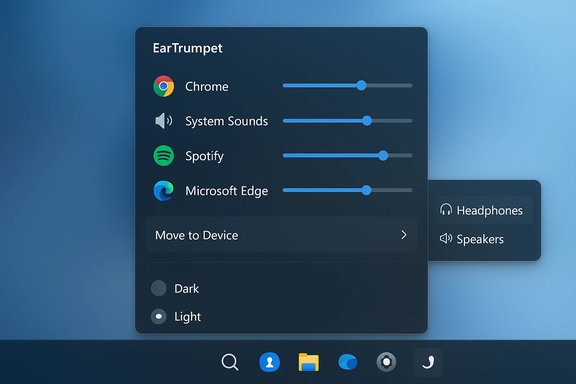
EarTrumpet brings the convenience of true per‑application audio control back to the Windows taskbar, letting you mute a chat notification, lower a browser tab, or route Spotify to speakers while keeping a meeting on your headset — all without diving into Settings.
Background
Windows has supported per‑app audio for years, but those controls are buried behind Settings, Quick Settings, or legacy Control Panel dialogs — a workflow that forces repeated context switching for a simple, high‑frequency task. That gap created an opportunity for small utilities to surface controls that power users reach for dozens of times a day. EarTrumpet started as one of those community projects and has since matured into a polished tray‑based mixer that many users prefer to the native UI because it restores single‑click access.EarTrumpet is distributed through multiple channels — the Microsoft Store, package managers such as winget and Chocolatey, and direct GitHub/MSIX builds — and its open‑source provenance gives administrators and privacy‑minded users an extra layer of transparency.
What EarTrumpet actually changes
EarTrumpet is a focused tool: it doesn’t replace Windows’ audio engine, it surfaces and controls it.- Per‑app sliders in the tray: A compact flyout lists each active audio session with a slider you can drag to adjust that app’s volume independently of the system master volume.
- Visual peaking: Session entries show which apps are currently producing sound, so you can quickly find noisy sources.
- Device routing per app: Right‑click or drag an app onto a target playback device to move its audio to headphones, speakers, a USB DAC, or a Bluetooth headset without changing the system default.
- Theme and UI fidelity: EarTrumpet respects dark/light themes and Windows accent colors, so it integrates visually with Windows 10 and Windows 11.
Installation and first‑time setup
EarTrumpet is available through the Microsoft Store (recommended for most users), which simplifies installation, signing, and automatic updates. For scripted deployment or automated setups you can also install via winget or Chocolatey.- Open the Microsoft Store and search for EarTrumpet, or run winget install File‑New‑Project.EarTrumpet in an elevated terminal for scripted installs.
- After installing, EarTrumpet places an icon in the system tray; if it’s hidden, open the “Show hidden icons” menu and drag it into the visible tray area.
Distinguishing EarTrumpet from the native volume icon
Because EarTrumpet’s default icon can look like the standard Windows speaker, users sometimes end up with two speaker icons. The practical fixes differ by OS:- Windows 10: You can hide the default Windows volume icon. Right‑click an empty space on the taskbar → Taskbar settings → Turn system icons on or off → toggle Volume to Off. This leaves only the EarTrumpet icon visible.
- Windows 11: The system volume icon is tightly integrated with Quick Settings and cannot be removed in the same way. Instead, EarTrumpet provides an option to use a distinct, legacy trumpet icon so you can visually tell them apart. Open EarTrumpet from the tray → Settings → General → toggle Use legacy Ear Trumpet icon. The icon changes to a unique trumpet logo, making it easy to spot at a glance.
Controlling individual app volumes — practical use
EarTrumpet’s core interaction model is intentionally simple.- Click the EarTrumpet icon in the tray. The flyout shows each application that has an active audio session.
- Drag the slider next to any app to lower or raise only that app’s volume; this leaves other applications unchanged.
- Click an app’s icon in the flyout to instantly mute that program. Mute is per‑app and does not alter the system master volume.
Assigning audio outputs per app
One of EarTrumpet’s most useful features is routing: you can send different apps to different audio devices instantly.- To move an app’s audio: open the EarTrumpet flyout, right‑click the app entry or icon, and choose the device from the “Move to device” list. The selection applies immediately.
- Alternatively, drag an app onto a device within the flyout (where supported) for a drag‑and‑drop routing workflow.
- To make an app follow the system default audio device again, repeat the steps and select Default. The entry will then appear under the matching device section in EarTrumpet.
Performance and battery impact — what we can verify
EarTrumpet is a front‑end for Windows’ existing audio APIs rather than a replacement audio engine, and community testing generally reports minimal overhead. The app hooks into Windows audio session APIs and surfaces them in a lightweight UI; because the heavy lifting is done by the OS, EarTrumpet’s CPU and memory footprint is typically small.However, there is no widely published, third‑party benchmark proving negligible CPU/memory usage across every possible system configuration. Community feedback strongly indicates low overhead on typical laptops and desktops, but users with extremely constrained hardware or unusual driver stacks should measure for themselves using Task Manager or Performance Monitor before deploying at scale. Treat claims of “zero impact” as optimistic; verify on representative machines.
Compatibility, limitations, and troubleshooting
EarTrumpet works by interfacing with Windows’ audio session model, but several real‑world factors can limit its effectiveness:- Applications that control their own audio device: Some games and legacy apps open and lock their own audio endpoints and will not accept external routing. In such cases EarTrumpet cannot override the in‑app selection; the recommended workaround is to change the setting inside the app or consult the title’s support docs.
- Driver, dock, and adapter quirks: Multi‑output chains (USB hubs, docking stations, Thunderbolt bridges) and vendor driver nuances can mask or alter device enumerations, which may cause devices to vanish or change identifiers after sleep/resume. Test your typical plug/unplug and suspend/resume scenarios.
- Routing persistence: Some apps or Windows builds can reset per‑app assignments after a reboot or driver update. If routing doesn’t stick, check the app’s in‑app audio settings and update audio drivers.
- Edge‑case audio anomalies: Forum reports include occasional issues like volume resets or temporarily muted sessions after updates; many of these trace back to driver bugs or OS session quirks rather than EarTrumpet itself. If you encounter such behavior, test on a clean profile, update drivers, and consult the EarTrumpet issue tracker for similar reports.
Security, privacy, and deployment considerations
EarTrumpet’s open‑source codebase improves transparency: anyone can review the repository, track commits, and inspect what (if anything) the project collects or sends. The project also documents an “Information Collected And Transmitted” note in its repo, which is reassuring for privacy‑minded users. Installing from the Microsoft Store adds the usual platform signing and update hygiene.For administrators planning a broader rollout, consider these practices:
- Prefer the Microsoft Store distribution for managed machines when possible to take advantage of signed packages and Store update mechanisms.
- Use winget or Chocolatey for scripted installs where Store access is restricted — both are documented install channels.
- Test on a small, representative fleet (conference rigs, docking stations, streamer PCs) before wide deployment. Document exceptions: some games and vendor stacks will not accept Windows’ app routing.
- If your organization has strict supply‑chain policies, consider building EarTrumpet from source and deploying an internally signed MSIX to meet governance requirements. The open‑source nature of the project makes this feasible.
Advanced workflows and power‑user tips
- Use EarTrumpet alongside a multi‑device setup: keep music and background audio on speakers while routing meetings and calls to a headset for privacy.
- Configure quick mute hotkeys or keyboard shortcuts if you toggle audio frequently during streaming or presentations. EarTrumpet supports hotkeys and quick mute toggles.
- For scripted deployments, add EarTrumpet to your post‑image provisioning via winget install File‑New‑Project.EarTrumpet or choco install eartrumpet, and provide users with a short tip sheet about routing and the “legacy icon” toggle for Windows 11 users to avoid confusion.
- If you encounter a stubborn app that won’t accept routing, check whether it offers its own audio device selection and set it there; for streaming setups, prefer apps that respect the Windows default device model.
How EarTrumpet compares to native improvements and alternatives
Microsoft has improved audio controls in recent Windows releases (for example, Quick Settings in Windows 11 and a direct keyboard shortcut for the app volume interface), and utilities like Fluent Flyouts restore other flyout behaviors for users who prefer older interaction models. These native and third‑party improvements narrow the convenience gap.Yet EarTrumpet persists as a low‑friction option for mouse‑centric workflows and multi‑device routing because it delivers immediate tray access and drag‑and‑drop routing that most stock UIs still bury. For users who favor a single click and minimal context switching, EarTrumpet retains a clear advantage.
Strengths, risks, and the final verdict
Strengths- Ergonomics: One‑click access and per‑app sliders save time for frequent micro‑tasks.
- Routing: Fast, per‑app output switching reduces friction in mixed‑device workflows.
- Transparency: Open source + Store distribution reduces supply‑chain risk for most users.
- Small footprint: The app builds on Windows’ APIs and generally exhibits a small resource profile in community testing.
- Driver and app limits: Some apps and vendor drivers won’t respect Windows’ routing model, and docks/adapters can interfere with DDC/CI or device enumeration. Test before relying on behavior in mission‑critical workflows.
- Lack of formal benchmarks: No broad third‑party benchmark proves negligible overhead across all hardware, so conservative testing is prudent.
- Enterprise policy friction: Deeply managed or locked environments might block installation or require admin approval; plan for packaging and governance accordingly.
For the typical Windows user who juggles music, meetings, browser audio, and notifications, EarTrumpet is a small, low‑risk, and high‑value utility that restores the kind of tray‑level audio control many users expect. It is especially compelling for multi‑device desks, streamers, and anyone who prefers mouse workflows. For IT professionals and power users, the recommended approach is careful testing on representative hardware, prefer Store installs for automatic updates, and document exceptions for apps that manage audio internally.
Quick reference — install and first‑use checklist
- Install from the Microsoft Store (recommended) or via winget/choco for scripts.
- Drag the EarTrumpet icon into the visible tray for single‑click access.
- On Windows 10: hide the default Volume icon via Taskbar settings if you want only EarTrumpet visible.
- On Windows 11: enable the legacy EarTrumpet icon in EarTrumpet Settings → General → Use legacy Ear Trumpet icon to avoid duplicate‑icon confusion.
- Test per‑app routing by playing audio from two apps, right‑clicking one in EarTrumpet, and selecting Move to device. Confirm sound moved as expected.
- If you manage many machines, validate with audio devices, docks, and sleep/resume cycles before a wider rollout.
EarTrumpet is an elegant example of focused usability engineering: it doesn’t attempt to re‑architect Windows audio, it simply puts the controls people need where they reach for them most. For anyone frustrated by having to pause a movie to lower a chat beep, EarTrumpet is a pragmatic fix that returns per‑app control to the taskbar with minimal intrusion — provided you test it against your hardware and app mix before treating it as a universal cure.
Source: Make Tech Easier EarTrumpet Allows You to Control Individual App Volume in Windows Directly in the Taskbar - Make Tech Easier
