

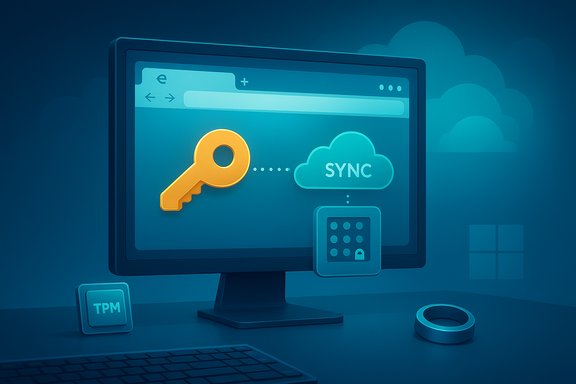
Microsoft Edge has finally closed one of the most practical gaps in Microsoft’s passwordless push: Edge 142 can now save and sync passkeys into the Microsoft Password Manager so those credentials follow a user across Windows desktop devices tied to the same Microsoft Account.
Passkeys are the FIDO2/WebAuthn‑based, phishing‑resistant replacements for traditional passwords that rely on asymmetric cryptography and local user verification (biometrics or a device PIN) to authenticate. They eliminate the need to type or memorize shared secrets, and major platform vendors have been racing to build cross‑device flows that make adopting passkeys practical for everyday users. Microsoft’s identity strategy in 2024–2025 has emphasized a unified passwordless experience: Windows Hello for local authentication, Microsoft Password Manager and Edge for credential storage, and an effort to move password storage out of Microsoft Authenticator and into the Edge/Account ecosystem. The recent Edge update is the next step in that plan: passkeys created on a website that supports them can now be saved directly to the Microsoft Password Manager and encrypted in the cloud for sync across Windows desktops.
However, the story is not complete. Mobile support, cross‑browser interoperability via the promised Windows plugin, and enterprise Entra integration are essential next milestones. Until those are in place and independently audited, organizations and cross‑platform users should proceed with thoughtful pilots and layered recovery strategies while embracing the security benefits passkeys deliver today.
For Windows desktop users ready to adopt: update Edge, sign in with your Microsoft Account, and try creating a passkey on a supported site—set the Microsoft Password Manager PIN and test the unlock flow on a second device to validate the behavior in your environment. If you split time between Windows and other platforms, consider a cross‑platform passkey manager until Microsoft completes its broader rollout.
Source: How-To Geek Microsoft Edge just fixed a big passkey problem
 Background
Passkeys are the FIDO2/WebAuthn‑based, phishing‑resistant replacements for traditional passwords that rely on asymmetric cryptography and local user verification (biometrics or a device PIN) to authenticate. They eliminate the need to type or memorize shared secrets, and major platform vendors have been racing to build cross‑device flows that make adopting passkeys practical for everyday users. Microsoft’s identity strategy in 2024–2025 has emphasized a unified passwordless experience: Windows Hello for local authentication, Microsoft Password Manager and Edge for credential storage, and an effort to move password storage out of Microsoft Authenticator and into the Edge/Account ecosystem. The recent Edge update is the next step in that plan: passkeys created on a website that supports them can now be saved directly to the Microsoft Password Manager and encrypted in the cloud for sync across Windows desktops. What changed in Edge 142 — the essentials
- Edge 142 adds a user‑facing flow to save newly created passkeys into Microsoft Password Manager when you register a passkey on a compatible site.
- Those passkeys are encrypted in the cloud and associated with the user’s Microsoft Account (MSA), enabling cross‑device use on Windows desktops where the same account is signed in.
- A Microsoft Password Manager PIN (a separate vault unlock PIN) is required when you first enable passkey saving; the cloud copy is unlocked on a new device with that PIN and a local Windows Hello unlock. There are protections such as a limited number of PIN attempts (Microsoft documents a ten‑attempt limit for the initial unlock flow).
- The rollout is initially scoped to Windows desktop (Windows 10 and newer) and consumer Microsoft Accounts; mobile platforms and work/school Entra (Azure AD) tenants are not in the initial scope. Microsoft says broader platform and enterprise coverage will follow.
How it works — technical mechanics
The cryptographic baseline
Passkeys follow the FIDO2/WebAuthn model: a website registers a public key (stored by the service) and the client keeps the private key. Authentication is a challenge/response signed by the private key and verified by the server using the public key. Because the private key never leaves the authenticator, passkeys are inherently phishing‑resistant.Microsoft’s hybrid model: local unlock + cloud sync
Microsoft’s implementation combines local hardware‑backed security with cloud convenience:- The private key used for a local passkey remains protected by the platform (Windows Hello + TPM where available). For locally created passkeys, Windows Hello unlock performs the local user verification step.
- When a user opts to save a passkey to Microsoft Password Manager, Edge encrypts and uploads a copy to the cloud. That cloud copy is encrypted and protected behind the Microsoft Password Manager PIN and additional integrity/logging mechanisms.
- To use synced passkeys on a new Windows machine, the user signs into Edge with their Microsoft Account, unlocks the Password Manager vault with the PIN, and then performs Windows Hello verification to use the credential locally. This dual control (PIN for vault unlock + Windows Hello for local use) separates cloud auth from local biometric/PIN verification.
Recovery and limits
Microsoft documents a recovery flow: if you forget the Password Manager PIN you can reset it from a device that already has passkey access. There’s also a built‑in limit for wrong PIN attempts during the initial unlock on a new device; Microsoft says you get up to ten tries before further recovery actions are required. The company logs unlock and reset events with integrity protections. These details reduce one major fear—stateful lockouts—but they also create help‑desk and recovery considerations for consumers and administrators.Why this matters (user and ecosystem impact)
- Cross‑device convenience. Previously a major friction point: many passkeys created on Windows were device‑bound and did not sync, forcing users to maintain multiple credentials or re‑register passkeys per device. Syncing fixes that core usability gap and removes a practical objection to replacing passwords with passkeys.
- Stronger default security. Passkeys are phishing‑resistant and, when combined with TPM and Windows Hello, offer stronger protection than text passwords and even some two‑factor flows. For mainstream Windows users, this reduces successful account takeovers.
- A clearer place for credentials. Microsoft’s strategy is to consolidate credential management into Edge + Microsoft Password Manager (mirroring how Google ties things into Chrome/Google Account). This reduces fragmentation for consumers who habitually default to the platform browser as their password manager.
Limitations, platform scope, and timing — what’s still missing
The initial rollout has important constraints that affect real‑world adoption:- Windows desktop only (initially). The feature is limited to Windows 10 and newer desktop devices for the Edge 142 rollout. Mobile platforms (Android/iOS) are not covered yet, which means passkeys synced to Microsoft Password Manager won’t be available on phones until Microsoft extends support.
- Microsoft Account only for initial rollout. Work and school accounts under Microsoft Entra (Azure AD) are not supported in the initial release; enterprise customers will need to wait or use alternative strategies until Entra support is added.
- Edge‑centric until a plugin ships. Microsoft plans a Windows plugin for Microsoft Password Manager that will let apps and other browsers request passkeys stored in Edge, but that plugin is “coming soon” and currently missing. Until that plugin arrives, passkeys saved to Edge’s Password Manager are functionally limited to Edge on Windows.
Security analysis — strengths and risks
Notable strengths
- Phishing resistance: Because passkeys cannot be phished, the primary attack vector for account takeovers is removed. This is the single most important security advantage over passwords.
- Hardware protections: Where TPM and Windows Hello are used, private keys can be hardware‑protected and tied to local biometric/PIN verification, raising the bar for attackers who need both device possession and successful user verification.
- Cloud backup with dual controls: Microsoft’s approach—cloud storage encrypted and protected by a PIN, plus local Windows Hello for usage—balances convenience and security. It avoids simple password‑like recovery flows that attackers can abuse.
Risks and open questions
- Recovery and social engineering: Centralized recovery flows and password manager PIN resets create new social engineering targets. If an attacker can manipulate account recovery or help‑desk processes, they may find paths to regain access. Organizations must harden recovery channels for Microsoft Accounts.
- Single‑vendor lock‑in risk: The Edge + Microsoft Account model can concentrate identity metadata with Microsoft. While this isn’t inherently unsafe, it raises privacy and availability questions for users who prefer vendor diversity or who anticipate multi‑platform lifestyles. Cross‑platform interoperability and standards for passkey portability are still maturing.
- Enterprise policies and compliance: Many organizations rely on Azure AD/Entra controls and hardware security keys for compliance. The initial lack of Entra support and the details of how passkeys interact with conditional access, device compliance, and audit logging must be clarified before broad enterprise deployment. Admins should test behavior under their specific policies.
- Implementation transparency: Public, independent audits and detailed technical disclosures about the cryptographic key‑wrapping and server‑side protections would strengthen trust. Microsoft mentions the Azure Confidential Ledger for logging and integrity protection, but independent verification of server‑side handling and threat modeling is still desirable.
Practical guidance — should you enable synced passkeys today?
For most Windows desktop users with a personal Microsoft Account and a modern device:- Yes — enable passkey saving in Edge if you primarily use Windows devices and want the easiest path to passwordless logins. The experience reduces friction and increases security for everyday sites that support passkeys.
- Wait for the plugin or use a cross‑platform passkey manager (1Password, Bitwarden, others) in the meantime. Those managers already offer cross‑device passkey portability and are preferable for users who use macOS, iOS, or Linux in addition to Windows.
- Pilot, don’t rush. Validate how Edge passkey sync interacts with Azure/Entra policies, conditional access, Intune/MDM, and help‑desk processes. Keep hardware security keys available for high‑assurance accounts until the enterprise story is fully ironed out.
Step‑by‑step: how to use Edge passkey sync (high level)
- Update Edge to version 142 or newer on your Windows 10/11 desktop.
- Sign into Edge with your personal Microsoft Account.
- Visit a site that supports passkeys and choose the option to create a passkey when prompted. Edge will offer to save it to Microsoft Password Manager.
- On first save, set a Microsoft Password Manager PIN to protect the cloud copy. Memorize it or store it securely—this is the vault unlock PIN for synced passkeys.
- On another Windows PC, sign into the same Microsoft Account in Edge, and unlock the Password Manager by entering the PIN. Then use Windows Hello to authenticate locally when signing in to sites.
Troubleshooting and support considerations
- If passkeys fail to appear or sync, confirm Edge is up to date, sync is enabled, and you’re signed into the same Microsoft Account across devices. The usual sync reset and profile‑switch steps apply. Microsoft documents common troubleshooting steps for Edge sync that still apply for passkey sync.
- Keep a recovery plan: register at least one hardware FIDO2 security key with critical accounts or maintain an alternative recovery factor in case of device loss or issues with the Password Manager PIN. This reduces help‑desk burden and prevents account lockouts.
- If your Microsoft Authenticator passwords were your single store, note that Authenticator’s autofill for passwords has been deprecated and users were guided to move passwords to Edge or export them before removal. That migration context explains why Edge’s Password Manager has become more central recently.
Where Microsoft stands relative to other vendors
- Google: Chrome and Google Accounts had already implemented passkey save/sync flows across Chrome installations tied to the same Google Account, giving Google a practical edge for cross‑device passkey convenience earlier. Microsoft’s move narrows that parity gap for Windows desktop users.
- Apple: Apple’s iCloud Keychain sync works across macOS and iOS, creating a tightly integrated cross‑device passkey story within Apple’s ecosystem. Microsoft’s Windows‑centric rollout is narrower but increasingly competitive for Windows‑first users.
The enterprise angle — policy, compliance, and rollout guidance
IT teams should treat this as a staged capability, not a drop‑in replacement for existing identity programs:- Pilot with a controlled user group and instrument recovery procedures for PIN resets, device replacement, and orphaned credentials. Track help‑desk impacts and failure modes.
- Review interactions with conditional access and risk signals in Entra/Azure AD. Confirm whether passkeys saved to Microsoft Password Manager are visible as managed credentials in your identity portal and how conditional access is applied. Microsoft’s initial documentation emphasizes that Entra support is not in the first wave.
- Continue to require or offer hardware FIDO2 keys for high‑assurance accounts and critical tasks until the enterprise maturity and auditability of synced passkeys meet regulatory needs.
What still needs verification
- The precise timeline for the Microsoft Password Manager Windows plugin and when mobile platforms will be supported is not fully specified beyond “coming soon.” Treat those commitments as future intentions that require confirmation before planning cross‑platform migrations.
- The operational detail on enterprise Entra/Azure AD behavior for synced passkeys—how they are surfaced in admin portals and how they interact with device compliance—needs explicit testing in controlled environments. Microsoft’s public notes indicate enterprise coverage is pending.
Conclusion — a practical next step toward passwordless on Windows
Microsoft’s Edge 142 passkey saving and sync to Microsoft Password Manager fixes a central, practical obstacle to passkey adoption on Windows: the inability to move passkeys between desktop devices easily. For Windows‑centric consumers, this is a meaningful usability win that brings passkeys closer to being a drop‑in replacement for passwords.However, the story is not complete. Mobile support, cross‑browser interoperability via the promised Windows plugin, and enterprise Entra integration are essential next milestones. Until those are in place and independently audited, organizations and cross‑platform users should proceed with thoughtful pilots and layered recovery strategies while embracing the security benefits passkeys deliver today.
For Windows desktop users ready to adopt: update Edge, sign in with your Microsoft Account, and try creating a passkey on a supported site—set the Microsoft Password Manager PIN and test the unlock flow on a second device to validate the behavior in your environment. If you split time between Windows and other platforms, consider a cross‑platform passkey manager until Microsoft completes its broader rollout.
Source: How-To Geek Microsoft Edge just fixed a big passkey problem
