

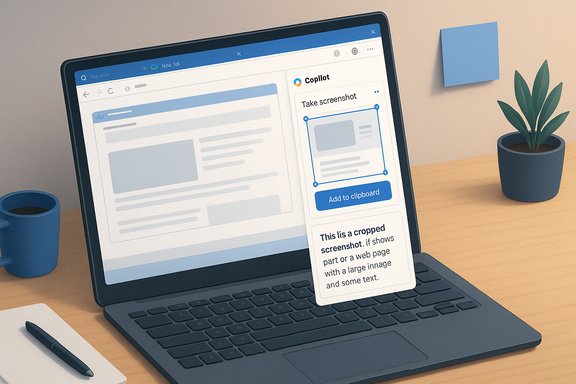
Microsoft’s Edge Canary is quietly getting smarter about screenshots: the browser’s Copilot sidebar can now capture a selected portion of your screen, open Edge’s built‑in screenshot editor, and insert that capture directly into the Copilot composer so you can ask about it without leaving the page or manually attaching an image. This small UI change signals a broader move toward multimodal, context‑aware browsing where the assistant not only reads the web but also “sees” what’s on your screen and uses that visual context to answer questions or take actions.
Microsoft has been folding Copilot into Windows and Edge as a multimodal assistant across multiple fronts—voice, vision, and limited agentic actions. In Edge, the Copilot layer has evolved from a simple chat pane to a Copilot Mode that reasons across tabs and can perform tasks (Copilot Actions), reconstruct past work (Journeys), and accept visual context through screenshots or a permissioned “vision” mode. These projects are being rolled out incrementally, with the fastest or most private experiences often landing first in Canary or Insider channels. The new “Take screenshot” entry in the Copilot compose menu is an extension of that vision: instead of forcing users to use a separate system snipping tool, copy/paste the image, or attach a saved file, Copilot can now initiate the capture flow, let you crop and annotate, and bring the image into the conversation automatically. That behavior shortens the loop between observation and question—and that is the point of integrating vision into assistant workflows.
There are strong UX reasons to integrate capture into the composer:
Source: Windows Report Edge Copilot AI can now take screenshots for you
 Background
Microsoft has been folding Copilot into Windows and Edge as a multimodal assistant across multiple fronts—voice, vision, and limited agentic actions. In Edge, the Copilot layer has evolved from a simple chat pane to a Copilot Mode that reasons across tabs and can perform tasks (Copilot Actions), reconstruct past work (Journeys), and accept visual context through screenshots or a permissioned “vision” mode. These projects are being rolled out incrementally, with the fastest or most private experiences often landing first in Canary or Insider channels. The new “Take screenshot” entry in the Copilot compose menu is an extension of that vision: instead of forcing users to use a separate system snipping tool, copy/paste the image, or attach a saved file, Copilot can now initiate the capture flow, let you crop and annotate, and bring the image into the conversation automatically. That behavior shortens the loop between observation and question—and that is the point of integrating vision into assistant workflows. What changed in Edge Canary: the new screenshot flow
What the UI does now
- The Copilot compose box’s “+” menu (previously used to attach files, generate images, or add tabs) has a new Take screenshot option in Edge Canary builds.
- Selecting it opens Edge’s built‑in screenshot editor, which supports cropping, markup, and a clear Add to clipboard or similar command. After you confirm the capture, the image is placed into the Copilot message composer automatically.
- Once the screenshot appears in the composer, you can immediately ask Copilot questions about what’s visible—OCR, UI explanation, summarization, or step‑by‑step guidance—without a separate paste or attachment step.
Where the feature is today
- The screenshot capture integration is flagged as experimental and is visible in Edge Canary only at present; it’s not yet in Edge Dev or Stable channels according to reporters tracking Canary updates. That’s consistent with Microsoft’s habit of shaping and testing multimodal features in preview channels.
- The integration reportedly works when Copilot is set to the default Smart mode (the release description refers to the backend model as GPT‑5 in some coverage), though interactions may vary in other chat modes. Treat model naming and backends as operational details that Microsoft may change.
Why this matters: practical benefits for everyday workflows
The change is small on the surface but meaningful in real usage patterns.- Fewer context switches: Instead of using a separate snip tool, switching to the composer, and attaching, Copilot takes the capture for you and keeps the whole flow in one pane. That reduces friction when you want a fast explanation of a dialog, error message, chart, or portion of a document.
- Faster visual analysis: Screenshots become immediate context. Copilot can run OCR, point out UI elements, or extract tables and numbers from an image without the user manually transcribing anything. This makes tasks such as debugging error dialogs, summarizing invoices, or pulling numbers from charts significantly faster.
- Better composability with Edge features: Because the capture uses Edge’s own editor and clipboard integration, it fits neatly into Edge’s conversation history and action model—useful when Copilot Actions or Journeys later need that visual evidence to perform multi‑step workflows.
Technical and product details (what’s verified, what’s still fuzzy)
Verified or strongly supported
- Edge Canary contains a Copilot + menu with a “Take screenshot” option that opens Edge’s screenshot editor and places the result into Copilot’s composer. This behavior was reported in recent Canary coverage.
- The feature is experimental and not widely available in Stable or Dev channels at the time of reporting.
Claims that need cautious treatment
- Reports refer to Copilot’s Smart mode and a backend reference to GPT‑5; model routing and naming are fluid and Microsoft often mixes internal nomenclature across announcements and product paths. Treat model version names as indicative rather than definitive unless Microsoft publishes an explicit, current mapping. This claim should be verified against official Microsoft release notes or statements before assuming long‑term accuracy.
- Broader privacy, telemetry, and retention details about in‑assistant screenshots are not fully specified in early coverage. Earlier Copilot and Gaming Copilot threads have raised questions about how on‑screen captures and derived text are processed and whether any data ever leaves the device. Microsoft has emphasized session‑bound permissions and opt‑in behavior, but real trust requires clear documentation and conservative defaults. Until Microsoft publishes explicit retention and processing details for this specific Edge Canary flow, treat assumptions about local processing vs cloud inference as tentative.
Privacy and security analysis — the hard questions
Integrating screenshot capture into an assistant flow is useful—but it raises four important categories of risk that both users and IT teams should weigh.1) Consent and discoverability
- The Chromium/Edge UI must make it unmistakably clear when Copilot is viewing or capturing the screen. A single menu action that opens a snip editor is a low‑friction consent model, but copy/paste flows and background capture semantics must be explicit. Edge’s design language around “visual context” and permissioned sessions matters here; any ambiguity will erode user trust.
2) Data flow and retention
- Reported past controversies around Gaming Copilot and in‑game screenshots show that community traces detected outbound telemetry correlated with Copilot operations; Microsoft clarified that screenshots captured during active use are not used to train models, but that conversational inputs may be used for model improvement unless users opt out. Those distinctions matter. For the Edge screenshot flow, the security questions to demand are:
- Is the captured image or OCR data ever transmitted to Microsoft cloud endpoints?
- If transmitted, what is retained, for how long, and under what legal or policy controls?
- Are there explicit toggles (per site, per session, global) to opt out of sending derived data for training?
- Until Microsoft provides clear documentation, administrators should treat any system that captures screen content as potentially distributing derived data and plan accordingly.
3) Attack surface: phishing and prompt injection via images
- Multimodal assistants expand classic prompt‑injection vectors to visual inputs. A malicious web page could show text or UI that misleads the assistant into performing unsafe actions (for example, mimicking payment dialogs or system prompts). Combining screenshot capture with Copilot Actions that can interact with pages raises new safety requirements: robust provenance, screenshot provenance markers, and conservative automation defaults.
4) Enterprise governance and compliance
- Organizations deploying Edge with Copilot features at scale need MDM/GPO options to restrict:
- Which users can run Copilot Actions or share visual context
- Whether screenshots may be sent off‑device
- Audit logs for Copilot sessions that used visual inputs
- Rolling out the feature in Canary without corresponding enterprise policy controls could create compliance gaps for regulated industries. Administrators should delay broad enablement until controls are available and tested.
How to test the feature safely (for enthusiasts and IT pilots)
- Install Edge Canary in a disposable profile or VM.
- Enable Copilot (Copilot Mode / sidebar) and set the assistant mode to Smart to match the reported configuration.
- In the Copilot compose box, open the + menu and check for Take screenshot; perform a small test capture of a benign page (a local HTML file or test document). Observe whether:
- The screenshot editor opens and allows markup.
- The captured image appears in the Copilot composer after Add to clipboard.
- Any network activity occurs during or immediately after capture (use a network monitor to inspect egress). If you see traffic, capture and retain traces for analysis.
- Test Copilot responses to image content: ask for an OCR extraction, a summary, or a UI explanation and note whether results are processed locally or appear to reference cloud‑level reasoning (latency and response style may hint at routing).
- Check privacy toggles in Edge and Copilot settings (look for explicit model‑training toggles, screenshot retention, and sharing options). If options are missing, document that absence and treat the feature as potentially less auditable.
Product strategy and UX commentary: small change, high signal
This feature is an example of a larger product pattern: Microsoft is extending Copilot’s context plumbing so that the assistant can consume the many different types of context users already possess—tabs, history, system state, and now screen captures—and use that to produce more accurate, actionable answers. The screenshot shortcut is small but reduces friction for one common workflow: you want to ask, “What does this error mean?” and get a direct explanation with pointers.There are strong UX reasons to integrate capture into the composer:
- People think visually; they point at what they mean. The assistant should let them do that without mental overhead.
- Shorter flows increase the frequency of assistant use and make Copilot feel like a natural collaborator rather than a separate tool.
Enterprise guidance: a conservative rollout checklist
- Start in pilot groups. Enable Edge Canary + Copilot only for volunteers or privacy‑aware testers.
- Create an audit plan. Log Copilot usage where possible and keep a record of when visual context was used for sensitive workflows.
- Lock down Copilot Actions and visual sharing via MDM or policy where available; if the policy surface does not yet exist, delay enabling in production fleets.
- Train support teams. Users will ask whether screenshots are stored or sent—provide a clear, up‑to‑date FAQ and escalation path.
- Monitor Microsoft’s documentation for explicit retention and data‑use statements tied to Edge + Copilot visual features and adjust your policies accordingly.
Strengths and potential risks — side‑by‑side
- Strengths
- Faster workflows: Less switching between tools, faster context capture for Copilot queries.
- Better multimodal UX: Aligns with how users naturally point and ask about visual content.
- Integration with Edge features: Fits into Copilot Mode, Actions and Journeys for richer project continuity.
- Risks
- Privacy and telemetry ambiguity: Past community captures have exposed opaque telemetry behavior in preview builds; clarity from Microsoft is required.
- Prompt injection and phishing expansions: Visual inputs broaden attack surfaces for deceptive content.
- Enterprise compliance gaps: If controls lag, organizations may inadvertently allow sensitive screenshots to be processed in uncontrolled ways.
Recommendations for users and power users
- If you’re privacy‑conscious: wait for the feature to land in Dev/Stable and for Microsoft to publish clear processing and retention documentation before enabling Copilot’s visual features on machines that handle sensitive data.
- If you’re a productivity user or tester: run Canary in a sandbox and try the flow with non‑sensitive examples. Inspect network traces if you want technical assurance about where data flows.
- For creators and support professionals: this feature can be a timesaver for bug reports, documentation, and tutorials—use it but annotate what was captured and get consent where necessary.
What to watch next
- Will Microsoft document whether Copilot’s screenshot capture is processed locally, on a Copilot+ NPU, or in the cloud for non‑Copilot+ devices? Clear, public documentation on data flow and retention is the single most important missing piece.
- Will Edge provide per‑site or per‑action governance controls for screenshot capture and model training toggles as it has for other Copilot features?
- Will the screenshot capture flow be extended to other surfaces, such as the Xbox Game Bar (to unify the approach) and mobile Edge builds?
Conclusion
Edge’s new Copilot screenshot integration is a pragmatic step toward a more natural, multimodal browsing assistant: the ability to take a focused capture and ask an AI about it without manual attachments is plainly useful. The feature is already visible in Canary and demonstrates Microsoft’s broader strategy of giving Copilot sight in addition to voice and text. That convenience is real and meaningful—but so are the privacy and governance questions that come with any assistant that can consume what’s on your screen. Until Microsoft publishes clear processing and retention policies for these visual inputs and surfaces enterprise controls, cautious pilots and IT teams should treat the feature as experimental and apply conservative rollout policies. The payoff—faster workflows and richer multimodal assistance—is compelling, but it needs to be matched by transparency, auditable controls, and conservative default settings.Source: Windows Report Edge Copilot AI can now take screenshots for you
