

Microsoft Edge for Android is quietly being given the ability to install and run the same desktop extensions Windows 11 users rely on — but only in Canary for now, and with a clear “unverified for mobile” warning attached. The change lifts the long-standing artificial barrier that limited mobile Edge to a handful of vetted add-ons and replaces it with a search-driven gateway into the Edge Add-ons catalogue, enabling desktop-only extensions such as Grammarly and Keepa to be installed on Android devices. Early tests show many desktop extensions will work, but stability, privacy, and performance caveats remain significant and warrant careful user and developer attention.
Edge’s support for extensions on Android has evolved from a tiny, curated set of mobile-optimized add-ons into a more flexible — and riskier — experiment in cross-platform parity. Historically, Edge for Android exposed only a small number of vetted extensions through its in-app extension hub. That limited approach balanced compatibility and security, because many desktop extension APIs and UI flows weren’t designed for the constraints of mobile interfaces.
In 2025 Microsoft began experimenting more aggressively with parity between desktop and mobile Edge, adding sync improvements and testing a broader set of UI and engine enhancements for Android builds. These development-phase features have frequently appeared first in Canary or Dev builds before wider rollout.
Recent Canary tests introduce a search box on the Android extensions page that acts as a gateway to the full Edge Add-ons store — including desktop-only entries. Users who enable the flag can search by name and install extensions that were previously blocked on mobile. Early community reporting and first-hand tests show desktop extensions can be installed and — in many cases — function on Android phones.
For enthusiasts and early adopters, the new capability opens interesting possibilities. For mainstream users and enterprise deployments, the risks — especially around stability, privacy, and security — argue for a cautious approach. Microsoft and extension developers must now work together to create a safer, better-performing mobile extension ecosystem before this becomes a recommended experience for general users. In the meantime, those curious enough to test should confine experiments to Canary and disposable profiles, monitor performance carefully, and heed the unverified warnings that the browser presents.
Source: Windows Latest Microsoft is bringing all Windows 11's desktop extensions to Edge on Android
 Background
Edge’s support for extensions on Android has evolved from a tiny, curated set of mobile-optimized add-ons into a more flexible — and riskier — experiment in cross-platform parity. Historically, Edge for Android exposed only a small number of vetted extensions through its in-app extension hub. That limited approach balanced compatibility and security, because many desktop extension APIs and UI flows weren’t designed for the constraints of mobile interfaces.In 2025 Microsoft began experimenting more aggressively with parity between desktop and mobile Edge, adding sync improvements and testing a broader set of UI and engine enhancements for Android builds. These development-phase features have frequently appeared first in Canary or Dev builds before wider rollout.
Recent Canary tests introduce a search box on the Android extensions page that acts as a gateway to the full Edge Add-ons store — including desktop-only entries. Users who enable the flag can search by name and install extensions that were previously blocked on mobile. Early community reporting and first-hand tests show desktop extensions can be installed and — in many cases — function on Android phones.
What changed in Edge Canary for Android
The new extension search experience
- Edge Canary now includes a search box for extensions on Android that can be enabled via edge://flags.
- The search uncovers both mobile-vetted add-ons and the wider catalog of desktop extensions in the Edge Add-ons store.
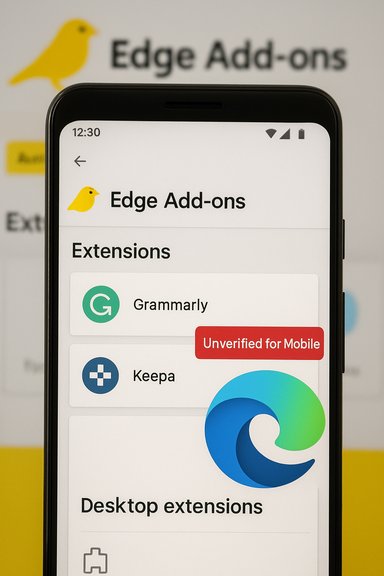
- Extensions that aren’t marked as mobile-compatible are presented with an unverified / not validated for mobile badge and an install-time warning.
Real-world examples: Grammarly and Keepa
- Grammarly (desktop extension): Community testers installed Grammarly from the desktop add-ons catalogue in Edge Canary on Android. After installation, Grammarly surfaced suggestions inside a mobile text editor, demonstrating that at least some content-script features work in a mobile browser context. However, the extension displayed Microsoft’s mobile compatibility warning before installation.
- Keepa (mobile-optimized extension): Keepa’s extension — which overlays graphical price-history charts on Amazon product pages — loaded its charts on mobile product pages in Edge Canary and behaved similarly to the desktop experience when testers scrolled to product sections. Performance was acceptable in the limited tests reported, and Keepa’s mobile-optimized design translated well to the smaller viewport.
Why Microsoft is doing this (and what it gains)
- Cross-platform parity: Offering desktop extensions on mobile narrows feature gaps between Edge on Windows 11 and Android, making the browser more attractive to users who expect continuity across devices.
- Ecosystem leverage: Allowing desktop add-ons to run on mobile can increase the perceived utility of Edge and strengthen Microsoft’s broader goal of tighter Windows–Android integration.
- Developer feedback loop: A broader testing audience helps extension developers identify mobile-specific bugs and motivate optimizations for smaller screens and resource constraints.
- Competitive differentiation: With other Chromium-based mobile browsers offering limited extension support, Edge can claim a unique advantage if Microsoft makes the experience safe and performant.
Technical realities and constraints
Extension architecture on Android
Edge on Android is a Chromium-based browser that uses Blink for rendering. Chromium’s extension APIs were primarily designed for desktop platforms where background pages, persistent service workers, and complex UI elements are common. Mobile constraints that matter:- Memory and CPU: Mobile devices have less RAM and lower sustained CPU budgets; extensions that hold background state or run heavy scripts may cause crashes or battery drain.
- UI mismatch: Desktop extensions assume mouse and keyboard interactions, pop-up windows, and fixed screen sizes. Mobile touch flows and limited screen real estate force different UX patterns.
- Permissions and privacy: Mobile operating systems have additional privacy expectations (e.g., more sensitive access to location, sensors, or background services), making some desktop extension permissions problematic.
- API compatibility: Not all Chromium extension APIs behave identically on mobile; some may be unimplemented or partially implemented in the mobile build.
Flags and experimental controls
Community reporting indicates the feature is gated behind flags in Edge Canary. Users should be able to toggle the extension search experience and other experimental extension hubs using edge://flags, but the exact flag names and availability can change between Canary builds. Some Reddit threads referenced flags such as an “Android Extension” flag and “edge-extensions-webui2-hub” when discussing methods for installing and inspecting extensions on mobile; however, these internal flag names can vary and are not official product documentation. Treat flag names as implementation details that can change at any time.Security, stability, and privacy risks
Extension vetting and sideloading risks
Running desktop extensions on mobile raises several security questions:- Unvetted code on mobile: Desktop extensions may not be reviewed with mobile constraints in mind. They could run scripts that leak data, perform excessive network calls, or interact poorly with mobile privacy features.
- Sideload and update vectors: Extensions installed from the Add-ons store still update automatically; if a malicious update slips through, it could propagate quickly to mobile users.
- Permission misuse: Extensions that request broad host permissions (e.g., access to all sites) become a larger liability on mobile, where users often stay logged into multiple services.
Stability and crash risk
Canary builds are, by definition, unstable. Extension crashes and unexpected behavior have been reported frequently in mobile testing channels. Community reports echo this: extensions can crash, auto-disable, or cause the browser to behave unpredictably, especially in early Canary iterations. Users should expect rough edges if they enable desktop extensions on mobile.Data leak and telemetry concerns
Extensions often rely on remote servers and third-party APIs. On mobile, network conditions are more variable, and users may connect to public Wi‑Fi often. Extensions that transmit data to third-party services can increase privacy risks — especially if they have not been audited for mobile behavior.Developer and platform implications
- Developers must progressively optimize desktop extensions for mobile use if Microsoft expects robust compatibility. That includes responsive UI overlays, lower-memory algorithms, and mobile-aware permission models.
- Microsoft may eventually add developer guidance and specific mobile extension manifests or compatibility flags to the Add-ons Store to better indicate mobile-ready extensions.
- Extension APIs that assume persistent background processing or native host messaging may need revised mobile-friendly alternatives.
Practical guidance for users: how to test safely
- Use Edge Canary only for experimentation: Install Canary separate from your stable Edge if you want to try desktop extensions on Android.
- Enable the extension search flag: Visit edge://flags in Canary and look for the experimental extension-related flags. Toggle the search/hub flag, then relaunch the browser. (Flag names are experimental and may change between builds — proceed cautiously.
- Read the unverified warning: When an extension is not validated for mobile, Edge will display a warning. Treat it as a meaningful caution, not a formality.
- Test in a disposable profile or with limited permissions: Create a new Edge profile for testing and avoid syncing production passwords or sensitive data while trying experimental extensions.
- Monitor resource use: Keep an eye on battery and performance. If the browser becomes unstable, uninstall the extension and report feedback through Edge’s feedback channels.
- Disable sync for extensions if needed: If you do not want desktop extensions to auto-propagate to mobile, review sync settings on your desktop Edge and toggle extension sync or use separate profiles. Community reports show extension sync behavior has been inconsistent and sometimes troublesome, so double-check your settings.
What to watch next
- Microsoft’s official documentation and blog posts: Until Microsoft publicly documents the feature, treat current behavior as experimental.
- Security tooling for extensions: Microsoft has signaled plans to strengthen detection and revocation of harmful sideloaded extensions; look for more detail on how that will work operationally and when it will ship.
- Extension store metadata changes: Expect the Add-ons Store to gain clearer signals (e.g., “Mobile OK” badges or explicit mobile compatibility tags), which will help users find verified mobile-ready extensions.
- Developer guidance and APIs: If mobile becomes a supported extension target, Microsoft will likely publish guidelines or developer flags to optimize extension behavior on small screens.
Strengths and benefits
- Practical parity: Users who depend on productivity and shopping extensions on desktop now have a route to bring at least some of that functionality to Android.
- Developer feedback loop: Wider testing surface accelerates identification of mobile-specific issues and may lead to higher-quality, mobile-friendly extensions.
- User convenience: For users who make heavy use of the same extensions across devices, this feature reduces friction and can improve productivity continuity.
Key risks and limitations
- Experimental state: The feature is currently in Canary; stability and reliability are not guaranteed.
- Security exposure: Desktop extensions carry different threat models; unvetted extensions on mobile increase exposure to data leakage and malicious behavior.
- Performance impact: Extensions that are fine on desktop can overload mobile memory and CPU resources.
- UX mismatch: Many desktop extensions are not optimized for touch, small screens, or limited connectivity; the user experience can be poor without explicit mobile optimizations.
Conclusion
Microsoft’s experiment to bring desktop extensions from Windows 11’s Edge Add-ons catalogue to Edge on Android is a meaningful step toward cross-platform feature parity. Early tests show desktop extensions — from grammar checkers to shopping overlays — can be installed and sometimes work well on mobile. That said, the experiment is still in a fragile state: it lives in Edge Canary, requires flag toggles, and prominently warns users that many extensions are unverified for mobile.For enthusiasts and early adopters, the new capability opens interesting possibilities. For mainstream users and enterprise deployments, the risks — especially around stability, privacy, and security — argue for a cautious approach. Microsoft and extension developers must now work together to create a safer, better-performing mobile extension ecosystem before this becomes a recommended experience for general users. In the meantime, those curious enough to test should confine experiments to Canary and disposable profiles, monitor performance carefully, and heed the unverified warnings that the browser presents.
Source: Windows Latest Microsoft is bringing all Windows 11's desktop extensions to Edge on Android
