

Microsoft Edge’s Immersive Reader — long prized as a minimalist, distraction‑free reading surface — is being reimagined so Copilot’s AI sits front and center, and the change matters more than a visual tweak: it reframes reading as an interactive AI experience rather than a pure comfort mode.
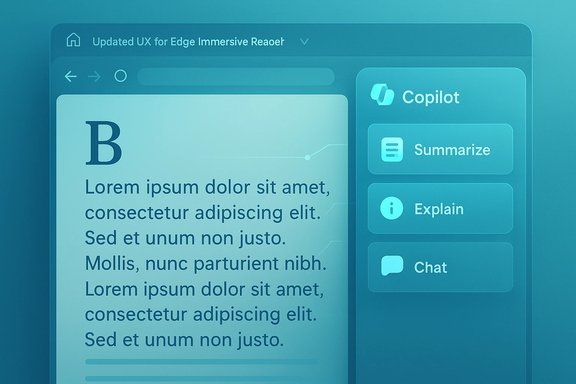
Microsoft is testing a redesigned Immersive Reader layout in Edge Canary that places Copilot actions — Summarize, Explain, and Chat with Copilot — directly in the reader toolbar, pushing conventional reading controls behind menus and surfacing AI as the primary interaction. When a Copilot action is chosen, Edge opens the Copilot pane in the sidebar and delivers responses alongside the article instead of inside the simplified reader canvas. This experiment is part of a broader push to make Edge an AI-first browsing environment — a shift already visible in Copilot Mode, redesigned UI experiments, and deeper Copilot integrations across Edge and Windows. Microsoft’s messaging frames these capabilities as permissioned and opt‑in, but the UI changes being trialed make the assistant more discoverable and harder to ignore.
Microsoft is testing this in Canary and Dev builds while framing Copilot features as permissioned and opt‑in; independent coverage and Microsoft’s own documentation confirm the company’s intent to make Edge more Copilot‑centric even as it promises user control. Readers, accessibility advocates, IT administrators, and product teams will need to engage with the test to ensure that reading remains the first priority when users ask for it — and that AI assistance complements, rather than replaces, the simple, reliable building blocks that made Immersive Reader valuable in the first place.
Source: Windows Report https://windowsreport.com/microsoft-edge-tests-copilot-immersive-reader-mode/
 Overview
Microsoft is testing a redesigned Immersive Reader layout in Edge Canary that places Copilot actions — Summarize, Explain, and Chat with Copilot — directly in the reader toolbar, pushing conventional reading controls behind menus and surfacing AI as the primary interaction. When a Copilot action is chosen, Edge opens the Copilot pane in the sidebar and delivers responses alongside the article instead of inside the simplified reader canvas. This experiment is part of a broader push to make Edge an AI-first browsing environment — a shift already visible in Copilot Mode, redesigned UI experiments, and deeper Copilot integrations across Edge and Windows. Microsoft’s messaging frames these capabilities as permissioned and opt‑in, but the UI changes being trialed make the assistant more discoverable and harder to ignore. Background: why Immersive Reader mattered — and what’s changing
The original role of Immersive Reader
Immersive Reader was designed to reduce visual clutter and make long-form text easier to absorb for a broad audience: students, casual readers, and accessibility users. Its core affordances included:- Adjustable font size, spacing, and themes
- Read aloud with highlight tracking
- Focus tools like line focus and simplified page layout
What Microsoft is testing now
In Canary builds users can enable an “Updated UX for Edge Immersive Reader” flag. The new toolbar elevates Copilot actions so they appear before the classic reader settings; selecting those actions opens the Copilot sidebar where summaries, explanations, or chat responses appear beside the content. Microsoft may still refine the layout, but the current test prioritizes AI-first workflows inside a space historically designed for calm reading.How it works in practice
Activating the new layout
- Install the latest Edge Canary build.
- Open edge://flags in the address bar.
- Search for “Updated UX for Edge Immersive Reader” and Enable the flag.
- Restart Edge, open a long article, and choose Immersive Reader from the menu.
Relationship to Copilot Mode and other Edge AI features
This isn’t an isolated change. Microsoft has been consolidating Copilot across Edge with features like Copilot Mode, Copilot Actions, Journeys, and Copilot Vision — a set that lets the assistant reason across tabs, summarize, and even execute multi‑step tasks when explicitly permitted. The Immersive Reader experiment simply folds those capabilities into a previously low‑interaction space.Strengths and practical benefits
Faster comprehension and on‑demand explanations
Embedding Copilot actions into Immersive Reader enables readers to get instant summaries, clarifications, or translations without leaving the article. For busy readers or researchers, that can save time and reduce context switching between tabs or apps. The UI places those tools where many users already expect reading help.Accessibility gains when combined with voice and vision
Copilot’s voice and vision features — already integrated into other parts of Edge — can pair with the reader to create richer assistive experiences, such as asking the assistant to read a highlighted passage aloud, explain complex vocabulary, or summarize images and captions. For readers with cognitive or visual impairments, that multimodal assistance can be powerful.Fewer steps to derive value
Previously a reader might copy text, open a new tab, and paste into an AI chat; the redesign collapses that workflow. When the assistant is allowed to access the current page (with opt‑in consent where required), it can produce structured summaries and follow‑ups in place — a clear productivity win for researchers, students, and professionals.Risks and trade‑offs: privacy, attention, and accessibility paradoxes
Privacy — what the tests reveal and what remains unclear
Microsoft emphasizes opt‑in models for Page Context and states that Copilot features require explicit permission to read tabs or history. However, UI changes that push Copilot into a traditionally private reading space increase the chance that users will grant access without fully understanding the consequences. The crucial technical questions remain partially unresolved in public reporting:- Where are page summaries, Journeys metadata, and derived vectors stored — locally or in Microsoft’s cloud?
- Does server‑side model processing keep any transient data beyond the session?
- What telemetry or usage signals are collected to improve models?
Attention and cognitive cost
Immersive Reader existed to reduce cognitive load. Prioritizing AI actions in that space risks reintroducing distractions: the Copilot sidebar is visually engaging and invites iterative querying, which can fragment attention during deep reading. For users seeking focused comprehension — and for learners — the presence of a conversational assistant may become an interruption rather than an aid. Designers must balance discoverability with unobtrusive defaults to preserve the reader’s original mission.Accessibility — improvements with caveats
While Copilot’s multimodal abilities help many users, changes to the interface may inadvertently harm those who relied on the simple Immersive Reader controls being immediately visible. If font size, spacing, and line focus are demoted into submenus, users who rely on them could experience friction. Accessibility gains from AI must not be purchased at the expense of basic, direct controls.Security surface from agentic automations
Copilot Actions — which can fill forms, construct carts, or initiate multi‑step flows — expand the attack surface. Although the assistant is designed to require visible consent for sensitive steps (payments, credential reuse), automation that interacts with complex, dynamic pages is inherently brittle and could be manipulated by malicious content into performing unintended actions. Enterprises and security teams should treat agentic results as assistive not authoritative until audit logs and stronger confirmation flows are standard.Cross‑checking the claims: what independent reporting shows
Multiple independent outlets corroborate two load‑bearing facts: (1) Microsoft is making Copilot a more central element of Edge’s UI, and (2) Copilot Mode and related AI features are rolling out as opt‑in experiences with staged previews. Microsoft’s own Edge blog explains Copilot Mode and its privacy framing, while coverage in outlets such as TechCrunch, The Verge, and Windows Central confirm the broader UI experiments and explainers. These independent accounts support the central narrative that Edge is evolving into an AI‑forward browsing surface. Where reporting diverges or leaves questions open is around exact data handling practices and enterprise controls; public blog posts describe the intention and design principles, but security engineers will want explicit, auditable policies and technical proofs. If those aren’t available, label claims about “never collecting X without permission” as conditionally verified pending documentation.Practical guidance for readers and IT professionals
For everyday users who value reading comfort
- If you want the old Immersive Reader behavior, don’t enable flags in Canary; stable channels are less likely to be experimental.
- If you try the new layout, review the Page Context and Copilot permission prompts carefully before granting access to your tabs or history.
- Treat Copilot summaries as starting points: always verify facts and source links before relying on them in work or study.
For accessibility advocates
- Check whether font, spacing, and read‑aloud options remain one click away; if those controls are hidden behind menus, log feedback with Microsoft and participate in Insider channels to influence accessibility priorities.
- Test the combination of Immersive Reader + Copilot Voice to confirm whether it improves or complicates workflows for users who rely on screen readers or speech interaction.
For IT admins and enterprise risk teams
- Audit Edge group policies and Intune settings for Copilot controls. There are administrative policies to disable or control Copilot in managed Edge, but availability and granularity have changed over previews; validate in your environment.
- Require explicit consent and train users on when to allow Copilot to access page context and history.
- Pilot Copilot‑enabled workflows only in low‑risk contexts. Do not allow agentic automations to operate on sensitive internal systems or financial workflows until you have logging and confirmation guarantees.
Design and product implications
Why Microsoft is doing this
The company’s goal is clear: make Copilot the primary, discoverable assistant across products, and reduce friction between reading and AI‑assisted comprehension or action. Embedding Copilot into the reader is consistent with Microsoft’s broader Copilot strategy — to fold conversational and agentic AI into the places users already work. That strategy supports cross‑product consistency and increases the likelihood users will adopt Copilot-centric workflows.The UX balancing act
Designers must answer a set of difficult trade‑offs:- How visible should AI actions be in tools meant for distraction‑free tasks?
- When does helpfulness cross into intrusiveness?
- Can design defaults preserve immediate access to basic accessibility controls while also surfacing newer AI affordances?
What remains unverifiable or uncertain
- Exact data retention and model training behaviors for content captured via Immersive Reader + Copilot remain described in high‑level terms only. Until Microsoft publishes granular technical documentation or third‑party audits are available, claims about never using page content for training should be treated cautiously.
- The long‑term rollout plan for this UI change (who sees it, when, and on which channels) is still experimental; Canary flags give a preview of intent but not a deployment date. Expect changes between Canary, Dev, Beta, and Stable.
Recommendations and best practices
For users
- Keep Immersive Reader’s core settings accessible: if the new layout hides them, use feedback channels to request restored visibility.
- Use Copilot summaries as time‑savers, not as replacements for source verification.
- Experiment in Canary only if comfortable with experimental behavior and potential regressions.
For IT and security teams
- Add Copilot controls to policy reviews and update user training to reflect the presence of agentic automations.
- Implement logging requirements and require manual confirmation for any automated action that touches credentials or payments.
- Test Copilot features in a sandbox before permitting them in production.
For product designers and accessibility teams
- Maintain direct, one‑tap access to core reader controls (font size, spacing, read aloud) even if AI actions are surfaced more prominently.
- Provide clear on‑screen indicators and transient banners that explain what Copilot is allowed to access and why.
- Offer a “reader‑first” toggle that restores a pure, AI‑free reading canvas for users who prefer it.
Conclusion
Repositioning Copilot inside Immersive Reader is a consequential experiment — it folds proactive AI into a space historically optimized for calm comprehension and accessibility. The potential upside is tangible: faster summaries, accessible multimodal assistance, and fewer steps to glean meaning from long texts. But those benefits are balanced by meaningful trade‑offs: increased privacy questions, attention fragmentation, and the risk that accessibility basics are obscured by shiny new AI affordances.Microsoft is testing this in Canary and Dev builds while framing Copilot features as permissioned and opt‑in; independent coverage and Microsoft’s own documentation confirm the company’s intent to make Edge more Copilot‑centric even as it promises user control. Readers, accessibility advocates, IT administrators, and product teams will need to engage with the test to ensure that reading remains the first priority when users ask for it — and that AI assistance complements, rather than replaces, the simple, reliable building blocks that made Immersive Reader valuable in the first place.
Source: Windows Report https://windowsreport.com/microsoft-edge-tests-copilot-immersive-reader-mode/
