

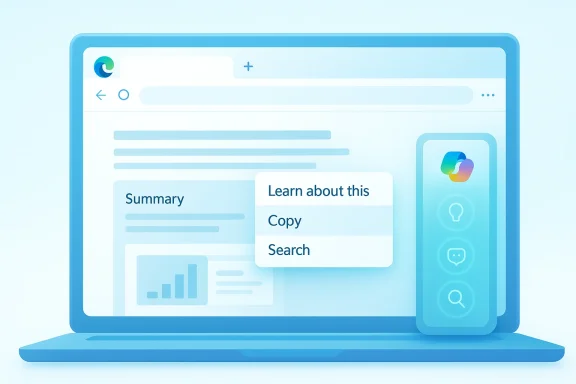
Microsoft’s Edge browser is quietly evolving into something more ambitious than a place to load web pages. If the current testing holds, the next stage is a floating Copilot toolbar that appears at the moment of intent: when you highlight text, right-click a page, or even interact with an image. That is a meaningful shift from “open the assistant and ask” to ask in place, act in place, and it could make Edge feel less like a traditional browser and more like a live AI workspace. Microsoft has already been pushing Copilot deeper into Edge with page summaries, contextual help, and Copilot Mode, so this new right-click AI layer looks like a natural escalation rather than a one-off experiment.
Microsoft has been steadily remaking Edge around Copilot for more than two years. What began as a browser sidebar experiment has expanded into page summarization, conversational assistance, image-related features, and a more integrated “AI browser” pitch that Microsoft now uses in its own marketing. The company’s Edge product pages describe Copilot as built directly into the browser, able to summarize webpages, answer questions about what you are reading, and help without requiring tab switching.
That evolution matters because Edge’s AI strategy has not been about adding a chatbot panel as an afterthought. Microsoft has been trying to reduce the distance between the user’s current task and the AI action that supports it. Copilot Mode goes even further, presenting a new browsing experience where AI sits alongside the pages you click and the content you highlight, rather than living in a separate destination. In other words, the browser is becoming the interface for the assistant, not merely a window to the web.
The new floating toolbar reportedly extends that philosophy into the most familiar browser gesture of all: the right-click menu. That is a smart place to test it, because the context menu is already where power users expect shortcuts, utilities, and page actions to live. If Microsoft can embed Copilot into that layer cleanly, it turns AI from a feature you summon into a capability you almost trip over while browsing. That is a subtle but important product design difference.
There is also a historical arc here. Edge has spent years trying to differentiate itself from Chrome not just on performance, but on workflow intelligence. Microsoft added sidebars, shopping helpers, reading tools, and web capture functions before Copilot became the centerpiece. The floating toolbar appears to be the latest attempt to fuse those ideas into a single interaction model, one that feels more native and less like a bolt-on chatbot.
A useful way to understand this moment is to compare it with earlier AI integrations in browsers. First came the sidebar assistant. Then came contextual page understanding. Then came more ambitious “Copilot Mode” and “Actions in Edge” concepts that lean toward agentic browsing. A floating right-click toolbar is the logical next step because it keeps the assistant nearby while preserving the familiar browser UI.
This design would make Copilot feel less like an app and more like a browser-native utility. Microsoft already describes Copilot in Edge as a companion that can answer questions, summarize pages, and help without leaving the page. The toolbar concept would compress those abilities into a more immediate, touch-friendly, and mouse-friendly control surface.
That placement is important because it changes the mental model. Users do not have to think, “I need an AI tool,” and then hunt for one. They just perform a normal browser gesture and discover contextual AI options as part of the flow. That is exactly how platforms become sticky.
There is also a competitive angle. If Edge makes right-click AI feel effortless, Microsoft can position its browser as the more intelligent choice for everyday web work. Chrome has strong browser loyalty, but it has not yet leaned as aggressively into built-in, context-aware AI actions at the same UI level. That gap is where Microsoft is trying to win attention.
Microsoft has already been building toward this kind of workflow. Its Edge and Copilot pages talk about summarizing webpages, analyzing content, and even using Copilot Vision to scan and interpret what appears on screen. The floating toolbar would simply make those abilities easier to trigger in the browser’s normal interaction patterns.
A floating toolbar changes that choreography. The response surface is now attached to the action surface. That matters because user friction is rarely about raw capability; it is about the number of steps between intent and outcome. If you can highlight a paragraph, choose “Explain,” and get a response instantly, the browser becomes much more valuable in the moment of reading.
That split is smart product design because it acknowledges two kinds of work. Sometimes people need a quick nudge. Sometimes they need a full analysis. A good AI browser should support both without forcing the user into the slower path every time.
There is also a usability benefit for casual users who may never think to “open Copilot.” A context-sensitive button removes the need to remember where the AI lives. It is discoverable in the same way that spellcheck, translation, or share tools are discoverable inside other apps.
The broader implication is that Microsoft is not just trying to make Edge more capable. It is trying to make Copilot more habitual. A habitual assistant is far more valuable than a powerful but occasional one. That is a product strategy, not just an interface tweak.
That matters because many real browsing tasks are page-level tasks. You may want a summary of the entire article, the key claims in a report, or the main differences between two product pages. Requiring the user to select text first can be unnecessarily constraining, especially when the whole page is the object of interest.
It also aligns with Copilot Mode’s broader pitch: focus, less clutter, fewer tabs, and AI that anticipates what you need. The right-click pathway fits that philosophy because it keeps attention on the page instead of dragging you into a separate assistant pane.
That said, enterprise adoption will depend on controls. Microsoft already notes that some Copilot features in Edge must be enabled by IT, and the company’s Copilot actions documentation warns that AI actions can misinterpret instructions or be deceived by malicious page content. That makes governance, permissions, and page trust boundaries central to any rollout.
Microsoft has already described Copilot Vision as a way for the assistant to scan and analyze what is on screen. That makes image handling in Edge feel less like a random experiment and more like a practical extension of the company’s existing Copilot roadmap.
Potential benefits include:
There is also the issue of sensitive content. If a browser assistant can analyze images in a click, users will want clarity on what is processed locally, what is sent to cloud services, and what is retained. Those questions are especially important in enterprise environments and regulated industries. Convenience without transparency is a short-lived advantage.
For professionals, the gains are more structural. The browser is often where research begins and where information is first triaged. If Copilot can summarize pages, explain technical language, and analyze images without forcing a context switch, it becomes more plausible as a daily work companion.
The likely high-value scenarios are:
If it succeeds, the browser could become a universal front end for everyday AI tasks. If it fails, users may see it as another surface-level feature that adds noise to an already busy UI. The difference will come down to how unobtrusive and reliable the toolbar feels in real use.
That creates pressure on competitors. Chrome has powerful extensions and Google’s own AI ecosystem, but Microsoft is trying to make AI feel native rather than add-on. Safari has been more restrained in this area, which gives Microsoft room to frame Edge as the browser for users who want assistance embedded directly into workflow.
This is a classic platform advantage. When the browser vendor and the AI vendor are effectively the same company, integration can be tighter, faster, and more consistent. The floating toolbar is a good example of how that tight integration becomes visible to the user.
That balance will be crucial. If the toolbar feels too eager, it may alienate power users who prefer a cleaner context menu. If it is too hidden, it will not justify its presence. The product lives or dies on restraint.
The other major question is whether Microsoft ties the toolbar to Copilot Mode more explicitly. If the feature becomes part of a broader “AI browsing” package, it could become one of the defining elements of the Edge experience rather than a standalone experiment. That would also make it easier for Microsoft to message the feature as part of a bigger vision rather than a simple menu enhancement.
The bigger story here is not the floating toolbar itself. It is the fact that Microsoft is continuing to reimagine Edge as an AI-native browser where every gesture can become a prompt, every page can become a conversation, and every image can become an object of analysis. If Microsoft gets the balance right, this could make browsing feel dramatically more efficient. If it gets the balance wrong, users may decide they wanted a browser with AI help, not a browser that insists on being an AI platform first.
Source: thewincentral.com Microsoft Edge Copilot Floating Toolbar Adds Right-Click AI for Text, Pages & Image Analysis - WinCentral
 Background
Microsoft has been steadily remaking Edge around Copilot for more than two years. What began as a browser sidebar experiment has expanded into page summarization, conversational assistance, image-related features, and a more integrated “AI browser” pitch that Microsoft now uses in its own marketing. The company’s Edge product pages describe Copilot as built directly into the browser, able to summarize webpages, answer questions about what you are reading, and help without requiring tab switching.That evolution matters because Edge’s AI strategy has not been about adding a chatbot panel as an afterthought. Microsoft has been trying to reduce the distance between the user’s current task and the AI action that supports it. Copilot Mode goes even further, presenting a new browsing experience where AI sits alongside the pages you click and the content you highlight, rather than living in a separate destination. In other words, the browser is becoming the interface for the assistant, not merely a window to the web.
The new floating toolbar reportedly extends that philosophy into the most familiar browser gesture of all: the right-click menu. That is a smart place to test it, because the context menu is already where power users expect shortcuts, utilities, and page actions to live. If Microsoft can embed Copilot into that layer cleanly, it turns AI from a feature you summon into a capability you almost trip over while browsing. That is a subtle but important product design difference.
There is also a historical arc here. Edge has spent years trying to differentiate itself from Chrome not just on performance, but on workflow intelligence. Microsoft added sidebars, shopping helpers, reading tools, and web capture functions before Copilot became the centerpiece. The floating toolbar appears to be the latest attempt to fuse those ideas into a single interaction model, one that feels more native and less like a bolt-on chatbot.
A useful way to understand this moment is to compare it with earlier AI integrations in browsers. First came the sidebar assistant. Then came contextual page understanding. Then came more ambitious “Copilot Mode” and “Actions in Edge” concepts that lean toward agentic browsing. A floating right-click toolbar is the logical next step because it keeps the assistant nearby while preserving the familiar browser UI.
What Microsoft Appears to Be Testing
The core idea is simple but powerful: Copilot appears as a small floating toolbar when the browser detects a relevant action. That could mean you have selected text, opened a context menu, or hovered over image-related content in Canary builds. Instead of making you open the full sidebar first, the browser offers quick AI actions right where the work is happening.This design would make Copilot feel less like an app and more like a browser-native utility. Microsoft already describes Copilot in Edge as a companion that can answer questions, summarize pages, and help without leaving the page. The toolbar concept would compress those abilities into a more immediate, touch-friendly, and mouse-friendly control surface.
Why the Right-Click Menu Matters
The right-click menu is where browsers hide their highest-value shortcuts. It is the place where users expect copy, inspect, translate, save, and share actions. Putting Copilot there means Microsoft is signaling that AI belongs alongside core browser commands, not in a separate AI-only zone.That placement is important because it changes the mental model. Users do not have to think, “I need an AI tool,” and then hunt for one. They just perform a normal browser gesture and discover contextual AI options as part of the flow. That is exactly how platforms become sticky.
There is also a competitive angle. If Edge makes right-click AI feel effortless, Microsoft can position its browser as the more intelligent choice for everyday web work. Chrome has strong browser loyalty, but it has not yet leaned as aggressively into built-in, context-aware AI actions at the same UI level. That gap is where Microsoft is trying to win attention.
Text, Pages, and Image Analysis
The most eye-catching part of the reported testing is that Copilot does not seem limited to selected text. According to the preview description, it can also act on the page itself and, in some Canary testing, expose image analysis options from the context menu. That would be a meaningful expansion from classic text summarization into multimodal browser assistance.Microsoft has already been building toward this kind of workflow. Its Edge and Copilot pages talk about summarizing webpages, analyzing content, and even using Copilot Vision to scan and interpret what appears on screen. The floating toolbar would simply make those abilities easier to trigger in the browser’s normal interaction patterns.
How This Differs From the Current Copilot Experience
Today, Copilot in Edge is already integrated, but it still feels somewhat separate. You open the sidebar, ask a question, and wait for a result. Microsoft’s official support materials explain that Copilot can summarize pages and answer questions about what you’re viewing, but the interaction still begins with a deliberate step into the assistant.A floating toolbar changes that choreography. The response surface is now attached to the action surface. That matters because user friction is rarely about raw capability; it is about the number of steps between intent and outcome. If you can highlight a paragraph, choose “Explain,” and get a response instantly, the browser becomes much more valuable in the moment of reading.
From Sidebar to Surface-Level AI
The sidebar model is useful for sustained conversation. The floating toolbar is useful for micro-decisions and quick transformations. Those are not the same use cases, and Microsoft seems to understand that distinction. The toolbar is likely designed for actions such as summarizing, rewriting, or explaining, while the larger Copilot pane remains the place for deeper interaction.That split is smart product design because it acknowledges two kinds of work. Sometimes people need a quick nudge. Sometimes they need a full analysis. A good AI browser should support both without forcing the user into the slower path every time.
There is also a usability benefit for casual users who may never think to “open Copilot.” A context-sensitive button removes the need to remember where the AI lives. It is discoverable in the same way that spellcheck, translation, or share tools are discoverable inside other apps.
Why Less Friction Changes Behavior
Even a small reduction in friction can change how often users invoke an assistant. If Copilot appears automatically when it can be useful, usage should rise simply because the tool becomes harder to ignore. That is especially true in browsers, where people are constantly reading, comparing, and extracting information.The broader implication is that Microsoft is not just trying to make Edge more capable. It is trying to make Copilot more habitual. A habitual assistant is far more valuable than a powerful but occasional one. That is a product strategy, not just an interface tweak.
Page-Level AI and What It Means for Browsing
The reported ability to right-click empty space and access page-wide actions is arguably even more interesting than text selection. It suggests Copilot can operate on the browser’s understanding of the whole page, not just on highlighted fragments. Microsoft’s own materials already point in this direction, describing Copilot as able to summarize webpages and answer questions about pages you visit.That matters because many real browsing tasks are page-level tasks. You may want a summary of the entire article, the key claims in a report, or the main differences between two product pages. Requiring the user to select text first can be unnecessarily constraining, especially when the whole page is the object of interest.
Whole-Page Summaries as a Browser Primitive
If summary, explain, and rewrite become one-click actions from the page itself, Microsoft is effectively turning those tasks into browser primitives. That could make Edge especially appealing for research, content review, and procurement workflows where quick compression of information is valuable.It also aligns with Copilot Mode’s broader pitch: focus, less clutter, fewer tabs, and AI that anticipates what you need. The right-click pathway fits that philosophy because it keeps attention on the page instead of dragging you into a separate assistant pane.
Why Enterprise Users Should Pay Attention
Enterprise users often care less about novelty and more about repetition. If employees routinely read policy docs, vendor pages, tickets, or internal wikis, a context-aware browser assistant can save meaningful time. Summarization and explanation are especially valuable when the source material is dense or inconsistent.That said, enterprise adoption will depend on controls. Microsoft already notes that some Copilot features in Edge must be enabled by IT, and the company’s Copilot actions documentation warns that AI actions can misinterpret instructions or be deceived by malicious page content. That makes governance, permissions, and page trust boundaries central to any rollout.
Image Analysis in the Browser
The rumored image-analysis option is the clearest sign that Microsoft wants Edge to become a multimodal assistant rather than a text helper. If a right-click on an image can surface analysis, description, or contextual interpretation, then Copilot is no longer limited to reading the web. It is beginning to see it.Microsoft has already described Copilot Vision as a way for the assistant to scan and analyze what is on screen. That makes image handling in Edge feel less like a random experiment and more like a practical extension of the company’s existing Copilot roadmap.
What Image AI Could Be Good At
There are obvious use cases here. Users could ask what is in a product image, what a chart appears to show, or what context might be missing from a screenshot. That can be useful for accessibility, research, and everyday comprehension.Potential benefits include:
- Image description for quick understanding
- Context extraction from screenshots and diagrams
- Chart interpretation for reports and dashboards
- Accessibility support for users who need visual explanations
- Workflow shortcuts when comparing visual assets
The Practical Limits
Image AI in a browser will also face hard limits. Screenshots can be ambiguous, visuals can be misleading, and the model can overconfidently infer things that are not actually present. That risk is not unique to Microsoft, but browser context makes it more sensitive because users may trust a quick answer too much.There is also the issue of sensitive content. If a browser assistant can analyze images in a click, users will want clarity on what is processed locally, what is sent to cloud services, and what is retained. Those questions are especially important in enterprise environments and regulated industries. Convenience without transparency is a short-lived advantage.
Productivity Gains for Consumers and Professionals
For consumers, the biggest upside is speed. A floating Copilot toolbar could remove a surprising amount of clicking from everyday tasks like reading product reviews, summarizing articles, rewriting awkward passages, or asking what a page is about. Those are small wins individually, but they add up across a day of browsing.For professionals, the gains are more structural. The browser is often where research begins and where information is first triaged. If Copilot can summarize pages, explain technical language, and analyze images without forcing a context switch, it becomes more plausible as a daily work companion.
Where It Helps Most
The best use cases are likely to be those that benefit from quick, repeated transformations rather than deep, open-ended brainstorming. That includes reviewing long articles, comparing web pages, extracting facts from vendor sites, and cleaning up text drafts before sharing.The likely high-value scenarios are:
- Reading and research
- Draft refinement
- Side-by-side comparison
- Screenshot interpretation
- Fast page triage
Consumer vs. Enterprise Value
Consumers will care about convenience and novelty. Enterprise users will care about time savings, consistency, and whether the feature fits existing governance rules. That means Microsoft will need to communicate both the fun and the control story clearly.If it succeeds, the browser could become a universal front end for everyday AI tasks. If it fails, users may see it as another surface-level feature that adds noise to an already busy UI. The difference will come down to how unobtrusive and reliable the toolbar feels in real use.
The Competitive Angle: Chrome, Safari, and the AI Browser Race
Microsoft is not building this feature in a vacuum. The browser market is increasingly shaped by AI integration, and Microsoft wants Edge to look like the most forward-leaning option. The company has already positioned Edge as “your AI browser,” and the floating toolbar would reinforce that identity with a visible, everyday interaction model.That creates pressure on competitors. Chrome has powerful extensions and Google’s own AI ecosystem, but Microsoft is trying to make AI feel native rather than add-on. Safari has been more restrained in this area, which gives Microsoft room to frame Edge as the browser for users who want assistance embedded directly into workflow.
Why Microsoft Can Move Faster
Microsoft’s advantage is that it controls both the browser and the AI assistant layer. That makes it easier to experiment with UI patterns that bridge browsing and generative AI. The company can test right-click actions, Copilot Mode, sidebar summaries, and image interpretation as parts of a single story.This is a classic platform advantage. When the browser vendor and the AI vendor are effectively the same company, integration can be tighter, faster, and more consistent. The floating toolbar is a good example of how that tight integration becomes visible to the user.
The Risk of Overreach
Still, there is a line between useful integration and UI sprawl. If Microsoft keeps adding AI entry points without a coherent hierarchy, Edge could begin to feel crowded. Users do not necessarily want AI everywhere; they want it in the right place, at the right time, and with minimal distraction.That balance will be crucial. If the toolbar feels too eager, it may alienate power users who prefer a cleaner context menu. If it is too hidden, it will not justify its presence. The product lives or dies on restraint.
Strengths and Opportunities
The strongest case for the floating Copilot toolbar is that it makes AI actions feel immediate, contextual, and more human to use. It also gives Microsoft a path to make Edge more distinctive without requiring users to learn an entirely new workflow. Done well, this could be one of the most practical AI browser upgrades Microsoft has shipped so far.- Less friction between reading and action
- Better discoverability than a hidden sidebar
- Stronger multimodal support through image analysis
- More natural page-level summaries for long-form content
- Useful for both consumers and enterprise users
- A clearer Edge identity in the browser market
- Potential accessibility benefits through faster explanation and description
Risks and Concerns
The same features that make this intriguing also raise legitimate concerns. AI in the browser is helpful only if it is accurate, secure, and easy to control. Microsoft will need to prove that the feature is not just flashy but dependable under real-world conditions.- UI clutter if Copilot appears too often
- Hallucinations or misreadings in summaries and image analysis
- Privacy questions about page and image processing
- Enterprise policy conflicts if admins cannot manage behavior cleanly
- Overreliance on AI for tasks users should still verify
- Potential security risks from malicious page prompts or misleading content
- User fatigue if Edge feels too aggressively AI-first
What to Watch Next
The next phase will likely depend on how Microsoft decides to stage the rollout. If the floating toolbar remains limited to Canary builds, that suggests a long testing window. If it starts to surface in Dev or stable releases, it means Microsoft believes the interaction pattern is ready for broader adoption.The other major question is whether Microsoft ties the toolbar to Copilot Mode more explicitly. If the feature becomes part of a broader “AI browsing” package, it could become one of the defining elements of the Edge experience rather than a standalone experiment. That would also make it easier for Microsoft to message the feature as part of a bigger vision rather than a simple menu enhancement.
Key developments to monitor
- Whether the feature expands beyond Canary testing
- Whether image analysis becomes a stable context-menu action
- Whether Microsoft lets users disable or customize the toolbar
- Whether enterprise admins get granular control
- Whether the toolbar appears in PDFs, web apps, and complex content
- Whether Microsoft integrates it more deeply with Copilot Mode
- Whether performance and accuracy hold up under broader usage
The bigger story here is not the floating toolbar itself. It is the fact that Microsoft is continuing to reimagine Edge as an AI-native browser where every gesture can become a prompt, every page can become a conversation, and every image can become an object of analysis. If Microsoft gets the balance right, this could make browsing feel dramatically more efficient. If it gets the balance wrong, users may decide they wanted a browser with AI help, not a browser that insists on being an AI platform first.
Source: thewincentral.com Microsoft Edge Copilot Floating Toolbar Adds Right-Click AI for Text, Pages & Image Analysis - WinCentral
