

How to disable Copilot in Microsoft Edge has become a more complicated question than it first appears. What once looked like a single browser toggle now spans toolbar buttons, the Edge sidebar, browsing-context permissions, and newer AI features such as Copilot Journeys and Copilot Actions. The practical takeaway is simple: you can reduce or block most Copilot surfaces, but “disable all AI features” is not a single switch in Edge anymore. Microsoft’s own documentation now separates consumer Copilot, Microsoft 365 Copilot Chat, sidebar controls, and data-access permissions into different layers of control. (learn.microsoft.com)
Microsoft Edge has steadily evolved from a conventional browser into a platform for assistants, shopping tools, summarization features, and task-oriented AI. That transformation matters because Edge’s Copilot integration is no longer just a chat panel. It is now tied into browser UI, page context, and in some cases work-profile management, which means disabling it can require multiple settings changes rather than one obvious off switch. Microsoft’s support pages explicitly describe Copilot in Edge as using page content, browser history, preferences, and conversation history depending on the prompt. (support.microsoft.com)
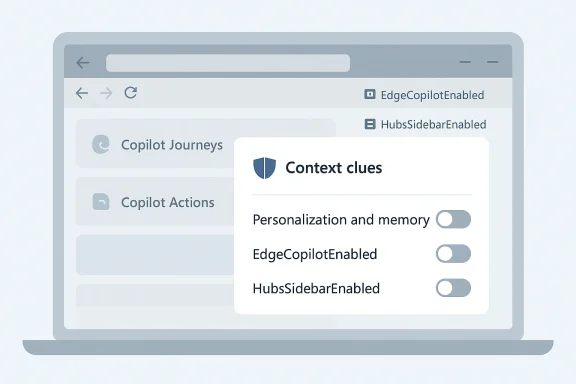
For consumer users, the browser now exposes Copilot through the upper-right toolbar icon and the Edge sidebar. Microsoft says users can change privacy controls for Copilot in Edge by going into the sidebar settings and turning off Context clues and Personalization and memory. Those controls are important because they affect how much browser information Copilot can use, but they do not necessarily remove every Copilot surface from the browser. In other words, privacy reduction and feature removal are related but not identical goals. (support.microsoft.com)
For enterprise and education customers, Microsoft has layered policy controls on top of the user interface. Administrators can disable Copilot entirely with the EdgeCopilotEnabled policy on supported mobile platforms, or manage sidebar visibility with HubsSidebarEnabled. Microsoft also says that for Microsoft 365 Copilot Chat in Edge, administrators can use HubsSidebarEnabled to disable the sidepane entirely, and a separate policy can control whether Copilot may use browsing context. That split is a strong sign that Microsoft is treating Copilot not as one feature, but as a family of features. (learn.microsoft.com)
The latest twist is that Microsoft has added newer experiences such as Copilot Journeys and Copilot Actions in Edge, which extend AI deeper into browsing behavior. Journeys can be turned on through the Copilot Mode page or Edge settings and may collect page metadata, dwell time, and Copilot chats when enabled. That makes the “disable Copilot” discussion broader than hiding a sidebar icon; it now includes whether a browser should infer tasks, remember activity, or generate summaries from session behavior.
The browser-side settings are the easiest place to start. Microsoft documents a path through Edge’s settings page where users can manage the Copilot button and page-content access. It also says users can disable Context clues so Copilot does not use the current webpage, browsing history, or browser preferences, and disable Personalization and memory to reduce use of previous conversations and inferred interests. That is a meaningful privacy win, even if it stops short of total removal. (support.microsoft.com)
That is also where some confusion begins. Microsoft says the sidebar may be hidden entirely if it is disabled, but Copilot can still be governed separately through app-specific settings. If the sidebar is on but Copilot is off, or vice versa, the browser may still show a reduced AI footprint. That layered behavior is useful for power users and frustrating for anyone seeking a simple one-click removal. Those are not the same thing.
That design choice matters because the sidebar is not merely a cosmetic panel. It is the launch point for Copilot Chat, shopping insights, and other edge-native tools. Microsoft’s support pages show shopping features migrating into Copilot, and Copilot itself can summarize pages, videos, and PDFs from the sidebar. In practical terms, if you leave the sidebar alive, you are leaving a doorway open for multiple AI functions, not just chat. (support.microsoft.com)
There is also an important versioning issue. Microsoft says different policies control different Edge versions and platforms, and the toolbar icon policy has changed over time. This suggests that some older advice about “just hide the icon” is already out of date. As Microsoft continues to unify Copilot across consumer and work profiles, expect more settings to move or be renamed rather than disappear outright. That is the pattern to watch. (learn.microsoft.com)
That distinction matters because many users assume a hidden button means no data flow. It does not. A browser assistant may still have permission to see page content if the setting remains enabled, even if the icon is less obvious. For users concerned about privacy rather than interface clutter, these toggles are arguably more important than the visual controls. Visibility is not the same as data access. (support.microsoft.com)
The result is a familiar Microsoft pattern: the browser gives individuals a set of toggles, but the real power sits with policy when an organization manages the device. That is useful for compliance, especially when web pages or PDFs may contain sensitive content. It is also a reminder that “disable all AI features” is really a workplace question as much as a browser question. (learn.microsoft.com)
The practical enterprise angle is not just about blocking distractions. It is also about governance. Microsoft’s documentation explains that Copilot in Edge can use browsing context, including page content, which can raise compliance concerns in environments handling legal, financial, medical, or proprietary information. A policy-based shutdown may be preferable to relying on users to self-manage settings correctly. (learn.microsoft.com)
The catch is that Microsoft has also made Copilot a moving target. Some policies are version-specific, and toolbar control has shifted in recent Edge releases. That means administrators need to track policy notes carefully, rather than assuming one evergreen setting will continue to behave the same way after every browser update. This is not a set-and-forget feature space. (learn.microsoft.com)
This matters because users who only disable the sidebar icon may still be surprised by other AI-driven surfaces appearing elsewhere in the browser. Journeys can surface cards on the new tab page and sync across devices when history sync is on. In other words, Edge is now experimenting with an AI layer that watches for tasks, not just prompts.
Users who are serious about reducing AI exposure should therefore review not just the Copilot toggle, but also any AI Innovations settings and the broader Copilot Mode enrollment page. That is especially true because newer features are often introduced as optional experiences before they become more deeply integrated into browser flows. Optional today does not always mean optional forever.
The strategic implication is obvious. Microsoft wants Copilot to become the browser’s universal assistant entry point, not a single feature among many. By putting shopping, summarization, and task guidance under the same icon, Microsoft increases usage and reduces friction. For users trying to minimize AI, that means more than one category of browser experience may need to be disabled or avoided.
That tension is likely to intensify as Microsoft keeps reusing Copilot as the front door for new experiences. If shoppers, researchers, and casual users all enter through the same icon, then disabling that icon becomes more valuable and more consequential. The trade-off is that users who prefer granular control will keep feeling like they are negotiating with a moving product stack. That friction is not accidental.
For enterprises, the equation is more serious. Browsing context can be sensitive, and staff may not realize that a sidebar assistant can interact with page content, PDFs, or open tabs. Microsoft’s policy stack exists precisely because personal preference is not a reliable governance model. In a managed environment, blocking features centrally is more defensible than expecting employees to remember privacy toggles. (learn.microsoft.com)
Consumers, by contrast, are more likely to compare Edge against browsers that feel less aggressive about AI surfacing. That is a reputational risk for Microsoft if users perceive Copilot as unavoidable. The more Microsoft integrates assistant features into standard browser workflows, the more likely some users will seek workarounds, policy tools, or alternative browsers. (support.microsoft.com)
The opportunity for users is to treat Edge’s AI controls as a privacy tuning exercise rather than a binary yes-or-no decision. The browser now exposes enough knobs to make meaningful reductions in visibility and context sharing, especially when paired with policy enforcement in managed environments. For many organizations, that middle ground is more realistic than full removal. (learn.microsoft.com)
A second risk is feature churn. Microsoft continues to move controls, rename entry points, and shift behavior across versions. That can break older instructions, confuse users, and make enterprise baselines harder to maintain. What works in one release may not be the right answer in the next. (learn.microsoft.com)
For users who want to keep Copilot out of their way, the best strategy is to think in layers. First, reduce the visible entry points; second, restrict page-context access; third, check for new AI Innovations such as Journeys; and fourth, revisit settings after browser updates. That four-step mindset is more future-proof than relying on a single guide or a single toggle. (support.microsoft.com)
Source: Guiding Tech How to Disable All Copilot AI Features in Microsoft Edge
 Background
Microsoft Edge has steadily evolved from a conventional browser into a platform for assistants, shopping tools, summarization features, and task-oriented AI. That transformation matters because Edge’s Copilot integration is no longer just a chat panel. It is now tied into browser UI, page context, and in some cases work-profile management, which means disabling it can require multiple settings changes rather than one obvious off switch. Microsoft’s support pages explicitly describe Copilot in Edge as using page content, browser history, preferences, and conversation history depending on the prompt. (support.microsoft.com)For consumer users, the browser now exposes Copilot through the upper-right toolbar icon and the Edge sidebar. Microsoft says users can change privacy controls for Copilot in Edge by going into the sidebar settings and turning off Context clues and Personalization and memory. Those controls are important because they affect how much browser information Copilot can use, but they do not necessarily remove every Copilot surface from the browser. In other words, privacy reduction and feature removal are related but not identical goals. (support.microsoft.com)
For enterprise and education customers, Microsoft has layered policy controls on top of the user interface. Administrators can disable Copilot entirely with the EdgeCopilotEnabled policy on supported mobile platforms, or manage sidebar visibility with HubsSidebarEnabled. Microsoft also says that for Microsoft 365 Copilot Chat in Edge, administrators can use HubsSidebarEnabled to disable the sidepane entirely, and a separate policy can control whether Copilot may use browsing context. That split is a strong sign that Microsoft is treating Copilot not as one feature, but as a family of features. (learn.microsoft.com)
The latest twist is that Microsoft has added newer experiences such as Copilot Journeys and Copilot Actions in Edge, which extend AI deeper into browsing behavior. Journeys can be turned on through the Copilot Mode page or Edge settings and may collect page metadata, dwell time, and Copilot chats when enabled. That makes the “disable Copilot” discussion broader than hiding a sidebar icon; it now includes whether a browser should infer tasks, remember activity, or generate summaries from session behavior.
What Microsoft Actually Lets You Turn Off
The first thing to understand is that Microsoft distinguishes between Copilot availability, sidebar visibility, and page-content access. That distinction is why many “turn it off” guides feel incomplete: they often address only one layer of the stack. Microsoft’s own documentation says eligible users can use Copilot in Edge unless a policy disables it, and users can also turn off Copilot in settings if the feature is not policy-managed. (learn.microsoft.com)The browser-side settings are the easiest place to start. Microsoft documents a path through Edge’s settings page where users can manage the Copilot button and page-content access. It also says users can disable Context clues so Copilot does not use the current webpage, browsing history, or browser preferences, and disable Personalization and memory to reduce use of previous conversations and inferred interests. That is a meaningful privacy win, even if it stops short of total removal. (support.microsoft.com)
The practical consumer controls
If you are trying to reduce the visible Copilot experience, the most relevant consumer controls are the toolbar button, the sidebar, and the privacy toggles. Microsoft’s support pages and troubleshooting content point to the same settings area:edge://settings/appearance/copilotAndSidebar. From there, users can manage whether the sidebar is visible and whether Copilot appears in the toolbar.That is also where some confusion begins. Microsoft says the sidebar may be hidden entirely if it is disabled, but Copilot can still be governed separately through app-specific settings. If the sidebar is on but Copilot is off, or vice versa, the browser may still show a reduced AI footprint. That layered behavior is useful for power users and frustrating for anyone seeking a simple one-click removal. Those are not the same thing.
- Turn off the Copilot button in Edge appearance settings.
- Disable the sidebar if you do not want sidepane apps visible.
- Open Copilot privacy settings and reduce or block context access.
- Disable personalization and memory if you want less profile-based behavior.
- Check whether shopping or Journeys features are still enabled separately.
- Review sign-in state, because personal and work profiles may behave differently. (support.microsoft.com)
The Sidebar Is the Real Battleground
The Edge sidebar is where Microsoft has concentrated much of its AI strategy. The browser policy HubsSidebarEnabled controls whether the sidebar is always shown, never shown, or follows user settings. Microsoft also notes that as of Edge version 141, a different policy is the only means of controlling the display of Copilot in the toolbar. That means sidebar behavior and toolbar behavior are now partially decoupled, which is a big shift from earlier, simpler browser layouts. (learn.microsoft.com)That design choice matters because the sidebar is not merely a cosmetic panel. It is the launch point for Copilot Chat, shopping insights, and other edge-native tools. Microsoft’s support pages show shopping features migrating into Copilot, and Copilot itself can summarize pages, videos, and PDFs from the sidebar. In practical terms, if you leave the sidebar alive, you are leaving a doorway open for multiple AI functions, not just chat. (support.microsoft.com)
Why sidebar control is different from Copilot control
Disabling the sidebar does not always mean disabling every AI behavior in the browser. Conversely, disabling Copilot chat does not necessarily remove every non-chat sidebar app. Microsoft’s documentation explicitly says that blocking Copilot Chat in Edge automatically blocks all Edge sidebar apps from being enabled, but that is an admin policy statement, not the same as a consumer toggle. For enterprises, this is powerful. For consumers, it underscores how much of the experience is policy-driven behind the scenes. (learn.microsoft.com)There is also an important versioning issue. Microsoft says different policies control different Edge versions and platforms, and the toolbar icon policy has changed over time. This suggests that some older advice about “just hide the icon” is already out of date. As Microsoft continues to unify Copilot across consumer and work profiles, expect more settings to move or be renamed rather than disappear outright. That is the pattern to watch. (learn.microsoft.com)
- Sidebar controls can hide more than one feature at once.
- Toolbar controls affect the icon, not necessarily the backend feature.
- Enterprise policies can override local user preferences.
- Browser updates may change where these settings live.
- Copilot and shopping are increasingly sharing the same entry point.
- The more Microsoft centralizes the sidebar, the more leverage it has over AI discovery. (learn.microsoft.com)
Privacy Settings Reduce Reach, Not Just Visibility
One of the most underappreciated parts of Microsoft’s own documentation is the privacy layer. In Edge, Copilot can use the current webpage, open tabs, browser history, browser preferences, and prior conversation history depending on what the user is asking. Microsoft says users can disable Context clues to stop Copilot from using the current webpage, browsing history, or browser preferences, and disable Personalization and memory to reduce use of past interactions. (support.microsoft.com)That distinction matters because many users assume a hidden button means no data flow. It does not. A browser assistant may still have permission to see page content if the setting remains enabled, even if the icon is less obvious. For users concerned about privacy rather than interface clutter, these toggles are arguably more important than the visual controls. Visibility is not the same as data access. (support.microsoft.com)
Consumer privacy versus enterprise governance
For consumers, privacy settings are essentially self-service. For organizations, Microsoft provides more formal controls through policy and the Microsoft 365 admin center. The documentation says admins can use policy settings to control browsing context for Copilot in Edge and can use HubsSidebarEnabled to disable Copilot Chat in Edge entirely. That is a clear split between personal preference and organizational enforcement. (learn.microsoft.com)The result is a familiar Microsoft pattern: the browser gives individuals a set of toggles, but the real power sits with policy when an organization manages the device. That is useful for compliance, especially when web pages or PDFs may contain sensitive content. It is also a reminder that “disable all AI features” is really a workplace question as much as a browser question. (learn.microsoft.com)
- Privacy toggles reduce what Copilot can infer from browsing activity.
- They do not necessarily remove every Copilot entry point.
- Enterprise admins can block more deeply than local users.
- Context controls are especially important for regulated environments.
- The settings path is user-accessible, but policy can override it.
- Data minimization and feature removal are related, but distinct goals. (learn.microsoft.com)
Enterprise Management Is More Decisive Than Consumer Toggling
For IT administrators, Microsoft has made the management story much more explicit. The EdgeCopilotEnabled policy lets admins configure Copilot on supported Android and iOS versions, while HubsSidebarEnabled can control the sidebar globally. Microsoft further states that if the policy is disabled, users cannot use Copilot in Microsoft Edge. That is the closest thing to a true hard stop in Microsoft’s documented model. (learn.microsoft.com)The practical enterprise angle is not just about blocking distractions. It is also about governance. Microsoft’s documentation explains that Copilot in Edge can use browsing context, including page content, which can raise compliance concerns in environments handling legal, financial, medical, or proprietary information. A policy-based shutdown may be preferable to relying on users to self-manage settings correctly. (learn.microsoft.com)
The policy stack in plain English
If you are reading the documentation with an admin hat on, the structure is straightforward. One policy controls whether Copilot is available, another controls whether the sidebar is visible, and another controls whether Copilot can use page content. That layering is deliberate, and it gives organizations a more surgical toolkit than casual readers may realize. (learn.microsoft.com)The catch is that Microsoft has also made Copilot a moving target. Some policies are version-specific, and toolbar control has shifted in recent Edge releases. That means administrators need to track policy notes carefully, rather than assuming one evergreen setting will continue to behave the same way after every browser update. This is not a set-and-forget feature space. (learn.microsoft.com)
- Identify whether your goal is removal, restriction, or privacy reduction.
- Decide whether you are managing a single user profile or a fleet.
- Use policy for organizational enforcement, not local toggles alone.
- Verify Edge version compatibility before deploying changes.
- Recheck after updates, because Microsoft changes Copilot entry points frequently. (learn.microsoft.com)
Copilot Journeys Expands the Definition of “AI Features”
Microsoft’s introduction of Copilot Journeys makes a simple disable guide less complete than it used to be. Journeys is not on by default, but it can be enabled through a Copilot Mode page or through Edge settings under AI Innovations > Journeys. Microsoft says it can use page metadata, non-sensitive content, dwell time, and Copilot chats to build task-oriented cards. That is not just chat; it is workflow inference.This matters because users who only disable the sidebar icon may still be surprised by other AI-driven surfaces appearing elsewhere in the browser. Journeys can surface cards on the new tab page and sync across devices when history sync is on. In other words, Edge is now experimenting with an AI layer that watches for tasks, not just prompts.
What Journeys changes about privacy expectations
The privacy model for Journeys is more ambitious and arguably more invasive than older browser helpers. Microsoft says Journeys works in the background while you browse and uses browsing activity to generate cards tied to tasks. Even though older Journeys and their underlying data are deleted after 14 days, the very existence of the feature broadens the privacy discussion beyond “can I see the Copilot icon?”Users who are serious about reducing AI exposure should therefore review not just the Copilot toggle, but also any AI Innovations settings and the broader Copilot Mode enrollment page. That is especially true because newer features are often introduced as optional experiences before they become more deeply integrated into browser flows. Optional today does not always mean optional forever.
- Journeys can surface automatically based on browsing behavior.
- It relies on metadata and activity signals, not just typed prompts.
- History sync can cause task data to move across devices.
- The feature is opt-in, but that does not make it irrelevant.
- If you are auditing Edge for AI exposure, Journeys belongs on the checklist.
- A browser can be “Copilot-off” and still not be “AI-free.”
Shopping and Search Are Being Woven Into Copilot
Another reason “disable Copilot” is now a broader editorial question is that Microsoft keeps bundling adjacent experiences into the Copilot shell. Microsoft’s support documentation on shopping changes in Edge says shopping features are being accessed directly through the Copilot icon in the sidebar. It also notes that the shopping icon is being deprecated in favor of Copilot as the main access point. That is a big product-design signal, not a small UI tweak.The strategic implication is obvious. Microsoft wants Copilot to become the browser’s universal assistant entry point, not a single feature among many. By putting shopping, summarization, and task guidance under the same icon, Microsoft increases usage and reduces friction. For users trying to minimize AI, that means more than one category of browser experience may need to be disabled or avoided.
Consumer convenience versus control fatigue
There is a valid consumer argument for the integrated approach. A single assistant can reduce clutter and make web tasks faster. But every added function also makes privacy settings harder to understand, because the assistant is no longer just a chat window. It is an access layer to the browser itself. (support.microsoft.com)That tension is likely to intensify as Microsoft keeps reusing Copilot as the front door for new experiences. If shoppers, researchers, and casual users all enter through the same icon, then disabling that icon becomes more valuable and more consequential. The trade-off is that users who prefer granular control will keep feeling like they are negotiating with a moving product stack. That friction is not accidental.
- Shopping tools are being consolidated under Copilot.
- The Copilot icon is becoming a universal entry point.
- That makes a single “disable” decision affect more than chat.
- Users should re-check adjacent features after each Edge update.
- Convenience and privacy are being bundled into the same UI.
- The browser is increasingly acting like an AI portal rather than a static window.
Consumer Impact Versus Enterprise Impact
For consumers, the main issue is annoyance, privacy, and interface control. Many people simply want the browser to stay out of the way. For that audience, hiding the Copilot button, disabling the sidebar, and reducing context access may be enough, even if it does not amount to perfect removal. Microsoft’s own support pages show that these controls are designed to be user-adjustable. (support.microsoft.com)For enterprises, the equation is more serious. Browsing context can be sensitive, and staff may not realize that a sidebar assistant can interact with page content, PDFs, or open tabs. Microsoft’s policy stack exists precisely because personal preference is not a reliable governance model. In a managed environment, blocking features centrally is more defensible than expecting employees to remember privacy toggles. (learn.microsoft.com)
Why the distinction matters
Enterprise admins also need to think about rollout consistency. Microsoft’s policies are per-profile, can refresh dynamically, and may behave differently depending on platform and browser version. That means administrators can target specific profiles, but they also need to verify that Copilot was actually suppressed after deployment. The operational burden is higher than a simple UI change, but the compliance value is greater too. (learn.microsoft.com)Consumers, by contrast, are more likely to compare Edge against browsers that feel less aggressive about AI surfacing. That is a reputational risk for Microsoft if users perceive Copilot as unavoidable. The more Microsoft integrates assistant features into standard browser workflows, the more likely some users will seek workarounds, policy tools, or alternative browsers. (support.microsoft.com)
- Consumers want less friction and fewer prompts.
- Enterprises want enforceable control and auditability.
- The same feature can mean convenience in one context and risk in another.
- Central policy is more reliable than user training.
- Browser updates can change how these controls behave.
- Microsoft’s AI strategy has to satisfy both casual users and compliance teams. (learn.microsoft.com)
Strengths and Opportunities
Microsoft’s layered control model is actually a strength, even if it frustrates users who want simplicity. It gives power users and admins multiple paths to reduce AI exposure without breaking the browser, and it allows Microsoft to ship new experiences without forcing them on every profile at once. That flexibility may be the reason Edge’s Copilot rollout feels so persistent yet still somewhat manageable. (learn.microsoft.com)The opportunity for users is to treat Edge’s AI controls as a privacy tuning exercise rather than a binary yes-or-no decision. The browser now exposes enough knobs to make meaningful reductions in visibility and context sharing, especially when paired with policy enforcement in managed environments. For many organizations, that middle ground is more realistic than full removal. (learn.microsoft.com)
- Multiple settings let users and admins tailor the experience.
- Policy-based controls are robust enough for enterprise governance.
- Privacy settings can reduce data exposure without changing browsers.
- Newer features like Journeys remain opt-in.
- Microsoft’s documentation is now more explicit about what Copilot can access.
- Organizations can standardize behavior across managed profiles.
- Users can keep Edge usable while shrinking the AI footprint. (learn.microsoft.com)
Risks and Concerns
The biggest risk is that the term “disable” is misleading. Many guides focus on the icon, but Microsoft’s own docs show that Copilot-related behavior can persist through sidebar apps, shopping integrations, or contextual access even after a visible button is hidden. That creates a false sense of control for users who think one toggle solves everything. (support.microsoft.com)A second risk is feature churn. Microsoft continues to move controls, rename entry points, and shift behavior across versions. That can break older instructions, confuse users, and make enterprise baselines harder to maintain. What works in one release may not be the right answer in the next. (learn.microsoft.com)
- Visible controls may not match underlying access permissions.
- New Edge versions can change policy behavior.
- Users may assume privacy protections that are not actually enabled.
- Work and personal profiles may diverge in unexpected ways.
- Shopping and AI features are increasingly merged into one interface.
- Over-reliance on manual toggles can produce inconsistent outcomes.
- Broad AI integration increases the odds of accidental data exposure. (learn.microsoft.com)
Looking Ahead
The most likely future is not a return to a non-AI browser. It is a continued deepening of Copilot as Edge’s default assistant layer, with more granular policies for organizations and more optional toggles for consumers. Microsoft has already shown that it can separate chat access, sidebar visibility, page-context access, and new AI experiences into different controls, which suggests the browser will keep evolving toward a policy-rich model rather than a simple on/off switch. (learn.microsoft.com)For users who want to keep Copilot out of their way, the best strategy is to think in layers. First, reduce the visible entry points; second, restrict page-context access; third, check for new AI Innovations such as Journeys; and fourth, revisit settings after browser updates. That four-step mindset is more future-proof than relying on a single guide or a single toggle. (support.microsoft.com)
- Recheck the Copilot and sidebar settings after major Edge updates.
- Audit AI Innovations and Journeys separately from the main Copilot toggle.
- Use policy controls where consistency matters.
- Confirm whether shopping features are still routed through Copilot.
- Treat browsing-context permissions as a separate privacy decision.
- Watch for new toolbar and sidebar policy changes in future Edge releases. (learn.microsoft.com)
Source: Guiding Tech How to Disable All Copilot AI Features in Microsoft Edge
Last edited:
