• Thread Author
Microsoft’s January update cycle took an unexpected detour this week when a Patch Tuesday release introduced a narrowly scoped but disruptive regression that left some Windows 11 systems unable to shut down or enter hibernation, forcing Microsoft to ship emergency out‑of‑band (OOB) updates on January 17, 2026 to address Remote Desktop authentication failures and the Secure Launch shutdown problem.

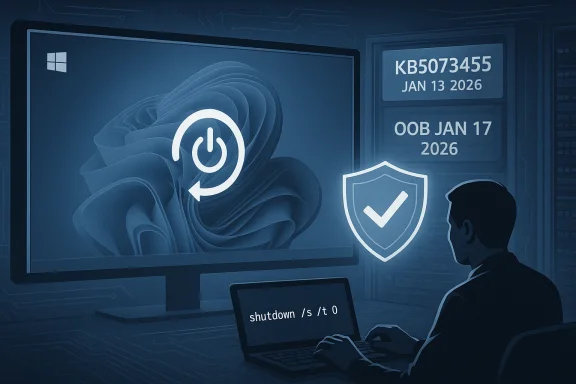
Person at a desk with a glowing security shield and cloud/remote-desktop icons on screens.Background​

The January 13, 2026 security rollup was distributed across multiple Windows families as part of the regular Patch Tuesday wave. That rollout included cumulative updates for Windows 11 versions 25H2, 24H2 and 23H2, and for several Windows Server and extended servicing branches. Within days of the release, telemetry and customer reports began to converge on two distinct issues: (1) authentication and connection failures affecting remote‑connection applications and Cloud PC/RDP scenarios; and (2) a restart‑instead‑of‑shut‑down regression that specifically affected devices with System Guard Secure Launch enabled on Windows 11, version 23H2. Microsoft acknowledged the problems and published guidance that led to two separate OOB packages on January 17, 2026. The emergency fixes were delivered as cumulative OOB updates targeted at affected builds and editions, not as feature updates—an important distinction for IT teams managing rollout and rollback processes.

What happened: the two primary regressions​

Remote connection and authentication failures​

Shortly after the January 13 updates were applied, organizations reported users being unable to authenticate to Cloud PCs, Azure Virtual Desktop sessions, and some Remote Desktop clients. Sign‑in prompts either failed to accept credentials or sessions dropped unexpectedly during authentication. The issue affected multiple platforms, including Windows 11 (25H2 and related builds), Windows 10 extended servicing channels, and Windows Server builds. Microsoft identified the symptom, confirmed the scope, and moved to provide an OOB correction to resolve authentication steps during remote connections. Why it matters: remote desktop and Cloud PC connectivity are foundational to hybrid work and managed desktop services. Authentication failures can block access for large numbers of users and escalate into business continuity incidents within minutes if administrators lack alternate access paths. The OOB patch addressed these authentication problems for the impacted builds.

Secure Launch: shutdown and hibernation regression (Windows 11 23H2)​

A separate and more narrowly focused regression emerged on devices running Windows 11 version 23H2 where System Guard Secure Launch was enabled. Instead of shutting down or entering hibernation, affected devices would restart—a behavior that can be confusing to end users and problematic for power‑dependent workflows (such as field devices, kiosks, and automated test rigs). Microsoft explicitly stated the condition affects devices that both have KB5073455 installed and have Secure Launch configured and running, a profile common in enterprise and IoT images but uncommon on consumer installations. Interim workaround: Microsoft recommended running an elevated Command Prompt command to force an immediate shutdown—shutdown /s /t 0—which provides a deterministic path to power off but does not restore hibernation behavior. At the time of the advisory, Microsoft stated there was no workaround for hibernation. Why it matters: Secure Launch is an early‑boot hardening feature that leverages virtualization‑based security to protect against firmware‑level attacks. While the population of devices running Secure Launch is smaller than the total Windows install base, those devices tend to be critical endpoints in corporate fleets or specialized appliances. A regression affecting shutdown or hibernation on such systems can complicate patch management, remote troubleshooting, and scheduled power management policies.

The patches: what Microsoft released and when​

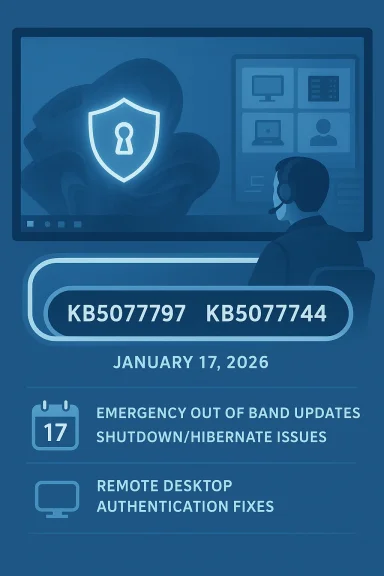
Microsoft issued out‑of‑band updates on January 17, 2026 targeted at affected builds and editions. Key OOB packages included:
  • KB5077744: An out‑of‑band cumulative update for Windows 11, version 25H2 and 24H2, which bundled prior January fixes and addressed Remote Desktop sign‑in failures among other quality improvements.
  • KB5077797: An out‑of‑band cumulative update for Windows 11, version 23H2 (OS build 22631.x) that explicitly remedied the Secure Launch shutdown/hibernate regression and Remote Desktop authentication problems for that build.
These OOB updates were cumulative: they included fixes from the January 13 Patch Tuesday rollups plus the targeted corrections. Microsoft also updated the servicing stack and referenced Known Issue Rollback (KIR) where relevant. IT administrators received guidance on where to procure these updates (Windows Update, Windows Update for Business, Microsoft Update Catalog, WSUS) and how to deploy them.

Technical analysis: root causes and mechanisms​

How an update can turn shutdown into restart​

Modern Windows power transitions (shutdown, hibernate, hybrid sleep) rely on a chain of components: kernel power manager, device drivers, firmware interfaces, virtualization‑based security hooks, and power state transitions negotiated with ACPI. Secure Launch interposes additional security checks during early boot and may add state and control paths that interact with the kernel’s shutdown path. A small change in how the kernel or a driver signals completion of the shutdown sequence can cause the platform to interpret the event as a warm restart rather than a power‑off or hibernate request.
The January patch introduced a change that, in the specific servicing combination delivered for 23H2 with Secure Launch active, caused the shutdown path to short‑circuit to a restart. This is consistent with a regression where a status or flag that indicates "RTC wake/hibernate" or "restart request" is being set or read erroneously. The behavior’s narrow scope indicates an interaction bug rather than a broad kernel corruption. Microsoft’s targeted OOB remedied this interaction.

Why Remote Desktop authentication failed​

Remote Desktop authentication flows rely on several subsystems: credential providers, security packages, network authentication stacks, and token exchange mechanisms with Azure AD and NLA (Network Level Authentication). Changes to authentication libraries, TLS/Schannel handling, or an update to components consumed by the Windows App and Remote Desktop clients can break sign‑in flows if the order or contents of token exchanges change.
The January update altered or replaced a component involved in those flows; this change broke the authentication handshake for particular client‑server combinations and Cloud PC connection paths. The failure manifested as sign‑in prompts that either looped or produced errors. Microsoft’s OOB restored the expected behavior by rolling back or correcting the problematic component in the affected builds.

Who was affected — consumer vs enterprise impact​

  • Enterprise and IoT systems running Windows 11 version 23H2 with Secure Launch enabled were the primary group affected by the shutdown regression. These devices are more likely to have Secure Launch enabled through corporate imaging or by specific security policies.
  • Remote connection and Cloud PC authentication issues were broader, affecting Windows 11 versions 25H2 and related builds, Windows 10 extended servicing channels, and Windows Server variants used in cloud and VDI infrastructures. Organisations using Azure Virtual Desktop, Cloud PC, or remote connection gateways were the most visibly impacted.
  • Consumer Home and Pro machines not configured with Secure Launch were far less likely to see the shutdown regression. However, remote connection authentication issues still had the potential to impact any user reliant on Cloud PC or RDP access.

Immediate steps IT should take (prioritized)​

  • Inventory and identification
  • Identify devices running Windows 11 23H2 with Secure Launch enabled. Secure Launch is typically enabled by policy or imaging in enterprise fleets; confirm via endpoint management tools or local system checks.
  • Locate systems that applied January 13 updates (KB5073455 or equivalent builds) and map them against Secure Launch status.
  • Apply Microsoft’s OOB updates
  • For affected builds, deploy the January 17 OOB packages (KB5077797 for 23H2 and KB5077744 or equivalents for 24H2/25H2) immediately through managed update channels.
  • Use staged deployment (pilot → broader ring) to confirm success before mass rollout.
  • Temporary workarounds and administrator guidance
  • For devices that cannot immediately receive the OOB patch, instruct users or helpdesk staff on the documented workaround for forced shutdown: run shutdown /s /t 0 from an elevated Command Prompt to power off. Note that this does not restore hibernation behavior.
  • Update remote access contingencies
  • Where RDP or Cloud PC authentication problems persist, provide alternate access paths (web client, secondary admin accounts) and consider temporarily relaxing nonessential multi‑factor flows only as a last resort while preserving security. Apply the OOB update as soon as validation completes.
  • Logging and post‑mortem
  • Collect logs (Event Viewer, System and Security logs, Remote Desktop logs, and any VDI gateway traces) to verify the success of patches and to document impact. Coordinate with support channels for escalations if anomalies persist after OOB installation.

Recommended policy adjustments for patch management​

  • Staged rollout remains critical: continue using multiple deployment rings (pilot, early adopter, broad) and lengthen pilot windows slightly for major cumulative updates that touch security and kernel components.
  • Increase telemetry and rollback readiness: ensure Known Issue Rollback (KIR) configuration is understood and that rollback scripts or OS‑level removal commands are validated in a lab prior to mass remediation.
  • Maintain an emergency update playbook: include steps for how to download OOB packages, apply them offline, and use offline servicing (DISM) when networked update servers are unavailable.
  • Use WSUS/ConfigMgr staging and verify SSU + LCU combined package behavior in a controlled environment before broad deployment. Microsoft’s OOB packages included servicing stack fixes; those need to be applied in the proper order for safe installation.

Risk assessment and broader implications​

Strengths in Microsoft’s response​

  • Rapid acknowledgment and targeted OOB delivery: Microsoft confirmed the issues publicly and issued OOB updates within four days, which is a reasonable timeframe for complex, high‑risk regressions that require precise fixes across multiple servicing families. The OOB updates were narrowly scoped and cumulative, reducing the chance of collateral impact.
  • Clear interim guidance: Microsoft provided an explicit command to force shutdown and clarified that there was no hacky workaround for hibernation, preventing administrators from experimenting with unreliable fixes. That clarity helps reduce misconfiguration and escalations.

Weaknesses and risks​

  • Regressions in security‑centric features: a bug that interacts with Secure Launch is notable because that feature is designed to harden devices against firmware attacks. Regressions here risk eroding confidence in enabling advanced hardening features and complicate adoption in security‑sensitive environments.
  • Operational cost of emergency patches: OOB updates, while necessary, impose operational overhead—validation, distribution, and rollback testing—outside normal maintenance windows. Frequent OOBs can strain IT resources and increase patch fatigue.
  • The narrowness of scope can hide real world impact: although the shutdown regression affected a limited configuration, those configurations often belong to endpoints where uptime, predictable power transitions, and remote management are essential. The actual impact on business operations can be disproportionate to the number of affected devices.

For home users and enthusiasts​

  • Most consumer devices running Windows 11 Home or Pro without Secure Launch will be unaffected by the shutdown regression, but could still have experienced remote connection problems if they rely on Cloud PC services. Verify the update history via Settings → Update & Security → Windows Update to confirm whether January updates were installed.
  • If you encounter a shutdown that becomes a restart after installing January updates, run shutdown /s /t 0 as an immediate, manual power‑off step and check for updates again to retrieve the January 17 OOB patch. If you’re uncomfortable editing system settings, contact your OEM or managed IT support.

Longer‑term takeaways for IT leaders​

  • Rethink default enablement of advanced hardening features in large fleets: features like Secure Launch deliver meaningful security benefits, but they also add complexity; ensure staged enablement and sufficient telemetry before enabling across a broad fleet.
  • Invest in rapid response playbooks: maintain tested procedures for applying OOB packages across the organization, including offline installation methods and verification checks, because production impact can escalate quickly.
  • Improve communication with end users: short, clear status updates, a standardized knowledge base entry for the incident, and centralized helpdesk scripts will reduce load and speed remediation during patch regressions.
  • Demand additional validation from vendors: when rolling out enterprise images that enable Secure Launch or other virtualization‑based protections, build validation steps for patch cycles that include both security checks and power transition tests (shutdown, hibernate, update‑and‑shutdown scenarios).

What to watch next​

  • Patch validation: IT should confirm OOB installation success across pilot groups within 24–48 hours of deployment and escalate to Microsoft support for any edge cases where the OOB does not resolve the symptom.
  • Release health updates: Microsoft’s Windows release health dashboard and individual KB pages will be the authoritative source for further corrections or rollbacks. Monitor those channels for any follow‑up KIRs or additional OOB releases.
  • Broader Patch Tuesday patterns: organizations should watch whether the frequency of OOB fixes increases across 2026; a pattern could indicate systemic pressures in testing, distribution, or complexity of the Windows codebase that merit changes to patch windows and validation requirements.

Conclusion​

The January 2026 update cycle demonstrated both the strengths and friction points of modern OS servicing: Microsoft responded quickly with targeted out‑of‑band updates (delivered January 17) to fix Remote Desktop authentication failures and a Secure Launch shutdown regression on Windows 11 23H2, but the incident also highlighted how a narrowly scoped regression can produce outsized operational disruption in enterprise and IoT scenarios. Administrators should treat this episode as a reminder to maintain robust pilot rings, keep emergency deployment playbooks current, and validate high‑security configurations—like Secure Launch—during patch cycles. Users and IT teams should install the January 17 OOB packages promptly, use the provided shutdown workaround where necessary, and continue to monitor release health advisories for any additional follow‑ups.
Source: The Verge Microsoft’s first Windows 11 update of 2026 stopped some computers from shutting down
 

Microsoft’s first Patch Tuesday of 2026 left an unexpected wake: a narrowly scoped but disruptive bug in the January cumulative updates prevented some Windows 11 devices from shutting down or entering hibernation, prompting urgent out‑of‑band patches and a fast-moving crisis-management effort from Microsoft.

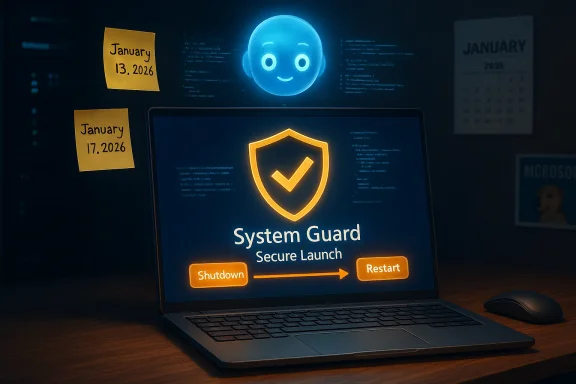
Blue-lit cybersecurity scene: System Guard shield on the monitor and a 10-second reboot countdown on the laptop.Background​

The incident began with Microsoft’s regular January security rollup, published on January 13, 2026, which included cumulative updates for multiple Windows 11 servicing branches. Within days, telemetry and community reports identified two distinct regressions: a power‑state failure that caused certain machines to restart instead of powering off or hibernating, and Remote Desktop authentication failures in certain sign‑in paths. Microsoft acknowledged the problems and issued targeted out‑of‑band (OOB) cumulative updates on January 17, 2026 to remediate the most critical regressions. This was not a broad, consumer‑level outage. The shutdown/hibernate regression was configuration dependent — primarily affecting Windows 11, version 23H2 devices where System Guard Secure Launch is enabled (a virtualization‑based early‑boot hardening feature commonly enforced in Enterprise and IoT images). The Remote Desktop authentication regressions touched a wider set of branches, including newer servicing channels, making the combined impact more significant for mixed fleets.

What actually broke​

The symptoms in plain language​

Affected devices often displayed a normal shutdown sequence: the screen went dark, update progress appeared to complete, and then the system unexpectedly returned to the sign‑in screen or rebooted entirely. On laptops the practical outcome was battery drain; for managed fleets it disrupted maintenance windows and automated workflows that rely on deterministic power transitions. For some users the symptom extended to failed Remote Desktop sign‑ins, producing repeated credential prompts or aborted session attempts.

The precise update stack involved​

Microsoft’s internal tracking shows the January 13 rollup for Windows 11, version 23H2, was released as a cumulative package that community shorthand referenced as KB5073455; companion updates for other servicing branches carried different KB IDs. When the regressions were confirmed, Microsoft published out‑of‑band updates — notably KB5077797 for Windows 11 23H2 and KB5077744 for Windows 11 24H2/25H2 — on January 17, 2026 to correct the shutdown/hibernation and Remote Desktop issues. Microsoft’s support documentation and the corresponding KB pages describe the fixes and the builds they produce.

A note on conflicting KB references​

Some early reports and summaries referenced a different KB number (KB5034763). That KB reference does not match Microsoft’s published release notes for January 2026 and appears to be a reporting error repeated in some outlets. Where possible, rely on Microsoft’s official KB pages and the OOB KB IDs published on January 17, 2026 for authoritative guidance.

Unraveling the technical roots​

The evident cause was not a simple UI bug or cosmetic label mismatch; it was a servicing orchestration and power‑intent persistence failure at the intersection of Windows Update’s multi‑phase servicing pipeline and virtualization‑based security features.
  • Modern cumulative updates perform multi‑phase servicing: files are staged while the OS runs and some commits are finalized during offline transitions (shutdown or reboot). The servicing stack must carry the user’s final power intent (shutdown, restart, or hibernate) across these phases.
  • System Guard Secure Launch inserts a virtualization boundary and dynamic root of trust measurement early in the boot chain. That boundary changes timing and path assumptions during boot and shutdown. If the servicing stack loses or misinterprets the final power intent across the Secure Launch boundary, the safe fallback may be to restart rather than leave a device in a partially‑serviced state. That fallback behavior produced the restart‑instead‑of‑shutdown symptom.
This is an orchestration/race‑condition class failure — timing, firmware variability among OEMs, drivers, and virtualization boundaries combined to make the bug intermittent and hard to reproduce in lab environments. The upshot: a security hardening feature intended to improve early‑boot integrity interacted unexpectedly with the servicing stack’s commit logic.

Microsoft’s response and the emergency fixes​

Microsoft’s response was rapid and multi‑pronged:
  • Public acknowledgement: Microsoft logged the regressions in its Release Health and support pages and escalated triage based on telemetry spikes and customer reports.
  • Out‑of‑band updates: On January 17, Microsoft published OOB updates — KB5077797 (OS Build 22631.6494) for Windows 11 23H2 and KB5077744 (OS Builds 26100.7627 / 26200.7627) for Windows 11 24H2/25H2 — that explicitly list fixes for Remote Desktop authentication issues and, in the case of 23H2, the Secure Launch shutdown/hibernate regression. These packages were made available via Windows Update and the Microsoft Update Catalog for manual download.
  • Workaround guidance: While the permanent fixes were built and distributed, Microsoft documented an interim, manual workaround to force a proper shutdown — run an elevated Command Prompt and execute shutdown /s /t 0 — noting that no supported workaround existed for hibernation at the time.
The rapid OOB patches restored expected behaviour for most affected systems within a short window, but the event underscored how even targeted regressions can cascade operationally in enterprise environments.

Impact on enterprise IT teams​

For IT professionals the incident had immediate operational consequences and medium‑term policy implications.
  • Operational disruption: Scheduled maintenance windows, imaging workflows, kiosk and point‑of‑sale deployments, and battery‑sensitive laptops all relied on deterministic power transitions. Unexpected restarts broke automation and increased helpdesk load.
  • Exposure identification: The affected subset was narrow but concentrated in managed images where Secure Launch is enforced for compliance. Organizations that still run Windows 11 23H2 in Enterprise or IoT variants were most exposed. Windows 11 23H2 reached end of servicing for Home/Pro on November 11, 2025; Enterprise and Education had extended update timelines, which explains why many organizations were still on that branch.
  • Risk management and posture: The incident highlighted the importance of multi‑ring deployment strategies (pilot → broad → wide), representative device testing (including security‑hardened configurations), and maintaining rollback / remediation playbooks for critical updates. Administrators were advised to inventory exposure, gate rollouts, communicate interim workarounds, and validate Microsoft’s remediation in pilot rings before mass deployment.
The broader lesson for IT teams is procedural: keep device inventories current, track which machines enforce early‑boot protections, and prioritize emergency patches when vendor advisories explicitly identify operational failures.

Community reaction and real‑world anecdotes​

The user and sysadmin communities amplified reports rapidly across social platforms, enterprise forums, and telemetry pools. Posts on technical forums and on platforms like X documented multiple OEM and model instances, with some administrators confirming Secure Launch was enabled on the affected machines. Community‑provided workarounds — such as using the command line to force a shutdown — surfaced quickly and provided short‑term relief, but they were not a long‑term substitute for vendor fixes. Public reaction also included renewed scrutiny of Microsoft’s update testing processes. Observers pointed to a pattern of occasional high‑impact regressions introduced through cumulative updates and asked whether more aggressive pre‑release vetting, broader real‑world telemetry in Insider channels, or AI‑driven compatibility checks might reduce recurrence. Microsoft’s transparent publication of release health notes and the swift OOB response mitigated some concerns, but the episode reopened trust conversations among administrators and users.

How robust was Microsoft’s QA? Where the process stretched​

There are three technical and process takeaways:
  • Complexity of real‑world environments: Windows runs on a near‑infinite matrix of OEM firmware, drivers, security settings, and enterprise tooling. Even comprehensive test plans can miss corner cases introduced by security features that alter early‑boot semantics.
  • Limitations of channel staging: The Windows Insider Program and optional preview channels are designed to catch regressions early, but not all enterprise configurations (especially those with enforced Secure Launch) are well represented in public flight rings. Staged rollouts mitigate risk but don’t eliminate it.
  • Speed vs. thoroughness tradeoffs: Microsoft prioritized rapid remediation with OOB patches once regressions surfaced. That responsiveness is essential, but repeated emergency patches can reduce confidence if they become frequent. Balancing security urgency with integration testing remains a strategic challenge.

Recommendations — what administrators and power users should do now​

  • Verify builds and update status:
  • Check the OS build on representative devices using winver or Settings > System > About.
  • Confirm whether the January 13 cumulative updates (the KB packages associated with your servicing branch) are installed and whether the January 17 OOB packages (KB5077797 for 23H2; KB5077744 for 24H2/25H2) are present.
  • For affected systems:
  • Apply the OOB updates immediately via Windows Update or the Microsoft Update Catalog where automatic delivery hasn’t propagated. Microsoft’s KB pages list the builds and the fixes included.
  • If immediate patching isn’t possible, use the documented interim workaround to force a shutdown: open an elevated Command Prompt and run shutdown /s /t 0. Note this is a stopgap and does not address hibernation failures.
  • For organizations:
  • Inventory which devices enforce System Guard Secure Launch and prioritize patching on those systems.
  • Ensure pilot rings include devices representative of hardened enterprise images (Secure Launch, BitLocker, virtualization guards) so configuration‑dependent regressions are caught early.
  • Maintain rollback and remediation scripts, clear helpdesk messaging, and communication templates to reduce user confusion during urgent updates.
  • For end users:
  • Keep systems up to date and, if you experience the symptom, install the OOB fix or follow vendor guidance from your device maker or corporate IT team.
  • If you do not run Secure Launch or are on newer servicing branches (24H2/25H2 or later), your risk is lower but not zero — monitor Windows Update and apply the available cumulative or out‑of‑band updates.

Wider implications and preventive steps for future updates​

This episode highlights a central tension in modern OS maintenance: security advancement versus operational stability. As Windows integrates deeper hardware‑anchored protections (Secure Launch, virtualization‑based security, TPM enforcement), the servicing pipeline must be validated against these hardened paths across diverse OEM firmware. Key strategic improvements that can reduce recurrence include:
  • Expanded real‑world sampling: recruiting a broader set of enterprise partner devices into Insider validation rings to better represent Secure Launch and other enterprise settings.
  • AI‑assisted compatibility checks: using large‑scale telemetry and machine learning to flag risky interactions between update payloads and device configurations before wider rollout.
  • Stronger pre‑flight gating for early‑boot modifications: any servicing change that touches early‑boot or virtualization boundaries should receive stricter integration testing across manufacturer firmware variants.
Microsoft’s fast OOB fixes show the company can respond quickly; the follow‑on task is ensuring regressions of this class are caught earlier.

Conclusion​

The January 2026 shutdown debacle was a contained but important reminder that even well‑intentioned security hardening and regular patching carry risk when they intersect with complex, low‑level subsystems. Microsoft’s transparent acknowledgment and the rapid deployment of out‑of‑band updates (KB5077797 and KB5077744) resolved the most serious symptoms for most customers, but the incident leaves valuable operational lessons for IT teams and for Microsoft’s own validation pipelines. For administrators the immediate actions are straightforward — inventory exposure, apply the OOB packages, and validate behavior in pilot rings — while the longer task is to bake greater representativeness and predictive testing into the update lifecycle to prevent similar surprises in future releases. The event also shows how modern OS stewardship is a continuous process: secure features like System Guard Secure Launch strengthen the platform but require equally robust update orchestration. The quick fix preserved system integrity for most users; the next challenge is restoring full confidence in the update pipeline by catching these edge‑case interactions before they reach production machines.
Source: WebProNews Microsoft Windows 11 Update Bug Halts Shutdowns, Prompts Urgent Fixes
 

Microsoft moved quickly after January’s Patch Tuesday to issue emergency out‑of‑band fixes when a routine Windows 11 security rollup produced two disruptive regressions: a configuration‑dependent shutdown/hibernate failure on devices using System Guard Secure Launch and widespread Remote Desktop authentication failures that blocked sign‑ins across several servicing branches. The initial security rollup published on January 13, 2026 was followed by targeted OOB packages on January 17, 2026 — most notably KB5077797 for Windows 11 version 23H2 and KB5077744 for versions 24H2/25H2 — to restore power‑state determinism and remote‑access authentication while preserving the month’s security fixes. c

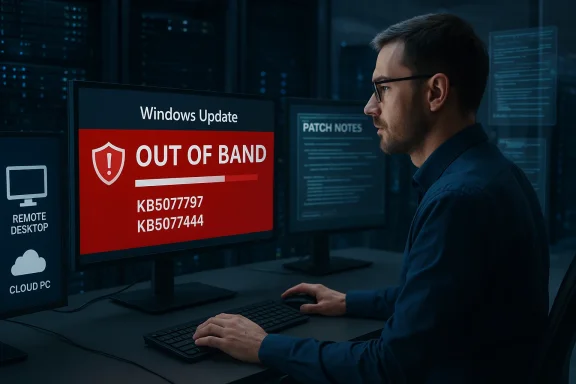
A technician monitors Windows 11 installs and security status on multiple screens.Background / Overview​

Microsoft’s monthly servicing cadence delivered January cumulative updates on January 13, 2026. Within days, telemetry and field reports flagged two separate but serious issues: some Enterprise and IoT systems using Secure Launch would restart instead of shutting down or entering hibernation, and several Remote Desktop/Cloud PC client flows began failing credential handshakes or producing repeated prompts. Microsoft acknowledged both problems publicly and released out‑of‑band cumulative updates on Januare the most urgent regressions. These incidents are notable because they struck at core operational surfaces—power management and remote access—where regressions rapidly translate into operational outages: failed maintenance windows, drained device batteries, and blocion for distributed workforces. For many organisations, the trade‑off between applying security fixes and preserving availability became an immediate governance decision.

What broke (the technical faults explained)​

The Secure Launch — restart‑instead‑of‑shutdown regression​

  • Symptom: On affected Windows 11 devices (primarily version 23H2 with System Guard Secure Launch enabled), selecting Shut down or Hibernate could result in the machine restarting rator entering S4. In some reports hibernation failed entirely. The visible behavior: a brief black screen followed by a return to the sign‑in surface.
  • Scope: This was configuration‑dependent and concentrated on Enterprise, Edus where Secure Launch is enforced; consumer Home/Pro devices without Secure Launch enabled were far less likely to be affected.
  • Probable mechanics: Secure Launch inserts a virtualization‑backed early‑boot boundary; Windows servicing uses offline commit phases during shutdown/reboot. On certain Secure Launch configurations the servicing orchestration apparently failed to preserve the user’s final power intent across those boundaries, so the system conservatively chose a restart to guarantee offline commits completed. Microsoft’s KB for KB5077797 lists the Secure Launch regression as fixed by the OOB update.

Remote Desktop and Cloud PC authentication failures​

  • Symptom: Multiple Remote Desktop client types — including the modern Windows Remloud‑brokered flows for Azure Virtual Desktop and Windows 365 Cloud PC — experienced failed credential prompts, aborted authentication handshakes, or immediate sign‑in failures. This prevented sessions from being established even when credentials and hosts were valid.
  • Scope: Broader than the Secure Launch issue; it affected Windows 11 versions 24H2 and 25H2, Windows 11 23H2 in some cases, certain Windows 10 ESU channels, and Windows Server servicing branches. Microsoft specifically mentions the Remote Desktop sign‑in fixes in the KB entries for KB5077744 and KB5077797.
  • Impact: Blocked Cloud PC and AVD sessions, prevented remote administration and support, and created urgent availability incidents for organizations depending on remote desktop services. Independent reporting confirmed the customer‑impact footprint that prompted an emergency patch cycle.

What Microsoft shipped and how it was delivered​

  • KB5077797 — Out‑of‑band cumulative update for Windows 11, version 23H2 (OS Build 22631.6494), released January 17, 2026. The package includes the January cumulative fixes plus targeted corrections that explicitly address the Secure Launch restart‑on‑shutdown regression and Remote Desktop authentication failures.
  • KB5077744 — Out‑of‑band cumulative update for Windows 11, versions 24H2 and 25H2 (OS Builds 26100.7627 and 26200.7627), released January 17, 2026. This OOB restores Remote Desktop sign‑in/authentication flows and bundles the servicing stack update (SSU) with the LCU.
Microsoft’s official KB pages confirm the release dates, affected builds, and the documented fixes. The KBs also explicitly describe packaging behaviour: the OOBs are combined SSU+LCU packages, which affects uninstall and rollback semantics. For example, the KB for KB5077744 states that removing the LCU after installing the combined SSU+LCU requires using DISM / Remove‑Package rather than wusa.exe /uninstall. Administrators must therefore plan rollbacks carefully. Availability channels: Microsoft’s KB pages list standard installation paths — Windows Update, Windows Server Update Services (WSUS/Business Catalog) and the Microsoft Update Catalog. Some independent reports and community posts initially reported that the emergency packages would require manual download from the catalog; Microsoft’s support pages indicate the packages are available via Windows Update channels as well. This discrepancy surfaced in early reporting and underscores the need to verify availability in each enviro manual install is required.

Immediate mitigations and practical admin actions​

When an emergency Windows 11 updateaviour or Remote Desktop access, IT teams must triage fast and act methodically to avoid creating new outages.

Triage checklist (fast, first‑response steps)​

  • Identify affected targets
  • Query device inventory for Windows 11 OS build and Secure Launch configuration.
  • Look for elevated Rtes, repeated credential prompts, or failed AVD/Cloud PC connections in monitoring dashboards.
  • Validate symptoms locally
  • Reproduce the shutdown/hibernate behaviour on a sample device with Secure Launch enabled.
  • Reproduce Remote Desktop sign‑in failure using the same client types reported by users.
  • Apply short‑term workarounds where necessary
  • For deterministic shutdown: run an elevated command prompt and execute:
    shutdown /s /t 0
    This forces an immediate power‑off and was documented as a temporary workaround prior to the OOB fix. It may not address hibernation inconsistencies.
  • For Remote Desktop access: use alternate RDP clients (for emote Desktop client or the Windows App web client) as temporary fallbacks until the OOB is applied. Microsoft advised these alternate client paths in interim guidance.

Deployment options — KIR vs. catalog updates​

  • Known Issue Rollback (KIR): When the regression is caused by a specific change that can be safely disabled, Microsoft can publish a KIR that allows enterprise management to revert the behavioral change without reinstalling packages. KIRs are valuable for rapid remediation across large fleets and can be deployed using Group Policy or management tools.
  • Catalog / OOB package install: If a precise code correction is required (or if you need the security fixes retained while ensuring functionality), deploying the OOB KB from the Microsoft Update Catalog or via WSUS/Intune gives you the targeted fix. Note that combined SSU+LCU packaging changes how uninstalls behave; use DISM ecessary. Microsoft’s KB pages include explicit guidance.

Recommended rollout strategy (practical sequence)​

  • Create a small pilot group including machines with Secure Launch enabled, AVD/Cloud PC hosts, and representative server endpoints.
  • Deploy the OOB update or KIR to the pilot group and validate:
  • Shutdown/hibernate now succeeds on Secure Launch devices.
  • Remote Desktop authentication and Cloud PC sign‑ins are restored.
  • Monitor Event Viewer and telemetry for:
  • Kernel‑Power (Event ID 41/42) or other power‑related entries.
  • Remote Desktop and delegation/SSO failures.
  • Expand to phased deployment rings (small → medium → broad), pausing if regressions appear.
  • Have rollback instructions prepared (DISM Remove‑Package command and known‑good images) and a communications plan for helpdesk scripts.

Deeper analysis: Microsoft’s response and the engineering trade‑offs​

Strengths — what Microsoft did well​

  • Rapid reaction time: Microsoft issued emergency OOB updates within four days of Patch Tuesday, prioritising functionality that affects business continuity (power state and remote access). That speed reduced broader operational impact and preserved the security fixes from the January rollup.
  • Multiple remediation paths: Microsoft published both OOB cumulative packages and Known Issue Rollback artifacts, giving admins the flexibility to choose the fastest or the most controlled route for remediation. The vendor’s KB pages include actionable installation and rollback guidance.
  • Clear documentation of affected builds and symptoms on official KB pages, enabling precise identification of at‑risk devices.

Weaknesses and risks​

  • Combined SSU+LCU packaging complicates uninstall and rollback. Once a combined package is installed, standard wusa.exe uninstall semantics do not remove the SSU; admins must use DISM Remove‑Package to uninstall LCUs. This increases operational risk for rushed deployments and requires careful rollback planning. Microsoft documents this nuance in the KB.
  • Testing blind spots: The Secure Launch regression indicates an interaction between servicing orchestration and early‑boot hardening that may be under‑exercised in pre‑release testing. Devices with Secure Launch are common in enterprise images but rarer in consumer channels, so typical test rings may have missed the combination of configuration and servicing state.
  • Fragmented reporting early in the incident: some outlets and community posts reported conflicting availability channels (catalog‑only vs. Windows Update). While Microsoft’s support pages confirm standard channels, the inconsistent early messages created confusion for admins trying to prioritise manual effort. Always verify the official KB and the Microsoft Update Catalog entries in your environment before acting.

Cross‑verification and unresolved items​

  • Verified facts:
  • TTuesday cumulative updates shipped on January 13, 2026. Independent outlets and Microsoft’s KB confirm that the January LCU introduced the regressions that prompted OOB fixes.
  • Microsoft published OOB updates KB5077797 (23H2) and KB5077744 (2y 17, 2026** to address the Remote Desktop authentication regression and the Secure Launch shutdown regression. These specifics are listed on Microsoft Support pages.
  • The OOBs are combined SSU+LCU packages; uninstall semantics require DISM for the LCU portion. Microsoft’s KB text confirms this and provides guidance.
  • Items still uncertain or under investigation:
  • Root cause post‑mortem: Microsoft has not, at the time of writing, published a detailed engineering post‑mortem that traces the exact code path and repro steps foervicing orchestration mismatch. Readers should treat root‑cause statements as provisional until Microsoft publishes a full postincident analysis. Flagged as unverifiable at this time.
  • Ancillary reports (e.g., Outlook Classic hanging or desktop wallpaper resets) were widely reported in community forums but not universally confirmed as vendor‑acknowledged issues at the time of the OOB release; treat these community claims as unverified unless Microsoft lists them on the KB. Proceed with caution and verify against official Release Health notes.

Best practices to prevent widespread update disruptions​

The January incident is a reminder that even routine security updates can interact with platform hardening features in unexpected ways. IT teams should adopt resilient patch governance and targeted telemetry to catch regressions early.
  • Build representative pilot rings that include:
  • Enterprise images with Secure Launch and virtualization‑based protections enabled.
  • Cloud‑brokered desktop hosts (AVD/Windows 365) and typical client types used by employees.
  • Monitor specific telemetry:
  • Event Viewer: Kernel‑Power events and update servicing errors.
  • RDP telemetry: authentication failures, NTLM/SSPI errors, and token exchange failures in logs.
  • Endpoint management dashboards: sudden upticks in restart or sign‑in tickets.
  • Use staged rollout strategies:
  • Pilot to a controlled group (10–50 devices).
  • Expand to a small set of business‑critical users.
  • Roll out broadly once validation metrics are green.
  • Prefer Known Issue Rollback for quick reversions when applicable; choose catalog/OOB installs when a precise code correction is required and you need the security content preserved.
  • Document rollback procedures in advance, including DISM commands for removing LCUs from combined SSU+LCU packages and tested system restore/process restores for high‑ort.microsoft.

Conclusion — balancing speed, security and stability​

Microsoft’s January 2026 emergency OOB releases — notably KB5077797 and KB5077744 — exemplify a fast, targeted response to regressions that threatened critical functionality: power‑state determinism on Secure Launch devices and Remote Desktop authentication for Cloud PC/AVD users. The rapid issuance of OOB updates and the availability of Known Issue Rollback options are strengths that reduced immediate operational pain. Microsoft’s official KB pages confirm the fixes, impacted builds, and crucial installation details (including combined SSU+LCU packaging and uninstall semantics), which administrators must read and apply carefully. At the same time, the incident highlights persistent servicing challenges: configuration‑dependent bugs that escape test rings, the operational friction of SSU+LCU combined packages, and the need for robust telemetry targeted at advanced platform hardening features. Organizations should treat this as a governance lesson: maintain pilot rings that reflect real deployment configurations, codify rollback procedures (including DISM-based uninstall steps), and use Known Issue Rollback and catalogue updates judiciously to balance security and availability.
Administrators responsible for fleets should verify their exposure (identify Secure Launch systems and affected OS builds), choose the remediation path that matches risk tolerance (KIR vs. OOB install), and proceed with phased deployments backed by clear monitoring and rollback plans. Applying the vendor‑published OOB fixes will restore expected shutdown behavior and Remote Desktop sign‑in flows while preserving the January security updates — provided deployments follow the careful sequence outlined above.

Source: Petri IT Knowledgebase Microsoft Fixes Windows 11 Shutdown and Remote Desktop Issues
 

Microsoft moved quickly to stamp out two high‑impact regressions introduced by its January 2026 Patch Tuesday rollup: an unusual shutdown/hibernate failure on a narrow set of Windows 11 devices using System Guard Secure Launch, and a broader Remote Desktop authentication regression that blocked Cloud PC, Azure Virtual Desktop (AVD) and some Remote Desktop client sign‑ins. Emergency, out‑of‑band (OOB) cumulative updates published on January 17, 2026 — primarily KB5077797 for Windows 11 version 23H2 and KB5077744 for Windows 11 versions 24H2/25H2 (with companion OOBs for Windows 10 ESU and Server releases) — restore the lost functionality, but the incident exposes tradeoffs in fast remediation, testing, and servicing complexity.

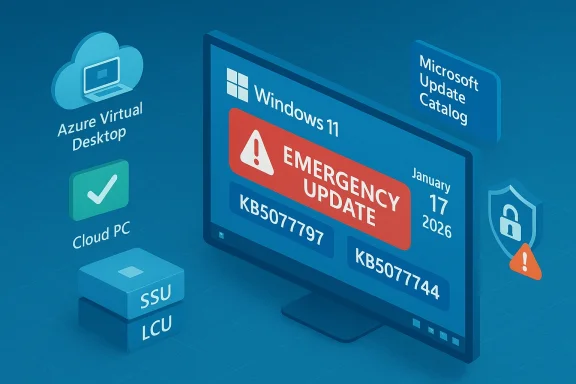
Patch Tuesday 2026 security update shown with a System Guard shield and cloud services.Background / Overview​

The January security rollup shipped on Patch Tuesday, January 13, 2026, as Microsoft’s routine monthly cumulative update wave. Within hours and days of rollout, telemetry and community reports surfaced two operationally painful regressions: (1) some Windows 11 version 23H2 devices configured with System Guard Secure Launch would restart instead of powering off or entering hibernation, and (2) multiple Remote Desktop authentication flows began failing, producing repeated credential prompts or immediate sign‑in errors that prevented session creation for Cloud PCs, AVD, and some RDP clients. Microsoft documented the problems and released targeted OOB cumulative updates on January 17, 2026 to remediate them. These OOB packages are cumulative and often include a servicing stack update (SSU) combined with the latest cumulative update (LCU). That packaging accelerates delivery but changes uninstall and rollback semantics — an operational detail that IT teams must understand before rapid deployment. Microsoft’s official KB entries for the OOB updates list the fixes, impacted builds, and mitigation guidance.

What went wrong: two separate regressions​

The Secure Launch shutdown/hibernate regression (narrow, high impact)​

  • Symptom: On affected Windows 11 version 23H2 devices with System Guard Secure Launch enabled, selecting Shut down or attempting Hibernation could lead the machine to restart or return to the sign‑in screen instead of powering off or entering S4. The screen often went briefly black before the device booted again.
  • Scope: The issue was configuration‑dependent and concentrated in enterprise and specialized images (Enterprise, Education, IoT) where Secure Launch is enforced. Typical consumer Home/Pro installations, which do not enable Secure Launch by default, were far less likely to be affected.
  • Likely mechanics: Secure Launch is a virtualization‑backed, early‑boot hardening feature that alters boot and measurement boundaries. Windows servicing uses multi‑phase offline commit steps during shutdown/reboot. On some hardware/firmware combinations the servicing orchestration failed to preserve the user’s final power intent across the Secure Launch boundary, causing the system to conservatively choose a restart path to guarantee offline commit completion. This preserves servicing correctness but violates the user’s requested power state.
Microsoft issued an interim mitigation: run an elevated Command Prompt and execute shutdown /s /t 0 to force an immediate power‑off until the OOB patch was available. Microsoft explicitly warned that there was no reliable workaround for hibernation until the fix landed. The definitive correction for this regression is included in KB5077797 for Windows 11, version 23H2.

The Remote Desktop authentication regression (broader surface)​

  • Symptom: After the January 13 cumulative updates, many users encountered credential prompt failures or authentication errors when connecting with the modern Windows Remote Desktop App, Cloud PC / Windows 365, or brokered AVD flows. The handshake aborted on the client side before a session could be created. This left users unable to remotely access managed desktops and blocked remote support operations.
  • Scope: The RDP authentication regression reached beyond 23H2 — affecting Windows 11 versions 24H2 and 25H2, Windows 10 ESU channels, and certain Windows Server builds, depending on client and cloud broker combinations. Because it affected cloud‑brokered desktop services, the business impact was immediate and geographically widespread.
  • Mitigation: Microsoft published Known Issue Rollback (KIR) artifacts and a Group Policy mitigation to temporarily disable the change causing the problem for managed environments, and recommended alternate clients (classic RDP client or AVD web client) until OOB fixes were applied. The Remote Desktop correction is the primary fix in KB5077744 for Windows 11 24H2/25H2 and is included in KB5077797 for 23H2. Companion OOBs for Windows 10 ESU and server channels address the same authentication regression for those platforms.

The emergency fixes (what Microsoft shipped on January 17, 2026)​

Microsoft published a set of out‑of‑band cumulative packages on January 17, 2026. Key packages and their stated contents:
  • KB5077797 — Out‑of‑band cumulative update for Windows 11 version 23H2 (OS Build 22631.6494). Fixes:
  • Remote Desktop sign‑in/authentication failures introduced by the January 13 update.
  • The Secure Launch restart‑instead‑of‑shutdown/hibernate regression.
  • KB5077744 — Out‑of‑band cumulative update for Windows 11 versions 24H2 and 25H2 (OS Builds 26100.7627 and 26200.7627). Fixes:
  • Remote Desktop authentication failures. This package also contains a combined servicing stack update (SSU) and LCU.
  • KB5077796 (and other companion OOB packages) — Out‑of‑band updates for Windows 10 ESU and server servicing channels to remediate the Remote Desktop authentication regression where applicable.
These OOB updates are available via Windows Update and as manual downloads through the Microsoft Update Catalog. Microsoft’s KB articles explicitly note the inclusion of servicing stack updates and describe the recommended deployment paths, KIR Group Policy artifacts, and interim mitigations.

Outlook Classic: a persistent, separate problem​

While the OOB packages address the two primary regressions, Microsoft separately documented an emerging issue affecting Outlook Classic profiles (notably POP account profiles) after the January 13 update KB5074109. Reported symptoms include Outlook failing to exit properly, hanging, or remaining running in background processes after the UI closes — sometimes requiring Task Manager termination or a full reboot to recover. Microsoft’s support topic lists the issue as Investigating and as of the latest advisories had not issued a permanent fix. Administrators and power users relying on Classic Outlook profiles should treat this as unresolved until Microsoft publishes a remediation.

How to confirm exposure and remediate (practical steps for IT and power users)​

1. Confirm whether your devices are affected​

  • Check Windows version and OS build: run winver or Settings → System → About and verify whether the device is on Windows 11 version 23H2, 24H2, or 25H2. Cross‑check Update History for KB5073455 or KB5074109 as applicable.
  • Check Secure Launch status: open System Information (msinfo32) and look under System Summary for Secure Launch / System Guard entries to see whether the feature is enabled. This flag is the primary determinant for the shutdown regression on 23H2.
  • Reproduce safely: save work and attempt Shut down or Hibernate. If the device restarts or returns to the sign‑in screen, you’ve reproduced the Secure Launch symptom; check Event Viewer for Kernel‑Power entries describing unexpected power transitions.

2. Deploy the corrective updates​

  • For affected 23H2 devices, install KB5077797. For 24H2/25H2 devices, install KB5077744. If you manage Windows 10 ESU or server branches impacted by the RDP regression, apply the corresponding OOB (for example, KB5077796). Use Windows Update for automatic delivery or download the standalone packages from the Microsoft Update Catalog for manual or controlled deployments.
  • Note the combined SSU+LCU packaging: when SSUs are present, uninstall semantics change; you cannot remove the SSU with standard wusa.exe uninstall, and full removal of an LCU will typically require DISM/Remove‑Package operations. Plan rollback strategies accordingly.

3. Interim mitigations (if you cannot patch immediately)​

  • For the Secure Launch shutdown regression, Microsoft documented a forced shutdown command: open an elevated Command Prompt and run shutdown /s /t 0 to power off immediately; this is an emergency workaround only and does not restore hibernation behavior. Microsoft advised against disabling Secure Launch as a workaround because doing so weakens device security and may violate compliance requirements.
  • For Remote Desktop authentication failures, deploy the Known Issue Rollback (KIR) Group Policy artifact Microsoft published for managed environments or use alternate client paths (classic RDP client or AVD web client) until OOB updates are applied.

Why this episode matters: technical and operational analysis​

Rapid fixes are the right move — with caveats​

Microsoft’s decision to ship targeted OOB cumulative updates within four days demonstrates correct prioritization: both the shutdown regression and the RDP authentication break were real operational outages that justified emergency remediation. Restoring the ability to shut down deterministically on field devices and to authenticate to Cloud PCs and AVD reduced immediate business continuity risk. Independent reporting and Microsoft’s KB pages align on the timeline and the corrective KBs, lending confidence that the root causes were identified and fixed.

But the incident reveals structural risks​

  • Testing surface vs. complexity: Features like Secure Launch insert additional early‑boot boundaries that complicate update servicing. Edge cases — timing, firmware, OEM driver interactions — are notoriously difficult to reproduce in test labs that don’t mirror the breadth of real‑world hardware. This increases the risk that hardening features will generate regressions when servicing orchestration changes.
  • SSU+LCU packaging tradeoffs: Combining SSU and LCU accelerates secure delivery, but changes uninstallation and rollback behavior. Administrators must treat OOB installs as more permanent, or at least ensure they have chosen and tested rollback procedures (DISM‑based removal) before widespread deployment.
  • Pilot ring discipline: Rapid OOB responses are essential, but they don’t absolve teams from maintaining robust pilot rings and telemetry. Organizations that adopt broad, immediate auto‑approve policies risk hitting the same regressions in production; conversely, overly conservative staging delays fixes and prolongs outages. The right balance is controlled pilot deployment with accelerated approvals for critical patches.

The human cost: support load and trust erosion​

When shutdown commands or remote‑access routes fail, helpdesks see immediate surge in tickets: dead laptops, drained overnight batteries, blocked remote support sessions, and frustrated users who must find workarounds. Regressions that touch security or power state behavior also raise governance alarms: disabling Secure Launch is a tempting but unsafe workaround for some administrators; the proper solution is to apply validated fixes, not disable protections.

Action checklist for IT teams (concise)​

  • Inventory devices:
  • Identify Windows 11 23H2 systems and check Secure Launch state with msinfo32.
  • Validate fixes:
  • Test KB5077797 (23H2) and KB5077744 (24H2/25H2) in a pilot ring representative of firmware and OEM variants.
  • Deploy and monitor:
  • Roll out OOB updates via WSUS, Intune, SCCM with staged approvals. Monitor Event Viewer, Release Health telemetry, and user reports.
  • Avoid unsafe workarounds:
  • Do not disable Secure Launch to “fix” shutdown behavior; use the forced shutdown command only as an emergency stopgap.
  • Prepare rollback plans:
  • Document DISM uninstall steps for LCUs if removal is necessary. Understand that SSUs are not removable via wusa.exe once combined.
  • Track Outlook Classic:
  • If you manage POP/classic Outlook profiles, follow Microsoft’s support topic and delay disruptive updates in pilot rings until Outlook behavior is validated.

Final assessment: strengths, remaining risks, and what to watch​

Microsoft’s emergency OOB releases on January 17, 2026 show an appropriate rapid response to operational outages: the vendor identified the regressions, published interim mitigations, and shipped targeted fixes for affected servicing channels. The KB documentation and known‑issue guidance provide administrators with clear remediation paths. Nevertheless, the episode highlights several practical risks IT teams must manage:
  • Regression surface will grow with deeper platform hardening. Security features that change early‑boot semantics (Secure Launch, virtualization‑based security) increase integration complexity and raise the risk that servicing commits interact unexpectedly with OEM firmware and drivers. Thorough, hardware‑diverse testing is harder and more necessary than ever.
  • Rollback complexity after SSU+LCU installs can lengthen incidents if administrators are unprepared. Maintain tested DISM rollback procedures and consider delaying automatic wide deployment of combined packages until pilot validation completes.
  • Secondary regressions remain possible, as shown by the unresolved Outlook Classic POP profile issue. Patching policies should remain adaptive: critical fixes must be applied quickly, but non‑urgent updates should go through pilot rings until confidence is high.

Microsoft’s out‑of‑band patches restored the most critical functionality — deterministic shutdown on Secure Launch machines and Remote Desktop authentication for Cloud PCs and AVD clients — but the incident serves as a reminder that platform hardening and servicing velocity must be balanced with diverse hardware testing, clear rollback plans, and conservative staging practices. Administrators should inventory affected systems, apply the January 17 OOB packages (KB5077797, KB5077744, and companion KBs where applicable), validate post‑install behavior in pilot rings, and watch Microsoft’s support channels for follow‑ups on remaining issues such as Classic Outlook POP hangs.

Source: Technobezz Microsoft Issues Emergency Windows 11 Updates to Fix Critical Shutdown Bug
 

Microsoft shipped emergency, out‑of‑band patches that restored broken Remote Desdesktop authentication and corrected a configuration‑dependent shutdown/hibernation regression caused by January’s cumulative rollup — an incident that underlines both the speed of Microsoft’s incident response and the fragility of complex, widely distributed update pipelines. c

A Windows security dashboard shows a patch in progress amid an emergency alert.Background​

In January 2026 Microsoft distributed its monthly Patch Tuesday updates on January 13, a routine cumulative set that included security fixes and servicing stack changes across multiple Windows servicing channels. Within days, administrators and users reported two distinct, high‑impact regressions: broken authentication during Remote Desktop (RDP/Cloud PC) connectctions and devices — primarily Windows 11 version 23H2 systems with System Guard Secure Launch enabled — restarting instead of shutting down or entering hibernation. Microsoft acknowledged the problems and issued targeted out‑of‑band (OOB) cumulative updates on the issues. These emergency KBs — KB5077744 (for Windows 11 versions 24H2 and 25H2) and KB5077797 (for Windows 11 version 23H2) — were delivered through Windows Update and the Microsoft Update Catalog and bundled servicing‑stack updates alongside the cumulative fixes. The packages were explicitly intended to preserve the security fixes from the January rollup while restoring normal power‑state and remote‑access behavior.

What broke — the two regressions explained​

Remote Desktop authentication failures​

  • Symptom: After installing the January 13 cumulative update, many users encountered repeated credential prompts, immediate sign‑in failures, or outright authentication errors when connecting with Remote Desktop clients, the modern Remote Desktopered cloud desktop services such as Azure Virtual Desktop (AVD) and Windows 365 Cloud PC. The result was inability to establish remote sessions even when credentials and network connectivity were otherwise valid.
  • Affected multiple servicing channels — Windows 11 24H2/25H2, Windows 11 23H2, select Windows 10 ESU branches, and several Windows Server builds — making it a wide‑surface availability problem for enterprises that rely on remote administration and cloud PC signal impact: For companies depending on remote work, managed desktops, or cloud‑hosted desktops, the impact was immediate: helpdesk surges, blocked maintenanceance, and operational downtime for remote staff or administrative tasks that rely on RDP.

Secure Launch — shutdown and hibernation regression​

  • Symptom: On a subset of devices running Windows 11, version 23H2 with System Guard Secure Launch enabled (common in Enterprise, Education and IoT images), selecting Shut down or Hibernate sometimes resulted only restarting rather than powering off or saving state to disk. In other reports hibernation attempts failed outright. The visible behavior typically showed a brief black screen followed by a return to the sign‑in surface.
  • Scope and nuance: This regression was configuration‑dependent. Consumer Home and many Pro devices were far less likely to be affLaunch is not commonly enforced by default on consumer SKUs. The issue concentrated on hardened enterprise and specialized device images where Secure Launch is turned on to harden early‑boot integrity.
  • Operational impact: Deterministic power transitions are foundational for maintenance windows, imaging pipelines, kiosks, ATMs, and battery management on laptops.s to remain powered off or that fails to hibernate introduces operational risk and can cause overnight battery drain, broken automation, and disruption during mainten# Timeline — concise chronology
  • January 13, 2026 — Microsoft ships the January Patch Tuesday cumulative updates (LCUs) across Windows servicing channels.
  • January 13–16, 2026 — Telemetry, enterprise support y reports surface Remote Desktop sign‑in failures and Secure Launch power‑state anomalies. Microsoft logs the issues as known problems.
  • January 17, 2026 — Microsoft publishes out‑of‑band updates: KB5077744 (24H2/25H2) and KB5077797 (23H2), plus companion OOB packages for Windows 10 ESU and Windows Server servicing lines, to remediate the regressions while preserving January’s security fixes.
  • Post‑OOB — Microsoft advises a the OOB updates, use pilot rings and Known Issue Rollback (KIR) where appropriate, and monitor for any residual or community‑reported side effects still under investigation.
The record from Microsoft’s official KB pages confirms the release date and scope of the OOB packages. Administrators should rely on the KB articles for the authoritative package identifiers and installation instructions while validating behavior in test environments first.

The fixes: KB5077744 and KB5077797 (what’s inside)​

  • KB5077744 (Released January 17, 2026) — Applies to Windows 11 version 25H2 and 24H2 (OS Builds 26200.7627 and 26100.7627). The KB explicitly lists a fix for Remote Desktop sign‑in failures that followed the January 13 update and bundles a servicing‑stack update (SSU) to stabilize update installation.
  • KB5077797 (Released January 17, 2026) — Applies to Windows 11 version 23H2 (OS Build 22631.6494). The KB addresses the Remote Desktop authentication failures and the Secure Launch shutdown/hibernate regression on affected 23H2 devices. It likewise combines servicing‑stack improvements with the cumulative fix.
Both OOB packages are cumulative and include the January security fixes; Microsoft combined SSU and LCU into these installers. Important servicing semantic: once the combined SSU+LCU is applied, the SSU portion cannot be uninstalled with wusa.exe; removing the LCU requires DISM with precise package names. Administrators must plan rollback and recovery procedures accordingly.

Technical analysis — why did this happen?​

At a high level, these regressions illustrate two recurring themes in modern platform servicing:
  • 1) Increased platform hardening introduces new integration surfaces. Features such as System Guard Secure Launch add virtualization‑based boundaries earlier in the boot path. Thoseming, sequencing, and the assumptions under which offline servicing and power‑state transitions complete. A small servicing‑stack change or kernel update can pose a race condition that only appears on firmware/hardware configurations where Secure Launch is active. The system’s conservative fallback — choosing restart to guarantee offline commit completion — is safe for servicing correctness but violates the user’s explicit power intent. This is a classic environment‑dependent sequencing regression.
  • 2) Authentication and brokered flows are brittle across client and cloud ktop sign‑in and cloud PC flows depend on client‑side token exchanges, SSO brokers, and subtle ordering assumptions. A hardening change or token‑handling update in the cumulative rollup can prematurely abort an authentication handshake or change the visibility of credential UI flows, producing repeated prompts or failed conne operations interact with cloud services and brokered session logic, small client changes can cascade into broad operational outages.
These mechanisms explain why the regressions were both urgent and nontrivial to reproduce in lab environments. The behaviors showed strong configuration Launch enabled on particular enterprise images, or specific Remote Desktop client/broker combinations — which complicates pre‑release testing coverage.

Impact assessment — who should care and why​

  • Enterprises that enforce Secure Launch in managed images (Enterprise, Education, IoT) are at higher risk for the shutdown/hibernate regressionvalidation of OOB patches in test rings before broad deployment.
  • Organizations that rely on Remote Desktop, Azure Virtual Desktop, Windows 365 Cloud PC, or heavy remote administration saw immediate availability impact; the Remote Desktop regression couldremote workers, and automated management workflows. Applying KB5077744/KB5077797 should be treated as high priority in these environments.
  • Administrators of mixed fleets (client and server, Windows 10 ESU, Windows Server versions) must account for companion OOB paon‑client branches. The remediation spanned many servicing lines, so cross‑inventory checks are essential.
  • Home and small business consumers are less likely to be affected by the Secure Launch issue because the feature is typically not enabled by default, but Remote Desktop customers using the Windows App or cloud PC services could still see authentication problems.

Short‑term mitigations and verification steps​

  • Install the correct OOB package for your branch via Windows Update, WSUS, or the Microsoft Update Catalog. Confirm OS builds (winver or Settings → About) before installing to pick the correct KB. ([support.microsoft.com](January 17, 2026—KB5077744 (OS Builds 26200.7627 and 26100.7627) Out-of-band - Microsoft Support that cannot receive the OOB immediately, Microsoft documented temporary mitigations: forcing a shutdown with an elevated command (shutdown /s /t 0) will power off the device but is not a solution for hibernation failures. For Remote Desktop, using alternate RDP clients or the web broker may offer a temporary path while a permanent fix is applied. These are stop‑gaps, not replacements for the OOB patches.
  • In managed environments, use Known Issue Rollback (KIR) artifacts where Microsoft cally disable the specific change causing Remote Desktop authentication failures. KIR preserves the security updates whblematic behavior, giving administrators breathing room to plan controlled deployment of OOB packages.
  • Verification checkB:
  • Confirm the OOB KB is installed (Settings → Windows Update → Update history).
  • Test Remote Desktop connections and authentication flows for all commonly used clients and brokered scenarios.
  • On Secure Launch devices, validate shutdown and hibernate semantics through scripted and manual tests.
  • Review Event Viewer (System/Setup) for residual errors or servicing warnings.

The broader reliability question — pattern, not an isolated incident​

This episode is consistent with a pattern observed in recent months: high‑impact update regressions have cropped up across different Windows 11 releases, from Task Manager and File Explorer anomalies to problems that impacted recovery environments or specific driver stacks. These recurring problems have generated growing criticism from administrators and users about the effectiveness of pre‑release testing and telemetry gating. Independent outlets and community telemetry played a major role in surfacing the regressions quickly; Microsoft’s rapid OOB response shows the vendor can act fast, but the freque increases operational strain for IT teams.

Strengths in Microsoft’s approach (what went right)​

  • Rapid triage and remediation: Microsoft moved from problem recognition to targeted out‑of‑band fixes in four days, preserving the security fixes while restoring critical functionality. That speed limited the window of widespread outage.
  • Transparent servicing semantics: The KB notes clearly described the inclusion of servicing‑stack updates and the combined SSU+LCU packaging, allowing administrators to plan for rollback semantics and the need to use DISM where necessary. This transparency helps opsupport.microsoft.
  • Companion coverage across servicing lines: Microsoft published companion OOB packages for Windows 10 ESU and Windows Server branches, recognizing that the Remote Desktop regression impacted both client and server ecosystems. That breadth reduced the risk of orphaned, unresolved endpoints.

Risks and remaining concerns (what still matters)​

  • Test coverage gaps ftions: The incident demonstrates that very real production configurations — Secure Launch, specialized firmware, and brokered authentication flows — can escape lab validation. Enterprises that adopt platform hardening features are now trading increased security for a larger testing surface that must be covered pre‑release. This remains a management challenge.
  • Recurrent emergency cycles increase friction: Frequent OOB releases impose operational overhead — validation, staggered rollouts, rollback planning — and erode confidence in the baseline quality of monthly cumulative updates. That friction is especially harmful for large managed fleets.
  • Secondary and community‑reported symptoms still under investigation: Several user‑reported side effects — Outlook Classic background hangs, transient black screens, and desktop wallpaper resets — were flagged by the community and remain under investigation at the time of the OOB fixes. Administrators should treat those reports as potential blind spots until Microsoft either validates or patches them.
  • Rollback complexity: Combined SSU+LCU packaging reduces the ability to simply ‘uninstall’ a problematic LCU via wusa.exe. Administrators must be prepared to use DISM and plan for servicing‑stack permanence, which complicates emergency rollback playbooks.

ions for admins and power users​

  • Inventory and prioritize: Identify devices that have Secure Launch enabled and prioritize them in test rings. Map out which endpoints depend on Remote Desktop, Windows 365, or Azure Virtual Desktop to prioritize remediation.
-s and real‑world validation: Expand pre‑release test coverage to include hardened enterprise images, common brokered authentication flows, and firmware variants. Where possible, incorporate test devices that mirror production hardware and Secure Launch configurations.
  • Maintain emergency playbooks: Codify Known Issue Rollback (KIR) procedures, DISM‑based LCU removal steps, and forced‑shutdown mitigations in your incident runbooks. Practice these playbooks during non‑critical windows so teams can move quickly ifonitor vendor advisories and community telemetry: Subscribe to Microsoft’s Release Health dashboard and monitor reputable independent outlets and community forums; early detection often relies on cross‑checking telemetry with field reports.
  • Test and validate after patching: After applying OOB updates, validate both Remote Desktop authentication and power‑state transitions. Capture logs (Event Viewer) and monitor endpoint behavior for at least one full maintenance cycle.

Final verdict — speed vs. stability in platform servicing​

The January 2026 episode is a case study in modern OS servicing: deeper platform security and wider cloud integration deliver meaningful protections and functionality but expand the surface area for rare, high‑impact regressions. Microsoft’s rapid issuance of KB5077744 and KB5077797 demonstrates effective incident response, preserving critical security fixes while restoring operational behavior. At the same time, the repeated need for OOB patches exposes persistent gaps in pre‑release validation for the wide variety of real‑world configurations enterprises run.
For administrators, the practical takeaway is straightforward: treat these OOB fixes as mandatory for affected systems, valed pilots, and use this incident as an operational prompt to strengthen pre‑release testing, inventory accuracy, and rollback readiness. For Microsoft, the technical lesson is equally clear: invest further in targeted, pre‑release coverage for hardened configurations and brokered authentication flows, and consider publishing more detailed engineering summaries after OOB incidents to help the ecosystem adapt test suites and deployment practices faster.

Conclusion​

The unscheduled updates released in mid‑January restored critical functionality for Remote Desktop and Secure Launch scenarios and illustrated both the strengths and limits of current update practices. Immediate remediation was effective, but the episode underscores a persistent tension: the pursuit of stronger platform security and continuous delivery increases testing complexity and operational risk. Organizations must therefore treat emergency OOB packages like KB5077744 and KB5077797 as high‑priority but also as reminders to harden testing, inventory, and incident playbooks so that the next urgent fix can be deployed with even less disruption.

Source: igor´sLAB Unscheduled updates fix critical bugs in Windows 11 | igor´sLAB
 

Microsoft released its January 13, 2026 security rollup for Windows 11 and within days administrators and users began reporting a troubling side effect: on a narrow but consequential set of machines the system would refuse to power off or enter hibernation, instead immediately restarting after a shutdown or hibernate request. The vendor acknowledged the issue in its release notes and shipped out-of-band corrective packages on January 17, 2026 — but the episode raises broader questions about update testing, servicing semantics, and the operational risk that even modestly scoped regressions pose to modern fleets.

Tech monitors a Windows reboot and security updates in a data-center setting.Background​

Windows receives regular monthly cumulative updates — security fixes, quality improvements, and occasionally new device-targeting logic. On January 13, 2026 Microsoft published its monthly rollup for Windows 11, which included changes touching Secure Boot certificate handling and servicing stack behtheior. Within hours and days of that release, two independent problem classes surfaced:
  • Some devices with System Guard Secure Launch enabled were restarting instead of shutting down or entering hibernation after the January 13 update.
  • Remote Desktop sign-in/authentication experienced failures on several Windows branches, affecting both cloud-hosted and local remote-session workflows.
Microsoft documented the shutdown/hibernate symptom as a known issue for Windows 11 version 23H2 and later issued out-of-band (OOB) cumulative updates on January 17, 2026 that addressed the regressions. The corrective packages restored expected power-state behavior and repaired the Remote Desktop authentication path for affected builds.

What happened — the facts, succinctly​

  • The January 13, 2026 cumulative update for Windows 11, version 23H2 (OS build strings associated with that monthly rollup) contained servicing changes that interact with virtualization-based security features.
  • On affected machines where System Guard Secure Launch (a virtualization‑based Secure Boot protection) was configured and active, the OS sometimes misinterpreted the user's final power intent during the offline servicing commit and performed a restart rather than a shutdown or hibernate.
  • The symptom is configuration-dependent: it is concentrated on Enterprise and IoT SKUs for 23H2 where Secure Launch is commonly enforced; consumer Home/Pro devices are far less likely to exhibit the error because Secure Launch is not typically enabled by default.
  • Microsoft published an official advisory acknowledging the behavior and recommended a documented, safe workaround to force a shutdown: run shutdown /s /t 0 from a Command Prompt.
  • Microsoft released out-of-band cumulative updates — including a package on January 17, 2026 targeted at 23H2 builds — to correct the regression and to resolve related Remote Desktop credential failures.

Why this matters​

Shutdown and hibernation are among the most fundamental behaviors of an operating system. For individual users, a restart loop or inability to enter sleep can cause battery drain and lost productivity. For enterprises, the stakes are higher:
  • Managed maintenance windows and remote provisioning tasks assume deterministic power-state transitions.
  • Automation (e.g., scheduled reboots, power-state-dependent backups, or imaging workflows) can fail silently if shutdown behaves unpredictably.
  • Remote support and troubleshooting can be blocked when technicians cannot reliably power cycle affected endpoints.
  • Hibernation failure can lead to data-loss risk on laptops and field devices that depend on sleep/hibernate for state preservation.
The issue, while narrowly scoped, touches foundational expectations admins and users rely on — and thus created an operational pain point disproportionate to the proportion of machines affected.

Technical overview: System Guard Secure Launch and servicing interaction​

What is System Guard Secure Launch?​

System Guard Secure Launch is a virtualization-based security (VBS) capability that hardens the earliest stages of the boot process. It uses hardware and firmware features to measure and attest the integrity of firmware and pre-OS code, creating a secure environment before the kernel loads. It's widely used in Enterprise and IoT deployments to protect against firmware-level compromise.

How the servicing path can change power intent​

Windows Update performs offline servicing operations during reboot and shutdown sequences when it needs exclusive access to replace kernel and system-level files. Those operations must preserve the power intent — the user's choice to shut down, restart, or hibernate — across multiple stages of the servicing workflow.
In this incident, a servicing orchestration change in the January 13 update altered the interaction with the virtualization boundary that Secure Launch enforces. On a subset of configurations where Secure Launch is active, the final power intent was misinterpreted during the offline commit sequence. The OS therefore performed a restart rather than completing the requested shutdown or entering hibernation.

Why the effect is narrow but severe​

  • The regression requires three conditions to line up: the January 13 servicing package must be present, the device must be running Windows 11 23H2 (Enterprise/IoT variants are the primary targets), and System Guard Secure Launch must be configured and running.
  • Because Secure Launch is common in managed environments but rare on consumer devices, the bug disproportionately impacted corporate fleets and embedded devices — systems where stability and predictable power behavior are mission-critical.

Who was affected​

  • Primary: Windows 11 version 23H2 devices (Enterprise and IoT editions) with System Guard Secure Launch enabled.
  • Secondary collateral issues: Remote Desktop credential/sign-in failures were reported across multiple Windows branches, including later consumer builds, and impacted some cloud desktop clients (Azure Virtual Desktop, Windows 365) until fixed by accompanying OOB packages.
  • Home and Pro users are generally unlikely to be impacted because Secure Launch is typically not configured by default on such devices.

How to check whether your device was exposed​

Perform the following checks in order on a test machine or the target device before you take remediation action.
  • Confirm your Windows version and build:
  • Press Win+R, type winver, and press Enter.
  • Look for "Windows 11, version 23H2" and the OS build string.
  • Check whether the January 13 update is installed:
  • Open Settings → Windows Update → Update history and search for the KB entry dated January 13, 2026 (the cumulative update for 23H2).
  • Or run an elevated command prompt and execute:
  • DISM /online /get-packages | findstr 5073455
  • Verify whether System Guard Secure Launch is configured and running:
  • Open System Information (msinfo32.exe). Under System Summary, look at "Virtualization‑based Security Services Running" and "Virtualization‑based Security Services Configured." If System Guard or Secure Launch appears as running/configured, Secure Launch is active.
  • For scripted checks or MDM audiences, inspect this registry key:
  • HKEY_LOCAL_MACHINE\SYSTEM\CurrentControlSet\Control\DeviceGuard\Scenarios\SystemGuard\Enabled
  • A DWORD value of 1 indicates System Guard is configured (exercise caution; do not edit registry keys without change control).
  • Functional validation on a non-production test device:
  • With the suspected conditions met (23H2 + KB5073455 + Secure Launch enabled), attempt a normal shutdown from the Start menu. If the device restarts instead of powering off, it matches the vendor-described symptom.

Immediate user workarounds (safe, vendor-documented)​

Microsoft provided a safe, documented interim measure to force a clean shutdown. Use this method rather than cutting power to avoid file-system or application-state corruption.
  • Open Command Prompt and run:
  • shutdown /s /t 0
    This instructs Windows to perform an immediate and orderly shutdown sequence, giving applications a chance to close and the file-system a chance to flush.
Why this matters: a graceful OS shutdown via the shutdown command reduces the risk of corrupted files that a forced power-off (holding the power button) can cause. Avoid abrupt hardware power cuts wherever possible.

How Microsoft fixed it​

  • Microsoft published an out-of-band cumulative update for Windows 11 version 23H2 on January 17, 2026 that addressed both the Secure Launch restart‑instead‑of‑shutdown regression and the Remote Desktop sign‑in failures.
  • Companion OOB packages addressed Remote Desktop fixes on later Windows branches and included servicing-stack updates.
  • The OOB packages are cumulative and include the January fixes plus corrective code; they were distributed through Windows Update and made available via standard enterprise deployment channels (WSUS, Microsoft Update Catalog, Intune).
Operational note: the corrective packages include servicing stack updates (SSUs). SSUs change the servicing environment and can complicate rollback procedures — administrators should plan uninstallation/rollback carefully and understand that SSUs are sometimes not removable via the usual mechanisms.

Deployment and rollback considerations for administrators​

  • Test first: validate the OOB packages in a small pilot ring (non-production systems) before mass rollout.
  • Prioritize: deploy the OOB fix to endpoints that match the affected profile first (23H2 Enterprise/IoT with Secure Launch enabled).
  • Monitor telemetry: watch for residual issues in event logs and management tools after deployment.
  • Rollback caveats:
  • Because the OOB packages bundle a servicing stack update, full uninstall semantics may be more complex. Some SSUs are not uninstalled via wusa.exe and the LCU may need DISM removal with the precise package identifier.
  • Carefully document package names and test rollback procedures in a controlled environment before applying broad uninstall actions. Unplanned rollbacks can break servicing dependencies.
Suggested enterprise process (high-level):
  • Identify devices with Secure Launch enabled using MDM/Group Policy or queries against registry and system inventory.
  • Confirm KB5073455 (Jan 13 package) is present on devices you intend to patch.
  • Apply the January 17 out-of-band package (targeted one) to matching devices in a pilot group.
  • Validate shutdown/hibernate and RDP behavior; capture logs and user-reported issues.
  • Gradually expand deployment to remaining rings once validation is complete.

Practical, step-by-step actions for home users and small IT teams​

  • Confirm whether your machine is likely affected:
  • Run winver to confirm version/build.
  • Open msinfo32 and check virtualization-based security fields for System Guard / Secure Launch.
  • If you are affected and need an immediate safe shutdown:
  • Open Command Prompt and run: shutdown /s /t 0
  • Save open work prior to running the command.
  • Install fixes:
  • Open Windows Update and check for updates. Microsoft distributed OOB fixes through Windows Update and the updates should be offered to matching systems.
  • If Windows Update does not offer the OOB update promptly for a managed device, retrieve the appropriate cumulative package from management channels (e.g., Update Catalog or enterprise deployment tools).
  • Avoid forced power-off unless absolutely necessary to protect data integrity.
  • If you are an admin using WSUS/Intune:
  • Import or approve the OOB package in your patch management pipeline and follow staged deployment best practices.

Critical analysis — strengths, shortcomings, and risks​

Notable strengths​

  • Quick response: Microsoft acknowledged the regression publicly and issued out-of-band corrective packages within days. Rapid OOB shipping demonstrates effective incident response capability.
  • Clear interim guidance: Vendor-provided workaround (shutdown /s /t 0) is safe and reduces the chance of data corruption if followed.
  • Scope identification: Microsoft accurately documented the affected configuration (23H2 with Secure Launch) so admins could triage exposure.

Shortcomings and operational risk​

  • Regression in a fundamental behavior: Even when narrowly scoped, a bug that breaks shutdown/hibernate undermines basic system predictability and can cascade into user-impacting outages.
  • Testing gaps: The bug raises questions about whether test coverage for combinations of VBS features and servicing scenarios was sufficient across SKUs and hardware permutations.
  • Servicing-stack complexity: Bundling SSUs with LCUs in OOB packages is necessary at times but complicates rollback and increases the operational cost of error recovery for administrators.
  • Frequency concern: This incident is one of several high-profile post‑Patch‑Tuesday regressions in recent months. Repeated occurrences erode trust in routine update cycles and push administrators toward more conservative or delayed update policies — which increases security exposure windows.

Long-term risks​

  • Automation breakage: Many automation tools assume deterministic shutdown semantics. Regressions of this kind can silently break patching, imaging, and power-management workflows.
  • Trust and patching behavior: If administrators perceive a higher risk of disruptive patches, they may delay critical security updates — trading downtime risk for exposure to vulnerabilities.
  • Edge and IoT exposure: Devices in remote or embedded scenarios can be particularly vulnerable if hibernation or shutdown failures prevent established maintenance windows or remote recovery.

Recommendations​

For IT administrators
  • Validate: identify the subset of devices with System Guard Secure Launch enabled and the presence of KB5073455 before acting.
  • Pilot: apply OOB packages to a small, representative pilot group before broad rollout.
  • Update cadence: maintain a staged update policy that balances rapid security remediation with pre-deployment validation for platform and firmware diversity.
  • Rollback planning: maintain documented rollback procedures and package inventories; understand that uninstalling SSU components can be non-trivial.
  • Monitoring: instrument shutdown/hibernate events and RDP authentication pathways so you can detect and remediate regressions quickly.
For home and small-business users
  • Check your version/build and whether Secure Launch is configured (most consumer PCs are unlikely to be affected).
  • Use the shutdown command as a safe interim workaround if needed: shutdown /s /t 0.
  • Install available updates through Windows Update, and prefer standard update pathways rather than ad-hoc removal unless directed by vendor guidance.
For Microsoft and platform vendors (analysis perspective)
  • Strengthen integration testing for servicing scenarios that combine virtualization-based security features, various SKUs, and offline commit paths.
  • Provide clearer telemetry tooling for administrators to detect unusual servicing-related power-state behavior at fleet scale.
  • Consider options to decouple emergency fixes from intrusive servicing-stack changes where feasible, or at least improve guidance on rollback implications when SSUs are bundled.

Final assessment​

The January 2026 shutdown regression was a narrowly scoped but operationally painful regression that exposed real-world fragility at the intersection of modern secure-boot technologies and Windows servicing mechanics. Microsoft responded rapidly with out-of-band fixes and clear interim guidance, which limited long-term disruption. However, the episode highlights a recurring challenge: as Windows ships richer hardware-and-firmware integrations (VBS, Secure Launch, NPU optimizations, certificate handling), the combinatorial complexity of testing rises sharply.
The immediate technical risk has been mitigated by corrective updates, but the larger governance and operational lessons remain. Administrators should treat routine updates as potentially impactful and keep validation, telemetry, and staged deployment practices central to update strategies. Users should keep systems current but validate compatibility for managed security features like System Guard Secure Launch before applying changes to large or critical fleets.
The practical takeaway is simple and actionable: verify whether your environment actually meets the narrow conditions described (23H2 + Secure Launch + January 13 update), apply the vendor-issued out-of-band fix if so, and prefer the documented shutdown command over hard power cuts until the fix is installed. Beyond that, invest in process and tooling to detect and contain similar regressions quickly — because a single servicing misinterpretation can translate into hours of downtime for the people who depend on predictable power behavior.

Source: One News Page Some Windows 11 PCs can’t shut down after latest update
 

Laptop displays 'System Guard' shield; sticky notes read January 13 and 17, 2026, with a glowing blue AI orb.
Microsoft’s January Patch Tuesday hiccup that left some Windows 11 PCs refusing to power off has laid bare a deeper tension: the company’s aggressive pivot to AI-first features is colliding with the chores of patching, firmware hardening, and the bedrock expectation that a computer will actually turn off when you tell it to. What began as a routine monthly security rollup distributed on January 13, 2026 produced a narrow—but operationally painful—regressionssion: on some machines running Windows 11, version 23H2 with System Guard Secure Launch enabled, choosing “Shut down” or “Hibernate” could instead cause an immediate restart. Microsoft acknowledged the problem and shipped an emergency out‑of‑band (OOB) fix four days later, but the episode exposed fragile interactions between update servicing, virtualization‑based protections, and real user expectations.

Background / Overview​

The January 13, 2026 cumulative updates were typical in name but not in consequence: Microsoft’s monthly rollup for multiple Windows branches bundled security fixes, servicing stack updates, and a handful of platform changes intended to harden update behavior and certificate handling. One of those updates — listed in Microsoft’s release notes for Windows 11, version 23H2 — later showed a known issue that affects devices where System Guard Secure Launch is active. Microsoft’s remedial timeline: publish the January 13 update, document the known issue, and then release an out‑of‑band corrective update on January 17, 2026. System Guard Secure Launch is part of the platform’s virtualization‑based security family. It inserted boundary intended to mitigate firmware‑level compromises. That same boundary changes boot and offline servicing semantics, which makes testing and validation across dozens of OEM firmware permutations essential but also painfully complex. When servicing orchestration does not correctly preserve a user’s “final power intent” across those altered state transitions, the safe fallback chosen by the system can end up being a restart rather than a power-off — the precise symptom Microsoft documented for this regression.
At the same time, the public reaction to this bug hasn’t occurred in a vacuum. Microsoft’s increasingly forceful integration of AI into Windows — most visibly the acceleration of Copilot, Copilot Actions, and “agentic” OS messaging — has already baked in user skepticism. Critics seized on the shutdown regression as evidence that Microsoft’s AI expansion may be coming at the expense of basic reliability, a sentiment amplified by memes and viral nicknames such as “Microslop” that mocked the vendor’s AI rollouts and corporate messaging. Those cultural currents are real and measurable; the PR cost of breaking fundamentals like shutdown is not.

Timeline: What happened, step by step​

  1. January 13, 2026 — Microsoft publishes its January security rollup for Windows 11, which includes the cumulative package identified for 23H2 (the rollup is documented in Microsoft’s KB and release health entries). Shortly administrators and users report a configuration‑dependent regression where some systems restart instead of powering off.
  2. Within hours to days — reports surface on vendor forums and tech outlets describing the symptom in consistent terms: shutdown or hibernate requests completing visually but followed by a restart. The thread of correlation: the regression appears primarily on 23H2 images with System Guard Secure Launch enabled — a condition common in Enterprise and IoT SKUs, and less so on consumer Home/Pro devices.
  3. January 17, 2026 — Microsoft issues an out‑of‑band update to address multiple regressions from the January rollup, including the System Guard Secure Launch restart‑on‑shutdown issues published as KB5077797 (OS Build 22631.6494); companion OOB packages target other branches (for example, KB5077744 for 24H2/25H2). Microsoft’s KB pages and release notes list the corrective fixes.
  4. Post‑fix: field reports and Microsoft Q&A indicate that while the OOB update mitigated the issue for many devices, some Secure Launch configurations still showed lingering symptoms, and Microsoft documented firmware‑level complexities that could require additional remediation or temporary workarounds. Microsoft’s public troubleshooting guidance and community posts provide interim steps for administrators.

my: why a shutdown should be simple — but often isn’t
Shutting down a modern PC is a choreographed multi‑stage operation: apps close, drivers unload, the kernel quiesces devices, and firmware accepts a final power state. In the era of cumulative updates, servicing adds offline commit stages: files staged while the OS is running, then critical changes applied during offline phases that often coincide with reboot or shutdown.
  • Secure Launch inserts an additional virtualization / measurement step in early boot to validate firmware and platform integrity.
  • That extra boundary alters timing and state assumptions used by the servicing stack.
  • If the servicing orchestration fails to persist or reconstitute the user’s final power intent across those altered transitions, the system can choose restart as the “safer” or default finish action, producing the reported restart‑after‑shutdown behavior.
The root cause in this case is an orchestration/timing interaction rather than a user‑level UI bug. That makes the regression both narrow in scope (it requires Secure Launch to be enabled) and high in consequence for affected endpoints — kiosks, unattended field devices, managed laptops expected to hibernate overnight, and automation tasks that rely on deterministic off states.

Who was affected — scope and real‑world impact​

The regression was not a widespread consumer meltdown. The primary exposure profile was:
  • Windows 11, version 23H2 (the cumulative LCU in question).
  • Systems with System Guard Secure Launch enabled in firmware — a setting more commonly enforced in Enterprise and IoT images or by managed configurations.
  • Devices relying on deterministic hibernation or overnight power‑down (for example, laptops, kiosks, imaging stations, and remote field devices).
Consequences for affected devices included:
  • **Battery laptops that instead restarted and stayed powered.
  • Failed maintenance or imaging tasks that expect a clean power‑off.
  • Security concerns for systems that were assumed to be powered down (an unattended workstation that didn’t power off is a risk vector).
  • Helpdesk and admin churn — support teams chasing the mismatch between UI behavior and actual power state.
Microsoft did not publish device counts or an objective metric for prevalence; community telemetry and vendor forums reported cross‑OEM incidents but no precise census. That absence of hard numbers is an important caveat: the issue was narrow but operationally meaningful where it appeared, and claims about broad consumer impact are unsupported by public telemetry. Treat any large-scale numeric claims about affected machines as unverified until Microsoft publishes them.

What Microsoft did and recommended​

Microsoft followed an established but increasingly familiar playbook: acknowledge the regression, document it in Release Health and KB notes, publish an interim workaround, and ship an out‑of‑band cumulative update.
  • Interim vendor workaround (documented): force a shutdown via an elevated command prompt with the explicit command:
    1. Open Command Prompt as administrator.
    2. Run: shutdown /s /t 0
      This forces the device to power off immediately after saving work and is the vendor‑recommended immediate mitigation for users who encounter the restart symptom.
  • OOB fixes: Microsoft shipped KB5077797 for Windows 11 23H2 on January 17, 2026, and corresponding OOB packages for other branches; these packages explicitly list fixes for the restart‑on‑shutdown regression and related Remote Desktop authentication issues introduced by the January rollup. Administrators were instructed to pilot and deploy the OOB packages in representative rings.
  • Post‑deploy guidance: if the OOB package does not resolve symptoms, Microsoft Q&A and community threads recommended either disabling Secure Launch in UEFI/BIOS or toggling the Secure Launch registry key as a last‑resort temporary measure — with a caveat that disabling Secure Launch reduces early‑boot ponly be used while waiting for a corrected cumulative update.
Two operational points matter: (1) Known Issue Rollback (KIR) and targeted Group Policy artifacts are preferable to uninstalling LCUs at scale, because uninstalls remove security fixes. (2) Administrators should always validate update + shutdown behavior across a matrix of firmware revisions and OEM images before rolling updates broadly. Microsoft’s release notes themselves point to KIR and Group Policy mitigations for enterprise-managed fleets where available.

Broader implications: why this matters beyond one patch​

This regression illustrates three systemic tensions that should concern IT teams, purchasers, and product strategists:
  • Security features increase integration complexity. Virtualization-based defenses like Secure Launch raise the security bar but also multiply test vectors. The more early‑boot checks you add, the more complex the interactions with update orchestration become. What’s secure can also be fragile when code paths aren’t exhaustively validated across firmware diversity.
  • AI-first product marketing raises expectations — and scrutiny. Microsoft’s loud shift to position Windows as an “agentic OS” and place Copilot front-and-center has invited a cultural backlash. When core OS behaviors break, critics argue the company prioritized glossy AI calls-to-action over reliable fundamentals. That sentiment has real reputational cost and has been amplified by viral memes and social media mockery. The political economy of feature prioritization mattersy, and privacy all have to be balanced with innovation.
  • AI in development is a double‑edged sword. Microsoft executives, including Satya Nadella, have publicly sterates a substantial share of new code inside the company** — Nadella suggested figures in the 20–30% range during public remarks at industry events. That workflow scales velocity but also introduces new quality assurance and code review challenges. As industry research notes, AI‑generated code can carry higher bug and security‑finding rates in some contexts, which makes robust human review and testing non‑negotiable. This matters because contemporary patching pipelines and AI‑aided development are colliding in production at unprecedented scale.

Practical advice for power users and admins (clear, actionable)​

  • For individual users who can’t shut down:
    1. Save all work.
    2. Open an elevated Command Prompt and run: shutdown /s /t 0 to force an immediate power off.
    3. If the OOB update is available, install it and reboot. If symptoms persist, contact your vendor/IT.
  • For IT administrators:
    • Inventory devices for Windows 11 23H2 + Secure Launch enabled (use msinfo32 or managemen wide deployment of the January rollup to unsupervised rings until a representative pilot validates update-and-shutdown behavior across OEM firmware variants.
    • Deploy the appropriate OOB package (for example, KB5077797 for 23H2) to pilot rings first, and use Known Issue Rollback (KIR) Group Policy artifacts where Microsoft provides thlling LCUs wholesale.
    • If the OOB fix does not resolve the symptom on some endpoints, consider a temporary Secure Launch disablement in firmware only after assessing the security tradeoffs and documenting the rollback plan. Microsoft’s public Q&A indicates some configurations may still require this temporary step.

Strengths, weaknesses, and risk calculus​

  • Strengths
    • Microsoft’s rapid OOB response demonstrates operational maturity: the vendor recognized a risky regression and shipped a corrective package quickly. For many organizations, the availability of KIR and targeted Group Policy mitigations reduces the blunt instrument of LCU uninstalls.
    • Transparency: Microsoft documented the symptom, published KBs for affected branches, and provided interim guidance — important steps for enterprise incident response.
  • Weaknesses and risks
    • Testing gaps across firmware and feature permutations remain a stubborn weak point. Virtualization-based protections require exhaustive cross‑OEM validation to avoid timing and orchestration races during servicing. The recurrence of high-impact post‑patch regressions suggests the test matrix is still brittle.
    • Reputation cost: piling AI features into the OS while users encounter regressions on basic workflows undermines the narrative of “AI makes Windows better.” The social backlash — and the easy meme currency of names like “Microslop” — highlights how quickly user trust can be eroded.
    • Dependence on AI to generate and review code amplifies quality risks if review processes and QA pipelines are not adapted accordingly. Public statements from Microsoft leadership acknowledging widespread AI‑generated code are frank and important, but they raise legitimate questions about how those outputs are validated and integrated safely into critical system components.

What to watch next (what will determine whether this becomes a blip or a trend)​

  • Whether Microsoft publishes concrete telemetry or incident counts that quantify the regression’s reach. Right now, device counts remain unpublished and therefore unverifiable.
  • Whether follow‑on cumulative updates fully eliminate the regression across all firmware variants, or whether edge cases persist that require firmware/BIOS updates from OEMs or changes to Secure Launch logic. Microsoft’s Q&A already suggests some firmware combinations still need additional attention.
  • How Microsoft balances aggressive Copilot/agent rollout schedules with the discipline of preserving fundamental OS behaviors. The company’s public messaging and executive comments about AI‑driven development suggest AI will increase in the stack; the operational lesson from this episode is that those changes must be matched by commensurate investment in cross‑layer testing and transparent rollback tools.

Conclusion​

A contemporary operating system must do many things: protect against advanced threats, integrate modern AI capabilities, and — above all — be predictable. Microsoft’s January update regression is a reminder that these goals can conflict when edge conditions and firmware diversity are not fully accounted for in the test matrix. The vendor’s fast OOB fix and published mitigations were the correct immediate responses, but the incident also spotlights three broader imperatives: (1) deepen cross‑OEM testing for virtualization and early‑boot features; (2) adapt QA and code‑review processes for AI‑assisted development; and (3) preserve the non‑negotiables of usability that define user trust, like the ability to turn a machine off. Until those practices are demonstrably tightened, every new AI feature praised in marketing will still carry the reputational risk of a single, user‑visible regression.
Note: the characterization of Microsoft’s broader AI strategy, the “Microslop” backlash, and executive estimates about the share of AI‑generated code are corroborated across independent outlets and public remarks; however, precise device counts for the January regression were not published by Microsoft and remain unverifiable at time of writing.

Source: Futurism As Microsoft Stuffs Windows With AI, New Update Prevents Users From Turning Off Their PCs Entirely
 

Microsofticrosoft pushed emergency out‑of‑band (OOB) cumulative updates on January 17, 2026 after its January 13 Patch Tuesday rollup introduced two separate but high‑impact regressions: a Remote Desktop authentication failure that blocked access to Microsoft 365 Cloud PCs, Azure Virtual Desktop sessions and other RDP‑based workflows, and a configuration‑dependent power‑state regression where some Windows 11 devices with System Guard Secure Launch enabled restarted instead of shutting down or entering hibernation. These emergency fixes—delivered as combined servicing‑stack (SSU) + latest cumulative update (LCU) packages—were made available through Windows Update and the Microsoft Update Catalog to restore availability and predictable device behavior.

Windows 11 emergency update alert shown on a monitor, surrounded by Azure Virtual Desktop and Cloud PC icons.Background​

Within the regular January 2026 Patch Tuesday wave Microsoft shipped cumulative security and quality updates across client and server servicing branches on January 13. Over the following days, telemetry and administrator reports converged on two reproducible failures tied to those packages: widespread Remote Desktop credential prompts and failed sign‑ins affecting cloud‑hosted desktops, and a narrower critical shutdown/hibernate regression on Secure Launch‑enabled Windows 11 23H2 devices. Microsoft acknowledged the incidents and released targeted OOB packages on January 17 to remediate the most urgent problems. These OOB updates are not feature releases— they are emergency corrections issued outside the normal monthly cadence because of the immediate operational impact on hybrid work and managed desktop scenarios. The company packaged SSU and LCU together in these OOB installers, which affects rollback semantics and uninstall procedures for administrators.

What Microsoft fixed (quick Desktop authentication failures — Sign‑in attempts using the modern Windows Remote Desktop App**, classic RDP clients, and brokered Cloud PC connections could fail immediately after the January 13 cumulative updates. Microsoft’s OOB packages explicitly restore the authentication/credential handshake that had broken in affected builds.​

  • Secure Launch restart‑on‑shutdown regression — On a subset of Windows 11 version 23H2 devices with System Guard Secure Launch enabled, selecting Shutdown or Hibernate sometimes produced an immediate restart rather than completing the requested power transition. The 23H2 OOB patch addresses the timing/servicing interaction that produced the reboot behavior.
  • Packaging and distribution — Microsoft released multiple KB packages on January 17 to cover affected servicing branches (for example, KB5077797 for Windows 11 23H2 and KB5077744 for Windows 11 24H2/25H2), and companion OOB packages for Windows 10 ESU and server branches to remediate Remote Desktop authentication across the estate. These packages are cumulative and include the January security fixes plus corrective code.

Technical context: why these regressions mattered​

Two things drive why these issues required an OOB response: first, the problems affected fundamental user productivity surfaces (remote sign‑in and power management); second, the regressions were configuration‑dependent but severe where they occurred, meaning normal patch‑delay mitigations didn’t protect all environments.
  • Remote Desktop and Cloud PC access are primary productivity surfaces rces. When credential handshakes fail, users cannot connect to managed desktops or brokered cloud workstations—an immediate business‑continuity impact.
  • Secure Launch is a virtualization‑based early‑boot integrity feature used primarily in enterprise and IoT scenarios. Because it alters early‑boot sequencing and runtime checkpoints, servicing changes that touch update commit logic can produce unexpected interactions with power‑state transitions. The restart‑instead‑of‑shutdown symptom is a classic edge case born out of the collision between low‑level boot hardening and update servicing orchestration.
  • Packaging SSU+LCU together is operationally convenient but changes rollback behavior: the servicing stack (SSU) component cannot be removed once applied, and administrators must use DISM to remove the LCU if necessary. That constraint raises the stakes for pilot testing and controlled rollouts in enterprise environments.

What the OOB KBs say (verified details)​

Microsoft’s official KB pages list the impacted builds, release dates and the fixes included in each OOB package. Key vendor‑documented points include:
  • KB5077744 (released Jan 17, 2026) covers Windows 11 versions 25H2 and 24H2 (OS Builds 26200.7627 and 26100.7627). The KB explicitly notes a fix for Remote Desktop sign‑in failures that began after the January 13 security update. The article details that the package includes a servicing‑stack update for those branches.
  • KB5077797 (published Jan 17, 2026) is the OOB cumulative for Windows 11 23H2 (OS Build 22631.6494). That package lists both the Remote Desktop authentication correction and the fix for the Secure Launch restart‑on‑shutdown/hibernate regression.
  • Companion OOB packages (for example KB5077796 for Windows 10 ESU channels) list the same Remote Desktop authentication restoration. Microsoft has published the packages via Windows Update, WSUS and the Microsoft Update Catalog, enabling enterprises to deploy through their normal management tooling.
These vendor pages are ive sources for the exact KB numbers, OS build targets, and release dates and should be referenced beforeport.microsoft.

How to detect if you were affected​

IT teams and advanced users should run simple checks to identify potentially impacted devices:
  • Confirm whether the January 13 update was installed on the device (check Update History or use system inventory tools).
  • For Remote Desktop issues:
  • Attempt a connection using the Windows Remote Desktop App and the classic RDP client; note if credential prompts repeat or authentication fails during handshake.
  • Monitor helpdesk tickets for sudden spikes in AVD/Cloud PC sign‑in failures.
  • For Secure Launch power regressions:
  • Check whether System Guard Secure Launch is enabled (msinfo32 and security policy/UEFI provisioning reports can indicate status).
  • On an affected machine, select Shut down or Hibernate and observe whether the system returns to the sign‑in screen or restarts instead of powering down. If so, the device matches the reproduced symptom.
Short diagnostic commands and checks can help triage affected fleet segments before broad remediation.

Recommended immediate mitigations and deployment steps​

Administrators should prioritize restoring availability while minimizing collateral risk. The following is a practical, prioritized plan:
  • Inventory and triage
  • Identify devices that 13 cumulative and flag devices with Secure Launch enabled.
  • Prioritize remediation for critical roles: kiosks, point‑of‑sale, test rigs, remote worker endpoints, and servers hosting brokered sessions.
  • Deploy the OOB packages via managed channels
  • Use WSUS, Intune, ConfigMgr or the Microsoft Update Catalog to stage KB5077797 (23H2) and KB5077744 (24H2/25H2) to affected piloting rings first.
  • Monitor telemetry and user reports during pilot deployment for unexpected regressions.
  • Temporary fallbacks
  • For Remote Desktop issues, Microsoft documented and community reporting validated temporary workarounds such as using the Windows App web client or classic RDP client in some scenarios until the OOB update is applied. These fallbacks are useful for immediate access recovery for end users.
  • For Secure Launch power issues, Microsoft initially recommended forcing an immediate shutdown via command line (shutdown /s /t 0). This forces power‑off in many cases but does not reliably restore hibernation semantics. Use with caution for managed scripts.
  • Consider Known Issue Rollback (KIR) and Group Policy for managed fleets
  • Microsoft provided KIR Group Policy artifacts for some known issues to temporarily disable the problematic change in enterprise‑managed environments while organizations deploy the OOB fix. Where available, use KIR to reduce user impact while preserving broader update posture.
  • Avoid knee‑jerk rollback of all January updates
  • Because the OOB packages are cumulative and include SSUs, rolling back the entire January update across a fleet is nontrivial and may remove security fixes. Prefer targeted OOB deployment and controlled mitigation unless an environment is irreparably impacted.

What administrators must watch for (risks and caveats)​

  • SSU + LCU packaging and rollback complexity. Combined SSU and LCU installers change uninstall semantics: SSUs are not removable. Administrators must be prepared to use DISM removal of the LCU if rollback is necessary and understand the risks. This increases the cost and complexity of emergency rollbacks and underlines the value of pilot rings and staged deployment.
  • Residual or partial fixes. Some community threads and Microsoft Q&A responses indicate the January 17 OOB patch may not fully correct shutdown semantics on certain hardware/firmware combinations with Secure Launch still enabled; in rare cases more corrective work may be necessary. Consider validating patches on the hardware models used in production. When a vendor‑supplied patch doesn’t fully remediate a firmware‑sensitive behavior, the remaining remediation may require follow‑on vendor updates or temporary configuration changes.
  • Configuration drift and policy dependencies. Secure Launch is often managed via UEFI/firmware policy and Group Policy configuration. Disabling Secure Launch as a workaround reduces early‑boot protections; it is a last‑resort mitigation and must be weighed against security posture requirements. Always document and track any temporary configuration changes.
  • Operational exposure for remote desktop stacks. Environments that rely heavily on Azure Virtual Desktop, Windows 365 Cloud PC, or centralized RDP‑based support tools should validate additional end‑to‑end scenarios (credential providers, smartcard or SSO integrations, broker interactions) because authentication regressions can surface in multiple layers. Use isolated tests to confirm full remediation.

Critical analysis: what this incident reveals about Windows servicing​

This incident is a compact case study in modern platform tradeoffs.
  • Security and quality tradeoffs amplify edge‑case risk. Monthly cumulative rollups often include servicing‑stack changes that touch low‑level boot and update commit code. When those commits interact with advanced security features like Secure Launch, unexpected regressions can appear. The root cause is not sloppy engineering—it's complexity: features operating at different layers of the stack produce brittle intersections when updates modify the orchestration logic.
  • Telemetry and rapid OOB response are necessary but imperfect. Microsoft’s release‑health and telemetry pipelines detected the problem quickly and an OOB release followed within four days—demonstrating an ability to respond. But the need for an OOB release also highlights that existing beta/insider coverage and pre‑release validation didn’t catch the problem across all hardware and configuration permutations. That gap exposes enterprises to short windows of elevated risk when they adopt updates quickly.
  • Packaging choices shift operational burden to admins. Bundling SSU and LCU simplifies forward servicing but makes rollback harder. Enterprises that lack mature rollback playbooks and DISM proficiency will find emergency remediation more disruptive. This episode underscores the necessity of robust patch governance: pilot rings, staged deployment, clear rollback procedures, and tracking of configuration dependencies like Secure Launch.
  • Communication and transparency matter. Microsoft furnished KB pages with detailed fix notes and provided KIR and Group Policy artifacts for managed environments. Independent outlets and community forums helped clarify symptoms and workarounds for administrators. Timely, accurate vendor guidance combined with active sysadmin communities is essential to minimize operational fallout when regressions occur.

Practical checklist for administrators (actionable)​

  • Inventory affected builds and Secure Launch status across the estate.
  • If users report Cloud PC / AVD sign‑in failures, stage and apply the OOB KB that matches the target build (e.g., KB5077744 for 24H2/25H2 or KB5077797 for 23H2).
  • Pilot OOB patches to a ring of devices representing diverse hardware and firmware variants before broad deployment.
  • Where available, deploy Known Issue Rollback (KIR) Group Policy artifacts for temporary mitigation.
  • Avoid disabling Secure Launch in production unless absolutely necessary; if used as a workaround, document and schedule re‑enabling once a confirmed fix is in place.
  • Review and rehearse LCU+SSU rollback procedures using DISM to ensure teams can respond if unexpected regressions follow the OOB deployment.
  • Monitor vendor release health and official KB notes for follow‑on updates or revised guidance.

Broader implications and closing assessment​

The January 2026 OOB episode reinforced a simple but critical lesson for IT: in modern Windows servicing, updates that secure the platform can also change the platform’s behavior in subtle ways. Organizations that have hardened boot protections, sophisticated brokered desktop architectures, or reliance on deterministic power states must build update governance that anticipates the unexpected.
Microsoft’s decision to ship OOB cumulative packages and include SSU components reflects a responsible incident response: fix the outage quickly and publish authoritative guidance for managed deployment. The immediate risks—lost access to Cloud PCs and unpredictable device reboots—were real and justified the accelerated remediation. That said, the incident also highlights the continuing need for robust pilot strategies, playbooks for SSU+LCU rollback, and an operational readiness to apply transient mitigations that trade short‑term availability for longer‑term security controls.
For administrators, the path forward is pragmatic: validate the OOB patches from Microsoft against representative hardware, stage broadly after pilot validation, and update operational documentation to reflect the new SSU+LCU realities. For security and platform teams, this is another prompt to invest in update governance, telemetry-driven detection, and automation for controlled rollouts.
The OOB fixes released on January 17 restored normal Remote Desktop authentication flows for affected servicing branches and addressed the Secure Launch shutdown regression where possible—but administrators should validate on their hardware, watch for follow‑on advisories, and maintain a cautious, staged deployment approach while the ecosystem stabilizes. Conclusion: the fixes exist and are available, but the episode is a reminder that update velocity must be matched by rollout discipline and readiness to respond when platform complexity encounters real‑world configurations.

Source: The Daily Star Microsoft issues OOB fix for Windows cloud PC failures
 

Microsoft has quietly pushed emergency, out‑of‑band (OOB) Windows updates after its January Patch Tuesday rollup introduced two separate, operationally serious regressions: a Remote Desktop/Cloud PC sign‑in failure across multiple servicing branches, and a Secure Launch–linked shutdown/hibernate regression that caused some Windows 11 devices to restart instead of powering off. The fixes were published as cumulative OOB packages on January 17, 2026 and are available through Windows Update, the Microsoft Update Catalog, and enterprise management channels — administrators and power users should verify and apply the appropriate KB immediately if their systems match the affected configurations.

IT professional monitors a Windows Update 'Out of Band' alert on a red screen in a data center.Background / Overview​

On January 13, 2026 Microsoft released its regular monthly security rollup (the January Patch Tuesday updates). Within hours and days of that rollout, telemetry and community reports flagged two reproducible regressions: credential prompt and authentication failures for Remote Desktop and Cloud PC sign‑ins, and an unusual power‑state regression on a narrow set of Windows 11 devices where System Guard Secure Launch is enabled. Microsoft acknowledged the problems and issued targeted out‑of‑band cumulative updates on January 17, 2026 to remediate the issues. Why Microsoft issued OOB fixes
  • The Remote Desktop problem interrupted hybrid work and cloud‑desktop access for many organizations, creating an immediate business‑continuity impact.
  • The Secure Launch regression, while configuration‑dependent and narrower in scope, caused unpredictable device behavior (restart instead of shutdown/hibernate) that can produce battery drain, disrupt maintenance workflows, and break imaging or kiosk/IoT use cases.
    Because these failures interfered with availability and safety expectations, Microsoft treated them as high‑priority and released OOB updates outside the normal monthly cadence.

What broke (technical summary)​

Remote Desktop / Cloud PC authentication failures​

After the January 13 cumulative updates, some Remote Desktop connection flows — notably the modern Windows Remote Desktop App, Azure Virtual Desktop (AVD) and Windows 365 Cloud PC scenarios — failed during the credential prompt phase. Symptoms included repeated credential prompts, immediate authentication errors, or aborted sign‑in handshakes that prevented session establishment even though credentials and backend services were healthy. The regression affected multiple servicing branches: Windows 11 (various builds), Windows 10 ESU/LTSC variants, and several Windows Server SKUs.

Secure Launch: restart instead of shutdown or hibernate​

On machines running Windows 11, version 23H2 with System Guard Secure Launch enabled, issuing a Shut down or Hibernate sometimes resulted in a restart rather than the expected power‑off or saved hibernation state. Secure Launch introduces virtualization‑based early‑boot protections; the servicing choreography for the January cumulative triggered a timing/state mismatch across the Secure Launch boundary that caused the system to take a safe—but incorrect—restart path during offline commit phases. This was primarily observed on managed enterprise/IoT images where Secure Launch is configured or enforced.

Which KBs fix the problems (at a glance)​

Microsoft released multiple out‑of‑band cumulative packages on January 17, 2026. The relevant packages reported by Microsoft and the community include:
  • KB5077797 — Windows 11, version 23H2 — OOB cumulative (fixes both Remote Desktop sign‑in failures and the Secure Launch restart‑instead‑of‑shutdown regression).
  • KB5077744 — Windows 11, versions 24H2 and 25H2 — OOB cumulative (restores Remote Desktop sign‑in/authentication flows).
  • KB5077796 — Windows 10, version 22H2 (ESU and relevant LTSC) — OOB cumulative (addresses Remote Desktop authentication failures).
  • Companion OOB packages were also published for several Windows Server servicing branches (examples include KB5077793 for Windows Server 2025 and KB5077800 for Windows Server 2022), aimed primarily at the Remote Desktop authentication problem. Check your server branch’s update history for the exact KB.
Note: the OOB updates are cumulative and include the January security fixes plus the corrective code. Several packages also combine the servicing‑stack update (SSU) with the LCU in a single download; that changes uninstall semantics and must be considered during deployment planning.

How to know if your devices are affected​

Start by answering two questions: (1) which OS/build is installed, and (2) is System Guard Secure Launch active?
Quick checks:
  • Check OS version/build: press Win+R → type winver → press Enter. Compare the build to your branch and the KB notes.
  • Check whether the January 13 update was installed:
  • Open Settings → Windows Update → Update history, and look for the January 13 package (for example KB5073455 for Windows 11 23H2).
  • Or run in an elevated Command Prompt:
  • DISM /online /get-packages | findstr 5073455
    This helps confirm whether the January LCU is present.
  • Confirm Secure Launch state:
  • Run msinfo32.exe (System Information). Look under System Summary for "Virtualization‑based Security Services Running" and "Virtualization‑based Security Services Configured"; System Guard / Secure Launch should be listed if active.
  • For scripted checks, inspect the registry:
    HKEY_LOCAL_MACHINE\SYSTEM\CurrentControlSet\Control\DeviceGuard\Scenarios\SystemGuard\Enabled
    A DWORD value of 1 typically indicates Secure Launch is configured (confirm with msinfo32 that it’s running).
  • Reproduce safely:
  • Save work and attempt a normal Shutdown or Hibernate. If the device returns to the sign‑in screen or reboots instead of powering off/hibernating, the device matches the documented symptom. Capture Kernel‑Power events in Event Viewer for diagnostics.

Immediate mitigations and workarounds (before you install the OOB)​

Microsoft and the community published short‑term mitigations to keep systems operational while the OOB rolled out.
  • Force a guaranteed shutdown:
  • Open an elevated Command Prompt.
  • Run: shutdown /s /t 0
    This forces power‑off and was documented as a temporary workaround for machines that restart when selecting Shut down. It does not reliably fix hibernation issues.
  • Alternate Remote Desktop access:
  • If the Windows Remote Desktop App is failing to authenticate, use the classic Remote Desktop client (mstsc) or the Windows App web client for Azure Virtual Desktop / Windows 365 as a temporary connection method until the OOB is applied. Microsoft recommended these alternatives for affected connection scenarios.
  • For enterprise fleets:
  • Delay broad deployment of the January 13 cumulative until the OOB has been validated, or apply the OOB centrally (WSUS, Intune, Configuration Manager) to affected rings first. Microsoft provided Known Issue Rollback (KIR) artifacts and Group Policy guidance for managed devices in some cases.
Caveat: these are stopgap measures. The correct remediation is to install the published OOB package that targets your branch.

How to get and deploy the OOB patches​

  • Consumer / unmanaged devices:
  • Open Settings → Windows Update → Check for updates. The OOB package should appear and install automatically. Reboot to complete installation.
  • Manual / catalog install:
  • Use the Microsoft Update Catalog to download the exact KB for your OS/build and install it manually if Windows Update has not yet delivered it to you. This is useful for isolated or air‑gapped systems.
  • Enterprise deployment:
  • Use WSUS, Microsoft Endpoint Configuration Manager, or Microsoft Intune to stage the OOB patch to pilot rings first, then roll out broadly after validation.
  • Expect combined SSU+LCU packages in some branches; ensure your deployment tools and policies account for the servicing‑stack update. SSU inclusion affects uninstall behavior.
Uninstall notes:
  • Combined SSU+LCU packages are not straightforward to uninstall with wusa.exe; Microsoft documents using DISM /online /get-packages followed by DISM /online /remove-package with the package name if removal is required. Removing the SSU component is not supported via wusa.exe and may be restricted. Validate uninstallability during pilot testing.

Practical advice and prioritized checklist for admins​

  • Inventory quickly:
  • Identify devices running Windows 11 23H2 with Secure Launch enabled and any fleet reliant on Remote Desktop, AVD, Windows 365, or Cloud PCs. Use msinfo32 and update history scripting to classify risk.
  • Pilot the OOB:
  • Deploy the OOB patch to a controlled pilot ring (representative hardware and firmware combinations) to validate both the Remote Desktop fixes and the power‑state behavior before broad rollout. Confirm shutdown/hibernate behavior and RDP connectivity.
  • Communicate:
  • Inform helpdesk and support staff about temporary workarounds (shutdown /s /t 0, alternate RDP clients) and expected patch KBs. Prepare runbooks for devices that still misbehave after the OOB.
  • Monitor telemetry and Release Health:
  • Watch Microsoft’s Release Health/Update History entries for follow‑up notes and for any newly reported regressions. Some community reports listed additional anomalies (e.g., Outlook Classic POP issues) that were still under investigation at the time of the OOB. Treat those as lower‑priority until vendor confirmation or a dedicated fix is published.
  • Revise patch policy:
  • Consider adding targeted hold windows for critical infrastructure where Remote Desktop/Cloud PC access or deterministic power states are required. Where possible, test monthly updates against a representative hardware sampling that includes enterprise security hardening (Secure Boot, Secure Launch, virtualization‑based security) to reduce the chance of similar regressions.

Risk analysis and what went well (and what didn’t)​

What Microsoft did well
  • Rapid remediation: Microsoft shipped OOB packages four days after the January 13 rollout, addressing a high‑impact authentication and power‑state problem across multiple branches. That speed minimized ongoing outages for many organizations.
  • Cumulative packaging and SSU bundling: The OOB packages include the January fixes plus corrective code and an updated servicing stack, reducing the likelihood of incomplete remediation on machines that had partial updates.
What failed or needs improvement
  • Coverage gaps in pre‑release testing: The regressions reflect the difficulty of validating updates across a hugely diverse hardware and configuration matrix — notably where enterprise hardening features like Secure Launch change boot and servicing semantics. The incidents underscore the need for broader test coverage in consumer, enterprise, and partner pipelines.
  • Operational impact for managed fleets: Restarting when shutdown was requested is not merely an annoyance; it can break imaging, scheduled maintenance, kiosk operation, and lead to battery depletion in field devices. Organizations with large fleets faced urgent triage and communication overhead.
  • Residual issues remain: Independent reporting and community threads documented other anomalies (black screens, wallpaper resets, Outlook Classic quirks) that either were under investigation or not fully addressed by the OOB. These secondary reports deserve monitoring but were not universally validated by vendor KB notes at the time of the emergency patches. Flag these as unverified or vendor‑unconfirmed until Microsoft publishes follow‑ups.

Longer‑term implications for patch management​

  • Expect more frequent OOB interventions when a monthly security rollup inadvertently introduces regressions that materially affect availability. Organizations must balance urgency in installing security updates against the risk that a single monthly rollup will alter client behavior in untested ways.
  • Hardened, enterprise images (Secure Boot, Secure Launch, virtualization‑based security) should be explicitly included in test matrices for update validation. These security hardenings change low‑level boot and servicing interactions and can expose servicing edge cases.
  • Encourage telemetry and rapid feedback loops from pilot rings. Community reports and vendor telemetry both played a role in surfacing the regressions quickly; structured feedback from enterprise pilots can reduce the time to remediation in future incidents.

Final recommendations (concise)​

  • If you see Remote Desktop sign‑in failures or are running Cloud PC / AVD and were impacted, install the relevant OOB package now (Windows Update should deliver it automatically). Confirm the KB appropriate to your branch (e.g., KB5077744 for 24H2/25H2 or KB5077796 for Windows 10 ESU).
  • If you run Windows 11 23H2 with Secure Launch enabled and experience restart‑on‑shutdown symptoms, apply KB5077797 immediately and validate shutdown/hibernate behavior after reboot.
  • For managed fleets, pilot the OOB in representative hardware rings, verify the SSU behavior and uninstall semantics, then push to production through WSUS/Intune/Configuration Manager once validated.
  • Use the temporary workarounds (shutdown /s /t 0; alternate RDP clients) only while you stage the OOB fix; they are not substitutes for the Microsoft‑issued remediation.

Microsoft’s January Patch Tuesday produced a classic operational tradeoff: a large security rollup fixed many vulnerabilities but created a small set of configuration‑sensitive regressions that had outsized operational impact. The vendor’s fast out‑of‑band response corrected the primary failures within days, but the episode is a reminder that patch management in 2026 — when early‑boot security hardening and cloud‑brokered desktops are common — must include representative hardware and enterprise security configurations in test plans. Administrators should treat the January OOB packages as mandatory for affected systems, pilot them carefully, and keep monitoring vendor Release Health for follow‑ups on secondary anomalies that remain under investigation.
Source: ZDNET Microsoft issues emergency patch for latest Windows bugs - grab it ASAP
 

Microsoft has issued emergency, out‑of‑band (OOB) Windows updates to correct two disruptive regressions introduced by the January 2026 Patch Tuesday rollout: a Remote Desktop sign‑in failure that broke credential prompts for some modern remote clients, and a shutdown/hibernate regression that caused certain Windows 11 devices with System Guard Secure Launch enabled to reboot instead of powering off. Administrators should prioritize these OOB packages for affected fleets to restore reliable remote access and avoid unexpected reboots while preserving modern boot‑time protections.

A person types at a keyboard, viewing a glowing futuristic login interface with a Secure Launch shield.Background / Overview​

Microsoft’s January 2026 Patch Tuesday delivered a large security rollup that fixed more than 110 vulnerabilities across Windows and related components, including at least one vulnerability Microsoft confirmed was exploited in the wild. That large security wave was the context for the regressions: fixes and servicing changes in the January cumulative updates introduced two functional regressions that materially impacted enterprise workflows, prompting Microsoft to release targeted OOB cumulative packages on January 17–18, 2026. Out‑of‑band updates are reserved for urgent regressions that interfere with availability or security; their publication signals that Microsoft’s monitoring and customer reports identified a significant operational impact that required a faster fix than the normal monthly cadence. The OOB packages combine servicing‑stack updates (SSU) and latest cumulative updates (LCU) for the affected servicing branches and are available via Windows Update, WSUS/MECM when approved, and the Microsoft Update Catalog for manual installation.

What broke — the two regressions explained​

Remote Desktop / Windows App: credential prompt failures​

A credential prompt regression prevented some Remote Desktop connections from completing authentication when using the Windows App (the modern Remote Desktop client) to reach Azure Virtual Desktop and Windows 365 Cloud PCs. In affected builds the credential UI could fail, rejecting valid sign‑ins or stopping the handshake early so sessions could not be established. The symptom appeared most often in enterprise and managed environments that use the modern Windows App or that route users to Cloud PCs, causing immediate operational outages for service desks and Cloud‑PC users. Microsoft’s KB notes and advisory indicate the authentication flow problem surfaced after the January cumulative updates for several servicing branches, and the OOB packages specifically restore the affected credential prompt behavior without removing the security fixes from the January release. Known Issue Rollback (KIR) artifacts were also published as a temporary mitigation for managed environments before the OOB packages were available.

Secure Launch: restart instead of shutdown / failed hibernation​

Independently, some Windows 11 version 23H2 devices with System Guard Secure Launch enabled did not shut down or enter hibernation after the January update; instead the devices would reboot immediately or return to the sign‑in screen. Secure Launch is a virtualization‑based hardening feature that defends the early boot process against firmware‑level threats; it’s more commonly configured on enterprise, Education, and IoT SKUs than on consumer devices. Because Secure Launch alters pre‑OS behavior, the regression was narrow in scope but highly disruptive where it occurred — interfering with scheduled maintenance windows, scripted shutdown workflows, and hibernation‑dependent tasks. Microsoft documented a documented interim mitigation (force a shutdown with “shutdown /s /t 0”) and released an OOB package for 23H2 that includes the Secure Launch shutdown fix. Some community reports and Microsoft Q&A threads indicate that, in rare firmware/UEFI combinations, Secure Launch settings in firmware may still require OEM firmware updates or temporary tweaking to fully restore deterministic shutdown behavior. Administrators should treat any firmware change carefully and coordinate with OEMs where Secure Launch is required.

Who is affected (practical scope)​

  • Organizations using the Windows App (the modern Remote Desktop client) to connect to Azure Virtual Desktop or Windows 365 Cloud PCs — credential prompt failures were reported most frequently here. Classic Remote Desktop Connection (mstsc.exe) and some web clients were less affected.
  • Devices running Windows 11 version 25H2, 24H2, and 23H2, Windows 10 ESU / LTSC servicing channels, and multiple Windows Server branches were included in the Remote Desktop scope for the auth issue; specific OOB KBs target each servicing branch.
  • Systems running Windows 11 23H2 with System Guard Secure Launch enabled are susceptible to the restart‑on‑shutdown or failed‑hibernate behavior. Consumer Home and many Pro devices are unlikely to be affected because Secure Launch is typically not configured there by default.
If you do not use the Windows App for remote sessions or you do not have Secure Launch enabled, this incident may not impact you — but mixed fleets (some devices managed, some consumer) can hide edge cases. Validate configuration and telemetry before declaring your estate unaffected.

The fixes Microsoft released (KBs and mechanics)​

Microsoft published targeted OOB cumulative packages that combine SSU + LCU for the affected servicing branches. The most commonly referenced packages are:
  • KB5077744 — Windows 11 versions 25H2 and 24H2 (restores Remote Desktop credential prompts for the Windows App; contains a servicing stack update).
  • KB5077797 — Windows 11 version 23H2 (restores Remote Desktop sign‑in flows and fixes the Secure Launch restart‑on‑shutdown/hibernate regression).
  • KB5077796 / KB5077795 — Companion OOB packages for Windows 10 ESU and LTSC servicing channels addressing the Remote Desktop auth problem.
  • Server OOBs (KB5077793 / KB5077800 / KB5077795) — Published for Windows Server servicing branches to resolve Cloud‑PC / Remote Desktop connection failures on server SKUs.
These OOB packages are cumulative — they include the January security fixes plus the corrective code. Microsoft recommends standard distribution channels (Windows Update for consumer/uncurated devices, WSUS/MECM/Intune for managed fleets) and also provides the standalone MSU packages via the Microsoft Update Catalog for offline/manual deployment. Important servicing note: Microsoft now commonly bundles the latest Servicing Stack Update (SSU) with the LCU in combined packages. Once the SSU is installed as part of a combined package, the SSU cannot be removed by wusa.exe; only the LCU portion can be removed using DISM /Remove‑Package if absolutely necessary. This has operational consequences for rollback planning and is why pilot testing is important before broad deployment.

How to get and deploy the emergency fix (practical steps)​

  • Check exposure
  • Confirm the January cumulative update is installed: open Settings → Windows Update → Update history, or run an elevated command:
  • DISM /online /get-packages | findstr 5073455 (replace 5073455/5074109 with the originating KB for your branch).
  • Obtain the OOB package
  • For unmanaged devices, Windows Update should surface the emergency quality update automatically. Manually check Settings → Windows Update → Check for updates.
  • For managed environments, obtain the appropriate KB from the Microsoft Update Catalog and import it into WSUS/MECM/Intune or use DISM to apply the MSU. Microsoft’s KB pages include DISM and Add‑WindowsPackage examples.
  • Install the combined SSU+LCU package (example DISM command)
  • From an elevated prompt:
  • DISM /Online /Add‑Package /PackagePath:c:\packages\Windows11.0‑KB5077744‑x64.msu
  • Or use Add‑WindowsPackage in PowerShell when managing offline images as directed on the KB. After installation a restart is typically required.
  • For urgent, manual shutdown problems
  • If a 23H2 machine with Secure Launch is unable to shut down cleanly, run (save work first):
  • shutdown /s /t 0
  • This is an interim measure documented by Microsoft; it forces an orderly shutdown without power‑cycling the hardware. Note that hibernation may remain unreliable until the OOB package and any necessary firmware updates are applied.
  • Use Known Issue Rollback (KIR) if necessary
  • For the Remote Desktop credential regression Microsoft published a KIR Group Policy artifact for affected Windows 11 branches as a surgical mitigation while awaiting OOB deployment. Deploy KIR via Group Policy or MDM only to impacted sets if you need to avoid the OOB LCU for compatibility testing. Microsoft’s KBs reference the KIR package names and distribution guidance.
  • Firmware and driver baseline
  • Because Secure Launch leverages virtualization‑based security and tight firmware interactions, ensure OEM firmware and kernel‑mode drivers are up to date. In some reported cases, firmware updates were necessary to fully resolve shutdown/hibernate behavior even after the Microsoft OOB update was applied. Coordinate with OEMs for affected hardware families.

Interim workarounds if you cannot patch immediately​

  • Use the classic Remote Desktop Connection (mstsc.exe) or the Windows App web client for Azure Virtual Desktop as a temporary alternative to the Windows App until you can deploy the OOB package. These alternate clients were less affected in many reports.
  • If Secure Launch machines won’t power off, use the documented forced shutdown command (shutdown /s /t 0) during maintenance windows. Avoid scripted mass shutdowns that assume deterministic behavior until patches and firmware updates are validated.
  • Deploy the Known Issue Rollback (KIR) Group Policy artifact to targeted groups where the credential prompt regression prevents business‑critical remote access and you cannot yet apply the OOB LCU. KIR temporarily disables the change causing the regression without removing the entire cumulative update.
  • Do not permanently disable Secure Launch unless you understand and accept the security trade‑offs. Disabling Secure Launch reduces boot‑time protections against firmware attacks and should be considered a last‑resort temporary measure after risk assessment and stakeholder approval.

Detection and verification checklist for administrators​

  • Inventory affected devices:
  • Query installed packages centrally: DISM or inventory tools to detect KB5073455 / KB5074109 (originating January KB) and whether OOB KBs (KB5077744 / KB5077797 / KB5077796 / server KBs) are installed.
  • Verify Secure Launch status:
  • Use System Information (msinfo32.exe) and inspect Virtualization‑based Security Services Configured and Virtualization‑based Security Services Running; Secure Launch (System Guard) appears here when active.
  • Scripted checks can read the registry key:
  • HKEY_LOCAL_MACHINE\SYSTEM\CurrentControlSet\Control\DeviceGuard\Scenarios\SystemGuard\Enabled (value 1 indicates configured). Microsoft documents these verification methods.
  • Confirm remote client usage:
  • Identify which user groups are routed to the Windows App vs classic RDP vs web clients. Prioritize updates for call centers, help desks, and teams reliant on Cloud PCs.
  • Pilot and phased rollout:
  • Test the combined SSU+LCU package on a small pilot, verify both the primary security fixes and that the regressions are resolved, and confirm that SSU inclusion does not break rollback plans for that workload. Because SSUs can be persistent, maintain a tested rollback plan for LCU-only rollbacks via DISM where necessary.

Why this matters — operational and security analysis​

  • Remote Desktop is foundational for hybrid work. Cloud PC and AVD sign‑in failures cause immediate business impact, blocking users from desks and services. The scale of the January security release amplified the operational surface: when cumulative updates touch authentication components and servicing stacks, the risk of functional regressions rises. Rapid OOB fixes preserve the protective value of January’s security patches while restoring availability.
  • Secure Launch protects against firmware‑level boot tampering. Disabling Secure Launch to sidestep the shutdown regression would reduce an organization’s boot‑time attack surface. The preferable path is to apply the vendor patch and coordinate firmware updates where necessary. This incident highlights the tension between maintaining advanced security hardening and ensuring predictable operational behavior across diverse OEM firmware ecosystems.
  • SSU bundling and rollback complexity raise operational risk. The combined SSU+LCU approach strengthens long‑term update reliability but complicates rollback strategies. Administrators must update their change control playbooks to account for non‑removable SSUs in combined packages and prioritize small, staged pilots ahead of broad deployment.
  • Patch telemetry and fast response matter. Microsoft’s OOB publication within days of Patch Tuesday demonstrates a modern vendor workflow that balances urgency with stability: publish the security fixes, monitor telemetry, accept that regressions occur in complex environments, and deliver corrective quality updates rapidly. Still, organizations should maintain robust rollback and mitigation techniques and keep firmware/driver baselines current.

Practical recommendations — a checklist for IT teams​

  • Prioritize installation of the OOB KBs for affected branches (KB5077744, KB5077797, KB5077796 and server KBs) on pilot machines immediately, then expand via staged deployment.
  • For Cloud PC/AVD environments, validate user access flows with the Windows App after patching; if users still hit credential prompts, fall back to the classic RDP client or web client temporarily while you evaluate KIR or the OOB package.
  • Maintain a tested LCU rollback plan using DISM /Remove‑Package and avoid relying on wusa.exe uninstall for combined SSU+LCU packages — the SSU will remain after wusa uninstall attempts. Document which patches include SSUs and plan accordingly.
  • Inventory Secure Launch usage: script checks (msinfo32 or registry) and central telemetry to identify devices with System Guard enabled. Engage OEM support for firmware updates where shutdown anomalies persist after Microsoft’s OOB patch.
  • Keep end‑users informed: communicate temporary workarounds (use classic RDP or web client, save work frequently, avoid hibernate until fixed), and set expectations for maintenance windows if you must temporarily disable automated shutdown scripts.
  • Back up critical systems and snapshots before broad rollouts. For endpoints running critical workloads, ensure reliable restore points, image backups, or snapshots are in place prior to applying combined SSU+LCU updates.

Risks, caveats, and what could still be unresolved​

  • Some machines with specific OEM firmware builds may continue to exhibit shutdown/hybernate anomalies even after Microsoft’s OOB fix; in those cases coordination with the OEM for firmware updates or temporary Secure Launch configuration changes may be required. Treat any firmware change as high‑impact and test extensively.
  • Although Microsoft’s OOB packages are designed to fix the regressions without stripping the January security safeguards, any cumulative change can reveal new edge cases in complex environments. Staged rollouts, telemetry monitoring, and rapid rollback ability for the LCU portion are essential.
  • Some community discussion and vendor telemetry suggested additional, unrelated issues (for example, Outlook and other application anomalies) that were not fully resolved by the Jan 17 OOBs. Track Microsoft’s release health updates and known issues for subsequent fixes. Flag unverifiable, community‑only claims as such and verify against vendor advisories before acting.

Bottom line​

This week’s emergency OOB updates restore two critical behaviors: reliable Remote Desktop sign‑in for modern remote clients and deterministic shutdown/hibernate on Secure Launch‑enabled Windows 11 23H2 devices. For environments that match the affected profiles — Cloud PC/AVD users and modern, managed endpoints with Secure Launch enabled — the OOB packages should be pushed promptly, tested in pilots, and then deployed in a controlled, staged fashion. Keep firmware and drivers current, use Known Issue Rollback (KIR) artifacts if you need surgical mitigations, avoid permanent disabling of security features, and tighten your change control so combined SSU+LCU updates don’t become an operational surprise. Rapid patching preserved the security benefits from January’s large Patch Tuesday while restoring availability; for modern enterprises the lesson remains the same: test, monitor, and be ready to move fast when fixes are needed.
Source: FindArticles Microsoft Pushes Emergency Patch For New Windows Bugs
 

Microsoft’s January security rollup introduced urgent reliability problems that forced the company to ship emergency, out‑of‑band (OOB) patches days later — fixes you should install now if your device shows the symptoms described below.

Blue cybersecurity illustration featuring a shield, cube blocks, and Remote Desktop and Cloud PC icons.Background / Overview​

Microsoft’s regular Patch Tuesday for January 2026 (released January 13) delivered a large security rollup across Windows servicing branches. Within hours and days of that release, telemetry and user reports revealed two distinct regressions: widespread authentication failures when connecting with Remote Desktop / Cloud PC flows, and a narrower but high‑impact power‑state regression on certain Windows 11 devices with System Guard Secure Launch enabled. Microsoft classified the problems as serious enough to publish targeted OOB cumulative packages on January 17 to restore normorel behavior while retaining January’s security fixes. These events illustrate a growing challenge for platform maintainers: security hardening and servicing orchestration touch low‑level components (boot logic, virtualization boundaries, authentication stacks), and changes there can produce reliability regressions that affect basic user workflows such as signing in or powering off. The rapid remedial cycle — four days from Patch Tuesday to OOB patches in many cases — underscores both the value of telemetry‑driven remediation and the operational risk of a broad test matrix across hardware, firmware, and security features.

What broke: the two regressions explained​

1. Remote Desktop / Cloud PC authentication failures​

After the January 13 cumulative update, many organizations reported repeated credential prompts, aborted authentication handshakes, or outright sign‑in failures when using Remote Desktop clients and brokered cloud desktop services (Azure Virtual Desktop and Windows 365 Cloud PC). The symptom often manifested during the authentication exchange: sessions failed to establish even when credentials and connectivity were valid. This affected multiple servicing branches — Windows 11 (25H2, 24H2, 23H2), certain Windows 10 ESU/22H2 releases, and several Windows Server SKUs — making the regression broad and immediately impactful for hybrid workplaces. Why it mattered: remote desktop access is a foundational work surface for remote and hybrid employees and for IT operations. When RDP or Cloud PC sign‑ins fail at scale, helpdesks surge, maintenance tasks stall, and administrators must route around broken access flows until a fix lands. Microsoft’s OOB updates explicitly list fixes for Remote Desktop authentication in the packages released January 17.

2. Secure Launch: restart instead of shutdown / failed hibernate (Windows 11 23H2)​

A narrower but severe regression affected Windows 11, version 23H2 devices with System Guard Secure Launch enabled (a virtualization‑based early‑boot hardening feature commonly enforced in Enterprise, Education, and IoT images). On some of these machines, selecting Shut down or Hibernate resulted in an immediate restart rather than powering off or saving system state. Hibernation could fail entirely on some hardware. Why this happened (technical summary): Secure Launch inserts a virtualization boundary and changes early‑boot sequencing. When servicing or low‑level updates alter the coordination between the servicing stack and power manager, the OS can conservatively fall back to a restart path instead of completing the requested shutdown/hibernate. This is an orchestration/timing interaction that is environment dependent (firmware, OEM behavior, and enabled security features all matter). Microsoft addressed the regression directly in the OOB package for 23H2.

Affected versions and principal KB identifiers​

Microsoft published multiple targeted OOB cumulative updates on January 17, 2026. Key packages and the primary fixes they include:
  • Windows 11, versions 25H2 and 24H2 — KB5077744 (OS Builds 26200.7627 and 26100.7627): fixes Remote Desktop sign‑in/authentication failures introduced by the January 13 security update and includes a combined Servicing Stack Update (SSU).
  • Windows 11, version 23H2 — KB5077797 (OS Build 22631.6494): fixes Remote Desktop authentication errors and the Secure Launch restart‑on‑shutdown/hibernate regression on Secure Launch–enabled devices.
  • Windows 10 (22H2 / ESU, LTSC variants) — KB5077796: addresses Remote Desktop sign‑in failures on applicable Windows 10 servicing branches.
  • Windows Server — Multiple OOB KBs were issued for server branches (for example, packages covering Windows Server 2025 and Windows Server 2022) to remediate similar Remote Desktop authentication problems. Exact KB IDs depend on server build and channel.
Do not assume the KB above is exhaustive for every server SKU; administrators should match the KB to the exact OS build listed on the Microsoft update history pages for their product line before deploying.

How to tell if your device is affected — quick checklist​

  • Confirm OS version and OS build:
  • Press Win+R, run winver, or open Settings → System → About to verify the Windows version and build number. Compare to the OS builds listed in the Microsoft KB pages for the January 13 and January 17 updates.
  • Check Secure Launch status (if you’re on Windows 11 23H2):
  • Run msinfo32.exe and look under System Summary for System Guard / Secure Launch entries. If Secure Launch is enabled, you are in the population at risk for the shutdown/hibernate regression.
  • Reproduce carefully (after saving work):
  • Choose Shut down or Hibernate. If the device restarts instead of powering off or returning to the sign‑in screen, you have reproduced the Secure Launch symptom. Check Event Viewer for Kernel‑Power events.
  • For Remote Desktop issues:
  • If you encounter repeated credential prompts or immediate sign‑in failures when connecting to Cloud PC, AVD, or RDP hosts after the January updates, this matches the authentication regression. Try an alternate client (web client or classic RDP) as a temporary workaround if available.

How to install the OOB patches (end users and administrators)​

  • Typical path (automatic): affected updates should appear automatically through Windows Update. Open Settings → Update & Security (Windows 10) or Windows Update (Windows 11), click Check for updates, and install any available OOB fixes such as KB5077797 or KB5077744. A restart will be required after installation.
  • Manual path (controlled or air‑gapped environments): download the exact KB package for your OS build from the Microsoft Update Catalog and install the standalone MSU or CAB manually. For enterprise deployments, use WSUS, Configuration Manager, or Intune to stage the OOB packages to pilot rings first.
  • Servicing stack note: Microsoft combined the SSU with the LCU in many of these OOB packages. That improves installation reliability but changes rollback semantics — you cannot remove the SSU portion using wusa.exe /uninstall; if you must remove the LCU from a combined package, use DISM /Remove‑Package with the package name. Plan rollback procedures carefully before mass deployment.
  • Interim workaround for Secure Launch shutdown regression: Microsoft documented a temporary, pragmatic workaround to force a shutdown (open elevated Command Prompt and run shutdown /s /t 0). This is a stopgap that preserves immediate power‑off ability; it does not restore reliable hibernation and is not a substitute for the OOB patch. Microsoft explicitly warned against disabling Secure Launch as a workaround because that would weaken device security posture.

Deployment guidance for organizations (recommended sequence)​

  • Inventory and prioritize:
  • Identify endpoints with Secure Launch enabled and prioritize pilot testing on such devices. Also enumerate Cloud PC hosts, AVD broker components, and RDP gateways where authentication failures would cause business impact. Use management tooling (Intune, ConfigMgr, WSUS, or scripts) to query Secure Launch state and installed KBs.
  • Pilot:
  • Approve the OOB package to a small representative pilot ring that includes diverse OEM firmware, laptop and desktop form factors, and any specialized IoT or kiosk images you manage. Monitor for 72 hours for residual power‑state anomalies and authentication stability.
  • Broader staged rollout:
  • After successful piloting, expand deployment in rings with telemetry and rollback criteria in place. Confirm that security telemetry and EDR logs show no regressions post‑deployment. Avoid blind mass undoing of LCUs — prefer Known Issue Rollback (KIR) or targeted LCU removal via DISM when truly necessary.
  • Communicate:
  • Provide short, actionable guidance to helpdesk and end users (how to check for the update, how to force shutdown if needed, and how to confirm post‑patch behavior). For critical user populations relying on hibernate (e.g., long‑term travel laptops), validate the fix before returning devices to service.

Strengths of Microsoft’s response — and why the fix matters​

  • Speed: Microsoft moved from known‑issue recording to OOB cumulative packages within approximately four days, illustrating an effective telemetry and remediation pipeline for high‑impact regressions. That quick cycle is essential when fundamental capabilities (sign‑in, shutdown) are affected.
  • Bundled servicing updates: Combining SSUs with LCUs improves subsequent update reliability and reduces multi‑step servicing failure modes — useful for complex enterprise environments. The packaging change simplifies one path for administrators who need to ensure devices have the latest servicing stack logic.
  • Targeted scope: The OOB packages were targeted by servicing branch and build, minimizing risk to unaffected configurations while delivering corrective code where it’s needed most. Microsoft also provided Group Policy/KIR artifacts for managed environments to mitigate symptoms while patching.

Risks, residual concerns, and operational cautions​

  • Testing surface remains large. As platform security features proliferate (Secure Launch, VBS, NPU/TPM integrations), the number of hardware and firmware permutations grows. Rapid OOB fixes reduce exposure time, but they also increase the risk of secondary regressions if not piloted across representative hardware. Organizations should treat deeper hardening features as high‑risk, high‑impact variables in their update governance.
  • Rollback complexity. Combined SSU+LCU packages are harder to uninstall; improper rollback procedures can remove security protections or leave devices in inconsistent states. IT teams should document DISM removal steps and test rollback in lab images before attempting large‑scale uninstalls.
  • Unresolved, separate issues: Microsoft’s OOB releases addressed the two primary regressions, but ancillary issues (for example, some reports of Outlook Classic hanging or other app regressions) were being investigated separately at the time of the fix. Treat any lingering application regressions as potentially unrelated to the OOB packages until Microsoft’s KB pages explicitly confirm remediation. If a user reports persistent trouble after installing the OOB KBs, gather diagnostic artifacts (Event Viewer, msinfo32, installed package lists) before assuming the OOB didn’t help.
  • Trust and process perception damage: Recurring high‑impact regressions can erode confidence in update testing and the Windows Insider program’s ability to catch problems before public rollout. That is more than a perceptual risk — it can affect update cadence decisions and lead to longer test cycles in conservative enterprises, which increases exposure windows for unpatched vulnerabilities.

Practical checklist: what every admin and power user should do now​

  • Check Windows Update and install any available OOB updates (KB5077797 for 23H2; KB5077744 for 24H2/25H2; KB5077796 for applicable Windows 10 ESU builds).
  • Verify the fix: confirm shutdown/hibernate behavior on affected 23H2 devices and re‑test Remote Desktop / Cloud PC sign‑ins for the previously failing scenarios. Record Event Viewer entries if problems persist.
  • Pilot before broad deployment: stage OOB packages to representative rings and monitor telemetry and helpdesk metrics for regressions for at least 72 hours.
  • Avoid disabling Secure Launch or other security features as a workaround — that weakens protection and may breach compliance. Use the OOB patch instead.
  • If you must remove the LCU from a combined SSU+LCU package, plan to use DISM /Remove‑Package and test the process; wusa.exe /uninstall will not remove combined SSUs.

Why this episode matters for long‑term patch governance​

The January 2026 sequence is a reminder: as operating systems harden by adding virtualization boundaries and deeper hardware‑rooted protections, the testing matrix expands non‑linearly. Organizations should treat updates that touch low‑level components as higher risk and maintain:
  • Pilot rings that reflect device diversity (OEMs, firmware versions, enterprise images, IoT/kiosk devices).
  • Automated inventory for security hardening features (Secure Launch, VBS) so exposures can be prioritized.
  • Clear rollback and diagnostic playbooks that include DISM steps for combined SSU+LCU packages, collection of Event Viewer and msinfo32 snapshots, and known‑issue tracking for vendor advisories.
These governance steps preserve the twin aims of security and availability: apply critical patches promptly, but validate them in a small controlled population that mirrors the fleet’s edge cases before mass deployment.

Conclusion​

Microsoft’s January Patch Tuesday rollup fixed more than 100 vulnerabilities, but it also introduced reliability regressions that disrupted basic operations for some customers — notably Remote Desktop authentication breaks across branches and a Secure Launch–linked restart instead of shutdown on Windows 11 23H2. Microsoft responded quickly with out‑of‑band cumulative patches (published January 17), including KB5077744, KB5077797, and companion KBs for Windows 10 and server channels, and documented temporary mitigations and deployment guidance. Administrators and power users should install the appropriate OOB package for their branch, validate behavior, and follow disciplined pilot→stage→deploy procedures to avoid secondary surprises. If your devices still show issues after installing the OOB update, capture diagnostic artifacts (winver, msinfo32, Event Viewer logs, and the installed packages list via DISM) before escalating to vendor support — those artifacts accelerate root‑cause analysis and ensure targeted remediation without compromising security posture.


Source: www.filmogaz.com Microsoft Releases Critical Windows Patch: Download Now to Fix Bugs
 

Microsoft has issued emergency, out‑of‑band Windows updates to fix two functional regressions introduced by its January 2026 Patch Tuesday rollup — one that breaks Remote Desktop sign‑ins in certain cloud and remote‑session scenarios, and another that causes some Windows 11 systems with System Guard Secure Launch enabled to reboot instead of shutting down or hibernating. These targeted quality updates restore access to Azure Virtual Desktop and Windows 365 sessions for affected clients and attempt to stop unwanted restart loops on Secure Launch‑enabled endpoints while preserving the platform’s modern boot‑time protections.

Blue-toned security setup with a System Guard shield; Out-of-Band Update on the left and cloud OS icons on the right.Background / Overview​

Microsoft’s January monthly security rollup (released January 13, 2026) addressed a broad slate of vulnerabilities as part of Patch Tuesday, but customers quickly reported two disruptive post‑patch regressions: credential‑prompt failures that blocked Remote Desktop sign‑ins in the new Windows App (impacting Azure Virtual Desktop and Windows 365 Cloud PCs), and shutdown/hibernate commands that caused some Windows 11 23H2 machines with Secure Launch active to restart rather than power off. Microsoft acknowledged both issues on its Release Health pages and shipped one or more out‑of‑band (OOB) cumulative quality updates on January 17, 2026 to address the problems. These regressions landed at an operationally sensitive time — remote work and cloud PC management rely heavily on Remote Desktop and cloud‑hosted sessions, and Secure Launch is widely adopted on managed corporate endpoints because it strengthens defenses against early‑boot and firmware attacks. That combination meant the functional breakages had both availability and security implications, prompting Microsoft to prioritize narrowly scoped fixes rather than making administrators choose between security and usability.

What broke: two separate regressions, one root cause story​

Remote Desktop credential prompt failures (the sign‑in break)​

After installing the January security update (identified in Microsoft’s documentation as the January 13 update for affected branches), many administrators and end users reported that attempts to start Remote Desktop sessions using the new Windows App would fail during credential prompts. The failure manifests before a session is created — the authentication flow aborts or repeatedly prompts for credentials, preventing connection to Cloud PCs and Azure Virtual Desktop hosts. Microsoft’s out‑of‑band KB explicitly calls out that the authentication step for some Remote Desktop apps, including the Windows App, was impacted and that this was fixed in the OOB package. Independent reporting and forum threads confirmed broad impact across cloud‑hosted scenarios: support desks, call centers, and MSPs described mass sign‑in failures and stranded Cloud PC users immediately after the update began rolling. Workarounds embraced by administrators included temporarily switching users to the classic Remote Desktop Connection client or using the Windows App web client until the OOB fix deployed. These are supported fallback paths while the root cause is remediated.

Secure Launch reboot‑on‑shutdown (the unexpected restart)​

Separately, systems running Windows 11 version 23H2 with System Guard Secure Launch enabled — primarily enterprise and some IoT SKUs — experienced a strange behaviour after the same Patch Tuesday: selecting Shut down or Hibernate resulted in the device restarting instead of powering off or entering hibernation. Because Secure Launch relies on virtualization‑based security (VBS) tied to firmware and platform attestations, Microsoft treated this as a higher‑risk regression for managed endpoints and issued a focused OOB update for 23H2 devices to address the regression. Community and Microsoft Q&A threads later revealed that on some platforms the OOB fix did not fully resolve the symptom when Secure Launch was enabled at the firmware level, and vendors warned that firmware and driver baselines must remain current — otherwise the shutdown anomaly can persist even after the Windows patch is applied. That partial resolution is an important nuance for operations teams.

Who is affected — an operational map for sysadmins​

  • Devices using the Windows App (the replacement for the Microsoft Store Remote Desktop app) to connect to Azure Virtual Desktop, Windows 365, or Cloud PCs were the most visible victims of the Remote Desktop sign‑in regression. Organizations that migrated users to the Windows App experienced higher incidence rates than those relying on the legacy Remote Desktop Connection (mstsc.exe).
  • The shutdown / restart regression is narrowly scoped to Windows 11 23H2 devices where System Guard Secure Launch is configured and running; Secure Boot alone is not the trigger. Enterprise and IoT editions were disproportionately affected in initial reports. Administrators should check configuration state because mixed environments hide exposure vectors.
  • Windows 10 ESU channels, some Windows 10 enterprise LTSC branches, and Windows Server (notably Server 2025/related builds) also saw authentication anomalies in certain builds after the January rollup; Microsoft’s OOB packages covered the relevant branches and OS builds according to their KB notes.
If you cannot immediately apply the OOB fixes, prioritize groups that depend on remote access (help desks, cloud dev/test teams, outsourced support) and costly restart impacted endpoints (lab machines, kiosk fleets, or devices managed by scripted maintenance). Inventory first, patch fast second.

How to verify exposure and prepare for deployment​

Quick verification checklist​

  • Confirm which cumulative you installed:
  • Windows Update history, Winver, or DISM can reveal if a device received the January 13 cumulative (look for KB5074109 / KB5073455 depending on branch and build). DISM /online /get-packages | findstr 5073455 is a lightweight evidence check for the 23H2 cumulative.
  • Check OS build and SKU:
  • Use Win+R → winver or Get-ComputerInfo to capture Windows product name and build. This verifies whether the device runs Windows 11 23H2, 24H2, 25H2, Windows Server 2025, or a Windows 10 ESU branch.
  • Verify Secure Launch / System Guard state:
  • Open System Information (msinfo32.exe) and look under Virtualization‑based Security Services Configured and Virtualization‑based Security Services Running for an entry indicating Secure Launch or System Guard is enabled. For scripted inventory, check the registry key HKEY_LOCAL_MACHINE\SYSTEM\CurrentControlSet\Control\DeviceGuard\Scenarios\SystemGuard\Enabled — a value of 1 indicates System Guard is configured. Microsoft documents these verification methods.
  • Confirm installed hotfixes:
  • Use Get-HotFix in PowerShell, wmic qfe get hotfixid, systeminfo, or DISM to detect whether the problematic January cumulative is present. Get-HotFix -Id KB5074109 is useful on client branches that report through Win32_QuickFixEngineering; DISM lists package IDs for component‑based servicing packages that Get‑HotFix may not show.

Staging and rollout preparation​

  • Inventory and group by exposure: create a targeted list of Windows App users, Cloud PC groups, and Secure Launch‑enabled endpoints.
  • Validate firmware and drivers: ensure OEM firmware and platform drivers match vendor baselines; Secure Launch integrates with platform firmware attestations and outdated firmware can block remediation.
  • Pilot the OOB packages in an environment that mirrors your most complex device firmware/driver combinations. Do not assume a single success on modern hardware guarantees the same result on older Secure Core or custom‑managed devices.

How to get and deploy the out‑of‑band fixes​

Microsoft published the OOB packages via Windows Update and the Microsoft Update Catalog; the fixes should appear automatically on patched/eligible devices, and enterprise distributions will flow through WSUS, SCCM/ConfigMgr, or Intune after IT approval. For most organizations:
  • Deploy to a small pilot ring first, then stage to broader rings.
  • For immediate relief in high‑impact groups, approve the patch out of band and schedule a controlled restart window.
  • If your org uses policies to defer non‑critical updates, treat this OOB fix as critical for affected groups; do not delay rollout for call centers, support teams, and Cloud PC users.
Microsoft’s KB and Release Health entries note that some client authentication issues can also be mitigated using a Known Issue Rollback (KIR) or Group Policy workaround while the OOB package propagates — KIRs temporarily disable the problematic change without uninstalling the security update. That path is useful for large fleets where package distribution will take longer.

Interim workarounds if you cannot patch today​

  • Remote Desktop sign‑in failures:
  • Use the classic Remote Desktop Connection client (mstsc.exe) where possible, or the Windows App web client (browser‑based) to access Azure Virtual Desktop or Cloud PCs until the OOB fix is installed. These fallback channels bypass the affected Windows App credential flow in many reported cases.
  • Secure Launch shutdown loop:
  • If a device is stuck in a restart loop on shutdown, schedule maintenance windows that avoid scripted shutdowns and avoid relying on automated power tasks. Microsoft Q&A and community reports show firmware‑level Secure Launch configurations can leave certain devices still exposed even after the OOB fix; the temporary registry workaround to disable Secure Launch (HKLM\SYSTEM\CurrentControlSet\Control\DeviceGuard\Scenarios\SecureLaunch set to 0) can restore normal shutdown behavior, but it reduces early‑boot protections and should be considered a last resort only after security and vendor support teams sign off.
  • Known Issue Rollback:
  • For environments where removing the January rollup or delaying updates is unacceptable, KIRs may be available to revert the problematic behavior without rolling back security fixes. KIR availability and scope vary across Windows branches; consult Microsoft’s Release Health guidance in the KB notes for the specific KIR package and group policy details.
Caution: do not permanently disable Secure Launch as a means to avoid the shutdown regression without a documented risk acceptance and compensation controls. Secure Launch defends against boot‑time threats (bootkits, early boot malware), and its protective value can outweigh temporary convenience.

Root cause, testing gaps, and operational lessons​

Public reporting and Microsoft’s KB language indicate these regressions were functional regressions introduced by the January cumulative updates rather than security changes being intentionally removed. The Remote Desktop regression looks like an authentication flow regression influencing the credential prompt in the Windows App client; the Secure Launch issue appears to be an interaction between the new update stack and VBS/firmware attestations used by System Guard — a classic complex dependency where firmware, kernel components, and the OS update lifecycle interact. Microsoft’s decision to issue narrowly scoped OOB packages is the expected operational response to minimize security exposure while restoring functionality. This incident surfaces three predictable systemic pressures:
  • The complexity of modern OS security features (VBS, Secure Launch) increases the potential for platform‑level regressions that surface only on specific firmware or driver combinations.
  • Rapid monthly security rollups improve security posture quickly but can increase the chance of regressions at scale. A mature remediation process that couples fast OOB fixes with KIRs and transparent release health notes is essential.
  • Organizations must keep firmware and kernel‑mode drivers on a supported baseline to avoid persistent post‑patch anomalies; Windows fixes alone may not resolve issues caused by mismatched firmware/driver states.

Deployment checklist and playbook for IT teams​

  • Inventory: identify endpoints running Windows 11 23H2 with Secure Launch enabled and users who connect by the Windows App to Cloud PCs/AVD.
  • Validate: confirm installed updates and OS builds with winver, Get‑HotFix, or DISM /online /get-packages.
  • Pilot: deploy KB5077744 / KB5077797 (and related OOB packages for other branches) to a controlled subset that mirrors your most complex device configurations.
  • Firmware/driver HVAC: coordinate with OEMs to validate firmware baselines and rollout any necessary firmware updates alongside the OOB patches.
  • Monitor: watch Windows Update, Microsoft Release Health, and internal telemetry for recurrence or incomplete remediation. Retain logs of incidents and remediation steps for postmortem analysis.
  • Communicate: prepare user communications and support scripts for fallback access (mstsc.exe, web client) and adjust support SLAs for short windows where users may be blocked until patches install.

Risk analysis — what could go wrong if you delay or mis-handle this​

  • Delay to patching the Remote Desktop regression keeps critical user groups unable to access Cloud PCs or AVD resources, creating productivity loss and backlog for support teams. In controlled environments this can amount to entire service desks operating at reduced capacity.
  • Disabling Secure Launch without compensating controls reduces early‑boot protections against firmware and boot‑loader tampering. That increases the attack surface for bootkits and persistent firmware threats — a notable tradeoff for organizations to weigh.
  • Incomplete remediation on platforms with outdated firmware or incompatible drivers means repeated incidents even after Windows‑side fixes are applied; that drives additional operational cost and complexity. Plan for firmware coordination with OEM partners.

Bottom line and recommended actions​

  • If your environment uses the Windows App to connect to Azure Virtual Desktop or Windows 365, or if you manage Windows 11 23H2 devices with Secure Launch enabled, prioritize the January 17, 2026 out‑of‑band updates (the cumulative OOB packages Microsoft published) and validate that the OOB installs successfully across representative hardware. Restoring proper credential prompts and normal shutdown behavior is the immediate operational imperative.
  • Use the classic Remote Desktop client or the Windows App web client as temporary workarounds for blocked Cloud PC sessions. Consider Known Issue Rollback when distribution delays are unavoidable. Only disable Secure Launch as a last resort and after an informed security risk acceptance process that includes OEM support input.
  • Finally, treat this episode as a reminder to keep a coordinated OS, firmware, and driver baseline program. As Windows security features increasingly depend on firmware attestations and virtualization‑based security, the operational boundaries between OS updates and firmware/driver management will continue to tighten — and your patching playbook should reflect that reality.
This targeted emergency patching preserved both availability and forward‑looking security posture: it restored Remote Desktop credential flows and reduced the incidence of unexpected restarts while allowing organizations to keep Secure Launch engaged in most cases. For administrators the task now is straightforward: verify exposure, pilot the OOB packages on a controlled ring, coordinate firmware updates where needed, and deploy broadly with the confidence that Microsoft has prioritized correcting these regressions quickly — but remain vigilant for any platforms where firmware interaction might require additional vendor action.
Source: findarticles.com Microsoft Pushes Emergency Patch For New Windows Bugs
 

An IT worker reviews an emergency dashboard: Shutdown/ Hibernate Regression, Remote Desktop failed, Out-of-Band Update.
This month’s Patch Tuesday rollout for Windows 11 introduced a pair of disruptive regressions — systems that restart instead of shutting down, and Remote Desktop and Cloud PC sign in failures — forcing Microsoft to issue emergency out‑of‑band (OOB) fixes to stop the bleeding and restore business continuity.

Overview​

In mid‑January, Microsoft delivered its first security rollup of the year through the regular Patch Tuesday cycle. Within hours and days, IT teams and power users began reporting two separate but serious problems: some Windows 11 devices would not power off or enter hibernation as expected, and a class of Remote Desktop/Cloud PC authentication flows started failing during sign‑in. The combination of a power‑state regression and broken remote login paths created a high‑urgency situation for enterprises, service providers, and remote workers.
Microsoft responded unusually quickly: it issued out‑of‑band cumulative updates on January 17 that explicitly targeted the regressions. Those emergency updates — intended only for critical stability or security regressions — were made available through Windows Update and the Microsoft Update Catalog. The fixes returned shutdown behavior to normal for many affected systems and repaired authentication failures for Remote Desktop and Cloud PC clients in a number of environments. At the same time, public discussion and vendor forums revealed that the remediation was not universally successful on every firmware‑enforced configuration, leaving some admin teams to rely on workarounds or temporary policy changes.
This feature unpacks what went wrong, who was affected, what Microsoft changed and why, and practical steps administrators and power users should take to verify their environments and reduce risk going forward.

Background: the updates and the timeline​

What Microsoft shipped and when​

  • January 13 — Microsoft published the January 2026 cumulative security updates as part of the normal Patch Tuesday cadence. Different SKUs and branches received distinct packages (the January rollups for Windows 11 25H2/24H2 and for 23H2 were released to their respective servicing channels).
  • January 13–16 — Reports started accumulating in enterprise forums, support channels, and social media. Two failure modes emerged: a shutdown / hibernate regression on Windows 11 23H2 devices with System Guard Secure Launch enabled, and Remote Desktop / Cloud PC credential prompt failures affecting multiple branches and client apps.
  • January 17 — Microsoft released out‑of‑band cumulative updates to address the problems. The emergency packages included fixes that specifically referenced the shutdown and Remote Desktop sign‑in regressions.

The key KB and build numbers to know​

  • The January Patch Tuesday cumulative updates were published under several KB numbers for different branches.
  • The Remote Desktop/Cloud PC sign‑in regression tied to the January security rollup was addressed in an out‑of‑band package for the 25H2/24H2 builds released mid‑January.
  • The Secure Launch shutdown/hibernate regression for 23H2 devices was fixed by an out‑of‑band package targeted at the 23H2 branch.
(Exact KB and OS build strings vary by channel and SKU; administrators should confirm the package IDs reported in their environment and compare them with the Windows Update history for their fleet.

What broke: symptoms and scope​

Shutdown / hibernation regression (Windows 11 23H2 with Secure Launch)​

The most surprising and tangible issue was a power‑state regression. On affected systems — predominantly Windows 11 version 23H2 devices configured with System Guard Secure Launch — selecting Shut down or attempting Hibernate could result in the device restarting or returning to the sign‑in screen rather than powering off or saving state to disk.
  • Symptom details:
    • The shutdown or hibernation UI appeared to run normally, but either the system returned to the sign‑in screen or a full reboot occurred.
    • Hibernation attempts could fail without a reliable vendor‑provided workaround.
    • The behavior was primarily reproducible on managed images and enterprise/IoT SKUs where Secure Launch is commonly enforced at the firmware level.
The regression was narrow in scope — it required a particular firmware/feature configuration — but the operational impact on those systems was substantial. Devices used in imaging workflows, automated maintenance windows, kiosk or IoT scenarios, and battery‑sensitive laptop fleets were at real risk from disrupted shutdown semantics.

Remote Desktop and Cloud PC sign‑in failures​

Separately, several Remote Desktop client variants and Cloud PC (Windows 365 / Azure Virtual Desktop) sign‑in flows were affected by a credential prompt or authentication regression. End users reported that when initiating an RDP or Cloud PC connection, the login flow would break at the credential prompt and fail to produce a usable sign‑in session.
  • Symptom details:
    • Credential prompts either failed to appear correctly or returned authentication errors before a session was created.
    • The issue affected multiple branches and client builds and had impact across Windows client versions and even some server branches.
    • The failure mode disrupted access to virtualized desktops and remote worker workflows, prompting emergency remediation.
Together, these two issues created an unusual and high‑visibility post‑patch incident: one that interfered with both endpoint power management and the remote access model many organizations rely on.

Microsoft’s emergency response: out‑of‑band updates and Known Issue Rollback​

Microsoft’s engineering teams issued out‑of‑band (OOB) cumulative updates within days of the initial Patch Tuesday rollout. These packages explicitly referenced the shutdown and Remote Desktop regressions as items addressed in the OOB releases.
  • Out‑of‑band updates are reserved for high‑severity regressions and are pushed outside the usual monthly update schedule.
  • The OOB packages combined fixes from the January security update with targeted repairs to restore expected behavior.
  • Microsoft also used Known Issue Rollback (KIR) and Group Policy KIR assets in enterprise scenarios to help IT administrators mitigate issues without uninstalling updates.
The company advised affected customers to install the emergency updates as soon as they appeared in Windows Update, and to consult their management consoles (Windows Update for Business, WSUS, or Microsoft Endpoint Manager) for deployment options and timing.

Technical analysis: why Secure Launch and update servicing interact badly​

To understand why a maintenance update could cause these behaviors, it’s necessary to look at where the platform responsibilities intersect.

What is System Guard Secure Launch?​

System Guard Secure Launch is a virtualization‑based early‑boot protection mechanism designed to harden the platform against firmware‑level attacks (for example, bootkits and rootkits). It leverages virtualization features to validate early‑boot components and enforce that the platform enters a trusted state before handing control to the operating system.
Because Secure Launch operates at an extremely early phase in the boot and power‑state transition logic, it interacts with firmware, the hypervisor boundary, and platform initialization code. That tight coupling means subtle timing or state changes introduced by a servicing commit (the offline update phase that modifies early‑boot components or the underlying servicing stack) can, in rare cases, change expected power‑state behavior.

Why a servicing change can produce a restart instead of shutdown​

When an update modifies the way early‑boot validation or the virtualization boundary initializes, the handshake between firmware, the hypervisor, and the OS’s shutdown path can break. The result is a mismatch between the user’s requested power intent and the state the platform believes it must enter — the platform can default to restart as a safer or more deterministic path.
Servicing commits performed during the installation and the offline update phase are particularly delicate when they touch components validated by Secure Launch or when they change the behavior of the servicing stack. A small regression can cascade into power‑state anomalies on systems that enforce the most rigorous early‑boot validation.

Remote Desktop credential path regression​

The Remote Desktop/Cloud PC sign‑in failures were rooted in the credential prompt and authentication handover inside the Remote Desktop launcher applications. The failure surfaced before session creation, suggesting an alteration in how credential dialogs or authentication tokens were marshalled by the Windows App or the client libraries used by cloud brokered desktop services. Because Remote Desktop authentication touches multiple layers — from client UI to LSA and the credential manager — a regression in any one of these areas can break the end‑to‑end flow.

Who was affected — scope and scale​

  • Windows 11 23H2 devices with Secure Launch enabled were the primary group affected by the shutdown/hibernate regression. These are commonly Enterprise, IoT, or managed images.
  • Remote Desktop/Could PC authentication failures impacted a broader surface area, with occurrences reported on multiple Windows 11 branches and some Windows 10/Server builds used for virtual desktop infrastructure.
  • Consumer Home and Pro devices without Secure Launch or heavy virtualization enforcement were far less likely to encounter the shutdown failure, though Remote Desktop users on consumer devices could still see login problems depending on client app versions.
Although the incident affected a minority of devices overall, the business impact on those systems — especially in large, managed fleets — was significant. When a single update can prevent orderly shutdowns or block remote worker access, IT operations face immediate risk to maintenance windows, imaging tasks, and day‑to‑day productivity.

Practical, prioritized guidance for users and IT administrators​

The emergency nature of the fixes calls for calm, methodical action. Below are prioritized steps to detect, remediate, and harden environments against recurrence.

Immediate steps for individual users (desktop / laptop)​

  1. Check Settings → Windows Update and install any available updates labeled as out‑of‑band or emergency patches.
  2. Reboot after installation to ensure the updated servicing stack and cumulative package are applied.
  3. If you experience shutdown failures and you are comfortable with a command prompt:
    • Open an elevated Command Prompt and run: shutdown /s /t 0
    • This forces an immediate orderly shutdown; however, it may not address hibernation failures.
  4. If you operate a consumer device and have not experienced symptoms, it’s reasonable to wait a short period and apply the patch when it appears; however, staying current with security updates is strongly recommended.

Immediate steps for IT administrators and enterprise teams​

  • Verify patch status across fleets:
    • Use your management tooling (WSUS, SCCM/ConfigMgr, Intune/MEM) to identify devices that have the January security updates but not the corresponding OOB fix packages.
    • Check OS build strings on representative devices (for example via winver or system inventory tools) to confirm which update packages are installed.
  • Deploy the out‑of‑band remedial packages rapidly to affected rings, prioritizing:
    • Domain controllers and remote access gateways (to protect remote login infrastructure).
    • Kiosk, IoT, and imaging nodes where shutdown/hibernate semantics matter.
  • If immediate rollout is problematic, apply Known Issue Rollback (KIR) where feasible:
    • Microsoft publishes KIR Group Policy packages that temporarily disable the offending change for managed devices. Deploying the KIR policy can be faster than rolling back an entire cumulative update.
  • Where systems continue to exhibit the shutdown regression after OOB installation:
    • Validate whether Secure Launch is enforced in firmware. On devices where Secure Launch is configured at the UEFI level, Microsoft has acknowledged that some firmware‑enforced configurations may still need additional remediation.
    • If necessary and after risk assessment, consider temporarily disabling Secure Launch at the UEFI/BIOS level or via the registry key HKLM\SYSTEM\CurrentControlSet\Control\DeviceGuard\Scenarios\SecureLaunch = 0. This preserves uptime and predictable power behavior but reduces the early‑boot security posture; treat as a short‑term mitigation only.
  • Test Remote Desktop and Cloud PC login paths post‑patch:
    • Validate the Windows App, the Remote Desktop client, and web client options for Azure Virtual Desktop/Windows 365 in a controlled pilot ring to ensure authentication flows are restored.

Workarounds and cautionary notes​

  • The shutdown /s /t 0 command can be used as an immediate workaround to power off a device, but it is not a comprehensive fix for hibernation failures.
  • Disabling Secure Launch reduces the boot‑time protections that defend against firmware attacks. Any decision to disable must be governed by your organization’s security policy and accompanied by compensating controls.
  • Known Issue Rollback (KIR) can be safer for managed devices than wholesale uninstall of cumulative updates because it targets and suppresses a specific change rather than reverting a broad set of fixes.

Operational lessons and patch management best practices​

This incident highlights recurring operational questions about patch validation, telemetry, and the tradeoff between fast security distribution and regression testing.
  • Re‑examine test/validation rings: Organizations should ensure that their pilot rings include devices configured with the full range of security features they deploy in production (Secure Launch, virtualization‑based security, credential guard). Narrow test coverage misses interactions that only appear on hardened images.
  • Broaden telemetry and early warning: Enable centralized telemetry (update health data, endpoint inventory, and post‑update monitoring) that can surface anomalies in power behavior and login failure rates within hours of deployment.
  • Automate quick rollback paths: Use KIR where possible or maintain rapid uninstallation scripts for cumulative updates in restricted cases; but prefer targeted mitigations over blanket uninstall operations that leave critical security patches removed.
  • Maintain a documented emergency update playbook: Identify teams, communication channels, and pre‑approved mitigations to accelerate response time when OOB packages are required.

Broader implications for Windows update quality and trust​

Out‑of‑band emergency updates are an important safety valve. Their use here demonstrates that Microsoft is monitoring real‑world telemetry and willing to ship fixes quickly. However, repeated reliance on emergency patches — and the visibility of such regressions — dents confidence among users and administrators who rely on predictable, non‑disruptive updates.
  • Frequency matters: When quality regressions occur repeatedly, the perceived reliability of the update pipeline declines, which can slow patch adoption as organizations take a more cautious approach.
  • Complexity costs: Windows 11's growing surface area — deeper virtualization‑based security features, AI integrations, and cloud‑brokered services — increases the chance that changes in one subsystem will inadvertently affect another.
  • The tradeoff between security and stability is real: Rapidly delivering security fixes remains essential, but so is ensuring those fixes are validated across the diversity of real‑world configurations customers run.
For system vendors, firmware partners, and Microsoft, the critical task is ensuring that the integration points between firmware, hypervisor, servicing, and OS power‑state logic remain stable under update conditions. For IT teams, it’s a reminder that hardening and advanced security features require commensurately rigorous update testing.

What Microsoft should do next (recommendations)​

  • Expand telemetry coverage to capture early signals from Secure Launch‑enabled devices and RDP/Cloud PC authentication flows so regressions appear in hours rather than days.
  • Enhance pre‑rollout validation by including a broader set of hardened firmware configurations in automated test suites.
  • Improve administrator tooling for targeted KIR deployment and rollback to make emergency mitigations even faster and less error‑prone.
  • Communicate more granularly: when an OOB patch is released, provide clear guidance about firmware configurations where the fix may not be fully effective and the safe, documented steps administrators should take.

Final assessment and closing thoughts​

The January Patch Tuesday incident was serious because it affected two orthogonal but critical aspects of modern Windows usage: predictable power management and remote access authentication. Microsoft’s decision to ship out‑of‑band fixes within days was the correct operational response and restored service for most customers. That said, the episode underscores three practical realities:
  • As Windows grows more complex and security features move deeper into firmware and virtualization layers, the potential for subtle regressions increases.
  • Administrators must treat update deployment as an operational exercise that includes representative test fleets and rollback/mitigation paths.
  • Even rapid vendor responses cannot fully replace robust pre‑deployment validation and a culture of defensive patch management.
For now, the immediate risk has been mitigated for a majority of users by the emergency fixes. Organizations with managed fleets should confirm that the out‑of‑band packages are installed, validate shutdown and Remote Desktop behavior in their environments, and use Known Issue Rollback or temporary Secure Launch adjustments only as short‑term mitigations while awaiting any further Microsoft follow‑ups.
The incident is a reminder that security and stability are jointly essential — and that both vendors and IT teams must continually adapt their processes to the evolving complexity of modern Windows platforms.

Source: WinCentral Windows 11 Update
 

MicMicrosoftt shipped an emergency out‑of‑band update this week to repair credential prompt and authentication failures that blocked Azure Virtual Desktop (AVD) and Windows 365 connections after its January 13, 2026 Patch Tuesday rollup — a fast, narrowly scoped remediation that restores remote‑session availability while preserving the security fixes already issued. rosoft’s regular January 2026 security rollup (released January 13) delivered fixes for more than 100 vulnerabilities across Windows servicing channels, including an actively exploited Desktop Window Manager information disclosure flaw tracked as CVE‑2026‑20805. The January cumulative updates were identified by Microsoft in KB entries for each servicing branch; telemetry and customer reports quickly surfaced two production‑impact regressions that required urgent attention. Within days Microsoft’s automated monitoring and vendor investigation traced a client‑side regression to the January update that caused credential prompt failures in the modern Windows Remote Desktop Windows App and other remote connection scenarios. A second, narrower issue caused some Windows 11 (23H2) devices with System Guard Secure Launch enabled to restart instead of shutting down or hibernating. Microsoft published Known Issue notes and, on January 17, released out‑of‑band (OOB) cumulative updates (variously named per servicing channel) to restore expected behavior.

A technician patches servers in a data center, beside Azure cloud and an OOB Patch emblem.What happened: a concise technical summary​

The regression: broken credential prompts​

After installing the January 13 security update (documented under the monthly KBs for the affected branches), users connecting to Azure Virtual Desktop and Windows 365 using the Windows App experienced repeated or failed credential prompts during session establishment. The authentication flow was aborted on the client before a session was created, effectively preventing sign‑in to Cloud PCs and brokered remote desktops. Microsoft characterized this as a client‑side regression introduced by the January rollup and listed the symptom as a known issue in the January KBs. Key technical points:
  • The failure manifested during the credential prompt phase of Remote Desktop connections initiated by the Windows App.
  • Sessions typically never reached backend creation; the problem was visible as repeated prompts or immediate authentication rejection.
  • Affected surfaces included Azure Virtual Desktop (AVD), Windows 365 Cloud PC connections, and the Windows App client on Windows client devices.

The secondary issue: Secure Launch shutdown/hibernate regression​

On a narrower subset of devices — primarily Windows 11 version 23H2 systems with System Guard Secure Launch enabled — selecting Shut down or Hibernate sometimes produced a restart instead of powering down or entering hibernation. Because Secure Launch modifies early‑boot and runtime protection paths, servicing changes can interact with firmware and power‑management sequences in subtle ways. Microsoft documented the condition and recommended a temporary forced shutdown (shutdown /s /t 0) as a stopgap.

Microsoft’s response: OOB updates, KIR and workarounds​

Microsoft took the following actions to restore availability while preserving the security posture delivered by the January patches:
  • Released out‑of‑band cumulative updates on January 17, 2026 for affected servicing channels that bundle the LCU (Latest Cumulative Update) and SSU (Servicing Stack Update). These OOB packages explicitly address the credential prompt/authentication regression and, where applicable, the Secure Launch shutdown regression. The OOB packages are available from the Microsoft Update Catalog and via Windows Update channels.
  • Published Known Issue Rollback (KIR) artifacts and guidance for enterprise management systems (Group Policy/Intune/WSUS) so administrators could surgically disable the change causing the regression if an immediate OOB deployment was not possible. Community and enterprise threads confirmed that some organizations used KIR as a controlled remediation while staging the OOB rollouts.
  • Recommended temporary workarounds for end users and admins who had not yet installed the OOB update:
  • Use the classic Remote Desktop client for Windows (MSRDC) to connect to AVD/Cloud PCs instead of the Windows App.
  • Use the Windows App Web Client (windows.cloud.microsoft) as a web‑based fallback for connecting to Azure Virtual Desktop.
  • For Secure Launch shutdown issues, use a forced shutdown command (shutdown /s /t 0) as an immediate but blunt workaround until the OOB patch is applied.
Microsoft explicitly advised that organizations which had not yet applied the January security update should deploy the OOB package instead, if their environments include the affected remote‑connection stacks and features. The vendor’s release health pages list the affected platform versions and the remediation KB numbers for each servicing branch.

What’s in the KBs and which builds are affected​

Microsoft’s KB entries make two important points: (1) the January 13 cumulative updates are the originating packages that introduced the regressions in certain configurations, and (2) the January 17 OOB KBs include targeted fixes to restore expected behavior.
Affected platforms called out in Microsoft’s release health documentation include:
  • Windows 11: versions 25H2, 24H2, 23H2
  • Windows 10: versions 22H2, 21H2 (including Enterprise LTSC 2019/2016 variants where applicable)
  • Several Windows Server branches (specific KBs are published per server version)
Exact OOB KB identifiers vary by servicing channel (for example, KB5077793 is the OOB for specific server/branch builds, while companion KBs with other numbers address 23H2/24H2/25H2 as). Administrators should select the OOB KB corresponding to their OS branch and OS build.

Why this matters: operational and security tradeoffs​

This incident illustrates an operational challenge inherent in monthly monolithic rollups that mix security and servicing changes.
  • Availability risk: the credential prompt regression created an availability outage class for organizations that depend on Cloud PC, AVD, and brokered remote desktop workflows. Remote workforces, MSPs and help desks saw elevated incident counts as sign‑in failures instantly affected large user populations.
  • Security tradeoffs: the January updates patched an actively exploited zero‑day (CVE‑2026‑20805). Rolling back the January security update wholesale to regain availability would have exposed systems to thatoft’s decision to issue targeted OOB fixes — preserving the security LCU while repairing the regression — avoided forcing organizations into a binary choice between security and functionality.
  • Complexity of modern protections: features like Secure Launch operate in early‑boot and virtualization‑assisted domains. Small servicing‑stack or kernel changes can produce non‑obvious interactions with firmware and power‑transition code paths that only appear on specific hardware/firmware permutations, and often only in managed images where Secure Launch is enforced. This increases the testing surface for monthly cumulative updates.

What administrators should do now (recommended steps)​

The following is a pragmatic runbook for sysadmins and security teams responsible for Windows estates that include AVD, Windows 365, Cloud PCs, or Secure Launch‑enabled devices.
  • Identify exposure:
  • Inventory endpoints and servers that use the Windows App for AVD/Windows 365 connections.
  • Identify Windows 11 23H2 devices with Secure Launch enabled.
  • Prioritize remediation:
  • For systems actively used for AVD/Windows 365 access, deploy the OOB package that matches the OS branch and build as the primary remediation path. Microsoft recommends this over deploying the original January update alone when the affected applications/features are present.
  • If immediate OOB deployment is not possible:
  • Use KIR (Known Issue Rollback) artifacts for managed devices to temporarily disable the regression where supported.
  • Instruct affected end users to use the Remote Desktop client (MSRDC) or the Windows App Web Client as interim access methods.
  • Test before broad rollout:
  • Validate the chosen OOB package in a pilot group that mirrors production imaging and firmware baselines (Secure Launch devices, managed images, etc..
  • Confirm that the servicing stack update (SSU) behavior and uninstall constraints are understood since combined SSU+LCU packages change rollback semantics.
  • Monitor telemetry and vendor advisories:
  • Watch Microsoft’s Release Health dashboard and the specific KB article for follow‑on notes, additional fixes, or new KIR artifacts.
  • Benefits of this approach:
  • Restores remote‑session availability rapidly without undoing the zero‑day ans.
  • Limits blast radius by applying targeted OOB packages only where necessary.
  • Preserves auditability and compliance constraints by keeping the security LCU in place.

Risk analysis and caveats​

  • Patch semantics: many OOB packages combine the SSU and LCU, which affects uninstall and removal options. Administrators should not assume an easy rollback path; validate delete/uninstall methods and maintain recovery plans. Microsoft documents these serviceability characteristics in the KB pages for each OOB update.
  • Unverified telemetry claims: Microsoft referenced automated detection of increased mpts in its internal monitoring. The vendor has not publicly published raw telemetry counts or thresholds; treat any specific numbers circulating in community threads as unverified unless Microsoft releases them. Where community posts or telemetry summaries exist, flag them as community observations rather than conclusive metrics. Exercise caution before extrapolating event volumes.
  • Firmware and driver dependencies: particularly for the Secure Launch regression, firmware/UEFI and third‑party drivers can influence whether the OOB fix fully resolves symptoms. Vendors and admins should ensure firmware and platform drivers are at supported baselines before broad deployment. Microsoft’s advisories and community reports both emphasize this point.
  • Residual issues: Microsoft’s emergency patches addressed the two most critical regressions; other, less‑verified reports (for example, Outlook Classic POP profile hangs or cosmetic regressions) remained under investigation at the time of the OOB releases. Monitor ongoing advisories for additional fixes.

Independent verification of the facts​

The core facts in this report are corroborated by:
  • Microsoft’shealth documentation for the January update and the January 17 OOB releases, which list the credential prompt failures and reference the OOB KBs as the resolution.
  • Independent security and industry reporting that confirmed the presence of an actively exploited Desktop Window Manager zero‑day (CVE‑2026‑20805) in the January rollup and coverage of the subsequent OOB fixes.
  • Community and forum telemetry summaries from enterprise administrators and managed‑service providers describing symptoms, workarounds (KIR, web client, forced shutdown) and the operational impact, which align with Microsoft’s advisories and timelines.
Where precise counts, telemetry details, or vendor‑internal metrics are referenced in community threads, those items are treated as community observations unless confirmed by Microsoft in public advisory updates. Any claim lacking explicit vendor telemetry or log dumps is flagged as unverifiable in this article.

Lessons learned and recommended posture going forward​

  • Treat monolithic LCUs as both security and operational events: test monthly rollups in a staging ring that includes remote‑session clients and Secure Launch‑enabled images to catch regressions early.
  • Maintain KIR readiness: Known Issue Rollback artifacts give IT teams a safer, surgical option to neutralize regressions without removing security patches.
  • Keep firmware and drivers current: early‑boot protections (Secure Launch, VBS) interact with firmware. Vendors and admins must coordinate firmware/driver baselines with OS servicing schedules.
  • Use telemetry to prioritize: vendor and third‑party telemetry can detect outages quickly, but admins should validate impact with local metrics (helpdesk tickets, connection failure logs) before broad rollbacks.
  • Balance speed and caution: Microsoft’s four‑day turnaround from initial telemetry to OOB release is fast; organizations must also be able to move quickly with pilots, testing, and phased deployments to avoid prolonged outages.

Final assessment​

Microsoft’s rapid decision to issue targeted out‑of‑band updates preserved the security fixes delivered on Patch Tuesday while restoring the availability of cloud and remote desktop sessions for affected customers. That approach minimized the need for organizations to choose between security and functionality, though it did require coordinated action by IT teams to identify exposed endpoints, validate OOB packages against firmware baselines, and deploy patches in a controlled manner. The incident reinforces two enduring truths for Windows fleet operators: rigorous pre‑deployment testing for critical update paths (especially those that touch boot and authentication stacks) is essential, and having contingency tooling such as KIR, pilot rings, and clear rollback plans is non‑negotiable.
For administrators with AVD, Windows 365, Cloud PCs, or Secure Launch‑enabled devices, the immediate priority is to apply the correct OOB KB for their OS branch (or use KIR/workarounds if OOB deployment is temporarily impossible), validate the result in pilots, and then roll the fix into production with monitoring for any residual side effects. Microsoft’s advisory pages and the Microsoft Update Catalog are the authoritative distribution points for the OOB packages; consult them for the exact KB matching your OS build before deployment.
This article synthesizes vendor advisories, independent reporting and community telemetry to provide a practical, operational view of the incident and the remediation steps that organizations should take to restore remote‑session availability without weakening security.

Source: Redmondmag.com Microsoft Releases Emergency Fix for Azure Virtual Desktop, Windows 365 Authentication Failures -- Redmondmag.com
 

Microsoft shipped emergency out‑of‑band updates this month to correct two disruptive regressions introduced by January’s cumulative rollup: a configuration‑specific shutdown/hibernate failure tied to System Guard Secure Launch, and separate Remote Desktop authentication failures. Microsoft’s fixes — most notably KB5077797 for Windows 11 23H2 and KB5077744 for later servicing branches — were issued on January 17, 2026, after widespread user and telemetry reports surfaced following the January 13 Patch Tuesday releases.

IT security briefing poster with a shield icon, KB numbers, and Jan 17, 2026 tasks.Background / Overview​

Shortly after Microsoft’s January 13, 2026 cumulative updates went live, administrators and users began reporting two glaring problems: some systems refused to power off or enter hibernation, and certain Remote Desktop sign‑in flows began failing. The symptoms did not affect all devices — they were concentrated in managed, enterprise, and IoT configurations — but the operational impact was significant for those environments. Within days Microsoft acknowledged the regressions and published targeted out‑of‑band (OOB) cumulative updates on January 17 to restore expected behavior.
Why this episode matters: these were not cosmetic glitches. Deterministic power states (shutdown/hibernate) and reliable remote access are fundamental to enterprise operations, imaging workflows, scheduled maintenance, and energy management. When either surface breaks, it can cause helpdesk surges, drained laptop batteries, interrupted automation, and lost productivity. The rapid issuance of OOB updates underscores both the severity of the regressions and the fact that Microsoft judged the problems urgent enough to interrupt its normal monthly cadence.

What broke — the technical picture​

Secure Launch: virtualization‑backed boot protection and the restart regression​

System Guard Secure Launch is a virtualization‑based security (VBS) capability designed to strengthen the platform’s boot integrity. It leverages hardware features to establish a measured, trusted launch path and reduce the attack surface at firmware and early‑boot stages.
After the January 13 rollup for Windows 11 version 23H2 (KB5073455), some devices with Secure Launch enabled would restart instead of completing a shutdown or entering hibernation. The user experience typically looked like a normal shutdown sequence — screen goes dark — then the system would return to the sign‑in screen or reboot itself. The issue was configuration‑dependent and was concentrated on Enterprise and IoT SKUs where Secure Launch is commonly enforced. Microsoft documented this as a known issue and moved quickly to ship a corrective OOB package (KB5077797) for 23H2.
Important nuance: the shutdown/hibernate regression was recorded by Microsoft as affecting Windows 11 version 23H2 under Secure Launch. The later servicing branches (24H2/25H2) had related Remote Desktop authentication issues but Microsoft’s documentation ties the Secure Launch restart specifically to 23H2. That distinction matters for administrators evaluating exposure.

Remote Desktop / Cloud PC authentication failures​

A separate regression manifested as credential prompt failures and aborted handshakes when initiating Remote Desktop connections, affecting Windows Remote Desktop clients and cloud scenarios such as Azure Virtual Desktop and Windows 365 Cloud PCs. This problem was broader across servicing lines and prompted Microsoft to include authentication fixes in the out‑of‑band updates (KB5077744 and KB5077797). For many remote workers and admins, the inability to sign in remotely was a critical availability incident.

Secondary and related issues still under investigation​

Community reports and independent outlets also highlighted other, less‑central anomalies that surfaced across the last twelve months: File Explorer white flashes in dark mode, Windows Recovery Environment (WinRE) input problems, and app hangs when saving to cloud‑backed storage (Outlook hangs with PST files on OneDrive, for example). Some of these were already documented by Microsoft as known issues in prior monthly updates or in optional previews; others remain community‑reported and the vendor has indicated ongoing investigation.

The fixes Microsoft shipped​

  • KB5077797 — Out‑of‑band cumulative update for Windows 11 version 23H2 (OS Build 22631.6494). Primary corrections: Remote Desktop sign‑in/authentication fixes and Power & Battery correction that prevents devices with Secure Launch enabled from restarting instead of shutting down or hibernating. Released January 17, 2026.
  • KB5077744 — Out‑of‑band cumulative update for Windows 11 versions 24H2 and 25H2 (OS Builds 26100.7627 and 26200.7627). Primary correction: restores Remote Desktop authentication flows broken by the January 13 rollup for these branches. Released January 17, 2026.
Microsoft also issued companion OOB packages for Windows 10 ESU, Windows Server servicing channels, and related platforms where Remote Desktop regressions were observed. Several national and industry cybersecurity bodies urged immediate application of these OOB patches for affected systems.

Immediate mitigation and operational guidance​

When the regression first emerged, Microsoft documented a practical but manual workaround to force power‑off for affected machines: open an elevated Command Prompt and run shutdown /s /t 0. That forces an immediate orderly shutdown and was recommended as a temporary measure prior to the OOB fix. For hibernation there was no reliable workaround until the remedial updates shipped. Microsoft also recommended NOT disabling Secure Launch as a routine mitigation because doing so reduces platform protections and may violate compliance policies in managed fleets.
Administrators and IT teams should take these steps immediately when managing exposure to these regressions:
  • Verify servicing branch and feature configuration (confirm whether devices run Windows 11 23H2 with Secure Launch enabled).
  • Prioritize installation of the relevant OOB package (KB5077797 for 23H2; KB5077744 for 24H2/25H2) from Windows Update or the Microsoft Update Catalog, and validate in a test ring before broad deployment.
  • If immediate shutdown is required prior to patch availability, use an elevated Command Prompt with shutdown /s /t 0; avoid physically forcing power off unless necessary.
  • Do not wholesale disable Secure Launch in production unless policy allows and risk is accepted; instead rely on patching and staged validation.
  • Maintain a current, tested backup before any update deployment; if you run managed fleets, use phased ring deployments and telemetry checks to detect regressions early.

Why this happened — a technical and process analysis​

Patch rollouts are complex. Cumulative monthly updates touch core OS components, servicing stacks (SSUs), security components, and broad integrations with drivers and management stacks. Several structural factors conspired to produce urgent regressions this cycle:
  • Configuration complexity: features like Secure Launch live at the boundary between firmware, hypervisor, and OS. When an LCU touches related components or the servicing stack, subtle timing or state transitions can create regressions only visible on the specific Secure Launch configuration. These are hard to reproduce in generic lab environments.
  • Cumulative packages and SSU coupling: Microsoft now often delivers combined Servicing Stack Updates with LCUs. While this simplifies installation in many cases, it makes rollback more complex and increases the blast radius when a change interacts with low‑level platform components. Operationally, combined packages can impede clean uninstalls in the short term.
  • Telemetry vs. real world diversity: Microsoft’s insider and telemetry signals capture many device types, but the sheer variety of enterprise firmware, provisioning, and vendor images makes it likely that edge cases will still slip through. When a regression disproportionately impacts enterprise or IoT SKUs, it may be invisible to consumer‑heavy telemetry.
  • Accumulating technical debt in UI and legacy stacks: Microsoft’s work to bring dark mode consistency and new shell experiences into legacy Win32 dialog surfaces has been ongoing. Those changes can interact with compositor or paint paths and cause timing regressions (e.g., the white‑flash when opening File Explorer under the dark theme). Separately, auxiliary and community tools (PowerToys) have also introduced surprising system behavior when modules ship with unintended defaults. These UI regressions, while not as severe as failed shutdown or broken RDP, still damage user confidence.

What Microsoft did well — a measured appraisal​

  • Rapid response: Microsoft detected, acknowledged, and shipped targeted out‑of‑band updates within four days of the initial rollout. For high‑impact regressions (power‑state determinism and remote‑access auth failures) this is the correct operational response and likely prevented far broader damage in managed environments.
  • Clear remediation packaging: the OOB updates were published as cumulative packages with explicit build numbers and KB identifiers for each servicing branch, accompanied by release notes describing the improvements and known issues. This clarity helps administrators map remediation steps to affected branches.
  • Use of Known Issue Rollback (KIR) and Group Policy: for some branches Microsoft offered KIR controls and group policy downloads to temporarily disable the problematic change while a fix was prepared. That gives enterprise admins a controlled mechanism to mitigate regressions without removing security patches entirely.

Risks, outstanding problems, and the reputational cost​

  • Recurrence risk: the January incident follows a run of high‑visibility Windows 11 problems across the previous months — broken WinRE input, dark theme rendering regressions, and other update‑related breakages. These recurring events undermine enterprise trust and make IT teams more cautious about rapid adoption. Microsoft will need sustained quality improvements to rebuild confidence.
  • Unresolved or emerging bugs: Microsoft’s own KB pages still list ongoing known issues (e.g., apps becoming unresponsive when saving to cloud storage after some updates). These are not trivial — Outlook hangs with PST files on OneDrive can render mail clients unusable until fixed. Administrators must stay alert for follow‑on issues even after installing OOB patches.
  • Operational complexity for enterprises: the presence of features like Secure Launch and the requirement to balance security posture with operational continuity means some mitigations (e.g., disabling Secure Launch) are unacceptable in regulated or hardened fleets. That leaves organizations dependent on Microsoft’s speed and accuracy for remediation. The complexity also drives up helpdesk costs and forces risk‑averse deployment strategies that delay security patch adoption.
  • Communication and narrative: industry commentary has been blunt. Senior editors noted the cumulative effect of frequent update regressions on Windows 11’s reputation, characterizing the product image as seriously damaged by repeated incidents. Microsoft’s communications need to combine technical transparency with practical mitigation guidance to reassure administrators. For example, a widely read Windows Central piece summarized the sequence of events and warned that the pattern of regressions was harming Windows 11’s standing.

Practical recommendations for IT teams and power users​

  • Treat the January incident as a reminder: do not deploy major monthly cumulative updates to broad fleets without at least one representative test ring that mirrors production configurations (firmware security features, enterprise bundles, peripheral profiles).
  • Use phased rollouts and telemetry gates: if possible, stagger deployments and monitor device health metrics for spikes in telemetry (unexpected reboots, power state anomalies, RDP auth failures).
  • Keep recovery and update plans current: maintain accessible Windows Update catalog downloads for OOB packages, but also ensure recovery images and offline patches are ready when remote recovery is impaired.
  • Backups and automation hygiene: ensure critical data is backed up, particularly when users rely on sleep/hibernation for state preservation. Where automation scripts assume a clean shutdown or hibernation, add validation steps or timeouts until the fleet is confirmed healthy after an update.

Longer‑term industry and vendor lessons​

  • Improve pre‑release testing for enterprise configurations
  • Expand coverage of firmware and VBS configurations in Insider and pre‑release rings so features like Secure Launch are exercised more frequently across more OEM images.
  • Revisit combined SSU+LCU packaging tradeoffs
  • Consider offering clearer uninstall or rollback options for enterprise channels when SSU and LCU are bundled, or a vendor‑trusted toggle that eases safe rollback in emergencies.
  • Enhance feature isolation for optional system components
  • Move optional components (PowerToys modules, dark mode theming experiments) to decoupled update channels where possible to avoid unexpected side effects on core OS behavior.
  • Surface clearer automated mitigations for managed fleets
  • Extend Known Issue Rollback mechanisms and provide better tooling to orchestrate KIR at scale without heavy manual group policy steps.
Taken together, these steps would reduce the risk that a single monthly cumulative update produces operational outages in narrow but critical configurations.

Conclusion​

Microsoft’s January emergency out‑of‑band updates repaired two of the most disruptive outcomes from this month’s patch cycle: Remote Desktop authentication failures and a Secure Launch‑linked restart‑instead‑of‑shutdown bug. The vendor’s rapid issuance of KB5077797 and KB5077744 mitigated immediate operational harm and was the right corrective action for high‑impact regressions.
That said, the underlying pattern is concerning. Repeated, high‑visibility update regressions — WinRE failures, dark mode regressions, Outlook hangs tied to cloud storage, and now a Secure Launch power‑state problem — have a cumulative effect on trust. Enterprises must assume the role of cautious gatekeepers: validate, stage, and monitor updates; retain recovery and backup strategies; and urge vendors toward more exhaustive pre‑release testing for security‑sensitive configurations. Microsoft’s swift OOB response averted a larger crisis, but the root causes — complexity at the firmware‑OS boundary, coupled packaging decisions and coverage gaps in pre‑release validation — will need sustained attention to restore confidence in Windows servicing.
For administrators: prioritize the correct OOB package for your servicing branch, verify Secure Launch configurations, apply patches in a controlled manner, and keep robust backups. For power users: install the OOB update when it appears for your device, use the forced shutdown command only as a stopgap, and avoid disabling platform security features unless you understand the trade‑offs. The platform will continue to evolve, but predictable, tested servicing must come first if Windows is to remain the stable foundation enterprises and consumers rely upon.

Source: Inbox.lv An emergency update has been released for Windows
 

Back
Top