

Windows 11 has a built-in privacy switch that many users still overlook: DNS over HTTPS, the operating system-level feature that encrypts the domain lookups your PC makes before it loads websites, updates apps, checks mail, or contacts cloud services. The renewed attention around this setting is useful because DNS remains one of the most revealing parts of everyday internet use, even when browsers show the familiar HTTPS padlock. For Windows users, the fix is not a paid VPN, a browser extension, or a registry hack; it is a native networking option hiding in plain sight. The bigger story is that Microsoft quietly gave Windows 11 a practical defense against one of the web’s oldest privacy leaks, but it still depends on users knowing where to find it.
For decades, Domain Name System lookups have been the invisible prelude to almost every internet connection. When a Windows PC needs to reach a site or service, it first asks a DNS resolver to translate a human-readable domain name into an IP address. That translation is essential, but traditional DNS was designed in a less hostile era, before coffee-shop Wi-Fi, mass tracking, commercial data brokerage, and pervasive encrypted web traffic became normal.
The awkward privacy gap is that classic DNS usually travels in plain text. HTTPS protects the contents of a web session, but a normal DNS query can still reveal the destination domain before the encrypted session even begins. That means an observer may not see the exact article, search result, or account page you visited, but they can often see which service your machine tried to reach.
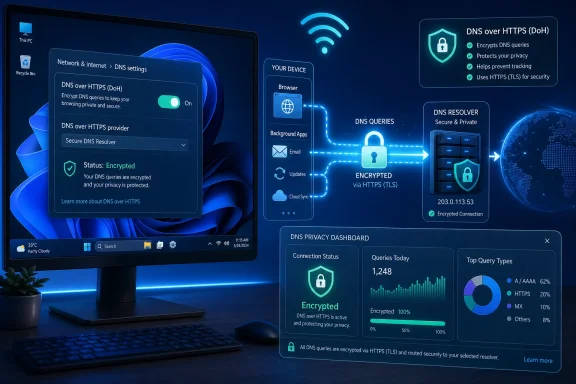
Windows 11’s DNS over HTTPS, commonly shortened to DoH, changes that by wrapping DNS queries inside encrypted HTTPS traffic. Instead of broadcasting domain lookups in a form that is easy to inspect, Windows can send those requests through a secure channel to a DoH-capable resolver. The result is not total anonymity, but it is a meaningful reduction in routine network exposure.
This matters because DNS is system-wide, not merely browser-specific. A browser may generate obvious lookups, but so do email clients, game launchers, cloud sync tools, antivirus products, Microsoft Store apps, telemetry services, driver utilities, and background update agents. If privacy begins with reducing unnecessary leakage, encrypted DNS belongs near the top of any Windows 11 checklist.
A single domain lookup may not reveal much on its own. A pattern of lookups, however, can map news preferences, banking providers, health portals, streaming services, work tools, gaming platforms, and smart-home dashboards. That is why metadata is so valuable: it does not need to include the content of a message to say a great deal about the person behind it.
Traditional DNS also creates a mismatch with user expectations. Many people see the browser padlock and assume the entire journey is private from end to end. In reality, the padlock protects the web connection after name resolution, while ordinary DNS can remain exposed before that secure tunnel is established.
Key DNS leakage points include:
There are other visible pieces of connection metadata too, including IP addresses and traffic timing. DoH does not erase those, and it should not be sold as a cloak of invisibility. That distinction matters, because overpromising privacy tools often leads users to misunderstand what is protected and what remains exposed.
Still, encrypting DNS closes a very practical gap. If an ISP, hotspot operator, or local network observer can no longer read plain-text DNS requests, one of the easiest sources of browsing intelligence disappears. That is a worthwhile gain even if it is not a complete privacy solution.
The key is to switch DNS assignment from automatic to manual, enter a resolver that supports DoH, and then set the DNS encryption option to encrypted mode. Windows can display an “Encrypted” label beside configured DNS servers when the setup is working. That small label is more important than it looks, because it confirms that Windows is not merely using a different resolver but is encrypting the actual DNS transport.
Microsoft’s implementation is significant because it sits at the operating system layer. Browser-level DoH has existed for years, but it only covers lookups made by that browser. Windows-level DoH can protect name resolution across the machine, which is the right level for a feature that concerns every network-aware application.
A typical manual setup involves:
That does not mean fallback is always reckless. In enterprise environments, administrators may deliberately allow fallback to preserve connectivity or support internal domains. On a personal PC, however, users enabling DoH for privacy usually want a stricter posture.
The best consumer-friendly rule is simple: if you are turning on encrypted DNS because you do not want routine lookups exposed, do not leave an easy path back to unencrypted DNS. Privacy features should fail visibly rather than quietly disappear. That is especially true when users assume a setting remains active after they configure it.
Cloudflare is widely associated with speed and a privacy-forward consumer pitch. Google’s resolver is known for reliability and scale, though some privacy-conscious users are uncomfortable giving more metadata to an advertising giant. Quad9 emphasizes security filtering, especially blocking access to known malicious domains.
There is no universally correct answer. The right resolver depends on whether the user prioritizes speed, malware blocking, jurisdiction, auditing practices, logging limits, or compatibility. Privacy is rarely a single switch; it is a chain of trust decisions.
Common resolver considerations include:
DoH strengthens that move by preventing local observers from reading queries in transit. Without encryption, switching from ISP DNS to a third-party resolver may stop the ISP’s resolver from answering queries, but it does not necessarily prevent network-level visibility. Encrypted transport is what turns a resolver change into a more meaningful privacy upgrade.
There is an important caveat: the chosen resolver still receives the queries. DoH shifts trust away from the ISP or local network and toward the encrypted DNS provider. That is usually better for users who trust a specialist resolver more than their broadband provider, but it is not the same as eliminating trust altogether.
This is especially relevant because IPv6 is no longer exotic. Many ISPs deploy it by default, and many home routers enable it automatically. Users may never see or think about IPv6, but Windows can use it quietly in the background.
The practical recommendation is straightforward: configure both IPv4 and IPv6 DNS when your network supports both. If your chosen provider offers IPv6 resolver addresses, enter the matching pair and enable encrypted DNS for them as well. A privacy configuration is only as strong as the paths it actually covers.
Checklist for avoiding partial protection:
This is not a Windows-specific flaw so much as a network reality. Any system that supports multiple routes and resolver paths can leak through the path the user forgot to configure. VPN users have seen similar problems for years when IPv6 traffic escapes a tunnel built primarily around IPv4.
For Windows 11 users, the lesson is that system-level privacy requires system-level thinking. It is not enough to secure the most visible setting. You have to account for the secondary path, the automatic fallback, and the background service that behaves differently from your browser.
Windows 11’s system-level DoH is broader. When properly configured, it can encrypt DNS requests made by desktop apps, Store apps, system services, and background processes. For privacy-conscious users, that difference is not subtle.
Consider how many programs now behave like web clients. Messaging apps, launchers, sync tools, note apps, music clients, VPN updaters, printer software, and even RGB utilities may contact remote domains. Browser-only privacy does nothing for those lookups.
System-level DoH helps cover:
There are trade-offs, though. Multiple DNS layers can make troubleshooting harder, especially when parental controls, enterprise filters, or security products depend on DNS inspection. A browser using its own resolver may bypass network policies that the router or organization expects to enforce.
For most personal Windows 11 PCs, the cleaner model is to configure DoH at the OS level first. Then users can decide whether browser-level DoH should follow the system resolver or use a separate provider. The important part is understanding which layer is responsible for which traffic.
DoH makes that kind of interference harder because the DNS conversation is protected in transit. It does not replace browser certificate validation, anti-phishing tools, or endpoint security, but it removes an easy opportunity for local tampering. On untrusted networks, that matters.
DNS hijacking can be particularly dangerous because it happens before users notice anything is wrong. A fake login page may look convincing, especially if the attacker pairs redirection with social engineering. Reducing opportunities for redirection is a basic but valuable defense.
Security advantages include:
That limitation is not a weakness; it is just scope. DNS over HTTPS solves a DNS transport problem. A VPN solves a different problem by routing traffic through an encrypted tunnel to another network endpoint.
The two technologies can complement each other, but they can also conflict if configured poorly. Some VPNs operate their own DNS resolvers to prevent leaks, and overriding those settings at the Windows level may reduce the VPN’s intended protection. Users should test carefully rather than stacking privacy tools blindly.
Microsoft provides policy controls because organizations need predictable behavior. Administrators may permit, require, or prohibit DoH depending on environment. That flexibility is essential because a laptop at home, a domain-joined workstation in an office, and a regulated trading desk have different risk profiles.
The enterprise issue is not whether DNS should be encrypted in principle. It is where decryption, logging, filtering, and policy enforcement should occur. In many corporate networks, DNS is part of the security nervous system.
Enterprise teams should evaluate:
At the same time, zero trust also requires visibility and verification. A company cannot secure what it cannot observe, and DNS telemetry remains one of the most useful signals for detecting compromised devices. The challenge is to protect users from hostile networks without blinding defenders.
A mature enterprise approach may use approved encrypted resolvers, endpoint policies, secure web gateways, and managed VPN profiles. The goal is not to leave every user choosing a public resolver at random. It is to make encrypted DNS part of a controlled architecture rather than an unmanaged privacy rebellion.
Home users face a messy environment. Routers may be outdated, ISP defaults may favor convenience over privacy, and family devices may connect through a mix of wired, Wi-Fi, guest, and mobile hotspot networks. Encrypting DNS on the PC itself gives the user control even when the router is not ideal.
This is especially useful for laptops. A desktop may spend its life on one trusted home network, but a notebook roams between offices, hotels, airports, universities, and tethered phone connections. System-level DoH travels with the machine.
Consumer benefits include:
The value of DoH on public Wi-Fi is that it limits what the network operator or nearby attacker can trivially inspect at the DNS layer. That does not mean the user can ignore browser warnings, download random installers, or sign into sensitive accounts on compromised machines. Security remains cumulative.
The best message for consumers is balanced: DoH is worth enabling, but it is not magic. It closes one leak, and closing one leak is still worthwhile. Privacy improves through a series of boring, practical defaults that reduce exposure without demanding heroic behavior.
The sequence matters because partial configuration can create confusion. Entering a resolver address is not enough if encrypted DNS remains off. Likewise, enabling DoH for one address family while leaving another on automatic can produce inconsistent privacy.
A careful setup looks like this:
Users should also retest after changing networks. A laptop may behave differently on Ethernet, Wi-Fi, mobile hotspot, or corporate VPN. Network adapters can have separate DNS settings, and Windows profiles may not all inherit the same configuration.
Finally, users should remember that routers can still influence devices configured to use automatic DNS. If the Windows PC has manual encrypted DNS, it is less dependent on router DNS. But phones, tablets, consoles, and smart TVs may still use whatever the router hands out unless configured separately.
Windows has a unique challenge because it serves consumers, gamers, schools, small businesses, enterprises, governments, and industrial environments. A privacy default that works beautifully for a home laptop may disrupt a corporate network. That complexity often makes Microsoft more cautious than browser vendors.
Still, Windows-level DoH is strategically important. It lets Microsoft offer modern encrypted DNS without forcing users into a Microsoft resolver or browser. That platform-level neutrality may help Windows remain flexible while still keeping pace with privacy expectations.
Platform implications include:
Router makers also have an opportunity. Many home routers still treat DNS settings as a technical afterthought, buried behind dated interfaces and confusing terminology. A router that makes encrypted DNS easy for the whole household could provide a better experience than configuring each device manually.
The market is moving toward privacy as a feature, not an ideology. Users increasingly expect encryption by default, and products that expose old cleartext assumptions look stale. DNS is simply the latest layer where that pressure is becoming visible.
The more difficult question is governance. Consumers want privacy from ISPs and hotspot operators, while enterprises want visibility into threats and policy violations. Microsoft’s challenge is to keep giving users stronger protections without creating a support nightmare for administrators.
The next developments to watch include:
Source: MakeUseOf Your ISP has been watching your browsing this whole time — here's the Windows 11 fix
 Overview
For decades, Domain Name System lookups have been the invisible prelude to almost every internet connection. When a Windows PC needs to reach a site or service, it first asks a DNS resolver to translate a human-readable domain name into an IP address. That translation is essential, but traditional DNS was designed in a less hostile era, before coffee-shop Wi-Fi, mass tracking, commercial data brokerage, and pervasive encrypted web traffic became normal.The awkward privacy gap is that classic DNS usually travels in plain text. HTTPS protects the contents of a web session, but a normal DNS query can still reveal the destination domain before the encrypted session even begins. That means an observer may not see the exact article, search result, or account page you visited, but they can often see which service your machine tried to reach.
Windows 11’s DNS over HTTPS, commonly shortened to DoH, changes that by wrapping DNS queries inside encrypted HTTPS traffic. Instead of broadcasting domain lookups in a form that is easy to inspect, Windows can send those requests through a secure channel to a DoH-capable resolver. The result is not total anonymity, but it is a meaningful reduction in routine network exposure.
This matters because DNS is system-wide, not merely browser-specific. A browser may generate obvious lookups, but so do email clients, game launchers, cloud sync tools, antivirus products, Microsoft Store apps, telemetry services, driver utilities, and background update agents. If privacy begins with reducing unnecessary leakage, encrypted DNS belongs near the top of any Windows 11 checklist.
Why DNS Still Leaks So Much
The internet’s address book problem
DNS is often described as the internet’s phone book, but that analogy understates how frequently it is consulted. A modern Windows 11 session may trigger hundreds or thousands of lookups across a day, many from services the user never opens directly. Each lookup can disclose intent, habit, timing, and sometimes sensitive context.A single domain lookup may not reveal much on its own. A pattern of lookups, however, can map news preferences, banking providers, health portals, streaming services, work tools, gaming platforms, and smart-home dashboards. That is why metadata is so valuable: it does not need to include the content of a message to say a great deal about the person behind it.
Traditional DNS also creates a mismatch with user expectations. Many people see the browser padlock and assume the entire journey is private from end to end. In reality, the padlock protects the web connection after name resolution, while ordinary DNS can remain exposed before that secure tunnel is established.
Key DNS leakage points include:
- Domain names requested by browsers
- Background app update checks
- Cloud synchronization endpoints
- Email provider connections
- Game launcher and DRM services
- Operating system telemetry domains
- Captive portal and public Wi-Fi checks
Why HTTPS alone is not enough
HTTPS made the web dramatically safer by encrypting page contents and protecting credentials in transit. It also made passive content inspection much harder for network operators and attackers. But HTTPS does not automatically hide every destination signal, especially when DNS resolution happens outside the encrypted web session.There are other visible pieces of connection metadata too, including IP addresses and traffic timing. DoH does not erase those, and it should not be sold as a cloak of invisibility. That distinction matters, because overpromising privacy tools often leads users to misunderstand what is protected and what remains exposed.
Still, encrypting DNS closes a very practical gap. If an ISP, hotspot operator, or local network observer can no longer read plain-text DNS requests, one of the easiest sources of browsing intelligence disappears. That is a worthwhile gain even if it is not a complete privacy solution.
The Windows 11 Fix Hidden in Settings
Where Microsoft put the control
Windows 11 supports encrypted DNS directly through its networking interface. Users can configure it from Settings by opening Network & Internet, choosing Wi-Fi or Ethernet, selecting the active hardware properties, and editing DNS server assignment. The interface is not especially dramatic, which may be one reason many users never notice it.The key is to switch DNS assignment from automatic to manual, enter a resolver that supports DoH, and then set the DNS encryption option to encrypted mode. Windows can display an “Encrypted” label beside configured DNS servers when the setup is working. That small label is more important than it looks, because it confirms that Windows is not merely using a different resolver but is encrypting the actual DNS transport.
Microsoft’s implementation is significant because it sits at the operating system layer. Browser-level DoH has existed for years, but it only covers lookups made by that browser. Windows-level DoH can protect name resolution across the machine, which is the right level for a feature that concerns every network-aware application.
A typical manual setup involves:
- Opening Settings
- Selecting Network & Internet
- Choosing Wi-Fi or Ethernet
- Opening hardware properties
- Editing DNS server assignment
- Entering DoH-capable resolver addresses
- Enabling encrypted DNS
- Disabling fallback to plain text where possible
The fallback setting deserves attention
One of the most important details is the fallback behavior. If Windows is allowed to fall back to plain-text DNS whenever encrypted DNS fails, the privacy benefit can become inconsistent. The system may appear configured for encrypted DNS while silently reverting under certain failure conditions.That does not mean fallback is always reckless. In enterprise environments, administrators may deliberately allow fallback to preserve connectivity or support internal domains. On a personal PC, however, users enabling DoH for privacy usually want a stricter posture.
The best consumer-friendly rule is simple: if you are turning on encrypted DNS because you do not want routine lookups exposed, do not leave an easy path back to unencrypted DNS. Privacy features should fail visibly rather than quietly disappear. That is especially true when users assume a setting remains active after they configure it.
Choosing a DNS Provider Is a Privacy Decision
Not all resolvers are equal
Turning on DoH requires choosing a DNS resolver that supports encrypted queries. Popular options include Cloudflare, Google Public DNS, and Quad9, each with different reputations and trade-offs. The resolver becomes the party that sees your DNS queries, so the choice is not merely technical.Cloudflare is widely associated with speed and a privacy-forward consumer pitch. Google’s resolver is known for reliability and scale, though some privacy-conscious users are uncomfortable giving more metadata to an advertising giant. Quad9 emphasizes security filtering, especially blocking access to known malicious domains.
There is no universally correct answer. The right resolver depends on whether the user prioritizes speed, malware blocking, jurisdiction, auditing practices, logging limits, or compatibility. Privacy is rarely a single switch; it is a chain of trust decisions.
Common resolver considerations include:
- Logging policy
- Jurisdiction and legal exposure
- Malware and phishing protection
- Performance in your region
- IPv6 support
- Support for encrypted DNS standards
- Transparency reports or independent audits
The ISP is no longer the default authority
Most home networks automatically use DNS servers provided by the internet service provider. That default is convenient, but it also gives the ISP a privileged view of household domain resolution. For many users, changing DNS providers is the first real act of network self-determination.DoH strengthens that move by preventing local observers from reading queries in transit. Without encryption, switching from ISP DNS to a third-party resolver may stop the ISP’s resolver from answering queries, but it does not necessarily prevent network-level visibility. Encrypted transport is what turns a resolver change into a more meaningful privacy upgrade.
There is an important caveat: the chosen resolver still receives the queries. DoH shifts trust away from the ISP or local network and toward the encrypted DNS provider. That is usually better for users who trust a specialist resolver more than their broadband provider, but it is not the same as eliminating trust altogether.
IPv6 Can Undermine a Half-Finished Setup
The leak many users forget
A Windows 11 PC may use both IPv4 and IPv6, depending on the network and internet provider. If a user configures encrypted DNS only for IPv4 but leaves IPv6 DNS on automatic settings, the system may still send some lookups through unencrypted IPv6 resolvers. That creates a leak that defeats the spirit of the change.This is especially relevant because IPv6 is no longer exotic. Many ISPs deploy it by default, and many home routers enable it automatically. Users may never see or think about IPv6, but Windows can use it quietly in the background.
The practical recommendation is straightforward: configure both IPv4 and IPv6 DNS when your network supports both. If your chosen provider offers IPv6 resolver addresses, enter the matching pair and enable encrypted DNS for them as well. A privacy configuration is only as strong as the paths it actually covers.
Checklist for avoiding partial protection:
- Check whether IPv6 is enabled
- Use matching IPv4 and IPv6 resolver sets
- Confirm the “Encrypted” status for each server
- Avoid mixing encrypted and unencrypted resolvers
- Retest after switching networks
- Review settings after major Windows updates
Why dual-stack networking complicates privacy
Dual-stack networks are useful because they support both address families during the long transition from IPv4 to IPv6. The downside is complexity. A privacy setting that appears complete in one protocol may be incomplete in the other.This is not a Windows-specific flaw so much as a network reality. Any system that supports multiple routes and resolver paths can leak through the path the user forgot to configure. VPN users have seen similar problems for years when IPv6 traffic escapes a tunnel built primarily around IPv4.
For Windows 11 users, the lesson is that system-level privacy requires system-level thinking. It is not enough to secure the most visible setting. You have to account for the secondary path, the automatic fallback, and the background service that behaves differently from your browser.
Browser DoH vs Windows DoH
Why system-level protection matters
Chrome, Edge, Firefox, and other modern browsers can use encrypted DNS on their own. That is useful, especially on systems where users cannot change operating system settings. But browser DoH only protects browser-generated queries, which leaves a large part of the Windows ecosystem uncovered.Windows 11’s system-level DoH is broader. When properly configured, it can encrypt DNS requests made by desktop apps, Store apps, system services, and background processes. For privacy-conscious users, that difference is not subtle.
Consider how many programs now behave like web clients. Messaging apps, launchers, sync tools, note apps, music clients, VPN updaters, printer software, and even RGB utilities may contact remote domains. Browser-only privacy does nothing for those lookups.
System-level DoH helps cover:
- Microsoft Store app traffic
- Windows Update resolution
- Email client lookups
- Game launcher connections
- Cloud backup services
- Security software update checks
- Product activation services
When browser DoH still helps
Browser DoH remains useful as a second layer. If a Windows setting is misconfigured or unavailable on a managed device, browser-level encryption may still protect web browsing. It can also allow users to select a browser-specific resolver with different filtering or privacy properties.There are trade-offs, though. Multiple DNS layers can make troubleshooting harder, especially when parental controls, enterprise filters, or security products depend on DNS inspection. A browser using its own resolver may bypass network policies that the router or organization expects to enforce.
For most personal Windows 11 PCs, the cleaner model is to configure DoH at the OS level first. Then users can decide whether browser-level DoH should follow the system resolver or use a separate provider. The important part is understanding which layer is responsible for which traffic.
Security Benefits Beyond Privacy
Reducing DNS tampering risk
Encrypted DNS is often discussed as a privacy tool, but it also has security implications. Plain-text DNS can be vulnerable to manipulation by attackers on hostile networks. If a malicious hotspot or compromised router can interfere with DNS responses, it may redirect users to fraudulent destinations.DoH makes that kind of interference harder because the DNS conversation is protected in transit. It does not replace browser certificate validation, anti-phishing tools, or endpoint security, but it removes an easy opportunity for local tampering. On untrusted networks, that matters.
DNS hijacking can be particularly dangerous because it happens before users notice anything is wrong. A fake login page may look convincing, especially if the attacker pairs redirection with social engineering. Reducing opportunities for redirection is a basic but valuable defense.
Security advantages include:
- Protection against casual DNS snooping
- Reduced risk of local DNS manipulation
- Improved safety on public Wi-Fi
- More consistent resolver behavior
- Potential malware-domain blocking with security resolvers
- Less exposure to router-level DNS hijacks
DoH is not a VPN replacement
DoH does not hide your IP address from websites. It does not encrypt all traffic between your PC and the internet. It does not make torrenting anonymous, defeat workplace monitoring, or prevent a website from tracking you through cookies, accounts, browser fingerprints, or advertising identifiers.That limitation is not a weakness; it is just scope. DNS over HTTPS solves a DNS transport problem. A VPN solves a different problem by routing traffic through an encrypted tunnel to another network endpoint.
The two technologies can complement each other, but they can also conflict if configured poorly. Some VPNs operate their own DNS resolvers to prevent leaks, and overriding those settings at the Windows level may reduce the VPN’s intended protection. Users should test carefully rather than stacking privacy tools blindly.
Enterprise Impact: Useful, but Complicated
Managed networks need policy control
For businesses, encrypted DNS is both attractive and disruptive. It improves privacy and integrity, but it can also interfere with monitoring, internal resolution, content filtering, threat detection, and compliance workflows. Enterprises often depend on DNS visibility to detect malware, block phishing, and route internal resources.Microsoft provides policy controls because organizations need predictable behavior. Administrators may permit, require, or prohibit DoH depending on environment. That flexibility is essential because a laptop at home, a domain-joined workstation in an office, and a regulated trading desk have different risk profiles.
The enterprise issue is not whether DNS should be encrypted in principle. It is where decryption, logging, filtering, and policy enforcement should occur. In many corporate networks, DNS is part of the security nervous system.
Enterprise teams should evaluate:
- Internal domain resolution requirements
- DNS logging for incident response
- Security information and event management integrations
- Content filtering and acceptable-use policies
- Split-tunnel VPN behavior
- Device management baselines
- User education and help desk impact
The zero trust angle
Encrypted DNS fits naturally into zero trust thinking when it is deployed intentionally. If every network is potentially hostile, then unencrypted resolver traffic should not be assumed safe just because the device is on a familiar LAN. That logic supports encrypting DNS on mobile workstations and remote endpoints.At the same time, zero trust also requires visibility and verification. A company cannot secure what it cannot observe, and DNS telemetry remains one of the most useful signals for detecting compromised devices. The challenge is to protect users from hostile networks without blinding defenders.
A mature enterprise approach may use approved encrypted resolvers, endpoint policies, secure web gateways, and managed VPN profiles. The goal is not to leave every user choosing a public resolver at random. It is to make encrypted DNS part of a controlled architecture rather than an unmanaged privacy rebellion.
Consumer Impact: A Rare Free Privacy Win
Why this matters at home
For ordinary Windows 11 users, DoH is appealing because it is free, built in, and relatively easy to enable. It does not require a subscription, a browser migration, or deep technical expertise. That makes it one of the more accessible privacy improvements available on a modern PC.Home users face a messy environment. Routers may be outdated, ISP defaults may favor convenience over privacy, and family devices may connect through a mix of wired, Wi-Fi, guest, and mobile hotspot networks. Encrypting DNS on the PC itself gives the user control even when the router is not ideal.
This is especially useful for laptops. A desktop may spend its life on one trusted home network, but a notebook roams between offices, hotels, airports, universities, and tethered phone connections. System-level DoH travels with the machine.
Consumer benefits include:
- No additional software required
- Protection across apps, not just browsers
- Better privacy on shared networks
- Reduced dependence on ISP DNS defaults
- Simple confirmation through Windows settings
- Compatibility with major public resolvers
The public Wi-Fi reality check
Public Wi-Fi is not automatically the digital death trap some marketing suggests, especially now that HTTPS is widespread. But public networks remain environments where users should assume local observation and manipulation are more likely. DNS encryption is a sensible layer in that setting.The value of DoH on public Wi-Fi is that it limits what the network operator or nearby attacker can trivially inspect at the DNS layer. That does not mean the user can ignore browser warnings, download random installers, or sign into sensitive accounts on compromised machines. Security remains cumulative.
The best message for consumers is balanced: DoH is worth enabling, but it is not magic. It closes one leak, and closing one leak is still worthwhile. Privacy improves through a series of boring, practical defaults that reduce exposure without demanding heroic behavior.
Step-by-Step: A Sensible Windows 11 DoH Setup
A practical configuration path
Windows 11’s Settings app is the safest path for most users. Command-line tools exist, but the graphical interface is less intimidating and easier to verify. Users should start by choosing a trusted resolver, then configure both IPv4 and IPv6 where applicable.The sequence matters because partial configuration can create confusion. Entering a resolver address is not enough if encrypted DNS remains off. Likewise, enabling DoH for one address family while leaving another on automatic can produce inconsistent privacy.
A careful setup looks like this:
- Open Settings and go to Network & Internet.
- Select the active connection, either Wi-Fi or Ethernet.
- Open the connection’s hardware properties.
- Find DNS server assignment and choose Edit.
- Change the mode from automatic to Manual.
- Enable IPv4 and enter a preferred and alternate DoH-capable resolver.
- Set DNS encryption to Encrypted only or the available encrypted template.
- Disable plain-text fallback if the interface offers that option.
- Repeat the process for IPv6 if your network uses it.
- Save, return to hardware properties, and confirm the Encrypted label appears.
Verifying instead of assuming
Verification is the difference between privacy theater and privacy improvement. Windows should show whether configured DNS servers are encrypted, and users can also check resolver status through browser-based test pages from reputable DNS providers. The operating system indicator is the first place to look.Users should also retest after changing networks. A laptop may behave differently on Ethernet, Wi-Fi, mobile hotspot, or corporate VPN. Network adapters can have separate DNS settings, and Windows profiles may not all inherit the same configuration.
Finally, users should remember that routers can still influence devices configured to use automatic DNS. If the Windows PC has manual encrypted DNS, it is less dependent on router DNS. But phones, tablets, consoles, and smart TVs may still use whatever the router hands out unless configured separately.
The Competitive and Platform Angle
Microsoft’s quiet advantage
Microsoft’s inclusion of DoH in Windows 11 reflects a broader shift toward privacy features becoming operating system defaults rather than niche add-ons. Apple, Google, Mozilla, and Microsoft have all moved pieces of internet privacy deeper into their platforms. The competition is no longer just about browser features; it is about who controls the secure defaults for everyday connectivity.Windows has a unique challenge because it serves consumers, gamers, schools, small businesses, enterprises, governments, and industrial environments. A privacy default that works beautifully for a home laptop may disrupt a corporate network. That complexity often makes Microsoft more cautious than browser vendors.
Still, Windows-level DoH is strategically important. It lets Microsoft offer modern encrypted DNS without forcing users into a Microsoft resolver or browser. That platform-level neutrality may help Windows remain flexible while still keeping pace with privacy expectations.
Platform implications include:
- Operating systems absorbing privacy features once handled by add-ons
- Browsers losing exclusive control over encrypted DNS behavior
- Public resolvers competing on trust, speed, and filtering
- ISPs facing weaker default visibility into subscriber DNS
- Enterprises needing clearer endpoint DNS governance
Pressure on ISPs and router makers
If more users enable encrypted DNS on Windows, ISP-provided resolvers become less central. That may reduce the value of DNS data for analytics, advertising, troubleshooting, or traffic management. It may also push ISPs to offer clearer privacy commitments for their own encrypted resolver services.Router makers also have an opportunity. Many home routers still treat DNS settings as a technical afterthought, buried behind dated interfaces and confusing terminology. A router that makes encrypted DNS easy for the whole household could provide a better experience than configuring each device manually.
The market is moving toward privacy as a feature, not an ideology. Users increasingly expect encryption by default, and products that expose old cleartext assumptions look stale. DNS is simply the latest layer where that pressure is becoming visible.
Strengths and Opportunities
Windows 11’s DNS over HTTPS support is a strong example of a small setting with an outsized privacy payoff. Its biggest strength is not novelty, but placement: by living at the operating system layer, it can protect far more than browser traffic while requiring little ongoing maintenance from the user.- System-wide coverage helps protect DNS requests from browsers, apps, and background services.
- No subscription cost makes the feature accessible to users who cannot justify a paid privacy tool.
- Native Windows integration reduces dependence on third-party utilities and extensions.
- Public resolver choice allows users to prioritize speed, privacy, security filtering, or reliability.
- Public Wi-Fi protection reduces casual DNS inspection on shared and untrusted networks.
- Security resolver support can add malware and phishing domain blocking for users who choose it.
- Enterprise policy controls give administrators a path to deploy encrypted DNS without losing governance.
Risks and Concerns
The main risk is not that DoH is bad, but that users misunderstand it. A feature that encrypts DNS can easily be mistaken for a complete anonymity tool, and that misconception could encourage unsafe behavior. Windows 11 users should treat DoH as one layer in a broader privacy and security model.- Resolver trust shifts rather than disappears, because the DoH provider can still see queries.
- Plain-text fallback may undermine privacy if users leave it enabled without realizing the effect.
- IPv6 misconfiguration can create leaks when only IPv4 DNS is encrypted.
- VPN conflicts may occur if Windows DNS settings override a VPN’s own leak protection.
- Enterprise monitoring gaps can appear if unmanaged DoH bypasses approved DNS infrastructure.
- Parental controls and filtering may break if DNS traffic no longer uses the expected resolver.
- Overconfidence may lead users to ignore cookies, fingerprinting, malware, phishing, or account-based tracking.
Looking Ahead
Encrypted DNS is likely to become less of a special setting and more of a baseline expectation. Windows 11 already supports the concept, and future Windows releases could make encrypted resolver discovery easier, improve warnings around fallback, or guide users toward complete IPv4 and IPv6 configurations. The long-term direction is clear: cleartext DNS looks increasingly out of place on a web where encryption is the norm.The more difficult question is governance. Consumers want privacy from ISPs and hotspot operators, while enterprises want visibility into threats and policy violations. Microsoft’s challenge is to keep giving users stronger protections without creating a support nightmare for administrators.
The next developments to watch include:
- Better Windows setup prompts that explain encrypted DNS in plain language.
- More routers offering household-wide encrypted DNS without manual device configuration.
- Enterprise tools for managed encrypted resolver policies across remote and hybrid workforces.
- Greater public scrutiny of DNS resolver logging practices and jurisdictional risk.
- Closer integration between DNS encryption, VPN clients, and secure web gateways.
Source: MakeUseOf Your ISP has been watching your browsing this whole time — here's the Windows 11 fix
